-
Qt中的窗口类
文章目录
1. QWidget
QWidget类是所有窗口类的父类(控件类是也属于窗口类), 并且QWidget类的父类的QObject, 也就意味着所有的窗口类对象只要指定了父对象, 都可以实现内存资源的自动回收。这里给大家介绍一下关于这个类常用的一些API函数。
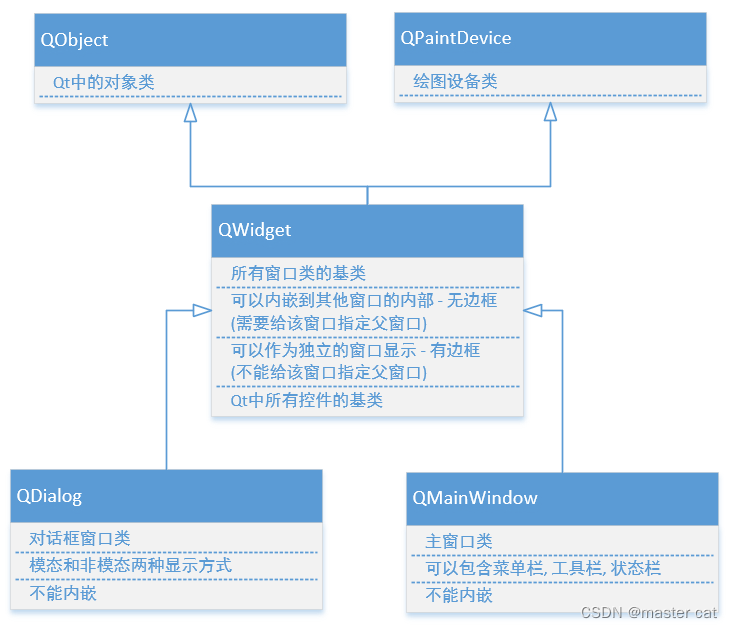
1. QWidget
QWidget类是所有窗口类的父类(控件类是也属于窗口类), 并且QWidget类的父类的QObject, 也就意味着所有的窗口类对象只要指定了父对象, 都可以实现内存资源的自动回收。这里给大家介绍一下关于这个类常用的一些API函数。
// 构造函数 QWidget::QWidget(QWidget *parent = nullptr, Qt::WindowFlags f = Qt::WindowFlags()); // 公共成员函数 // 给当前窗口设置父对象 void QWidget::setParent(QWidget *parent); void QWidget::setParent(QWidget *parent, Qt::WindowFlags f); // 获取当前窗口的父对象, 没有父对象返回 nullptr QWidget *QWidget::parentWidget() const; //------------- 窗口位置 ------------- // 得到相对于当前窗口父窗口的几何信息, 边框也被计算在内 QRect QWidget::frameGeometry() const; // 得到相对于当前窗口父窗口的几何信息, 不包括边框 const QRect &geometry() const; // 设置当前窗口的几何信息(位置和尺寸信息), 不包括边框 void setGeometry(int x, int y, int w, int h); void setGeometry(const QRect &); // 移动窗口, 重新设置窗口的位置 void move(int x, int y); void move(const QPoint &); //------------- 窗口尺寸 ------------- // 获取当前窗口的尺寸信息 QSize size() const // 重新设置窗口的尺寸信息 void resize(int w, int h); void resize(const QSize &); // 获取当前窗口的最大尺寸信息 QSize maximumSize() const; // 获取当前窗口的最小尺寸信息 QSize minimumSize() const; // 设置当前窗口固定的尺寸信息 void QWidget::setFixedSize(const QSize &s); void QWidget::setFixedSize(int w, int h); // 设置当前窗口的最大尺寸信息 void setMaximumSize(const QSize &); void setMaximumSize(int maxw, int maxh); // 设置当前窗口的最小尺寸信息 void setMinimumSize(const QSize &); void setMinimumSize(int minw, int minh); // 获取当前窗口的高度 int height() const; // 获取当前窗口的最小高度 int minimumHeight() const; // 获取当前窗口的最大高度 int maximumHeight() const; // 给窗口设置固定的高度 void QWidget::setFixedHeight(int h); // 给窗口设置最大高度 void setMaximumHeight(int maxh); // 给窗口设置最小高度 void setMinimumHeight(int minh); // 获取当前窗口的宽度 int width() const; // 获取当前窗口的最小宽度 int minimumWidth() const; // 获取当前窗口的最大宽度 int maximumWidth() const; // 给窗口设置固定宽度 void QWidget::setFixedWidth(int w); // 给窗口设置最大宽度 void setMaximumWidth(int maxw); // 给窗口设置最小宽度 void setMinimumWidth(int minw); //------------- 窗口图标 ------------- // 得到当前窗口的图标 QIcon windowIcon() const; // 构造图标对象, 参数为图片的路径 QIcon::QIcon(const QString &fileName); // 设置当前窗口的图标 void setWindowIcon(const QIcon &icon); //------------- 窗口标题 ------------- // 得到当前窗口的标题 QString windowTitle() const; // 设置当前窗口的标题 void setWindowTitle(const QString &); // 判断窗口是否可用 bool isEnabled() const; // 设置窗口是否可用, 不可用窗口无法接收和处理窗口事件 void setEnabled(bool); //------------- 窗口显示 ------------- // 关闭当前窗口 [slot] bool QWidget::close(); // 隐藏当前窗口 [slot] void QWidget::hide(); // 显示当前创建以及其子窗口 [slot] void QWidget::show(); // 全屏显示当前窗口, 只对windows有效 [slot] void QWidget::showFullScreen(); // 窗口最大化显示, 只对windows有效 [slot] void QWidget::showMaximized(); // 窗口最小化显示, 只对windows有效 [slot] void QWidget::showMinimized(); // 将窗口回复为最大化/最小化之前的状态, 只对windows有效 [slot] void QWidget::showNormal(); //------------- 信号 ------------- // QWidget::setContextMenuPolicy(Qt::ContextMenuPolicy policy); // 窗口的右键菜单策略 contextMenuPolicy() 参数设置为 Qt::CustomContextMenu, 按下鼠标右键发射该信号 [signal] void QWidget::customContextMenuRequested(const QPoint &pos); // 窗口图标发生变化, 发射此信号 [signal] void QWidget::windowIconChanged(const QIcon &icon); // 窗口标题发生变化, 发射此信号 [signal] void QWidget::windowTitleChanged(const QString &title);- 1
- 2
- 3
- 4
- 5
- 6
- 7
- 8
- 9
- 10
- 11
- 12
- 13
- 14
- 15
- 16
- 17
- 18
- 19
- 20
- 21
- 22
- 23
- 24
- 25
- 26
- 27
- 28
- 29
- 30
- 31
- 32
- 33
- 34
- 35
- 36
- 37
- 38
- 39
- 40
- 41
- 42
- 43
- 44
- 45
- 46
- 47
- 48
- 49
- 50
- 51
- 52
- 53
- 54
- 55
- 56
- 57
- 58
- 59
- 60
- 61
- 62
- 63
- 64
- 65
- 66
- 67
- 68
- 69
- 70
- 71
- 72
- 73
- 74
- 75
- 76
- 77
- 78
- 79
- 80
- 81
- 82
- 83
- 84
- 85
- 86
- 87
- 88
- 89
- 90
- 91
- 92
- 93
- 94
- 95
- 96
- 97
- 98
- 99
- 100
- 101
- 102
- 103
- 104
- 105
- 106
- 107
- 108
- 109
- 110
- 111
- 112
- 113
- 114
2. QDialog
对话框类是QWidget类的子类, 处理继承自父类的属性之外, 还有一些自己所特有的属性, 常用的一些API函数如下:
// 构造函数 QDialog::QDialog(QWidget *parent = nullptr, Qt::WindowFlags f = Qt::WindowFlags()); // 模态显示窗口 [virtual slot] int QDialog::exec(); // 隐藏模态窗口, 并且解除模态窗口的阻塞, 将 exec() 的返回值设置为 QDialog::Accepted [virtual slot] void QDialog::accept(); // 隐藏模态窗口, 并且解除模态窗口的阻塞, 将 exec() 的返回值设置为 QDialog::Rejected [virtual slot] void QDialog::reject(); // 关闭对话框并将其结果代码设置为r。finished()信号将发出r; // 如果r是QDialog::Accepted 或 QDialog::Rejected,则还将分别发出accept()或Rejected()信号。 [virtual slot] void QDialog::done(int r); [signal] void QDialog::accepted(); [signal] void QDialog::rejected(); [signal] void QDialog::finished(int result);- 1
- 2
- 3
- 4
- 5
- 6
- 7
- 8
- 9
- 10
- 11
- 12
- 13
- 14
- 15
- 16
2.1 QMessageBox
QMessageBox 对话框类是 QDialog 类的子类, 通过这个类可以显示一些简单的提示框, 用于展示警告、错误、问题等信息。关于这个类我们只需要掌握一些静态方法的使用就可以了。
// 显示一个模态对话框, 将参数 text 的信息展示到窗口中 [static] void QMessageBox::about(QWidget *parent, const QString &title, const QString &text); /* 参数: - parent: 对话框窗口的父窗口 - title: 对话框窗口的标题 - text: 对话框窗口中显示的提示信息 - buttons: 对话框窗口中显示的按钮(一个或多个) - defaultButton 1. defaultButton指定按下Enter键时使用的按钮。 2. defaultButton必须引用在参数 buttons 中给定的按钮。 3. 如果defaultButton是QMessageBox::NoButton, QMessageBox会自动选择一个合适的默认值。 */ // 显示一个信息模态对话框 [static] QMessageBox::StandardButton QMessageBox::information(QWidget *parent, const QString &title, const QString &text, QMessageBox::StandardButtons buttons = Ok, QMessageBox::StandardButton defaultButton = NoButton); // 显示一个错误模态对话框 [static] QMessageBox::StandardButton QMessageBox::critical(QWidget *parent, const QString &title, const QString &text, QMessageBox::StandardButtons buttons = Ok, QMessageBox::StandardButton defaultButton = NoButton); // 显示一个问题模态对话框 [static] QMessageBox::StandardButton QMessageBox::question(QWidget *parent, const QString &title, const QString &text, QMessageBox::StandardButtons buttons = StandardButtons(Yes | No), QMessageBox::StandardButton defaultButton = NoButton); // 显示一个警告模态对话框 [static] QMessageBox::StandardButton QMessageBox::warning(QWidget *parent, const QString &title, const QString &text, QMessageBox::StandardButtons buttons = Ok, QMessageBox::StandardButton defaultButton = NoButton);- 1
- 2
- 3
- 4
- 5
- 6
- 7
- 8
- 9
- 10
- 11
- 12
- 13
- 14
- 15
- 16
- 17
- 18
- 19
- 20
- 21
- 22
- 23
- 24
- 25


2.2 QFileDialog
QFileDialog 对话框类是 QDialog 类的子类, 通过这个类可以选择要打开/保存的文件或者目录。关于这个类我们只需要掌握一些静态方法的使用就可以了。
/* 通用参数: - parent: 当前对话框窗口的父对象也就是父窗口 - caption: 当前对话框窗口的标题 - dir: 当前对话框窗口打开的默认目录 - options: 当前对话框窗口的一些可选项,枚举类型, 一般不需要进行设置, 使用默认值即可 - filter: 过滤器, 在对话框中只显示满足条件的文件, 可以指定多个过滤器, 使用 ;; 分隔 - 样式举例: - Images (*.png *.jpg) - Images (*.png *.jpg);;Text files (*.txt) - selectedFilter: 如果指定了多个过滤器, 通过该参数指定默认使用哪一个, 不指定默认使用第一个过滤器 */ // 打开一个目录, 得到这个目录的绝对路径 [static] QString QFileDialog::getExistingDirectory(QWidget *parent = nullptr, const QString &caption = QString(), const QString &dir = QString(), QFileDialog::Options options = ShowDirsOnly); // 打开一个文件, 得到这个文件的绝对路径 [static] QString QFileDialog::getOpenFileName(QWidget *parent = nullptr, const QString &caption = QString(), const QString &dir = QString(), const QString &filter = QString(), QString *selectedFilter = nullptr, QFileDialog::Options options = Options()); // 打开多个文件, 得到这多个文件的绝对路径 [static] QStringList QFileDialog::getOpenFileNames(QWidget *parent = nullptr, const QString &caption = QString(), const QString &dir = QString(), const QString &filter = QString(), QString *selectedFilter = nullptr, QFileDialog::Options options = Options()); // 打开一个目录, 使用这个目录来保存指定的文件 [static] QString QFileDialog::getSaveFileName(QWidget *parent = nullptr, const QString &caption = QString(), const QString &dir = QString(), const QString &filter = QString(), QString *selectedFilter = nullptr, QFileDialog::Options options = Options());- 1
- 2
- 3
- 4
- 5
- 6
- 7
- 8
- 9
- 10
- 11
- 12
- 13
- 14
- 15
- 16
- 17
- 18
- 19
- 20
- 21
- 22
- 23
2.3 QFontDialog
-
QFont 字体类
QFont::QFont(); /* 参数: - family: 本地字库中的字体名, 通过 office 等文件软件可以查看 - pointSize: 字体的字号 - weight: 字体的粗细, 有效范围为 0 ~ 99 - italic: 字体是否倾斜显示, 默认不倾斜 */ QFont::QFont(const QString &family, int pointSize = -1, int weight = -1, bool italic = false); // 设置字体 void QFont::setFamily(const QString &family); // 根据字号设置字体大小 void QFont::setPointSize(int pointSize); // 根据像素设置字体大小 void QFont::setPixelSize(int pixelSize); // 设置字体的粗细程度, 有效范围: 0 ~ 99 void QFont::setWeight(int weight); // 设置字体是否加粗显示 void QFont::setBold(bool enable); // 设置字体是否要倾斜显示 void QFont::setItalic(bool enable); // 获取字体相关属性(一般规律: 去掉设置函数的 set 就是获取相关属性对应的函数名) QString QFont::family() const; bool QFont::italic() const; int QFont::pixelSize() const; int QFont::pointSize() const; bool QFont::bold() const; int QFont::weight() const;- 1
- 2
- 3
- 4
- 5
- 6
- 7
- 8
- 9
- 10
- 11
- 12
- 13
- 14
- 15
- 16
- 17
- 18
- 19
- 20
- 21
- 22
- 23
- 24
- 25
- 26
- 27
- 28
- 29
- 30
-
QFontDialog类的静态API
[static] QFont QFontDialog::getFont(bool *ok, const QFont &initial, QWidget *parent = nullptr, const QString &title = QString(), QFontDialog::FontDialogOptions options = FontDialogOptions()); [static] QFont QFontDialog::getFont(bool *ok, QWidget *parent = nullptr);- 1
- 2
- 3
-
窗口字体的设置
// QWidget 类 // 得到当前窗口使用的字体 const QWidget::QFont& font() const; // 给当前窗口设置字体, 只对当前窗口类生效 void QWidget::setFont(const QFont &); // QApplication 类 // 得到当前应用程序对象使用的字体 [static] QFont QApplication::font(); // 给当前应用程序对象设置字体, 作用于当前应用程序的所有窗口 [static] void QApplication::setFont(const QFont &font, const char *className = nullptr);- 1
- 2
- 3
- 4
- 5
- 6
- 7
- 8
- 9
- 10
- 11
2.4 QColorDialog
-
颜色类 QColor
// 构造函数 QColor::QColor(Qt::GlobalColor color); QColor::QColor(int r, int g, int b, int a = ...); QColor::QColor(); // 参数 red, green, blue, alpha 取值范围是 0-255 void QColor::setRed(int red); void QColor::setGreen(int green); void QColor::setBlue(int blue); void QColor::setAlpha(int alpha); void QColor::setRgb(int r, int g, int b, int a = 255); int QColor::red() const; int QColor::green() const; int QColor::blue() const; int QColor::alpha() const; void QColor::getRgb(int *r, int *g, int *b, int *a = nullptr) const;- 1
- 2
- 3
- 4
- 5
- 6
- 7
- 8
- 9
- 10
- 11
- 12
- 13
- 14
- 15
- 16
- 17
-
QFontDialog类的静态API
// 弹出颜色选择对话框, 并返回选中的颜色信息 [static] QColor QColorDialog::getColor(const QColor &initial = Qt::white, QWidget *parent = nullptr, const QString &title = QString(), QColorDialog::ColorDialogOptions options = ColorDialogOptions());- 1
- 2
2.5 QInputDialog
[static] double QInputDialog::getDouble(QWidget *parent, const QString &title, const QString &label, double value = 0, double min = -2147483647, double max = 2147483647, int decimals = 1, bool *ok = nullptr, Qt::WindowFlags flags = Qt::WindowFlags()); [static] int QInputDialog::getInt(QWidget *parent, const QString &title, const QString &label, int value = 0, int min = -2147483647, int max = 2147483647, int step = 1, bool *ok = nullptr, Qt::WindowFlags flags = Qt::WindowFlags()); [static] QString QInputDialog::getItem(QWidget *parent, const QString &title, const QString &label, const QStringList &items, int current = 0, bool editable = true, bool *ok = nullptr, Qt::WindowFlags flags = Qt::WindowFlags(), Qt::InputMethodHints inputMethodHints = Qt::ImhNone) [static] QString QInputDialog::getMultiLineText(QWidget *parent, const QString &title, const QString &label, const QString &text = QString(), bool *ok = nullptr, Qt::WindowFlags flags = Qt::WindowFlags(), Qt::InputMethodHints inputMethodHints = Qt::ImhNone); [static] QString QInputDialog::getText(QWidget *parent, const QString &title, const QString &label, QLineEdit::EchoMode mode = QLineEdit::Normal, const QString &text = QString(), bool *ok = nullptr, Qt::WindowFlags flags = Qt::WindowFlags(), Qt::InputMethodHints inputMethodHints = Qt::ImhNone);- 1
- 2
- 3
- 4
- 5
- 6
- 7
- 8
- 9
- 10
2.6 QProgressDialog

// 构造函数 /* 参数: - labelText: 对话框中显示的提示信息 - cancelButtonText: 取消按钮上显示的文本信息 - minimum: 进度条最小值 - maximum: 进度条最大值 - parent: 当前窗口的父对象 - f: 当前进度窗口的flag属性, 使用默认属性即可, 无需设置 */ QProgressDialog::QProgressDialog(QWidget *parent = nullptr, Qt::WindowFlags f = Qt::WindowFlags()); QProgressDialog::QProgressDialog(const QString &labelText, const QString &cancelButtonText, int minimum, int maximum, QWidget *parent = nullptr, Qt::WindowFlags f = Qt::WindowFlags()); // 设置取消按钮显示的文本信息 [slot] void QProgressDialog::setCancelButtonText(const QString &cancelButtonText); // 公共成员函数和槽函数 QString QProgressDialog::labelText() const; void QProgressDialog::setLabelText(const QString &text); // 得到进度条最小值 int QProgressDialog::minimum() const; // 设置进度条最小值 void QProgressDialog::setMinimum(int minimum); // 得到进度条最大值 int QProgressDialog::maximum() const; // 设置进度条最大值 void QProgressDialog::setMaximum(int maximum); // 设置进度条范围(最大和最小值) [slot] void QProgressDialog::setRange(int minimum, int maximum); // 得到进度条当前的值 int QProgressDialog::value() const; // 设置进度条当前的值 void QProgressDialog::setValue(int progress); bool QProgressDialog::autoReset() const; // 当value() = maximum()时,进程对话框是否调用reset(),此属性默认为true。 void QProgressDialog::setAutoReset(bool reset); bool QProgressDialog::autoClose() const; // 当value() = maximum()时,进程对话框是否调用reset()并且隐藏,此属性默认为true。 void QProgressDialog::setAutoClose(bool close); // 判断用户是否按下了取消键, 按下了返回true, 否则返回false bool wasCanceled() const; // 重置进度条 // 重置进度对话框。wascancelled()变为true,直到进程对话框被重置。进度对话框被隐藏。 [slot] void QProgressDialog::cancel(); // 重置进度对话框。如果autoClose()为真,进程对话框将隐藏。 [slot] void QProgressDialog::reset(); // 信号 // 当单击cancel按钮时,将发出此信号。默认情况下,它连接到cancel()槽。 [signal] void QProgressDialog::canceled(); // 设置窗口的显示状态(模态, 非模态) /* 参数: Qt::NonModal -> 非模态 Qt::WindowModal -> 模态, 阻塞父窗口 Qt::ApplicationModal -> 模态, 阻塞应用程序中的所有窗口 */ void QWidget::setWindowModality(Qt::WindowModality windowModality);- 1
- 2
- 3
- 4
- 5
- 6
- 7
- 8
- 9
- 10
- 11
- 12
- 13
- 14
- 15
- 16
- 17
- 18
- 19
- 20
- 21
- 22
- 23
- 24
- 25
- 26
- 27
- 28
- 29
- 30
- 31
- 32
- 33
- 34
- 35
- 36
- 37
- 38
- 39
- 40
- 41
- 42
- 43
- 44
- 45
- 46
- 47
- 48
- 49
- 50
- 51
- 52
- 53
- 54
- 55
- 56
- 57
- 58
- 59
- 60
- 61
- 62
- 63
- 64
- 65
- 66
- 67
- 68
- 69
- 70
- 71
3. QMainWindow
默认结构最复杂的标准窗口
- 提供了
菜单栏,工具栏,状态栏,停靠窗口 - 菜单栏: 只能有一个, 创建的最上方
- 工具栏: 可以有多个, 默认提供了一个, 窗口的上下左右都可以停靠
- 状态栏: 只能有一个, 窗口最下方
- 停靠窗口: 可以有多个, 默认没有提供, 窗口的上下左右都可以停靠

3.1 菜单栏
-
添加菜单项
[外链图片转存失败,源站可能有防盗链机制,建议将图片保存下来直接上传(img-D27CFzR1-1662364751131)(assets/image-20200412105709439.png)]
-
常用的添加方式
[外链图片转存失败,源站可能有防盗链机制,建议将图片保存下来直接上传(img-auXEsGKf-1662364751131)(assets/image-20200412110130472.png)]
[外链图片转存失败,源站可能有防盗链机制,建议将图片保存下来直接上传(img-V1QWO4GE-1662364751131)(assets/image-20200412111810957.png)]
-
菜单项 QAction 事件的处理单击菜单项, 该对象会发出一个信号
// 给菜单栏添加菜单项 QAction *QMenuBar::addMenu(QMenu *menu); QMenu *QMenuBar::addMenu(const QString &title); QMenu *QMenuBar::addMenu(const QIcon &icon, const QString &title); // 给菜单对象添加菜单项(QAction) QAction *QMenu::addAction(const QString &text); QAction *QMenu::addAction(const QIcon &icon, const QString &text); // 添加分割线 QAction *QMenu::addSeparator(); // 点击QAction对象发出该信号 [signal] void QAction::triggered(bool checked = false);- 1
- 2
- 3
- 4
- 5
- 6
- 7
- 8
- 9
- 10
- 11
- 12
- 13
3.2 工具栏
工具栏中可以放什么对象?
-
QAction对象 -> 先创建, 然后拖拽进去就可以, 类似于菜单项的添加
[外链图片转存失败,源站可能有防盗链机制,建议将图片保存下来直接上传(img-axU56moM-1662364751131)(assets/image-20200412112904202.png)]
-
Qt中的常用控件都可以放到工具栏中
// 在QMainWindow窗口中添加工具栏 void QMainWindow::addToolBar(Qt::ToolBarArea area, QToolBar *toolbar); void QMainWindow::addToolBar(QToolBar *toolbar); QToolBar *QMainWindow::addToolBar(const QString &title); // 将Qt控件放到工具栏中 // 工具栏类: QToolBar // 添加的对象只要是QWidget或者启子类都可以被添加 QAction *QToolBar::addWidget(QWidget *widget); // 添加QAction对象 QAction *QToolBar::addAction(const QString &text); QAction *QToolBar::addAction(const QIcon &icon, const QString &text); // 添加分隔线 QAction *QToolBar::addSeparator()- 1
- 2
- 3
- 4
- 5
- 6
- 7
- 8
- 9
- 10
- 11
- 12
- 13
- 14
- 15
- 16
工具栏的属性设置
[外链图片转存失败,源站可能有防盗链机制,建议将图片保存下来直接上传(img-B6cc538Y-1662364751131)(assets/image-20200412114021145.png)]
在Qt控件的属性窗口中对应了一些属性, 这些属性大部分都应了一个设置函数
- 在对应的类中函数名叫什么?
- 规律:
set+属性名 == 函数名
- 规律:
- 某些属性没有对应的函数, 只能在属性窗口中设置
3.3 状态栏
一般情况下, 需要在状态栏中添加某些控件, 显示某些属性, 使用最多的就是添加标签 QLabel
// 类型: QStatusBar void QStatusBar::addWidget(QWidget *widget, int stretch = 0); [slot] void QStatusBar::clearMessage(); [slot] void QStatusBar::showMessage(const QString &message, int timeout = 0);- 1
- 2
- 3
- 4
- 5
3.4 浮动窗口(停靠窗口)
默认没有, 需要手动添加
[外链图片转存失败,源站可能有防盗链机制,建议将图片保存下来直接上传(img-cbb4NSTN-1662364751131)(assets/image-20200412115345457.png)]
[外链图片转存失败,源站可能有防盗链机制,建议将图片保存下来直接上传(img-LqJ0Gnkq-1662364751131)(assets/image-20200412115842321.png)]
4. 资源文件 .qrc
需要我们给窗口设置图标
// 创建图标对象 QIcon::QIcon(const QString &fileName) // QWidget类的 公共成员函数 void setWindowIcon(const QIcon &icon) // 给窗口设置图标 // 弊端: 发布的exe 必须要加载 d:\\pic\\1.ico 如果对应的目录中么有图片, 图标就无法被加载 // 发布exe 需要额外发布图片, 将其部署到某个目录中 setWindowIcon(QIcon("d:\\pic\\1.ico"));- 1
- 2
- 3
- 4
- 5
- 6
- 7
- 8
- 9
使用资源文件解决上述的弊端:
优势:
- 将图片资源放到资源文件
- 当程序编译的时候, 资源文件中的图片会被转换为二进制, 打包到exe中
- 直接发布exe就可以, 不需要额外提供图片资源了
资源文件的创建
[外链图片转存失败,源站可能有防盗链机制,建议将图片保存下来直接上传(img-DdHX68IR-1662364751131)(assets/image-20200412103034187-1601290192153.png)]
[外链图片转存失败,源站可能有防盗链机制,建议将图片保存下来直接上传(img-xSIEcvBD-1662364751132)(assets/image-20200412103106280-1601290192156.png)]
[外链图片转存失败,源站可能有防盗链机制,建议将图片保存下来直接上传(img-WasE6OIG-1662364751132)(assets/image-20200412103135989-1601290192157.png)]
[外链图片转存失败,源站可能有防盗链机制,建议将图片保存下来直接上传(img-fwbJppRk-1662364751132)(assets/image-20200412103213774-1601290192157.png)]
-
资源文件的使用
- 打开资源文件
[外链图片转存失败,源站可能有防盗链机制,建议将图片保存下来直接上传(img-gJPMKLc4-1662364751132)(assets/image-20200412103300715-1601290192157.png)]
- 添加前缀
[外链图片转存失败,源站可能有防盗链机制,建议将图片保存下来直接上传(img-kusZODzj-1662364751132)(assets/image-20200412103405364-1601290192158.png)]
-
添加文件
[外链图片转存失败,源站可能有防盗链机制,建议将图片保存下来直接上传(img-ofAnTZkH-1662364751132)(assets/image-20200412103458462-1601290192158.png)]
-
弹出以文件选择对话框, 选择资源文件
- 资源文件放到什么地方?
- 放到和 项目文件 .pro 同一级目录或者更深的目录中
错误的做法: 将资源文件放到 .pro文件的上级目录, 这样资源文件无法被加载到
- 资源文件放到什么地方?
-
资源文件中添加的图片资源
[外链图片转存失败,源站可能有防盗链机制,建议将图片保存下来直接上传(img-gEtoHjle-1662364751132)(assets/image-20200412104000877-1601290192158.png)]
-
-
如何在程序中使用资源文件中的图片
[外链图片转存失败,源站可能有防盗链机制,建议将图片保存下来直接上传(img-6iT5s52b-1662364751132)(assets/image-20200412104156739-1601290192158.png)]
// 构造函数 QWidget::QWidget(QWidget *parent = nullptr, Qt::WindowFlags f = Qt::WindowFlags()); // 公共成员函数 // 给当前窗口设置父对象 void QWidget::setParent(QWidget *parent); void QWidget::setParent(QWidget *parent, Qt::WindowFlags f); // 获取当前窗口的父对象, 没有父对象返回 nullptr QWidget *QWidget::parentWidget() const; //------------- 窗口位置 ------------- // 得到相对于当前窗口父窗口的几何信息, 边框也被计算在内 QRect QWidget::frameGeometry() const; // 得到相对于当前窗口父窗口的几何信息, 不包括边框 const QRect &geometry() const; // 设置当前窗口的几何信息(位置和尺寸信息), 不包括边框 void setGeometry(int x, int y, int w, int h); void setGeometry(const QRect &); // 移动窗口, 重新设置窗口的位置 void move(int x, int y); void move(const QPoint &); //------------- 窗口尺寸 ------------- // 获取当前窗口的尺寸信息 QSize size() const // 重新设置窗口的尺寸信息 void resize(int w, int h); void resize(const QSize &); // 获取当前窗口的最大尺寸信息 QSize maximumSize() const; // 获取当前窗口的最小尺寸信息 QSize minimumSize() const; // 设置当前窗口固定的尺寸信息 void QWidget::setFixedSize(const QSize &s); void QWidget::setFixedSize(int w, int h); // 设置当前窗口的最大尺寸信息 void setMaximumSize(const QSize &); void setMaximumSize(int maxw, int maxh); // 设置当前窗口的最小尺寸信息 void setMinimumSize(const QSize &); void setMinimumSize(int minw, int minh); // 获取当前窗口的高度 int height() const; // 获取当前窗口的最小高度 int minimumHeight() const; // 获取当前窗口的最大高度 int maximumHeight() const; // 给窗口设置固定的高度 void QWidget::setFixedHeight(int h); // 给窗口设置最大高度 void setMaximumHeight(int maxh); // 给窗口设置最小高度 void setMinimumHeight(int minh); // 获取当前窗口的宽度 int width() const; // 获取当前窗口的最小宽度 int minimumWidth() const; // 获取当前窗口的最大宽度 int maximumWidth() const; // 给窗口设置固定宽度 void QWidget::setFixedWidth(int w); // 给窗口设置最大宽度 void setMaximumWidth(int maxw); // 给窗口设置最小宽度 void setMinimumWidth(int minw); //------------- 窗口图标 ------------- // 得到当前窗口的图标 QIcon windowIcon() const; // 构造图标对象, 参数为图片的路径 QIcon::QIcon(const QString &fileName); // 设置当前窗口的图标 void setWindowIcon(const QIcon &icon); //------------- 窗口标题 ------------- // 得到当前窗口的标题 QString windowTitle() const; // 设置当前窗口的标题 void setWindowTitle(const QString &); // 判断窗口是否可用 bool isEnabled() const; // 设置窗口是否可用, 不可用窗口无法接收和处理窗口事件 void setEnabled(bool); //------------- 窗口显示 ------------- // 关闭当前窗口 [slot] bool QWidget::close(); // 隐藏当前窗口 [slot] void QWidget::hide(); // 显示当前创建以及其子窗口 [slot] void QWidget::show(); // 全屏显示当前窗口, 只对windows有效 [slot] void QWidget::showFullScreen(); // 窗口最大化显示, 只对windows有效 [slot] void QWidget::showMaximized(); // 窗口最小化显示, 只对windows有效 [slot] void QWidget::showMinimized(); // 将窗口回复为最大化/最小化之前的状态, 只对windows有效 [slot] void QWidget::showNormal(); //------------- 信号 ------------- // QWidget::setContextMenuPolicy(Qt::ContextMenuPolicy policy); // 窗口的右键菜单策略 contextMenuPolicy() 参数设置为 Qt::CustomContextMenu, 按下鼠标右键发射该信号 [signal] void QWidget::customContextMenuRequested(const QPoint &pos); // 窗口图标发生变化, 发射此信号 [signal] void QWidget::windowIconChanged(const QIcon &icon); // 窗口标题发生变化, 发射此信号 [signal] void QWidget::windowTitleChanged(const QString &title);- 1
- 2
- 3
- 4
- 5
- 6
- 7
- 8
- 9
- 10
- 11
- 12
- 13
- 14
- 15
- 16
- 17
- 18
- 19
- 20
- 21
- 22
- 23
- 24
- 25
- 26
- 27
- 28
- 29
- 30
- 31
- 32
- 33
- 34
- 35
- 36
- 37
- 38
- 39
- 40
- 41
- 42
- 43
- 44
- 45
- 46
- 47
- 48
- 49
- 50
- 51
- 52
- 53
- 54
- 55
- 56
- 57
- 58
- 59
- 60
- 61
- 62
- 63
- 64
- 65
- 66
- 67
- 68
- 69
- 70
- 71
- 72
- 73
- 74
- 75
- 76
- 77
- 78
- 79
- 80
- 81
- 82
- 83
- 84
- 85
- 86
- 87
- 88
- 89
- 90
- 91
- 92
- 93
- 94
- 95
- 96
- 97
- 98
- 99
- 100
- 101
- 102
- 103
- 104
- 105
- 106
- 107
- 108
- 109
- 110
- 111
- 112
- 113
- 114
2. QDialog
对话框类是QWidget类的子类, 处理继承自父类的属性之外, 还有一些自己所特有的属性, 常用的一些API函数如下:
// 构造函数 QDialog::QDialog(QWidget *parent = nullptr, Qt::WindowFlags f = Qt::WindowFlags()); // 模态显示窗口 [virtual slot] int QDialog::exec(); // 隐藏模态窗口, 并且解除模态窗口的阻塞, 将 exec() 的返回值设置为 QDialog::Accepted [virtual slot] void QDialog::accept(); // 隐藏模态窗口, 并且解除模态窗口的阻塞, 将 exec() 的返回值设置为 QDialog::Rejected [virtual slot] void QDialog::reject(); // 关闭对话框并将其结果代码设置为r。finished()信号将发出r; // 如果r是QDialog::Accepted 或 QDialog::Rejected,则还将分别发出accept()或Rejected()信号。 [virtual slot] void QDialog::done(int r); [signal] void QDialog::accepted(); [signal] void QDialog::rejected(); [signal] void QDialog::finished(int result);- 1
- 2
- 3
- 4
- 5
- 6
- 7
- 8
- 9
- 10
- 11
- 12
- 13
- 14
- 15
- 16
2.1 QMessageBox
QMessageBox 对话框类是 QDialog 类的子类, 通过这个类可以显示一些简单的提示框, 用于展示警告、错误、问题等信息。关于这个类我们只需要掌握一些静态方法的使用就可以了。
// 显示一个模态对话框, 将参数 text 的信息展示到窗口中 [static] void QMessageBox::about(QWidget *parent, const QString &title, const QString &text); /* 参数: - parent: 对话框窗口的父窗口 - title: 对话框窗口的标题 - text: 对话框窗口中显示的提示信息 - buttons: 对话框窗口中显示的按钮(一个或多个) - defaultButton 1. defaultButton指定按下Enter键时使用的按钮。 2. defaultButton必须引用在参数 buttons 中给定的按钮。 3. 如果defaultButton是QMessageBox::NoButton, QMessageBox会自动选择一个合适的默认值。 */ // 显示一个信息模态对话框 [static] QMessageBox::StandardButton QMessageBox::information(QWidget *parent, const QString &title, const QString &text, QMessageBox::StandardButtons buttons = Ok, QMessageBox::StandardButton defaultButton = NoButton); // 显示一个错误模态对话框 [static] QMessageBox::StandardButton QMessageBox::critical(QWidget *parent, const QString &title, const QString &text, QMessageBox::StandardButtons buttons = Ok, QMessageBox::StandardButton defaultButton = NoButton); // 显示一个问题模态对话框 [static] QMessageBox::StandardButton QMessageBox::question(QWidget *parent, const QString &title, const QString &text, QMessageBox::StandardButtons buttons = StandardButtons(Yes | No), QMessageBox::StandardButton defaultButton = NoButton); // 显示一个警告模态对话框 [static] QMessageBox::StandardButton QMessageBox::warning(QWidget *parent, const QString &title, const QString &text, QMessageBox::StandardButtons buttons = Ok, QMessageBox::StandardButton defaultButton = NoButton);- 1
- 2
- 3
- 4
- 5
- 6
- 7
- 8
- 9
- 10
- 11
- 12
- 13
- 14
- 15
- 16
- 17
- 18
- 19
- 20
- 21
- 22
- 23
- 24
- 25
[外链图片转存失败,源站可能有防盗链机制,建议将图片保存下来直接上传(img-UjFV7fW4-1662364704189)(assets/image-20201009165333919.png)][外链图片转存失败,源站可能有防盗链机制,建议将图片保存下来直接上传(img-UQ42kRTZ-1662364704189)(assets/image-20201009165348961.png)]
[外链图片转存失败,源站可能有防盗链机制,建议将图片保存下来直接上传(img-zkhq7Jr2-1662364704190)(assets/image-20201009165432194.png)][外链图片转存失败,源站可能有防盗链机制,建议将图片保存下来直接上传(img-XXbkNvlw-1662364704190)(assets/image-20201009165411512.png)]
2.2 QFileDialog
QFileDialog 对话框类是 QDialog 类的子类, 通过这个类可以选择要打开/保存的文件或者目录。关于这个类我们只需要掌握一些静态方法的使用就可以了。
/* 通用参数: - parent: 当前对话框窗口的父对象也就是父窗口 - caption: 当前对话框窗口的标题 - dir: 当前对话框窗口打开的默认目录 - options: 当前对话框窗口的一些可选项,枚举类型, 一般不需要进行设置, 使用默认值即可 - filter: 过滤器, 在对话框中只显示满足条件的文件, 可以指定多个过滤器, 使用 ;; 分隔 - 样式举例: - Images (*.png *.jpg) - Images (*.png *.jpg);;Text files (*.txt) - selectedFilter: 如果指定了多个过滤器, 通过该参数指定默认使用哪一个, 不指定默认使用第一个过滤器 */ // 打开一个目录, 得到这个目录的绝对路径 [static] QString QFileDialog::getExistingDirectory(QWidget *parent = nullptr, const QString &caption = QString(), const QString &dir = QString(), QFileDialog::Options options = ShowDirsOnly); // 打开一个文件, 得到这个文件的绝对路径 [static] QString QFileDialog::getOpenFileName(QWidget *parent = nullptr, const QString &caption = QString(), const QString &dir = QString(), const QString &filter = QString(), QString *selectedFilter = nullptr, QFileDialog::Options options = Options()); // 打开多个文件, 得到这多个文件的绝对路径 [static] QStringList QFileDialog::getOpenFileNames(QWidget *parent = nullptr, const QString &caption = QString(), const QString &dir = QString(), const QString &filter = QString(), QString *selectedFilter = nullptr, QFileDialog::Options options = Options()); // 打开一个目录, 使用这个目录来保存指定的文件 [static] QString QFileDialog::getSaveFileName(QWidget *parent = nullptr, const QString &caption = QString(), const QString &dir = QString(), const QString &filter = QString(), QString *selectedFilter = nullptr, QFileDialog::Options options = Options());- 1
- 2
- 3
- 4
- 5
- 6
- 7
- 8
- 9
- 10
- 11
- 12
- 13
- 14
- 15
- 16
- 17
- 18
- 19
- 20
- 21
- 22
- 23
2.3 QFontDialog
-
QFont 字体类
QFont::QFont(); /* 参数: - family: 本地字库中的字体名, 通过 office 等文件软件可以查看 - pointSize: 字体的字号 - weight: 字体的粗细, 有效范围为 0 ~ 99 - italic: 字体是否倾斜显示, 默认不倾斜 */ QFont::QFont(const QString &family, int pointSize = -1, int weight = -1, bool italic = false); // 设置字体 void QFont::setFamily(const QString &family); // 根据字号设置字体大小 void QFont::setPointSize(int pointSize); // 根据像素设置字体大小 void QFont::setPixelSize(int pixelSize); // 设置字体的粗细程度, 有效范围: 0 ~ 99 void QFont::setWeight(int weight); // 设置字体是否加粗显示 void QFont::setBold(bool enable); // 设置字体是否要倾斜显示 void QFont::setItalic(bool enable); // 获取字体相关属性(一般规律: 去掉设置函数的 set 就是获取相关属性对应的函数名) QString QFont::family() const; bool QFont::italic() const; int QFont::pixelSize() const; int QFont::pointSize() const; bool QFont::bold() const; int QFont::weight() const;- 1
- 2
- 3
- 4
- 5
- 6
- 7
- 8
- 9
- 10
- 11
- 12
- 13
- 14
- 15
- 16
- 17
- 18
- 19
- 20
- 21
- 22
- 23
- 24
- 25
- 26
- 27
- 28
- 29
- 30
-
QFontDialog类的静态API
[static] QFont QFontDialog::getFont(bool *ok, const QFont &initial, QWidget *parent = nullptr, const QString &title = QString(), QFontDialog::FontDialogOptions options = FontDialogOptions()); [static] QFont QFontDialog::getFont(bool *ok, QWidget *parent = nullptr);- 1
- 2
- 3
-
窗口字体的设置
// QWidget 类 // 得到当前窗口使用的字体 const QWidget::QFont& font() const; // 给当前窗口设置字体, 只对当前窗口类生效 void QWidget::setFont(const QFont &); // QApplication 类 // 得到当前应用程序对象使用的字体 [static] QFont QApplication::font(); // 给当前应用程序对象设置字体, 作用于当前应用程序的所有窗口 [static] void QApplication::setFont(const QFont &font, const char *className = nullptr);- 1
- 2
- 3
- 4
- 5
- 6
- 7
- 8
- 9
- 10
- 11
2.4 QColorDialog
-
颜色类 QColor
// 构造函数 QColor::QColor(Qt::GlobalColor color); QColor::QColor(int r, int g, int b, int a = ...); QColor::QColor(); // 参数 red, green, blue, alpha 取值范围是 0-255 void QColor::setRed(int red); void QColor::setGreen(int green); void QColor::setBlue(int blue); void QColor::setAlpha(int alpha); void QColor::setRgb(int r, int g, int b, int a = 255); int QColor::red() const; int QColor::green() const; int QColor::blue() const; int QColor::alpha() const; void QColor::getRgb(int *r, int *g, int *b, int *a = nullptr) const;- 1
- 2
- 3
- 4
- 5
- 6
- 7
- 8
- 9
- 10
- 11
- 12
- 13
- 14
- 15
- 16
- 17
-
QFontDialog类的静态API
// 弹出颜色选择对话框, 并返回选中的颜色信息 [static] QColor QColorDialog::getColor(const QColor &initial = Qt::white, QWidget *parent = nullptr, const QString &title = QString(), QColorDialog::ColorDialogOptions options = ColorDialogOptions());- 1
- 2
2.5 QInputDialog
[static] double QInputDialog::getDouble(QWidget *parent, const QString &title, const QString &label, double value = 0, double min = -2147483647, double max = 2147483647, int decimals = 1, bool *ok = nullptr, Qt::WindowFlags flags = Qt::WindowFlags()); [static] int QInputDialog::getInt(QWidget *parent, const QString &title, const QString &label, int value = 0, int min = -2147483647, int max = 2147483647, int step = 1, bool *ok = nullptr, Qt::WindowFlags flags = Qt::WindowFlags()); [static] QString QInputDialog::getItem(QWidget *parent, const QString &title, const QString &label, const QStringList &items, int current = 0, bool editable = true, bool *ok = nullptr, Qt::WindowFlags flags = Qt::WindowFlags(), Qt::InputMethodHints inputMethodHints = Qt::ImhNone) [static] QString QInputDialog::getMultiLineText(QWidget *parent, const QString &title, const QString &label, const QString &text = QString(), bool *ok = nullptr, Qt::WindowFlags flags = Qt::WindowFlags(), Qt::InputMethodHints inputMethodHints = Qt::ImhNone); [static] QString QInputDialog::getText(QWidget *parent, const QString &title, const QString &label, QLineEdit::EchoMode mode = QLineEdit::Normal, const QString &text = QString(), bool *ok = nullptr, Qt::WindowFlags flags = Qt::WindowFlags(), Qt::InputMethodHints inputMethodHints = Qt::ImhNone);- 1
- 2
- 3
- 4
- 5
- 6
- 7
- 8
- 9
- 10
2.6 QProgressDialog
[外链图片转存失败,源站可能有防盗链机制,建议将图片保存下来直接上传(img-c7Yr11Yt-1662364704190)(assets/image-20201014104502835.png)]
// 构造函数 /* 参数: - labelText: 对话框中显示的提示信息 - cancelButtonText: 取消按钮上显示的文本信息 - minimum: 进度条最小值 - maximum: 进度条最大值 - parent: 当前窗口的父对象 - f: 当前进度窗口的flag属性, 使用默认属性即可, 无需设置 */ QProgressDialog::QProgressDialog(QWidget *parent = nullptr, Qt::WindowFlags f = Qt::WindowFlags()); QProgressDialog::QProgressDialog(const QString &labelText, const QString &cancelButtonText, int minimum, int maximum, QWidget *parent = nullptr, Qt::WindowFlags f = Qt::WindowFlags()); // 设置取消按钮显示的文本信息 [slot] void QProgressDialog::setCancelButtonText(const QString &cancelButtonText); // 公共成员函数和槽函数 QString QProgressDialog::labelText() const; void QProgressDialog::setLabelText(const QString &text); // 得到进度条最小值 int QProgressDialog::minimum() const; // 设置进度条最小值 void QProgressDialog::setMinimum(int minimum); // 得到进度条最大值 int QProgressDialog::maximum() const; // 设置进度条最大值 void QProgressDialog::setMaximum(int maximum); // 设置进度条范围(最大和最小值) [slot] void QProgressDialog::setRange(int minimum, int maximum); // 得到进度条当前的值 int QProgressDialog::value() const; // 设置进度条当前的值 void QProgressDialog::setValue(int progress); bool QProgressDialog::autoReset() const; // 当value() = maximum()时,进程对话框是否调用reset(),此属性默认为true。 void QProgressDialog::setAutoReset(bool reset); bool QProgressDialog::autoClose() const; // 当value() = maximum()时,进程对话框是否调用reset()并且隐藏,此属性默认为true。 void QProgressDialog::setAutoClose(bool close); // 判断用户是否按下了取消键, 按下了返回true, 否则返回false bool wasCanceled() const; // 重置进度条 // 重置进度对话框。wascancelled()变为true,直到进程对话框被重置。进度对话框被隐藏。 [slot] void QProgressDialog::cancel(); // 重置进度对话框。如果autoClose()为真,进程对话框将隐藏。 [slot] void QProgressDialog::reset(); // 信号 // 当单击cancel按钮时,将发出此信号。默认情况下,它连接到cancel()槽。 [signal] void QProgressDialog::canceled(); // 设置窗口的显示状态(模态, 非模态) /* 参数: Qt::NonModal -> 非模态 Qt::WindowModal -> 模态, 阻塞父窗口 Qt::ApplicationModal -> 模态, 阻塞应用程序中的所有窗口 */ void QWidget::setWindowModality(Qt::WindowModality windowModality);- 1
- 2
- 3
- 4
- 5
- 6
- 7
- 8
- 9
- 10
- 11
- 12
- 13
- 14
- 15
- 16
- 17
- 18
- 19
- 20
- 21
- 22
- 23
- 24
- 25
- 26
- 27
- 28
- 29
- 30
- 31
- 32
- 33
- 34
- 35
- 36
- 37
- 38
- 39
- 40
- 41
- 42
- 43
- 44
- 45
- 46
- 47
- 48
- 49
- 50
- 51
- 52
- 53
- 54
- 55
- 56
- 57
- 58
- 59
- 60
- 61
- 62
- 63
- 64
- 65
- 66
- 67
- 68
- 69
- 70
- 71
3. QMainWindow
默认结构最复杂的标准窗口
- 提供了
菜单栏,工具栏,状态栏,停靠窗口 - 菜单栏: 只能有一个, 创建的最上方
- 工具栏: 可以有多个, 默认提供了一个, 窗口的上下左右都可以停靠
- 状态栏: 只能有一个, 窗口最下方
- 停靠窗口: 可以有多个, 默认没有提供, 窗口的上下左右都可以停靠
[外链图片转存失败,源站可能有防盗链机制,建议将图片保存下来直接上传(img-1EhquYWZ-1662364704190)(assets/1563061070230.png)]
3.1 菜单栏
-
添加菜单项
[外链图片转存失败,源站可能有防盗链机制,建议将图片保存下来直接上传(img-qhsLU8Ch-1662364704190)(assets/image-20200412105709439.png)]
-
常用的添加方式
[外链图片转存失败,源站可能有防盗链机制,建议将图片保存下来直接上传(img-5obahouV-1662364704190)(assets/image-20200412110130472.png)]
[外链图片转存失败,源站可能有防盗链机制,建议将图片保存下来直接上传(img-TQtYwI6J-1662364704191)(assets/image-20200412111810957.png)]
-
菜单项 QAction 事件的处理单击菜单项, 该对象会发出一个信号
// 给菜单栏添加菜单项 QAction *QMenuBar::addMenu(QMenu *menu); QMenu *QMenuBar::addMenu(const QString &title); QMenu *QMenuBar::addMenu(const QIcon &icon, const QString &title); // 给菜单对象添加菜单项(QAction) QAction *QMenu::addAction(const QString &text); QAction *QMenu::addAction(const QIcon &icon, const QString &text); // 添加分割线 QAction *QMenu::addSeparator(); // 点击QAction对象发出该信号 [signal] void QAction::triggered(bool checked = false);- 1
- 2
- 3
- 4
- 5
- 6
- 7
- 8
- 9
- 10
- 11
- 12
- 13
3.2 工具栏
工具栏中可以放什么对象?
-
QAction对象 -> 先创建, 然后拖拽进去就可以, 类似于菜单项的添加
[外链图片转存失败,源站可能有防盗链机制,建议将图片保存下来直接上传(img-CdctyNoV-1662364704191)(assets/image-20200412112904202.png)]
-
Qt中的常用控件都可以放到工具栏中
// 在QMainWindow窗口中添加工具栏 void QMainWindow::addToolBar(Qt::ToolBarArea area, QToolBar *toolbar); void QMainWindow::addToolBar(QToolBar *toolbar); QToolBar *QMainWindow::addToolBar(const QString &title); // 将Qt控件放到工具栏中 // 工具栏类: QToolBar // 添加的对象只要是QWidget或者启子类都可以被添加 QAction *QToolBar::addWidget(QWidget *widget); // 添加QAction对象 QAction *QToolBar::addAction(const QString &text); QAction *QToolBar::addAction(const QIcon &icon, const QString &text); // 添加分隔线 QAction *QToolBar::addSeparator()- 1
- 2
- 3
- 4
- 5
- 6
- 7
- 8
- 9
- 10
- 11
- 12
- 13
- 14
- 15
- 16
工具栏的属性设置
[外链图片转存失败,源站可能有防盗链机制,建议将图片保存下来直接上传(img-gPcpdiBL-1662364704191)(assets/image-20200412114021145.png)]
在Qt控件的属性窗口中对应了一些属性, 这些属性大部分都应了一个设置函数
- 在对应的类中函数名叫什么?
- 规律:
set+属性名 == 函数名
- 规律:
- 某些属性没有对应的函数, 只能在属性窗口中设置
3.3 状态栏
一般情况下, 需要在状态栏中添加某些控件, 显示某些属性, 使用最多的就是添加标签 QLabel
// 类型: QStatusBar void QStatusBar::addWidget(QWidget *widget, int stretch = 0); [slot] void QStatusBar::clearMessage(); [slot] void QStatusBar::showMessage(const QString &message, int timeout = 0);- 1
- 2
- 3
- 4
- 5
3.4 浮动窗口(停靠窗口)
默认没有, 需要手动添加
[外链图片转存失败,源站可能有防盗链机制,建议将图片保存下来直接上传(img-0ZCHtGSA-1662364704191)(assets/image-20200412115345457.png)]
[外链图片转存失败,源站可能有防盗链机制,建议将图片保存下来直接上传(img-0KQIIYrV-1662364704191)(assets/image-20200412115842321.png)]
4. 资源文件 .qrc
需要我们给窗口设置图标
// 创建图标对象 QIcon::QIcon(const QString &fileName) // QWidget类的 公共成员函数 void setWindowIcon(const QIcon &icon) // 给窗口设置图标 // 弊端: 发布的exe 必须要加载 d:\\pic\\1.ico 如果对应的目录中么有图片, 图标就无法被加载 // 发布exe 需要额外发布图片, 将其部署到某个目录中 setWindowIcon(QIcon("d:\\pic\\1.ico"));- 1
- 2
- 3
- 4
- 5
- 6
- 7
- 8
- 9
使用资源文件解决上述的弊端:
优势:
- 将图片资源放到资源文件
- 当程序编译的时候, 资源文件中的图片会被转换为二进制, 打包到exe中
- 直接发布exe就可以, 不需要额外提供图片资源了
资源文件的创建
[外链图片转存失败,源站可能有防盗链机制,建议将图片保存下来直接上传(img-dXsJTYat-1662364704191)(assets/image-20200412103034187-1601290192153.png)]
[外链图片转存失败,源站可能有防盗链机制,建议将图片保存下来直接上传(img-HyfJOBP2-1662364704191)(assets/image-20200412103106280-1601290192156.png)]
[外链图片转存失败,源站可能有防盗链机制,建议将图片保存下来直接上传(img-klyGeY9G-1662364704191)(assets/image-20200412103135989-1601290192157.png)]
[外链图片转存失败,源站可能有防盗链机制,建议将图片保存下来直接上传(img-4lxUMRoH-1662364704191)(assets/image-20200412103213774-1601290192157.png)]
-
资源文件的使用
- 打开资源文件
[外链图片转存失败,源站可能有防盗链机制,建议将图片保存下来直接上传(img-bdHc7sF3-1662364704191)(assets/image-20200412103300715-1601290192157.png)]
- 添加前缀
[外链图片转存失败,源站可能有防盗链机制,建议将图片保存下来直接上传(img-GYgiDB8Z-1662364704191)(assets/image-20200412103405364-1601290192158.png)]
-
添加文件
[外链图片转存失败,源站可能有防盗链机制,建议将图片保存下来直接上传(img-HAMCWmt2-1662364704193)(assets/image-20200412103458462-1601290192158.png)]
-
弹出以文件选择对话框, 选择资源文件
- 资源文件放到什么地方?
- 放到和 项目文件 .pro 同一级目录或者更深的目录中
错误的做法: 将资源文件放到 .pro文件的上级目录, 这样资源文件无法被加载到
- 资源文件放到什么地方?
-
资源文件中添加的图片资源
[外链图片转存失败,源站可能有防盗链机制,建议将图片保存下来直接上传(img-HCYvOpL9-1662364704193)(assets/image-20200412104000877-1601290192158.png)]
-
-
如何在程序中使用资源文件中的图片
[外链图片转存失败,源站可能有防盗链机制,建议将图片保存下来直接上传(img-X9t0MXr7-1662364704193)(assets/image-20200412104156739-1601290192158.png)]
-
相关阅读:
VEX —— Functions|String
利用PyTorch训练模型识别数字+英文图片验证码
RS232通讯转485通讯接线心得
LeetCode 0155. 最小栈
mysql笔记:10. 日志
华为数字化转型之道 方法篇 第四章 用变革的方法确保规划落地
MOSFET, MOS管, 开关管笔记
中兴设备18种命令模式总结大全,全网第一篇,强烈建议收藏!
SpringBoot下关于SpringMVC拦截器的配置
react hook---钩子函数的使用,useState,useReducer,useEffect,useRef,useContext,自定义hook
- 原文地址:https://blog.csdn.net/mankeywang/article/details/126707214
