-
Linux CentOS 8(用户管理)
Linux CentOS 8(用户管理)
一、项目描述
Jan16公司为满足不同部门的人员对计算机系统的访问,需要为这些人员创建用户和配置访问权限。
二、相关知识
CentOS Linux用户中分为三类用户:即超级用户(root用户、根用户,用户UID=0)、普通用户(用户UID>=1000)、伪用户(用户UID=1~999),其中,(User ID,简称 UID);
超级用户:拥有系统的最高权限,甚至可以删除系统;
普通用户:相对于超级用户少了很多权限,比如删除用户,禁止用户,添加用户组,删除用户组,修改系统配置等等;
伪用户:是无法使用密码登陆的,即仅仅用于系统自动的用户,人是无法用于登陆使用的。三、任务分析
Linux 是一个多用户、多任务、支持多线程和多CPU的操作系统,使用者可以通过创建用户实现对系统的访问。
本任务主要演示用户的创建、修改和删除。任务1- 创建用户
1.1 查看“useradd”的选项
[root@localhost~]# useradd -h //使用选项“-h”进行查看 Usage: useradd [options] LOGIN useradd -D useradd -D [options] Options: -b, --base-dir BASE_DIR base directory for the home directory of the new account -c, --comment COMMENT GECOS field of the new account -d, --home-dir HOME_DIR home directory of the new account -D, --defaults print or change default useradd configuration -e, --expiredate EXPIRE_DATE expiration date of the new account -f, --inactive INACTIVE password inactivity period of the new account -g, --gid GROUP name or ID of the primary group of the new account -G, --groups GROUPS list of supplementary groups of the new account -h, --help display this help message and exit -k, --skel SKEL_DIR use this alternative skeleton directory -K, --key KEY=VALUE override /etc/login.defs defaults -l, --no-log-init do not add the user to the lastlog and faillog databases -m, --create-home create the user's home directory -M, --no-create-home do not create the user's home directory -N, --no-user-group do not create a group with the same name as the user -o, --non-unique allow to create users with duplicate (non-unique) UID -p, --password PASSWORD encrypted password of the new account -r, --system create a system account -R, --root CHROOT_DIR directory to chroot into -P, --prefix PREFIX_DIR prefix directory where are located the /etc/* files -s, --shell SHELL login shell of the new account -u, --uid UID user ID of the new account -U, --user-group create a group with the same name as the user -Z, --se Linux-user SEUSER use a specific SEUSER for the SE Linux user mapping- 1
- 2
- 3
- 4
- 5
- 6
- 7
- 8
- 9
- 10
- 11
- 12
- 13
- 14
- 15
- 16
- 17
- 18
- 19
- 20
- 21
- 22
- 23
- 24
- 25
- 26
- 27
- 28
- 29
useradd命令常用选项,如表1 所示
表1 useradd命令常用选项的用法选项 说明 -c 为新用户进行说明注释 -d 为新用户指定家目录 -e 指定帐号的有效期限 -g 为新用户指定一个组(指定的组必须存在) -G 为新用户指定一个附加组 -m 为新用户创建家目录 -M 不创建用户的家目录(默认创建) -s (shell) 为新用户指定登录后使用的shell -u (UID) 为新用户指定一个UID 注:
useradd命令用来创建新的用户或更改用户的信息。
useradd可用来建立用户帐号。帐号建好之后,再用passwd设定帐号的密码。使用useradd指令所建立的帐号,实际上是保存在/etc/passwd文本文件中。1.2 在字符界面下,使用root用户登录,创建用户“jan16”,并且查看
[root@localhost~]# useradd jan16 [root@localhost~]# ll /home total 0 drwx------. 2 jan16 jan16 62 Jun 7 02:49 jan16- 1
- 2
- 3
- 4
1.3 设置用户密码:
方法一:[root@localhost ~]# echo "123456" |passwd --stdin jan16 Changing password for user jan16. passwd: all authentication tokens updated successfully. [root@localhost ~]#- 1
- 2
- 3
- 4
方法二:
[root@localhost ~]# passwd jan16 Changing password for user jan16. New password: 123456 BAD PASSWORD: The password is shorter than 8 characters Retype new password: Sorry, passwords do not match. New password: centosab BAD PASSWORD: The password fails the dictionary check - it is based on a dictionary word Retype new password: centosab passwd: all authentication tokens updated successfully. [root@localhost ~]#- 1
- 2
- 3
- 4
- 5
- 6
- 7
- 8
- 9
- 10
- 11
1.4 查看密码文件
[root@localhost ~]# tail -5 /etc/shadow unbound:!!:18781:::::: sshd:!!:18781:::::: rngd:!!:18781:::::: jan_14:!!:18784:0:99999:7::: jan16:$6$bqQsEXZq7A7tYhTx$ufDrTuSYHOmOESsCdS./j/0DZ2zxUlwTj/slkwnxhtIAuz7AuV23jIzeJRe82ixyFWp27rEZDhrcgKVN5U6DK/:18784:0:99999:7:::- 1
- 2
- 3
- 4
- 5
- 6
1.5 在tty4虚拟终端中登录jan16用户,并解释登录后的显示信息;按住Alt+F4键,切换到虚拟终端,输入用户名及密码,如图1所示。
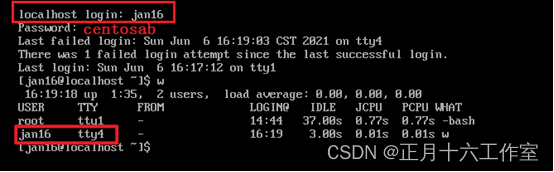 图1 用户信息
1.6 创建用户“jan15”,设其UID为“555”;
[root@localhost ~]# useradd -u 555 jan15 [root@localhost ~]# id jan15 uid=555(jan15) gid=2225(jan15) groups=2225(jan15) [root@localhost ~]#- 1
- 2
- 3
- 4
1.7 创建用户“user01”,设其宿主目录为“/home/tests”,并查看密码文件;
[root@localhost ~]# useradd -d /home/tests user01 [root@localhost ~]# tail -1 /etc/passwd user01:x:2225:2227::/home/tests:/bin/bash- 1
- 2
- 3
1.8 创建用户“user02”,设其指定用户组为“users”
[root@localhost ~]# useradd -g users user02 [root@localhost ~]# id user02 uid=2226(user02) gid=100(users) groups=100(users)- 1
- 2
- 3
任务2- 修改用户
2.1 查看usermod的选项
[root@localhost~]# usermod -h Usage: usermod [options] LOGIN Options: -c, --comment COMMENT new value of the GECOS field -d, --home HOME_DIR new home directory for the user account -e, --expiredate EXPIRE_DATE set account expiration date to EXPIRE_DATE -f, --inactive INACTIVE set password inactive after expiration to INACTIVE -g, --gid GROUP force use GROUP as new primary group -G, --groups GROUPS new list of supplementary GROUPS -a, --append append the user to the supplemental GROUPS mentioned by the -G option without removing the user from other groups -h, --help display this help message and exit -l, --login NEW_LOGIN new value of the login name -L, --lock lock the user account -m, --move-home move contents of the home directory to the new location (use only with -d) -o, --non-unique allow using duplicate (non-unique) UID -p, --password PASSWORD use encrypted password for the new password -R, --root CHROOT_DIR directory to chroot into -P, --prefix PREFIX_DIR prefix directory where are located the /etc/* files -s, --shell SHELL new login shell for the user account -u, --uid UID new UID for the user account -U, --unlock unlock the user account -v, --add-subuids FIRST-LAST add range of subordinate uids -V, --del-subuids FIRST-LAST remove range of subordinate uids -w, --add-subgids FIRST-LAST add range of subordinate gids -W, --del-subgids FIRST-LAST remove range of subordinate gids -Z, --se Linux-user SEUSER new SE Linux user mapping for the user account- 1
- 2
- 3
- 4
- 5
- 6
- 7
- 8
- 9
- 10
- 11
- 12
- 13
- 14
- 15
- 16
- 17
- 18
- 19
- 20
- 21
- 22
- 23
- 24
- 25
- 26
- 27
- 28
- 29
useradd命令常用选项,如表2 所示。
表2 usermod命令常用选项的用法选项 说明 -c 修改用户帐号的备注文字 -d 修改用户登入时的目录 -e 修改帐号的有效期限 -f 修改在密码过期后多少天即关闭该帐号 -g 修改用户所属的群组 -G 修改用户所属的附加群组 -l 修改用户帐号名称 -L 锁定用户密码,使密码无效 -s 修改用户登入后所使用的shell -u 修改用户ID -U 解除密码锁定 注:
usermod命令用于修改用户账号 。usermod可用来修改用户账号的各项设定,修改系统账号文件来反映通过命令行指定的变化。2.2 将用户“user02”的登录目录修改为“/home/jan”,并查看密码文件;
[root@localhost ~]# usermod -d /home/jan user02 [root@localhost ~]# tail -1 /etc/passwd user02:x:2226:100::/home/jan:/bin/bash- 1
- 2
- 3
2.3 将“user02”的用户名修改为“user_02”,并进行验证;
[root@localhost ~]# usermod -l user_02 user02 // usermod -l user_02(新用户名称) user02(原来用户名称) [root@localhost ~]# id user02 id: ‘user02’: no such user [root@localhost ~]# id user_02 uid=2226(user_02) gid=100(users) groups=100(users)- 1
- 2
- 3
- 4
- 5
2.4 将“user_02”的有效期设置到2021-06-06,并验证结果;
[root@localhost ~]# tail -1 /etc/shadow user_02:!!:18784:0:99999:7::: [root@localhost ~]# usermod -e 2021-06-06 user_02 [root@localhost ~]# tail -1 /etc/shadow user_02:!!:18784:0:99999:7::18784:- 1
- 2
- 3
- 4
- 5
2.5 将“user_02”的所属组“users”修改为“root”(前提是有这个组),并进行验证;
[root@localhost ~]# id user_02 //所属组原本为“users” uid=2226(user_02) gid=100(users) groups=100(users) [root@localhost ~]# usermod -g root user_02 [root@localhost~]# id user_02 //所属组已变为“root” uid=2226(user_02) gid=0(root) groups=0(root)- 1
- 2
- 3
- 4
- 5
2.6 首先给“user_02”设置密码,使用选项“-L”将用户“user_02”锁定,再进行验证状态,之后将用选项“-U”将用户“user_02”解锁。
[root@localhost~]# echo “123456” |passwd --stdin user_02 Changing password for user user_02. passwd: all authentication tokens updated successfully. [root@localhost~]# usermod -L user_02 [root@localhost~]# passwd -S user_02 //检查用户的锁定状态 user_02 LK 2021-06-06 0 99999 7 -1 (Password locked.) [root@localhost~]# usermod -U user_02- 1
- 2
- 3
- 4
- 5
- 6
- 7
注: 可使用passwd命令检查用户帐户锁定状态:
# passwd -S user_02
或者:
# passwd --status user_02
这将输出有关给定帐户的密码状态的简短信息:LK:密码锁定、NP:没有密码、PS:密码设置。
或者:使用“passwd”命令进行锁定、解锁用户;[root@localhost~]# passwd -l user_02 //锁定用户 Locking password for user user_02. passwd: Success [root@localhost~]# passwd -S user_02 //检查用户的锁定状态 user_02 LK 2021-06-06 0 99999 7 -1 (Password locked.) [root@localhost~]# grep user_02 /etc/shadow //使用 /etc/shadow 文件检查锁定的用户帐户状态,感叹号即可说明账户已被锁定。 user_02:!$6$Z7QgOBz5F29oBhDX$zyhWxZyVD88t0Lt.ccPJDtm0S3LR5gRzTX7IvOYVuSSasRZXyTRllUO6Z42xCOO1aG7/wrVmrIdFhDUWX8Bxe/:18784:0:99999:7::18784: [root@localhost~]# passwd -u user_02 Unlocking password for user user_02. passwd: Success- 1
- 2
- 3
- 4
- 5
- 6
- 7
- 8
- 9
- 10
passwd常见的选项,如表3 所示。
表3 passwd常见的选项选项 说明 -d 清空指定用户的密码,仅使用用户名即可登录系统 -l 锁定用户账户 -S 查看用户账户的状态(是否被锁定) -u 解锁用户账户 2.7 将“user_02”的UID修改为“2333”;
[root@localhost ~]# id user_02 uid=2226(user_02) gid=0(root) groups=0(root) [root@localhost ~]# usermod -u 2333 user_02 [root@localhost ~]# id user_02 uid=2333(user_02) gid=0(root) groups=0(root)- 1
- 2
- 3
- 4
- 5
2.8 “user01”的GID修改为“2666”,前提是“2666”这个组存在;
[root@localhost ~]# id user01 uid=2225(user01) gid=2227(user01) groups=2227(user01) [root@localhost ~]# groupadd -g 2666 userss [root@localhost ~]# usermod -g 2666 user01 [root@localhost ~]# id user01 uid=2225(user01) gid=2666(userss) groups=2666(userss)- 1
- 2
- 3
- 4
- 5
- 6
任务3- 删除用户
3.1 查看userdel的选项
[root@localhost~]# userdel -h Usage: userdel [options] LOGIN Options: -f, --force force some actions that would fail otherwise e.g. removal of user still logged in or files, even if not owned by the user -h, --help display this help message and exit -r, --remove remove home directory and mail spool -R, --root CHROOT_DIR directory to chroot into -P, --prefix PREFIX_DIR prefix directory where are located the /etc/* files -Z, --se Linux-user remove any SElinux user mapping for the user- 1
- 2
- 3
- 4
- 5
- 6
- 7
- 8
- 9
- 10
- 11
userdel命令常用选项,如表4 所示。
表4 userdel命令常用选项的用法选项 说明 -f 强制删除用户账号 -r 删除用户主目录及其中的任何文件 -h 显示命令的帮助信息 注:
userdel命令用于删除指定的用户及与该用户相关的文件,英文全称即“user delete”。其实userdel命令实际上是修改了系统的用户账号文件 /etc/passwd、/etc/shadow以及/etc/group文件。
值得注意的是,但是如果有该要删除用户相关的进程正在运行,userdel命令通常不会删除一个用户账号。如果确实必须要删除,可以先终止用户进程,然后再执行userdel命令进行删除。但是userdel命令也提供了一个面对该种情况的参数,即”-f”选项。3.2 删除用户“jan_14”,但不删除其家目录及文件,并检验;
[root@localhost ~]# ls /home/ jan jan13 jan_14 [root@localhost ~]# userdel jan_14 [root@localhost ~]# ls /home/ jan jan13 jan_14- 1
- 2
- 3
- 4
- 5
3.3 删除用户“jan16”,并将其家目录及文件一并删除,并检验;
[root@localhost ~]# ls /home/ jan jan13 jan_14 jan16 [root@localhost ~]# userdel -r jan16 [root@localhost ~]# ls /home/ jan jan13 jan_14 [root@localhost ~]#- 1
- 2
- 3
- 4
- 5
- 6
制作成员: 杨佳佳
排版: 裕新
初审: 何嘉愉
复审: 二月二
点击下方“正月十六工作室”查看更多学习资源
-
相关阅读:
LeetCode每日一题(2311. Longest Binary Subsequence Less Than or Equal to K)
什么是hive的静态分区和动态分区,hive动态分区详解
数字IC入门基础(汇总篇)
RabbitMQ入门
云原生 | Docker - [Compose]
MindSpore:GPU CUDA +CentOS没有官方命令吗?
2022世界人工智能大会开幕,天翼云注智城市数字化转型
所谓0脂低卡的代糖如何影响血糖和胰岛素你真的了解吗?
ISO体系认证的流程 ISO认证需要的材料
【前端求助帖】关于使用element-plus select 模板嵌套popover中使用select选择后,上一个select自动关闭的问题
- 原文地址:https://blog.csdn.net/hjx020/article/details/124926661
