## 一:背景
一直在用 WinDbg 调试用户态程序,并没有用它调试过 `内核态`,毕竟不是做驱动开发,也没有在分析 dump 中需要接触用内核态的需求,但未知的事情总觉得很酷,加上最近在看 《深入解析 Windows 操作系统》 一书,书中有不少案例需要深入到 `内核态` ,所以这篇准备整理一下如何用 WinDbg 调试 C# 内核态吧。
操作环境:
* Windbg Preview
* 宿主机:Windows 10
* 虚拟机:Windows 10
## 二:搭建内核态调试
### 1. 基本原理
操作系统的引导程序 `BootMgr` 和 `WinLoad` 内置了调试模式,支持以 COM 接口互通,所以我们需要先添加一种可供调试的启动项,供引导程序 `BootMgr` 启动时弹框让我们选择。
### 2. 配置调试启动项
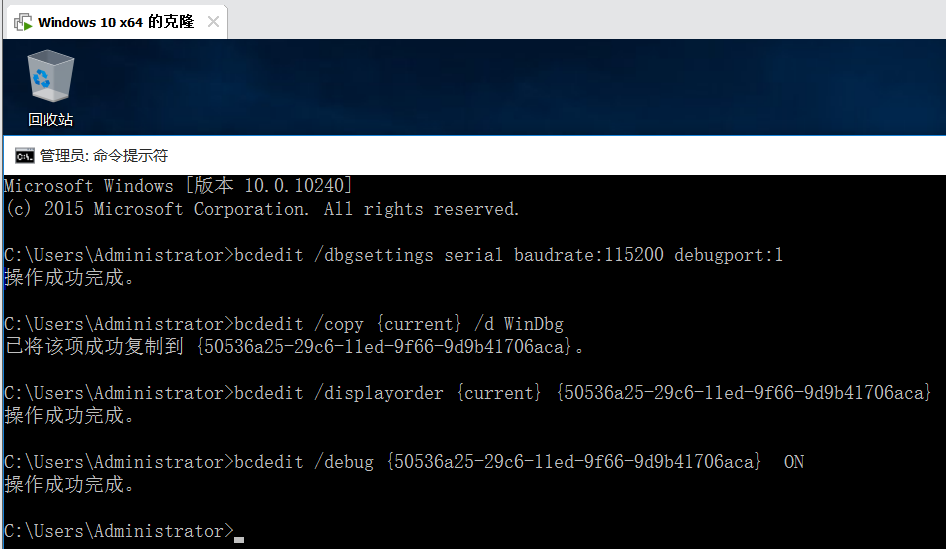
大家可以在 `https://msdn.itellyou.cn/` 下载一个完整版的 Window10 ISO 包,这里就不细说了,启动虚拟机进入 Windows10 ,以管理员模式打开 `CMD` 窗口,执行如下 四条命令 来编辑 `bcd (Boot Configuration Data)`。
``` C#
bcdedit /dbgsettings serial baudrate:115200 debugport:1
bcdedit /copy {current} /d WinDbg
bcdedit /displayorder {current} {ID}
bcdedit /debug {ID} ON
```
注意一下,这里的 `{ID}` 是 CMD 上生成的 GUID,这是你的启动项唯一键,别名是 `WinDbg`, 在我的界面上大概是这个样子:
### 3. 配置 COM 接口
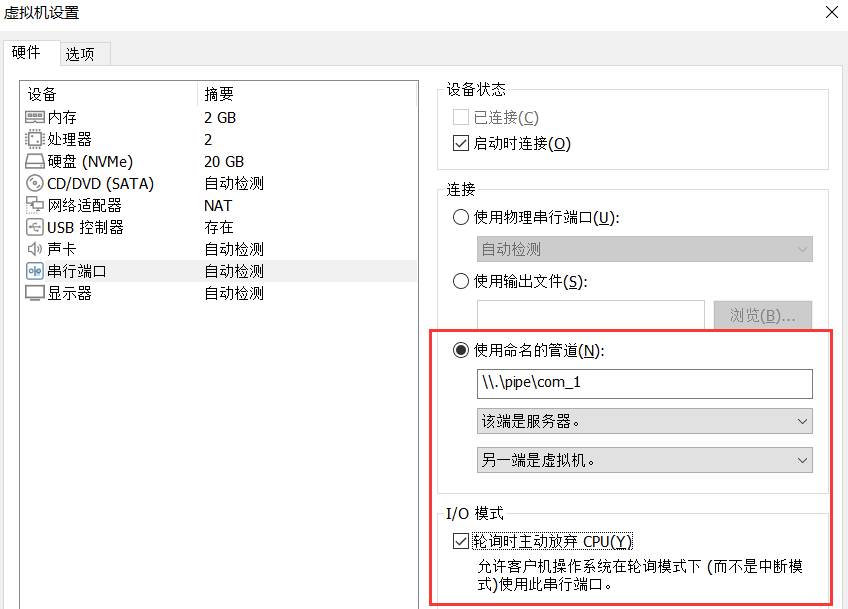
这里有几个步骤要注意了,大致如下:
1) 把`打印机`选项移除了,因为它占用了 COM1 接口。
2) 新增一个 `串行端口`。
3)在 `使用命名管道` 中填入 `\\.\pipe\com_1`, 同时勾选 `轮询时主动放弃CPU`。
设置完之后点击确定,完整截图如下:
### 4. 配置 Windbg Preview
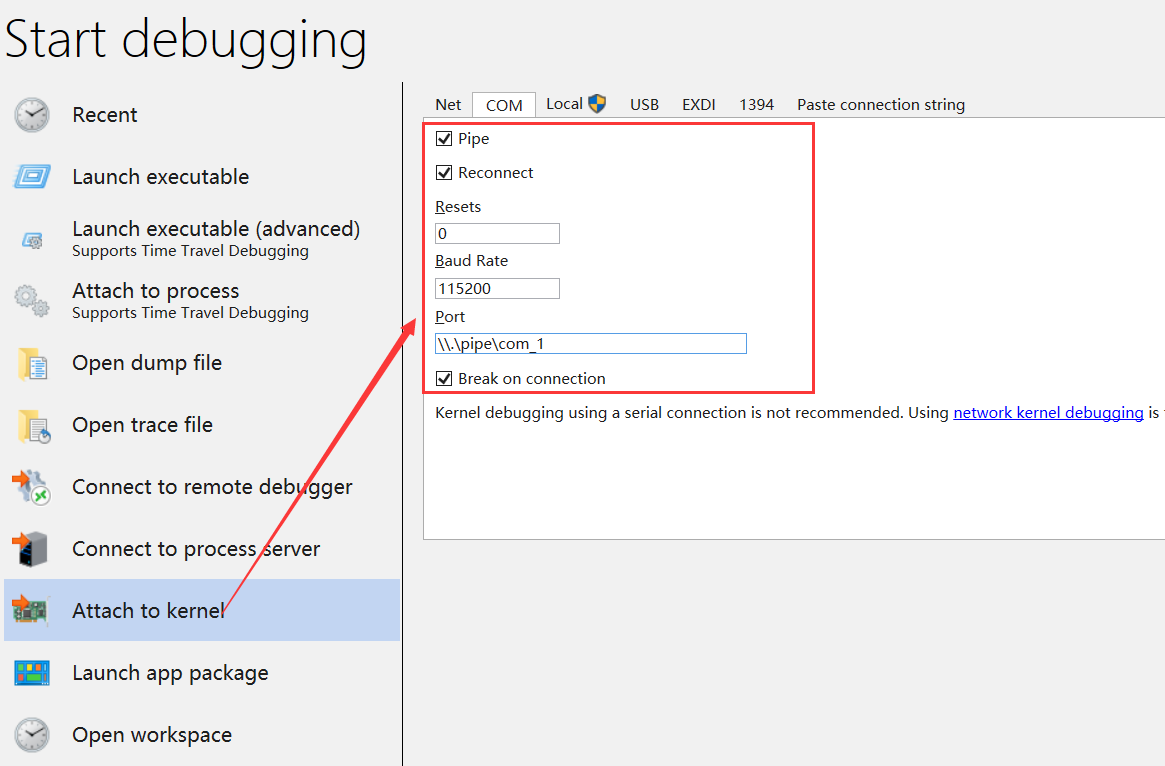
我们把 WinDbg 打开,选择 `Attach to kernel` 选项,然后选择 `COM` 模式,设置 `Baud Rate = 115200` ,然后是 `Port=\\.\pipe\com_1` ,配置完之后点击 OK, 完整截图如下:
如果一切正常的话,Windbg 应该是如下输出,等待COM连接状态。
``` C#
Microsoft (R) Windows Debugger Version 10.0.25136.1001 AMD64
Copyright (c) Microsoft Corporation. All rights reserved.
Waiting for pipe \\.\pipe\com_1
Waiting to reconnect...
```
### 5. 启动虚拟机
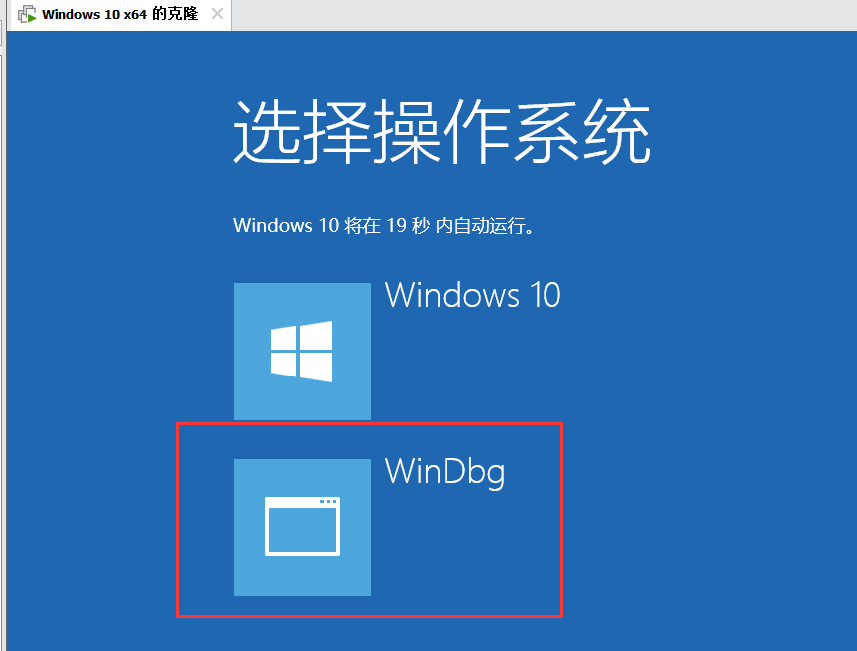
这些都配置完之后,我们重新启动虚拟机,在 BootMgr 阶段会出现两个引导项,其中一个就是在 `小项2` 时配置的,我们选择它就好了,完整截图如下:
稍等片刻后 WinDbg 会显示**连接成功**,在进入初始化时会 int 3 中断, 如果你真的到了这一步,那恭喜你!!!
``` C#
Microsoft (R) Windows Debugger Version 10.0.25136.1001 AMD64
Copyright (c) Microsoft Corporation. All rights reserved.
Waiting for pipe \\.\pipe\com_1
Waiting to reconnect...
Connected to Windows 10 10240 x64 target at (Thu Sep 1 23:23:35.235 2022 (UTC + 8:00)), ptr64 TRUE
Kernel Debugger connection established. (Initial Breakpoint requested)
************* Path validation summary **************
Response Time (ms) Location
Deferred srv*c:\mysymbols_fix*https://msdl.microsoft.com/download/symbols
Error D:\net5\ConsoleApp1\Debug
Deferred srv*c:\mysymbols*https://msdl.microsoft.com/download/symbols
Symbol search path is: srv*c:\mysymbols_fix*https://msdl.microsoft.com/download/symbols;D:\net5\ConsoleApp1\Debug;srv*c:\mysymbols*https://msdl.microsoft.com/download/symbols
Executable search path is:
Windows 10 Kernel Version 10240 MP (1 procs) Free x64
Edition build lab: 10240.17394.amd64fre.th1_st1.170427-1347
Machine Name:
Kernel base = 0xfffff802`a3c7b000 PsLoadedModuleList = 0xfffff802`a3fa0070
System Uptime: 0 days 0:00:00.092
nt!DebugService2+0x5:
fffff802`a3dcfca5 cc int 3
```
因为是初始化中断,接下来在 WinDbg 命令面板中先用 `g` 执行,让操作系统继续跑下去,稍等片刻就会进入到 Windows 10 的操作界面。
### 6. netcore 测试
前段时间写了一篇文章,聊到了 `ReadFile` 从用户态切到内核态的过程,还画了一张图。
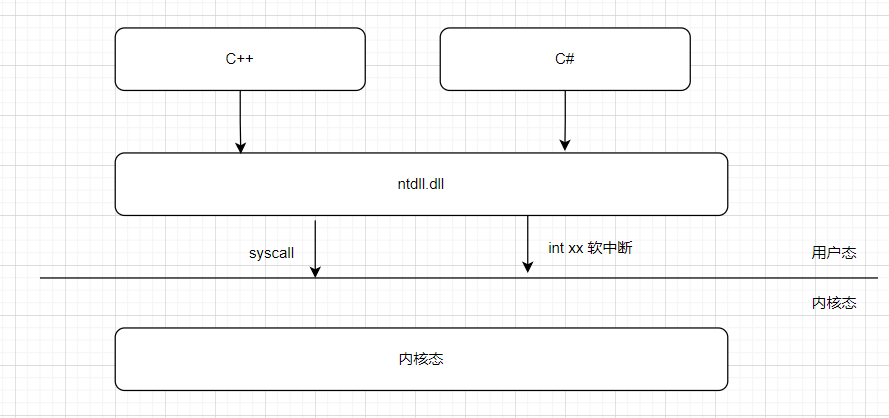
现在可以调试 `内核态` 那何不试试看呢??? 哈哈,说干就干,先上一段测试代码。
``` C#
static void Main(string[] args)
{
var i = 0;
File.WriteAllText(@"C:\1.txt", "hello world!");
while (true)
{
var str = File.ReadAllText(@"C:\1.txt");
Console.WriteLine($"{i++}, content={str.Length}");
Thread.Sleep(1000);
}
Console.ReadLine();
}
```
为了方便观察用户态栈,我在虚拟机中的 Windows10 系统上安装一个 `WinDbg10`,目的就是拦截 `ntdll!NtReadFile` 函数时输出 `用户态栈`。
> bp ntdll!NtReadFile "k 10;gc"
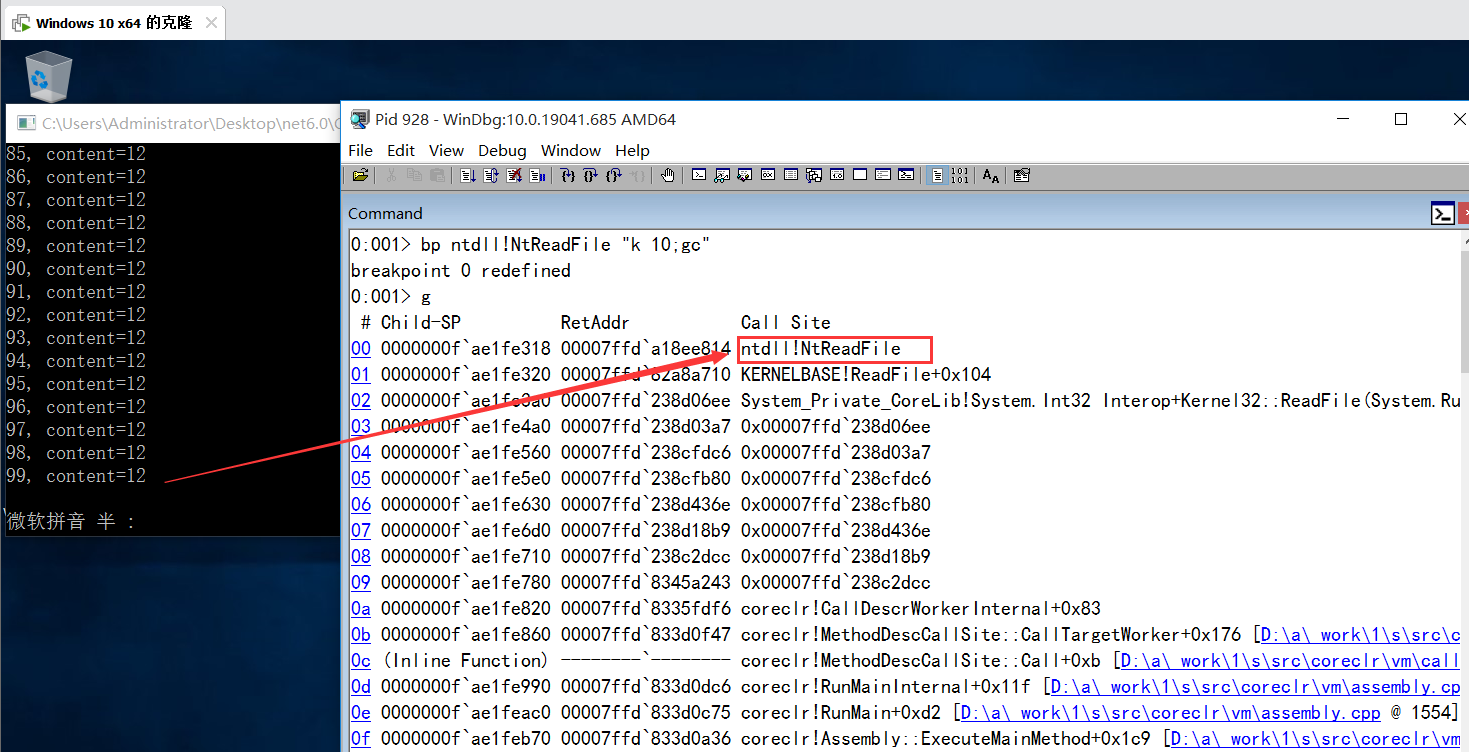
可以看到每次只要程序输出一次,windbg10 都能成功拦截,接下来在宿主机的 WinDbg Preview 中先输入 `.reload` 重新加载下符号,目的就是方便看到用户态上的 `ntdll.dll` 函数名,但不一定好使,碰碰运气吧,接下来输入 `nt!NtReadFile` 观察内核态栈。
> bp nt!NtReadFile
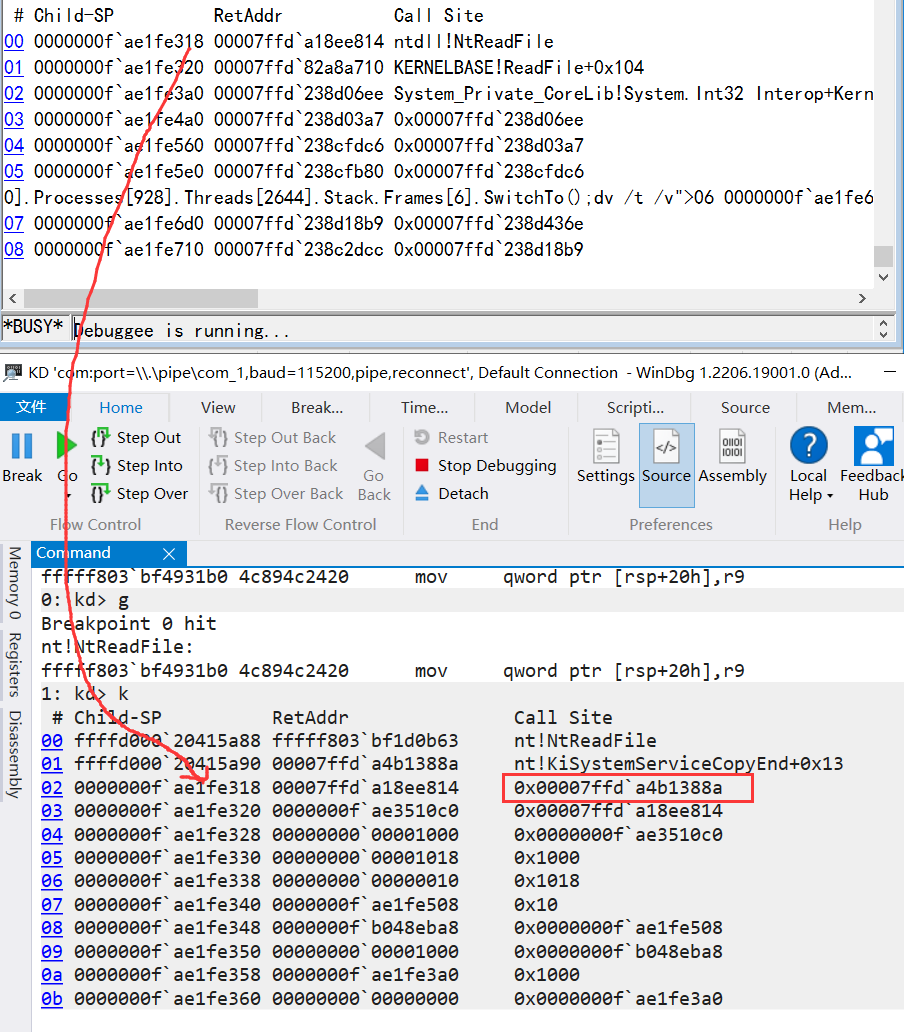
从新老Windbg截图中,可以清晰的看到,这个的 `Child-SP` 线程栈终于对接上了,也就验证了图上所说:`ntdll!NtReadFile (用户态网关) -> nt!KiSystemServiceCopyEnd(内核态调度中心) -> nt!NtReadFile (内核态处理函数)`。
好了,本篇就先说这么多,希望对大家有帮助,也是对自己的一个总结。