-
深度学习之Tensorboard的详细使用
tensorboard 的详细使用
在深度学习训练网络的过程中,由于网络训练过程时间长,不可能一直关注训练中的每一轮结果,因此我们需要将训练过程中的结果可视化,留作后续的查看,从而确定训练过程是否出错。因此,我们需要使用到可视化工具,常用的几种可视化工具有:
tensorboard、wandb(在线可视化)这里主要介绍tensorboard的使用,wandb的使用可参考我的另一篇博客 wandb的基本使用。1、安装 tensorboard 库
pip install tensorboard- 1
2、tensorboard 的使用
2.1 书写代码,保存日志文件
# 引入tensorboard库 from torch.utils.tensorboard import SummaryWriter # 实例化summary对象,log_dir表示日志的存放路径(自己设置) writer = SummaryWriter(log_dir="./log") # 接下来就可以存储日志信息,日志信息可进行可视化展示 ... writer.add_xxx(...) # 一系列操作- 1
- 2
- 3
- 4
- 5
- 6
- 7
- 8
- 9
2.2 可视化展示
# 在命令行终端,输入tensorboard命令进行可视化 tensorboard --logdir=日志文件存放的目录 # 比如:日志文件存放在log文件夹下,则写法如下 tensorboard --logdir=./log # 运行成功后,会生成一个链接:http://localhost:6006/,点击即可进入可视化页面。 PS D:\PythonProjects\Object-Detection\skills\tensorboard_show\log> tensorboard --logdir=./ TensorFlow installation not found - running with reduced feature set. Serving TensorBoard on localhost; to expose to the network, use a proxy or pass --bind_all TensorBoard 2.6.0 at http://localhost:6006/ (Press CTRL+C to quit)- 1
- 2
- 3
- 4
- 5
- 6
- 7
- 8
- 9
- 10
3、常用方法
3.1 绘制单条曲线图
# 绘制单条曲线 epochs = 10 for i in range(epochs): # 当前处于第几步 step = i + 1 # 参数依次为:曲线图的标题、每一步的数据、当前第几步 writer.add_scalar("y=2*x", 2 * i, step)- 1
- 2
- 3
- 4
- 5
- 6
- 7

3.2 绘制多条曲线图
# 2、绘制多条曲线 epochs = 100 for i in range(epochs): step = i + 1 # 参数依次为:主标题、字典(每条曲线的标题和对应值)、当前第几步 writer.add_scalars("scalars", { "y=2x": 2 * i, "y=3x+1": 3 * i + 1 }, step)- 1
- 2
- 3
- 4
- 5
- 6
- 7
- 8
- 9

3.3 绘制直方图
# 绘制histogram直方图 epochs = 10 for i in range(epochs): step = i + 1 # 随机生成1000个符合正态分布的数据 data = np.random.randn(1000) # 标题、数据、当前第几步、直方图区间的个数 writer.add_histogram("distribution of data", data, step, bins=10)- 1
- 2
- 3
- 4
- 5
- 6
- 7
- 8

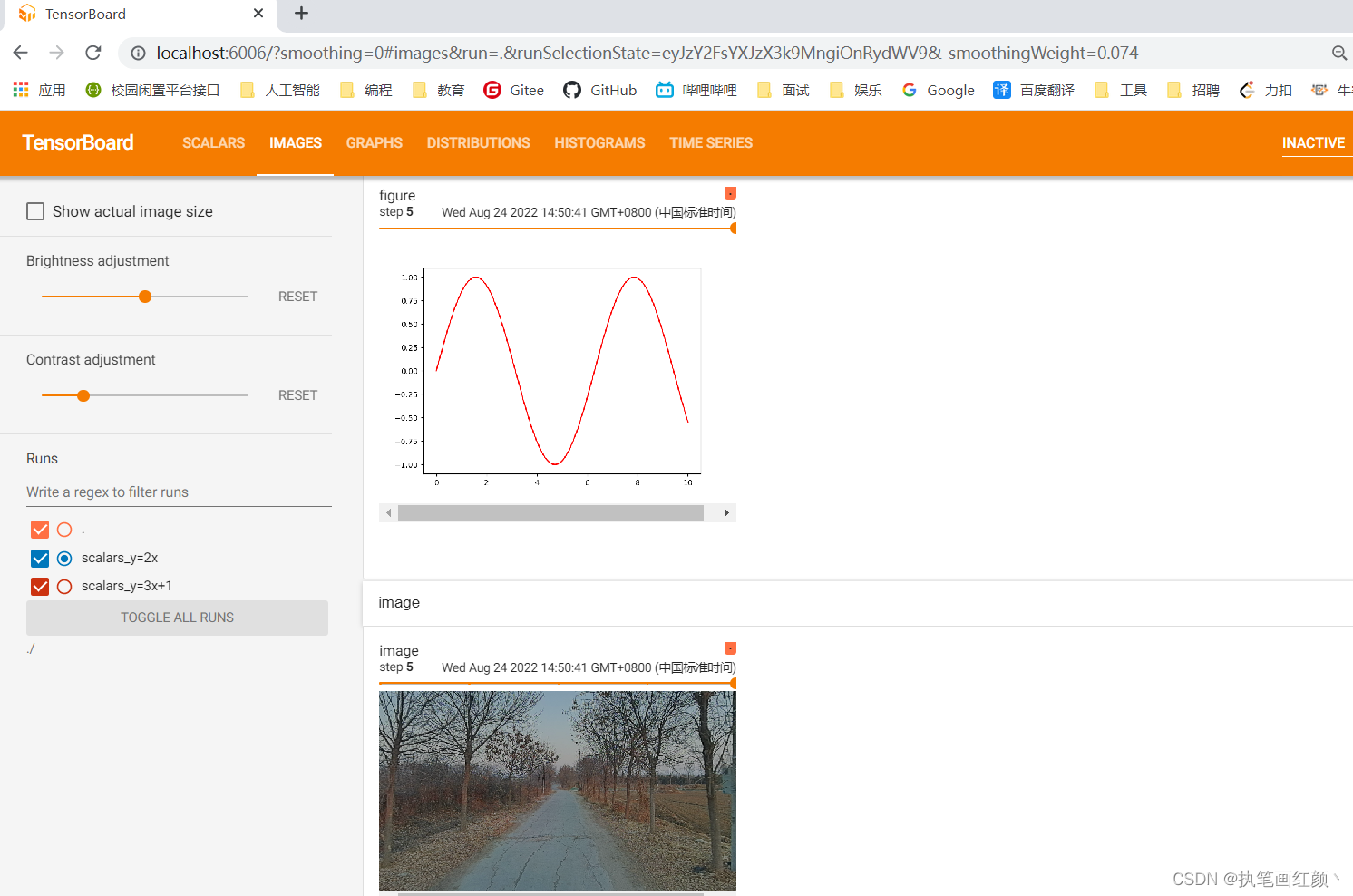
3.4 绘制图像
绘制图像,有两种办法:
一种是使用
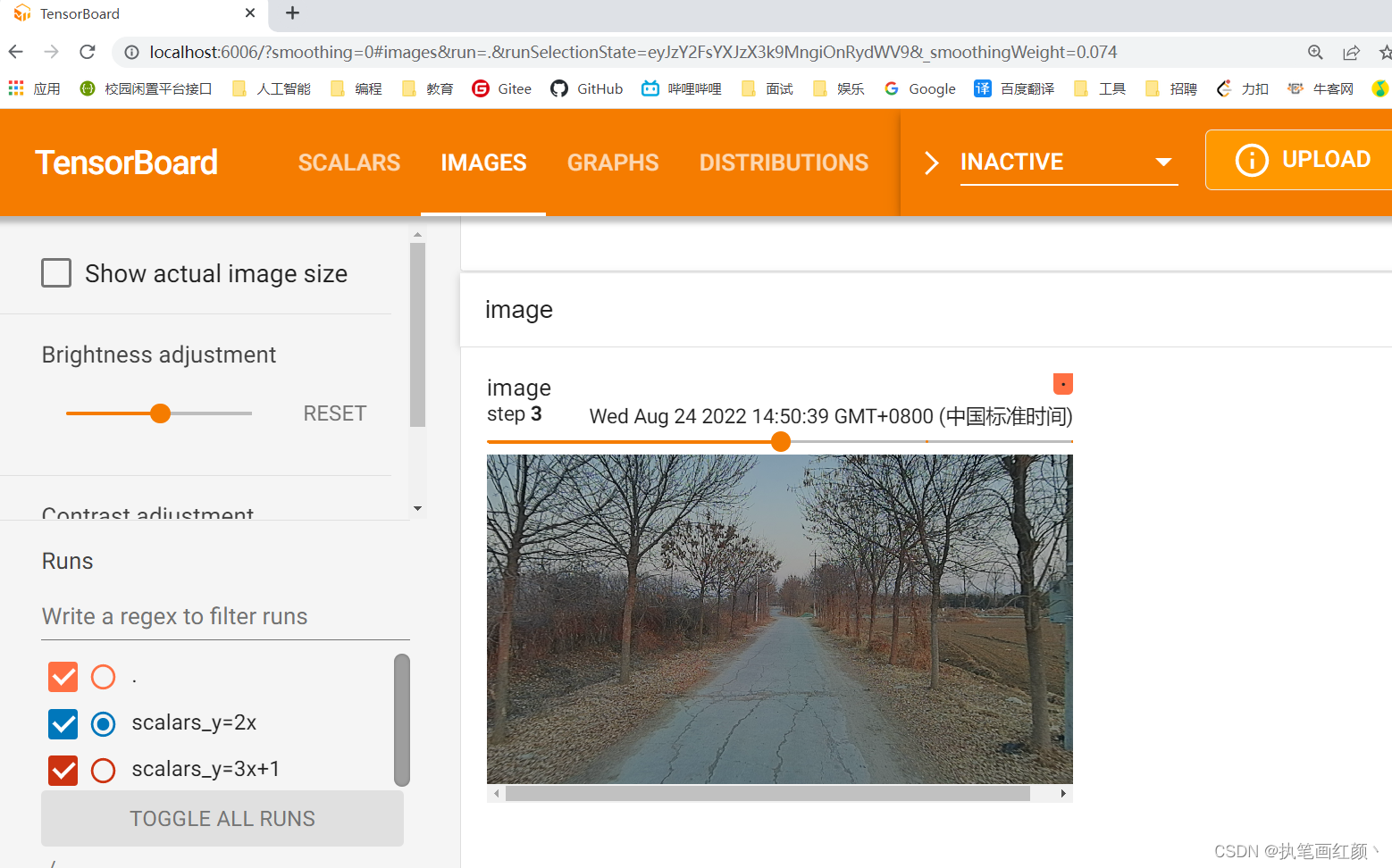
numpy或者tensor格式的图像数组,另一种是使用matplotlib绘制的图像。3.4.1 方法一
# 1、使用numpy或者tensor格式的图像数组 epochs = 5 for i in range(epochs): step = i + 1 # numpy或者tensor格式的图像数组 img = Image.open("../../left_color.png").convert('RGB') # 将PIL对象转换为numpy数组 img_numpy = np.array(img, dtype=np.uint8) # (720, 1280, 3) 高、宽、通道(HWC) # print(img_numpy.shape) # 标题、图像数据、当前第几步、图像的格式(HWC表示高宽通道,默认是通道高宽,需要和上述生成的numpy数组在格式上保持一致) writer.add_image("image", img_numpy, step, dataformats="HWC")- 1
- 2
- 3
- 4
- 5
- 6
- 7
- 8
- 9
- 10
- 11
- 12
3.4.2 方法二
# 2、使用plot绘制的图像,渲染(figure) epochs = 5 # 生成模拟数据 x = np.linspace(0, 10, 1000) y = np.sin(x) # 生成figure对象 figure = plt.figure() # 绘制折线图 plt.plot(x, y, 'r-') for i in range(epochs): step = i + 1 # 标题、图或图列表、当前第几步 writer.add_figure("figure", figure, step)- 1
- 2
- 3
- 4
- 5
- 6
- 7
- 8
- 9
- 10
- 11
- 12
- 13

3.5 绘制网络架构图
# 创建模型 model = MS_CAM() # 模拟一个模型的输入数据(16batch、64通道、32*32宽高) input = torch.FloatTensor(np.random.rand(16, 64, 32, 32)) # 添加网络信息 # 传入的模型、input_to_model表示输入的变量、verbose表示是否要在控制台打印图形结构 writer.add_graph(model, input_to_model=input, verbose=False)- 1
- 2
- 3
- 4
- 5
- 6
- 7

-
相关阅读:
二、GRE(Generic Routing Encapsulation,通用路由封装协议)
无人机反制:车载侦测干扰一体设备技术详解
[附源码]计算机毕业设计现代诗歌交流平台Springboot程序
南京大学【软件分析】13 Static Analysis for Security
设计模式——抽象工厂模式
(附源码)node.js基于Vue技术的外卖平台的设计与实现 毕业设计 151448
IObit Unlocker丨解除占用程序软件
第二证券|汽车板块现涨停潮!多只地产债再涨到临停
真香!宝藏学习方式还可以这样,家人们绝不能错过
Web安全—Web漏扫工具OWASP ZAP安装与使用
- 原文地址:https://blog.csdn.net/L28298129/article/details/126511550