-
javascript案例40——tab导航栏(切换、添加、删除、修改)综合案例(es6面向对象、类的使用)
依次往下都是功能都是叠加的
一、tab切换
1.切换演示
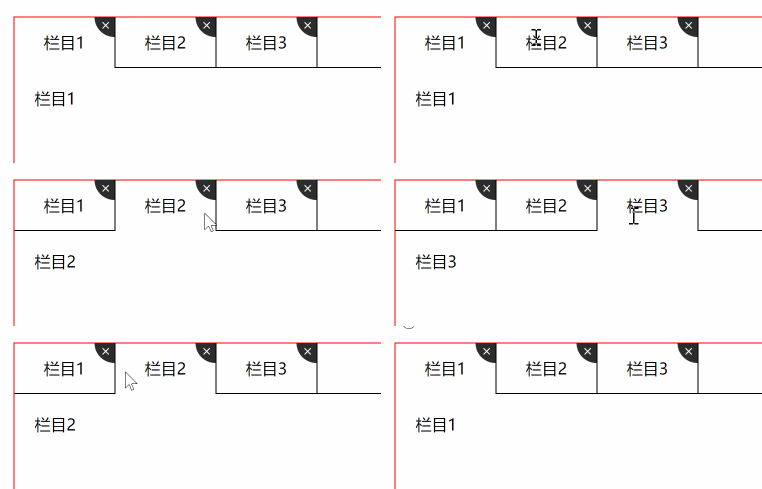
2. 切换完整代码
html代码:
DOCTYPE html> <html lang="en"> <head> <meta charset="UTF-8"> <meta http-equiv="X-UA-Compatible" content="IE=edge"> <meta name="viewport" content="width=device-width, initial-scale=1.0"> <title>Documenttitle> <style> * { margin: 0; padding: 0; } .container { width: 800px; height: 500px; margin: 50px auto; border: 1px solid red; } .nav { height: 50px; line-height: 50px; text-align: center; display: flex; justify-content: space-between; align-items: center; } .add { flex: 1; text-align: right; border-bottom: 1px solid #000; } .add span { display: inline-block; width: 30px; height: 30px; line-height: 30px; text-align: center; border: 1px solid #000; margin-right: 20px; } ul { display: flex; } ul li { list-style: none; width: 100px; border-right: 1px solid #000; border-bottom: 1px solid #000; position: relative; } ul li img { position: absolute; right: 0; top: 0; width: 20px; height: 20px; } .content section { display: none; } .content .conShow { display: block; } section { padding: 20px; } /* 导航栏点击之后添加的样式 */ .liactive { border-bottom: none; } style> head> <body> <div class="container" id="tab"> <div class="nav"> <ul> <li class="liactive"><span>栏目1span><span><img src="./img/close.png" />span> li> <li><span>栏目2span><span><img src="./img/close.png" />span>li> <li><span>栏目3span><span><img src="./img/close.png" />span>li> ul> <div class="add"> <span>+span> div> div> <div class="content"> <section class="conShow">栏目1section> <section>栏目2section> <section>栏目3section> div> div> <script src="./js/tab.js">script> body> html>- 1
- 2
- 3
- 4
- 5
- 6
- 7
- 8
- 9
- 10
- 11
- 12
- 13
- 14
- 15
- 16
- 17
- 18
- 19
- 20
- 21
- 22
- 23
- 24
- 25
- 26
- 27
- 28
- 29
- 30
- 31
- 32
- 33
- 34
- 35
- 36
- 37
- 38
- 39
- 40
- 41
- 42
- 43
- 44
- 45
- 46
- 47
- 48
- 49
- 50
- 51
- 52
- 53
- 54
- 55
- 56
- 57
- 58
- 59
- 60
- 61
- 62
- 63
- 64
- 65
- 66
- 67
- 68
- 69
- 70
- 71
- 72
- 73
- 74
- 75
- 76
- 77
- 78
- 79
- 80
- 81
- 82
- 83
- 84
- 85
- 86
- 87
- 88
- 89
- 90
- 91
- 92
- 93
- 94
- 95
- 96
- 97
- 98
- 99
- 100
- 101
- 102
- 103
- 104
- 105
- 106
- 107
- 108
- 109
- 110
js代码:
// 建立Tab对象,切换、添加、删除、修改 var that; class Tab { constructor(id) { // console.log(id); that = this; this.main = document.querySelector('#tab'); // 菜单栏 this.lis = this.main.querySelectorAll('li'); // console.log(this.lis); // 内容栏 this.sections = this.main.querySelectorAll('section'); // console.log(this.sections); // 调用初始化函数 this.init(); } // 初始化操作,让相关的元素绑定事件 init() { // 采用for循环遍历绑定事件 for (var i = 0; i < this.lis.length; i++) { // console.log(i); // 把i索引号存给index this.lis[i].index = i; // this.lis[i].onclick = function() { // // 谁调用,this指向谁,目前指向this.lis[i] // console.log(this.index); // } // 点击调用切换功能,函数不能加小括号,如果加了小括号他会直接调用 this.lis[i].onclick = this.toggleTab; } } // 1.切换功能 toggleTab() { console.log(this.index); // 排他思想,先全部清掉,谁用谁添加 that.clearClass(); this.className = 'liactive'; that.sections[this.index].className = 'conShow'; } // 清除tab样式的功能 clearClass() { for (var i = 0; i < this.lis.length; i++) { this.lis[i].className = ''; this.sections[i].className = ''; } } // 2.添加功能 addTab() { } // 3.删除功能 removeTab() { } // 4.修改功能 editTab() { } } new Tab('#tab');- 1
- 2
- 3
- 4
- 5
- 6
- 7
- 8
- 9
- 10
- 11
- 12
- 13
- 14
- 15
- 16
- 17
- 18
- 19
- 20
- 21
- 22
- 23
- 24
- 25
- 26
- 27
- 28
- 29
- 30
- 31
- 32
- 33
- 34
- 35
- 36
- 37
- 38
- 39
- 40
- 41
- 42
- 43
- 44
- 45
- 46
- 47
- 48
- 49
- 50
- 51
- 52
- 53
- 54
- 55
- 56
- 57
- 58
- 59
- 60
- 61
二、tab添加
1.点击+可以实现添加新的选项卡和内容
2.第一步:创建新的选项卡li和新的内容section
3.第二步:把创建的两个元素追加到对应的父元素中
4.利用insertAdjacentHTML()可以直接把字符串格式元素添加到父元素中1.添加演示

2.添加完整代码
html代码:
DOCTYPE html> <html lang="en"> <head> <meta charset="UTF-8"> <meta http-equiv="X-UA-Compatible" content="IE=edge"> <meta name="viewport" content="width=device-width, initial-scale=1.0"> <title>Documenttitle> <style> * { margin: 0; padding: 0; } .container { width: 800px; height: 500px; margin: 50px auto; border: 1px solid red; } .nav { height: 50px; line-height: 50px; text-align: center; display: flex; justify-content: space-between; align-items: center; } .addBox { flex: 1; text-align: right; border-bottom: 1px solid #000; } .add { display: inline-block; width: 30px; height: 30px; line-height: 30px; text-align: center; border: 1px solid #000; margin-right: 20px; } ul { display: flex; } ul li { list-style: none; width: 100px; border-right: 1px solid #000; border-bottom: 1px solid #000; position: relative; } ul li img { position: absolute; right: 0; top: 0; width: 20px; height: 20px; } .content section { display: none; } .content .conShow { display: block; } section { padding: 20px; } /* 导航栏点击之后添加的样式 */ .liactive { border-bottom: none; } style> head> <body> <div class="container" id="tab"> <div class="nav"> <ul> <li class="liactive"><span>栏目1span><span><img src="./img/close.png" />span> li> <li><span>栏目2span><span><img src="./img/close.png" />span>li> <li><span>栏目3span><span><img src="./img/close.png" />span>li> ul> <div class="addBox"> <span class="add">+span> div> div> <div class="content"> <section class="conShow ">栏目1section> <section>栏目2section> <section>栏目3section> div> div> <script src="./js/tab.js ">script> body> html>- 1
- 2
- 3
- 4
- 5
- 6
- 7
- 8
- 9
- 10
- 11
- 12
- 13
- 14
- 15
- 16
- 17
- 18
- 19
- 20
- 21
- 22
- 23
- 24
- 25
- 26
- 27
- 28
- 29
- 30
- 31
- 32
- 33
- 34
- 35
- 36
- 37
- 38
- 39
- 40
- 41
- 42
- 43
- 44
- 45
- 46
- 47
- 48
- 49
- 50
- 51
- 52
- 53
- 54
- 55
- 56
- 57
- 58
- 59
- 60
- 61
- 62
- 63
- 64
- 65
- 66
- 67
- 68
- 69
- 70
- 71
- 72
- 73
- 74
- 75
- 76
- 77
- 78
- 79
- 80
- 81
- 82
- 83
- 84
- 85
- 86
- 87
- 88
- 89
- 90
- 91
- 92
- 93
- 94
- 95
- 96
- 97
- 98
- 99
- 100
- 101
- 102
- 103
- 104
- 105
- 106
- 107
- 108
- 109
- 110
js代码:
// 建立Tab对象,切换、添加、删除、修改 var that; class Tab { constructor(id) { // 获取元素 // console.log(id); that = this; this.main = document.querySelector('#tab'); // 获取添加按钮 this.add = this.main.querySelector('.add'); // console.log(this.add); // 获取li的父元素ul this.ul = this.main.querySelector('.nav>ul'); // console.log(this.ul); // 获取section的父元素 this.fsection = this.main.querySelector('.content'); // 调用初始化函数 this.init(); } // 初始化操作,让相关的元素绑定事件 init() { // 初始化之后调用一下updateNode this.updateNode(); // 点击调用添加函数 this.add.onclick = this.addTab; // 采用for循环遍历绑定事件 for (var i = 0; i < this.lis.length; i++) { // console.log(i); // 把i索引号存给index this.lis[i].index = i; // this.lis[i].onclick = function() { // // 谁调用,this指向谁,目前指向this.lis[i] // console.log(this.index); // } // 点击调用切换功能,函数不能加小括号,如果加了小括号他会直接调用 this.lis[i].onclick = this.toggleTab; } } // 获取所有的小li和section,为什么要摘出来,因为会在其余地方使用,封装成方法方便 updateNode() { // 菜单栏 that.lis = this.main.querySelectorAll('li'); // 内容栏 that.sections = this.main.querySelectorAll('section'); } // 1.切换功能 toggleTab() { console.log(this.index); // 排他思想,先全部清掉,谁用谁添加 that.clearClass(); this.className = 'liactive'; that.sections[this.index].className = 'conShow'; } // 清除li和section样式的功能 clearClass() { for (var i = 0; i < this.lis.length; i++) { this.lis[i].className = ''; this.sections[i].className = ''; } } // 2.添加功能 addTab() { // 先清除 that.clearClass(); var random = Math.random(); // 1.第一步:创建新的选项卡li和新的内容section var li = '- 新选项卡
'; var section = '
新内容' + random + ''; // 2.第二步:把创建的两个元素追加到对应的父元素中,利用insertAdjacentHTML()可以直接把字符串格式元素添加到父元素中 that.ul.insertAdjacentHTML('beforeend', li); that.fsection.insertAdjacentHTML('beforeend', section); // 当点击添加之后要进行初始化 that.init(); } // 3.删除功能 removeTab() { } // 4.修改功能 editTab() { } } new Tab('#tab');- 1
- 2
- 3
- 4
- 5
- 6
- 7
- 8
- 9
- 10
- 11
- 12
- 13
- 14
- 15
- 16
- 17
- 18
- 19
- 20
- 21
- 22
- 23
- 24
- 25
- 26
- 27
- 28
- 29
- 30
- 31
- 32
- 33
- 34
- 35
- 36
- 37
- 38
- 39
- 40
- 41
- 42
- 43
- 44
- 45
- 46
- 47
- 48
- 49
- 50
- 51
- 52
- 53
- 54
- 55
- 56
- 57
- 58
- 59
- 60
- 61
- 62
- 63
- 64
- 65
- 66
- 67
- 68
- 69
- 70
- 71
- 72
- 73
- 74
- 75
- 76
- 77
- 78
- 79
- 80
- 81
- 82
- 83
- 84
三、tab删除
1.删除演示

2.删除完整代码
1.点击x可以删除当前的Ii选项卡和当前的section
2.X是没有索引号的,但是它的父亲li有索引号,这个索|号正是我们想要的索引号
3.所以核心思路是:点击x号可以删除这个索引|号对应的li和sectionhtml代码:
DOCTYPE html> <html lang="en"> <head> <meta charset="UTF-8"> <meta http-equiv="X-UA-Compatible" content="IE=edge"> <meta name="viewport" content="width=device-width, initial-scale=1.0"> <title>Documenttitle> <style> * { margin: 0; padding: 0; } .container { width: 800px; height: 500px; margin: 50px auto; border: 1px solid red; } .nav { height: 50px; line-height: 50px; text-align: center; display: flex; justify-content: space-between; align-items: center; } .addBox { flex: 1; text-align: right; border-bottom: 1px solid #000; } .add { display: inline-block; width: 30px; height: 30px; line-height: 30px; text-align: center; border: 1px solid #000; margin-right: 20px; } ul { display: flex; } ul li { list-style: none; width: 100px; border-right: 1px solid #000; border-bottom: 1px solid #000; position: relative; } ul li img { position: absolute; right: 0; top: 0; width: 20px; height: 20px; } .content section { display: none; } .content .conShow { display: block; } section { padding: 20px; } /* 导航栏点击之后添加的样式 */ .liactive { border-bottom: none; } style> head> <body> <div class="container" id="tab"> <div class="nav"> <ul> <li class="liactive"><span>栏目1span><img src="./img/close.png" class="close" />li> <li><span>栏目2span><img src="./img/close.png" class="close" />li> <li><span>栏目3span><img src="./img/close.png" class="close" />li> ul> <div class="addBox"> <span class="add">+span> div> div> <div class="content"> <section class="conShow ">栏目1section> <section>栏目2section> <section>栏目3section> div> div> <script src="./js/tab.js ">script> body> html>- 1
- 2
- 3
- 4
- 5
- 6
- 7
- 8
- 9
- 10
- 11
- 12
- 13
- 14
- 15
- 16
- 17
- 18
- 19
- 20
- 21
- 22
- 23
- 24
- 25
- 26
- 27
- 28
- 29
- 30
- 31
- 32
- 33
- 34
- 35
- 36
- 37
- 38
- 39
- 40
- 41
- 42
- 43
- 44
- 45
- 46
- 47
- 48
- 49
- 50
- 51
- 52
- 53
- 54
- 55
- 56
- 57
- 58
- 59
- 60
- 61
- 62
- 63
- 64
- 65
- 66
- 67
- 68
- 69
- 70
- 71
- 72
- 73
- 74
- 75
- 76
- 77
- 78
- 79
- 80
- 81
- 82
- 83
- 84
- 85
- 86
- 87
- 88
- 89
- 90
- 91
- 92
- 93
- 94
- 95
- 96
- 97
- 98
- 99
- 100
- 101
- 102
- 103
- 104
- 105
- 106
- 107
- 108
- 109
- 110
js代码:
// 建立Tab对象,切换、添加、删除、修改 var that; class Tab { constructor(id) { // 获取元素 that = this; this.main = document.querySelector('#tab'); // 获取添加按钮 this.add = this.main.querySelector('.add'); // 获取li的父元素ul this.ul = this.main.querySelector('.nav>ul'); // 获取section的父元素 this.fsection = this.main.querySelector('.content'); // 调用初始化函数 this.init(); } // 初始化操作,让相关的元素绑定事件 init() { // 初始化之后调用一下updateNode this.updateNode(); // 点击调用添加函数 this.add.onclick = this.addTab; // 采用for循环遍历绑定事件 for (var i = 0; i < this.lis.length; i++) { // 把i索引号存给index this.lis[i].index = i; // 点击调用切换功能,函数不能加小括号,如果加了小括号他会直接调用 this.lis[i].onclick = this.toggleTab; // 在循环里面给每个删除按钮添加事件,点击调用删除功能 this.remove[i].onclick = this.removeTab; } } //因为我们动态添加元素,需要重新获取对应的元素并且给其添加事件 updateNode() { // 菜单栏 that.lis = this.main.querySelectorAll('li'); // 内容栏 that.sections = this.main.querySelectorAll('section'); // 获取所有删除按钮 this.remove = this.main.querySelectorAll('.close'); } // 1.切换功能 toggleTab() { // 排他思想,先全部清掉,谁用谁添加 that.clearClass(); this.className = 'liactive'; that.sections[this.index].className = 'conShow'; } // 清除li和section样式的功能 clearClass() { for (var i = 0; i < this.lis.length; i++) { this.lis[i].className = ''; this.sections[i].className = ''; } } // 2.添加功能 addTab() { // 先清除 that.clearClass(); var random = Math.random(); // 1.第一步:创建新的选项卡li和新的内容section var li = '- 新选项卡
'; var section = '新内容' + random + ''; // 2.第二步:把创建的两个元素追加到对应的父元素中,利用insertAdjacentHTML()可以直接把字符串格式元素添加到父元素中 that.ul.insertAdjacentHTML('beforeend', li); that.fsection.insertAdjacentHTML('beforeend', section); // 当点击添加之后要进行初始化 that.init(); } // 3.删除功能 removeTab(e) { // 阻止冒泡,防止触发li的切换功能 e.stopPropagation(); // 获取当前删除按钮父元素li的索引号,以便删除某个 var index = this.parentNode.index; console.log(index); // 根据索引号删除对应的li和section remove( )方法可以直接删除指定的元素 that.lis[index].remove(); that.sections[index].remove(); that.init(); // 当我们删除非选中状态的1i的时候,原来的选中状态li保持不变 // 如果剩下的li不存在liactive样式,我就不执行后面代码,否则 if (document.querySelector('.liactive')) return; // 当我们删除了选中状态的这个li的时候,让它的前一个li处于选定状态 index--; //上一个 // 手动调用我们的点击事件 不需要鼠标触发,&&的作用是进行判断 //如果前面为真,则执行后面,否则不执行,当前面index为-1时,不再执行,不报错 that.lis[index] && that.lis[index].onclick(); } // 4.修改功能 editTab() { } } new Tab('#tab');- 1
- 2
- 3
- 4
- 5
- 6
- 7
- 8
- 9
- 10
- 11
- 12
- 13
- 14
- 15
- 16
- 17
- 18
- 19
- 20
- 21
- 22
- 23
- 24
- 25
- 26
- 27
- 28
- 29
- 30
- 31
- 32
- 33
- 34
- 35
- 36
- 37
- 38
- 39
- 40
- 41
- 42
- 43
- 44
- 45
- 46
- 47
- 48
- 49
- 50
- 51
- 52
- 53
- 54
- 55
- 56
- 57
- 58
- 59
- 60
- 61
- 62
- 63
- 64
- 65
- 66
- 67
- 68
- 69
- 70
- 71
- 72
- 73
- 74
- 75
- 76
- 77
- 78
- 79
- 80
- 81
- 82
- 83
- 84
- 85
- 86
- 87
- 88
- 89
- 90
- 91
- 92
- 93
- 94
- 95
四、tab修改
1.双击选项卡li或者section里面的文字,可以实现修改功能
2.双击事件是: ondblclick
3.如果双击文字会默认选定文字,此时需要双击禁止选中文字
4.window.getSelection ? window.getSelection().removeAllRanges() : document.selection.empty();// 双击禁用选中文字
5.核心思路:双击文字的时候,在里面生成一个文本框,当失去焦点或者按下回车然后把文本框输入的值给原先
元素即可1.修改演示
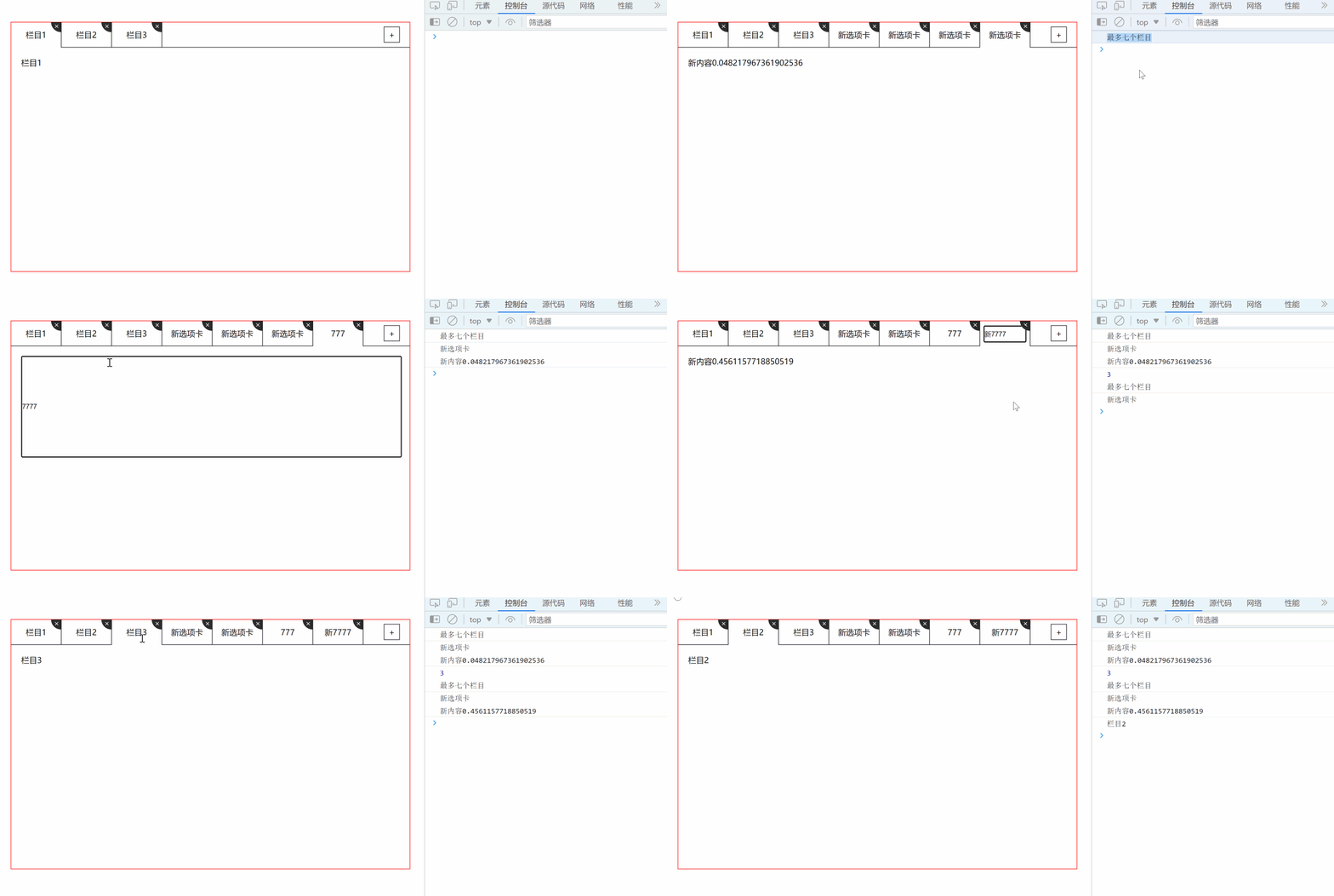
2.修改完整代码
html代码:
DOCTYPE html> <html lang="en"> <head> <meta charset="UTF-8"> <meta http-equiv="X-UA-Compatible" content="IE=edge"> <meta name="viewport" content="width=device-width, initial-scale=1.0"> <title>Documenttitle> <style> * { margin: 0; padding: 0; } .container { width: 800px; height: 500px; margin: 50px auto; border: 1px solid red; } .nav { height: 50px; line-height: 50px; text-align: center; display: flex; justify-content: space-between; align-items: center; } .addBox { flex: 1; text-align: right; border-bottom: 1px solid #000; } .add { display: inline-block; width: 30px; height: 30px; line-height: 30px; text-align: center; border: 1px solid #000; margin-right: 20px; } ul { display: flex; } ul li { list-style: none; width: 100px; border-right: 1px solid #000; border-bottom: 1px solid #000; position: relative; } ul li img { position: absolute; right: 0; top: 0; width: 20px; height: 20px; } .content section { display: none; } .content .conShow { display: block; } section { padding: 20px; } /* 导航栏点击之后添加的样式 */ .liactive { border-bottom: none; } .nav input { width: 82%; height: 30px; } .content input { width: 100%; height: 200px; } style> head> <body> <div class="container" id="tab"> <div class="nav"> <ul> <li class="liactive"><span>栏目1span><img src="./img/close.png" class="close" />li> <li><span>栏目2span><img src="./img/close.png" class="close" />li> <li><span>栏目3span><img src="./img/close.png" class="close" />li> ul> <div class="addBox"> <span class="add">+span> div> div> <div class="content"> <section class="conShow ">栏目1section> <section>栏目2section> <section>栏目3section> div> div> <script src="./js/tab.js ">script> body> html>- 1
- 2
- 3
- 4
- 5
- 6
- 7
- 8
- 9
- 10
- 11
- 12
- 13
- 14
- 15
- 16
- 17
- 18
- 19
- 20
- 21
- 22
- 23
- 24
- 25
- 26
- 27
- 28
- 29
- 30
- 31
- 32
- 33
- 34
- 35
- 36
- 37
- 38
- 39
- 40
- 41
- 42
- 43
- 44
- 45
- 46
- 47
- 48
- 49
- 50
- 51
- 52
- 53
- 54
- 55
- 56
- 57
- 58
- 59
- 60
- 61
- 62
- 63
- 64
- 65
- 66
- 67
- 68
- 69
- 70
- 71
- 72
- 73
- 74
- 75
- 76
- 77
- 78
- 79
- 80
- 81
- 82
- 83
- 84
- 85
- 86
- 87
- 88
- 89
- 90
- 91
- 92
- 93
- 94
- 95
- 96
- 97
- 98
- 99
- 100
- 101
- 102
- 103
- 104
- 105
- 106
- 107
- 108
- 109
- 110
- 111
- 112
- 113
- 114
- 115
- 116
- 117
- 118
- 119
- 120
js代码:
// 建立Tab对象,切换、添加、删除、修改 var that; class Tab { constructor(id) { // 获取元素 that = this; this.main = document.querySelector('#tab'); // 获取添加按钮 this.add = this.main.querySelector('.add'); // 获取li的父元素ul this.ul = this.main.querySelector('.nav>ul'); // 获取section的父元素 this.fsection = this.main.querySelector('.content'); // 调用初始化函数 this.init(); } // 初始化操作,让相关的元素绑定事件 init() { // 初始化之后调用一下updateNode this.updateNode(); // 一行最多容纳七个栏目 // 点击调用添加函数 this.add.onclick = this.addTab; // 采用for循环遍历绑定事件 for (var i = 0; i < this.lis.length; i++) { // 把i索引号存给index this.lis[i].index = i; // 点击调用切换功能,函数不能加小括号,如果加了小括号他会直接调用 this.lis[i].onclick = this.toggleTab; // 在循环里面给每个删除按钮添加事件,点击调用删除功能 this.remove[i].onclick = this.removeTab; // 给每一个span绑定双击事件,调用修改功能 this.spans[i].ondblclick = this.editTab; // 给每一个内容栏绑定双击事件,调用修改功能 this.sections[i].ondblclick = this.editTab; } if (that.lis.length >= 7) { console.log("最多七个栏目"); that.add.onclick = null; //删除事件处理程序 } } //因为我们动态添加元素,需要重新获取对应的元素并且给其添加事件 updateNode() { // 菜单栏 this.lis = this.main.querySelectorAll('li'); // 内容栏 this.sections = this.main.querySelectorAll('section'); // 获取所有删除按钮 this.remove = this.main.querySelectorAll('.close'); //编辑操作 获取所有span this.spans = this.main.querySelectorAll('.nav li span'); // console.log(this.spans); } // 1.切换功能 toggleTab() { // 排他思想,先全部清掉,谁用谁添加 that.clearClass(); this.className = 'liactive'; that.sections[this.index].className = 'conShow'; } // 清除li和section样式的功能 clearClass() { for (var i = 0; i < this.lis.length; i++) { this.lis[i].className = ''; this.sections[i].className = ''; } } // 2.添加功能 addTab() { // 先清除 that.clearClass(); var random = Math.random(); // 1.第一步:创建新的选项卡li和新的内容section var li = '- 新选项卡
'; var section = '新内容' + random + ''; // 2.第二步:把创建的两个元素追加到对应的父元素中,利用insertAdjacentHTML()可以直接把字符串格式元素添加到父元素中 that.ul.insertAdjacentHTML('beforeend', li); that.fsection.insertAdjacentHTML('beforeend', section); // 当点击添加之后要进行初始化 that.init(); } // 3.删除功能 removeTab(e) { // 阻止冒泡,防止触发li的切换功能 e.stopPropagation(); // 获取当前删除按钮父元素li的索引号,以便删除某个 var index = this.parentNode.index; console.log(index); // 根据索引号删除对应的li和section remove( )方法可以直接删除指定的元素 that.lis[index].remove(); that.sections[index].remove(); that.init(); // 当我们删除非选中状态的1i的时候,原来的选中状态li保持不变 // 如果剩下的li不存在liactive样式,我就不执行后面代码,否则 if (document.querySelector('.liactive')) return; // 当我们删除了选中状态的这个li的时候,让它的前一个li处于选定状态 index--; //上一个 // 手动调用我们的点击事件 不需要鼠标触发,&&的作用是进行判断 //如果前面为真,则执行后面,否则不执行,当前面index为-1时,不再执行,不报错 that.lis[index] && that.lis[index].onclick(); } // 4.修改功能 editTab() { // 先获取原先的内容,之后要用 var str = this.innerHTML; // 获取内容栏原先内容 console.log(str); // 双击禁用选中文字 window.getSelection ? window.getSelection().removeAllRanges() : document.selection.empty(); // 生成一个文本框 外单内双 this.innerHTML = '' // input是span的第一个孩子,所以写法是: var input = this.children[0]; input.value = str; input.select(); //文本框里面的值处于选中状态 // 文本框失焦后,把文本框的值赋给span input.onblur = function() { this.parentNode.innerHTML = this.value }; // 按下回车也可以把文本框的值给span // 键盘事件有事件对象,事件对象里面有keyCode,可以根据keyCode判断按的什么键 input.onkeyup = function(e) { // console.log(e); if (e.keyCode == 13) { // 说明点击的是回车键 // 直接手动调用上方的表单失焦事件 this.blur(); } } } } new Tab('#tab');- 1
- 2
- 3
- 4
- 5
- 6
- 7
- 8
- 9
- 10
- 11
- 12
- 13
- 14
- 15
- 16
- 17
- 18
- 19
- 20
- 21
- 22
- 23
- 24
- 25
- 26
- 27
- 28
- 29
- 30
- 31
- 32
- 33
- 34
- 35
- 36
- 37
- 38
- 39
- 40
- 41
- 42
- 43
- 44
- 45
- 46
- 47
- 48
- 49
- 50
- 51
- 52
- 53
- 54
- 55
- 56
- 57
- 58
- 59
- 60
- 61
- 62
- 63
- 64
- 65
- 66
- 67
- 68
- 69
- 70
- 71
- 72
- 73
- 74
- 75
- 76
- 77
- 78
- 79
- 80
- 81
- 82
- 83
- 84
- 85
- 86
- 87
- 88
- 89
- 90
- 91
- 92
- 93
- 94
- 95
- 96
- 97
- 98
- 99
- 100
- 101
- 102
- 103
- 104
- 105
- 106
- 107
- 108
- 109
- 110
- 111
- 112
- 113
- 114
- 115
- 116
- 117
- 118
- 119
- 120
- 121
- 122
- 123
- 124
- 125
- 126
- 127
- 128
- 129
- 130
- 131
- 132
- 133
- 134
-
相关阅读:
自动化测试面试题
常用js库和框架(jsPlumb)
C++ STL进阶与补充(deque容器)
【面试经典150 | 位运算】二进制求和
基于Drone+Gogs流水线-全面认识轻量级云原生CI引擎Drone
Flink源码篇【1】Flink 1.15.0源码编译
【对当前现状的分析】如何做好学术汇报的PPT?
js 统计一个字符串中某个字符出现的次数
Arduino UNO 可视化GT-24工业级无线透传
高云FPGA系列教程(4):片上逻辑分析仪GAO的使用
- 原文地址:https://blog.csdn.net/xulihua_75/article/details/125677273