-
Android学习笔记 2.3.3 按钮(Button)组件的功能与用法 && 2.3.4 使用9Patch图片作为背景
Android学习笔记
疯狂Android讲义
第2章 Android 应用的界面编程
2.3 第2组 UI组件:TextView及其子类
2.3.3 按钮(Button)组件的功能与用法
Button继承了TextView,它主要是在UI界面上生成一个按钮,该按钮可以供用户单击,当用户单击按钮时,按钮会触发一个onClick事件。
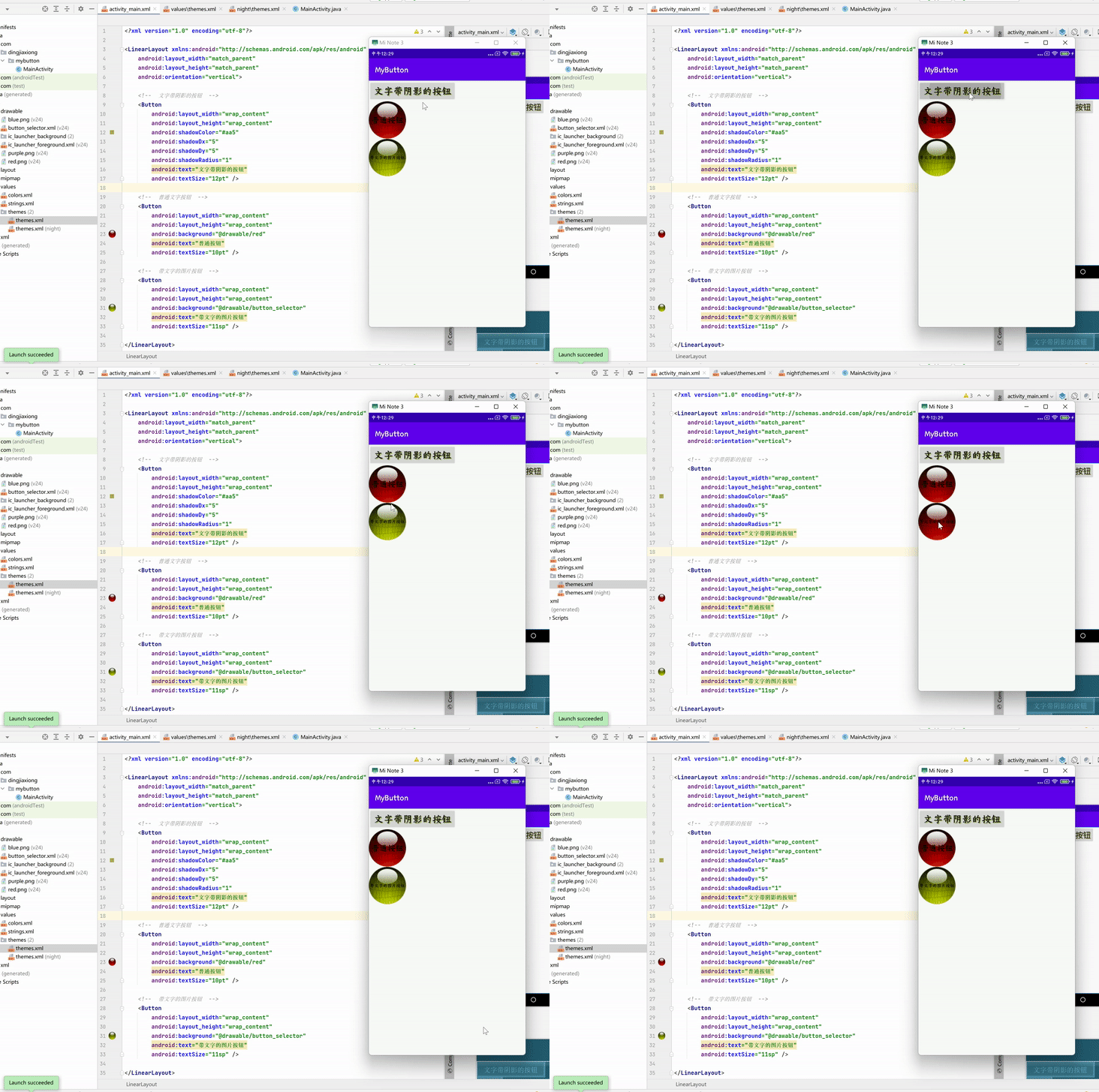
实例——按钮、圆形按钮、带文字的图片按钮
创建新项目

布局文件
设置布局前
控件设置背景色无效问题通过加上这个属性进行设置。

布局
<LinearLayout xmlns:android="http://schemas.android.com/apk/res/android" android:layout_width="match_parent" android:layout_height="match_parent" android:orientation="vertical"> <Button android:layout_width="wrap_content" android:layout_height="wrap_content" android:shadowColor="#aa5" android:shadowDx="5" android:shadowDy="5" android:shadowRadius="1" android:text="文字带阴影的按钮" android:textSize="12pt" /> <Button android:layout_width="wrap_content" android:layout_height="wrap_content" android:background="@drawable/red" android:text="普通按钮" android:textSize="10pt" /> <Button android:layout_width="wrap_content" android:layout_height="wrap_content" android:background="@drawable/button_selector" android:text="带文字的图片按钮" android:textSize="11sp" /> LinearLayout>- 1
- 2
- 3
- 4
- 5
- 6
- 7
- 8
- 9
- 10
- 11
- 12
- 13
- 14
- 15
- 16
- 17
- 18
- 19
- 20
- 21
- 22
- 23
- 24
- 25
- 26
- 27
- 28
- 29
- 30
- 31
- 32
- 33
- 34
- 35
运行
2.3.4 使用9Patch图片作为背景
为了实现只缩放图片中某个部分的效果,我们需要借助于9Patch图片来实现。9Patch图片是一种特殊的PNG图片,这种图片以.9.png结尾,它在原始图片四周各添加一个宽度为1像素的线条,这4条线就决定了该图片的缩放规则、内容显示规则。
左侧和上侧的直线共同决定了图片的缩放区域:以左边直线为左边界绘制矩形,它覆盖的区域可以在纵向上缩放;以上面直线为上边界绘制矩形,它覆盖的区域可以水平缩放;它们二者的交集可以在两个方向上缩放。
右侧和下侧的直线共同决定图片的内容显示区域:以右边直线为右边界绘制矩形,以下边直线为下边界绘制矩形,它们二者的交集就是图片的内容显示区域。

【使用Android studio绘制9Patch图片】


双击该文件

定义两个按钮,分别使用两种图片作为背景

可以看出,以普通图片作为背景时,整张图片都被缩放了;如果使用9Patch图片作为背景,则只有指定区域才会被缩放。
9Patch 图片的典型用途就是微信聊天界面上的“气泡”对话框,其背景就是9Patch图片,读者可以在本例的drawable-hdpi目录下找到气泡背景的9Patch图片。
-
相关阅读:
RabbitMQ:路由模式
AWS认证SAA-C03每日一题
Ubuntu----Linux命令-----防火墙(查看、关闭、启动)
架构师成长之路|Redis实现延迟队列的三种方式
高等数学(第七版)同济大学 习题1-10 个人解答
使用python进行数据分析(二)
app查看 证书公钥和md5
WebServer -- 定时器处理非活动连接(下)
Vue学习:路由
解决因d3dx9_30.dll丢失程序无法运行,电脑缺失d3dx9_30.dll报错解决方案
- 原文地址:https://blog.csdn.net/weixin_44226181/article/details/126458794
