转载请注明出处❤️
作者:测试蔡坨坨
原文链接:caituotuo.top/d59b986c.html
你好,我是测试蔡坨坨。
众所周知,Selenium在2021年10月13号发布了Selenium4,目前最新的版本应该是Selenium 4.4.0。
以前一直用的Selenium3,那么Selenium4相对Selenium3对我们做自动化测试来说有哪些需要注意的改进点或者变化呢?
今天,我们就来简单地聊一聊Selenium4的那些新变化。
通过阅读官方文档,总结了几个比较引人注目的变化点。
元素定位
在Selenium4中,不推荐把定位方式直接写在方法名中,比如一系列的find_element_by_xx方法find_element_by_id、find_element_by_name、find_element_by_class_name等都被整合成为了一个方法find_element,并且通过By.method来选择你的查找元素方法。
同理,多个元素定位推荐使用find_elements(By.method,"")。
注意:
-
虽然find_element_by_id、find_element_by_name……这些方法目前仍然可以使用,但是运行时会有DeprecationWarning警告


-
find_element(By.method, "xxx")这种方法在3版本也有,但是并没有特别强调
-
这种方法的使用需要引入类By,from selenium.webdriver.common.by import By
# author: 测试蔡坨坨
# datetime: 2022/8/20 19:19
# function: 元素定位

import time

from selenium import webdriver
from selenium.webdriver.common.by import By

driver = webdriver.Chrome()

driver.get("https://www.baidu.com")

# 不推荐
# driver.find_element_by_id("kw").send_keys("测试蔡坨坨")
# driver.find_element_by_id("su").click()

# 推荐
driver.find_element(By.ID, "kw").send_keys("测试蔡坨坨")
driver.find_element(By.ID, "su").click()
time.sleep(3)

driver.quit()
不推荐:
driver.find_element_by_class_name("className")
driver.find_element_by_css_selector(".className")
driver.find_element_by_id("elementId")
driver.find_element_by_link_text("linkText")
driver.find_element_by_name("elementName")
driver.find_element_by_partial_link_text("partialText")
driver.find_element_by_tag_name("elementTagName")
driver.find_element_by_xpath("xpath")
推荐:
from selenium.webdriver.common.by import By

driver.find_element(By.CLASS_NAME,"xx")
driver.find_element(By.CSS_SELECTOR,"xx")
driver.find_element(By.ID,"xx")
driver.find_element(By.LINK_TEXT,"xx")
driver.find_element(By.NAME,"xx")
driver.find_element(By.PARITIAL_LINK_TEXT,"xx")
driver.find_element(By.TAG_NAME,"xx")
driver.find_element(By.XPATH,"xx")
相对位置定位
在Selenium4中带来了相对定位这个新功能,在以前的版本中被称之为“好友定位(Friendly Locators)”,它可以通过将某些元素作为参考来定位其附近的元素。
find_element方法支持with(By)新方法,可返回RelativeLocator相对定位对象。
举栗1:登录功能,密码输入框在用户名输入框的下方
from selenium.webdriver.support.relative_locator import locate_with

username = driver.find_element(By.ID, "username")
password = driver.find_element(locate_with(By.ID, "password").below(username))
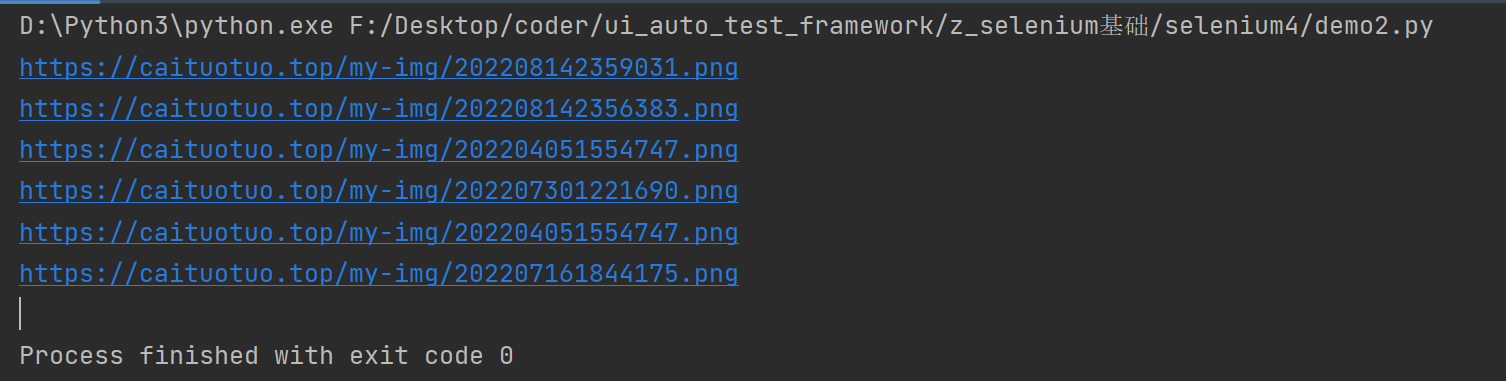
举栗2:要获取下图所示所有文章标题左侧的图片地址

操作步骤:
- 获取文章标题的位置作为锚点
- 通过with_tag_name查找元素的标签,要找的是图片标签就是with_tag_name('img')
- 在文章标题的左侧就是to_left_of(其他位置关系如:to_right_of、below、above、near、to_dict)
代码实现:
# author: 测试蔡坨坨
# datetime: 2022/8/20 19:19
# function: 相对位置定位

import time

from selenium import webdriver
from selenium.webdriver.common.by import By
from selenium.webdriver.support.relative_locator import with_tag_name

driver = webdriver.Chrome()

driver.get("https://www.caituotuo.top/")

driver.find_element(By.XPATH, '//*[@id="scroll-down"]/i').click()
time.sleep(2)
# 文章标题
article_title = driver.find_element(By.CLASS_NAME, "article-title")
# 获取文章标题左侧的图片
elements = driver.find_elements(with_tag_name('img').to_left_of(article_title))
for e in elements:
    print(e.get_attribute('src'))

driver.quit()
运行结果:
打开新的标签页或窗口
当我们需要测试打开几个页面或浏览器的场景时,在Selenium3中的操作步骤:
- 创建新的Web Driver实例
- 再使用Windowhandle方法中的Switch来执行操作
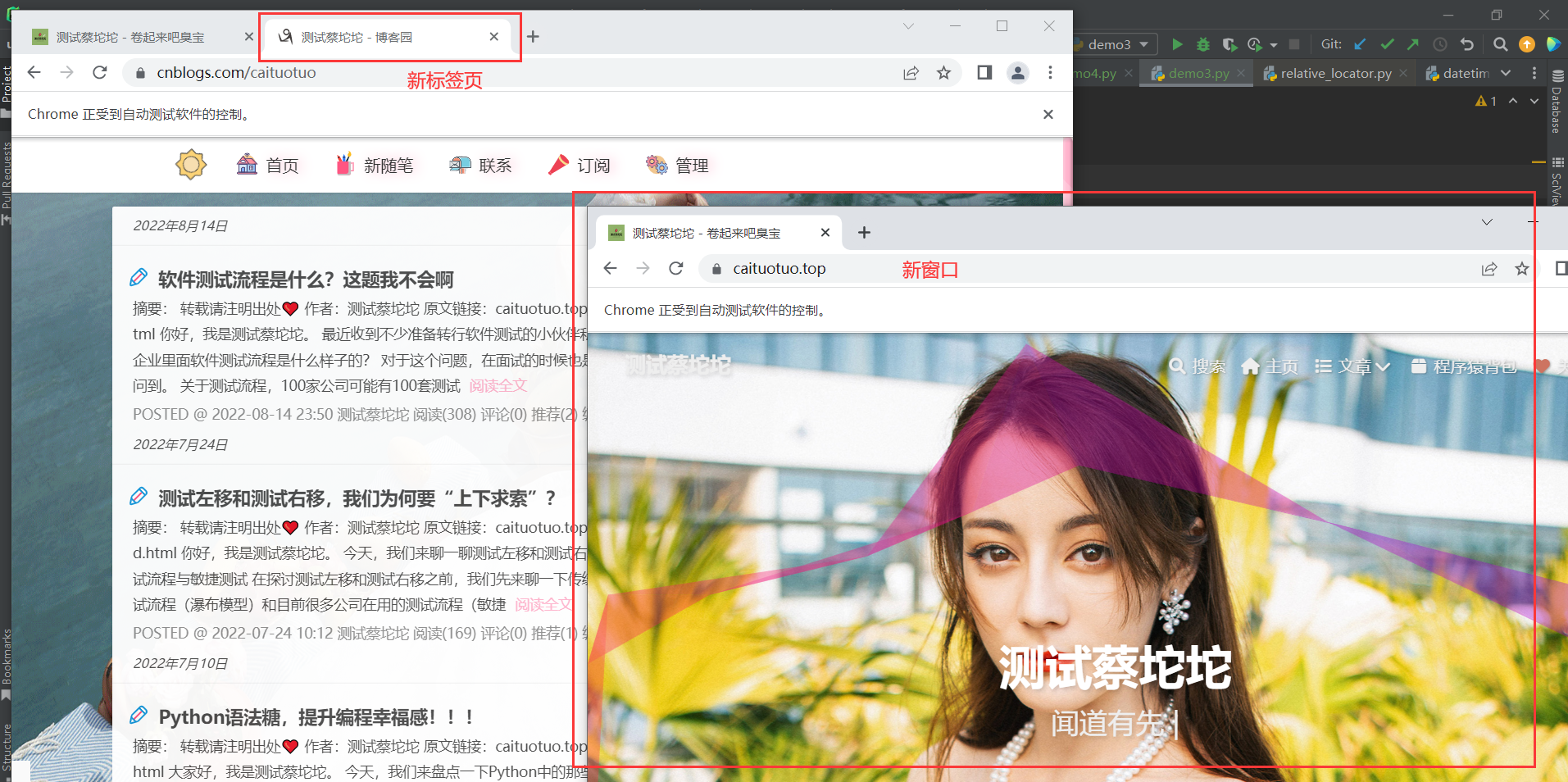
在Selenium4中有一个新的API,new_window,这意味着不需要再自己创建新的Web Driver实例
# author: 测试蔡坨坨
# datetime: 2022/8/20 23:37:32
# function: 打开新的标签页或窗口

import time

from selenium import webdriver

driver = webdriver.Chrome()
driver.get("https://www.caituotuo.top/")

# 打开新的标签页,并切换进入
driver.switch_to.new_window("tab")
driver.get("https://www.cnblogs.com/caituotuo")
print(driver.title)

# 打开新的窗口,并切换进入
driver.switch_to.new_window("window")
driver.get("https://www.caituotuo.top/")
print(driver.title)

time.sleep(3)
driver.quit()
模拟移动设备
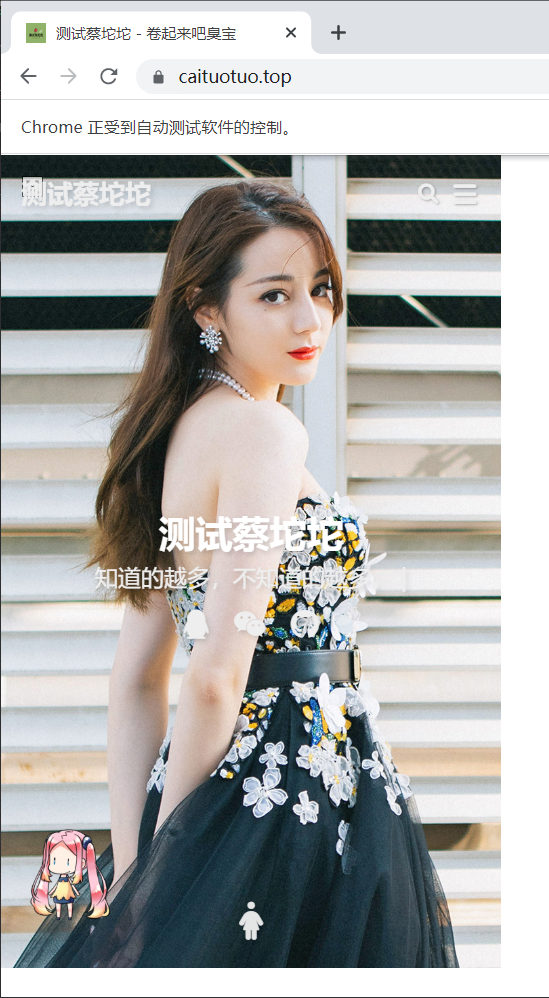
作用:将浏览器调成移动端模式,用于测试移动端H5页面。
# author: 测试蔡坨坨
# datetime: 2022/8/20 21:11
# function: 模拟移动设备

import time

from selenium import webdriver
from selenium.webdriver.common.by import By

driver = webdriver.Chrome()
driver.execute_cdp_cmd(
    "Emulation.setDeviceMetricsOverride",
    {
        "width": 400,
        "height": 650,
        "mobile": True,
        "deviceScaleFactor": 100
    }
)

driver.get("https://www.caituotuo.top/")
driver.find_element(By.XPATH, '//*[@id="scroll-down"]/i').click()
time.sleep(3)
driver.quit()