-
微信小程序--》tabBar底部栏
🏍️作者简介:大家好,我是亦世凡华、渴望知识储备自己的一名在校大学生
🛵个人主页:亦世凡华、
🛺系列专栏:微信小程序
🚲座右铭:人生亦可燃烧,亦可腐败,我愿燃烧,耗尽所有光芒。
👀引言
⚓经过web前端开发的学习,相信大家对于前端开发有了一定深入的了解,今天我开设了微信小程序专栏,主要想从移动端开发方向进一步发展,而对于我来说写移动端博文的第一站就是小程序开发,希望看到我文章的朋友能对你有所帮助。
目录
🍇什么是tabBar
tabBar是移动端应用常见的页面效果,用于实现多页面的快速切换。小程序中通常将其分成两类,分别是:底部 tabBar 和 顶部 tabBar 简言之:就是位于小程序底部或顶部的调整导航栏,与微信底部导航栏类似。
注意:
tabBar中只能配置最少2个、最多5个tab页签
当渲染顶部的tabBar时,不显示icon,只显示文本
🍈tabBar的6个组成部分
①backgroundColor:tabBar的背景色
②selectedIconPath:选中时的图片路径
③borderStyle:tabBar上边框的颜色
④iconPath:未选中时的图片路径
⑤selectedColor:tab上的文字选中时的颜色
⑥color:tab上文字的默认(未选中)颜色

🍉tabBar配置项
属性 类型 必填项 默认值 描述 position String 否 bottom tabBar的位置,仅支持bottom/top borderStyle String 否 black tabBar上边框颜色,仅支持black/white color HexColor 否 无 tab上文字的默认(未选中)颜色 selectedColor HexColor 否 无 tab上文字的选中颜色 backgroundColor HexColor 否 无 tabBar的背景色 list Array 是 无 tab页签的列表(最少2个,最多5个) tab项的配置选项
在list数组里面填写的tab页签,每个tab页签可以配置如下配置选项:
属性 类型 必填 描述 pagePath String 是 页面路径,页面必须在pages中预先定义 text String 是 tab上显示的文字 iconPath String 否 未选中时的图标路径;当position为top时,不显示icon selectedIconPath String 否 选中时的图标路径;当position为top时,不显示icon - {
- "pages":[
- "pages/home/home",
- "pages/message/message",
- "pages/contact/contact",
- "pages/person/person",
- "pages/index/index",
- "pages/logs/logs"
- ],
- "window":{
- "backgroundTextStyle":"dark",
- "navigationBarBackgroundColor": "#008c8c",
- "navigationBarTitleText": "我的微信小程序",
- "navigationBarTextStyle":"white",
- "enablePullDownRefresh": true,
- "backgroundColor": "#0f0",
- "onReachBottomDistance": 50
- },
- "tabBar": {
- "list": [{
- "pagePath": "pages/home/home",
- "text": "首页",
- "iconPath": "./images/home.png",
- "selectedIconPath": "./images/home-active.png"
- },
- {
- "pagePath": "pages/message/message",
- "text": "消息",
- "iconPath": "./images/message.png",
- "selectedIconPath": "./images/message-active.png"
- },
- {
- "pagePath": "pages/contact/contact",
- "text": "联系我们",
- "iconPath": "./images/contact.png",
- "selectedIconPath": "./images/contact-active.png"
- }]
- },
- "style": "v2",
- "sitemapLocation": "sitemap.json"
- }

🍊自定义tabBar
自定义 tabBar 可以让开发者更加灵活地设置 tabBar 样式,以满足更多个性化的场景。详细了解的话请参考官方文档说明:自定义tabBar
配置信息
官方文档明确说明:
为了保证低版本兼容以及区分哪些页面是 tab 页,tabBar 的相关配置项需完整声明,但这些字段不会作用于自定义 tabBar 的渲染,所有下图的list是不用删除的。

添加tabBar代码文件
注意:添加的文件夹名字必须要和官方文件名字一样,不能乱修改名字;然后右键文件夹选择新建Component输入index 即可。

只要我们在app.json中声明了custom:true同时又创建了对应的custom-tab-bar对应的文件结构,微信小程序会自动识别custom-tab-bar对应的组件,把它的结构渲染到页面上,当作我们的tabBar

编写tabBar代码
我们自定义 tabBar 可以通过 Vant 组件库 里面的 tabBar 标签栏样式来快速便捷的创建我们的tabBar代码,如何配置 Vant 组件库的具体过程就不在演示了,详情请看一下如下这篇文章:
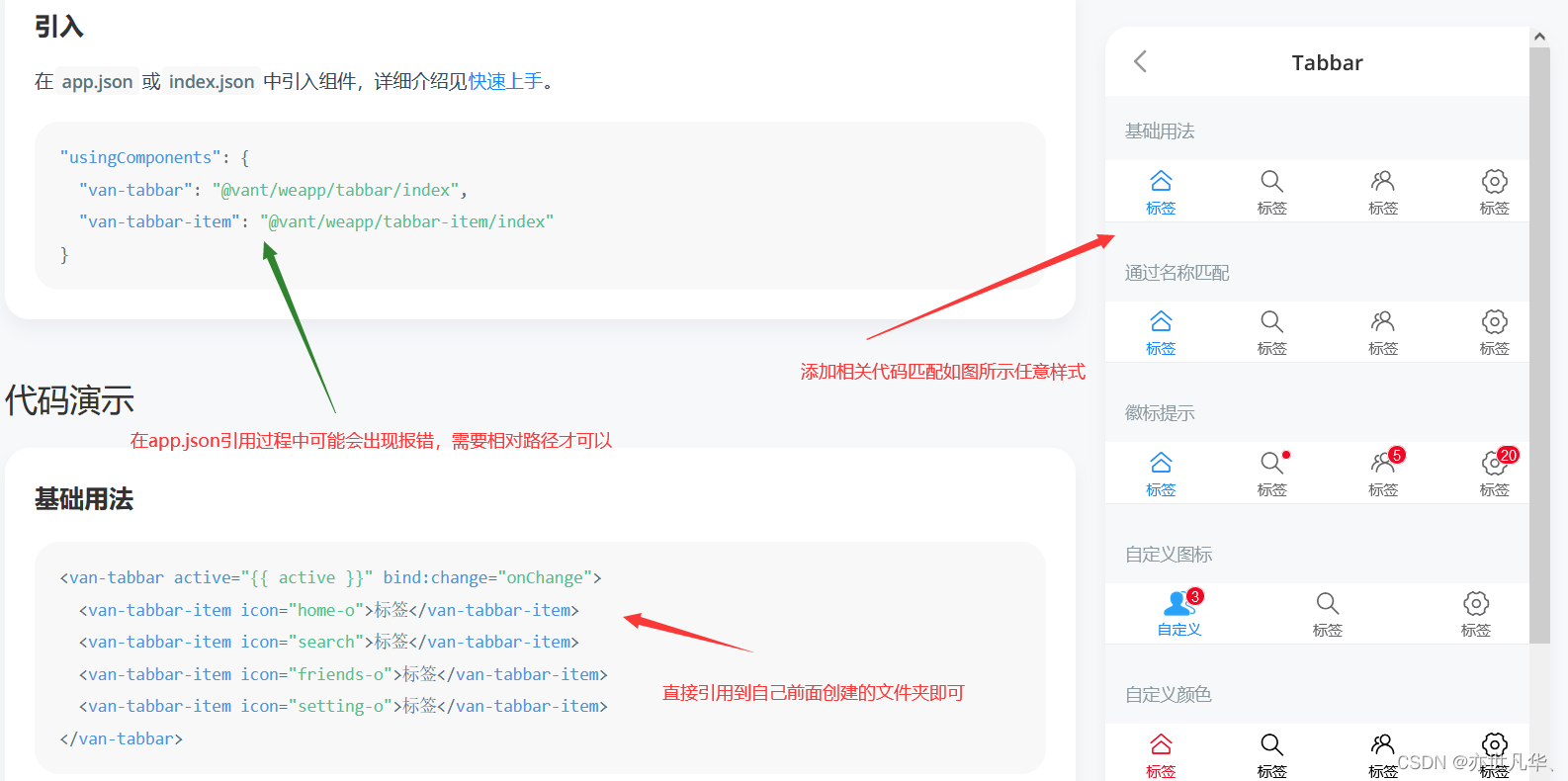

自定义tabBar图标
Vant组件库也为我们提供了具体的方法:可以通过 slot 自定义图标,其中 icon slot 代表未选中状态下的图标,icon-active slot 代表选中状态下的图标。
- <van-tabbar-item info="3">
- <image slot="icon" src="/images/home.png" mode="aspectFit" style="width: 30px; height: 18px;"/>
- <image slot="icon-active" src="/images/home-active.png" mode="aspectFit" style="width: 30px; height: 18px;"/>
- 首页
- van-tabbar-item>

虽然我们可以自定义图标,但是上面的自定义一个图标就要写好多代码,能不能有种方法可以简便的自定义我们的图标,可以的。我们可以通过循环的形式将我们的tabbar-item给我们渲染出来。
首先我们需要将 list 里面的文件复制到自定义组件文件夹下 .js文件下的data里面:

- // .wxml
- <van-tabbar active="{{ active }}" bind:change="onChange">
- <van-tabbar-item wx:for="{{list}}" wx:key="index">
- <image slot="icon" src="{{item.iconPath}}" mode="aspectFit" style="width: 30px; height: 18px;"/>
- <image slot="icon-active" src="{{item.selectedIconPath}}" mode="aspectFit" style="width: 30px; height: 18px;" />
- {{item.text}}
- van-tabbar-item>>
- van-tabbar>

渲染tabBar的数字徽标
我们可以通过设置 info 属性来渲染tabBar上的数字徽标,如下图代码图片所示:
- <van-tabbar active="{{ active }}" bind:change="onChange">
- <van-tabbar-item wx:for="{{list}}" wx:key="index" info="2">
- <image slot="icon" src="{{item.iconPath}}" mode="aspectFit" style="width: 30px; height: 18px;"/>
- <image slot="icon-active" src="{{item.selectedIconPath}}" mode="aspectFit" style="width: 30px; height: 18px;" />
- {{item.text}}
- van-tabbar-item>>
- van-tabbar>

这样做的结果虽然能达到数字徽标效果的出现,但显然是把它写死了,所以我们要进行动态的绑定,这里我们可以参考一下微信官方文档的介绍。


- // custom-tab-bar/index.wxml
"{{ active }}" bind:change="onChange"> - <van-tabbar-item wx:for="{{list}}" wx:key="index" info="{{item.info?item.info:''}}">
- <image slot="icon" src="{{item.iconPath}}" mode="aspectFit" style="width: 30px; height: 18px;"/>
- <image slot="icon-active" src="{{item.selectedIconPath}}" mode="aspectFit" style="width: 30px; height: 18px;" />
- {{item.text}}
- van-tabbar-item>>
- // custom-tab-bar/index.js
- import {storeBindingsBehavior} from '../miniprogram/miniprogram_npm/mobx-miniprogram-bindings/index'
- import {store} from '../store/store'
- Component({
- behaviors:[storeBindingsBehavior],
- storeBindings: {
- store,
- fields: {
- sum: "sum",
- },
- actions: {
- },
- },
- observers:{
- 'sum':function(val){
- // console.log(val);
- this.setData({
- 'list[1].info':val>0?val:0 //三元运算符,如果数字徽标的数值小于零,就赋值为0
- })
- }
- },
- /**
- * 组件的属性列表
- */
- properties: {
- },
- /**
- * 组件的初始数据
- */
- data: {
- active:0,
- "list": [{
- "pagePath": "pages/home/home",
- "text": "首页",
- "iconPath": "/images/home.png",
- "selectedIconPath": "/images/home-active.png"
- },
- {
- "pagePath": "pages/message/message",
- "text": "消息",
- "iconPath": "/images/message.png",
- "selectedIconPath": "/images/message-active.png",
- info:2
- },
- {
- "pagePath": "pages/contact/contact",
- "text": "联系我们",
- "iconPath": "/images/contact.png",
- "selectedIconPath": "/images/contact-active.png"
- }]
- },
- /**
- * 组件的方法列表
- */
- methods: {
- onChange(event) {
- // event.detail 的值为当前选中项的索引
- this.setData({ active: event.detail });
- },
- }
- })
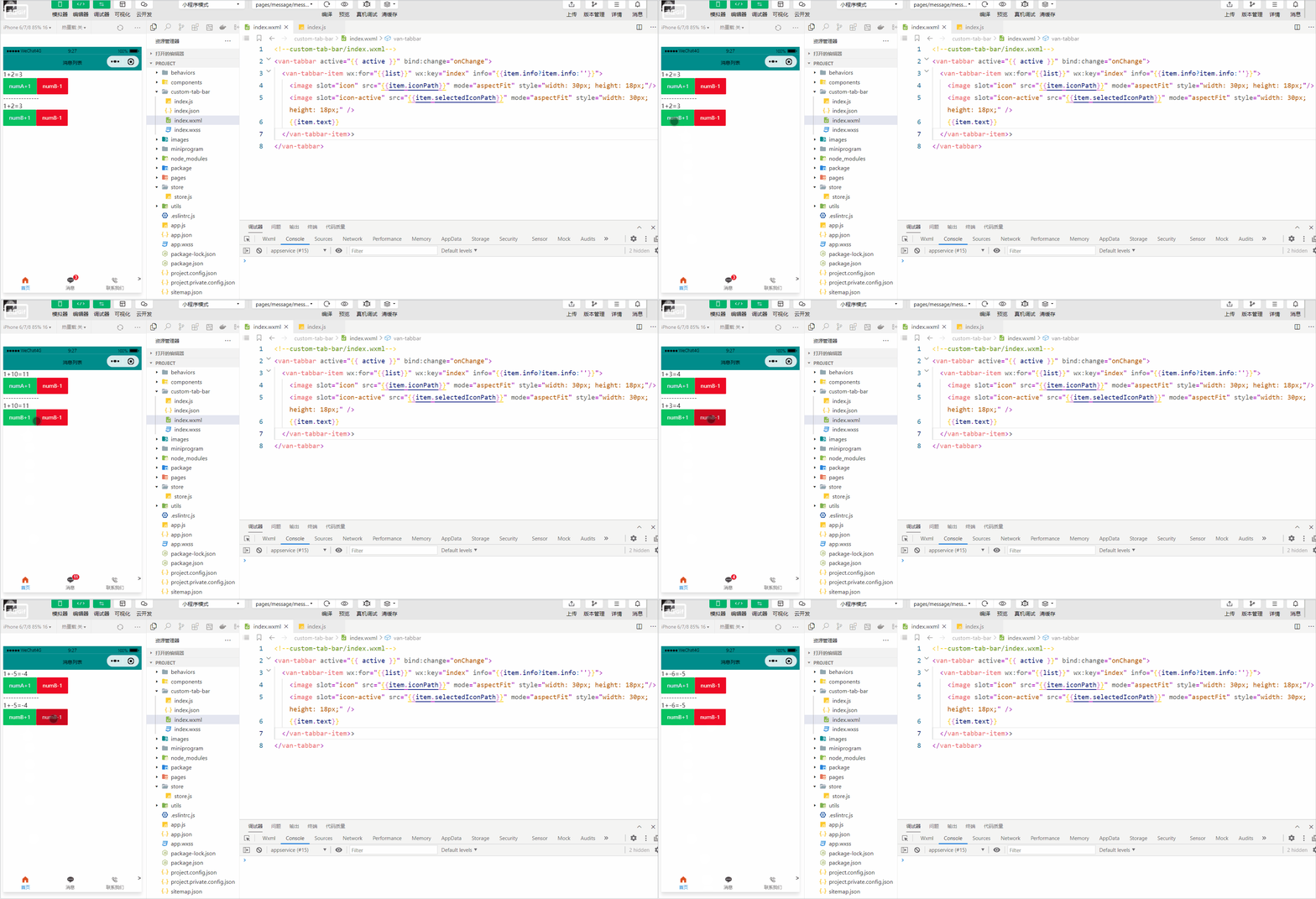
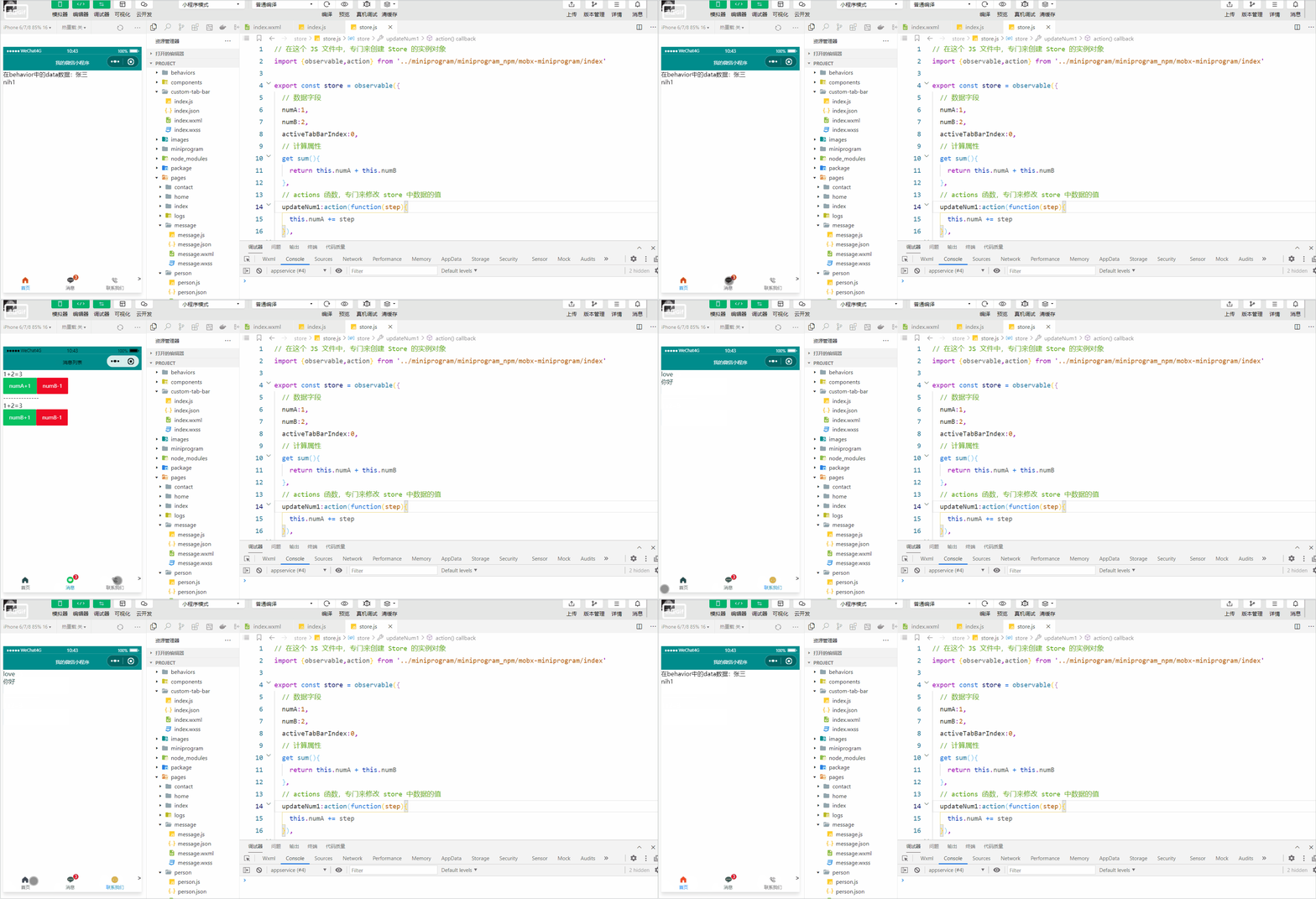
tabBar页面切换及其样式设置
我们将active引入到store实例对象当中,来动态的获取页面的索引值;在我们进行自定义tabBar的时候切换页面可能会出现闪烁问题,可自行百度,这里仅以举例为主。
- //.wxml
"{{active}}" bind:change="onChange"> - <van-tabbar-item wx:for="{{list}}" wx:key="index" info="{{item.info?item.info:''}}">
- <image slot="icon" src="{{item.iconPath}}" mode="aspectFit" style="width: 30px; height: 18px;"/>
- <image slot="icon-active" src="{{item.selectedIconPath}}" mode="aspectFit" style="width: 30px; height: 18px;" />
- {{item.text}}
- van-tabbar-item>>
- //.js
- // custom-tab-bar/index.js
- import {storeBindingsBehavior} from '../miniprogram/miniprogram_npm/mobx-miniprogram-bindings/index'
- import {store} from '../store/store'
- Component({
- behaviors:[storeBindingsBehavior],
- storeBindings: {
- store,
- fields: {
- sum: "sum",
- active:'activeTabBarIndex',
- },
- actions: {
- updateActive:'updateActiveTabBarIndex'
- },
- },
- observers:{
- 'sum':function(val){
- // console.log(val);
- this.setData({
- 'list[1].info':val>0?val:0 //三元运算符,如果数字徽标的数值小于零,就赋值为0
- })
- }
- },
- /**
- * 组件的属性列表
- */
- properties: {
- },
- /**
- * 组件的初始数据
- */
- data: {
- "list": [{
- "pagePath": "/pages/home/home",
- "text": "首页",
- "iconPath": "/images/home.png",
- "selectedIconPath": "/images/home-active.png"
- },
- {
- "pagePath": "/pages/message/message",
- "text": "消息",
- "iconPath": "/images/message.png",
- "selectedIconPath": "/images/message-active.png",
- info:2
- },
- {
- "pagePath": "/pages/contact/contact",
- "text": "联系我们",
- "iconPath": "/images/contact.png",
- "selectedIconPath": "/images/contact-active.png"
- }]
- },
- /**
- * 组件的方法列表
- */
- methods: {
- onChange(event) {
- // event.detail 的值为当前选中项的索引
- // this.setData({ active: event.detail })
- this.updateActive(event.detail)
- wx.switchTab({
- url: this.data.list[event.detail].pagePath,
- })
- },
- }
- })
- //store.js
- // 在这个 JS 文件中,专门来创建 Store 的实例对象
- import {observable,action} from '../miniprogram/miniprogram_npm/mobx-miniprogram/index'
- export const store = observable({
- // 数据字段
- numA:1,
- numB:2,
- activeTabBarIndex:0,
- // 计算属性
- get sum(){
- return this.numA + this.numB
- },
- // actions 函数,专门来修改 store 中数据的值
- updateNum1:action(function(step){
- this.numA += step
- }),
- updateNum2:action(function(step){
- this.numB += step
- }),
- updateActiveTabBarIndex:action(function(index){
- this.activeTabBarIndex = index
- })
- })
当然我们也可以设置tabBar选中项的文本颜色:
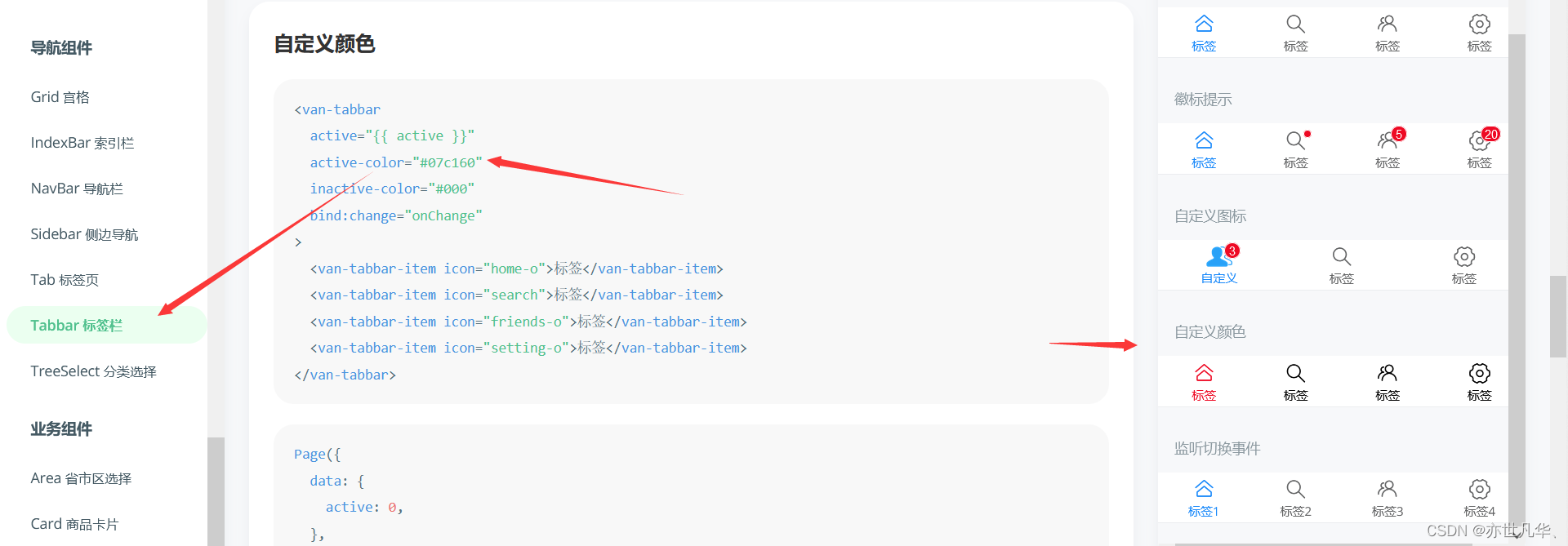

其他具体的tabBar样式设置可自行参考 Vant组件库,tabBar底部栏的讲解今天就到这了。
-
相关阅读:
第一章 Caché 服务器页面简介 - 什么是CSP
Linux-----nginx的简介,nginx搭载负载均衡以及nginx部署前后端分离项目
Redis高可用实战之Sentinel
SpringBoot整合Shiro和加密
如何解决ajax跨域问题
Codeforces Round #804 (Div. 2)【比赛记录】
您的 IT 基础架构是否已为企业内容管理(ECM)软件做好准备?
Istio、eBPF 和 RSocket Broker:深入研究服务网格
机器学习 vs. 数值天气预报,AI 如何改变现有的天气预报模式
Redis Twemproxy 集群规范部署手册
- 原文地址:https://blog.csdn.net/qq_53123067/article/details/126200160
