-
二十二、商城 - 商品录入-FastDFS(10)
一、分布式文件服务器FastDFS
1.1 什么是FastDFS
FastDFS是由国人余庆所开发,其项目地址是:https://github.com/happyfish100

- FastDFS 是用 c 语言编写的一款开源的分布式文件系统。FastDFS 为互联网量身定制,充分考虑了冗余备份、负载均衡、线性扩容等机制,并注重高可用、高性能等指标,使用 FastDFS很容易搭建一套高性能的文件服务器集群提供文件上传、下载等服务。
- FastDFS 架构包括 Tracker server 和 Storage server。客户端请求 Tracker server 进行文件上传、下载,通过 Tracker server 调度最终由 Storage server 完成文件上传和下载。
- Tracker server 作用是负载均衡和调度,通过 Tracker server 在文件上传时可以根据一些策略找到 Storage server 提供文件上传服务。可以将 tracker 称为追踪服务器或调度服务器。
- Storage server 作用是文件存储,客户端上传的文件最终存储在 Storage 服务器上,Storageserver 没有实现自己的文件系统而是利用操作系统 的文件系统来管理文件。可以将storage称为存储服务器。

服务端两个角色:
- Tracker:管理集群,tracker 也可以实现集群。每个 tracker 节点地位平等。收集 Storage 集群的状态。
- Storage:实际保存文件 Storage 分为多个组,每个组之间保存的文件是不同的。每个组内部可以有多个成员,组成员内部保存的内容是一样的,组成员的地位是一致的,没有主从的概念。
1.2 文件上传及下载的流程
1.2.1 文件上传流程

客户端上传文件后存储服务器将文件 ID 返回给客户端,此文件 ID 用于以后访问该文件的索引信息。文件索引信息包括:组名,虚拟磁盘路径,数据两级目录,文件名。

- 组名:文件上传后所在的 storage 组名称,在文件上传成功后有 storage 服务器返回,需要客户端自行保存。
- 虚拟磁盘路径:storage 配置的虚拟路径,与磁盘选项 store_path*对应。如果配置了
store_path0 则是 M00,如果配置了 store_path1 则是 M01,以此类推。 - 数据两级目录:storage 服务器在每个虚拟磁盘路径下创建的两级目录,用于存储数据
文件。 - 文件名:与文件上传时不同。是由存储服务器根据特定信息生成,文件名包含:源存储
服务器 IP 地址、文件创建时间戳、文件大小、随机数和文件拓展名等信息。
fastdfs文件上传流程
- client询问tracker上传到的storage,不需要附加参数;
- tracker返回一台可用的storage;
- client直接和storage通讯完成文件上传。
1.2.2 文件下载流程
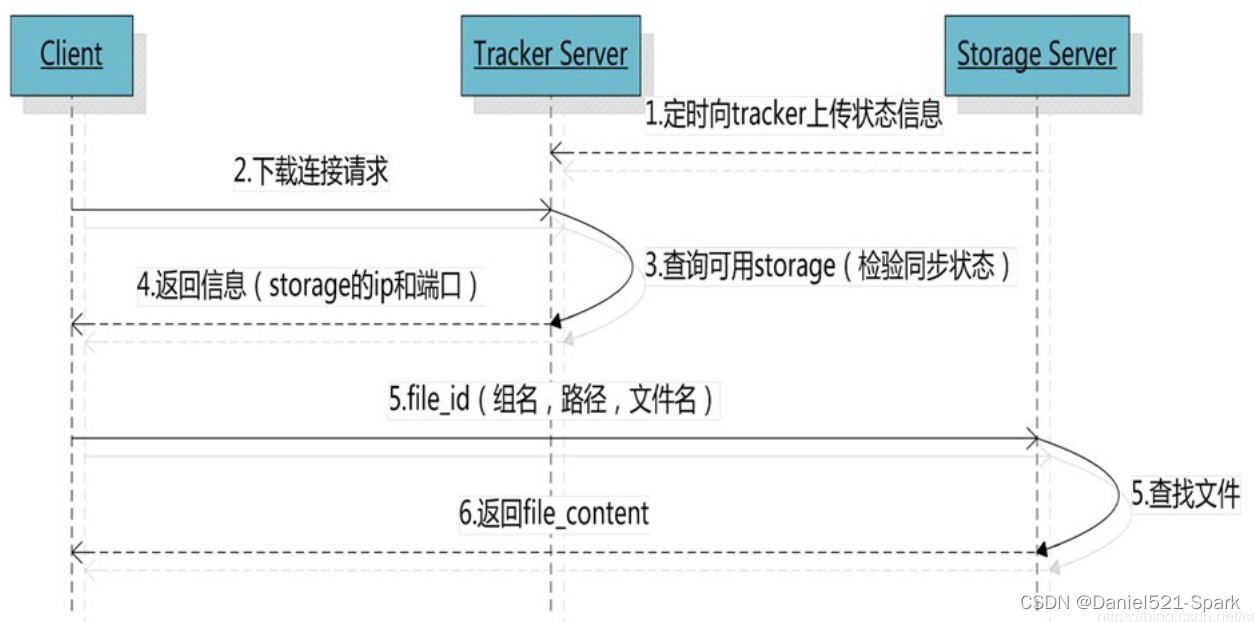
fastdfs文件下载流程
- client询问tracker下载文件的storage,参数为文件标识(组名和文件名);
- tracker返回一台可用的storage;
- client直接和storage通讯完成文件下载。
1.3 最简单的 FastDFS 架构
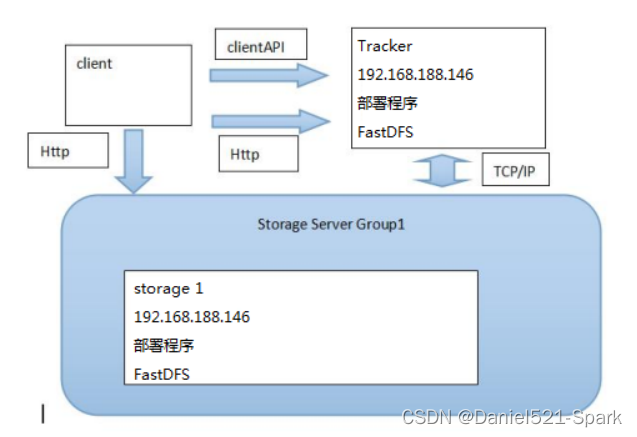
1.4 FastDFS安装
- 方式一: FastDFS集群搭建 安装步骤非常繁琐,搞不好,就得一天搭建
- 方式二:直接使用我的镜像咯 👉🏾👉🏾 FastDFS
为了能够快速的搭建FastDFS环境进行代码开发,这里提供了安装好的镜像(上面方式二)。
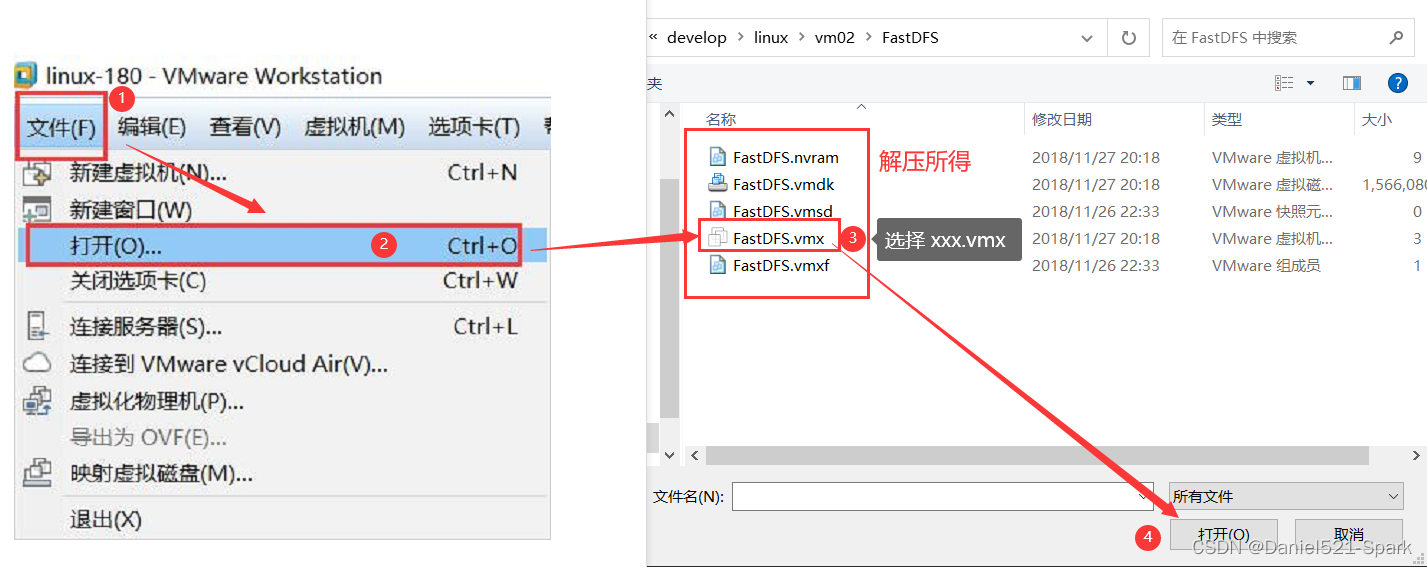
解压“/FastDFS.rar”,然后 👇🏾👇🏾 打开。前提 :请设置你的虚拟机NAT主机网段为188哦,因为 FastDFS已经设置死了;
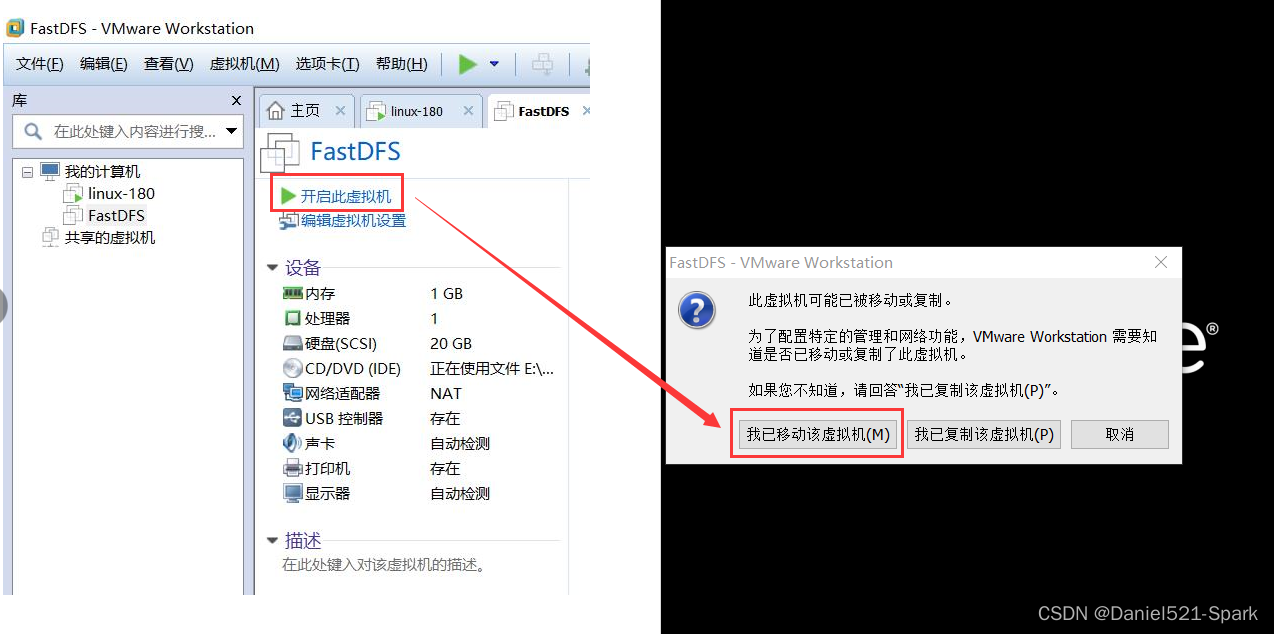
注意:遇到下列提示选择“我已移动该虚拟机”!
用户名 root 密码: offcn123查看地址
ip a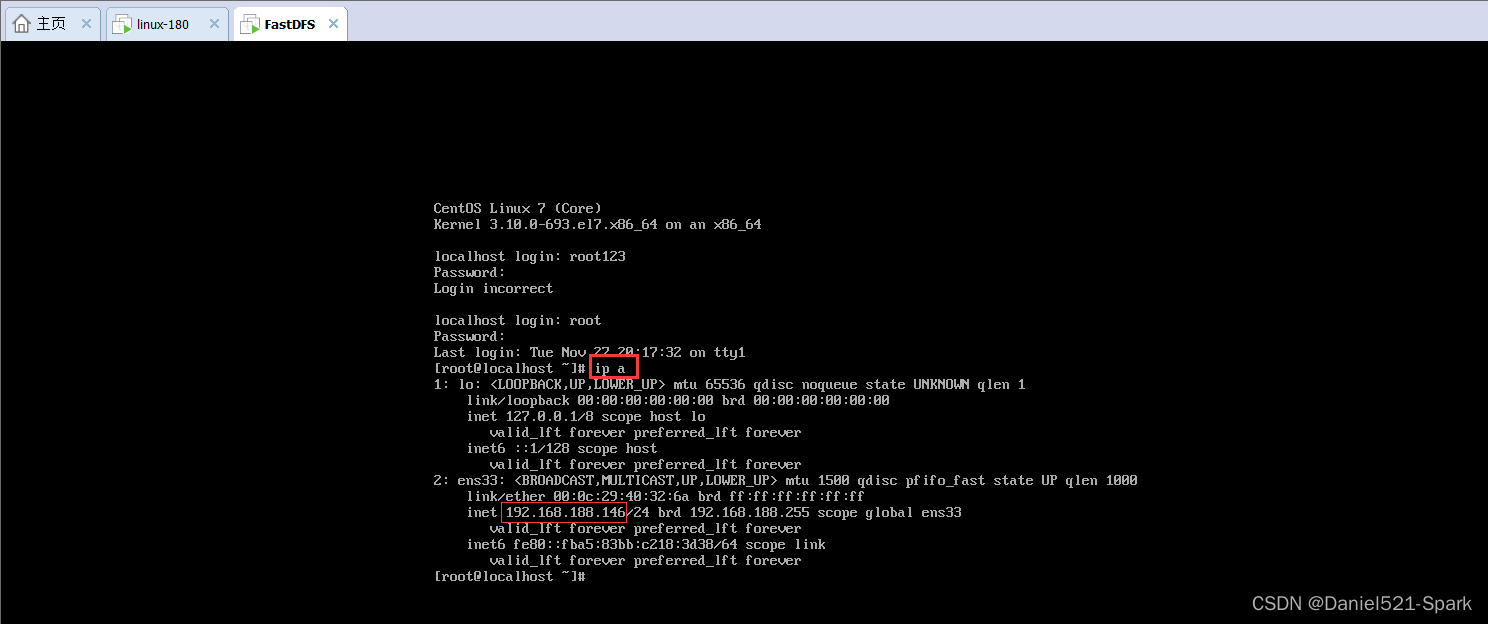
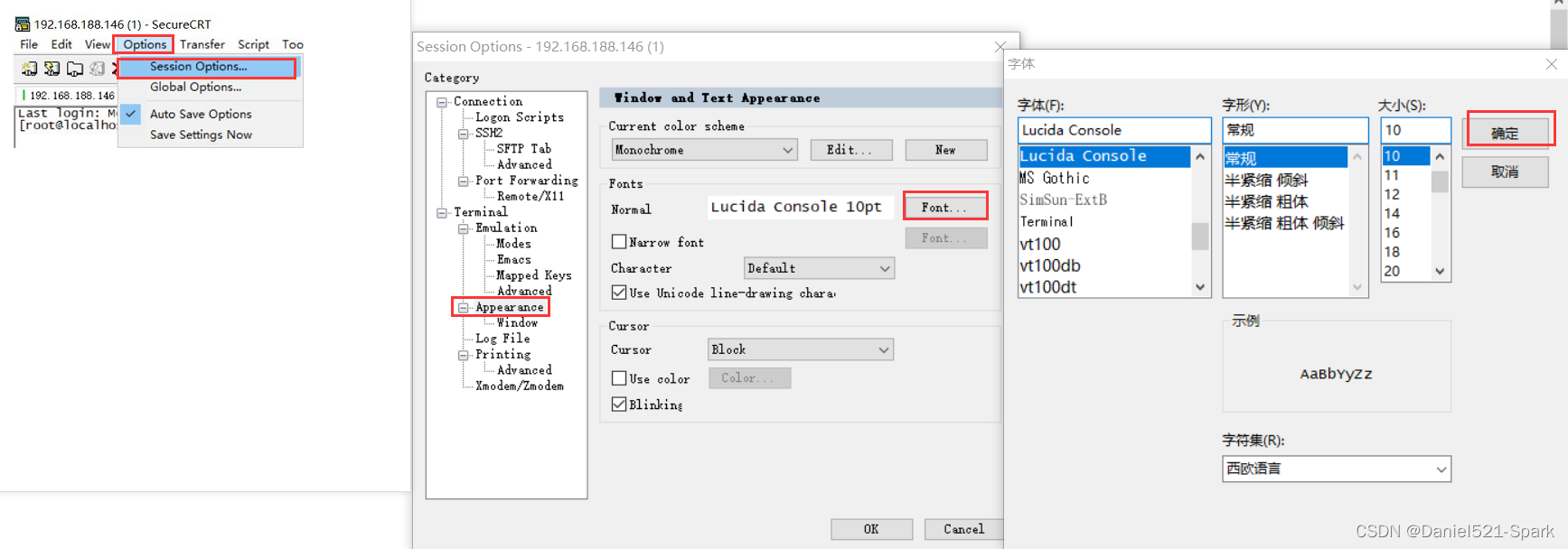
由此查看IP地址已经固定为192.168.188.146 连接xShell 或 SecureCRT 进行如下操作

字体调整:
关闭防火墙
查看防火墙状态: systemctl status firewalld.service 执行关闭命令: systemctl stop firewalld.service 再次执行查看防火墙命令:systemctl status firewalld.service 执行开机禁用防火墙自启命令 : systemctl disable firewalld.service 重启 reboot- 1
- 2
- 3
- 4
- 5
- 6
- 7
- 8
- 9

1.5 FastDFS 入门小 Demo
需求:将本地 图片 上传至图片服务器,再控制台打印url

(1)创建Maven工程 fastDFSdemo, pom.xml中引入
<dependencies> <dependency> <groupId>cn.bestwugroupId> <artifactId>fastdfs-client-javaartifactId> <version>1.27version> dependency> dependencies>- 1
- 2
- 3
- 4
- 5
- 6
- 7
(2)添加配置文件fdfs_client.conf ,将其中的服务器地址设置为192.168.188.146
#tracker服务器IP地址和端口号 tracker_server=192.168.188.146:22122- 1
- 2
(3)创建java类TestStorageClient,提前D盘下存放一张图片,然后代码如下:
package com.zql.fastDSF; import org.csource.fastdfs.*; import java.io.IOException; /** * @Author:Daniel * @Version 1.0 */ public class TestStorageClient { public static void main(String[] args) throws Exception { // 1、加载配置文件,配置文件中的内容就是 tracker 服务的地址。 ClientGlobal.init("./src/main/resources/fdfs_client.conf"); // 2、创建一个 TrackerClient 对象。直接 new 一个。 TrackerClient trackerClient = new TrackerClient(); // 3、使用 TrackerClient 对象创建连接,获得一个 TrackerServer 对象。 TrackerServer trackerServer = trackerClient.getConnection(); // 4、创建一个 StorageServer 的引用,值为 null StorageServer storageServer = null; // 5、创建一个 StorageClient 对象,需要两个参数 TrackerServer 对象、StorageServer 的引用 StorageClient storageClient = new StorageClient(trackerServer, storageServer); //扩展名不带“.” String[] jpgs = storageClient.upload_file("D:/meinv.jpg", "jpg", null); // 7、返回数组。包含组名和图片的路径。 for (String s : jpgs) { System.out.println(s); } } }- 1
- 2
- 3
- 4
- 5
- 6
- 7
- 8
- 9
- 10
- 11
- 12
- 13
- 14
- 15
- 16
- 17
- 18
- 19
- 20
- 21
- 22
- 23
- 24
- 25
- 26
- 27
- 28
- 29
- 30
- 31
- 32
- 33
- 34
连接图片服务器超时问题处理
注意:如果出现连接图片服务器超时失败的情况,请检查图片linux服务器是否启动、是否开启了端口22122、23000的防火墙端口,如果未开启需要开启。
firewall-cmd --add-port=22122/tcp --permanent firewall-cmd --add-port=23000/tcp --permanent firewall-cmd --reload- 1
- 2
- 3
控制台输出如下结果:

D:\develop\jdk\bin\java.exe · · · group1 M00/00/00/wKi8kmL5O3uAJ3FMAAFw9BYjaao979.jpg Process finished with exit code 0- 1
- 2
- 3
- 4
- 5
在浏览器输入:
http://192.168.188.146/group1/M00/00/00/wKi8kmL5O3uAJ3FMAAFw9BYjaao979.jpg即可看到所上传的图片 👇🏾👇🏾。

二、商家后台-商品录入【商品图片上传】
2.1 需求分析
在商品录入界面实现多图片上传

当用户点击新建按钮,弹出上传窗口2.2 后端代码
2.2.1 工具类
(1)youlexuan_common 工程 pom.xml 引入依赖
<dependency> <groupId>cn.bestwugroupId> <artifactId>fastdfs-client-javaartifactId> <version>1.27version> dependency> <dependency> <groupId>commons-fileuploadgroupId> <artifactId>commons-fileuploadartifactId> dependency> <dependency> <groupId>commons-iogroupId> <artifactId>commons-ioartifactId> dependency>- 1
- 2
- 3
- 4
- 5
- 6
- 7
- 8
- 9
- 10
- 11
- 12
- 13
- 14
- 15
- 16
- 17
(2)将资源 FastDFSClient.java 解压拷贝到 youlexuan-common 工程
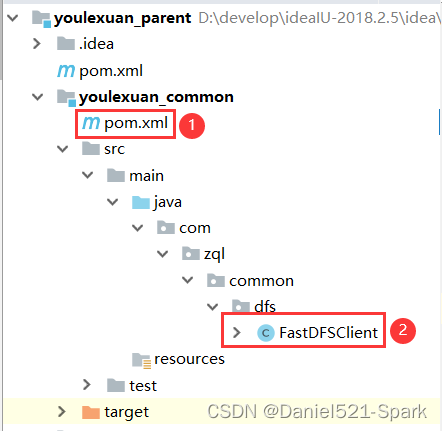
在 youlexuan_shop_web 中得pom.xml 中添加让其依赖
<dependency> <groupId>com.zqlgroupId> <artifactId>youlexuan_commonartifactId> <version>1.0version> dependency>- 1
- 2
- 3
- 4
- 5
2.2.2 配置文件
(1)将“资源/ fastDFSdemo /resources下中的 fdfs_client.conf 拷贝到youlexuan_shop_web工程 config 文件夹
(2)在youlexuan_shop_web工程resources / conf下创建 application.properties 添加如下配置
FILE_SERVER_URL=http://192.168.188.146/- 1
(3)在youlexuan_shop_web 工程 springmvc.xml添加配置:

<context:property-placeholder location="classpath:conf/*.properties"/> <bean id="multipartResolver" class="org.springframework.web.multipart.commons.CommonsMultipartResolver"> <property name="defaultEncoding" value="UTF-8">property> <property name="maxUploadSize" value="5000242880">property> bean>- 1
- 2
- 3
- 4
- 5
- 6
- 7
- 8
- 9
注意,一定要加载属性文件,要 不然 在Controler里面没办法使用@Value引用属性值
2.2.3 控制层
在youlexuan_shop_web 新建
UploadController.javapackage com.zql.shop.controller; import com.zql.common.dfs.FastDFSClient; import com.zql.entity.Result; import org.springframework.beans.factory.annotation.Value; import org.springframework.web.bind.annotation.RequestMapping; import org.springframework.web.bind.annotation.RestController; import org.springframework.web.multipart.MultipartFile; /** * @Author:Daniel * @Version 1.0 */ @RestController public class UploadController { @Value("${FILE_SERVER_URL}") private String FILE_SERVER_URL;//文件服务器地址 @RequestMapping("/upload") public Result upload(MultipartFile file){ try{ //1. 创建一个客户端对象 FastDFSClient fastDFSClient = new FastDFSClient("classpath:conf/fdfs_client.conf"); //2.获取图片拓展名 String ext = file.getOriginalFilename().substring(file.getOriginalFilename().lastIndexOf(".") + 1); //3.执行上传处理 String path = fastDFSClient.uploadFile(file.getBytes(), ext); //4.拼接返回的 url 和 ip 地址,拼装成完整的 url String url = FILE_SERVER_URL + path; return new Result(true,url); }catch (Exception e){ e.printStackTrace(); return new Result(true,"上传失败"); } } }- 1
- 2
- 3
- 4
- 5
- 6
- 7
- 8
- 9
- 10
- 11
- 12
- 13
- 14
- 15
- 16
- 17
- 18
- 19
- 20
- 21
- 22
- 23
- 24
- 25
- 26
- 27
- 28
- 29
- 30
- 31
- 32
- 33
- 34
- 35
- 36
- 37
- 38
- 39
- 40
- 41
- 42
- 43
- 44
- 45
- 46
- 47
2.3 前端代码
2.3.1 服务层
(1)在youlexuan_shop_web工程创建 uploadService.js
//文件上传服务层 app.service("uploadService",function($http){ this.uploadFile=function(){ var formData=new FormData(); formData.append("file",file.files[0]); return $http({ method:'POST', url:"../upload.do", data: formData, headers: {'Content-Type':undefined}, transformRequest: angular.identity }); } });- 1
- 2
- 3
- 4
- 5
- 6
- 7
- 8
- 9
- 10
- 11
- 12
- 13
- 14
- 15
- 16
- 17
- 18
- 19
- 20
- 21
- 22
- 23
- anjularjs对于post和get请求默认的Content-Type header 是application/json。通过设置‘Content-Type’: undefined,这样浏览器会帮我们把Content-Type 设置为 multipart/form-data.
- 通过设置 transformRequest: angular.identity ,anjularjs transformRequest function 将序列化我们的formdata object.
(2)将uploadService服务注入到goodsController 中
uploadService
(3)在goods_edit.html引入js<script type="text/javascript" src="../js/service/uploadService.js"></script>- 1

2.3.2 上传图片
(1)goodsController 编写代码
$scope.uploadFile = function () { uploadService.uploadFile().success(function (response) { if(response.success){ //如果上传成功,就取出url $scope.image_entity.url = response.message;//设置文件地址 }else{ alert(response.message); } }).error(function () { alert("上传发生错误"); }) }- 1
- 2
- 3
- 4
- 5
- 6
- 7
- 8
- 9
- 10
- 11
- 12
- 13
- 14
- 15
- 16
- 17
- 18
- 19
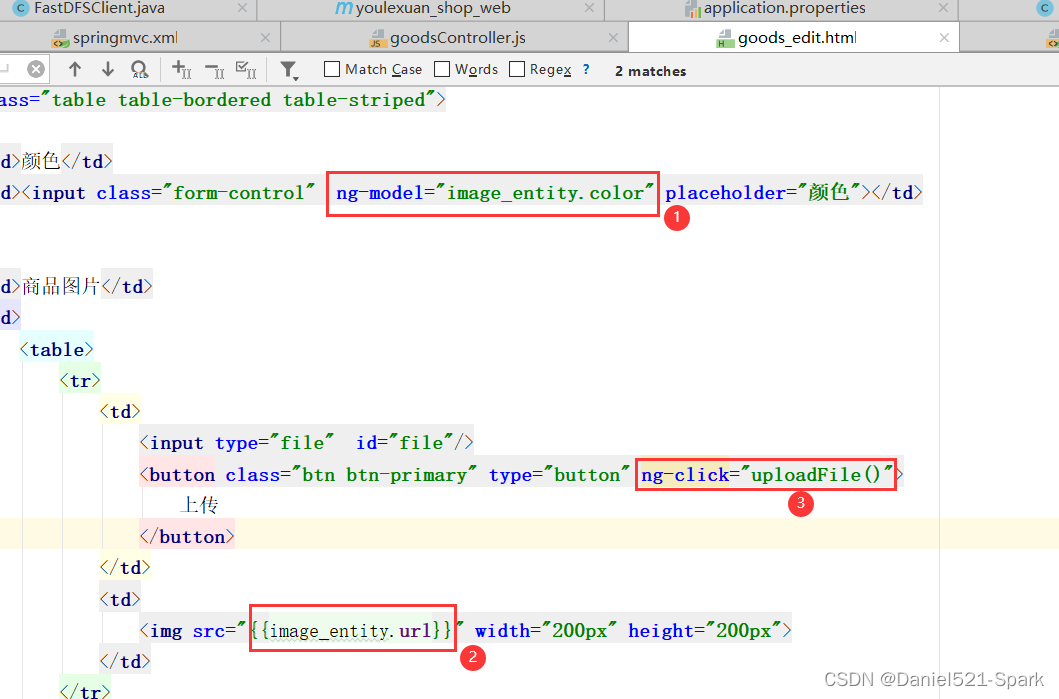
(2)在 goods_edit.html 中修改图片上传窗口,调用上传方法,回显上传图片
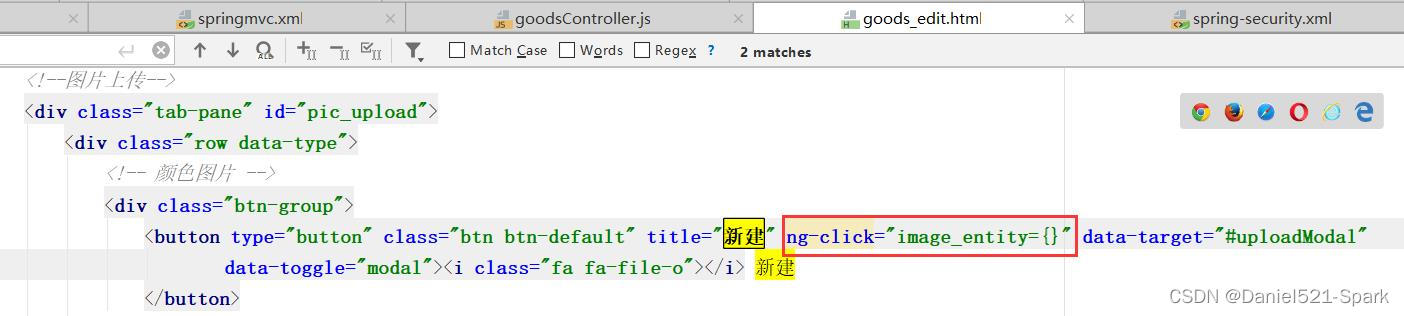
<div class="tab-pane" id="pic_upload"> <div class="row data-type"> <div class="btn-group"> <button type="button" class="btn btn-default" title="新建" ng-click="image_entity={}" data-target="#uploadModal" data-toggle="modal"><i class="fa fa-file-o">i> 新建 button> div> <table class="table table-bordered table-striped table-hover dataTable"> <thead> <tr> <th class="sorting">颜色th> <th class="sorting">图片th> <th class="sorting">操作th> thead> <tbody> <tr> <td> td> <td> <img alt="" src="" width="100px" height="100px"> td> <td> <button type="button" class="btn btn-default" title="删除"><i class="fa fa-trash-o">i> 删除 button> td> tr> tbody> table> div> div>- 1
- 2
- 3
- 4
- 5
- 6
- 7
- 8
- 9
- 10
- 11
- 12
- 13
- 14
- 15
- 16
- 17
- 18
- 19
- 20
- 21
- 22
- 23
- 24
- 25
- 26
- 27
- 28
- 29
- 30
- 31
- 32
- 33
- 34
- 35
- 36
- 37
- 38
<div class="modal fade" id="uploadModal" tabindex="-1" role="dialog" aria-labelledby="myModalLabel" aria-hidden="true"> <div class="modal-dialog"> <div class="modal-content"> <div class="modal-header"> <button type="button" class="close" data-dismiss="modal" aria-hidden="true">×button> <h3 id="myModalLabel">上传商品图片h3> div> <div class="modal-body"> <table class="table table-bordered table-striped"> <tr> <td>颜色td> <td><input class="form-control" ng-model="image_entity.color" placeholder="颜色">td> tr> <tr> <td>商品图片td> <td> <table> <tr> <td> <input type="file" id="file"/> <button class="btn btn-primary" type="button" ng-click="uploadFile()"> 上传 button> td> <td> <img src="{{image_entity.url}}" width="200px" height="200px"> td> tr> table> td> tr> table> div> <div class="modal-footer"> <button class="btn btn-success" data-dismiss="modal" aria-hidden="true">保存button> <button class="btn btn-default" data-dismiss="modal" aria-hidden="true">关闭button> div> div> div> div>- 1
- 2
- 3
- 4
- 5
- 6
- 7
- 8
- 9
- 10
- 11
- 12
- 13
- 14
- 15
- 16
- 17
- 18
- 19
- 20
- 21
- 22
- 23
- 24
- 25
- 26
- 27
- 28
- 29
- 30
- 31
- 32
- 33
- 34
- 35
- 36
- 37
- 38
- 39
- 40
- 41
- 42
- 43
测试: 启动两服务器,启动 youlexuan_sellergoods_service 和 youlexuan_shop_web
http://127.0.0.1:9102/admin/index.html
2.3.3 图片列表 & 移除图片
(1)在goodsController.js 增加方法
//遍历上传得图片 $scope.add_entity_images = function () { $scope.entity.goodsDesc.itemImages.push($scope.image_entity); } //删除 $scope.delete_entity_images = function (index) { $scope.entity.goodsDesc.itemImages.splice(index,1) }- 1
- 2
- 3
- 4
- 5
- 6
- 7
- 8
- 9
- 10
- 11
- 12
- 13
(2)修改上传窗口的保存按钮
ng-click="add_entity_images()"
(3)遍历图片列表和修改列表中的删除按钮
ng-click="delete_entity_images($index)"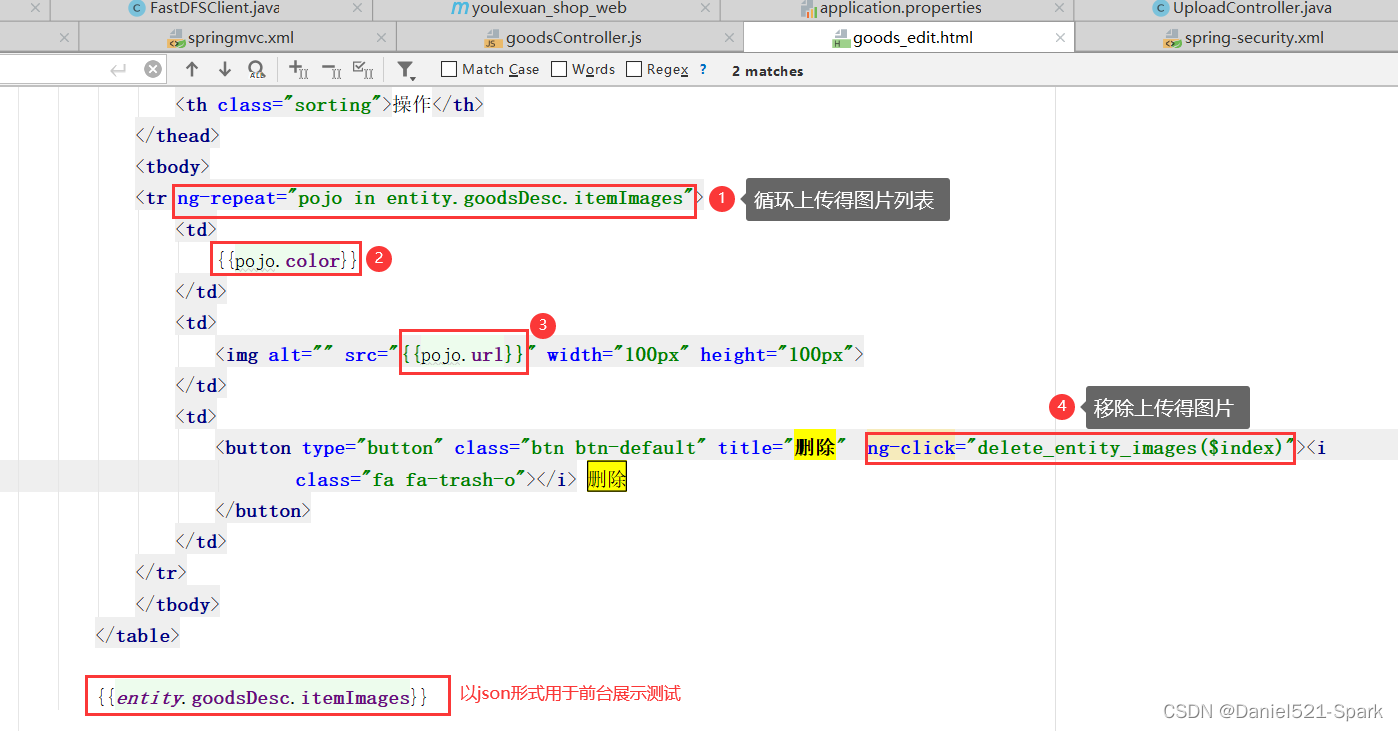
注意图片属性采用了ng-src,可以保证有属性值的时候在加载图片,避免出现404错误
再次测试: 启动两服务器,启动 youlexuan_sellergoods_service 和 youlexuan_shop_web
http://127.0.0.1:9102/admin/index.html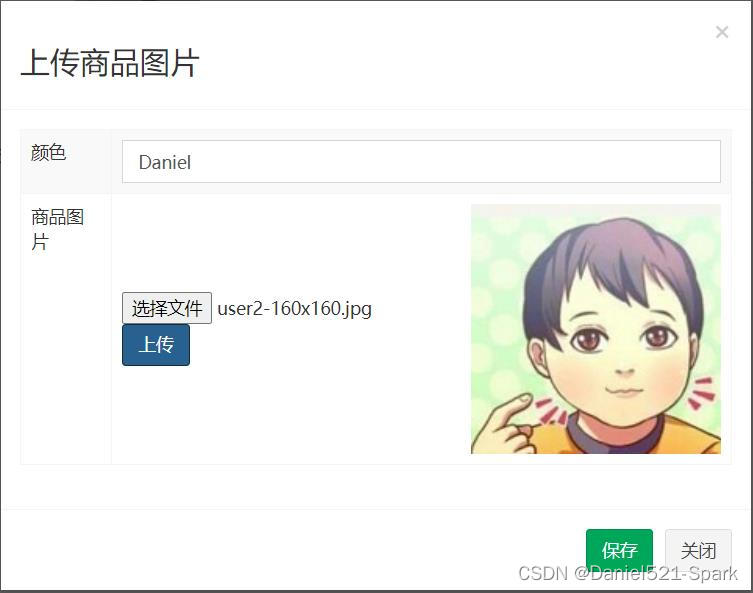
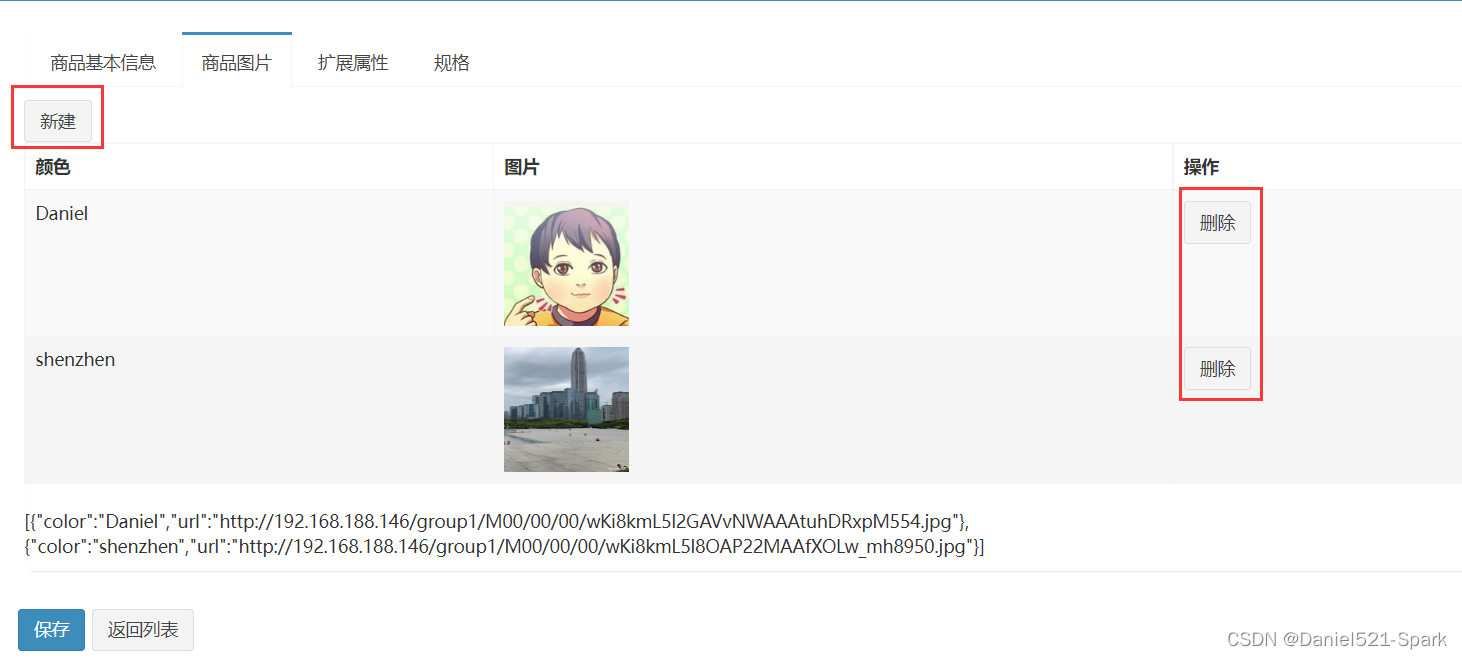
当前完整代码 goods_edit.htmlDOCTYPE html> <html> <head> <meta charset="utf-8"> <meta http-equiv="X-UA-Compatible" content="IE=edge"> <title>商品编辑title> <meta content="width=device-width,initial-scale=1,maximum-scale=1,user-scalable=no" name="viewport"> <link rel="stylesheet" href="../plugins/bootstrap/css/bootstrap.min.css"> <link rel="stylesheet" href="../plugins/adminLTE/css/AdminLTE.css"> <link rel="stylesheet" href="../plugins/adminLTE/css/skins/_all-skins.min.css"> <link rel="stylesheet" href="../css/style.css"> <script src="../plugins/jQuery/jquery-2.2.3.min.js">script> <script src="../plugins/bootstrap/js/bootstrap.min.js">script> <link rel="stylesheet" href="../plugins/kindeditor/themes/default/default.css"/> <script charset="utf-8" src="../plugins/kindeditor/kindeditor-min.js">script> <script charset="utf-8" src="../plugins/kindeditor/lang/zh_CN.js">script> <script type="text/javascript"> var editor; //编辑器对象名称是editor,要不然会取不到值 KindEditor.ready(function (K) { editor = K.create('textarea[name="content"]', { allowFileManager: true }); }); script> <script type="text/javascript" src="../plugins/angularjs/angular.min.js">script> <script type="text/javascript" src="../js/base.js">script> <script type="text/javascript" src="../js/service/uploadService.js">script> <script type="text/javascript" src="../js/service/goodsService.js">script> <script type="text/javascript" src="../js/controller/baseController.js">script> <script type="text/javascript" src="../js/controller/goodsController.js">script> head> <body class="hold-transition skin-red sidebar-mini" ng-app="youlexuan" ng-controller="goodsController"> <section class="content"> <div class="box-body"> <div class="nav-tabs-custom"> <ul class="nav nav-tabs"> <li class="active"> <a href="#home" data-toggle="tab">商品基本信息a> li> <li> <a href="#pic_upload" data-toggle="tab">商品图片a> li> <li> <a href="#customAttribute" data-toggle="tab">扩展属性a> li> <li> <a href="#spec" data-toggle="tab">规格a> li> ul> <div class="tab-content"> <div class="tab-pane active" id="home"> <div class="row data-type"> <div class="col-md-2 title">商品分类div> <div class="col-md-10 data"> <table> <tr> <td> <select class="form-control"> select> td> <td> <select class="form-control select-sm">select> td> <td> <select class="form-control select-sm">select> td> <td> 模板ID:19 td> tr> table> div> <div class="col-md-2 title">商品名称div> <div class="col-md-10 data"> <input type="text" class="form-control" ng-model="entity.goods.goodsName" placeholder="商品名称" value=""> div> <div class="col-md-2 title">品牌div> <div class="col-md-10 data"> <select class="form-control">select> div> <div class="col-md-2 title">副标题div> <div class="col-md-10 data"> <input type="text" class="form-control" ng-model="entity.goods.caption" placeholder="副标题" value=""> div> <div class="col-md-2 title">价格div> <div class="col-md-10 data"> <div class="input-group"> <span class="input-group-addon">¥span> <input type="text" class="form-control" ng-model="entity.goods.price" placeholder="价格" value=""> div> div> <div class="col-md-2 title editer">商品介绍div> <div class="col-md-10 data editer"> <textarea name="content" ng-model="entity.goods.introduction" style="width:800px;height:400px;visibility:hidden;">textarea> div> <div class="col-md-2 title rowHeight2x">包装列表div> <div class="col-md-10 data rowHeight2x"> <textarea rows="4" class="form-control" ng-model="entity.goodsDesc.packageList" placeholder="包装列表">textarea> div> <div class="col-md-2 title rowHeight2x">售后服务div> <div class="col-md-10 data rowHeight2x"> <textarea rows="4" class="form-control" ng-model="entity.goodsDesc.saleService" placeholder="售后服务">textarea> div> div> div> <div class="tab-pane" id="pic_upload"> <div class="row data-type"> <div class="btn-group"> <button type="button" class="btn btn-default" title="新建" ng-click="image_entity={}" data-target="#uploadModal" data-toggle="modal"><i class="fa fa-file-o">i> 新建 button> div> <table class="table table-bordered table-striped table-hover dataTable"> <thead> <tr> <th class="sorting">颜色th> <th class="sorting">图片th> <th class="sorting">操作th> thead> <tbody> <tr ng-repeat="pojo in entity.goodsDesc.itemImages"> <td> {{pojo.color}} td> <td> <img alt="" src="{{pojo.url}}" width="100px" height="100px"> td> <td> <button type="button" class="btn btn-default" title="删除" ng-click="delete_entity_images($index)"><i class="fa fa-trash-o">i> 删除 button> td> tr> tbody> table> {{entity.goodsDesc.itemImages}} div> div> <div class="tab-pane" id="customAttribute"> <div class="row data-type"> <div> <div class="col-md-2 title">扩展属性1div> <div class="col-md-10 data"> <input class="form-control" placeholder="扩展属性1"> div> div> <div> <div class="col-md-2 title">扩展属性2div> <div class="col-md-10 data"> <input class="form-control" placeholder="扩展属性2"> div> div> div> div> <div class="tab-pane" id="spec"> <div class="row data-type"> <div class="col-md-2 title">是否启用规格div> <div class="col-md-10 data"> <input type="checkbox"> div> div> <p> <div> <div class="row data-type"> <div> <div class="col-md-2 title">屏幕尺寸div> <div class="col-md-10 data"> <span> <input type="checkbox">4.0 span> <span> <input type="checkbox">4.5 span> <span> <input type="checkbox">5.0 span> div> div> <div> <div class="col-md-2 title">网络制式div> <div class="col-md-10 data"> <span> <input type="checkbox">2G span> <span> <input type="checkbox">3G span> <span> <input type="checkbox">4G span> div> div> div> <div class="row data-type"> <table class="table table-bordered table-striped table-hover dataTable"> <thead> <tr> <th class="sorting">屏幕尺寸th> <th class="sorting">网络制式th> <th class="sorting">价格th> <th class="sorting">库存th> <th class="sorting">是否启用th> <th class="sorting">是否默认th> tr> thead> <tbody> <tr> <td> 4.0 td> <td> 3G td> <td> <input class="form-control" placeholder="价格"> td> <td> <input class="form-control" placeholder="库存数量"> td> <td> <input type="checkbox"> td> <td> <input type="checkbox"> td> tr> <tr> <td> 4.0 td> <td> 4G td> <td> <input class="form-control" placeholder="价格"> td> <td> <input class="form-control" placeholder="库存数量"> td> <td> <input type="checkbox"> td> <td> <input type="checkbox"> td> tr> <tr> <td> 5.0 td> <td> 3G td> <td> <input class="form-control" placeholder="价格"> td> <td> <input class="form-control" placeholder="库存数量"> td> <td> <input type="checkbox"> td> <td> <input type="checkbox"> td> tr> <tr> <td> 5.0 td> <td> 4G td> <td> <input class="form-control" placeholder="价格"> td> <td> <input class="form-control" placeholder="库存数量"> td> <td> <input type="checkbox"> td> <td> <input type="checkbox"> td> tr> tbody> table> div> div> div> div> div> div> <div class="btn-toolbar list-toolbar"> <button class="btn btn-primary" ng-click="add()"><i class="fa fa-save" >i>保存button> <button class="btn btn-default">返回列表button> div> section> <div class="modal fade" id="uploadModal" tabindex="-1" role="dialog" aria-labelledby="myModalLabel" aria-hidden="true"> <div class="modal-dialog"> <div class="modal-content"> <div class="modal-header"> <button type="button" class="close" data-dismiss="modal" aria-hidden="true">×button> <h3 id="myModalLabel">上传商品图片h3> div> <div class="modal-body"> <table class="table table-bordered table-striped"> <tr> <td>颜色td> <td><input class="form-control" ng-model="image_entity.color" placeholder="颜色">td> tr> <tr> <td>商品图片td> <td> <table> <tr> <td> <input type="file" id="file"/> <button class="btn btn-primary" type="button" ng-click="uploadFile()"> 上传 button> td> <td> <img src="{{image_entity.url}}" width="200px" height="200px"> td> tr> table> td> tr> table> div> <div class="modal-footer"> <button class="btn btn-success" data-dismiss="modal" aria-hidden="true" ng-click="add_entity_images()">保存button> <button class="btn btn-default" data-dismiss="modal" aria-hidden="true">关闭button> div> div> div> div> body> html>- 1
- 2
- 3
- 4
- 5
- 6
- 7
- 8
- 9
- 10
- 11
- 12
- 13
- 14
- 15
- 16
- 17
- 18
- 19
- 20
- 21
- 22
- 23
- 24
- 25
- 26
- 27
- 28
- 29
- 30
- 31
- 32
- 33
- 34
- 35
- 36
- 37
- 38
- 39
- 40
- 41
- 42
- 43
- 44
- 45
- 46
- 47
- 48
- 49
- 50
- 51
- 52
- 53
- 54
- 55
- 56
- 57
- 58
- 59
- 60
- 61
- 62
- 63
- 64
- 65
- 66
- 67
- 68
- 69
- 70
- 71
- 72
- 73
- 74
- 75
- 76
- 77
- 78
- 79
- 80
- 81
- 82
- 83
- 84
- 85
- 86
- 87
- 88
- 89
- 90
- 91
- 92
- 93
- 94
- 95
- 96
- 97
- 98
- 99
- 100
- 101
- 102
- 103
- 104
- 105
- 106
- 107
- 108
- 109
- 110
- 111
- 112
- 113
- 114
- 115
- 116
- 117
- 118
- 119
- 120
- 121
- 122
- 123
- 124
- 125
- 126
- 127
- 128
- 129
- 130
- 131
- 132
- 133
- 134
- 135
- 136
- 137
- 138
- 139
- 140
- 141
- 142
- 143
- 144
- 145
- 146
- 147
- 148
- 149
- 150
- 151
- 152
- 153
- 154
- 155
- 156
- 157
- 158
- 159
- 160
- 161
- 162
- 163
- 164
- 165
- 166
- 167
- 168
- 169
- 170
- 171
- 172
- 173
- 174
- 175
- 176
- 177
- 178
- 179
- 180
- 181
- 182
- 183
- 184
- 185
- 186
- 187
- 188
- 189
- 190
- 191
- 192
- 193
- 194
- 195
- 196
- 197
- 198
- 199
- 200
- 201
- 202
- 203
- 204
- 205
- 206
- 207
- 208
- 209
- 210
- 211
- 212
- 213
- 214
- 215
- 216
- 217
- 218
- 219
- 220
- 221
- 222
- 223
- 224
- 225
- 226
- 227
- 228
- 229
- 230
- 231
- 232
- 233
- 234
- 235
- 236
- 237
- 238
- 239
- 240
- 241
- 242
- 243
- 244
- 245
- 246
- 247
- 248
- 249
- 250
- 251
- 252
- 253
- 254
- 255
- 256
- 257
- 258
- 259
- 260
- 261
- 262
- 263
- 264
- 265
- 266
- 267
- 268
- 269
- 270
- 271
- 272
- 273
- 274
- 275
- 276
- 277
- 278
- 279
- 280
- 281
- 282
- 283
- 284
- 285
- 286
- 287
- 288
- 289
- 290
- 291
- 292
- 293
- 294
- 295
- 296
- 297
- 298
- 299
- 300
- 301
- 302
- 303
- 304
- 305
- 306
- 307
- 308
- 309
- 310
- 311
- 312
- 313
- 314
- 315
- 316
- 317
- 318
- 319
- 320
- 321
- 322
- 323
- 324
- 325
- 326
- 327
- 328
- 329
- 330
- 331
- 332
- 333
- 334
- 335
- 336
- 337
- 338
- 339
- 340
- 341
- 342
- 343
- 344
- 345
- 346
- 347
- 348
- 349
- 350
- 351
- 352
- 353
- 354
- 355
- 356
- 357
- 358
- 359
- 360
- 361
- 362
- 363
- 364
- 365
- 366
- 367
- 368
- 369
- 370
- 371
- 372
- 373
- 374
- 375
- 376
- 377
- 378
- 379
- 380
- 381
- 382
- 383
- 384
- 385
- 386
- 387
- 388
- 389
- 390
- 391
- 392
- 393
- 394
- 395
- 396
- 397
- 398
- 399
- 400
- 401
- 402
- 403
- 404
- 405
- 406
- 407
当前 youlexuan 所有完整代码
-
相关阅读:
全面解析HTTPS协议
康耐视读码器DataMan软件详细使用步骤
Ajax跨域访问,访问成功但一直走error不走success的的问题解决
Vue前后端交互、生命周期、组件化开发
Part 1: Implementing the Set ADT
kafka基本概念
通过宏封装实现std::format编译期检查参数数量是否一致
windows环境python2.7安装pyinstaller
微服务项目:尚融宝(32)(后端搭建:会员列表搭建(3))
kotlin实现java的单例模式
- 原文地址:https://blog.csdn.net/weixin_42171159/article/details/126333974
