-
C#二维码的生成及标签的制作(完整版)
1、研发背景
公司生产车间,对于来料检验的记录,目前采用人工录入Excel表格的形式,效率低、成本高、数据容易录错,尤其对于物料编号、规格、单重等等。
于是,作为项目的总设计师,提出了上“条码管理”的目标,通过条码管理,员工们只需拿一台手持机扫描标签,自动录入信息。
此时问题产生了,如何制作【二维码标签】呢?我们这个二维码标签,有一点特殊的地方:编号要可以人工复核,就需在原有基础上增加文字信息,便于人工查看。
说白了就是,需要对原生成的二维码进行重绘,重新增加文字信息,效果如下图:

ps:这个编号是公司内部定的,特有定含义,并不是单纯的随机码、也不是流水号,就是说有个【字典】可以查询标签含义信息。这个我们就不用深究了,不是本文重点,后来我也做了标签识别功能,专门解析这个玩意。
标签识别效果:

2、解决方案
二维码生成很简单,使用QRCodeEncoder可以生成一个【二维码】,但是它生成的仅仅是个【二维码】,没有文字信息记录,不符合我们的需要。
其实吧,有了【二维码】让客户放文档编辑编辑,二次加工也能符合他需求。但是吧,作为软件设计师宗旨:就是解决问题,让客户操作更便捷,能节省的步骤尽可能帮其他省略。
我的方案:
①生成【二维码】图片
②画一个白底的图片,要比【二维码】图片大一些
③把【二维码】图片放上去,底部留白的地方在加上文字说明。
编程需要用到的类:
使用 GDI+ 画图会用到的几个常用的类有:Graphics、Bitmap、Image。
其中 Graphics 是画板。这个类包含了许多画图的方法,包括画图片(DrawImage),画线(DrawLine),画圆(DrawEllipse、FillEllipse),写字(DrawString)等等。简单说使用这个类可以完成我们需要的大部分工作。3、代码样例
①引入开发包
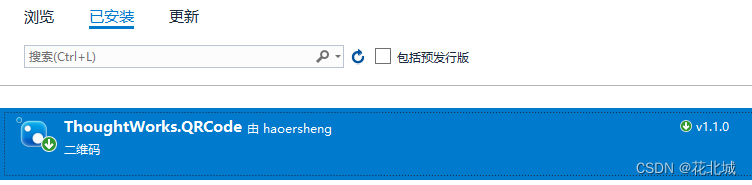
②二维码生成的代码
我这里进行封装,只要Bitmap对象就行了,传入的值是标签的编号。
- private Bitmap DrawImage(string a_strLabel)
- {
- Thread.Sleep(500);
- string l_strMode = AppConfig.GetValue("qr_mode");
- string l_strSize = AppConfig.GetValue("qr_size");
- string l_strVersion = AppConfig.GetValue("qr_version");
- string l_strCheckLevel = AppConfig.GetValue("qr_checklevel");
- QRCodeEncoder qrCodeEncoder = new QRCodeEncoder();
- // 生成二维码内容模式分为三种,数字,数字字母,字节,这个基本上都设置成Byte,支持汉字
- qrCodeEncoder.QRCodeEncodeMode = (QRCodeEncoder.ENCODE_MODE)Enum.Parse(typeof(QRCodeEncoder.ENCODE_MODE), l_strMode);
- // 设置二维码的大小,默认4,在尺寸小的情况下,版本参数过高则设备难以识别二维码
- qrCodeEncoder.QRCodeScale = int.Parse(l_strSize);
- // 设置二维码的版本,默认7 该值影响二维码最高数据容量 7大致对应40个汉字长度,内容超出择需提升该数值
- qrCodeEncoder.QRCodeVersion = int.Parse(l_strVersion);
- // 设置错误校验级别,默认中等,二维码被遮挡住一部分实际上也是能扫出内容的,这个效验级别的意思就是
- // 当遮挡部分最大占整体多少时仍然可以被扫出来,M大概在20%左右,H为30%,级别越高相应的数据容量会缩小
- // 那些中间带图标的二维码,其实就是简单粗暴的用LOGO遮挡住了中间部分
- qrCodeEncoder.QRCodeErrorCorrect = (QRCodeEncoder.ERROR_CORRECTION)Enum.Parse(typeof(QRCodeEncoder.ERROR_CORRECTION), l_strCheckLevel);
- return qrCodeEncoder.Encode(a_strLabel, Encoding.UTF8);
- }
③行改变事件
我这里做成,选择那一行编号,它就可以预览标签。当然也是支持一键打印的。
- private void GV_Main_FocusedRowChanged(object sender, DevExpress.XtraGrid.Views.Base.FocusedRowChangedEventArgs e)
- {
- Bitmap image = null;
- int l_intFontSize = Convert.ToInt32(AppConfig.GetValue("qr_fontsize"));
- if (GV_Main.FocusedRowHandle > -1)
- {
- string l_strLabel = GV_Main.GetFocusedDataRow()["code_no"].ToString();
- if (!string.IsNullOrWhiteSpace(l_strLabel))
- {
- image = DrawImage(l_strLabel);
- //建立一个IDataObject对象存储图片
- IDataObject data = new DataObject();
- //调用SetData方法储存图片
- data.SetData(image);
- //将图片复制到剪贴板上
- Clipboard.SetDataObject(data, false);
- richTextBox2.Clear();
- richTextBox2.BackColor = Color.White;
- richTextBox2.ForeColor = Color.Blue;
- richTextBox2.SelectionColor = Color.White;
- richTextBox2.Font = new Font("黑体", l_intFontSize);
- richTextBox2.SelectionStart = richTextBox2.Text.Length;
- //将剪贴板中的内容贴入RichTextBox中
- richTextBox2.Paste();
- richTextBox2.AppendText(Environment.NewLine + "编号:" + l_strLabel);
- image.Dispose();
- }
- }
- else
- {
- richTextBox2.Text = "";
- }
- }
运行时的效果:


④标签的制作(核心)
本文的核心内容,就是如何写标签,关于思路前面提到过,这里只说实现方法。
生成图片类,传入参数:编号、文件路径。
- private void CreatePicture(string a_strCodeNo,string a_strFilePath)
- {
- int l_intImgWidth = Convert.ToInt32(AppConfig.GetValue("img_width"));
- int l_intImgHeight = Convert.ToInt32(AppConfig.GetValue("img_height"));
- int l_intCodeWidth = Convert.ToInt32(AppConfig.GetValue("code_width"));
- int l_intCodeHeight = Convert.ToInt32(AppConfig.GetValue("code_height"));
- int l_intCodeX = Convert.ToInt32(AppConfig.GetValue("code_x"));
- int l_intCodeY = Convert.ToInt32(AppConfig.GetValue("code_y"));
- int l_intFontSize = Convert.ToInt32(AppConfig.GetValue("qr_fontsize"));
- int l_intFontX = Convert.ToInt32(AppConfig.GetValue("font_x"));
- int l_intFontY = Convert.ToInt32(AppConfig.GetValue("font_y"));
- Image image = null;
- Bitmap imagedata = new Bitmap(l_intImgWidth, l_intImgHeight); //创建画布150*150。
- Graphics g = null;
- try
- {
- g = Graphics.FromImage(imagedata);//绘制
- Rectangle c = new Rectangle(0, 0, l_intImgWidth, l_intImgHeight);//矩形框
- g.FillRectangle(Brushes.White, c);//白色底色填充画布
- image = DrawImage(a_strCodeNo); //获取二维码的 Bitmap,由于Image是Bitmap的父类自动转换
- g.DrawImage(image, l_intCodeX, l_intCodeY, l_intCodeWidth, l_intCodeHeight);//绘制二维码到画布,留边距20像素
- g.DrawString($"编号:{a_strCodeNo}", new Font("黑体", l_intFontSize, FontStyle.Regular),
- new SolidBrush(Color.Black), l_intFontX, l_intFontY); //绘制文字
- imagedata.Save(a_strFilePath, System.Drawing.Imaging.ImageFormat.Jpeg);//保存图片
- }
- catch (System.Exception ex)
- {
- throw ex;
- }
- finally
- {
- g.Dispose();
- imagedata.Dispose();
- image.Dispose();
- }
- }
调用方法样例,这里根据你们需要来
- private void BTN_Batch_Click(object sender, EventArgs e)
- {
- DataTable l_dt = GC_Main.DataSource as DataTable;
- if (l_dt == null || l_dt.Rows.Count==0)
- {
- return;
- }
- FolderBrowserDialog dialog = new FolderBrowserDialog();
- dialog.Description = "请选择路径";
- dialog.SelectedPath = AppDomain.CurrentDomain.BaseDirectory;
- if (dialog.ShowDialog() == DialogResult.OK)
- {
- string l_strPath = dialog.SelectedPath;
- foreach (DataRow dr in l_dt.Rows)
- {
- string l_strCodeNo = dr["code_no"].ToString();
- string l_strFilePath = Path.Combine(l_strPath, l_strCodeNo+".jpg");
- CreatePicture(l_strCodeNo, l_strFilePath);
- }
- FrmTips.ShowTipsSuccess(this, "保存成功!");
- }
- }
运行效果展示:


关于代码说明
我将参数做成了配置项,存放在了配置文件中。AppConfig.GetValue()就是读取配置参数,你们可以忽略,不用理解是什么。
- string l_strMode = AppConfig.GetValue("qr_mode");
- string l_strSize = AppConfig.GetValue("qr_size");
- string l_strVersion = AppConfig.GetValue("qr_version");
- string l_strCheckLevel = AppConfig.GetValue("qr_checklevel");
后期【条码打印】集成进MES系统,此程序作废,本项目源码将开放出来,我这里就提供一种思路啦。
-
相关阅读:
BGP协议下的路由聚合、路由反射器、联邦的具体配置与运用(详解)
浏览器本地存储之Cookie和webStorage
MySQL 枚举类型如何定义比较好 tinyint?enum?varchar?
机器学习05|一万五字:SVM支持向量机01 【原理详解篇】
opencv-python 4.9.2. 轮廓特征
【深入浅出Spring原理及实战】「原理分析专题」重新回顾一下Spring框架的异步执行调用的原理和实战
iota()函数
1109 - 加密四位数
【collection】1.java容器之HashMap&LinkedHashMap&Hashtable
JVM实战(二) :关闭dump配置,使服务快速恢复
- 原文地址:https://blog.csdn.net/youcheng_ge/article/details/126310510
