-
【uni-app从入门到实战】环境搭建和配置学习
创建项目
原视频地址:Uni-App从入门到实战-黑马程序员杭州校区出品
用 HBuilderX 创建一个 uni-app 项目,选择默认模板,命名为 hello-uni 。我们先来运行下程序,可以运行到浏览器和微信开发者小程序。如果你不懂如何操作,可以查看:官方文档:运行uni-app
globalStyle全局外观配置
globalStyle 作用是设置默认页面的窗口表现。这里介绍几个常简设置项,更多详情可查看:pages.json页面路由——globalStyle
属性 类型 描述 navigationBarBackgroundColor HexColor 导航栏背景颜色(同状态栏背景色) navigationBarTextStyle String 导航栏标题颜色及状态栏前景颜色,仅支持 black/white navigationBarTitleText String 导航栏标题文字内容 backgroundColor HexColor 下拉显示出来的窗口的背景色 enablePullDownRefresh Boolean 是否开启下拉刷新,详见页面生命周期。 backgroundTextStyle String 下拉 loading 的样式,仅支持 dark / light onReachBottomDistance Number 页面上拉触底事件触发时距页面底部距离,单位只支持px,详见页面生命周期 我们修改 pages.json 中的 globalStyle
"globalStyle": { "navigationBarTextStyle": "white",//标题栏文字颜色 "navigationBarTitleText": "uni-app",//标题栏文字内容,pages.json中pages可单独设置页面标题栏内容 "navigationBarBackgroundColor": "#1E90FF",//标题栏颜色 "backgroundColor": "#87CEFA",//下拉刷新时背景颜色,只有开启下面的配置项才能下拉刷新 "enablePullDownRefresh":true,//是否开启下拉刷新 "backgroundTextStyle":"light"//下拉刷新三个点点的颜色 },- 1
- 2
- 3
- 4
- 5
- 6
- 7
- 8
效果如下:

pages页面配置
pages 作用是设置页面路径及窗口表现,下面我们新建一个页面来学习这些配置,更多详情可查看:pages.json页面路由——pages
pages 中新建 message 目录,其中新建 message.vue

新建的时候要勾选
在 pages.json 中注册,这样在pages.json中就会自动添加 message.vue 到 pages 设置项中,我们进行修改,把 message 的配置放到第一个,这样启动时就变成了首页。我们可以单独设置标题和背景颜色,同时增加 h5 的配置,这样我们在浏览器运行时会有单独的样式"pages": [ { "path" : "pages/message/message", "style" : { "navigationBarTitleText": "信息页", "navigationBarBackgroundColor": "#FFA500", "h5": { "titleNView": { "backgroundColor": "#800080" } } } }, { ...... } ],- 1
- 2
- 3
- 4
- 5
- 6
- 7
- 8
- 9
- 10
- 11
- 12
- 13
- 14
- 15
- 16
- 17
- 18
- 19
运行在微信开发者小程序中,标题栏样式:

运行在浏览器的样式:

配置基本的tabbar
我们在 globalStyle 同级下增加 tabBar 配置
"tabBar":{ "color": "#222222",//未选中时文字颜色 "selectedColor": "#1E90FF",//选中时文字颜色 "backgroundColor": "#87CEFA",//背景色 "borderStyle":"white",//上边框的颜色,可选值 black/white "list": [//tab 的列表,详见 list 属性说明,最少2个、最多5个 tab { "text": "首页", "pagePath": "pages/index/index", "iconPath": "static/tabs/index.png", "selectedIconPath": "static/tabs/index_active.png" }, { "text": "信息页", "pagePath": "pages/message/message", "iconPath": "static/tabs/message.png", "selectedIconPath": "static/tabs/message_active.png" }, { "text": "联系", "pagePath": "pages/contact/contact", "iconPath": "static/tabs/contact.png", "selectedIconPath": "static/tabs/contact_active.png" } ] }- 1
- 2
- 3
- 4
- 5
- 6
- 7
- 8
- 9
- 10
- 11
- 12
- 13
- 14
- 15
- 16
- 17
- 18
- 19
- 20
- 21
- 22
- 23
- 24
- 25
- 26
效果如下:
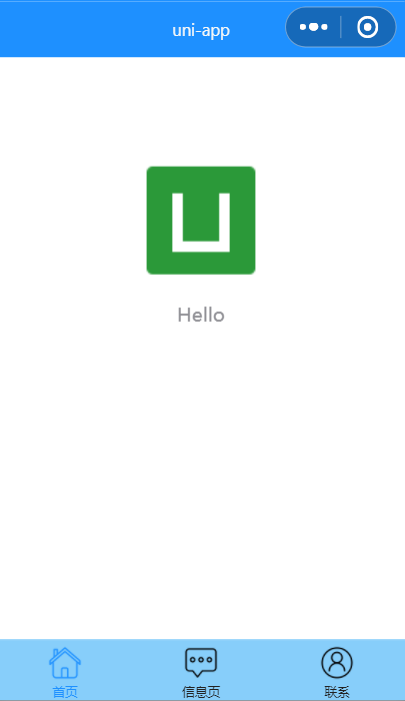
另外tabbar还有一个属性 :position当设置为top时会显示到最上面, top 值仅微信小程序支持:

condition启动模式配置
启动模式配置,仅开发期间生效,用于模拟直达页面的场景,如:小程序转发后,用户点击所打开的页面。更多详情可以查看:condition官方文档
我们在 pages 下新建 detail 目录,在其中新建 detail.vue 文件,记得在 pages.json 的 pages 中注册。然后在 tabbar 同级增加
condition配置项"condition": { "current": 0, "list": [ { "name": "详情页",//启动模式名称 "path": "pages/detail/detail",//启动页面路径 "query": "id=80"//启动参数,可在页面的 onLoad 函数里获得 } ] }- 1
- 2
- 3
- 4
- 5
- 6
- 7
- 8
- 9
- 10
运行到微信开发者工具后,点击普通编译这里,就会增加刚才添加的启动模式名称
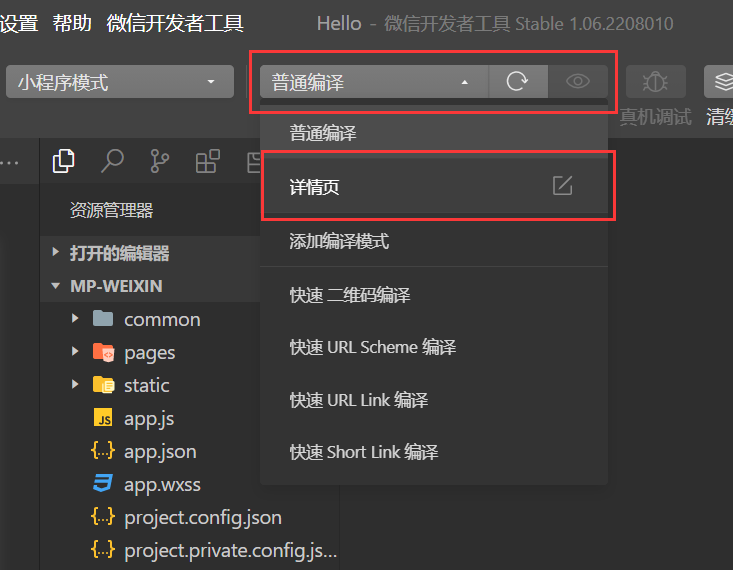
点击后即可跳转刚增加的详情页,左下角可以查看传过来的参数

-
相关阅读:
Springboot中的@Import注解~
java计算机毕业设计哈尔滨旅游项目推荐平台演示录像2020MyBatis+系统+LW文档+源码+调试部署
第2章 进程的描述与控制
这五个步骤,网络有故障,自己都能解决
C primer plus学习笔记 —— 8、结构体
RCE-远程命令执行和代码执行漏洞-知识
2269. 找到一个数字的 K 美丽值
leetcode-67:二进制求和
树的基本概念介绍
面试必考精华版Leetcode547. 省份数量
- 原文地址:https://blog.csdn.net/u010356768/article/details/126267124
