-
Python自动化笔记-Allure
Allure--一款测试报告框架。
doc:https://docs.qameta.io/allure
安装路径:https://github.com/allure-framework/allure2/releases
Windows下载zip包->解压(pytest的安装路径)->进入bin目录->运行allure.bat->将allure的bin目录加到PATH环境变量中去(加成功后cmd命令框输入allure --vresion即可查看安装的allure版本)
linux命令安装allure-pytest:
pip install allure-pytest新建一个python文件,定义几个测试方法:
- import pytest
- def test_success():
- """this test succeeds"""
- assert True
- def test_failure():
- """this test fails"""
- assert False
- def test_skip():
- """this test is skipped"""
- pytest.skip('for a reason!')
- def test_broken():
- raise Exception('oops')
在pycharm的Terminal中执行如下命令(/tmp/my_allure_results为生成的测试数据的路径),生成测试报告的jason文件:
pytest --alluredir=/tmp/my_allure_results(
若执行失败,尝试在Terminal中执行pip install allure-pytest 后再执行 pytest --alluredir命令
)
在pycharm的Terminal中执行如下命令(/tmp/my_allure_results为生成的测试数据的路径),生成html格式的测试报告(会使用默认的浏览器打开报告):
allure serve /tmp/my_allure_results(
若只是想生成报告,可使用allure generate命令:
allure generate testAllure/tmp/my_allure_results --clean执行完成后会在对应的python项目的路径下生成allure-report的文件夹:


打开已生成的html报告,使用allure open命令
)
如图:
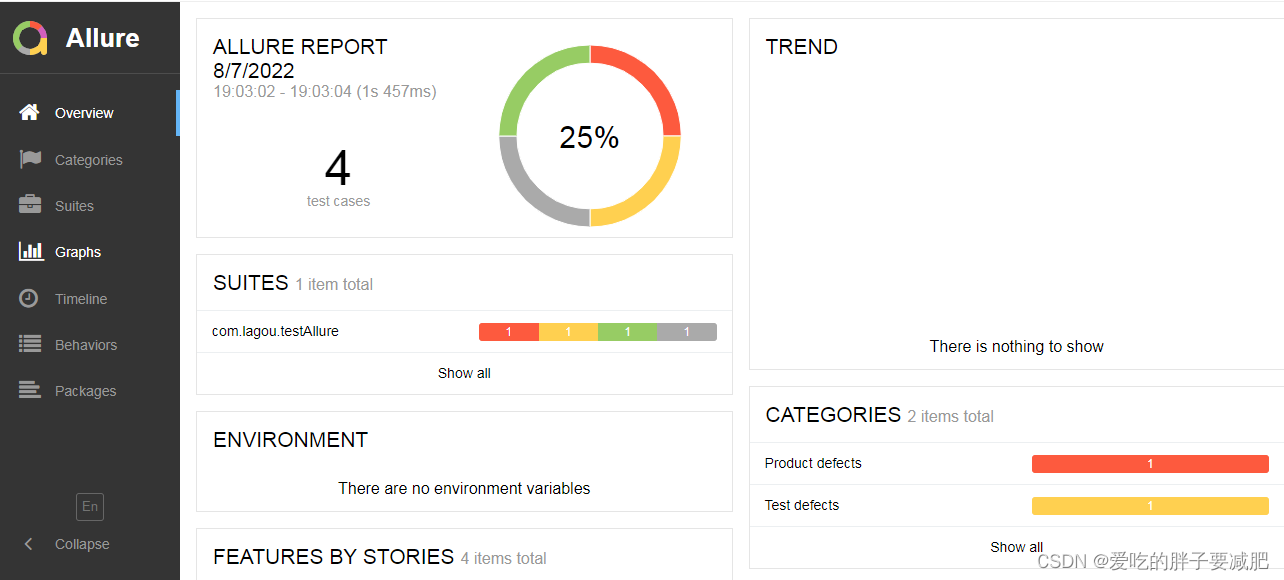
若在生成html报告时出现cmd命令执行ok但pycharm中的Terminal命令执行失败,检查pycharm的bin目录是否已加入PATH环境变量中(修改完成后可能需要重启pycharm或者PC)。
若修改完成之后pycharm的Terminal出现如下报错:

参照https://www.cnblogs.com/fuqian/p/16278162.html去修改:
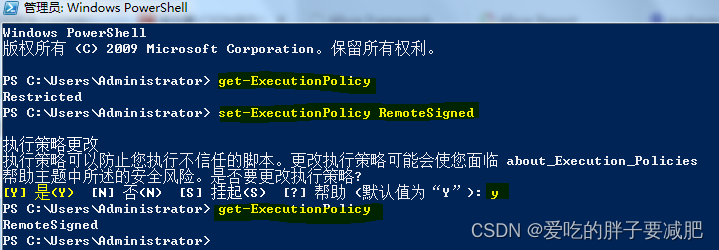
- get-ExecutionPolicy
- Restricted
- set-ExecutionPolicy RemoteSigned
- Y
- get-ExecutionPolicy
执行完成之后,get-ExecutionPolicy的值变为RemoteSigned,再次打开pycharm的Terminal就不报错了。
-
相关阅读:
卷积神经网络大致结构、卷积层设计的参数、卷积结果计算公式、卷积参数的共享、池化层、卷积神经网络的具体结构、感受野、推荐使用的卷积神经网络
【Python入门与进阶】Python 中的正则表达式
git常用命令(github中的token)(.gitignore)
操作系统漏洞验证及加固-MS17_010漏洞利用与安全加固
mac制作ssl证书|生成自签名证书,nodejs+express在mac上搭建https+wss(websocket)服务器
Py之pygraphviz:pygraphviz的简介、安装、使用方法之详细攻略
CVE-2023-32315:Openfire管理控制台身份验证绕过到RCE的复现
figma有哪些快速入门的好用技巧
我的创作纪念日
今日NFT/数字藏品热点
- 原文地址:https://blog.csdn.net/machunmei2/article/details/126199827
