-
linux(四) -- 常用基本命令
Shell 可以看作是一个命令解释器,为我们提供了交互式的文本控制台界面。我们可以 通过终端控制台来输入命令,由 shell 进行解释并最终交给内核执行。
部分基础命令:
- history:常看历史命令
- clear:清屏,这里只是将之前的内容全部滚到最上面隐藏起来,向上滚动滚轮是可以看到之前的内容的
- exit:退出,退出命令行输入终端,并不是退出系统,对系统没有影响
- type:
type 其他命令,查看命令的信息
1. 帮助命令
1.1 man 获得帮助信息
manual单词。
1.1.1 基本语法:
- man [命令或配置文件] :获得帮助信息
1.1.2 显示说明:

1.1.3 案例实操:查看ls命令的帮助信息
[root@yhx system]# man ls NAME ls - list directory contents SYNOPSIS ls [OPTION]... [FILE]... DESCRIPTION List information about the FILEs (the current directory by default). Sort entries alphabetically if none of -cftuvSUX nor --sort is specified. Mandatory arguments to long options are mandatory for short options too. -a, --all do not ignore entries starting with . -A, --almost-all do not list implied . and .. --author with -l, print the author of each file -b, --escape print C-style escapes for nongraphic characters --block-size=SIZE scale sizes by SIZE before printing them; e.g., '--block-size=M' prints sizes in units of 1,048,576 bytes; see SIZE format below -B, --ignore-backups do not list implied entries ending with ~ -c with -lt: sort by, and show, ctime (time of last modification of file status information); with -l: show ctime and sort by name; otherwise: sort by ctime, newest first -C list entries by columns --color[=WHEN] colorize the output; WHEN can be 'never', 'auto', or 'always' (the default); more info below -d, --directory list directories themselves, not their contents -D, --dired generate output designed for Emacs' dired mode -f do not sort, enable -aU, disable -ls --color -F, --classify append indicator (one of */=>@|) to entries --file-type likewise, except do not append '*' --format=WORD across -x, commas -m, horizontal -x, long -l, single-column -1, verbose -l, vertical -C --full-time like -l --time-style=full-iso -g like -l, but do not list owner --group-directories-first group directories before files; can be augmented with a --sort option, but any use of --sort=none (-U) disables grouping -G, --no-group in a long listing, don't print group names -h, --human-readable with -l, print sizes in human readable format (e.g., 1K 234M 2G) --si likewise, but use powers of 1000 not 1024 -H, --dereference-command-line follow symbolic links listed on the command line --dereference-command-line-symlink-to-dir follow each command line symbolic link that points to a directory --hide=PATTERN do not list implied entries matching shell PATTERN (overridden by -a or -A) --indicator-style=WORD append indicator with style WORD to entry names: none (default), slash (-p), file-type (--file-type), classify (-F) -i, --inode print the index number of each file -I, --ignore=PATTERN do not list implied entries matching shell PATTERN -k, --kibibytes default to 1024-byte blocks for disk usage -l use a long listing format -L, --dereference when showing file information for a symbolic link, show information for the file the link references rather than for the link itself -m fill width with a comma separated list of entries -n, --numeric-uid-gid like -l, but list numeric user and group IDs -N, --literal print raw entry names (don't treat e.g. control characters specially) -o like -l, but do not list group information -p, --indicator-style=slash append / indicator to directories -q, --hide-control-chars print ? instead of nongraphic characters --show-control-chars show nongraphic characters as-is (the default, unless program is 'ls' and output is a terminal) -Q, --quote-name enclose entry names in double quotes --quoting-style=WORD use quoting style WORD for entry names: literal, locale, shell, shell-always, c, escape -r, --reverse reverse order while sorting -R, --recursive list subdirectories recursively -s, --size print the allocated size of each file, in blocks -S sort by file size --sort=WORD sort by WORD instead of name: none (-U), size (-S), time (-t), version (-v), extension (-X) --time=WORD with -l, show time as WORD instead of default modification time: atime or access or use (-u) ctime or status (-c); also use specified time as sort key if --sort=time --time-style=STYLE with -l, show times using style STYLE: full-iso, long-iso, iso, locale, or +FORMAT; FORMAT is interpreted like in 'date'; if FORMAT is FORMAT1FORMAT2, then FORMAT1 applies to non-recent files and FORMAT2 to recent files; if STYLE is prefixed with ' posix-', STYLE takes effect only outside the POSIX locale -t sort by modification time, newest first -T, --tabsize=COLS assume tab stops at each COLS instead of 8 -u with -lt: sort by, and show, access time; with -l: show access time and sort by name; otherwise: sort by access time -U do not sort; list entries in directory order -v natural sort of (version) numbers within text -w, --width=COLS assume screen width instead of current value -x list entries by lines instead of by columns -X sort alphabetically by entry extension -1 list one file per line SELinux options: --lcontext Display security context. Enable -l. Lines will probably be too wide for most displays. -Z, --context Display security context so it fits on most displays. Displays only mode, user, group, security context and file name. --scontext Display only security context and file name. --help display this help and exit --version output version information and exit SIZE is an integer and optional unit (example: 10M is 10*1024*1024). Units are K, M, G, T, P, E, Z, Y (powers of 1024) or KB, MB, ... (powers of 1000). Using color to distinguish file types is disabled both by default and with --color=never. With --color=auto, ls emits color codes only when standard output is connected to a terminal. The LS_COLORS environment variable can change the settings. Use the dircolors command to set it. Exit status: 0 if OK, 1 if minor problems (e.g., cannot access subdirectory), 2 if serious trouble (e.g., cannot access command-line argument). GNU coreutils online help:- 1
- 2
- 3
- 4
- 5
- 6
- 7
- 8
- 9
- 10
- 11
- 12
- 13
- 14
- 15
- 16
- 17
- 18
- 19
- 20
- 21
- 22
- 23
- 24
- 25
- 26
- 27
- 28
- 29
- 30
- 31
- 32
- 33
- 34
- 35
- 36
- 37
- 38
- 39
- 40
- 41
- 42
- 43
- 44
- 45
- 46
- 47
- 48
- 49
- 50
- 51
- 52
- 53
- 54
- 55
- 56
- 57
- 58
- 59
- 60
- 61
- 62
- 63
- 64
- 65
- 66
- 67
- 68
- 69
- 70
- 71
- 72
- 73
- 74
- 75
- 76
- 77
- 78
- 79
- 80
- 81
- 82
- 83
- 84
- 85
- 86
- 87
- 88
- 89
- 90
- 91
- 92
- 93
- 94
- 95
- 96
- 97
- 98
- 99
- 100
- 101
- 102
- 103
- 104
- 105
- 106
- 107
- 108
- 109
- 110
- 111
- 112
- 113
- 114
- 115
- 116
- 117
- 118
- 119
- 120
- 121
- 122
- 123
- 124
- 125
- 126
- 127
- 128
- 129
- 130
- 131
- 132
- 133
- 134
- 135
- 136
- 137
- 138
- 139
- 140
- 141
- 142
- 143
- 144
- 145
- 146
- 147
- 148
- 149
- 150
- 151
- 152
- 153
- 154
- 155
- 156
- 157
- 158
- 159
- 160
- 161
- 162
- 163
- 164
- 165
- 166
- 167
- 168
- 169
- 170
- 171
- 172
- 173
- 174
- 175
- 176
- 177
- 178
- 179
- 180
- 181
- 182
- 183
- 184
- 185
- 186
- 187
- 188
- 189
- 190
- 191
- 192
- 193
- 194
- 195
- 196
- 197
- 198
- 199
- 200
- 201
- 202
- 203
- 204
- 205
- 206
- 207
- 208
- 209
- 210
- 211
1.2 help 获得 shell 内置命令的帮助信息
一部分基础功能的系统命令是直接内嵌在 shell 中的,系统加载启动之后会随着 shell 一起加载,常驻系统内存中。这部分命令被称为“内置(built-in)命令”;相应的其它命令 被称为“外部命令”
1.2.1 基本语法:
help 命令:获得 shell 内置命令的帮助信息
1.2.2 案例实操:
[root@yhx system]# help cd cd: cd [-L|[-P [-e]]] [dir] Change the shell working directory. Change the current directory to DIR. The default DIR is the value of the HOME shell variable. The variable CDPATH defines the search path for the directory containing DIR. Alternative directory names in CDPATH are separated by a colon (:). A null directory name is the same as the current directory. If DIR begins with a slash (/), then CDPATH is not used. If the directory is not found, and the shell option `cdable_vars' is set, the word is assumed to be a variable name. If that variable has a value, its value is used for DIR. Options: -L force symbolic links to be followed -P use the physical directory structure without following symbolic links -e if the -P option is supplied, and the current working directory cannot be determined successfully, exit with a non-zero status The default is to follow symbolic links, as if `-L' were specified. Exit Status: Returns 0 if the directory is changed, and if $PWD is set successfully when -P is used; non-zero otherwise. [root@yhx system]#- 1
- 2
- 3
- 4
- 5
- 6
- 7
- 8
- 9
- 10
- 11
- 12
- 13
- 14
- 15
- 16
- 17
- 18
- 19
- 20
- 21
- 22
- 23
- 24
- 25
- 26
- 27
- 28
- 29
外部命令:
[root@yhx system]# ls --help ....- 1
- 2
2. 文件目录类
2.1 目录操作类:
2.1.1 pwd 显示当前工作目录的绝对路径
- 名词含义:pwd:print working directory 打印工作目录
- 基本语法:
pwd - 案例实操:
[root@yhx system]# pwd /usr/lib/systemd/system # 如果是链接,可使用-P查看原始路径 [root@yhx bin]# pwd /bin [root@yhx bin]# pwd -P /usr/bin- 1
- 2
- 3
- 4
- 5
- 6
- 7
- 8
2.1.2 ls 列出目录
- 名词含义:pwd:print working directory 打印工作目录
- 基本语法:
ls [选项] [目录或是文件] - 选项说明:
- -a:(all)全部的文件,连同隐藏文件(开头为 . 的文件) 一起列出来(常用)。
- -l:长数据串列出,包含文件的属性与权限等等数据,等价于
ll(常用)。 - -i:显示文件的 inode 节点信息
- 实操:
[root@yhx jdk-17.0.2]# ls bin conf include jmods legal lib LICENSE man README release [root@yhx jdk-17.0.2]# ls -i 393809 bin 393838 conf 393860 include 393870 jmods 393941 legal 394183 lib 393807 LICENSE 394244 man 393808 README 394279 release # 每行列出的信息依次是: #文件类型与权限 链接数 文件属主 文件属组 文件大小用byte 来表示 建立或最近修改的时间 名字 [root@yhx jdk-17.0.2]# ls -l total 36 drwxr-xr-x 2 root root 4096 Mar 18 15:43 bin drwxr-xr-x 5 root root 4096 Mar 18 15:43 conf drwxr-xr-x 3 root root 4096 Mar 18 15:43 include drwxr-xr-x 2 root root 4096 Mar 18 15:43 jmods drwxr-xr-x 72 root root 4096 Mar 18 15:43 legal drwxr-xr-x 5 root root 4096 Mar 18 15:43 lib lrwxrwxrwx 1 10668 10668 23 Dec 8 2021 LICENSE -> legal/java.base/LICENSE drwxr-xr-x 3 root root 4096 Mar 18 15:43 man -rw-r--r-- 1 10668 10668 290 Dec 8 2021 README -rw-r--r-- 1 10668 10668 1231 Dec 8 2021 release [root@yhx jdk-17.0.2]# ls -a . .. bin conf include jmods legal lib LICENSE man README release [root@yhx jdk-17.0.2]#- 1
- 2
- 3
- 4
- 5
- 6
- 7
- 8
- 9
- 10
- 11
- 12
- 13
- 14
- 15
- 16
- 17
- 18
- 19
- 20
- 21
- 22
其中:
- ls -a的一个点表示当前目录,两个点表示上级目录。
- 以点开头的文件和文件夹是隐藏的文件或者文件夹。
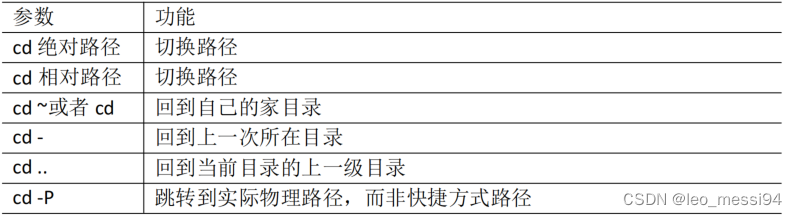
2.1.3 cd 切换目录
- 基本语法:
cd 目录名(绝对路径都是以 / 开头,相对路径,对于当前目录改如何寻找 …/…/) - 参数说明
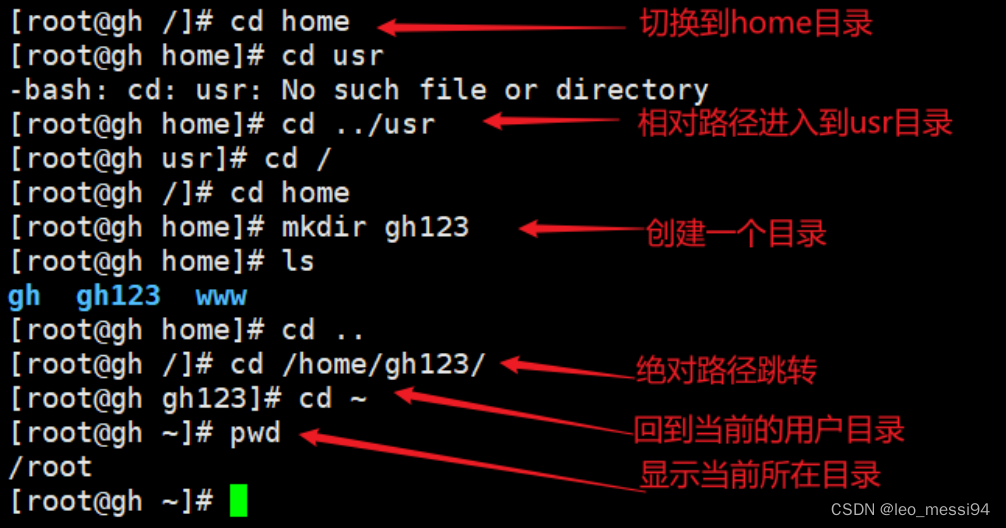
- 示例:
[root@yhx ~]# cd / 当前目录 [root@yhx /]# cd .. 返回上一级目录- 1
- 2
2.1.4 mkdir 创建一个新的目录
- 名词解释:mkdir:Make directory 建立目录
- 基本语法:
mkdir [选项] 要创建的目录 - 选项说明:
- -p 创建多层目录
- 实操:
[root@yhx java]# mkdir name [root@yhx java]# mkdir name/name1 [root@yhx java]# ls jdk-17.0.2 jdk-17_linux-x64_bin.tar.gz name [root@yhx java]# cd name/ [root@yhx name]# ls name1 [root@yhx name]# cd .. [root@yhx java]# ls jdk-17.0.2 jdk-17_linux-x64_bin.tar.gz name [root@yhx java]# mkdir key/key1/key2 mkdir: cannot create directory ‘key/key1/key2’: No such file or directory [root@yhx java]# mkdir -p key/key1/key2 [root@yhx java]# ls jdk-17.0.2 jdk-17_linux-x64_bin.tar.gz key name [root@yhx java]#- 1
- 2
- 3
- 4
- 5
- 6
- 7
- 8
- 9
- 10
- 11
- 12
- 13
- 14
- 15
- 16
2.1.5 rmdir 删除一个空的目录
- 名词解释:rmdir:Remove directory 移除目录
- 基本语法:
rmdir 要删除的空目录 - 案例实操:
[root@yhx java]# rmdir key rmdir: failed to remove ‘key’: Directory not empty [root@yhx java]# rmdir name/ rmdir: failed to remove ‘name/’: Directory not empty [root@yhx java]# rmdir name/name1/ [root@yhx java]# ls jdk-17.0.2 jdk-17_linux-x64_bin.tar.gz key name [root@yhx java]# cd name/ [root@yhx name]# ls [root@yhx name]# cd .. [root@yhx java]# ls jdk-17.0.2 jdk-17_linux-x64_bin.tar.gz key name [root@yhx java]# rmdir -p key/ rmdir: failed to remove ‘key/’: Directory not empty [root@yhx java]# rmdir -p key/key1/key2/ [root@yhx java]# ls jdk-17.0.2 jdk-17_linux-x64_bin.tar.gz name [root@yhx java]#- 1
- 2
- 3
- 4
- 5
- 6
- 7
- 8
- 9
- 10
- 11
- 12
- 13
- 14
- 15
- 16
- 17
- 18
2.2 文件操作类:
2.2.1 touch 创建空文件
- 基本语法:
touch 文件名称 - 案例实操
[root@yhx home]# touch 123.txt [root@yhx home]# ls 123.txt docker-study java mysql nginx redis studyDockerfile- 1
- 2
- 3
2.2.2 cp 复制文件或目录
- 基本语法:
cp [选项] source dest,复制source到dest - 选项说明:
- -r 递归复制整个文件夹
- 实操:
[root@yhx home]# cp 123.txt 1234.txt [root@yhx home]# ls 1234.txt 123.txt docker-study java mysql nginx redis studyDockerfile [root@yhx home]# cp 123.txt 1234.txt cp: overwrite ‘1234.txt’? y [root@yhx home]# ls 1234.txt 123.txt docker-study java mysql nginx redis studyDockerfile # 原始命令复制(强制覆盖) [root@yhx home]# \cp 123.txt 1234.txt [root@yhx home]# ls 1234.txt 123.txt docker-study java mysql nginx redis studyDockerfile [root@yhx home]# cp java/ java1 cp: omitting directory ‘java/’ [root@yhx home]# ls 1234.txt 123.txt docker-study java mysql nginx redis studyDockerfile # 递归复制文件夹 [root@yhx home]# cp -r java/ java1 [root@yhx home]# ls 1234.txt 123.txt docker-study java java1 mysql nginx redis studyDockerfile [root@yhx home]#- 1
- 2
- 3
- 4
- 5
- 6
- 7
- 8
- 9
- 10
- 11
- 12
- 13
- 14
- 15
- 16
- 17
- 18
- 19
- 20
- 21
- 22
2.2.3 rm 删除文件或目录
- 基本语法:
rm [选项] deleteFile - 选项说明:
- -r:递归删除目录中所有内容
- -f:force,强制执行删除操作,而不提示用于进行确认。
- -v:显示指令的详细执行过程
- -i:互动模式,在删除前会询问使用者是否动作
- 实操:
[root@yhx home]# rm 123.txt rm: remove regular empty file ‘123.txt’? y [root@yhx home]# rm -f 1234.txt [root@yhx home]# ls docker-study java java1 mysql nginx redis studyDockerfile [root@yhx home]# rm -f java1 rm: cannot remove ‘java1’: Is a directory [root@yhx home]# rm -rf java1 [root@yhx home]# ls docker-study java mysql nginx redis studyDockerfile [root@yhx home]#- 1
- 2
- 3
- 4
- 5
- 6
- 7
- 8
- 9
- 10
- 11
2.2.4 mv 移动文件与目录或重命名
- 基本语法:
- 重命名:
mv oldNameFile newNameFile - 移动文件:
mv /temp/movefile /targetFolder
- 重命名:
- 实操:
[root@yhx home]# ls docker-study java1 mysql nginx redis studyDockerfile [root@yhx home]# mv java1/ java [root@yhx home]# ls docker-study java mysql nginx redis studyDockerfile [root@yhx home]# touch 123.txt [root@yhx home]# mv 123.txt java/ [root@yhx home]# ls docker-study java mysql nginx redis studyDockerfile [root@yhx home]# cd java/ [root@yhx java]# ls 123.txt jdk-17.0.2 jdk-17_linux-x64_bin.tar.gz name [root@yhx java]#- 1
- 2
- 3
- 4
- 5
- 6
- 7
- 8
- 9
- 10
- 11
- 12
- 13
2.3 文件查看类:
- cat 由第一行开始显示文件内容 用来读取文章,或者读取配置文件
- tac 从最后一行开始显示,可以看出 tac 是 cat 的倒着写!
- nl 显示的时候,顺道输出行号! 看代码
- more 一页一页的显示文件内容(空格翻页,enter向下看一行,:f显示行号)
- less 与 more 类似,但是比 more 更好的是,他可以往前翻页! (空格翻页,上下键翻页,退出 q命令,查找字符串 / 向下查询的字符 ?向上查询 n搜寻下一个 N像上)
- head 只看头几行 -n控制行数
- tail 只看尾巴几行 -n控制行数
2.3.1 cat:查看文件内容,从第一行开始显示
- 基本语法:
cat [参数] fileName [ | grep 关键字] - 使用技巧:
- 一般查看比较小的文件,一屏幕能显示全的。
- cat 只能浏览文件,而不能修改文件。
- 会打开整个文件,直接跑到最后面
- 可选参数:
参数 说明 grep 关键字 搜索关键字附近的日志 -n 或 --number 由 1 开始对所有输出的行数编号 -b 或 --number-nonblank 和 -n 相似,只不过对于空白行不编号 -s 或 --squeeze-blank 当遇到有连续两行以上的空白行,就代换为一行的空白行 -v 或 --show-nonprinting 使用 ^ 和 M- 符号,除了LFD 和 TAB 之外 -E 或 --show-ends 在每行结束处显示$ -T 或 --show-tabs 将TAB 字符显示为 ^I -A, --show-all 等价于-vET -e 等价于"-vE"选项 -t 等价于"-vT"选项 - 示例:
2.3.2 more:文件内容分屏查看器
- 基本语法:
more 要显示文件 - 使用技巧:
- more 指令是一个基于 VI 编辑器的文本过滤器
- 以全屏幕的方式按页显示文本文件的内容,一次展示文件全部内容
- more指令中内置了若干快捷键
- 可以上下翻页,上下行移动显示,分屏显示
- more指令内操作:
操作 功能 空白键 (space) 向下翻一页 Enter 向下翻一行 q 立刻离开 more ,不再显示该文件内容 Ctrl+F 向下滚动一屏 Ctrl+B 返回上一屏 = 输出当前行的行号 :f 输出文件名和当前行的行号 2.3.3 less:分屏显示文件内容
- 语法:
less 要显示的文件 - 使用技巧:
- 和more类似,但功能更强大,支持各种显示终端
- 但不能往回翻页
- 在显示文件内容时,并不是一次将整个文件加载之后才显示,而是根据显示需要加载内容,对于显示大型文件具有较高的效率。
- 用SecureCRT时[pagedown]和[pageup]可能会出现无法识别的问题
- less指令内操作:
操作 功能 空白键 向下翻动一页 pagedown 向下翻动一页 pageup 向上翻动一页 /字串 向下搜寻『字串』的功能;n:向下查找;N:向上查找 ?字串 向上搜寻『字串』的功能;n:向上查找;N:向下查找 q 立刻离开 less 这个程序 2.3.4 echo:输出内容到控制台
- 基本语法:输出内容到控制台:
echo [选项] [输出内容] - 选项:
- -e:支持反斜线控制的字符转换
- \:输出\本身
- \n:换行符
- \t:制表符,也就是 Tab 键
- 实操:
[root@yhx java]# echo "hello world" hello world [root@yhx java]# echo "hello world" >> 1234.txt [root@yhx java]# ls 1234.txt 123.txt jdk-17.0.2 jdk-17_linux-x64_bin.tar.gz name [root@yhx java]# cat 1234.txt hello world # 查看系统环境变量 [root@yhx java]# echo $PATH /usr/local/sbin:/usr/local/bin:/usr/sbin:/usr/bin:/root/bin [root@yhx java]#- 1
- 2
- 3
- 4
- 5
- 6
- 7
- 8
- 9
- 10
- 11
- 12
2.3.5 head:显示文件头部内容
- head用于显示文件的开头部分内容,默认情况下head指令显示文件的前10行内容。
- 语法:
head [选项] 文件 - 选项说明:
选项 说明 -n <行数> 指定显示前n行的内容 - 例:
head -n 10 test.log 查询日志文件中的头10行日志; head -n -10 test.log 查询日志文件除了最后10行的其他所有日志;- 1
- 2
2.3.6 tail:输出文件尾部内容
- 用于输出文件中尾部的内容,默认情况下tail指令显示文件的后10行内容。
- 主要用实时查看日志输出
- 语法:
tail [选项] 文件 - 选项说明:
选项 说明 -n <行数> 指定显示后n行的内容 -f 显示文件最新追加的内容,可用来监视文件变化 - 例:
tail -n 10 test.log 查询日志尾部最后10行的日志; tail -n +10 test.log 查询10行之后的所有日志; tail -f test.log 实时监控日志 tail -100f test.log 实时监控100行日志- 1
- 2
- 3
- 4
2.4 输出重定向和追加:
一个>是覆盖,2个>是追加。
ls -l > 文件:列表的内容写入文件 a.txt 中(覆盖写)ls -al >> 文件:列表的内容追加到文件 aa.txt 的末尾cat 文件 1 > 文件 2:将文件 1 的内容覆盖到文件 2echo “内容” >> 文件
实操:
[root@yhx java]# echo "hello world" hello world [root@yhx java]# echo "hello world" >> 1234.txt [root@yhx java]# ls 1234.txt 123.txt jdk-17.0.2 jdk-17_linux-x64_bin.tar.gz name [root@yhx java]# cat 1234.txt hello world [root@yhx java]# ll > 123.txt [root@yhx java]# cat 123.txt total 176852 -rw-r--r-- 1 root root 12 Aug 5 16:23 1234.txt -rw-r--r-- 1 root root 0 Aug 5 16:45 123.txt drwxr-xr-x 9 root root 4096 Mar 18 15:43 jdk-17.0.2 -rw-r--r-- 1 root root 181083410 Jan 4 2022 jdk-17_linux-x64_bin.tar.gz drwxr-xr-x 2 root root 4096 Aug 3 17:56 name [root@yhx java]# ll >> 1234.txt [root@yhx java]# cat 1234.txt hello world total 176856 -rw-r--r-- 1 root root 12 Aug 5 16:23 1234.txt -rw-r--r-- 1 root root 304 Aug 5 16:45 123.txt drwxr-xr-x 9 root root 4096 Mar 18 15:43 jdk-17.0.2 -rw-r--r-- 1 root root 181083410 Jan 4 2022 jdk-17_linux-x64_bin.tar.gz drwxr-xr-x 2 root root 4096 Aug 3 17:56 name [root@yhx java]#- 1
- 2
- 3
- 4
- 5
- 6
- 7
- 8
- 9
- 10
- 11
- 12
- 13
- 14
- 15
- 16
- 17
- 18
- 19
- 20
- 21
- 22
- 23
- 24
- 25
- 26
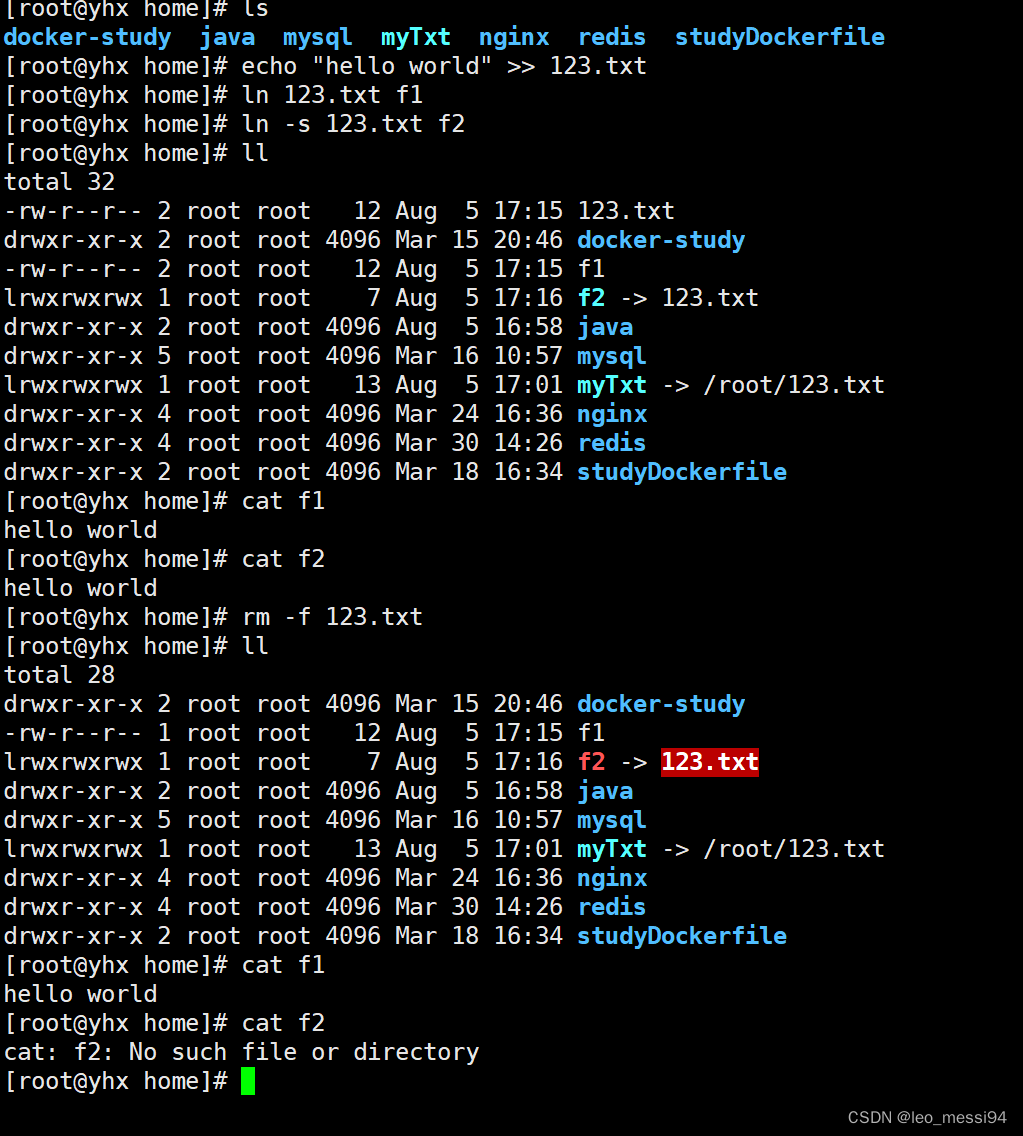
2.5 链接:
2.5.1 硬链接:
A—B,假设B是A的硬链接,那么他们两个指向了同一个文件!允许一个文件拥有多个路径,用户可以通过这种机制建立硬链接到一些重要文件上,防止误删!
2.5.2 软链接:
软链接也称为符号链接,类似于 windows 里的快捷方式,有自己的数据块,主要存放 了链接其他文件的路径
- 基本语法:
ln -s [原文件或目录] [软链接名]:给原文件创建一个软链接 - 经验技巧
- 删除软链接: rm -rf 软链接名,而不是 rm -rf 软链接名/
- 如果使用
rm -rf 软链接名/删除,会把软链接对应的真实目录下内容删掉 - 查询:通过 ll 就可以查看,列表属性第 1 位是 l,尾部会有位置指向
- 实操:
# 链接到目录 root@yhx home]# ln -s /home/mysql /rootmyMysql [root@yhx home]# ls docker-study java mysql nginx redis studyDockerfile [root@yhx home]# cd .. [root@yhx /]# ls bin boot data dev etc home java lib lib64 lost+found media mnt opt proc root rootmyMysql run sbin srv sys tmp usr var zzyyuser [root@yhx /]# cd rootmyMysql/ [root@yhx rootmyMysql]# ls conf data log [root@yhx rootmyMysql]# pwd /rootmyMysql [root@yhx rootmyMysql]# pwd -p -bash: pwd: -p: invalid option pwd: usage: pwd [-LP] [root@yhx rootmyMysql]# pwd -P /home/mysql # 链接文件 [root@yhx ~]# echo "hello" >> 123.txt [root@yhx ~]# ls 123.txt redis.tar [root@yhx ~]# cd /home/ [root@yhx home]# ln -s /root/123.txt myTxt [root@yhx home]# ls docker-study java mysql myTxt nginx redis studyDockerfile [root@yhx home]# cat myTxt hello [root@yhx home]#- 1
- 2
- 3
- 4
- 5
- 6
- 7
- 8
- 9
- 10
- 11
- 12
- 13
- 14
- 15
- 16
- 17
- 18
- 19
- 20
- 21
- 22
- 23
- 24
- 25
- 26
- 27
- 28
- 29
2.5.3 软链接和硬链接的区别
3. 时间日期类:
- 基本语法:
date [OPTION]... [+FORMAT] - 选项说明:
- -d<时间字符串> 显示指定的“时间字符串”表示的时间,而非当前时间
- -s<日期时间> 设置系统日期时间
- 参数说明:
- <+日期时间格式> 指定显示时使用的日期时间格式
3.1 date显示当前时间
- 基本语法:
- date:显示当前时间
- date +%Y:显示当前年份
- date +%m:显示当前月份
- date +%d:显示当前是哪一天
- date “+%Y-%m-%d %H:%M:%S”:显示年月日时分秒
3.2 date显示非当前时间
- 基本语法:
- date -d ‘1 days ago’:显示前一天时间
- date -d ‘-1 days ago’:显示明天时间
3.3 设置系统时间
- 基本语法:
date -s 字符串时间
3.4 cal查看日历
- 基本语法:cal [选项]
- 选项说明:具体某一年 显示这一年的日历
3.5 代码:
[root@yhx home]# date Fri Aug 5 17:38:23 CST 2022 [root@yhx home]# date +%Y 2022 [root@yhx home]# date +%m 08 [root@yhx home]# date +%d 05 [root@yhx home]# date +%Y-%m-%d-%H:%M:%S 2022-08-05-17:40:10 [root@yhx home]# date +%Y-%m-%d %H:%M:%S date: extra operand ‘%H:%M:%S’ Try 'date --help' for more information. [root@yhx home]# date "+%Y-%m-%d %H:%M:%S" 2022-08-05 17:40:22 [root@yhx home]# date +%s 1659692431 [root@yhx home]# date +%S 33 [root@yhx home]# date +%s 1659692438 [root@yhx home]# date +%s 1659692442 [root@yhx home]# date -d "1 days ago" Thu Aug 4 17:41:20 CST 2022 [root@yhx home]# date -d "-1 days ago" Sat Aug 6 17:41:23 CST 2022 [root@yhx home]# date -d "-1 hour ago" Fri Aug 5 18:41:35 CST 2022 [root@yhx home]#- 1
- 2
- 3
- 4
- 5
- 6
- 7
- 8
- 9
- 10
- 11
- 12
- 13
- 14
- 15
- 16
- 17
- 18
- 19
- 20
- 21
- 22
- 23
- 24
- 25
- 26
- 27
- 28
- 29
- 30
4. 用户权限类:
Linux系统是一个多用户多任务的分时操作系统,任何一个要使用系统资源的用户,都必须首先向系统管理员申请一个账号,然后以这个账号的身份进入系统。
用户的账号一方面可以帮助系统管理员对使用系统的用户进行跟踪,并控制他们对系统资源的访问;另一方面也可以帮助用户组织文件,并为用户提供安全性保护。
每个用户账号都拥有一个唯一的用户名和各自的口令。
用户在登录时键入正确的用户名和口令后,就能够进入系统和自己的主目录
4.1 useradd 添加新用户
- 基本语法:
useradd 选项 用户名useradd -g 组名 用户名:添加新用户到某个组
- 选项:
- -c comment 指定一段注释性描述。
- -d 目录 指定用户主目录,如果此目录不存在,则同时使用-m选项,可以创建主目录。
- -g 用户组 指定用户所属的用户组。
- -G 用户组,用户组 指定用户所属的附加组。
- -m 自动创建这个用户的主目录 /home/qinjiang
- -s Shell文件 指定用户的登录Shell。
- -u 用户号 指定用户的用户号,如果同时有-o选项,则可以重复使用其他用户的标识号
- 案例实操:
- Linux 中一切皆文件,这里的添加用户说白了就是往某一个文件里面写入用户信息,可以通过
/etc/paswd查看
- Linux 中一切皆文件,这里的添加用户说白了就是往某一个文件里面写入用户信息,可以通过
[root@yhx home]# useradd lisi [root@yhx home]# ls docker-study ecs-assist-user f1 f2 java lisi mysql myTxt nginx redis studyDockerfile zhangsan [root@yhx home]# cat /etc/passwd root:x:0:0:root:/root:/bin/bash bin:x:1:1:bin:/bin:/sbin/nologin daemon:x:2:2:daemon:/sbin:/sbin/nologin adm:x:3:4:adm:/var/adm:/sbin/nologin lp:x:4:7:lp:/var/spool/lpd:/sbin/nologin sync:x:5:0:sync:/sbin:/bin/sync shutdown:x:6:0:shutdown:/sbin:/sbin/shutdown halt:x:7:0:halt:/sbin:/sbin/halt mail:x:8:12:mail:/var/spool/mail:/sbin/nologin operator:x:11:0:operator:/root:/sbin/nologin games:x:12:100:games:/usr/games:/sbin/nologin ftp:x:14:50:FTP User:/var/ftp:/sbin/nologin nobody:x:99:99:Nobody:/:/sbin/nologin systemd-network:x:192:192:systemd Network Management:/:/sbin/nologin dbus:x:81:81:System message bus:/:/sbin/nologin polkitd:x:999:998:User for polkitd:/:/sbin/nologin sshd:x:74:74:Privilege-separated SSH:/var/empty/sshd:/sbin/nologin postfix:x:89:89::/var/spool/postfix:/sbin/nologin chrony:x:998:996::/var/lib/chrony:/sbin/nologin nscd:x:28:28:NSCD Daemon:/:/sbin/nologin tcpdump:x:72:72::/:/sbin/nologin ecs-assist-user:x:1000:1000::/home/ecs-assist-user:/sbin/nologin zhangsan:x:1001:1001::/home/zhangsan:/bin/bash lisi:x:1002:1002::/home/lisi:/bin/bash- 1
- 2
- 3
- 4
- 5
- 6
- 7
- 8
- 9
- 10
- 11
- 12
- 13
- 14
- 15
- 16
- 17
- 18
- 19
- 20
- 21
- 22
- 23
- 24
- 25
- 26
- 27
- 28
4.2 userdel 删除用户
- 基本语法:
userdel 选项 用户名 - 选项说明:
- -r:删除用户的同时,删除与用户相关的所有文件
- 案例实操:
[root@yhx home]# userdel -r zhangsan [root@yhx home]# ls docker-study ecs-assist-user f1 f2 java lisi mysql myTxt nginx redis studyDockerfile [root@yhx home]# useradd zhangsan [root@yhx home]# ls docker-study ecs-assist-user f1 f2 java lisi mysql myTxt nginx redis studyDockerfile zhangsan [root@yhx home]# userdel zhangsan [root@yhx home]# ls docker-study ecs-assist-user f1 f2 java lisi mysql myTxt nginx redis studyDockerfile zhangsan- 1
- 2
- 3
- 4
- 5
- 6
- 7
- 8
- 9
4.3 usermod 修改用户
- 基本语法:
usermod 选项 用户名 - 选项说明:
- -c comment 指定一段注释性描述。
- -d 目录 指定用户主目录,如果此目录不存在,则同时使用-m选项,可以创建主目录。
- -g 用户组 指定用户所属的用户组。
- -G 用户组,用户组 指定用户所属的附加组。
- -m 自动创建这个用户的主目录 /home/qinjiang
- -s Shell文件 指定用户的登录Shell。
- -u 用户号 指定用户的用户号,如果同时有-o选项,则可以重复使用其他用户的标识号
4.4 passwd 设置用户密码
- 基本语法:
passwd 用户名 - 实操:
[root@yhx home]# passwd lisi Changing password for user lisi. New password: BAD PASSWORD: The password is shorter than 8 characters Retype new password: passwd: all authentication tokens updated successfully. [root@yhx home]#- 1
- 2
- 3
- 4
- 5
- 6
- 7
4.5 passwd 选项 用户名
- 基本语法:
passwd 选项 用户名 - 选项说明:
- -l 锁定口令,即禁用账号。
- -u 口令解锁。
- -d 使账号无口令。
- -f 强迫用户下次登录时修改口令。
4.5 id 查看用户是否存在
- 基本语法:
id 用户名 - 实操:
[root@yhx home]# id zhangsan id: zhangsan: no such user [root@yhx home]# id lisi uid=1002(lisi) gid=1002(lisi) groups=1002(lisi) [root@yhx home]#- 1
- 2
- 3
- 4
- 5
4.6 su 切换用户
su单词:swith user

- 基本语法:
su 选项 用户名称 - 选项说明
- -:切换到用户并获得该用户的环境变量及执行权限,不带-只能获得用户的执行权限,不能获得环境变量
- 实操:
[root@yhx home]# su lisi # $代表普通用户,#代表超级用户 [lisi@yhx home]$- 1
- 2
- 3
4.7 who 查看登陆用户信息
- 基本语法:
whoami:显示自身用户名称who am i:显示登录用户的用户名以及登陆时间
- 实操:
[root@yhx home]# whoami root [root@yhx home]# who am i [root@yhx home]#- 1
- 2
- 3
- 4
4.8 sudo 设置普通用户具有 root 权限
- 添加zhangsan用户,并对其设置密码。
- 修改配置文件/etc/sudoers,在root用户后添加:
## Allow root to run any commands anywhere root ALL=(ALL) ALL zhangsan ALL=(ALL) ALL- 1
- 2
- 3
- 使用zhangsan用户登陆,输入sudo命令,使用root权限进行操作
5. 用户组权限类:
每个用户都有一个用户组,系统可以对一个用户组中的所有用户进行集中管理。不同 Linux 系统对用户组的规定有所不同, 如Linux下的用户属于与它同名的用户组,这个用户组在创建用户时同时创建。 用户组的管理涉及用户组的添加、删除和修改。组的增加、删除和修改实际上就是对
/etc/group文件的更新5.1 groupadd 新增组
- 基本语法:
groupadd 选项 用户组 - 选项说明
- -m: 自动创建者用户的主目录 /home/xiaohe
- -G: 给用户分配组!
- -g:指定组id
- 实操:
[root@yhx home]# groupadd group1 [root@yhx home]# cat /etc/group ...... group1:x:1003: [root@yhx home]# groupadd -g 1010 group2 [root@yhx home]# cat /etc/group ...... group1:x:1003: group2:x:1010:- 1
- 2
- 3
- 4
- 5
- 6
- 7
- 8
- 9
5.2 groupdel 删除组
- 基本语法:
groupdel 用户组
5.3 groupmod 修改组
- 基本语法:
groupmod 选项 组名 - 选项说明:
- -g:GID 为用户组指定新的组标识号。
- -o:与-g选项同时使用,用户组的新GID可以与系统已有用户组的GID相同。
- -n 新用户组名:将用户组的名字改为新名字
- 实操:
[root@yhx home]# groupmod -g 1004 -n group3 group1 [root@yhx home]# cat /etc/group ........ group2:x:1010: group3:x:1004: [root@yhx home]#- 1
- 2
- 3
- 4
- 5
- 6
5.4 cat /etc/group 查看创建了哪些组
- 基本语法:
cat /etc/group
6. 文件权限类:
Linux系统是一种典型的多用户系统,不同的用户处于不同的地位,拥有不同的权限。 为了保护系统的安全性,Linux系统对不同的用户访问同一文件(包括目录文件)的权限做 了不同的规定。在Linux中我们可以使用ll或者ls -l命令来显示一个文件的属性以及文件所属 的用户和组。
[root@yhx home]# ll total 40 drwxr-xr-x 2 root root 4096 Mar 15 20:46 docker-study drwx------ 2 ecs-assist-user ecs-assist-user 4096 Aug 8 14:07 ecs-assist-user -rw-r--r-- 1 root root 12 Aug 5 17:15 f1 lrwxrwxrwx 1 root root 7 Aug 5 17:16 f2 -> 123.txt drwxr-xr-x 2 root root 4096 Aug 5 16:58 java drwx------ 2 lisi lisi 4096 Aug 8 14:15 lisi drwxr-xr-x 5 root root 4096 Mar 16 10:57 mysql lrwxrwxrwx 1 root root 13 Aug 5 17:01 myTxt -> /root/123.txt drwxr-xr-x 4 root root 4096 Mar 24 16:36 nginx drwxr-xr-x 4 root root 4096 Mar 30 14:26 redis drwxr-xr-x 2 root root 4096 Mar 18 16:34 studyDockerfile drwx------ 2 1003 1003 4096 Aug 8 14:29 zhangsan- 1
- 2
- 3
- 4
- 5
- 6
- 7
- 8
- 9
- 10
- 11
- 12
- 13
- 14
6.1 文件属性:

6.1.1 从左到右的 10 个字符表示如上图所示:
如果没有权限,就会出现减号[ - ]而已。从左至右用0-9这些数字来表示:
- 0首位表示类型,在Linux中第一个字符代表这个文件是目录、文件或链接文件等等
- 当为[ d ]则是目录
- 当为[ - ]则是文件;
- 若是[ l ]则表示为链接文档 ( link file );
- 若是[ b ]则表示为装置文件里面的可供储存的接口设备 ( 可随机存取装置 );
- 若是[ c ]则表示为装置文件里面的串行端口设备,例如键盘、鼠标 ( 一次性读取装置 )
- 第1-3位确定属主(该文件的所有者)拥有该文件的权限。—User
- 第4-6位确定属组(所有者的同组用户)拥有该文件的权限,—Group
- 第7-9位确定其他用户拥有该文件的权限 —Other
6.1.2 rwx 作用文件和目录的不同解释
- 作用到文件:
- [ r ]代表可读(read): 可以读取,查看
- [ w ]代表可写(write): 可以修改,但是不代表可以删除该文件,删除一个文件的前 提条件是对该文件所在的目录有写权限,才能删除该文件
- [ x ]代表可执行(execute):可以被系统执行
- 作用到目录:
- [ r ]代表可读(read): 可以读取,ls查看目录内容
- [ w ]代表可写(write): 可以修改,目录内创建+删除+重命名目录
- [ x ]代表可执行(execute):可以进入该目录
6.2 chmod修改文件权限:
- 基本语法:
chmod [-R] xyz 文件或目录 - 两种形式的变更方式:
- 字符形式变更:
chmod [{ugoa}{+-=}{rwx}] 文件或目录 - 数字形式变更:
chmod [mode=421 ] [文件或目录]
- 字符形式变更:
- 经验技巧:
- -R:表示文件夹内的文件一并设置
- u:所有者 g:所有组 o:其他人 a:所有人(u、g、o 的总和)
- r=4 w=2 x=1
- rwx=4+2+1=7即全部权限
- rw-=4+2+0=6即可读可写
- r–=4+0+0=4即只读
- 实操:
[root@yhx java]# ll total 4 drwxr-xr-x 2 root root 4096 Aug 8 16:22 123.txt [root@yhx java]# chmod g+w 123.txt/ [root@yhx java]# ll total 4 drwxrwxr-x 2 root root 4096 Aug 8 16:22 123.txt [root@yhx java]# chmod u-w,g-w,o+w 123.txt/ [root@yhx java]# ll total 4 dr-xr-xrwx 2 root root 4096 Aug 8 16:22 123.txt [root@yhx java]# chmod 777 123.txt/ [root@yhx java]# ll total 4 drwxrwxrwx 2 root root 4096 Aug 8 16:22 123.txt [root@yhx java]# chmod 764 123.txt/ [root@yhx java]# ll total 4 drwxrw-r-- 2 root root 4096 Aug 8 16:22 123.txt [root@yhx java]# mkdir test [root@yhx java]# ll total 8 drwxrw-r-- 2 root root 4096 Aug 8 16:22 123.txt drwxr-xr-x 2 root root 4096 Aug 8 16:24 test [root@yhx java]# cd test/ [root@yhx test]# mkdir test1 [root@yhx test]# ll total 4 drwxr-xr-x 2 root root 4096 Aug 8 16:24 test1 [root@yhx test]# cd .. [root@yhx java]# chmod 777 test/ [root@yhx java]# ll total 8 drwxrw-r-- 2 root root 4096 Aug 8 16:22 123.txt drwxrwxrwx 3 root root 4096 Aug 8 16:24 test [root@yhx java]# cd test/ [root@yhx test]# ll total 4 drwxr-xr-x 2 root root 4096 Aug 8 16:24 test1 [root@yhx test]# cd .. [root@yhx java]# chmod -R 777 test/ [root@yhx java]# ll total 8 drwxrw-r-- 2 root root 4096 Aug 8 16:22 123.txt drwxrwxrwx 3 root root 4096 Aug 8 16:24 test [root@yhx java]# cd test/ [root@yhx test]# ll total 4 drwxrwxrwx 2 root root 4096 Aug 8 16:24 test1 [root@yhx test]#- 1
- 2
- 3
- 4
- 5
- 6
- 7
- 8
- 9
- 10
- 11
- 12
- 13
- 14
- 15
- 16
- 17
- 18
- 19
- 20
- 21
- 22
- 23
- 24
- 25
- 26
- 27
- 28
- 29
- 30
- 31
- 32
- 33
- 34
- 35
- 36
- 37
- 38
- 39
- 40
- 41
- 42
- 43
- 44
- 45
- 46
- 47
- 48
- 49
- 50
6.3 chown 改变所有者
- 基本语法:
chown [选项] [最终用户] [文件或目录] - 选项说明:-R 递归操作
6.4 chgrp 改变所属组
- 基本语法:
chgrp [选项] [最终用户组] [文件或目录] - 选项说明:-R 递归操作
7. 搜索查找类:
7.1 find 查找文件或者目录
find 指令将从指定目录向下递归地遍历其各个子目录,将满足条件的文件显示在终端
- 基本语法:
find [搜索范围] [选项] - 选项说明:
- -name<查询方式>:按照指定的文件名查找模式查找文件
- -user<用户名>:查找属于指定用户名所有文件
- -size<文件大小>:按照指定的文件大小查找文件,单位为:
- b —— 块(512 字节
- c —— 字节
- w —— 字(2 字节)
- k —— 千字节
- M —— 兆字节
- G —— 吉字节
- 案例实操:
[root@yhx /]# find /home -name test /home/java/test [root@yhx /]# find /home -user lisi /home/lisi /home/lisi/.bash_profile /home/lisi/.bash_logout /home/lisi/.bashrc [root@yhx /]# find /home -size +204800 /home/studyDockerfile/jdk-17_linux-x64_bin.tar.gz [root@yhx /]#- 1
- 2
- 3
- 4
- 5
- 6
- 7
- 8
- 9
- 10
7.2 locate 快速定位文件路径
locate 指令利用事先建立的系统中所有文件名称及路径的 locate 数据库实现快速定位给 定的文件。Locate 指令无需遍历整个文件系统,查询速度较快。为了保证查询结果的准确 度,管理员必须定期更新 locate 时刻
- 基本语法:
locate 搜索文件 - 经验技巧:由于 locate 指令基于数据库进行查询,所以第一次运行前,必须使用 updatedb 指令创 建 locate 数据库
7.3 grep 过滤查找及“|”管道符
管道符,“|”,表示将前一个命令的处理结果输出传递给后面的命令处理
- 基本语法:
grep 选项 查找内容 源文件 - 选项说明:
- -n:显示匹配行及行号
- 实操:
[root@yhx home]# ls docker-study ecs-assist-user f1 f2 java lisi mysql myTxt nginx redis studyDockerfile zhangsan [root@yhx home]# ls | grep java java [root@yhx home]# ls | grep -n java 5:java [root@yhx home]#- 1
- 2
- 3
- 4
- 5
- 6
- 7
8. 压缩解压类:
8.1 gzip/gunzip 压缩
- 基本语法:
- 压缩文件:gzip 文件
- 解压缩:gunzip 文件.gz
- 经验技巧:
- 只能压缩文件不能压缩目录
- 不保留原来的文件
- 同时多个文件会产生多个压缩包
- 实操:
root@yhx java]# ls 123.txt [root@yhx java]# gzip 123.txt [root@yhx java]# ls 123.txt.gz [root@yhx java]# gunzip 123.txt.gz [root@yhx java]# ls 123.txt [root@yhx java]#- 1
- 2
- 3
- 4
- 5
- 6
- 7
- 8
- 9
8.2 zip/unzip 压缩
- 基本语法:
- 压缩文件:
zip [选项] 压缩后名称 压缩的内容 - 解压缩:
unzip [选项] XXX.zip
- 压缩文件:
- 经验技巧:zip 压缩命令在windows/linux都通用,可以压缩目录且保留源文件
- 选项说明:
- 压缩命令:-r压缩目录
- 解压缩命令:-d<目录> 指定解压后文件的存放目录
- 实操:
[root@yhx java]# zip 1.zip 123.txt adding: 123.txt (stored 0%) [root@yhx java]# ls 123.txt 1.zip [root@yhx java]# unzip 1.zip Archive: 1.zip replace 123.txt? [y]es, [n]o, [A]ll, [N]one, [r]ename: u error: invalid response [u] replace 123.txt? [y]es, [n]o, [A]ll, [N]one, [r]ename: y extracting: 123.txt [root@yhx java]# ls 123.txt 1.zip [root@yhx java]# unzip 1.zip -d /home/ Archive: 1.zip extracting: /home/123.txt [root@yhx java]# cd /home/ [root@yhx home]# ls 123.txt docker-study ecs-assist-user f1 f2 java lisi mysql myTxt nginx redis studyDockerfile zhangsan [root@yhx home]#- 1
- 2
- 3
- 4
- 5
- 6
- 7
- 8
- 9
- 10
- 11
- 12
- 13
- 14
- 15
- 16
- 17
- 18
- 19
8.3 tar 打包
- 基本语法:
tar [选项] XXX.tar.gz 将要打包进去的内容 - 选项说明:
- -c 产生.tar 打包文件
- -v 显示详细信息
- -f 指定压缩后的文件名
- -z 打包同时压缩
- -x 解包.tar 文件
- -C 解压到指定目录
- 实操:
[root@yhx java]# ls 123.txt [root@yhx java]# tar -zcvf 1.tar.gz 123.txt 123.txt [root@yhx java]# ls 123.txt 1.tar.gz [root@yhx java]# tar -zxvf 1.tar.gz 123.txt [root@yhx java]# ls 123.txt 1.tar.gz [root@yhx java]# tar -zxvf 1.tar.gz -C /home/lisi/ 123.txt [root@yhx java]# cd /home/lisi/ [root@yhx lisi]# ls 123.txt [root@yhx lisi]#- 1
- 2
- 3
- 4
- 5
- 6
- 7
- 8
- 9
- 10
- 11
- 12
- 13
- 14
- 15
- 16
9. 磁盘管理类:
9.1 df 查看磁盘空间使用情况
df命令参数功能:检查文件系统的磁盘空间占用情况。可以利用该命令来获取硬盘被占用了多少空间,目前还剩下多少空间等信息
df含义:disk free 空余磁盘
- 基本语法:
df [选项] [目录或文件名] - 选项说明:
- -a :列出所有的文件系统,包括系统特有的 /proc 等文件系统;
- -k :以 KBytes 的容量显示各文件系统;
- -m :以 MBytes 的容量显示各文件系统;
- -h :以人们较易阅读的 GBytes, MBytes, KBytes 等格式自行显示;
- -H :以 M=1000K 取代 M=1024K 的进位方式;
- -T :显示文件系统类型, 连同该 partition 的 filesystem 名称 (例如 ext3) 也列出;
- -i :不用硬盘容量,而以 inode 的数量来显示
- 实操:
[root@yhx java]# df Filesystem 1K-blocks Used Available Use% Mounted on devtmpfs 496644 0 496644 0% /dev tmpfs 507232 0 507232 0% /dev/shm tmpfs 507232 452 506780 1% /run tmpfs 507232 0 507232 0% /sys/fs/cgroup /dev/vda1 41152812 7521104 31728000 20% / tmpfs 101448 0 101448 0% /run/user/0 [root@yhx java]# df -h Filesystem Size Used Avail Use% Mounted on devtmpfs 486M 0 486M 0% /dev tmpfs 496M 0 496M 0% /dev/shm tmpfs 496M 452K 495M 1% /run tmpfs 496M 0 496M 0% /sys/fs/cgroup /dev/vda1 40G 7.2G 31G 20% / tmpfs 100M 0 100M 0% /run/user/0 [root@yhx java]#- 1
- 2
- 3
- 4
- 5
- 6
- 7
- 8
- 9
- 10
- 11
- 12
- 13
- 14
- 15
- 16
- 17
9.2 du 查看文件和目录占用的磁盘空间
Linux du命令也是查看使用空间的,但是与df命令不同的是Linux du命令是对文件和目录磁盘使用的空间的查看,还是和df命令有一些区别的,这里介绍Linux du命令
du含义:disk usage 磁盘占用情况
- 基本语法:
du [选项] 文件或目录名称 - 选项说明:
- -a :列出所有的文件与目录容量,因为默认仅统计目录底下的文件量而已。
- -h :以人们较易读的容量格式 (G/M) 显示;
- -s :列出总量而已,而不列出每个各别的目录占用容量;
- -S :不包括子目录下的总计,与 -s 有点差别。
- -k :以 KBytes 列出容量显示;
- -m :以 MBytes 列出容量显示;
- -c:显示所有的文件和子目录大小后,显示总和
- –max-depth=n 指定统计子目录的深度为第 n 层
- 实操:
[root@yhx java]# ls 123.txt 1.tar.gz [root@yhx java]# du -a 0 ./123.txt 4 ./1.tar.gz 8 . [root@yhx java]# du -sh 8.0K . [root@yhx java]# du 8 . [root@yhx java]#- 1
- 2
- 3
- 4
- 5
- 6
- 7
- 8
- 9
- 10
- 11
9.3 lsblk 查看设备挂载情况
- 基本语法:
lsblk - 选项说明:-f 查看详细的设备挂载情况,显示文件系统信息
10. 进程管理类:
-
相关阅读:
基于深度学习的农作物叶片病害检测系统(UI界面+YOLOv5+训练数据集)
【GEE笔记8】数值Number(常见指令方法1)
Mybatis Plus 详解 IService、BaseMapper、自动填充、分页查询功能
Java知识点--IO流(上)
亚马逊云科技:让生成式AI真正走向普惠
Eureka之间没有互相注册
mac 安装allure
超实用!五种常用的多离散化小技巧
大语言模型系列
计算机二级考试题库及答案
- 原文地址:https://blog.csdn.net/weixin_39724194/article/details/126143714
