-
Vue 之 Toast 消息提示插件的简单封装
Vue 之 Toast 消息提示插件的简单封装
目录
一、简单介绍
Vue 开发的一些知识整理,方便后期遇到类似的问题,能够及时查阅使用。
本节介绍,vue 中简单封装类似 Toast 的消息提示插件,然后在 vue 中任意位置都可以简单使用 Toast 消息显示最前,并且默认 3 秒后自动消失,如果有不足之处,欢迎指出,或者你有更好的方法,欢迎留言。
操作环境:
- win 10
- node v14.20.0
- npm 8.5.3
- @vue/cli 5.0.6
- vue 2.6.14
- echarts 5.3.3
二、实现原理
1、vue 创建 Toast 消失提示组件的显示界面
2、js 代码动态引入 Toast 的 vue界面,默认显示 3 秒消失(可以根据需要调整)
3、Vue 配置全局属性 ,类似 this.$Toast('测试 Toast', 'info') 调用使用
三、注意事项
1、这里 Toast 使用了 IconFont 图片,根据需要可以自行修改引用图片,同时注意引入 iconfont
import './assets/iconfont/iconfont.css' (main.js 中引入即可)
四、效果预览
点击 TestToast 按钮,Toast 消息显示3秒后,自动消失

五、实现
1、基础的 node ,npm、vue 的环境搭建
参见博文:Web 前端 之 Vue vue cli 环境的搭建简单整理(简单的一些注意事项)
2、使用 vue create project-name,创建工程(根据需要选择创建方式)

3、引入 iconfont 图标,也可以自己到官网添加自己的图标
iconfont 官网:iconfont-阿里巴巴矢量图标库

4、在 components 中添加 toast 目录,创建 index.vue,index.js ,其中 index.vue 来构建 Toast 的显示界面
- <template>
- <transition name="fade">
- <div class="toast-container" v-if="visible">
- <div class="toast" :class="type">
- <div class="content">
- <i class="iconfont" :class="'icon-' + type">i>
- <span>{{ content }}span>
- div>
- <i v-if="hasClose" class="iconfont icon-close close" @click="visible = false">i>
- div>
- div>
- transition>
- template>
- <script>
- export default {
- name: 'toast-tip',
- data() {
- return {
- content: '',
- time: 3000,
- visible: false,
- //对应的动态显示class type四种类型:info, success, warning, error
- type: 'error',
- hasClose: true,
- }
- },
- mounted() {
- this.close();
- },
- methods: {
- close() {
- setTimeout(() => {
- this.visible = false;
- }, this.time);
- }
- }
- }
- script>
- <style lang="scss" scoped>
- /* 动画效果 淡入淡出 */
- .fade-enter-active,
- .fade-leave-active {
- transition: all 0.5s ease;
- }
- .fade-enter,
- .fade-leave-active {
- opacity: 0;
- }
- .toast-container {
- position: fixed;
- top: 0;
- right: 0;
- bottom: 0;
- left: 0;
- display: flex;
- // 横居中
- justify-content: center;
- // 竖居中
- align-items: center;
- z-index: 99999;
- .toast {
- width: 340px;
- padding: 20px;
- border-radius: 6px;
- font-size: 16px;
- display: flex;
- justify-content: space-between;
- align-items: center;
- .content {
- span {
- padding-left: 10px;
- }
- }
- // 不同类型下的Toast 的显示样式
- &.info {
- background: #edf2fc;
- border: 1px solid #e0eafc;
- color: #909399;
- }
- &.success {
- background: #f0f9eb;
- border: 1px solid #e7f9de;
- color: #67c23a;
- }
- &.warning {
- background: #fdf6ec;
- border: 1px solid #f9ecda;
- color: #e6a23c;
- }
- &.error {
- background: #fef0f0;
- border: 1px solid #fbdfdf;
- color: #f56c6c;
- }
- //关闭按钮的样式
- .close {
- cursor: pointer;
- color: #909399;
- }
- }
- }
- style>
5、其中 index.js 来构建 Toast 的代码管理 vue 的数据内容与显示
- // 引入 vue 和 创建的 toast vue
- import Vue from 'vue'
- import Toast from './index.vue'
- // 创建 Toast Vue 子类
- const ToastMsg = Vue.extend(Toast)
- // 传入内容和 类型
- Toast.install = (options, type) => {
- // 判断数据类型,并对应处理
- if (options === undefined || options === null) {
- options = {
- content: ''
- }
- } else if (typeof options === 'string' || typeof options === 'number') {
- options = {
- content: options
- }
- if (type !== undefined && options !== null) {
- options.type = type
- }
- }
- // 创建Toast实例,传入 data 数据
- let instance = new ToastMsg({
- data: options
- }).$mount()
- // 添加到 html 页面
- document.body.appendChild(instance.$el)
- // 在修改数据之后立即使用这个方法,获取更新后的 DOM
- Vue.nextTick(() => {
- instance.visible = true
- })
- }
- export default Toast.install
6、在 main.js 中添加 Toast 全局引入
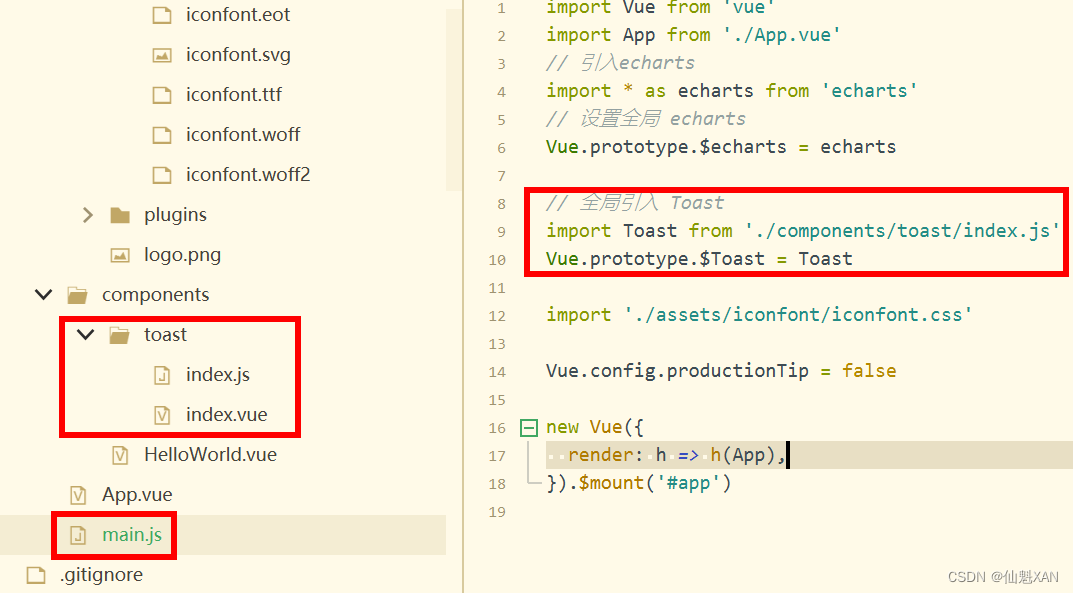
7、在 HelloWorld 简单添加一个按钮,调用即可,如图


8、在终端cmd 中 npm run serve 运行,效果如图
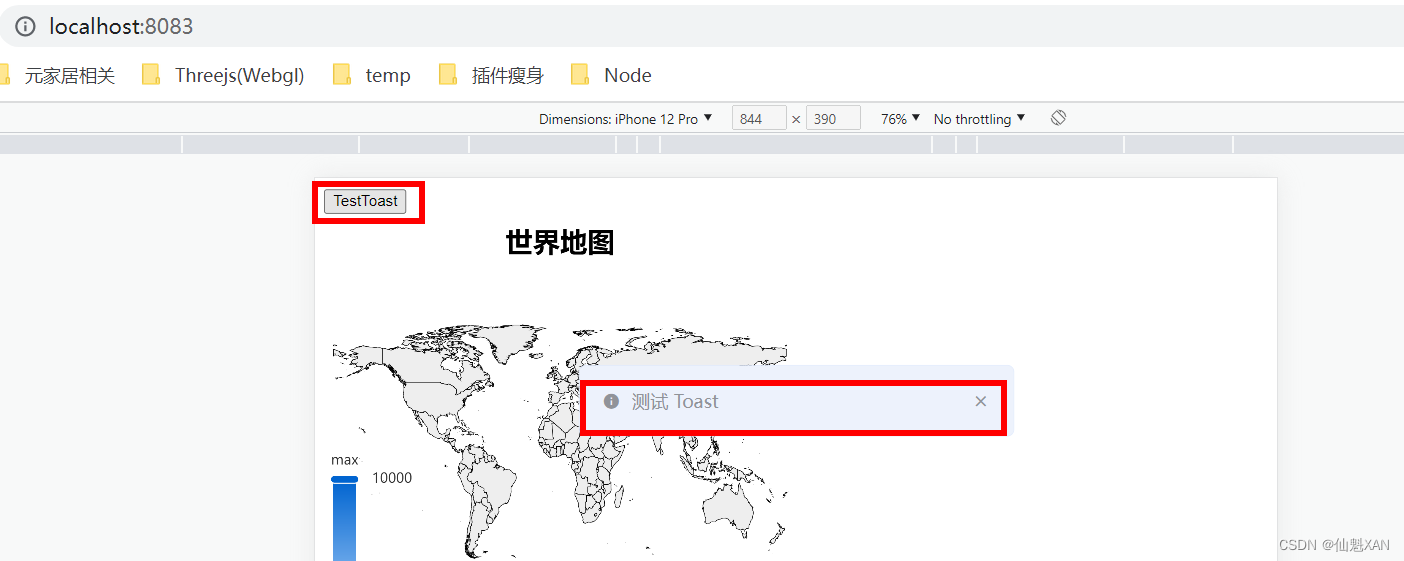
六、项目源码
使用说明:1、npm install ; 2、npm run serve
csdn:Vue之Toast消息提示插件的简单封装-Javascript文档类资源-CSDN下载
-
相关阅读:
马斯克 VS 乔布斯,谁是21世纪最伟大的创业家
RPA实施中的8个坑点
Java数据结构—栈
Java开发中常见的坑
Spring事务管理
高等数学(第七版)同济大学 习题1-9 个人解答
Chromium Mojo通信
互联网时代,企业如何扭转线下采购劣势?
在 Kubernetes 集群中部署现代应用的通用模式
Linux2-系统自有服务防火墙与计划任务
- 原文地址:https://blog.csdn.net/u014361280/article/details/126105373