-
Swift高仿iOS网易云音乐Moya+RxSwift+Kingfisher+MVC+MVVM
效果
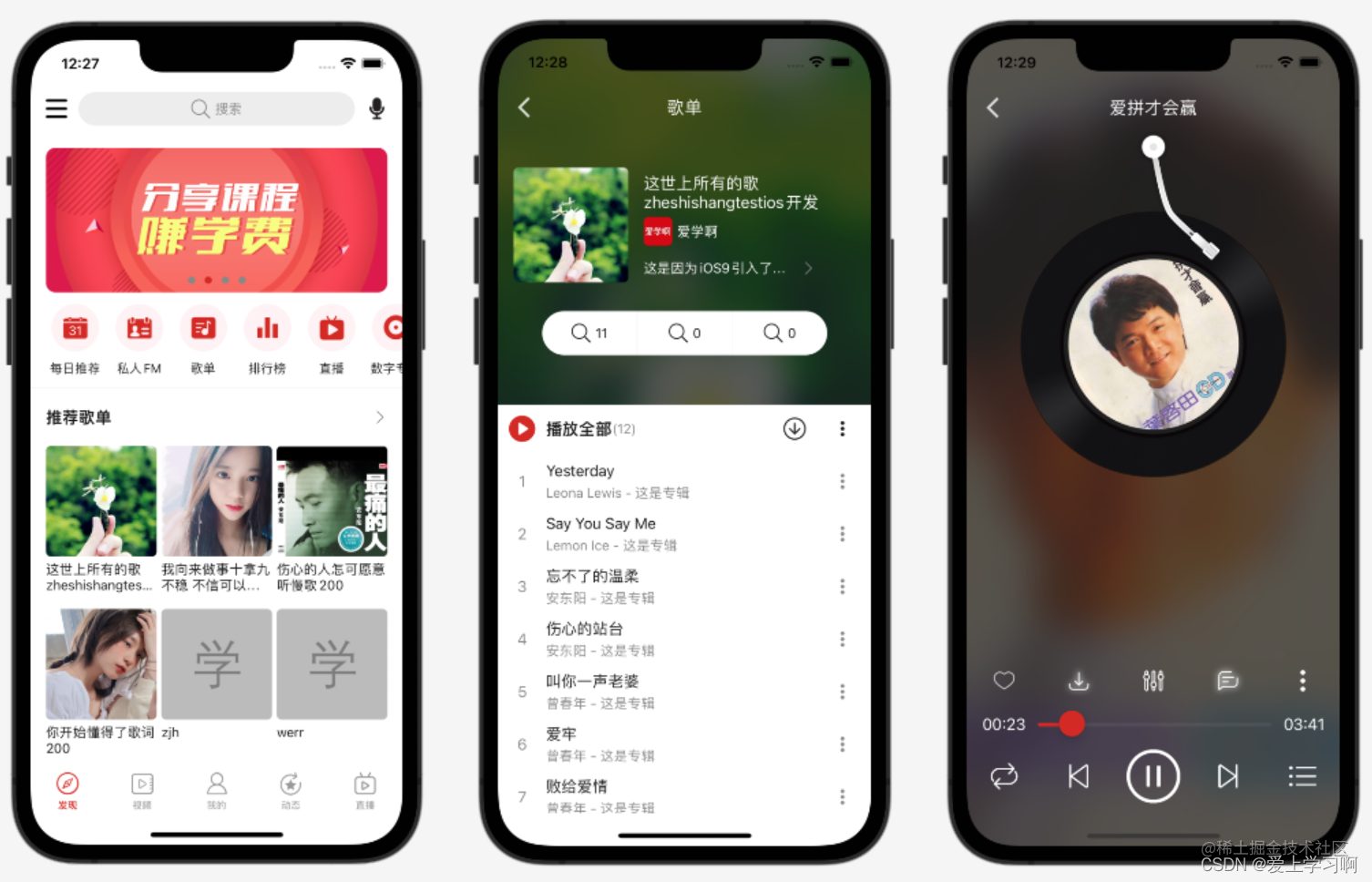
列文章目录
因为目录比较多,每次更新这里比较麻烦,所以推荐点击到主页,然后查看iOS Swift云音乐专栏。
目简介
这是一个使用Swift(还有OC版本)语言,从0开发一个iOS平台,接近企业级的项目(我的云音乐),包含了基础内容,高级内容,项目封装,项目重构等知识;主要是使用系统功能,流行的第三方框架,第三方服务,完成接近企业级商业级项目。
目功能点
隐私协议对话框
启动界面和动态处理权限
引导界面和广告
轮播图和侧滑菜单
首页复杂列表和列表排序
音乐播放和音乐列表管理
全局音乐控制条
桌面歌词和自定义样式
全局媒体控制中心
评论和回复评论
评论富文本点击
评论提醒人和话题
朋友圈动态列表和发布
高德地图定位和路径规划
阿里云OSS上传
视频播放和控制
QQ/微信登录和分享
商城/购物车\微信\支付宝支付
文本和图片聊天
消息离线推送
自动和手动检查更新
内存泄漏和优化
…发环境概述
2022年7月开发完成的,所以全部都是最新的,平均每3年会重新制作,现在已经是第三版了。
Xcode 13.4 iOS 15- 1
- 2
译和运行
先安装pod,用最新Xcode打开MyCloudMusic.xcworkspace,然后运行,如果要运行到真机,先登陆自己的开发者账户,如果不是付费账户,请删除推送等付费功能,更改BundleId,然后运行。
目目录结构
├── MyCloudMusic │ ├── AppDelegate.swift │ ├── Assets.xcassets #资源目录 │ ├── Base.lproj │ ├── Cell #通用cell │ ├── Component #每个功能模块 │ │ ├── Ad #广告相关 │ │ ├── Address #收获地址相关 │ ├── Config #配置目录,例如:网络地址配置 │ ├── Controller #通用控制器 │ ├── Extension #扩展,例如:字符串扩展 │ ├── Info.plist │ ├── Manager #管理器,例如:音乐播放管理器 │ ├── Model #通用模型 │ ├── MyCloudMusic-Bridging-Header.h │ ├── MyCloudMusic.entitlements │ ├── Repository #数据仓库,例如:网络请求封装 │ ├── Service #数据服务,例如:网络api │ ├── UI #通用UI模型 │ ├── Util #工具类 │ ├── Vender #通过源码方式依赖的第三方框架 │ ├── View #通用View ├── MyCloudMusic.xcodeproj ├── MyCloudMusic.xcworkspace ├── MyCloudMusicTests #测试相关 ├── MyCloudMusicUITests #UI测试相关 ├── Podfile ├── Podfile.lock └── R.generated.swift #R.swfit框架生成的文件- 1
- 2
- 3
- 4
- 5
- 6
- 7
- 8
- 9
- 10
- 11
- 12
- 13
- 14
- 15
- 16
- 17
- 18
- 19
- 20
- 21
- 22
- 23
- 24
- 25
- 26
- 27
- 28
- 29
赖框架
内容太多,只列出部分。
target 'MyCloudMusic' do # Comment the next line if you don't want to use dynamic frameworks use_frameworks! # Pods for MyCloudMusic #提供类似Android中更高层级的布局框架 #https://github.com/youngsoft/TangramKit pod 'TangramKit' #将资源(图片,文件等)生成类,方便到代码中方法 #例如:let icon = R.image.settingsIcon() #let font = R.font.sanFrancisco(size: 42) #let color = R.color.indicatorHighlight() #let viewController = CustomViewController(nib: R.nib.customView) #let string = R.string.localizable.welcomeWithName("Arthur Dent") #https://github.com/mac-cain13/R.swift pod 'R.swift' #腾讯开源的UI框架,提供了很多功能,例如:圆角按钮,空心按钮,TextView支持placeholder #https://github.com/QMUI/QMUIDemo_iOS #https://qmuiteam.com/ios/get-started pod "QMUIKit" #图片加载 #https://github.com/SDWebImage/SDWebImage pod 'SDWebImage' # 网络请求框架 # https://github.com/Moya/Moya pod 'Moya/RxSwift' #避免每个界面定义disposeBag #https://github.com/RxSwiftCommunity/NSObject-Rx pod "NSObject+Rx" #提示框架 #https://github.com/jdg/MBProgressHUD pod 'MBProgressHUD' #Swift图片加载 #https://github.com/onevcat/Kingfisher pod "Kingfisher" #Swift扩展,像字符串,数组等 #https://github.com/SwifterSwift/SwifterSwift pod 'SwifterSwift' #下拉刷新 #https://github.com/CoderMJLee/MJRefresh pod 'MJRefresh' #富文本框架 #https://github.com/a1049145827/BSText #OC版本:https://github.com/ibireme/YYText pod "BSText" #腾讯开源的偏好存储框架 #https://github.com/Tencent/MMKV pod 'MMKV' #腾讯WCDB是一个高效、完整、易用的移动数据库框架,基于SQLCipher,支持iOS, macOS和Android #https://github.com/Tencent/wcdb pod 'WCDB.swift' #面向泛前端产品研发全生命周期的效率平台,查看数据库,网络请求,内存泄漏 #https://xingyun.xiaojukeji.com/docs/dokit/#/iosGuide pod 'DoraemonKit/Core', :configurations => ['Debug'] #必选 # pod 'DoraemonKit/WithGPS', '~> 3.0.4', :configurations => ['Debug'] #可选 # pod 'DoraemonKit/WithLoad', '~> 3.0.4', :configurations => ['Debug'] #可选 # pod 'DoraemonKit/WithLogger', '~> 3.0.4', :configurations => ['Debug'] #可选 pod 'DoraemonKit/WithDatabase', :configurations => ['Debug'] #可选 # pod 'DoraemonKit/WithMLeaksFinder', :configurations => ['Debug'] #可选 # pod 'DoraemonKit/WithWeex', '~> 3.0.4', :configurations => ['Debug'] #可选 #腾讯云开源的一款播放器组件,简单几行代码即可拥有类似腾讯视频强大的播放功能,包括横竖屏切换、清晰度选择、手势和小窗等基础功能,还支持视频缓存,软硬解切换和倍速播放等特殊功能,相比系统播放器,支持格式更多,兼容性更好,功能更强大,同时还具备首屏秒开、低延迟的优点,以及视频缩略图等高级能力。 #https://cloud.tencent.com/document/product/881/20208 pod 'SuperPlayer' #图片选择框架,预览框架 #https://github.com/longitachi/ZLPhotoBrowser pod 'ZLPhotoBrowser' # 阿里云OSS # 用来上传发布带图片动态 # https://help.aliyun.com/document_detail/32055.html pod 'AliyunOSSiOS' #高德地图 #https://lbs.amap.com/api/ios-sdk/guide/create-project/cocoapods #这里用的是没有IDFA的sdk,更多说明:https://lbs.amap.com/api/ios-sdk/guide/create-project/idfa-guide pod 'AMap3DMap-NO-IDFA' #用户详情头部视图 # https://github.com/pujiaxin33/JXPagingView pod 'JXPagingView/Paging' #指示器 #https://github.com/pujiaxin33/JXSegmentedView pod 'JXSegmentedView' #支付宝支付 #https://docs.open.alipay.com/204/105295/ pod 'AlipaySDK-iOS' #融云聊天 #https://doc.rongcloud.cn/im/IOS/5.X/noui/import pod 'RongCloudIM/IMLib' # share sdk #https://mob.com/wiki/detailed?wiki=4&id=14 # 主模块(必须) pod 'mob_sharesdk' # UI模块(非必须,需要用到ShareSDK提供的分享菜单栏和分享编辑页面需要以下1行) pod 'mob_sharesdk/ShareSDKUI' # 平台SDK模块(对照一下平台,需要的加上。如果只需要QQ、微信、新浪微博,只需要以下3行) pod 'mob_sharesdk/ShareSDKPlatforms/QQ' pod 'mob_sharesdk/ShareSDKPlatforms/SinaWeibo' #(微信sdk不带支付的命令) # pod 'mob_sharesdk/ShareSDKPlatforms/WeChat' #(微信sdk带支付的命令,和上面不带支付的不能共存,只能选择一个) pod 'mob_sharesdk/ShareSDKPlatforms/WeChatFull' #需要精简版QQ,微信,微博,Facebook的可以加这3个命令(精简版去掉了这4个平台的原生SDK) # pod 'mob_sharesdk/ShareSDKPlatforms/QQ_Lite' # pod 'mob_sharesdk/ShareSDKPlatforms/SinaWeibo_Lite' # pod 'mob_sharesdk/ShareSDKPlatforms/WeChat_Lite' # pod 'mob_sharesdk/ShareSDKPlatforms/Facebook_Lite' # pod 'mob_sharesdk/ShareSDKPlatforms/KuaiShou_Lite' # ShareSDKPlatforms模块其他平台,按需添加 # pod 'mob_sharesdk/ShareSDKPlatforms/TikTok' # pod 'mob_sharesdk/ShareSDKPlatforms/SnapChat' # pod 'mob_sharesdk/ShareSDKPlatforms/Oasis' # 使用配置文件分享模块(非必须) # pod 'mob_sharesdk/ShareSDKConfigFile' # 闭环分享依赖(非必须) # pod 'mob_sharesdk/ShareSDKRestoreScene' # 扩展模块(在调用可以弹出我们UI分享方法的时候是必需的) pod 'mob_sharesdk/ShareSDKExtension' #end share sdk target 'MyCloudMusicTests' do inherit! :search_paths # Pods for testing end target 'MyCloudMusicUITests' do # Pods for testing end end- 1
- 2
- 3
- 4
- 5
- 6
- 7
- 8
- 9
- 10
- 11
- 12
- 13
- 14
- 15
- 16
- 17
- 18
- 19
- 20
- 21
- 22
- 23
- 24
- 25
- 26
- 27
- 28
- 29
- 30
- 31
- 32
- 33
- 34
- 35
- 36
- 37
- 38
- 39
- 40
- 41
- 42
- 43
- 44
- 45
- 46
- 47
- 48
- 49
- 50
- 51
- 52
- 53
- 54
- 55
- 56
- 57
- 58
- 59
- 60
- 61
- 62
- 63
- 64
- 65
- 66
- 67
- 68
- 69
- 70
- 71
- 72
- 73
- 74
- 75
- 76
- 77
- 78
- 79
- 80
- 81
- 82
- 83
- 84
- 85
- 86
- 87
- 88
- 89
- 90
- 91
- 92
- 93
- 94
- 95
- 96
- 97
- 98
- 99
- 100
- 101
- 102
- 103
- 104
- 105
- 106
- 107
- 108
- 109
- 110
- 111
- 112
- 113
- 114
- 115
- 116
- 117
- 118
- 119
- 120
- 121
- 122
- 123
- 124
- 125
- 126
- 127
- 128
- 129
- 130
- 131
- 132
- 133
- 134
- 135
- 136
- 137
- 138
- 139
- 140
- 141
- 142
- 143
- 144
- 145
- 146
- 147
- 148
- 149
- 150
- 151
- 152
- 153
- 154
- 155
- 156
- 157
- 158
- 159
户协议对话框

使用自定义Dialog实现。
class TermServiceDialogController: BaseController, QMUIModalPresentationContentViewControllerProtocol { var contentContainer:TGBaseLayout! var modalController:QMUIModalPresentationViewController! var textView:UITextView! var disagreeButton:QMUIButton! override func initViews() { super.initViews() view.layer.cornerRadius = SMALL_RADIUS view.clipsToBounds = true view.backgroundColor = .colorDivider view.tg_width.equal(.fill) view.tg_height.equal(.wrap) //内容容器 contentContainer = TGLinearLayout(.vert) contentContainer.tg_width.equal(.fill) contentContainer.tg_height.equal(.wrap) contentContainer.tg_space = 25 contentContainer.backgroundColor = .colorBackground contentContainer.tg_padding = UIEdgeInsets(top: PADDING_OUTER, left: PADDING_OUTER, bottom: PADDING_OUTER, right: PADDING_OUTER) contentContainer.tg_gravity = TGGravity.horz.center view.addSubview(contentContainer) //标题 contentContainer.addSubview(titleView) textView = UITextView() textView.tg_width.equal(.fill) //超出的内容,自动支持滚动 textView.tg_height.equal(230) textView.text="公司CFO David Wehner..." textView.backgroundColor = .clear //禁用编辑 textView.isEditable = false contentContainer.addSubview(textView) contentContainer.addSubview(primaryButton) //不同意按钮按钮 disagreeButton=ViewFactoryUtil.linkButton() disagreeButton.setTitle(R.string.localizable.disagree(), for: .normal) disagreeButton.setTitleColor(.black80, for: .normal) disagreeButton.addTarget(self, action: #selector(disagreeClick(_:)), for: .touchUpInside) disagreeButton.sizeToFit() contentContainer.addSubview(disagreeButton) } @objc func disagreeClick(_ sender:QMUIButton) { hide() //退出应用 exit(0) } func show() { modalController = QMUIModalPresentationViewController() modalController.animationStyle = .fade //边距 modalController.contentViewMargins = UIEdgeInsets(top: PADDING_LARGE2, left: PADDING_LARGE2, bottom: PADDING_LARGE2, right: PADDING_LARGE2) //点击外部不隐藏 modalController.isModal = true //设置要显示的内容控件 modalController.contentViewController = self modalController.showWith(animated: true) } lazy var titleView: UILabel = { let r = UILabel() r.tg_width.equal(.fill) r.tg_height.equal(.wrap) r.text = "标题" r.textColor = .colorOnSurface r.font = UIFont.boldSystemFont(ofSize: TEXT_LARGE2) r.textAlignment = .center return r }() lazy var primaryButton: QMUIButton = { let r = ViewFactoryUtil.primaryHalfFilletButton() r.setTitle(R.string.localizable.agree(), for: .normal) return r }() }- 1
- 2
- 3
- 4
- 5
- 6
- 7
- 8
- 9
- 10
- 11
- 12
- 13
- 14
- 15
- 16
- 17
- 18
- 19
- 20
- 21
- 22
- 23
- 24
- 25
- 26
- 27
- 28
- 29
- 30
- 31
- 32
- 33
- 34
- 35
- 36
- 37
- 38
- 39
- 40
- 41
- 42
- 43
- 44
- 45
- 46
- 47
- 48
- 49
- 50
- 51
- 52
- 53
- 54
- 55
- 56
- 57
- 58
- 59
- 60
- 61
- 62
- 63
- 64
- 65
- 66
- 67
- 68
- 69
- 70
- 71
- 72
- 73
- 74
- 75
- 76
- 77
- 78
- 79
- 80
- 81
- 82
- 83
- 84
- 85
- 86
- 87
- 88
- 89
- 90
- 91
- 92
导界面
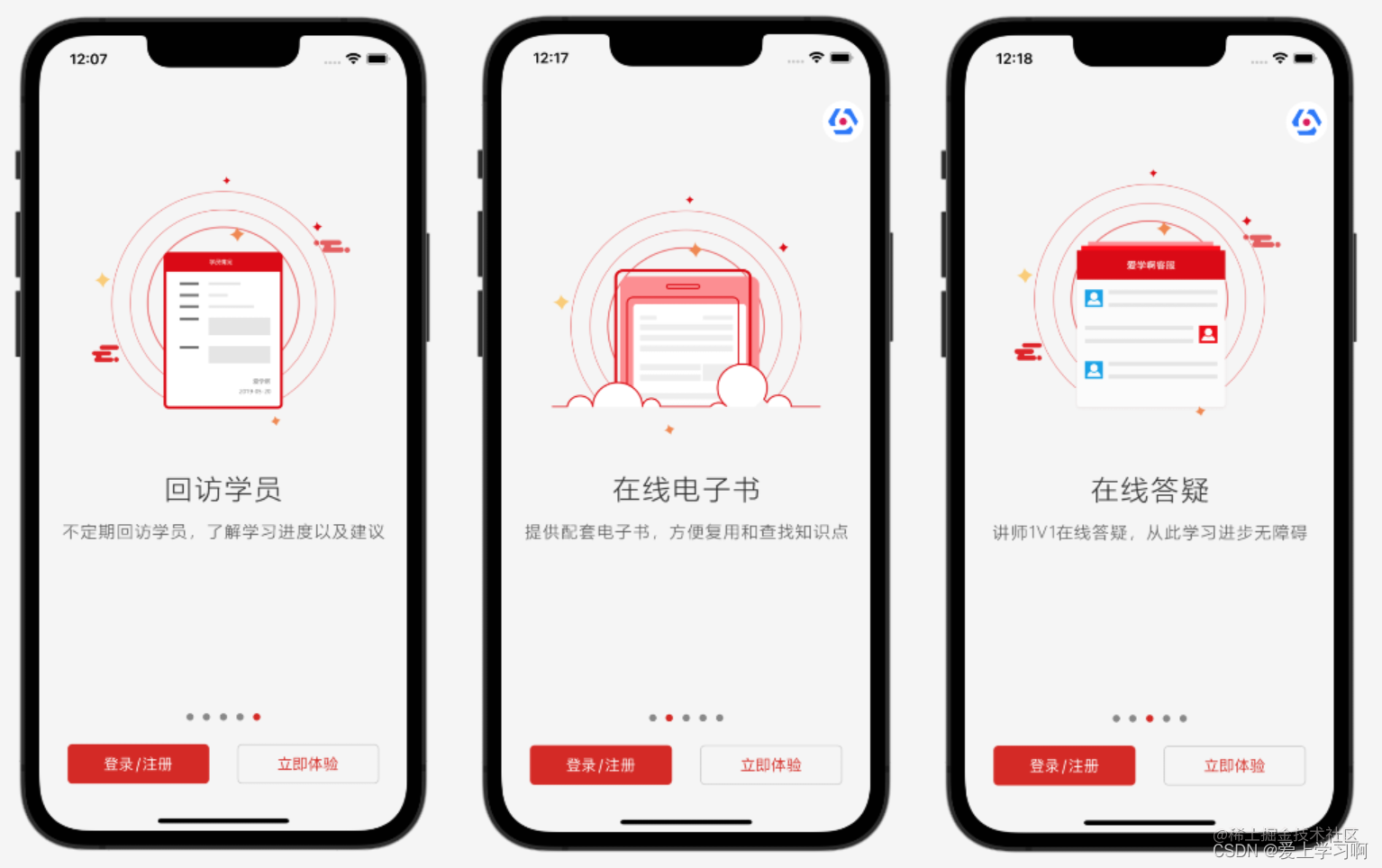
引导界面比较简单,就是多个图片可以左右滚动。
class GuideController: BaseLogicController { var bannerView:YJBannerView! override func initViews() { super.initViews() initLinearLayoutSafeArea() container.tg_space = PADDING_OUTER bannerView = YJBannerView() bannerView.backgroundColor = .clear bannerView.dataSource = self bannerView.delegate = self bannerView.tg_width.equal(.fill) bannerView.tg_height.equal(.fill) //设置如果找不到图片显示的图片 bannerView.emptyImage = R.image.placeholderError() //设置占位图 bannerView.placeholderImage = R.image.placeholder() //设置轮播图内部显示图片的时候调用什么方法 bannerView.bannerViewSelectorString = "sd_setImageWithURL:placeholderImage:" //设置指示器默认颜色 bannerView.pageControlNormalColor = .black80 //高亮的颜色 bannerView.pageControlHighlightColor = .colorPrimary //重新加载数据 bannerView.reloadData() container.addSubview(bannerView) //按钮容器 let controlContainer = TGLinearLayout(.horz) controlContainer.tg_bottom.equal(PADDING_OUTER) controlContainer.tg_width ~= .fill controlContainer.tg_height.equal(.wrap) //水平拉升,左,中,右间距一样 controlContainer.tg_gravity = TGGravity.horz.among container.addSubview(controlContainer) //登录注册按钮 let primaryButton = ViewFactoryUtil.primaryButton() primaryButton.setTitle(R.string.localizable.loginOrRegister(), for: .normal) primaryButton.addTarget(self, action: #selector(primaryClick(_:)), for: .touchUpInside) primaryButton.tg_width.equal(BUTTON_WIDTH_MEDDLE) controlContainer.addSubview(primaryButton) //立即体验按钮 let enterButton = ViewFactoryUtil.primaryOutlineButton() enterButton.setTitle(R.string.localizable.experienceNow(), for: .normal) enterButton.addTarget(self, action: #selector(enterClick(_:)), for: .touchUpInside) enterButton.tg_width.equal(BUTTON_WIDTH_MEDDLE) controlContainer.addSubview(enterButton) } ///登录注册按钮点击 /// - Parameter sender: <#sender description#> @objc func primaryClick(_ sender:QMUIButton) { AppDelegate.shared.toLogin() } ///立即体验按钮点击 /// - Parameter sender: <#sender description#> @objc func enterClick(_ sender:QMUIButton) { AppDelegate.shared.toMain() } } // MARK: - YJBannerViewDataSource extension GuideController:YJBannerViewDataSource{ /// banner数据源 /// /// - Parameter bannerView: <#bannerView description#> /// - Returns: <#return value description#> func bannerViewImages(_ bannerView: YJBannerView!) -> [Any]! { return ["guide1","guide2","guide3","guide4","guide5"] } /// 自定义Cell /// 复写该方法的目的是 /// 设置图片的缩放模式 /// /// - Parameters: /// - bannerView: <#bannerView description#> /// - customCell: <#customCell description#> /// - index: <#index description#> /// - Returns: <#return value description#> func bannerView(_ bannerView: YJBannerView!, customCell: UICollectionViewCell!, index: Int) -> UICollectionViewCell! { //将cell类型转为YJBannerViewCell let cell = customCell as! YJBannerViewCell //设置图片的缩放模式为 //从中心填充 //多余的裁剪掉 cell.showImageViewContentMode = .scaleAspectFit return cell } } // MARK: - YJBannerViewDelegate extension GuideController:YJBannerViewDelegate{ }- 1
- 2
- 3
- 4
- 5
- 6
- 7
- 8
- 9
- 10
- 11
- 12
- 13
- 14
- 15
- 16
- 17
- 18
- 19
- 20
- 21
- 22
- 23
- 24
- 25
- 26
- 27
- 28
- 29
- 30
- 31
- 32
- 33
- 34
- 35
- 36
- 37
- 38
- 39
- 40
- 41
- 42
- 43
- 44
- 45
- 46
- 47
- 48
- 49
- 50
- 51
- 52
- 53
- 54
- 55
- 56
- 57
- 58
- 59
- 60
- 61
- 62
- 63
- 64
- 65
- 66
- 67
- 68
- 69
- 70
- 71
- 72
- 73
- 74
- 75
- 76
- 77
- 78
- 79
- 80
- 81
- 82
- 83
- 84
- 85
- 86
- 87
- 88
- 89
- 90
- 91
- 92
- 93
- 94
- 95
- 96
- 97
- 98
- 99
- 100
- 101
- 102
- 103
- 104
- 105
- 106
- 107
- 108
- 109
- 110
- 111
- 112
广告界面
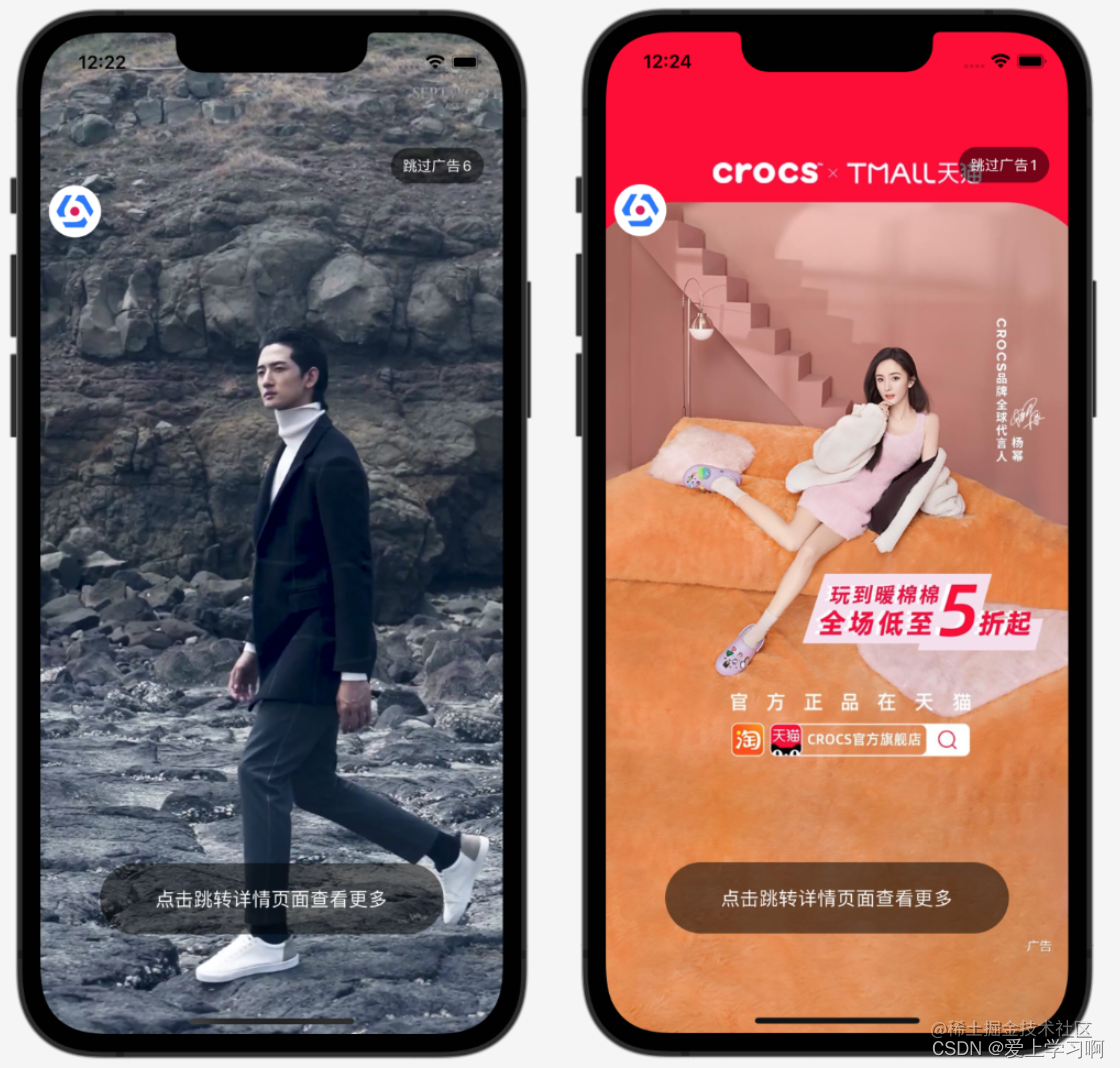
实现图片广告和视频广告,广告数据是在首页是缓存到本地,目的是在启动界面加载更快,因为真实项目中,大部分项目启动页面广告时间一共就5秒,如果太长了用户体验不好,如果是从网络请求,那么网络可能就耗时2秒左右,所以导致就美哟多少时间显示广告了。
广告
func downloadAd(_ data:Ad,_ path:URL) { let destination: DownloadRequest.Destination = { _, _ in return (path, [.removePreviousFile, .createIntermediateDirectories]) } AF.download(data.icon.absoluteUri(), to: destination).response { response in if response.error == nil, let filePath = response.fileURL?.path { print("ad downloaded success \(filePath)") } } }- 1
- 2
- 3
- 4
- 5
- 6
- 7
- 8
- 9
- 10
- 11
广告
func showVideoAd(_ data:URL) { //播放应用内嵌入视频,放根目录中 //同样其他的文件,也可以通过这种方式读取 //var data=Bundle.main.url(forResource: "ixueaeduTestVideo", withExtension: ".mp4")! player = AVPlayer(url: data) //静音 player!.isMuted = true /// 添加进度监听 player!.addPeriodicTimeObserver(forInterval: CMTime(value: CMTimeValue(1.0), timescale: 60), queue: DispatchQueue.main, using: {time in if self.player == nil { return } //播放时间 let current = Float(CMTimeGetSeconds(time)) //总时间 let duration = Float(CMTimeGetSeconds(self.player!.currentItem!.duration)) if current==duration { //视频播放结束 self.next() } else { self.skipView.setTitle(R.string.localizable.skipAdCount(Int(duration-current)), for: .normal) self.skipView.tg_width.equal(.wrap) self.skipView.setNeedsLayout() } }) //显示图像 playerLayer = AVPlayerLayer(player: player) //从中心等比缩放,完全显示控件 playerLayer?.videoGravity = .resizeAspectFill view.layer.insertSublayer(playerLayer!, at: 0) }- 1
- 2
- 3
- 4
- 5
- 6
- 7
- 8
- 9
- 10
- 11
- 12
- 13
- 14
- 15
- 16
- 17
- 18
- 19
- 20
- 21
- 22
- 23
- 24
- 25
- 26
- 27
- 28
- 29
- 30
- 31
- 32
- 33
- 34
- 35
- 36
- 37
- 38
- 39
显示图片就是显示本地图片了,没什么难点,就不贴代码了。
首页/歌单详情/黑胶唱片界面
首页没有顶部是轮播图,然后是可以左右的菜单,接下来是热门歌单,推荐单曲,最后是首页排序模块;整体上使用RecycerView实现,轮播图:
//取出一个Cell let cell = tableView.dequeueReusableCell(withIdentifier: Constant.CELL, for: indexPath) as! BannerCell //绑定数据 cell.bind(data as! BannerData) cell.bannerClick = {[weak self] data in self?.processAdClick(data) }- 1
- 2
- 3
- 4
- 5
- 6
- 7
- 8
- 9
推荐歌单
/// 协议 protocol SheetGroupDelegate:NSObjectProtocol { /// 歌单点击回调 /// - Parameter data: 点击的歌单对象 func sheetClick(data:Sheet) } class SheetGroupCell: BaseTableViewCell { static let NAME = "SheetGroupCell" var datum:Array<Sheet> = [] var cellWidth:CGFloat! var cellHeight:CGFloat! var spanCount:CGFloat = 3 weak open var delegate: SheetGroupDelegate? override func initViews() { super.initViews() //分割线 container.addSubview(ViewFactoryUtil.smallDivider()) //标题 container.addSubview(titleView) container.addSubview(collectionView) collectionView.register(SheetCell.self, forCellWithReuseIdentifier: Constant.CELL) } override func getContainerOrientation() -> TGOrientation { return .vert } func bind(_ data:SheetData) { //计算每个cell宽度 //屏幕宽度-外边距16*2-(self.spanCount-1)*5 cellWidth = (SCREEN_WIDTH-PADDING_OUTER*CGFloat(2) - (spanCount - CGFloat(1))*PADDING_SMALL)/spanCount //cell高度,5:图片和标题边距,40:2行文字高度 cellHeight = cellWidth + PADDING_SMALL + 40 //计算可以显示几行 let rows = ceil(CGFloat(data.datum.count) / spanCount) //CollectionView高度等于,行数*行高,10:垂直方向每个cell间距 let viewHeight = rows * (cellHeight + PADDING_MEDDLE) collectionView.tg_height.equal(viewHeight) datum.removeAll() datum += data.datum collectionView.reloadData() } /// 标题控件 lazy var titleView: ItemTitleView = { let r = ItemTitleView() r.titleView.text = R.string.localizable.recommendSheet() return r }() lazy var collectionView: UICollectionView = { let r = ViewFactoryUtil.collectionView() r.delegate = self r.dataSource = self r.isScrollEnabled = false return r }() } /// CollectionView数据源和代理 extension SheetGroupCell:UICollectionViewDataSource,UICollectionViewDelegate { /// 有多少个 /// - Parameters: /// - collectionView: <#collectionView description#> /// - section: <#section description#> /// - Returns: <#description#> func collectionView(_ collectionView: UICollectionView, numberOfItemsInSection section: Int) -> Int { return datum.count } /// 返回cell /// - Parameters: /// - collectionView: <#collectionView description#> /// - indexPath: <#indexPath description#> /// - Returns: <#description#> func collectionView(_ collectionView: UICollectionView, cellForItemAt indexPath: IndexPath) -> UICollectionViewCell { let data = datum[indexPath.row] let cell = collectionView.dequeueReusableCell(withReuseIdentifier: Constant.CELL, for: indexPath) as! SheetCell cell.bind(data) return cell } /// item点击 /// - Parameters: /// - collectionView: <#collectionView description#> /// - indexPath: <#indexPath description#> func collectionView(_ collectionView: UICollectionView, didSelectItemAt indexPath: IndexPath) { if let d = delegate { d.sheetClick(data:datum[indexPath.row]) } } } /// UICollectionViewDelegateFlowLayout extension SheetGroupCell:UICollectionViewDelegateFlowLayout{ /// 返回CollectionView里面的Cell到CollectionView的间距 /// - Parameters: /// - collectionView: <#collectionView description#> /// - collectionViewLayout: <#collectionViewLayout description#> /// - section: <#section description#> /// - Returns: <#description#> func collectionView(_ collectionView: UICollectionView, layout collectionViewLayout: UICollectionViewLayout, insetForSectionAt section: Int) -> UIEdgeInsets { return UIEdgeInsets(top: 0, left: PADDING_OUTER, bottom: PADDING_OUTER, right: PADDING_OUTER) } /// 返回每个Cell的行间距 /// - Parameters: /// - collectionView: <#collectionView description#> /// - collectionViewLayout: <#collectionViewLayout description#> /// - section: <#section description#> func collectionView(_ collectionView: UICollectionView, layout collectionViewLayout: UICollectionViewLayout, minimumLineSpacingForSectionAt section: Int) -> CGFloat { return PADDING_MEDDLE } /// 返回每个Cell的列间距 /// - Parameters: /// - collectionView: <#collectionView description#> /// - collectionViewLayout: <#collectionViewLayout description#> /// - section: <#section description#> /// - Returns: <#description#> func collectionView(_ collectionView: UICollectionView, layout collectionViewLayout: UICollectionViewLayout, minimumInteritemSpacingForSectionAt section: Int) -> CGFloat { return PADDING_SMALL } /// cell尺寸 /// - Parameters: /// - collectionView: <#collectionView description#> /// - collectionViewLayout: <#collectionViewLayout description#> /// - indexPath: <#indexPath description#> /// - Returns: <#description#> func collectionView(_ collectionView: UICollectionView, layout collectionViewLayout: UICollectionViewLayout, sizeForItemAt indexPath: IndexPath) -> CGSize { return CGSize(width: cellWidth, height: cellHeight) } }- 1
- 2
- 3
- 4
- 5
- 6
- 7
- 8
- 9
- 10
- 11
- 12
- 13
- 14
- 15
- 16
- 17
- 18
- 19
- 20
- 21
- 22
- 23
- 24
- 25
- 26
- 27
- 28
- 29
- 30
- 31
- 32
- 33
- 34
- 35
- 36
- 37
- 38
- 39
- 40
- 41
- 42
- 43
- 44
- 45
- 46
- 47
- 48
- 49
- 50
- 51
- 52
- 53
- 54
- 55
- 56
- 57
- 58
- 59
- 60
- 61
- 62
- 63
- 64
- 65
- 66
- 67
- 68
- 69
- 70
- 71
- 72
- 73
- 74
- 75
- 76
- 77
- 78
- 79
- 80
- 81
- 82
- 83
- 84
- 85
- 86
- 87
- 88
- 89
- 90
- 91
- 92
- 93
- 94
- 95
- 96
- 97
- 98
- 99
- 100
- 101
- 102
- 103
- 104
- 105
- 106
- 107
- 108
- 109
- 110
- 111
- 112
- 113
- 114
- 115
- 116
- 117
- 118
- 119
- 120
- 121
- 122
- 123
- 124
- 125
- 126
- 127
- 128
- 129
- 130
- 131
- 132
- 133
- 134
- 135
- 136
- 137
- 138
- 139
- 140
- 141
- 142
- 143
- 144
- 145
- 146
- 147
- 148
- 149
- 150
- 151
详情
顶部是歌单信息,通过Cell实现,底部是列表,显示歌单内容的音乐,点击音乐进入黑胶唱片播放界面。
class SheetDetailController: BaseMusicPlayerController { /// 数据id var id:String! var data:Sheet! //背景 var backgroundImageView: UIImageView! //背景模糊 var backgroundVisual: UIVisualEffectView! override func initViews() { super.initViews() //添加背景图片控件 backgroundImageView = UIImageView() backgroundImageView.clipsToBounds = true backgroundImageView.alpha = 0 backgroundImageView.contentMode = .scaleAspectFill view.addSubview(backgroundImageView) //背景模糊效果 let blur = UIBlurEffect(style: .dark) backgroundVisual = UIVisualEffectView(effect: blur) backgroundImageView.addSubview(backgroundVisual) //初始化TableView结构 initTableViewSafeArea() //设置状态栏为亮色(文字是白色) setStatusBarLight() setToolbarLight() title = R.string.localizable.sheet() //注册单曲 tableView.register(SongCell.self, forCellReuseIdentifier: Constant.CELL) tableView.register(SheetInfoCell.self, forCellReuseIdentifier: SheetInfoCell.NAME) //注册section tableView.register(SongGroupHeaderView.self, forHeaderFooterViewReuseIdentifier: SongGroupHeaderView.NAME) tableView.bounces = false } override func initDatum() { super.initDatum() loadData() } func loadData() { DefaultRepository.shared .sheetDetail(id) .subscribeSuccess {[weak self] data in self?.show(data.data!) }.disposed(by: rx.disposeBag) } func show(_ data:Sheet) { self.data=data backgroundImageView.show(data.icon) //使用动画显示背景图片 UIView.animate(withDuration: 0.3) { //透明度设置为1 self.backgroundImageView.alpha = 1 } //第一组 var groupData=SongGroupData() groupData.datum = [data] datum.append(groupData) //第二组 if let r = data.songs { if !r.isEmpty { //有音乐才设置 //设置数据 groupData=SongGroupData() groupData.datum = r datum.append(groupData) superFooterContainer.backgroundColor = .colorLightWhite } } tableView.reloadData() } /// 获取列表类型 /// /// - Parameter data: <#data description#> /// - Returns: <#return value description#> func typeForItemAtData(_ data:Any) -> MyStyle { if data is Sheet { return .sheet } return .song } /// 播放音乐 /// - Parameter data: <#data description#> func play(_ data:Song) { //把当前歌单所有音乐设置到播放列表 //有些应用 //可能会实现添加到已经播放列表功能 MusicListManager.shared().setDatum(self.data.songs!) //播放当前音乐 MusicListManager.shared().play(data) startMusicPlayerController() } override func viewDidLayoutSubviews() { super.viewDidLayoutSubviews() backgroundImageView.frame = view.bounds backgroundVisual.frame = backgroundImageView.bounds } @objc func commentClick() { CommentController.start(navigationController!) } } extension SheetDetailController{ /// 有多少组 /// - Parameter tableView: <#tableView description#> /// - Returns: <#description#> func numberOfSections(in tableView: UITableView) -> Int { return datum.count } /// 当前组有多少个 /// - Parameters: /// - tableView: <#tableView description#> /// - section: <#section description#> /// - Returns: <#description#> override func tableView(_ tableView: UITableView, numberOfRowsInSection section: Int) -> Int { let data = datum[section] as! SongGroupData return data.datum.count } /// 返回section view /// - Parameters: /// - tableView: <#tableView description#> /// - section: <#section description#> /// - Returns: <#description#> func tableView(_ tableView: UITableView, viewForHeaderInSection section: Int) -> UIView? { //取出组数据 let groupData=datum[section] as! SongGroupData //获取header let header = tableView.dequeueReusableHeaderFooterView(withIdentifier: SongGroupHeaderView.NAME) as! SongGroupHeaderView header.bind(groupData) header.playAllClick = {[weak self] in let groupData = self?.datum[1] as! SongGroupData self?.play(groupData.datum[0] as! Song) } return header } /// 返回当前位置的cell /// - Parameters: /// - tableView: <#tableView description#> /// - indexPath: <#indexPath description#> /// - Returns: <#description#> override func tableView(_ tableView: UITableView, cellForRowAt indexPath: IndexPath) -> UITableViewCell { let groupData = datum[indexPath.section] as! SongGroupData let data = groupData.datum[indexPath.row] let type = typeForItemAtData(data) switch type { case .sheet: let cell = tableView.dequeueReusableCell(withIdentifier: SheetInfoCell.NAME, for: indexPath) as! SheetInfoCell cell.bind(data as! Sheet) cell.commentCountView.addTarget(self, action: #selector(commentClick), for: .touchUpInside) return cell default: let cell = tableView.dequeueReusableCell(withIdentifier: Constant.CELL, for: indexPath) as! SongCell cell.bind(data as! Song) cell.indexView.text = "\(indexPath.row + 1)" return cell } } /// header高度 /// - Parameters: /// - tableView: <#tableView description#> /// - section: <#section description#> /// - Returns: <#description#> func tableView(_ tableView: UITableView, heightForHeaderInSection section: Int) -> CGFloat { if section == 1 { return 50 } //其他组不显示section return 0 } /// cell点击 /// - Parameters: /// - tableView: <#tableView description#> /// - indexPath: <#indexPath description#> func tableView(_ tableView: UITableView, didSelectRowAt indexPath: IndexPath) { let groupData = datum[indexPath.section] as! SongGroupData let data = groupData.datum[indexPath.row] let type = typeForItemAtData(data) if type == .song { play(data as! Song) } } } extension SheetDetailController{ /// 启动方法 /// - Parameters: /// - controller: <#controller description#> /// - id: <#id description#> static func start(_ controller:UINavigationController,_ id:String) { let target = SheetDetailController() target.id=id controller.pushViewController(target, animated: true) } }- 1
- 2
- 3
- 4
- 5
- 6
- 7
- 8
- 9
- 10
- 11
- 12
- 13
- 14
- 15
- 16
- 17
- 18
- 19
- 20
- 21
- 22
- 23
- 24
- 25
- 26
- 27
- 28
- 29
- 30
- 31
- 32
- 33
- 34
- 35
- 36
- 37
- 38
- 39
- 40
- 41
- 42
- 43
- 44
- 45
- 46
- 47
- 48
- 49
- 50
- 51
- 52
- 53
- 54
- 55
- 56
- 57
- 58
- 59
- 60
- 61
- 62
- 63
- 64
- 65
- 66
- 67
- 68
- 69
- 70
- 71
- 72
- 73
- 74
- 75
- 76
- 77
- 78
- 79
- 80
- 81
- 82
- 83
- 84
- 85
- 86
- 87
- 88
- 89
- 90
- 91
- 92
- 93
- 94
- 95
- 96
- 97
- 98
- 99
- 100
- 101
- 102
- 103
- 104
- 105
- 106
- 107
- 108
- 109
- 110
- 111
- 112
- 113
- 114
- 115
- 116
- 117
- 118
- 119
- 120
- 121
- 122
- 123
- 124
- 125
- 126
- 127
- 128
- 129
- 130
- 131
- 132
- 133
- 134
- 135
- 136
- 137
- 138
- 139
- 140
- 141
- 142
- 143
- 144
- 145
- 146
- 147
- 148
- 149
- 150
- 151
- 152
- 153
- 154
- 155
- 156
- 157
- 158
- 159
- 160
- 161
- 162
- 163
- 164
- 165
- 166
- 167
- 168
- 169
- 170
- 171
- 172
- 173
- 174
- 175
- 176
- 177
- 178
- 179
- 180
- 181
- 182
- 183
- 184
- 185
- 186
- 187
- 188
- 189
- 190
- 191
- 192
- 193
- 194
- 195
- 196
- 197
- 198
- 199
- 200
- 201
- 202
- 203
- 204
- 205
- 206
- 207
- 208
- 209
- 210
- 211
- 212
- 213
- 214
- 215
- 216
- 217
- 218
- 219
- 220
- 221
- 222
- 223
- 224
- 225
- 226
- 227
- 228
- 229
- 230
- 231
- 232
- 233
- 234
- 235
- 236
- 237
- 238
唱片
上面是黑胶唱片,和网易云音乐差不多,随着音乐滚动或暂停,顶部是控制相关,音乐播放逻辑是封装到MusicPlayerManager中:
class MusicPlayerManager : NSObject{ /// 保存音乐播放进度的间隔 private static let SAVE_PROGRESS_TIME_INTERVAL:TimeInterval = 2 private static var instance:MusicPlayerManager? /// 当前播放的音乐 var data:Song? /// 播放器 private var player:AVPlayer! /// 播放状态 var status:PlayStatus = .none /// 定时器返回的对象 private var playTimeObserve:Any? ///播放完毕回调 var complete:((_ data:Song)->Void)! private var lastSaveProgressTime:TimeInterval = 0 /// 代理对象,目的是将不同的状态分发出去 weak open var delegate:MusicPlayerManagerDelegate?{ didSet{ if let _ = self.delegate { //有代理 //判断是否有音乐在播放 if self.isPlaying() { //有音乐在播放 //启动定时器 startPublishProgress() } }else { //没有代理 //停止定时器 stopPublishProgress() } } } /// 获取单例的播放管理器 /// /// - Returns: <#return value description#> static func shared() -> MusicPlayerManager { if instance == nil { instance = MusicPlayerManager() } return instance! } private override init() { super.init() player = AVPlayer() } /// 播放 /// - Parameters: /// - uri: 绝对音乐地址 /// - data: 音乐对象 func play(uri:String,data:Song) { //请求获取音频会话焦点 SuperAudioSessionManager.requestAudioFocus() //保存音乐对象 self.data = data status = .playing var url:URL?=nil if uri.starts(with: "http") { //网络地址 url = URL(string: uri) } else { //本地地址 url = URL(fileURLWithPath: uri) } //创建一个播放Item let item = AVPlayerItem(url: url!) //替换掉原来的播放Item player.replaceCurrentItem(with: item) //播放 player.play() //回调代理 if let r = delegate { r.onPlaying(data: data) } //设置监听器 //因为监听器是针对PlayerItem的 //所以说播放了音乐在这里设置 initListeners() //启动进度分发定时器 startPublishProgress() prepareLyric() } /// 暂停 func pause() { //更改状态 status = .pause //暂停 player.pause() //回调代理 if let r = delegate { r.onPaused(data: data!) } //移除监听器 removeListeners() //停止进度分发定时器 stopPublishProgress() } /// 继续播放 func resume() { //请求获取音频会话焦点 SuperAudioSessionManager.requestAudioFocus() status = .playing player.play() //回调代理 if let r = delegate { r.onPlaying(data: data!) } //设置监听器 initListeners() //启动进度分发定时器 startPublishProgress() } /// 是否在播放 /// - Returns: <#description#> func isPlaying() -> Bool { return status == .playing } /// 移动到指定位置播放 func seekTo(data:Float) { let positionTime = CMTime(seconds: Double(data), preferredTimescale: 1) player.seek(to: positionTime) } ... private func stopPublishProgress() { if let playTimeObserve = playTimeObserve { player.removeTimeObserver(playTimeObserve) self.playTimeObserve = nil } } private func initListeners() { //KVO方式监听播放状态 //KVC:Key-Value Coding,另一种获取对象字段的值,类似字典 //KVO:Key-Value Observing,建立在KVC基础上,能够观察一个字段值的改变 player.currentItem?.addObserver(self, forKeyPath: MusicPlayerManager.STATUS, options: .new, context: nil) //监听音乐缓冲状态 player.currentItem?.addObserver(self, forKeyPath: "loadedTimeRanges", options: .new, context: nil) //播放结束事件 NotificationCenter.default.addObserver(self, selector: #selector(onComplete(_:)), name: NSNotification.Name.AVPlayerItemDidPlayToEndTime, object: player.currentItem) } /// 移除监听器 private func removeListeners() { player.currentItem?.removeObserver(self, forKeyPath: MusicPlayerManager.STATUS) player.currentItem?.removeObserver(self, forKeyPath: "loadedTimeRanges") } /// 播放完毕了回调 @objc func onComplete(_ sender:Notification) { complete(data!) } /// KVO监听回调方法 /// /// - Parameters: /// - keyPath: <#keyPath description#> /// - object: <#object description#> /// - change: <#change description#> /// - context: <#context description#> override func observeValue(forKeyPath keyPath: String?, of object: Any?, change: [NSKeyValueChangeKey : Any]?, context: UnsafeMutableRawPointer?) { //判断监听的字段 if MusicPlayerManager.STATUS == keyPath { //播放状态 switch player.status { case .readyToPlay: //准备播放完成了 //音乐的总时间 self.data!.duration = Float(CMTimeGetSeconds(player.currentItem!.asset.duration)) //回调代理 delegate?.onPrepared(data:data!) updateMediaInfo() case .failed: //播放失败了 status = .error delegate?.onError(data: data!) default: //未知状态 status = .none } } } /// 更新系统媒体控制中心信息 /// 不需要更新进度到控制中心 /// 他那边会自动倒计时 /// 这部分可以重构到公共类,因为像播放视频也可以更新到系统媒体中心 private func updateMediaInfo() { //下载图片 //这部分可以封装 //因为其他界面可能也会用 let manager = SDWebImageManager.shared if data?.icon == nil { self.setMediaInfo(R.image.placeholder()!) } else { let url = URL(string: data!.icon!.absoluteUri()) //下载图片 manager.loadImage(with: url, options: .progressiveLoad) { receivedSize, expectedSize, targetURL in } completed: { image, data, error, cacheType, finished, imageURL in print("load song image success \(url)") if let r = image { self.setMediaInfo(r) } } } } func prepareLyric() { //歌词处理 //真实项目可能会 //将歌词这个部分拆分到其他组件中 if data!.parsedLyric != nil && data!.parsedLyric!.datum.count > 0 { //解析好了 onLyricReady() } else if SuperStringUtil.isNotBlank(data!.lyric){ //有歌词,但是没有解析 parseLyric() } else { //没有歌词,并且不是本地音乐才请求 //真实项目中可以会缓存歌词 //获取歌词数据 DefaultRepository.shared .songDetail(data!.id) .subscribeSuccess { data in //请求成功 self.data!.style = data.data!.style self.data!.lyric = data.data!.lyric self.parseLyric() } } } func parseLyric() { if SuperStringUtil.isNotBlank(data?.lyric) { //有歌词 //在这里解析的好处是 //外面不用管,直接使用 data?.parsedLyric = LyricParser.parse(data!.style,data!.lyric!) } //通知歌词准备好了 onLyricReady() } func onLyricReady() { if let r = delegate { r.onLyricReady(data: data!) } } static let STATUS = "status" } /// 播放状态枚举 enum PlayStatus { case none //未知 case pause //暂停了 case playing //播放中 case prepared //准备中 case completion //当前这一首音乐播放完成 case error } /// 播放管理器代理 protocol MusicPlayerManagerDelegate:NSObjectProtocol{ /// 播放器准备完毕了 /// 可以获取到音乐总时长 func onPrepared(data:Song) /// 暂停了 func onPaused(data:Song) /// 正在播放 func onPlaying(data:Song) /// 进度回调 func onProgress(data:Song) /// 歌词数据准备好了 func onLyricReady(data:Song) /// 出错了 func onError(data:Song) }- 1
- 2
- 3
- 4
- 5
- 6
- 7
- 8
- 9
- 10
- 11
- 12
- 13
- 14
- 15
- 16
- 17
- 18
- 19
- 20
- 21
- 22
- 23
- 24
- 25
- 26
- 27
- 28
- 29
- 30
- 31
- 32
- 33
- 34
- 35
- 36
- 37
- 38
- 39
- 40
- 41
- 42
- 43
- 44
- 45
- 46
- 47
- 48
- 49
- 50
- 51
- 52
- 53
- 54
- 55
- 56
- 57
- 58
- 59
- 60
- 61
- 62
- 63
- 64
- 65
- 66
- 67
- 68
- 69
- 70
- 71
- 72
- 73
- 74
- 75
- 76
- 77
- 78
- 79
- 80
- 81
- 82
- 83
- 84
- 85
- 86
- 87
- 88
- 89
- 90
- 91
- 92
- 93
- 94
- 95
- 96
- 97
- 98
- 99
- 100
- 101
- 102
- 103
- 104
- 105
- 106
- 107
- 108
- 109
- 110
- 111
- 112
- 113
- 114
- 115
- 116
- 117
- 118
- 119
- 120
- 121
- 122
- 123
- 124
- 125
- 126
- 127
- 128
- 129
- 130
- 131
- 132
- 133
- 134
- 135
- 136
- 137
- 138
- 139
- 140
- 141
- 142
- 143
- 144
- 145
- 146
- 147
- 148
- 149
- 150
- 151
- 152
- 153
- 154
- 155
- 156
- 157
- 158
- 159
- 160
- 161
- 162
- 163
- 164
- 165
- 166
- 167
- 168
- 169
- 170
- 171
- 172
- 173
- 174
- 175
- 176
- 177
- 178
- 179
- 180
- 181
- 182
- 183
- 184
- 185
- 186
- 187
- 188
- 189
- 190
- 191
- 192
- 193
- 194
- 195
- 196
- 197
- 198
- 199
- 200
- 201
- 202
- 203
- 204
- 205
- 206
- 207
- 208
- 209
- 210
- 211
- 212
- 213
- 214
- 215
- 216
- 217
- 218
- 219
- 220
- 221
- 222
- 223
- 224
- 225
- 226
- 227
- 228
- 229
- 230
- 231
- 232
- 233
- 234
- 235
- 236
- 237
- 238
- 239
- 240
- 241
- 242
- 243
- 244
- 245
- 246
- 247
- 248
- 249
- 250
- 251
- 252
- 253
- 254
- 255
- 256
- 257
- 258
- 259
- 260
- 261
- 262
- 263
- 264
- 265
- 266
- 267
- 268
- 269
- 270
- 271
- 272
- 273
- 274
- 275
- 276
- 277
- 278
- 279
- 280
- 281
- 282
- 283
- 284
- 285
- 286
- 287
- 288
- 289
- 290
- 291
- 292
- 293
- 294
- 295
- 296
- 297
- 298
- 299
- 300
- 301
- 302
- 303
- 304
- 305
- 306
- 307
- 308
- 309
- 310
- 311
- 312
- 313
- 314
- 315
- 316
- 317
- 318
- 319
- 320
- 321
- 322
- 323
- 324
- 325
- 326
- 327
- 328
- 329
- 330
- 331
- 332
- 333
- 334
- 335
- 336
- 337
- 338
- 339
音乐列表逻辑封装到MusicListManager:
class MusicListManager { private static var instance:MusicListManager? /// 当前音乐对象 var data:Song? //播放列表 var datum:[Song] = [] /// 播放管理器 var musicPlayerManager:MusicPlayerManager! /// 是否播放了 var isPlay = false /// 循环模式,默认列表循环 var model:MusicPlayRepeatModel = .list /// 获取单例的播放列表管理器 /// /// - Returns: <#return value description#> static func shared() -> MusicListManager { if instance == nil { instance = MusicListManager() } return instance! } private init() { //初始化音乐播放管理器 musicPlayerManager = MusicPlayerManager.shared() //设置播放完毕回调 musicPlayerManager.complete = {d in //判断播放循环模式 if self.model == .one { //单曲循环 self.play(d) }else{ //其他模式 self.play(self.next()) } } initPlayList() } func initPlayList() { datum.removeAll() //查询播放列表 let datum=SuperDatabaseManager.shared.findPlayList() if datum.count > 0 { //添加到现在的播放列表 self.datum += datum //获取最后播放音乐id let id = PreferenceUtil.getLastPlaySongId() if SuperStringUtil.isNotBlank(id) { //有最后播放音乐的id //在播放列表中找到该音乐 for it in datum { if it.id == id { data = it } } if data == nil { //表示没找到 //可能各种原因 defaultPlaySong() } else { //找到了 } }else{ //如果没有最后播放音乐 //默认就是第一首 defaultPlaySong() } musicPlayerManager.data = data musicPlayerManager.prepareLyric() } // sendMusicListChanged() } func defaultPlaySong() { data = datum[0] } /// 设置音乐列表 /// - Parameter datum: <#datum description#> func setDatum(_ datum:[Song]) { //将原来数据list标志设置为false DataUtil.changePlayListFlag(self.datum, false) //保存到数据库 saveAll() //清空原来的数据 self.datum.removeAll() //添加新的数据 self.datum += datum //更改播放列表标志 DataUtil.changePlayListFlag(self.datum, true) //保存到数据库 saveAll() sendMusicListChanged() } /// 播放 /// - Parameter data: <#data description#> func play(_ data:Song) { self.data = data //标记为播放了 isPlay = true var path:String! //查询是否有下载任务 let downloadInfo = AppDelegate.shared.getDownloadManager().findDownloadInfo(data.id) if downloadInfo != nil && downloadInfo.status == .completed { //下载完成了 //播放本地音乐 path = StorageUtil.documentUrl().appendingPathComponent(downloadInfo.path).path print("MusicListManager play offline \(path!) \(data.uri!)") } else { //播放在线音乐 path = data.uri.absoluteUri() print("MusicListManager play online \(path!) \(data.uri!)") } musicPlayerManager.play(uri: path, data: data) //设置最后播放音乐的Id PreferenceUtil.setLastPlaySongId(data.id) } /// 暂停 func pause() { musicPlayerManager.pause() } /// 继续播放 func resume() { if isPlay { //原来已经播放过 //也就说播放器已经初始化了 musicPlayerManager.resume() } else { //到这里,是应用开启后,第一次点继续播放 //而这时内部其实还没有准备播放,所以应该调用播放 play(data!) //判断是否需要继续播放 if data!.progress>0 { //有播放进度 //就从上一次位置开始播放 musicPlayerManager.seekTo(data: data!.progress) } } } @discardableResult /// 更改循环模式 func changeLoopModel() -> MusicPlayRepeatModel { //将当前循环模式转为int var model = self.model.rawValue //循环模式+1 model += 1 //判断边界 if model > MusicPlayRepeatModel.random.rawValue { //超出了范围 model = 0 } self.model = MusicPlayRepeatModel(rawValue: model)! return self.model } /// 获取上一个 func previous() -> Song { var index = 0 switch model { case .random: //随机循环 //在0~datum.size-1范围中 //产生一个随机数 index = Int(arc4random()) % datum.count default: //列表循环 let datumOC = datum as NSArray index = datumOC.index(of: data!) //如果当前播放的音乐是最后一首音乐 if index == 0 { //当前播放的是第一首音乐 index = datum.count - 1 } else { index -= 1 } } return datum[index] } ... } //音乐循环状态 enum MusicPlayRepeatModel:Int { case list=0 //列表循环 case one //单曲循环 case random //列表随机 }- 1
- 2
- 3
- 4
- 5
- 6
- 7
- 8
- 9
- 10
- 11
- 12
- 13
- 14
- 15
- 16
- 17
- 18
- 19
- 20
- 21
- 22
- 23
- 24
- 25
- 26
- 27
- 28
- 29
- 30
- 31
- 32
- 33
- 34
- 35
- 36
- 37
- 38
- 39
- 40
- 41
- 42
- 43
- 44
- 45
- 46
- 47
- 48
- 49
- 50
- 51
- 52
- 53
- 54
- 55
- 56
- 57
- 58
- 59
- 60
- 61
- 62
- 63
- 64
- 65
- 66
- 67
- 68
- 69
- 70
- 71
- 72
- 73
- 74
- 75
- 76
- 77
- 78
- 79
- 80
- 81
- 82
- 83
- 84
- 85
- 86
- 87
- 88
- 89
- 90
- 91
- 92
- 93
- 94
- 95
- 96
- 97
- 98
- 99
- 100
- 101
- 102
- 103
- 104
- 105
- 106
- 107
- 108
- 109
- 110
- 111
- 112
- 113
- 114
- 115
- 116
- 117
- 118
- 119
- 120
- 121
- 122
- 123
- 124
- 125
- 126
- 127
- 128
- 129
- 130
- 131
- 132
- 133
- 134
- 135
- 136
- 137
- 138
- 139
- 140
- 141
- 142
- 143
- 144
- 145
- 146
- 147
- 148
- 149
- 150
- 151
- 152
- 153
- 154
- 155
- 156
- 157
- 158
- 159
- 160
- 161
- 162
- 163
- 164
- 165
- 166
- 167
- 168
- 169
- 170
- 171
- 172
- 173
- 174
- 175
- 176
- 177
- 178
- 179
- 180
- 181
- 182
- 183
- 184
- 185
- 186
- 187
- 188
- 189
- 190
- 191
- 192
- 193
- 194
- 195
- 196
- 197
- 198
- 199
- 200
- 201
- 202
- 203
- 204
- 205
- 206
- 207
- 208
- 209
- 210
- 211
- 212
- 213
- 214
- 215
- 216
- 217
- 218
- 219
- 220
- 221
- 222
- 223
- 224
- 225
- 226
- 227
- 228
- 229
- 230
- 231
外界统一使用播放列表管理器播放音乐,上一曲下一曲:
@objc func previousClick(_ sender:QMUIButton) { MusicListManager.shared().play(MusicListManager.shared().previous()) } @objc func playClick(_ sender:QMUIButton) { playOrPause() } @objc func nextClick(_ sender:QMUIButton) { MusicListManager.shared().play(MusicListManager.shared().next()) }- 1
- 2
- 3
- 4
- 5
- 6
- 7
- 8
- 9
- 10
- 11
歌词

歌词实现了LRC,KSC两种歌词,封装到LyricListView,单个歌词行封装到LyricView中,外界直接使用LyricListView就行:
/// 显示歌词数据 func showLyricData() { lyricView.setData(MusicListManager.shared().data!.parsedLyric) }- 1
- 2
- 3
- 4
歌词控件封装:
class LyricListView: BaseRelativeLayout { var data:Lyric? var tableView:UITableView! var datum:[Any] = [] /// 当前时间歌词行数 var lyricLineNumber:Int = 0 /// 歌词填充多个占位数据 var lyricPlaceholderSize = 0 /// 是否已经调用了reloadData var isReloadData:Bool = false /// 歌词拖拽效果容器 var lyricDragContainer:TGLinearLayout! /// 拖拽位置歌词时间 var timeView:UILabel! /// 是否在拖拽状态 var isDrag:Bool = false /// 滚动时,当前这行歌词 var scrollSelectedLyricLine:LyricLine? override func initViews() { super.initViews() //设置约束 tg_width.equal(.fill) tg_height.equal(.fill) //tableView tableView = ViewFactoryUtil.tableView() tableView.delegate = self tableView.dataSource = self addSubview(tableView) //注册歌词cell tableView.register(LyricCell.self, forCellReuseIdentifier: Constant.CELL) //创建一个水平方向容器 lyricDragContainer = TGLinearLayout(.horz) lyricDragContainer.hide() lyricDragContainer.tg_horzMargin(PADDING_OUTER) lyricDragContainer.tg_width.equal(.fill) lyricDragContainer.tg_height.equal(.wrap) //控件之间间距 lyricDragContainer.tg_space = PADDING_MEDDLE //内容垂直居中 lyricDragContainer.tg_gravity = TGGravity.vert.center //居中 lyricDragContainer.tg_centerY.equal(0) addSubview(lyricDragContainer) //播放按钮 let playView = QMUIButton() playView.tg_width.equal(15) playView.tg_height.equal(15) playView.setImage(R.image.play()!.withTintColor(), for: .normal) playView.tintColor = .colorLightWhite //图片完全显示到控件里面 playView.contentMode = .scaleAspectFit playView.addTarget(self, action: #selector(playClick(_:)), for: .touchUpInside) lyricDragContainer.addSubview(playView) //分割线 let dividerView = ViewFactoryUtil.smallDivider() dividerView.backgroundColor = .colorLightWhite lyricDragContainer.addSubview(dividerView) //时间 timeView = UILabel() timeView.tg_width.equal(.wrap) timeView.tg_height.equal(.wrap) timeView.text = "00:00" timeView.textColor = .colorLightWhite lyricDragContainer.addSubview(timeView) } /// 这个方法会调用多次计算,最后一次才是最准确的值 override func layoutSubviews() { super.layoutSubviews() if lyricPlaceholderSize > 0 { return } lyricPlaceholderSize = Int(ceil( Double(tableView.frame.height)/2.0/44.0)) } func setData(_ data:Lyric?) { self.data=data if lyricPlaceholderSize>0 { //已经计算了填充数量 next() } } func next() { //清空原来的歌词 datum.removeAll() if let r = data { //添加占位数据 addLyricFillData() datum += r.datum //添加占位数据 addLyricFillData() } isReloadData=true tableView.reloadData() } //显示拖拽效果 func showDragView() { if isLyricEmpty() { //没有歌词不能拖拽 return } isDrag=true lyricDragContainer.show() } func prepareScrollLyricView() { //取消原来的任务 NSObject.cancelPreviousPerformRequests(withTarget: self, selector: #selector(hideDragView), object: nil) //4秒后隐藏拖拽控件 perform(#selector(hideDragView), with: nil, afterDelay: 4.0) } @objc func hideDragView() { isDrag=false //取消原来的任务 NSObject.cancelPreviousPerformRequests(withTarget: self, selector: #selector(hideDragView), object: nil) lyricDragContainer.hide() } @objc func playClick(_ sender:QMUIButton) { if let r = scrollSelectedLyricLine { //回调回来是毫秒,要转为秒 MusicListManager.shared().seekTo(Float(r.startTime/1000)) //马上显示歌词滚动 hideDragView() } } ... } extension LyricListView:QMUITableViewDelegate,QMUITableViewDataSource{ func tableView(_ tableView: UITableView, numberOfRowsInSection section: Int) -> Int { return datum.count } func tableView(_ tableView: UITableView, cellForRowAt indexPath: IndexPath) -> UITableViewCell { let data = datum[indexPath.row] let cell = tableView.dequeueReusableCell(withIdentifier: Constant.CELL, for: indexPath) as! LyricCell cell.bind(data, self.data!.isAccurate) return cell } /// 开始拖拽 /// - Parameter scrollView: <#scrollView description#> func scrollViewWillBeginDragging(_ scrollView: UIScrollView) { showDragView() } /// 拖拽结束 /// - Parameters: /// - scrollView: <#scrollView description#> /// - decelerate: <#decelerate description#> func scrollViewDidEndDragging(_ scrollView: UIScrollView, willDecelerate decelerate: Bool) { if !decelerate { //如果不需要减速,就延时后,显示歌词 prepareScrollLyricView() } } /// 惯性拖拽结束 /// - Parameter scrollView: <#scrollView description#> func scrollViewDidEndDecelerating(_ scrollView: UIScrollView) { prepareScrollLyricView() } /// 滑动中 /// - Parameter scrollView: <#scrollView description#> func scrollViewDidScroll(_ scrollView: UIScrollView) { if isDrag { //只有手动拖拽的时候才处理 let offsetY = scrollView.contentOffset.y //根据滚动距离计算出index let index = Int((offsetY+tableView.frame.height/2)/44) //获取歌词对象 var lyric:Any! if (index < 0) { //如果计算出的index小于0 //就默认第一个歌词对象 lyric = datum.first }else if (index > datum.count - 1) { //大于最后一个歌词对象(包含填充数据) //就是最后一行数据 lyric = datum.last }else { //如果在列表范围内 //就直接去对应位置的数据 lyric = datum[index] } //设置滚动时间 //判断是否是填充数据 if lyric is String { //填充数据 timeView.text = "" } else { //真实歌词数据 //保存到一个字段上 scrollSelectedLyricLine = lyric as! LyricLine //将开始时间转为秒 let startTime = Float( scrollSelectedLyricLine!.startTime / 1000) timeView.text = SuperDateUtil.second2MinuteSecond(startTime) } } } }- 1
- 2
- 3
- 4
- 5
- 6
- 7
- 8
- 9
- 10
- 11
- 12
- 13
- 14
- 15
- 16
- 17
- 18
- 19
- 20
- 21
- 22
- 23
- 24
- 25
- 26
- 27
- 28
- 29
- 30
- 31
- 32
- 33
- 34
- 35
- 36
- 37
- 38
- 39
- 40
- 41
- 42
- 43
- 44
- 45
- 46
- 47
- 48
- 49
- 50
- 51
- 52
- 53
- 54
- 55
- 56
- 57
- 58
- 59
- 60
- 61
- 62
- 63
- 64
- 65
- 66
- 67
- 68
- 69
- 70
- 71
- 72
- 73
- 74
- 75
- 76
- 77
- 78
- 79
- 80
- 81
- 82
- 83
- 84
- 85
- 86
- 87
- 88
- 89
- 90
- 91
- 92
- 93
- 94
- 95
- 96
- 97
- 98
- 99
- 100
- 101
- 102
- 103
- 104
- 105
- 106
- 107
- 108
- 109
- 110
- 111
- 112
- 113
- 114
- 115
- 116
- 117
- 118
- 119
- 120
- 121
- 122
- 123
- 124
- 125
- 126
- 127
- 128
- 129
- 130
- 131
- 132
- 133
- 134
- 135
- 136
- 137
- 138
- 139
- 140
- 141
- 142
- 143
- 144
- 145
- 146
- 147
- 148
- 149
- 150
- 151
- 152
- 153
- 154
- 155
- 156
- 157
- 158
- 159
- 160
- 161
- 162
- 163
- 164
- 165
- 166
- 167
- 168
- 169
- 170
- 171
- 172
- 173
- 174
- 175
- 176
- 177
- 178
- 179
- 180
- 181
- 182
- 183
- 184
- 185
- 186
- 187
- 188
- 189
- 190
- 191
- 192
- 193
- 194
- 195
- 196
- 197
- 198
- 199
- 200
- 201
- 202
- 203
- 204
- 205
- 206
- 207
- 208
- 209
- 210
- 211
- 212
- 213
- 214
- 215
- 216
- 217
- 218
- 219
- 220
- 221
- 222
- 223
- 224
- 225
- 226
- 227
- 228
- 229
- 230
- 231
- 232
- 233
- 234
- 235
- 236
- 237
- 238
- 239
- 240
- 241
- 242
- 243
- 244
- 245
- 246
控制器
使用了可以通过系统媒体控制器,通知栏,锁屏界面,耳机,蓝牙耳机等设备控制媒体播放暂停,只需要把媒体信息更新到系统:
private func setMediaInfo(_ image:UIImage) { //初始化一个可变字典 var songInfo:[String:Any] = [:] //封面 let albumArt = MPMediaItemArtwork(boundsSize: CGSize(width: 100, height: 100)) { size -> UIImage in return image } //封面 songInfo[MPMediaItemPropertyArtwork]=albumArt //歌曲名称 songInfo[MPMediaItemPropertyTitle]=data!.title //歌手 songInfo[MPMediaItemPropertyArtist]=data!.singer.nickname //专辑名称 //由于服务端没有返回专辑的数据 //所以这里就写死数据就行了 songInfo[MPMediaItemPropertyAlbumTitle]="这是专辑名称" //流派 //songInfo[MPMediaItemPropertyGenre]="这是流派" //总时长 songInfo[MPMediaItemPropertyPlaybackDuration]=data!.duration //已经播放的时长 songInfo[MPNowPlayingInfoPropertyElapsedPlaybackTime]=data!.progress //歌词 songInfo[MPMediaItemPropertyLyrics]="这是歌词" //设置到系统 MPNowPlayingInfoCenter.default().nowPlayingInfo = songInfo }- 1
- 2
- 3
- 4
- 5
- 6
- 7
- 8
- 9
- 10
- 11
- 12
- 13
- 14
- 15
- 16
- 17
- 18
- 19
- 20
- 21
- 22
- 23
- 24
- 25
- 26
- 27
- 28
- 29
- 30
- 31
- 32
- 33
- 34
- 35
- 36
- 37
- 38
媒体控制
/// 接收远程控制事件 /// 可以接收到媒体控制中心的事件 /// /// - Parameter event: <#event description#> override func remoteControlReceived(with event: UIEvent?) { print("AppDelegate remoteControlReceived:\(event?.type),\(event?.subtype)") //判断是不是远程控制事件 if event?.type == UIEvent.EventType.remoteControl { //是远程控制事件 //是否有音乐 if MusicListManager.shared().data == nil { //当前播放列表中没有音乐 return } //判断事件类型 switch event!.subtype { case .remoteControlPlay: //点击了播放按钮 print("AppDelegate play") MusicListManager.shared().resume() case .remoteControlPause: //点击了暂停 print("AppDelegate pause") MusicListManager.shared().pause() case .remoteControlNextTrack: //下一首 //双击iPhone有线耳机上的控制按钮 print("AppDelegate next") let song = MusicListManager.shared().next() MusicListManager.shared().play(song) case .remoteControlPreviousTrack: //上一首 //三击iPhone有线耳机上的控制按钮 print("AppDelegate previouse") let song = MusicListManager.shared().previous() MusicListManager.shared().play(song) case .remoteControlTogglePlayPause: //单击iPhone有线耳机上的控制按钮 print("AppDelegate toggle play pause") //播放或者暂停 if MusicPlayerManager.shared().isPlaying() { MusicListManager.shared().pause() } else { MusicListManager.shared().resume() } default: break } } }- 1
- 2
- 3
- 4
- 5
- 6
- 7
- 8
- 9
- 10
- 11
- 12
- 13
- 14
- 15
- 16
- 17
- 18
- 19
- 20
- 21
- 22
- 23
- 24
- 25
- 26
- 27
- 28
- 29
- 30
- 31
- 32
- 33
- 34
- 35
- 36
- 37
- 38
- 39
- 40
- 41
- 42
- 43
- 44
- 45
- 46
- 47
- 48
- 49
- 50
- 51
- 52
- 53
- 54
- 55
- 56
- 57
- 58
登录/注册/验证码登录
登录注册没有多大难度,用户名和密码登录,就是把信息传递到服务端,可以加密后在传输,服务端判断登录成功,返回一个标记,客户端保存,其他需要的登录的接口带上;验证码登录就是用验证码代替密码,发送验证码都是服务端发送,客户端只需要调用接口。
评论
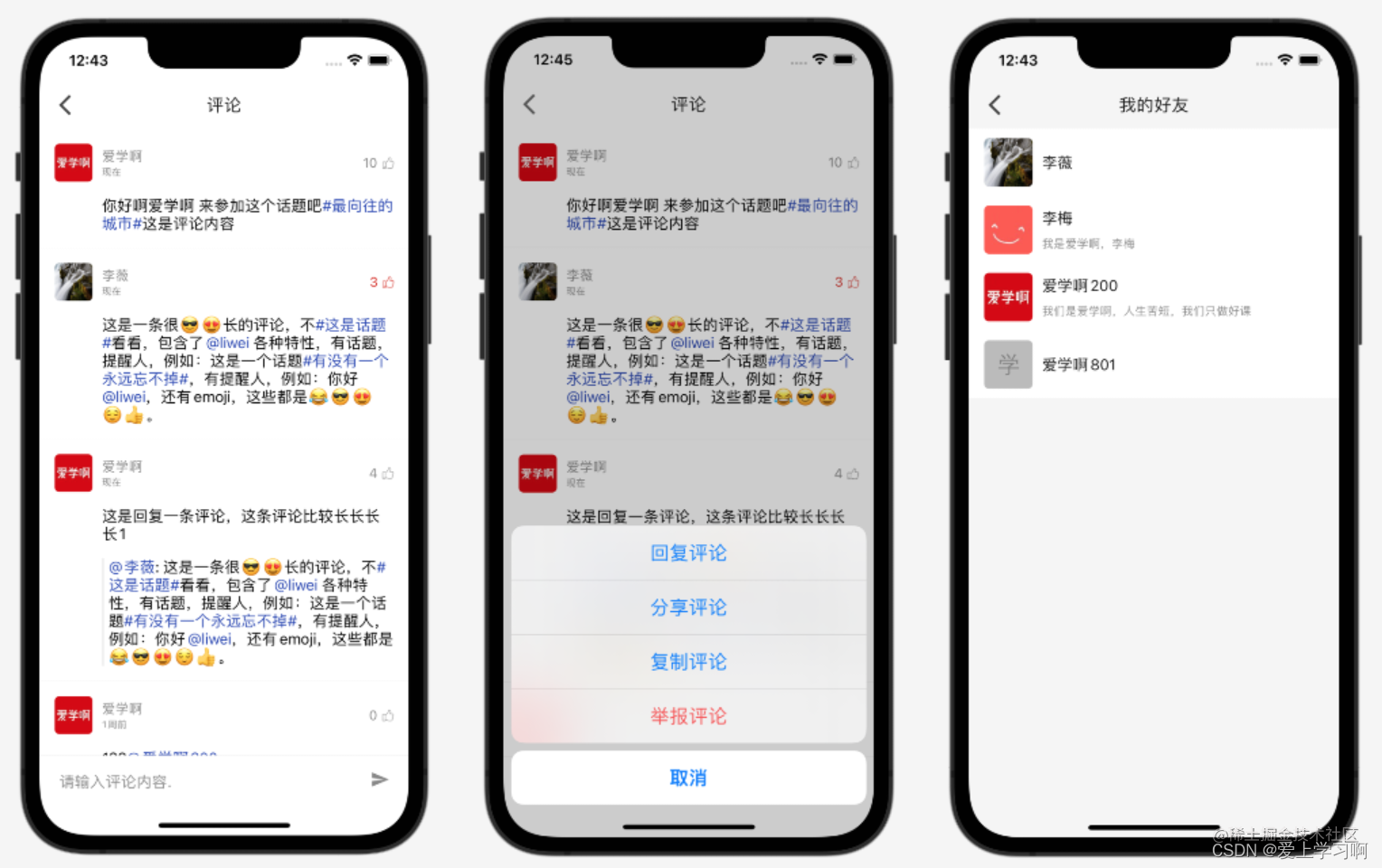
评论列表包括下拉刷新,上拉加载更多,点赞,发布评论,回复评论,Emoji,话题和提醒人点击,选择好友,选择话题等。
刷新和下拉加载更多
核心逻辑就只需要更改page就行了
//下拉刷新 let header=MJRefreshNormalHeader { [weak self] in self?.loadData() } //隐藏标题 header.stateLabel?.isHidden = true // 隐藏时间 header.lastUpdatedTimeLabel?.isHidden = true tableView.mj_header=header //上拉加载更多 let footer = MJRefreshAutoNormalFooter { [weak self] in self?.loadMore() } // 设置空闲时文字 footer.setTitle("", for: .idle) tableView.mj_footer = footer- 1
- 2
- 3
- 4
- 5
- 6
- 7
- 8
- 9
- 10
- 11
- 12
- 13
- 14
- 15
- 16
- 17
- 18
- 19
- 20
- 21
- 22
- 23
人和话题点击
通过正则表达式,找到特殊文本,然后使用富文本实现点击。
/// 处理文本点击事件 func processContent(_ data:String) -> NSAttributedString { return RichUtil.processContent(data) { containerView, text, range, rect in let result = RichUtil.processClickText(data, range) if let r = self.nicknameClickBlock{ r(result) } } _: { containerView, text, range, rect in let result = RichUtil.processClickText(data, range) print(result) } }- 1
- 2
- 3
- 4
- 5
- 6
- 7
- 8
- 9
- 10
- 11
- 12
- 13
好友
class UserController: BaseTitleController { var style:MyStyle! override func initViews() { super.initViews() initTableViewSafeArea() tableView.register(TopicCell.self, forCellReuseIdentifier: Constant.CELL) } override func initDatum() { super.initDatum() if style == .friend || style == .select { //好友 title = R.string.localizable.myFriend() } else { //粉丝 title = R.string.localizable.myFans() } } override func viewWillAppear(_ animated: Bool) { super.viewWillAppear(animated) loadData() } func loadData() { var api:Observable<ListResponse<User>>! if style == .friend || style == .select { api = DefaultRepository.shared .friends(PreferenceUtil.getUserId()) } else { api = DefaultRepository.shared .fans(PreferenceUtil.getUserId()) } api.subscribeSuccess {[weak self] data in self?.show(data.data?.data ?? []) }.disposed(by: rx.disposeBag) } func show(_ data:[User]) { datum.removeAll() datum += data tableView.reloadData() } static func start(_ controller:UINavigationController,_ style:MyStyle) { let target = UserController() target.style=style controller.pushViewController(target, animated: true) } } //列表数据源 extension UserController{ override func tableView(_ tableView: UITableView, cellForRowAt indexPath: IndexPath) -> UITableViewCell { let data = datum[indexPath.row] as! User let cell = tableView.dequeueReusableCell(withIdentifier: Constant.CELL, for: indexPath) as! TopicCell cell.bind(data) return cell } func tableView(_ tableView: UITableView, didSelectRowAt indexPath: IndexPath) { let data = datum[indexPath.row] as! User if style == .select { //选择 SwiftEventBus.post(Constant.EVENT_USER_SELECTED, sender: data) finish() } else { UserDetailController.start(navigationController!, id: data.id) } } }- 1
- 2
- 3
- 4
- 5
- 6
- 7
- 8
- 9
- 10
- 11
- 12
- 13
- 14
- 15
- 16
- 17
- 18
- 19
- 20
- 21
- 22
- 23
- 24
- 25
- 26
- 27
- 28
- 29
- 30
- 31
- 32
- 33
- 34
- 35
- 36
- 37
- 38
- 39
- 40
- 41
- 42
- 43
- 44
- 45
- 46
- 47
- 48
- 49
- 50
- 51
- 52
- 53
- 54
- 55
- 56
- 57
- 58
- 59
- 60
- 61
- 62
- 63
- 64
- 65
- 66
- 67
- 68
- 69
- 70
- 71
- 72
- 73
- 74
- 75
- 76
- 77
- 78
- 79
- 80
- 81
- 82
- 83
- 84
- 85
视频和播放
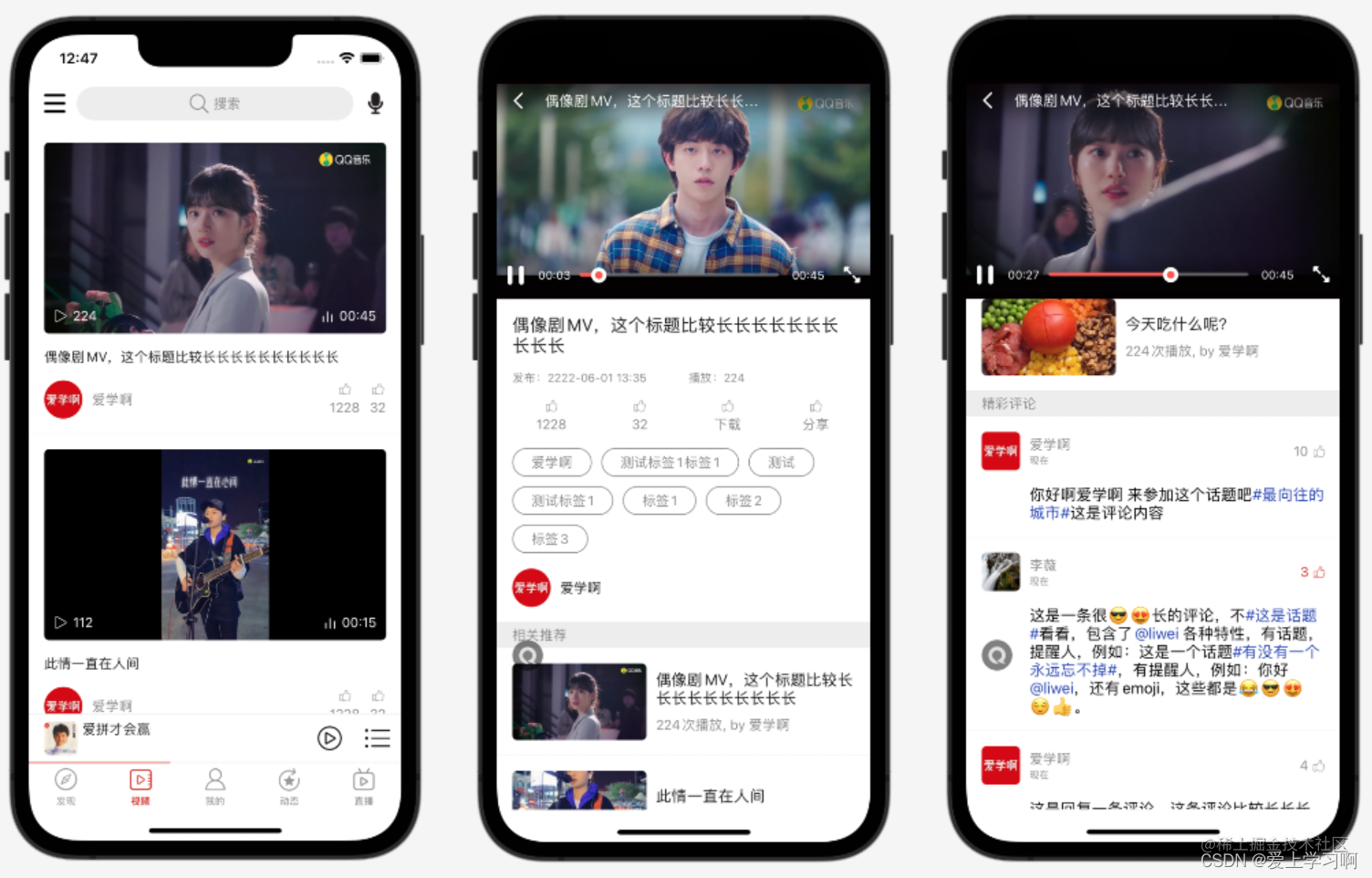
真实项目中视频播放大部分都是用第三方服务,例如:阿里云视频服务,腾讯视频服务,因为他们提供一条龙服务,包括审核,转码,CDN,安全,播放器等,这里用不到这么多功能,所以使用了第三方播放器播放普通mp4,这使用饺子播放器框架。
func play(_ data:Video) { //不开防盗链 let model = SuperPlayerModel() //播放腾讯云视频 // 配置 AppId // model.appId = 0; // // model.videoId = [[SuperPlayerVideoId alloc] init]; // model.videoId.fileId = "5285890799710670616"; // 配置 FileId //停止播放 playerView.removeVideo() //直接使用url播放 model.videoURL = data.uri.absoluteUri() playerView.play(with: model) //设置标题 playerView.controlView.title = data.title }- 1
- 2
- 3
- 4
- 5
- 6
- 7
- 8
- 9
- 10
- 11
- 12
- 13
- 14
- 15
- 16
- 17
- 18
- 19
- 20
- 21
- 22
用户详情/更改资料

用户详情顶部显示用户信息,好友数量,下面分别显示创建的歌单,收藏的歌单,发布的动态,类似微信朋友圈,右上角可以更改用户资料;使用第三方框架里面的kJXPagingListRefreshView控件实现。
func initUI() { container.removeSubviews() //头部控件 userHeaderView = UserDetailHeaderView() userHeaderView.followView.addTarget(self, action: #selector(followClick), for: .touchUpInside) userHeaderView.sendMessageView.addTarget(self, action: #selector(sendClick), for: .touchUpInside) //指示器 indicatorView = JXSegmentedView(frame: CGRect(x: 0, y: 0, width: SCREEN_WIDTH, height: UserDetailController.SIZE_INDICATOR_HEIGHT)) segmentedDataSource = JXSegmentedTitleDataSource() //标题 segmentedDataSource.titles = [R.string.localizable.sheet(), R.string.localizable.feed()] //选择的颜色 segmentedDataSource.titleSelectedColor = .colorPrimary //默认颜色 segmentedDataSource.titleNormalColor = .colorOnSurface //选中是否放大 segmentedDataSource.isTitleZoomEnabled = false indicatorView.dataSource=segmentedDataSource indicatorView.backgroundColor = .clear indicatorView.delegate = self //指示器下面那条线 let lineView = JXSegmentedIndicatorLineView() //选中颜色 lineView.indicatorColor = .colorPrimary lineView.indicatorWidth = 30 indicatorView.indicators = [lineView] pagerView = JXPagingListRefreshView(delegate: self) pagerView.mainTableView.gestureDelegate = self pagerView.tg_width.equal(.fill) pagerView.tg_height.equal(.fill) container.addSubview(pagerView) indicatorView.listContainer = pagerView.listContainerView //扣边返回处理,下面的代码要加上 pagerView.listContainerView.scrollView.panGestureRecognizer.require(toFail: self.navigationController!.interactivePopGestureRecognizer!) pagerView.mainTableView.panGestureRecognizer.require(toFail: self.navigationController!.interactivePopGestureRecognizer!) }- 1
- 2
- 3
- 4
- 5
- 6
- 7
- 8
- 9
- 10
- 11
- 12
- 13
- 14
- 15
- 16
- 17
- 18
- 19
- 20
- 21
- 22
- 23
- 24
- 25
- 26
- 27
- 28
- 29
- 30
- 31
- 32
- 33
- 34
- 35
- 36
- 37
- 38
- 39
- 40
- 41
- 42
- 43
- 44
- 45
- 46
- 47
- 48
- 49
- 50
- 51
然后就是把每个子界面放到单独View中,并在代理方法返回就行了。
发布动态/选择位置/路径规划
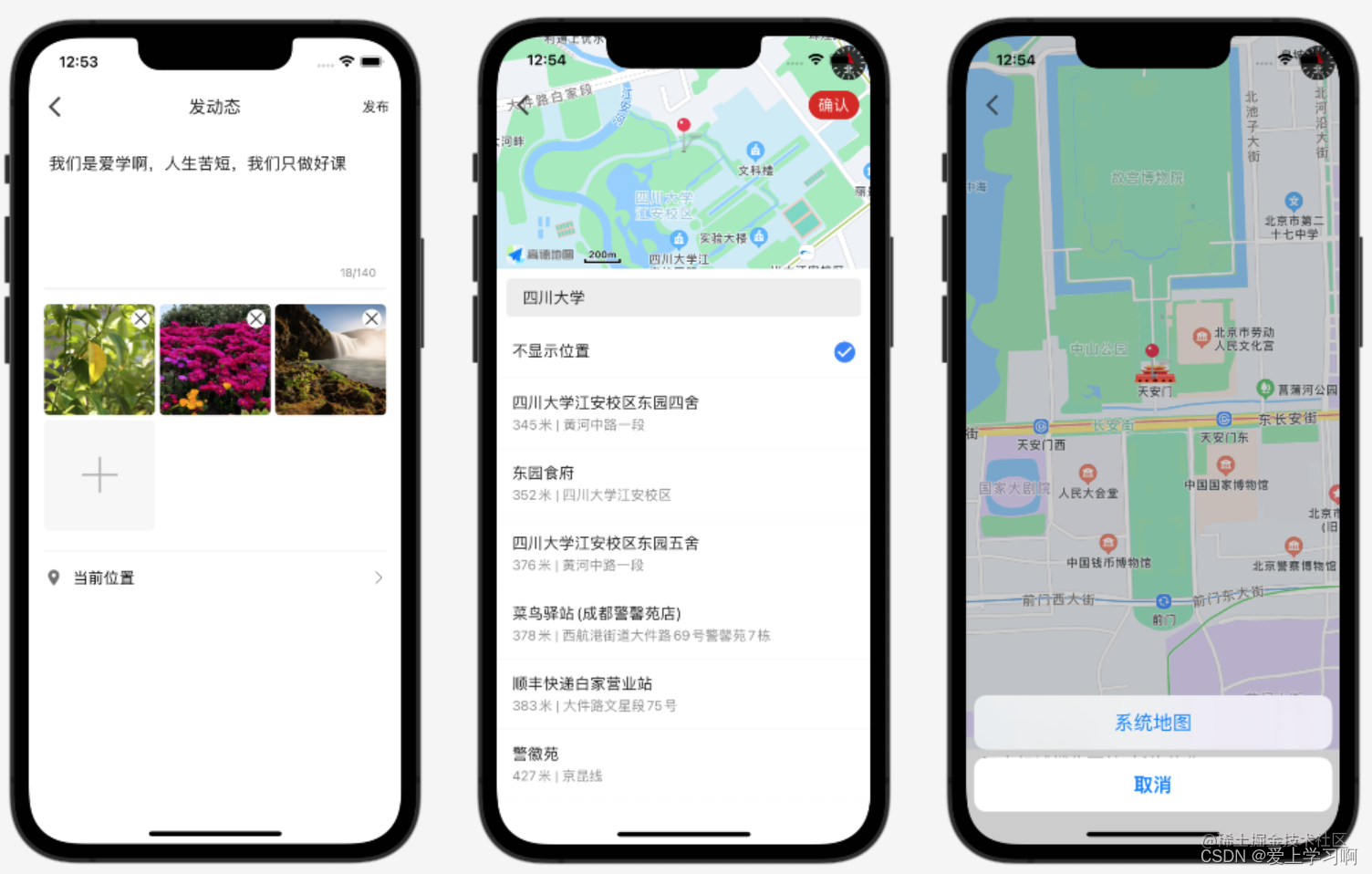
发布效果和微信朋友圈类似,可以选择图片,和地理位置;地理位置使用高德地图实现选择,路径规划是调用系统中安装的地图,类似微信。
位置
/// 搜索该位置的poi,方便用户选择,也方便其他人找 func searchPOI() { if keyword != nil { //关键字搜索 let request = AMapPOIKeywordsSearchRequest() //关键字 request.keywords=keyword //距离排序 request.sortrule = 0 //是否返回扩展信息 request.requireExtension=true search.aMapPOIKeywordsSearch(request) } else { //搜索位置附近 let request = AMapPOIAroundSearchRequest() request.location = AMapGeoPoint.location(withLatitude: CGFloat(coordinate!.latitude), longitude: CGFloat(coordinate!.longitude)) //距离排序 request.sortrule=0 //是否返回扩展信息 request.requireExtension=true search.aMapPOIAroundSearch(request) } }- 1
- 2
- 3
- 4
- 5
- 6
- 7
- 8
- 9
- 10
- 11
- 12
- 13
- 14
- 15
- 16
- 17
- 18
- 19
- 20
- 21
- 22
- 23
- 24
- 25
- 26
- 27
- 28
- 29
- 30
地图路径规划
/// 高德地图路径规划 /// 官方文档:https://lbs.amap.com/api/amap-mobile/guide/ios/route static func amapPathPlan(title:String,latitude:Double,longitude:Double) { let urlString = "iosamap://path?sourceApplication=云音乐&backScheme=weichat&dlat=\(latitude)&dlon=\(longitude)&dname=\(title)" SuperApplicationUtil.open(urlString) }- 1
- 2
- 3
- 4
- 5
- 6
- 7
聊天/离线推送
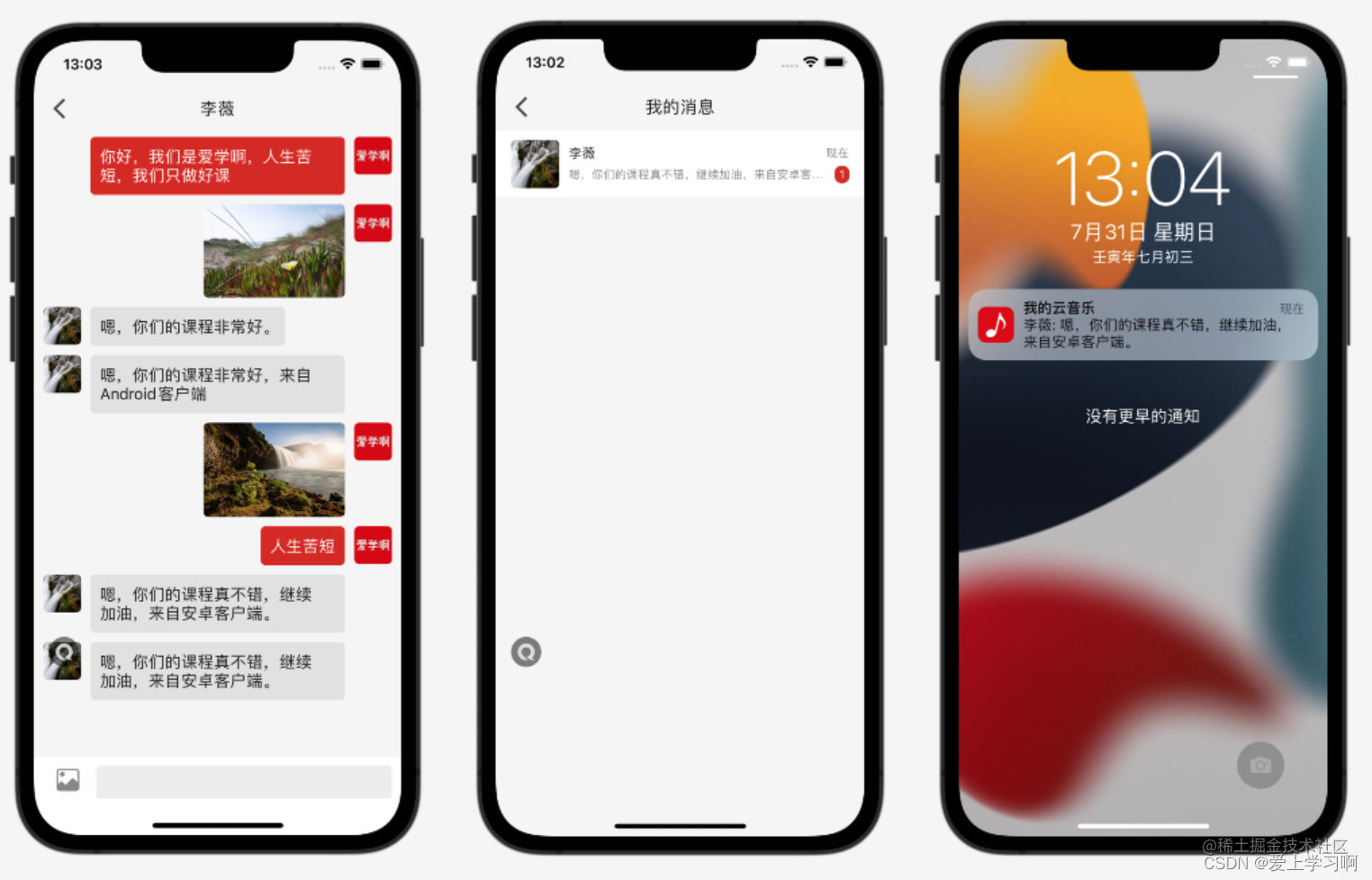
大部分真实项目中聊天都会选择第三方商业级付费聊天服务,常用的有腾讯云聊天,融云聊天,网易云聊天等,这里选择融云聊天服务,使用步骤是先在服务端生成聊天Token,这里是登录后返回,然后客户端登录聊天服务器,然后设置消息监听,发送消息等。
聊天服务器
/// 连接聊天服务器 func connectChat(_ data:Session) { RCIMClient.shared() .connect(withToken: data.chatToken) { code in //消息数据库打开,可以进入到主页面 //因为我们应用不是纯微信这样的应用,所以就不再这里才跳转到主界面 } success: { userId in //连接成功 } error: { status in if (status == .RC_CONN_TOKEN_INCORRECT) { //从 APP 服务获取新 token,并重连 } else { //无法连接到 IM 服务器,请根据相应的错误码作出对应处理 } //因为我们这个应用,不是类似微信那样纯聊天应用,所以聊天服务器连接失败,也让进入应用 //真实项目中按照需求实现就行了 SuperToast.show(title: R.string.localizable.errorMessageLogin()) } }- 1
- 2
- 3
- 4
- 5
- 6
- 7
- 8
- 9
- 10
- 11
- 12
- 13
- 14
- 15
- 16
- 17
- 18
- 19
- 20
- 21
- 22
消息监听
func onReceived(_ message: RCMessage!, left nLeft: Int32, object: Any!, offline: Bool, hasPackage: Bool) { DispatchQueue.main.async { if message.targetId == self.currentChatUserId || offline { //正在和这个人聊天,或者离线消息 } else { //其他消息显示到通知栏 NotificationUtil.showMessage(message) } //发送消息未读数改变了通知 NotificationCenter.default.post(name: NSNotification.Name(rawValue: ON_MESSAGE_COUNT_CHANGED), object: nil, userInfo: nil) //发送消息到通知(这个通知是,跨界面通讯,不是显示到通知栏) NotificationCenter.default.post(name: NSNotification.Name(rawValue: ON_MESSAGE), object: nil, userInfo: [Constant.DATA:message]) } }- 1
- 2
- 3
- 4
- 5
- 6
- 7
- 8
- 9
- 10
- 11
- 12
- 13
- 14
- 15
- 16
文本消息
发送图片等其他消息也是差不多。
/// 发送文本消息 func sendTextMessage() { let result=contentInputView.text.trimmed if SuperStringUtil.isBlank(result) { SuperToast.show(title: R.string.localizable.hintEnterMessage()) return } //1.构造文本消息 let param = RCTextMessage(content: result)! //2.将文本消息发送出去 RCIMClient.shared().sendMessage(.ConversationType_PRIVATE, targetId: id, content: param, pushContent: nil, pushData: MessageUtil.createPushData(MessageUtil.getContent(param), PreferenceUtil.getUserId())) { messageId in print("message send success \(messageId)") DispatchQueue.main.async { //清空输入框 self.clearInput() } self.addMessage(RCIMClient.shared().getMessage(messageId)) } error: { code, messageId in print("message send fail \(messageId) \(code)") } }- 1
- 2
- 3
- 4
- 5
- 6
- 7
- 8
- 9
- 10
- 11
- 12
- 13
- 14
- 15
- 16
- 17
- 18
- 19
- 20
- 21
- 22
- 23
- 24
- 25
- 26
离线推送
需要付费苹果开发者账户,先开启SDK离线推送,然后在苹果开发者后台创建推送证书,配置到融云,最后在代码中处理通知点击等。
@objc func notificationClick(_ notification:Notification) { processPushClick() } /// 处理推送点击 func processPushClick() { let data = Push.deserialize(from: AppDelegate.shared.notificationData!)! switch data.style { case Push.PUSH_STYLE_CHAT: processChatMessageClick(data.message!) default: break } AppDelegate.shared.notificationData = nil } /// 聊天消息通知点击 func processChatMessageClick(_ data:PushMessage) { ChatController.start(navigationController!, data.userId) } override func viewDidAppear(_ animated: Bool) { super.viewDidAppear(animated) //延时的目的是让当前界面显示出来以后,在检查 //检查是否需要处理通知点击 DispatchQueue.main.asyncAfter(deadline: .now()+0.5) { if let _ = AppDelegate.shared.notificationData { self.processPushClick() } } }- 1
- 2
- 3
- 4
- 5
- 6
- 7
- 8
- 9
- 10
- 11
- 12
- 13
- 14
- 15
- 16
- 17
- 18
- 19
- 20
- 21
- 22
- 23
- 24
- 25
- 26
- 27
- 28
- 29
- 30
- 31
- 32
- 33
商城/订单/支付/购物车
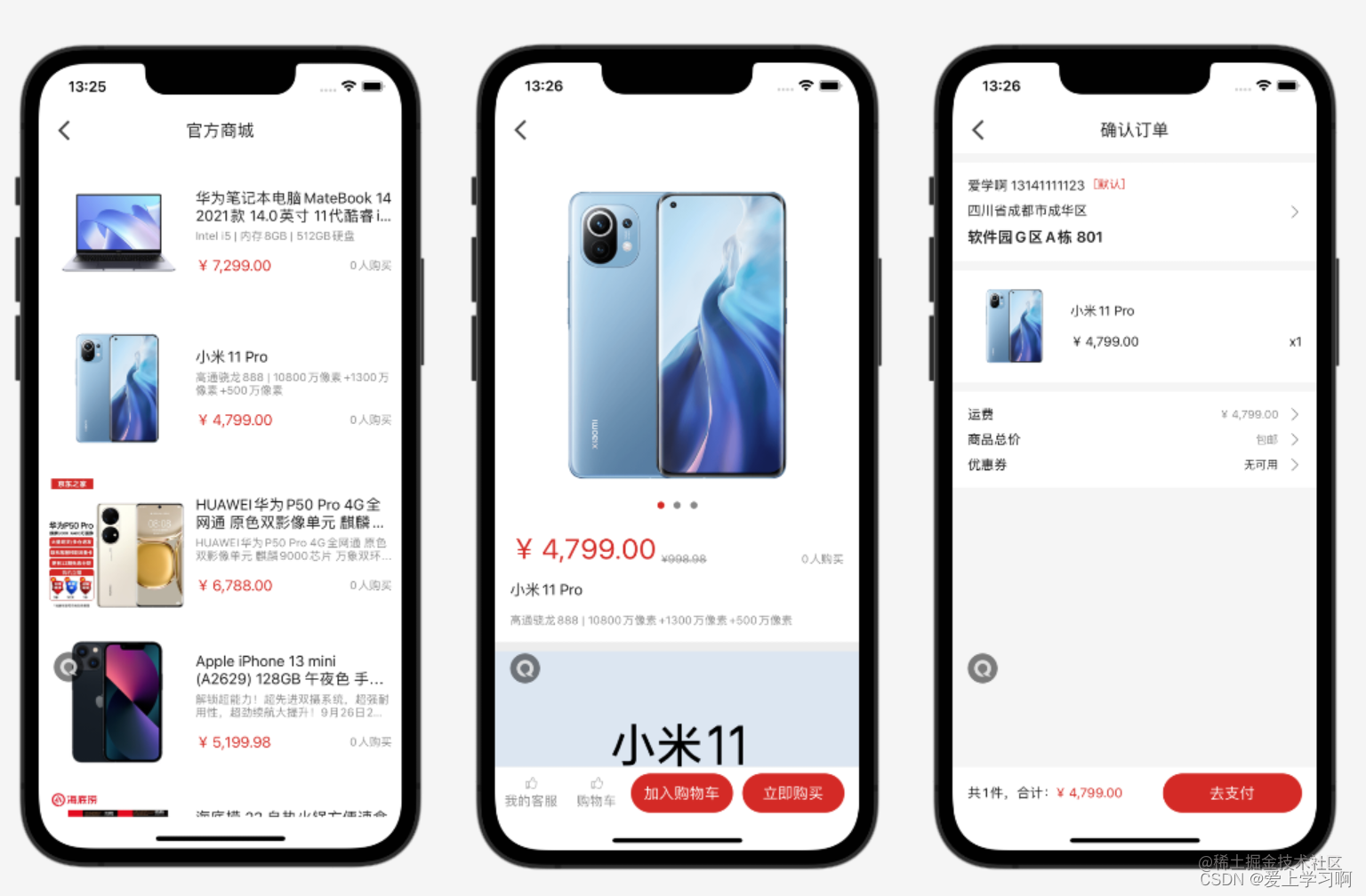
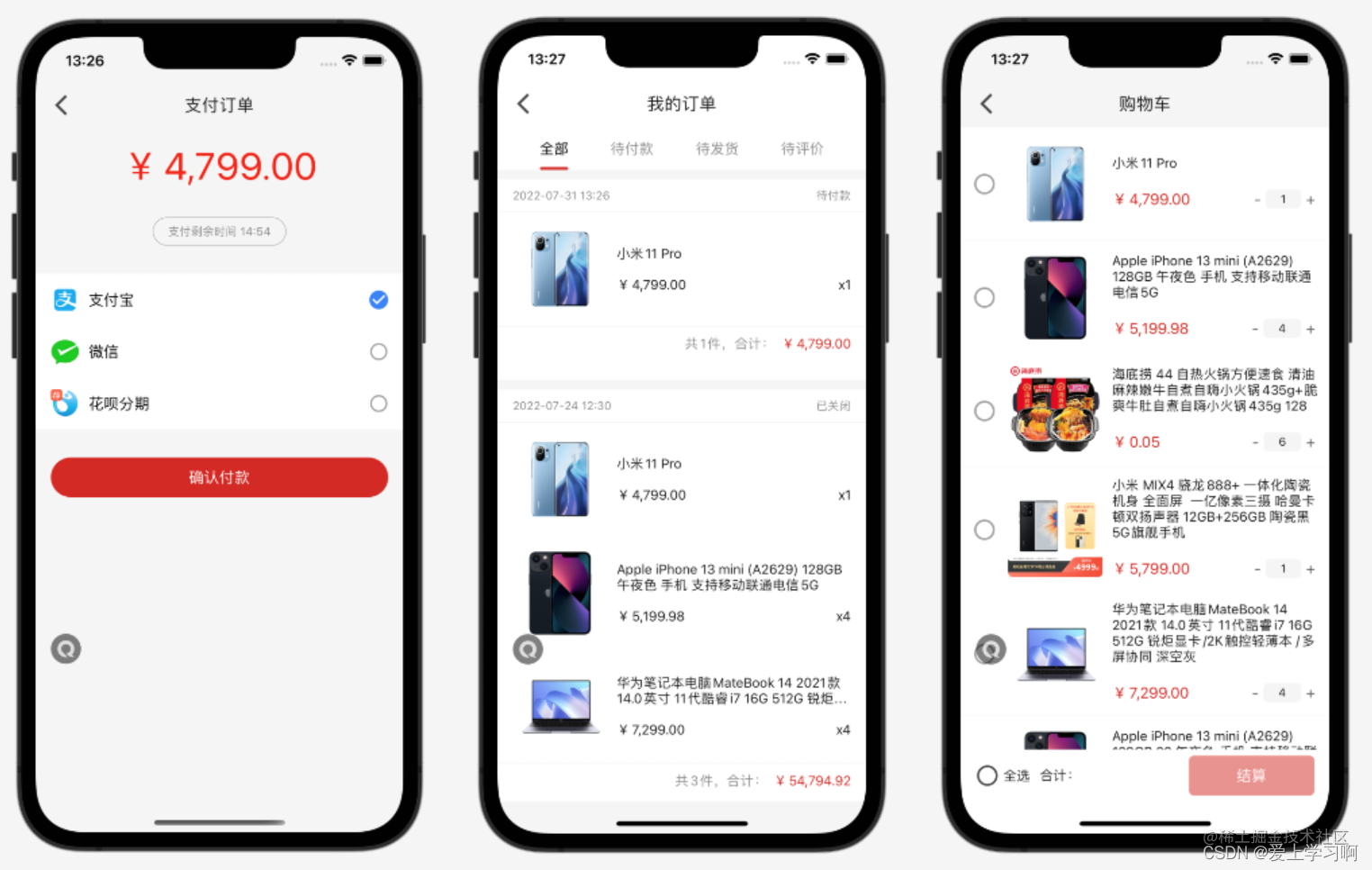
学到这里,大家不能说熟悉,那么看到上面的界面,那么大体要能实现出来。
详情富文本
//详情 self.detailView = QMUITextView() self.detailView.tg_width.equal(.fill) self.detailView.tg_height.equal(.wrap) self.detailView.delegate=self self.detailView.isScrollEnabled=false self.detailView.isEditable=false //去除左右边距 self.detailView.textContainer.lineFragmentPadding = 0 //去除上下边距 self.detailView.textContainerInset = .zero contentContainer.addSubview(detailView)- 1
- 2
- 3
- 4
- 5
- 6
- 7
- 8
- 9
- 10
- 11
- 12
- 13
- 14
宝/微信支付
客户端先集成微信,支付宝SDK,然后请求服务端获取支付信息,设置到SDK,最后就是处理支付结果。
/// 处理支付宝支付 func processAlipay(_ data:String) { //支付宝官方开发文档:https://docs.open.alipay.com/204/105295/ AlipaySDK.defaultService() .payOrder(data, fromScheme: Config.ALIPAY_CALLBACK_SCHEME) { data in //如果手机中没有安装支付宝客户端 //会跳转H5支付页面 //支付相关的信息会通过这个方法回调 //处理支付宝支付结果 self.processAlipayResult(data as! [String:Any]) } } /// 处理微信支付 func processWechat(_ data:WechatPay) { //把服务端返回的参数 //设置到对应的字段 let request = PayReq() request.partnerId = data.partnerid request.prepayId = data.prepayid request.nonceStr = data.noncestr request.timeStamp = UInt32(data.timestamp)! request.package = data.package request.sign = data.sign WXApi.send(request) { data in print("PayController processWechat \(data)") } }- 1
- 2
- 3
- 4
- 5
- 6
- 7
- 8
- 9
- 10
- 11
- 12
- 13
- 14
- 15
- 16
- 17
- 18
- 19
- 20
- 21
- 22
- 23
- 24
- 25
- 26
- 27
- 28
- 29
- 30
支付结果
/// 处理支付宝支付结果 func processAlipayResult(_ data:[String:Any]) { let resultStatus = data["resultStatus"] as! String if "9000" == resultStatus { //本地支付成功 //不能依赖本地支付结果 //一定要以服务端为准 SuperToast.showLoading(title: R.string.localizable.hintPayWait()) checkPayStatus() //这里就不根据服务端判断了 //购买成功统计 } else if "6001" == resultStatus { //取消了 showCancel() } else { //支付失败 showPayFailedTip() } }- 1
- 2
- 3
- 4
- 5
- 6
- 7
- 8
- 9
- 10
- 11
- 12
- 13
- 14
- 15
- 16
- 17
- 18
- 19
- 20
- 21
- 22
- 23
项目总结
总体来说项目功能还是很全的,还有一些小功能,例如:快捷方式等就不在贴代码了,但肯定没发和原版比,相信大家只要做过程序员就能理解,毕竟原版是一个商业级项目,几十个人天天开发和维护,而且持续了几年了;不过恕我直言,现在的常见的音乐软件都太复杂了,各种功能,不过都要恰饭,好像又能理解了😄。
-
相关阅读:
正在等待操作系统重新启动。 请重新启动计算机以安装autocad 2024。
方舟:生存进化开服务器端口映射教程
Linux和树莓派基础交互
一文了解超融合信创云基础设施
使用 MongoDB 剖析开放银行:技术挑战和解决方案
70. 爬楼梯:假设你正在爬楼梯。需要 n 阶你才能到达楼顶。 每次你可以爬 1 或 2 个台阶。你有多少种不同的方法可以爬到楼顶呢?
ElementUI表格el-table自适应高度(表头表尾固定不动)
Java注解@PostConstruct使用及相关原理分析
双目立体视觉(平行的视角)
Springboot毕设项目线上影院系统ao90djava+VUE+Mybatis+Maven+Mysql+sprnig)
- 原文地址:https://blog.csdn.net/renpingqing/article/details/126086542
