-
【HarmonyOS】【JAVA UI】自定义通知的实现
我们怎么实现自定义通知呢?今天写一个demo作为经验分享,我们从以下五个步骤进行描述
1. 绘画基本界面
2. 自定义通知的view界面
3. 代码层实现view的实现设置Text文字,设置Image图片
4. 运行效果
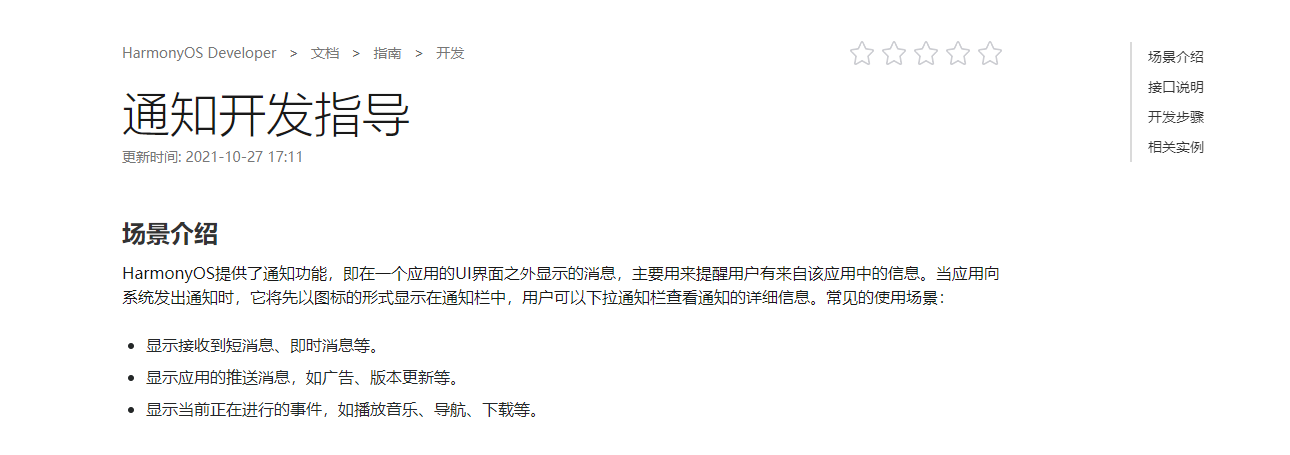
在开发中基本通知我们可以参考资料:
第一步:绘画基本界面
1.1我们在布局绘画一个Text用于触发发布通知 xml代码如下
- <?xml version="1.0" encoding="utf-8"?>
- <DirectionalLayout
- xmlns:ohos="http://schemas.huawei.com/res/ohos"
- ohos:height="match_parent"
- ohos:width="match_parent"
- ohos:orientation="vertical">
- <Text
- ohos:id="$+id:PushNotification"
- ohos:height="100vp"
- ohos:width="match_parent"
- ohos:background_element="#ed6262"
- ohos:layout_alignment="horizontal_center"
- ohos:text="发布通知"
- ohos:text_color="#ffffff"
- ohos:text_alignment="center"
- ohos:text_size="40vp"
- />
- </DirectionalLayout>
第二步:自定义通知的view界面
自定义通知布局,新建一个xml 布局名称notification_view.xml 需要设置remote为true
代码如下
- <?xml version="1.0" encoding="utf-8"?>
- <DirectionalLayout
- xmlns:ohos="http://schemas.huawei.com/res/ohos"
- ohos:height="100vp"
- ohos:width="match_parent"
- ohos:orientation="horizontal"
- ohos:remote="true">
- <Image
- ohos:left_margin="30px"
- ohos:id="$+id:myImage"
- ohos:height="50vp"
- ohos:width="50vp"
- ohos:image_src="$media:icon"/>
- <DirectionalLayout
- ohos:height="match_parent"
- ohos:width="match_parent"
- ohos:orientation="vertical">
- <Text
- ohos:id="$+id:title"
- ohos:height="0fp"
- ohos:weight="1"
- ohos:left_padding="20fp"
- ohos:text_size="30fp"
- ohos:text="通知标题"
- ohos:text_alignment="center|left"
- ohos:width="match_parent"/>
- <Text
- ohos:left_padding="20fp"
- ohos:height="0fp"
- ohos:weight="1"
- ohos:text_size="20fp"
- ohos:text="通知内容"
- ohos:text_alignment="center|left"
- ohos:width="match_parent"/>
- </DirectionalLayout>
- </DirectionalLayout>
效果如下

第三步 代码层实现view的实现设置Text文字,设置Image图片
3.1 使用ComponentProvider加载布局代码如下
ComponentProvider remoteView = new ComponentProvider(ResourceTable.Layout_notification_view, this);3.2设置文字
- //todo 通知设置文字
- remoteView.setTextColor(ResourceTable.Id_title, new Color(0xFFFF0000));
- remoteView.setFloat(ResourceTable.Id_title, "setTextSize", 20);
- remoteView.setString(ResourceTable.Id_title, "setText", "这是通知标题");
3.2使用setImageContent的api设置图片资源,
准备工作
1)在resources/base/media 文件存放一个图片为myicon.png图片,结构如下

2)我们需要在resources/base/profile文件新建一个名为remote.xml文件,图片如下

3)romote.xml
- <?xml version="1.0" encoding="UTF-8"?>
- <remoteresources>
- <item>$media:myicon</item>
- </remoteresources>
4)Java代码设置图片
remoteView.setImageContent(ResourceTable.Id_myImage, ResourceTable.Media_myicon);5)通知代码实现
- NotificationRequest.NotificationNormalContent content = new NotificationRequest.NotificationNormalContent();
- NotificationRequest.NotificationContent notificationContent = new NotificationRequest.NotificationContent(content);
- NotificationRequest request = new NotificationRequest(this, 1);
- request.setContent(notificationContent).setCustomView(remoteView);
6)全部代码如下
- public class MainAbilitySlice extends AbilitySlice {
- private Text PushNotification;
- private String event = "com.utils.test";
- static final HiLogLabel LABEL = new HiLogLabel(HiLog.LOG_APP, 0x00201, "######");
- @Override
- public void onStart(Intent intent) {
- super.onStart(intent);
- super.setUIContent(ResourceTable.Layout_ability_main);
- PushNotification = findComponentById(ResourceTable.Id_PushNotification);
- ComponentProvider remoteView = new ComponentProvider(ResourceTable.Layout_notification_view, this);
- //todo 通知设置文字
- remoteView.setTextColor(ResourceTable.Id_title, new Color(0xFFFF0000));
- remoteView.setFloat(ResourceTable.Id_title, "setTextSize", 20);
- remoteView.setString(ResourceTable.Id_title, "setText", "这是通知标题");
- //todo 通知设置图片
- remoteView.setImageContent(ResourceTable.Id_myImage, ResourceTable.Media_myicon);
- NotificationRequest.NotificationNormalContent content = new NotificationRequest.NotificationNormalContent();
- NotificationRequest.NotificationContent notificationContent = new NotificationRequest.NotificationContent(content);
- NotificationRequest request = new NotificationRequest(this, 1);
- request.setContent(notificationContent).setCustomView(remoteView);
- PushNotification.setClickedListener(new Component.ClickedListener() {
- @Override
- public void onClick(Component component) {
- try {
- NotificationHelper.publishNotification(request);
- } catch (ohos.rpc.RemoteException ex) {
- HiLog.error(LABEL, ex.getLocalizedMessage());
- }
- }
- });
- }}
第四步:效果图如下

更多相关学习资料:
https://developer.huawei.com/consumer/cn/forum/topic/0201768617076660043?fid=0102683795438680754?ha_source=zzh -
相关阅读:
Linux C编译器从零开发二
冬季如何养胃?羊大师建议水果蔬菜不可少!
服务器上R调用png显示x11报错怎么办?
小程序的使用
腾讯云4核8G服务器CVM S5性能测评(CPU/流量/系统盘)
JAVA:实现MinPriorityQueue最小优先级队列算法(附完整源码)
Nomad系列-Nomad网络模式
【Hello Algorithm】贪心算法
C++ 类和对象(一)
防止数据冒用的方法
- 原文地址:https://blog.csdn.net/weixin_44708240/article/details/125621761