-
简单博客网页
目录
跟着自学网的教程,敲的一个自学网的网页。
先上gif图:

因为原图太大不能上传,压缩了一下清晰度......
有导航栏,内容区,侧边栏,按钮动画,还有回到顶部的小事件。
注意事项
jQuery可以下载好一起放入文件夹里直接引用的,免得网络问题不能用。
看起来挺简单的一个页面还是有很多可以注意到的事项,记录一下:
1.导航栏使用ul同时向右浮动时,可以将标签倒着写,这样不会出错;
2.设置float后,父元素的高度就消失了,如果页面下面还有内容,就会错位,需要将样式清除;
3.span不能设置高宽,需要将其display设置成inline-block后才能设置,最好还是采用其他可以设置的元素,比如div;
4.margin和padding:前者是外边距,后者是内边距,若带有背景色,使用padding可以将背景色一同撑大,margin则会留白;
5.每次写项目前,可以先网上找一份清除浏览器样式的CSS文件复制进去,保证浏览器的样式不会影响自己设置的样式,这里CSS的前30几行就是清除浏览器样式用的;
6.CSS中>,+,~,空格,逗号等符号连着选择器一起使用还挺多,需要大量练习才行;
7.按钮的动画CSS就能完成,CSS3提供了好多动画啊,还有好多参数……
详细解释
实现步骤如下:
1.整个页面分成了三部分:头部、内容区、尾部
2.整个的包裹id定义为wrap,内容区的class定义为content,尾部的class定义为footer
3.紧跟着的mask为整个页面设置遮罩:当右侧菜单栏弹出时,整个页面加上遮罩
4.slider为侧边栏菜单
5.top为右下角"回到顶部"的按钮最后面有源码,前面截图的为了讲解用的,复制部分代码太烦了,要不停改格式,我懒得改。
先来讲头部header。
头部包括导航栏和第0个透明介绍部分:
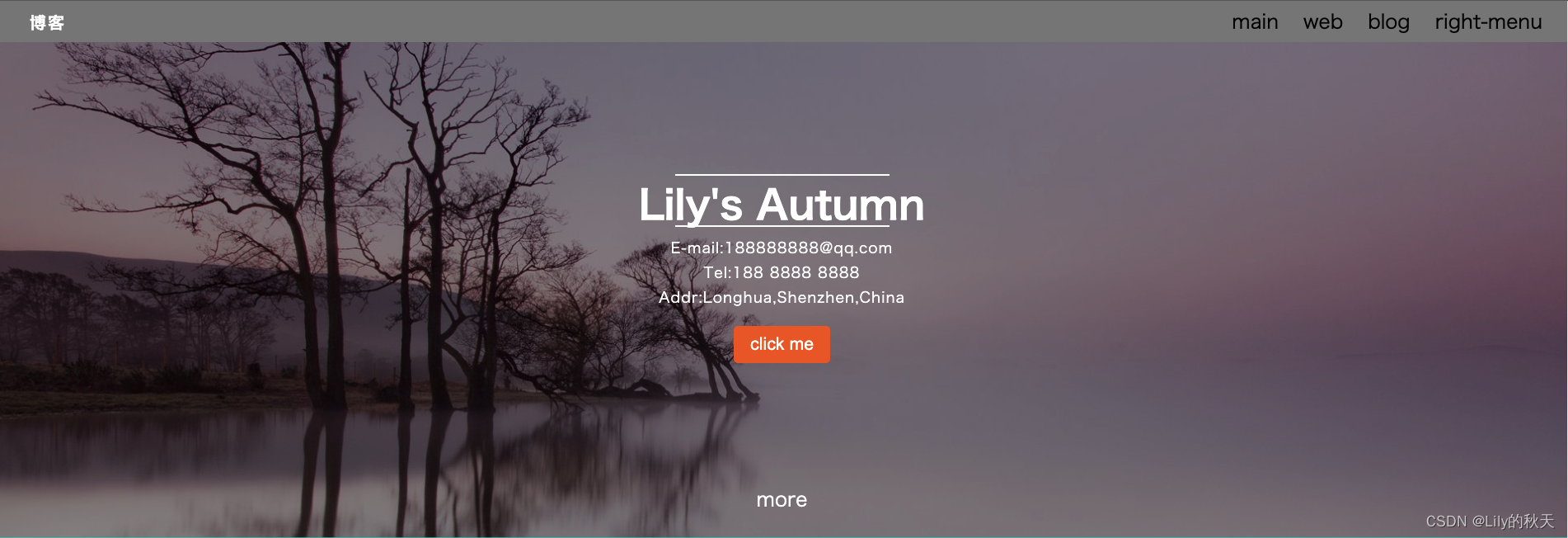
按钮是有动画的,我做了个GIF图,不能浪费,这里生硬的放进来。

如图显示,整个的背景为wrap,
- /*整个页面最外层的包裹*/
- #wrap {
- /*背景使用banner的图片,不重复的显示,居中,固定在页面上,就可以不随滚动条而变化*/
- /*同时设置整个页面的文字*/
- background: url("./img/banner.jpeg") no-repeat;
- background-position: center center;
- background-attachment: fixed;
- background-size: cover;
- font-family: "Microsoft Yahei","Hiragino Sans GB","Helvetica Neue",Helvetica,tahoma,arial,"WenQuanYi Micro Hei",Verdana,sans-serif,"\5B8B\4F53";
- }
整个header如下,包括导航栏和第0个透明介绍部分:
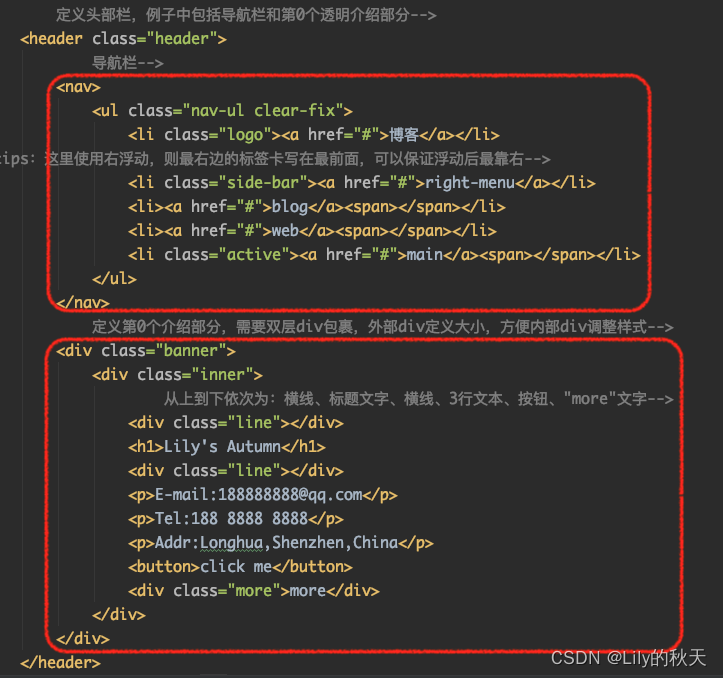
导航栏样式如下:
- /*logo单独设置靠左的li元素,可以单独添加样式*/
- .logo {
- float: left;
- margin-left: 40px;
- }
- /*class为logo的li元素下的a标签样式----即"博客"二字*/
- .logo a {
- font-size: 20px;
- color: white;
- font-weight: 700;
- /*文字中间的空隙*/
- letter-spacing: 2px;
- }
第0部分样式如下:
- .banner {
- height: 600px;
- }
- /*设置第0部分的内容样式*/
- .banner .inner {
- /*全部使用白色,居中对齐,并设置一个最大的宽度*/
- color: white;
- text-align: center;
- margin: 0 auto;
- max-width: 400px;
- /*设置relative就会随着鼠标上下滚动,fixed就会固定在页面上,跟背景图一样*/
- position: relative;
- top:160px;
- }
- /*设置文本上下的线条的样式*/
- .line {
- /*这个宽度为父元素inner的宽度400px*/
- width: 100%;
- /*设置了一个高度为2px的白色背景作为线条*/
- height: 5px;
- background: white;
- margin: 10px 10px;
- }
- /*inner里面的p元素设置样式*/
- .banner .inner p {
- line-height: 30px;
- font-size: 18px;
- letter-spacing: 1px;
- }
- /*给按钮设置样式*/
- .banner .inner button {
- margin-top: 20px;
- /*使用margin会留白,padding会带着背景色一起撑开*/
- padding: 10px 20px;
- background: #e85e17;
- /*设置圆角*/
- border-radius: 5px;
- /*去除按钮的边框*/
- border: none;
- color: white;
- /*去掉按钮点击时的边框*/
- outline: none;
- }
- /*鼠标悬浮到按钮上时,按钮的动作*/
- .banner .inner button:hover {
- /*鼠标经过时,开始旋转720°动画,并放大2倍,持续时间2s*/
- transform: rotate(720deg) scale(2);
- transition: 2s;
- }
- .banner .inner .more {
- margin-top: 140px;
- }
再给导航栏设置个active的样式,选中当前标签时,下方出现白色加粗的横线,right-menu除外。样式如下:
选中main:

选中blog:

网页一打开默认选中的是main。
样式如下:
- .active {
- position: relative;
- }
- /*同样设置了4px高度的白色背景框作为短横线*/
- /*因为4个标签中main、web、blog都添加了span标签*/
- /*right-menu没有添加*/
- .active span {
- position: absolute;
- height: 4px;
- background: white;
- bottom: 5px;
- left: 0;
- width: 100%;
- }
添加点击动作:
- // 1.鼠标移到标签上时,当前标签有一个白色的下划线,其他的兄弟标签样式取消
- $('.nav-ul li').click(function () {
- $(this).addClass('active')
- $(this).siblings().removeClass('active')
- })
当然你也修改为其他动作,随你开心。
最后还有个side-bar的class放到后面解释。
第二部分为内容content区,分了三块:

先看part-one:
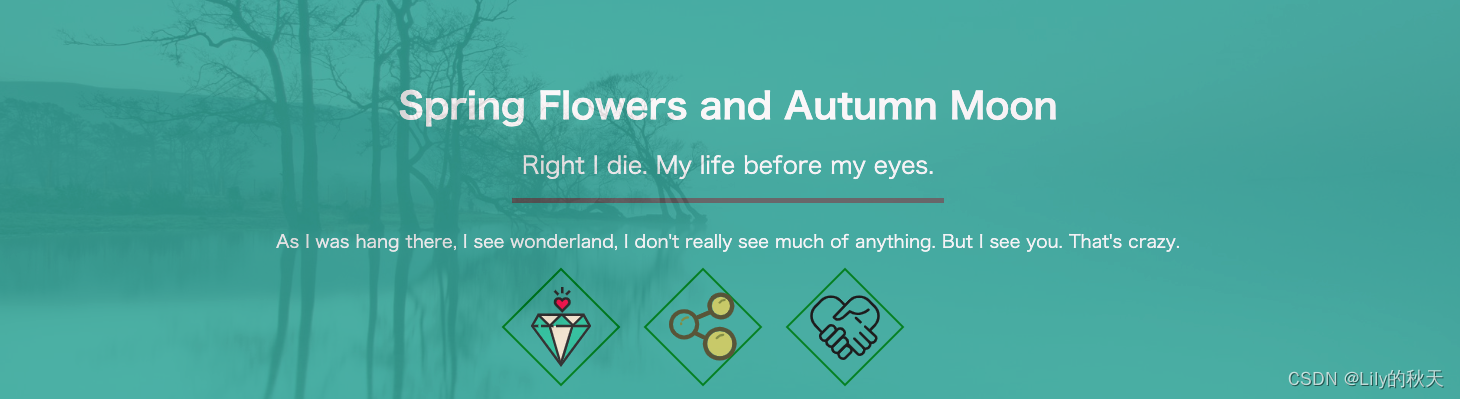
几行文字和一条线,还有几个图片+旋转的边框,背景色记得设置透明度:

CSS样式如下:
- /*中间的内容整个设置为透明度0.9,保证滚动条滑动时,主背景可以透出来,*/
- /*同时主背景用的是fixed,不随滚动条而移动*/
- .content{
- opacity: .9;
- }
- /*设置第一部分整体的样式*/
- .part-one {
- text-align: center;
- color: white;
- background: rgba(67,178,165,1);
- padding-top: 65px;
- opacity: 0.95;
- }
- .wraper {
- /*margin这样设置可以居中*/
- margin: 0 auto;
- max-width: 1080px;
- }
- .wraper h2 {
- padding: 15px 0;
- }
- .wraper .line {
- /*居中可以这样设置margin*/
- margin: 15px auto;
- width: 40%;
- height: 5px;
- background-color: #666666;
- }
- .wraper p {
- margin: 25px 0;
- font-size: 18px;
- }
- .icon {
- margin: 30px auto;
- margin-bottom: 0;
- padding-bottom: 30px;
- }
- /*给3个图标设置边框*/
- /*宽度2px实线、绿色,80*80px,旋转45°*/
- .icon .item{
- border: 2px solid green;
- /*因为span不可以调整宽高,所以先将display设置成如下*/
- display: inline-block;
- height: 80px;
- width: 80px;
- margin-right: 50px;
- transform: rotate(45deg);
- }
- /*设置宽和高为100%,适应父元素item的宽和高,就不会超出item的border,
- 同时img继承了item的旋转,需要纠正回来*/
- .icon .item img{
- width: 100%;
- height: 100%;
- transform: rotate(-45deg);
- }
第二部分为分栏的显示,有重复的3个分栏,可以先做一个,然后复制3份:
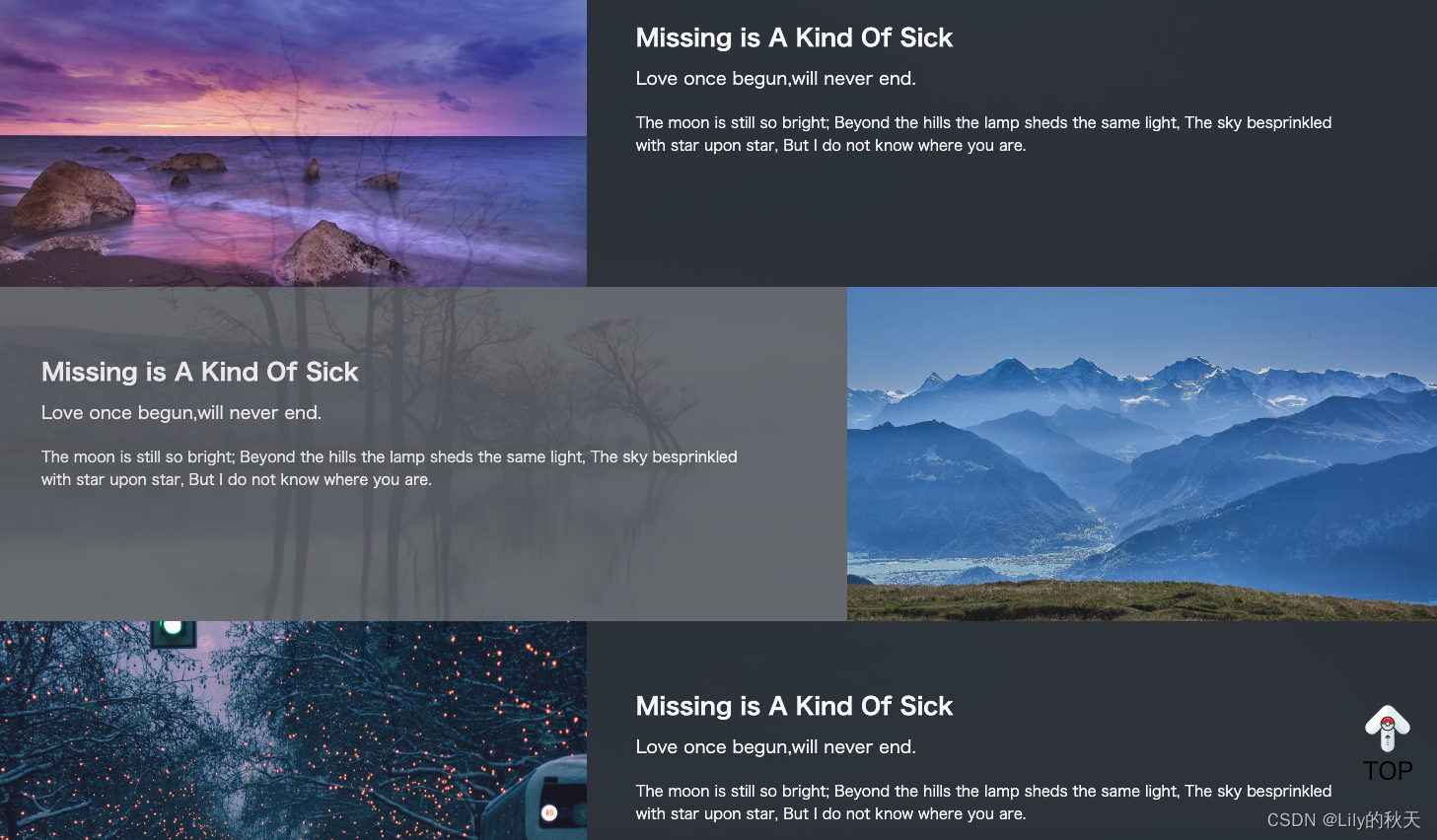
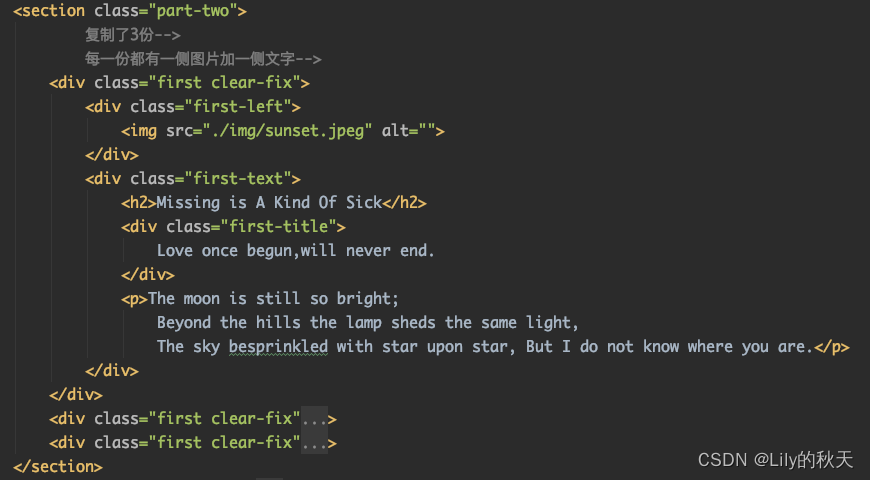
样式如下:
- /*给整个第二部分添加背景色*/
- .part-two {
- background-color: rgb(33,41,50);
- }
- .first .text-right {
- float: right;
- }
- .first-left {
- width: 41%;
- }
- .first-left img {
- width: 100%;
- }
- /*表示first标签的第一代子标签div*/
- .first>div {
- float: left;
- }
- /*设置浮动之后,父元素first就没有了高度,需要清除浮动,用伪元素做以下处理*/
- .clear-fix:after {
- content: '';
- display: block;
- clear: both;
- }
- .first-text {
- position: relative;
- top: 68px;
- left: 50px;
- width: 55%;
- color: white;
- }
- .first-text h2 {
- font-size: 24px;
- margin-bottom: 10px;
- }
- .first-text .first-title {
- margin-bottom: 20px;
- font-size: 18px;
- }
- .first-text p {
- font-size: 15px;
- width: 90%;
- }
需要注意的就是浮动样式的清除。你会发现所有设置了float的class后面都有多加一个clear-fix样式,包括:导航栏、左右分栏部分、6个小card部分。一个元素是可以同时添加多个class样式的。
- .clear-fix:after {
- content: '';
- display: block;
- clear: both;
- }
后面复制的部分就不详细介绍了,
HTML部分就是将图片(白色)和文字(蓝色)的顺序调换一下:
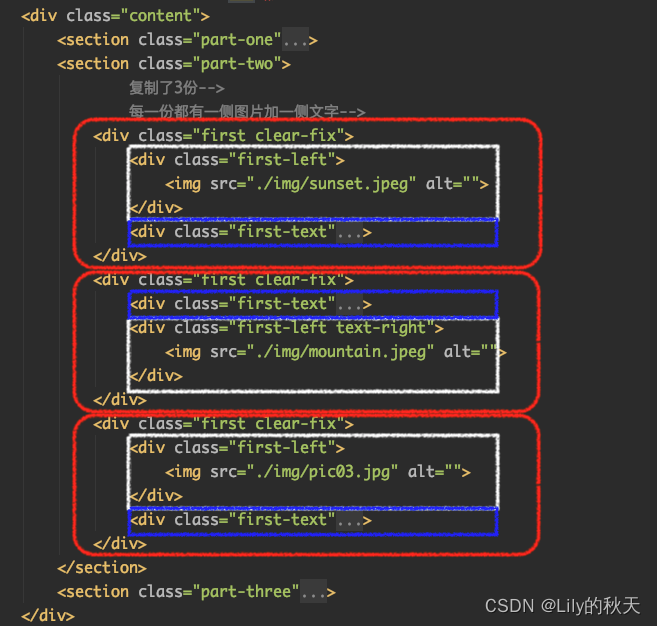
看源码,样式有个地方需要注意下:
- /*第二部分结构是一样的,故直接复制了3分,将中间一个的左右顺序交换(图片和文字的div交换即可),*/
- /*为了更好地区别是三块,采用如下方式将偶数even那一块透明度修改为0.3,同理可修改奇数部分*/
- .first:nth-child(even) {
- background-color: rgba(255,255,255,0.3);
- }
第三部分有一个大的标题+横线+内容,接着是6个相同的小方块,可以写一个方块后复制。
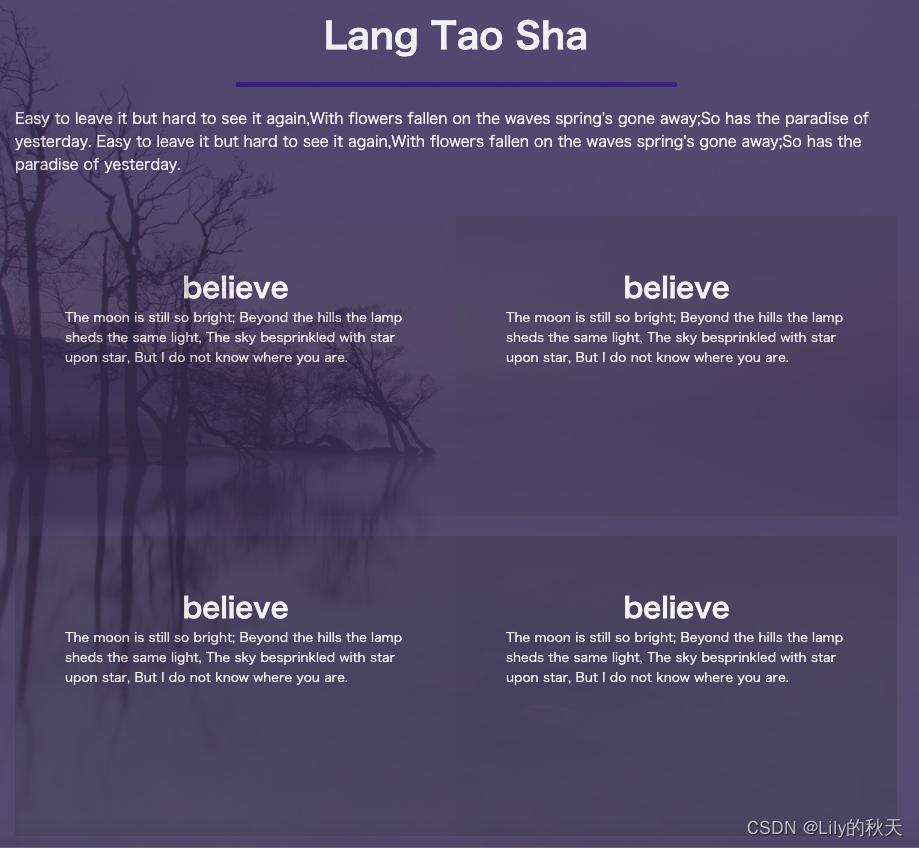
HTML结构:
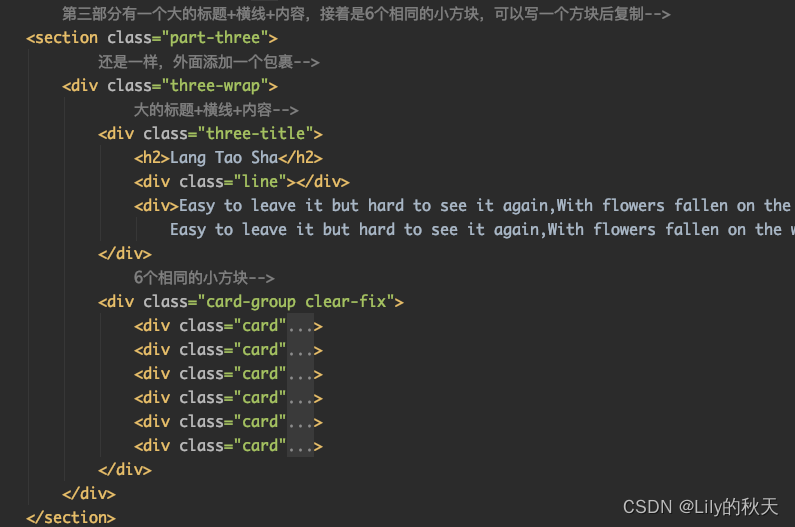
样式如下:
- /*设置第三部分整体的样式:背景、透明度、文字颜色*/
- .part-three {
- background: #3f3965;
- opacity: 0.9;
- color: white;
- }
- /*设置大包裹的框架大小及样式:居中,占宽度的60%*/
- .three-wrap {
- margin: 0 auto;
- width: 60%;
- }
- .three-wrap .three-title {
- /*使用margin会留白,padding是由内向外撑开*/
- padding-top: 60px;
- }
- /*标题行居中,距离下方20px*/
- .three-title h2 {
- margin-bottom: 20px;
- text-align: center;
- }
- /*设置横线的样式:背景、宽度、居中*/
- .three-title .line {
- /*即使不设置高度,也有一个默认的高度显示*/
- height: 5px;
- background: #1a0973;
- width: 50%;
- margin: 0 auto;
- }
- /*设置three-title下的div的样式*/
- .three-title div {
- font-size: 15px;
- margin: 20px auto;
- }
- /*这里先设置一个card的样式,然后复制*/
- /*每个card里面有标题h3和文本p*/
- .card {
- min-height: 300px;
- margin-top: 20px;
- width: 50%;
- max-width: 461px;
- padding: 50px;
- float: left;
- /*以下两句解决盒子被挤下去的问题,让每个box都是独立的盒子,不被其他影响,兼容各种浏览器*/
- -webkit-box-sizing: border-box;
- -moz-box-sizing: border-box;
- }
- .card h3 {
- text-align: center;
- }
- .card p{
- font-size: 13px;
- }
- /*因为每个盒子的透明度不同,整体呈现由浅到深的渐变效果*/
- .card:nth-child(1) {
- background: rgba(0,0,0,0.05);
- }
- .card:nth-child(2) {
- background: rgba(0,0,0,0.1);
- }
- .card:nth-child(3) {
- background: rgba(0,0,0,0.15);
- }
- .card:nth-child(4) {
- background: rgba(0,0,0,0.2);
- }
- .card:nth-child(5) {
- background: rgba(0,0,0,0.25);
- }
- .card:nth-child(6) {
- background: rgba(0,0,0,0.3);
- }
footer就不多说了,跟导航栏类似:

HTML布局:

样式也没啥说的:
- /*页尾常规样式*/
- .footer {
- background-color: #333;
- min-height: 200px;
- text-align: center;
- color: white;
- opacity: 0.9;
- }
- .share-group {
- display: block;
- margin: 0 auto;
- width: 1080px;
- padding: 45px;
- }
- .share-group li {
- display: inline-block;
- padding: 10px;
- }
- .footer ul {
- font-size: 18px;
- }
- .footer>div {
- font-size: 15px;
- }
接下来解释右侧菜单栏,点击right-menu会弹出一条菜单选项,鼠标悬浮会高亮显示,同样使用ul:
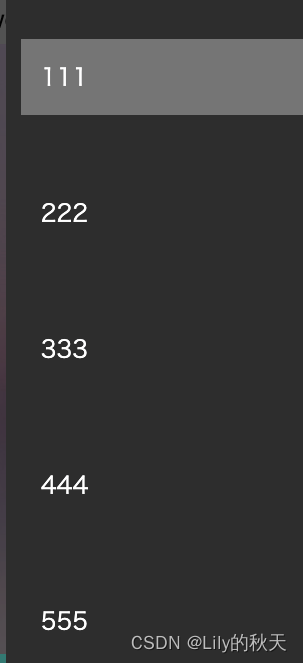

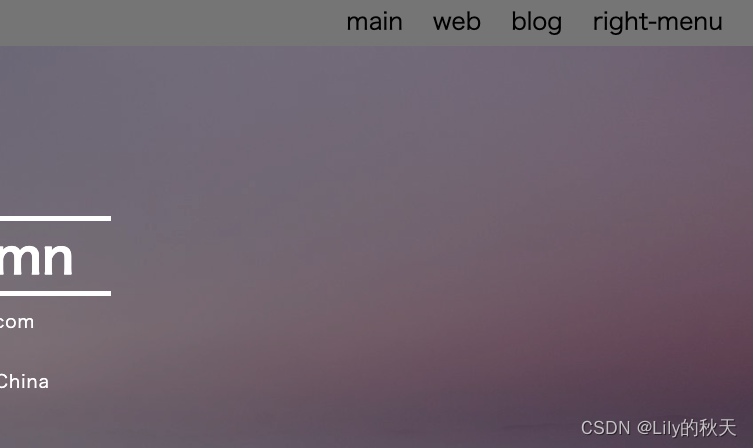
同时菜单出来的时候将主页面颜色淡出(加个遮盖),使菜单栏更明显。
对比下左右图,右侧为菜单弹出,加上遮盖的效果,还是明显的哈,棒棒哒💯。

遮罩:
- /*遮罩样式*/
- .mask {
- display: none;
- position: fixed;
- top: 0;
- bottom: 0;
- left: 0;
- right: 0;
- background: rgba(0,0,0,0.3);
- }
菜单栏:
- /*右侧菜单栏*/
- .slider {
- background: #333;
- position: fixed;
- top: 0;
- /*这里之所以将位置设置为-300,是一开始将菜单栏放到页面外面隐藏起来*/
- /*当点击标签时再将其挪出来*/
- right: -300px;
- bottom: 0;
- width: 300px;
- /*挪出来的时间设置为0.3s,加个动画*/
- transition: 0.3s;
- }
- .slider ul li {
- margin-top: 30px;
- padding: 15px;
- }
- .slider ul li a {
- padding: 20px;
- color: white;
- width: 100%;
- display: inline-block;
- }
- /*鼠标悬浮时添加背景*/
- .slider ul li :hover {
- background: grey;
- }
逻辑是这样的:
1.点击菜单栏,遮罩打开,菜单栏移出;
2.点击遮罩:菜单栏挪出页面外,关闭遮罩。
- // 2.点击侧边栏按钮,显示菜单栏
- $('.side-bar').click(function () {
- show_slider()
- })
- // 由于给整个页面添加了遮盖,且在点击侧边栏时,触发遮盖,故可以点击遮盖隐藏侧边栏
- $('.mask').click(function () {
- hide_slider()
- })
- // 菜单出现函数
- function show_slider() {
- $('.mask').fadeIn()
- // 因为原菜单栏的right设置的为-300,既可以隐藏到页面外部
- // 将right项设置为0,即可将侧边栏显示出来
- $('.slider').css('right',0)
- }
- // 菜单隐藏函数
- function hide_slider() {
- $('.mask').fadeOut()
- $('.slider').css('right',-300)
- }
终于到最后的一个小动作了。
由一个图片和一个文本组成:

先将样式设置好:
- /*返回顶部快捷键头*/
- .top {
- /*一开始设置none的原因是,网页加载出来时,不需要显示它,*/
- /*当滚动到一定位置时再取消隐藏*/
- display: none;
- width: 50px;
- height: 30px;
- position: fixed;
- right: 30px;
- bottom: 120px;
- }
- .top p,img {
- width: 100%;
- text-align: center;
- }
调试的时候可以先将none取消,等调试好样式,写动作时再加上。
- // 3.回到顶部的动作
- $('.top').click(function () {
- // 点击TOP,返回至网页顶部
- $('body,html').animate({
- scrollTop: 0
- },300)
- })
- // 监听窗口,当距离顶部超过100时,才显示TOP按钮,否则不显示
- $(window).scroll(function () {
- if ($(window).scrollTop()>100) {
- // top的CSS中display设置的为none,即为隐藏状态
- // 当距离>100时,将其显示出来即可
- $('.top').css('display','block')
- } else {
- // 当距离过近时,再次将其隐藏
- $('.top').css('display','none')
- }
- })
终于弄完了,快烦死了,图片自己找类似的,我懒得上传,路径自己改。
源码部分
HTML文件:
- <!DOCTYPE html>
- <html lang="en">
- <head>
- <meta charset="UTF-8">
- <title>Blog</title>
- <link rel="stylesheet" href="blog.css">
- <script src="https://cdn.staticfile.org/jquery/1.10.2/jquery.min.js"></script>
- <script src="blog.js"></script>
- </head>
- <body>
- <!--整个页面分成了三部分:头部、内容区、尾部-->
- <!--整个的包裹id定义为wrap,内容区的class定义为content,尾部的class定义为footer-->
- <!--紧跟着的mask为整个页面设置遮罩:当右侧菜单栏弹出时,整个页面加上遮罩,-->
- <!--slider为侧边栏菜单-->
- <!--top为右下角"回到顶部"的按钮-->
- <div id="wrap">
- <!-- 定义头部栏,例子中包括导航栏和第0个透明介绍部分-->
- <header class="header">
- <!-- 导航栏-->
- <nav>
- <ul class="nav-ul clear-fix">
- <li class="logo"><a href="#">博客</a></li>
- <!-- tips:这里使用右浮动,则最右边的标签卡写在最前面,可以保证浮动后最靠右-->
- <li class="side-bar"><a href="#">right-menu</a></li>
- <li><a href="#">blog</a><span></span></li>
- <li><a href="#">web</a><span></span></li>
- <li class="active"><a href="#">main</a><span></span></li>
- </ul>
- </nav>
- <!-- 定义第0个介绍部分,需要双层div包裹,外部div定义大小,方便内部div调整样式-->
- <div class="banner">
- <div class="inner">
- <!-- 从上到下依次为:横线、标题文字、横线、3行文本、按钮、"more"文字-->
- <div class="line"></div>
- <h1>Lily's Autumn</h1>
- <div class="line"></div>
- <p>E-mail:188888888@qq.com</p>
- <p>Tel:188 8888 8888</p>
- <p>Addr:Longhua,Shenzhen,China</p>
- <button>click me</button>
- <div class="more">more</div>
- </div>
- </div>
- </header>
- <div class="content">
- <section class="part-one">
- <!-- 设置一个外部的包裹wraper-->
- <!-- 内容如下:-->
- <!-- 一行标题文字、一行文本、一条线、再一段文字和图标-->
- <div class="wraper">
- <h2>Spring Flowers and Autumn Moon</h2>
- <div class="first-title">Right I die. My life before my eyes.</div>
- <div class="line"></div>
- <p>
- As I was hang there, I see wonderland, I don't really see much of anything.
- But I see you. That's crazy.
- </p>
- <!-- 图标部分-->
- <div class="icon">
- <span class="item"><img src="./img/钻石.svg" alt=""></span>
- <span class="item"><img src="./img/程序.svg" alt=""></span>
- <span class="item"><img src="./img/爱心.svg" alt=""></span>
- </div>
- </div>
- </section>
- <section class="part-two">
- <!-- 复制了3份-->
- <!-- 每一份都有一侧图片加一侧文字-->
- <div class="first clear-fix">
- <div class="first-left">
- <img src="./img/sunset.jpeg" alt="">
- </div>
- <div class="first-text">
- <h2>Missing is A Kind Of Sick</h2>
- <div class="first-title">
- Love once begun,will never end.
- </div>
- <p>The moon is still so bright;
- Beyond the hills the lamp sheds the same light,
- The sky besprinkled with star upon star, But I do not know where you are.</p>
- </div>
- </div>
- <div class="first clear-fix">
- <div class="first-text">
- <h2>Missing is A Kind Of Sick</h2>
- <div class="first-title">
- Love once begun,will never end.
- </div>
- <p>The moon is still so bright;
- Beyond the hills the lamp sheds the same light,
- The sky besprinkled with star upon star, But I do not know where you are.</p>
- </div>
- <div class="first-left text-right">
- <img src="./img/mountain.jpeg" alt="">
- </div>
- </div>
- <div class="first clear-fix">
- <div class="first-left">
- <img src="./img/pic03.jpg" alt="">
- </div>
- <div class="first-text">
- <h2>Missing is A Kind Of Sick</h2>
- <div class="first-title">
- Love once begun,will never end.
- </div>
- <p>The moon is still so bright;
- Beyond the hills the lamp sheds the same light,
- The sky besprinkled with star upon star, But I do not know where you are.</p>
- </div>
- </div>
- </section>
- <!-- 第三部分有一个大的标题+横线+内容,接着是6个相同的小方块,可以写一个方块后复制-->
- <section class="part-three">
- <!-- 还是一样,外面添加一个包裹-->
- <div class="three-wrap">
- <!-- 大的标题+横线+内容-->
- <div class="three-title">
- <h2>Lang Tao Sha</h2>
- <div class="line"></div>
- <div>Easy to leave it but hard to see it again,With flowers fallen on the waves spring's gone away;So has the paradise of yesterday.
- Easy to leave it but hard to see it again,With flowers fallen on the waves spring's gone away;So has the paradise of yesterday.</div>
- </div>
- <!-- 6个相同的小方块-->
- <div class="card-group clear-fix">
- <div class="card">
- <h3>believe</h3>
- <p>The moon is still so bright; Beyond the hills the lamp sheds the same light,
- The sky besprinkled with star upon star, But I do not know where you are.</p>
- </div>
- <div class="card">
- <h3>believe</h3>
- <p>The moon is still so bright; Beyond the hills the lamp sheds the same light,
- The sky besprinkled with star upon star, But I do not know where you are.</p>
- </div>
- <div class="card">
- <h3>believe</h3>
- <p>The moon is still so bright; Beyond the hills the lamp sheds the same light, The sky besprinkled with star upon star, But I do not know where you are.</p>
- </div>
- <div class="card">
- <h3>believe</h3>
- <p>The moon is still so bright; Beyond the hills the lamp sheds the same light, The sky besprinkled with star upon star, But I do not know where you are.</p>
- </div>
- <div class="card">
- <h3>believe</h3>
- <p>The moon is still so bright; Beyond the hills the lamp sheds the same light, The sky besprinkled with star upon star, But I do not know where you are.</p>
- </div>
- <div class="card">
- <h3>believe</h3>
- <p>The moon is still so bright; Beyond the hills the lamp sheds the same light, The sky besprinkled with star upon star, But I do not know where you are.</p>
- </div>
- </div>
- </div>
- </section>
- </div>
- <div class="footer">
- <ul class="share-group">
- <li>mon</li>
- <li>tuey</li>
- <li>wed</li>
- <li>thur</li>
- <li>fri</li>
- </ul>
- <div>@lily's autumn-2022</div>
- </div>
- <div class="mask"></div>
- <div class="slider">
- <ul>
- <li><a href="#">111</a></li>
- <li><a href="#">222</a></li>
- <li><a href="#">333</a></li>
- <li><a href="#">444</a></li>
- <li><a href="#">555</a></li>
- </ul>
- </div>
- <div class="top">
- <a href="#">
- <img src="./img/向上箭头.svg" alt="">
- <p>TOP</p>
- </a>
- </div>
- </div>
- </body>
- </html>
CSS文件:
- * {
- margin: 0;
- padding: 0;
- }
- em,i {
- font-style: normal;
- }
- /*去除列表前的小黑点*/
- li {
- list-style: none;
- }
- img {
- border: 0;
- vertical-align: middle;
- }
- button {
- cursor: pointer;
- }
- a {
- color: black;
- /*去除下划线*/
- text-decoration: none;
- }
- a:hover {
- color: #c81623;
- }
- /*以上为清除浏览器设置,并给定一下常见的样式*/
- .header {
- /*居中*/
- /*给整个头部设置背景和透明度*/
- line-height: 50px;
- background: rgba(0,0,0,0.4);
- }
- /*给header的导航栏设置背景色*/
- .header nav {
- background-color: gray;
- height: 50px;
- }
- /*导航栏向右浮动*/
- nav ul li {
- float: right;
- margin-right: 30px;
- }
- /*整个页面最外层的包裹*/
- #wrap {
- /*背景使用banner的图片,不重复的显示,居中,固定在页面上,就可以不随滚动条而变化*/
- /*同时设置整个页面的文字*/
- background: url("./img/banner.jpeg") no-repeat;
- background-position: center center;
- background-attachment: fixed;
- background-size: cover;
- font-family: "Microsoft Yahei","Hiragino Sans GB","Helvetica Neue",Helvetica,tahoma,arial,"WenQuanYi Micro Hei",Verdana,sans-serif,"\5B8B\4F53";
- }
- /*logo单独设置靠左的li元素,可以单独添加样式*/
- .logo {
- float: left;
- margin-left: 40px;
- }
- /*class为logo的li元素下的a标签样式----即"博客"二字*/
- .logo a {
- font-size: 20px;
- color: white;
- font-weight: 700;
- /*文字中间的空隙*/
- letter-spacing: 2px;
- }
- .banner {
- height: 600px;
- }
- /*设置第0部分的内容样式*/
- .banner .inner {
- /*全部使用白色,居中对齐,并设置一个最大的宽度*/
- color: white;
- text-align: center;
- margin: 0 auto;
- max-width: 400px;
- /*设置relative就会随着鼠标上下滚动,fixed就会固定在页面上,跟背景图一样*/
- position: relative;
- top:160px;
- }
- /*设置文本上下的线条的样式*/
- .line {
- /*这个宽度为父元素inner的宽度400px*/
- width: 100%;
- /*设置了一个高度为2px的白色背景作为线条*/
- height: 5px;
- background: white;
- margin: 10px 10px;
- }
- /*inner里面的p元素设置样式*/
- .banner .inner p {
- line-height: 30px;
- font-size: 18px;
- letter-spacing: 1px;
- }
- /*给按钮设置样式*/
- .banner .inner button {
- margin-top: 20px;
- /*使用margin会留白,padding会带着背景色一起撑开*/
- padding: 10px 20px;
- background: #e85e17;
- /*设置圆角*/
- border-radius: 5px;
- /*去除按钮的边框*/
- border: none;
- color: white;
- /*去掉按钮点击时的边框*/
- outline: none;
- }
- /*鼠标悬浮到按钮上时,按钮的动作*/
- .banner .inner button:hover {
- /*鼠标经过时,开始旋转720°动画,并放大2倍,持续时间2s*/
- transform: rotate(720deg) scale(2);
- transition: 2s;
- }
- .banner .inner .more {
- margin-top: 140px;
- }
- /*中间的内容整个设置为透明度0.9,保证滚动条滑动时,主背景可以透出来,*/
- /*同时主背景用的是fixed,不随滚动条而移动*/
- .content{
- opacity: .9;
- }
- /*设置第一部分整体的样式*/
- .part-one {
- text-align: center;
- color: white;
- background: rgba(67,178,165,1);
- padding-top: 65px;
- opacity: 0.95;
- }
- .wraper {
- /*margin这样设置可以居中*/
- margin: 0 auto;
- max-width: 1080px;
- }
- .wraper h2 {
- padding: 15px 0;
- }
- .wraper .line {
- /*居中可以这样设置margin*/
- margin: 15px auto;
- width: 40%;
- height: 5px;
- background-color: #666666;
- }
- .wraper p {
- margin: 25px 0;
- font-size: 18px;
- }
- .icon {
- margin: 30px auto;
- margin-bottom: 0;
- padding-bottom: 30px;
- }
- /*给3个图标设置边框*/
- /*宽度2px实线、绿色,80*80px,旋转45°*/
- .icon .item{
- border: 2px solid green;
- /*因为span不可以调整宽高,所以先将display设置成如下*/
- display: inline-block;
- height: 80px;
- width: 80px;
- margin-right: 50px;
- transform: rotate(45deg);
- }
- /*设置宽和高为100%,适应父元素item的宽和高,就不会超出item的border,
- 同时img继承了item的旋转,需要纠正回来*/
- .icon .item img{
- width: 100%;
- height: 100%;
- transform: rotate(-45deg);
- }
- /*给整个第二部分添加背景色*/
- .part-two {
- background-color: rgb(33,41,50);
- }
- .first .text-right {
- float: right;
- }
- .first-left {
- width: 41%;
- }
- .first-left img {
- width: 100%;
- }
- /*表示first标签的第一代子标签div*/
- .first>div {
- float: left;
- }
- /*设置浮动之后,父元素first就没有了高度,需要清除浮动,用伪元素做以下处理*/
- .clear-fix:after {
- content: '';
- display: block;
- clear: both;
- }
- .first-text {
- position: relative;
- top: 68px;
- left: 50px;
- width: 55%;
- color: white;
- }
- .first-text h2 {
- font-size: 24px;
- margin-bottom: 10px;
- }
- .first-text .first-title {
- margin-bottom: 20px;
- font-size: 18px;
- }
- .first-text p {
- font-size: 15px;
- width: 90%;
- }
- /*第二部分结构是一样的,故直接复制了3分,将中间一个的左右顺序交换(图片和文字的div交换即可),*/
- /*为了更好地区别是三块,采用如下方式将偶数even那一块透明度修改为0.3,同理可修改奇数部分*/
- .first:nth-child(even) {
- background-color: rgba(255,255,255,0.3);
- }
- /*设置第三部分整体的样式:背景、透明度、文字颜色*/
- .part-three {
- background: #3f3965;
- opacity: 0.9;
- color: white;
- }
- /*设置大包裹的框架大小及样式:居中,占宽度的60%*/
- .three-wrap {
- margin: 0 auto;
- width: 60%;
- }
- .three-wrap .three-title {
- /*使用margin会留白,padding是由内向外撑开*/
- padding-top: 60px;
- }
- /*标题行居中,距离下方20px*/
- .three-title h2 {
- margin-bottom: 20px;
- text-align: center;
- }
- /*设置横线的样式:背景、宽度、居中*/
- .three-title .line {
- /*即使不设置高度,也有一个默认的高度显示*/
- height: 5px;
- background: #1a0973;
- width: 50%;
- margin: 0 auto;
- }
- /*设置three-title下的div的样式*/
- .three-title div {
- font-size: 15px;
- margin: 20px auto;
- }
- /*这里先设置一个card的样式,然后复制*/
- /*每个card里面有标题h3和文本p*/
- .card {
- min-height: 300px;
- width: 50%;
- /*最大值可以打开浏览器调试,自己看一下那个值合适,就改一下*/
- max-width: 461px;
- padding: 50px;
- float: left;
- /*以下两句解决盒子被挤下去的问题,让每个box都是独立的盒子,不被其他影响,兼容各种浏览器*/
- -webkit-box-sizing: border-box;
- -moz-box-sizing: border-box;
- }
- /*单独设置标题居中,文本不需要*/
- .card h3 {
- text-align: center;
- }
- .card p{
- font-size: 13px;
- }
- /*因为每个盒子的透明度不同,整体呈现由浅到深的渐变效果*/
- .card:nth-child(1) {
- background: rgba(0,0,0,0.05);
- }
- .card:nth-child(2) {
- background: rgba(0,0,0,0.1);
- }
- .card:nth-child(3) {
- background: rgba(0,0,0,0.15);
- }
- .card:nth-child(4) {
- background: rgba(0,0,0,0.2);
- }
- .card:nth-child(5) {
- background: rgba(0,0,0,0.25);
- }
- .card:nth-child(6) {
- background: rgba(0,0,0,0.3);
- }
- /*页尾常规样式*/
- .footer {
- background-color: #333;
- min-height: 200px;
- text-align: center;
- color: white;
- opacity: 0.9;
- }
- .share-group {
- display: block;
- margin: 0 auto;
- width: 1080px;
- padding: 45px;
- }
- .share-group li {
- display: inline-block;
- padding: 10px;
- }
- .footer ul {
- font-size: 18px;
- }
- .footer>div {
- font-size: 15px;
- }
- .active {
- position: relative;
- }
- /*同样设置了4px高度的白色背景框作为短横线*/
- /*因为4个标签中main、web、blog都添加了span标签*/
- /*right-menu没有添加*/
- .active span {
- position: absolute;
- height: 4px;
- background: white;
- bottom: 5px;
- left: 0;
- width: 100%;
- }
- /*遮罩样式*/
- .mask {
- display: none;
- position: fixed;
- top: 0;
- bottom: 0;
- left: 0;
- right: 0;
- background: rgba(0,0,0,0.3);
- }
- /*右侧菜单栏*/
- .slider {
- background: #333;
- position: fixed;
- top: 0;
- /*这里之所以将位置设置为-300,是一开始将菜单栏放到页面外面隐藏起来*/
- /*当点击标签时再将其挪出来*/
- right: -300px;
- bottom: 0;
- width: 300px;
- /*挪出来的时间设置为0.3s,加个动画*/
- transition: 0.3s;
- }
- .slider ul li {
- margin-top: 30px;
- padding: 15px;
- }
- .slider ul li a {
- padding: 20px;
- color: white;
- width: 100%;
- display: inline-block;
- }
- /*鼠标悬浮时添加背景*/
- .slider ul li :hover {
- background: grey;
- }
- /*返回顶部快捷键头*/
- .top {
- /*一开始设置none的原因是,网页加载出来时,不需要显示它,*/
- /*当滚动到一定位置时再取消隐藏*/
- display: none;
- width: 50px;
- height: 30px;
- position: fixed;
- right: 30px;
- bottom: 120px;
- }
- .top p,img {
- width: 100%;
- text-align: center;
- }
JS文件:
- $(function () {
- // 本例中只有3个动作,
- // 一是鼠标悬浮在标签栏时,显示白色加粗的下划线;
- // 二是点击右侧菜单栏有弹出菜单;
- // 三是点击回到顶部的按钮;
- // 1.鼠标移到标签上时,当前标签有一个白色的下划线,其他的兄弟标签样式取消
- $('.nav-ul li').click(function () {
- $(this).addClass('active')
- $(this).siblings().removeClass('active')
- })
- // 2.点击侧边栏按钮,显示菜单栏
- $('.side-bar').click(function () {
- show_slider()
- })
- // 由于给整个页面添加了遮盖,且在点击侧边栏时,触发遮盖,故可以点击遮盖隐藏侧边栏
- $('.mask').click(function () {
- hide_slider()
- })
- // 菜单出现函数
- function show_slider() {
- $('.mask').fadeIn()
- // 因为原菜单栏的right设置的为-300,既可以隐藏到页面外部
- // 将right项设置为0,即可将侧边栏显示出来
- $('.slider').css('right',0)
- }
- // 菜单隐藏函数
- function hide_slider() {
- $('.mask').fadeOut()
- $('.slider').css('right',-300)
- }
- // 3.回到顶部的动作
- $('.top').click(function () {
- // 点击TOP,返回至网页顶部
- $('body,html').animate({
- scrollTop: 0
- },300)
- })
- // 监听窗口,当距离顶部超过100时,才显示TOP按钮,否则不显示
- $(window).scroll(function () {
- if ($(window).scrollTop()>100) {
- // top的CSS中display设置的为none,即为隐藏状态
- // 当距离>100时,将其显示出来即可
- $('.top').css('display','block')
- } else {
- // 当距离过近时,再次将其隐藏
- $('.top').css('display','none')
- }
- })
- })
-
相关阅读:
OpenAI视频生成Sora技术简析
java-php-net-python-房产交易资金管理系统计算机毕业设计程序
SQL Injection
Hadoop面试重点
怎样用Python识别条形码?
【KCC@南京】KCC南京"数字经济-开源行"
Maven 使用教程(三)
浅谈微服务架构中实现单点登录
matlab⾼级绘图时间距离图像
找准边界,吃定安全 | 串联边界设备协同,便捷运营思维让安全更有效
- 原文地址:https://blog.csdn.net/qq_34285232/article/details/125413937