-
Debian | Vscode 安装与配置 C 环境
博客食用更佳哦~ 点我进入博客
安装 vscode
sudo apt update
sudo apt install software-properties-common apt-transport-https curl

curl -sSL https://packages.microsoft.com/keys/microsoft.asc | sudo apt-key add -

sudo add-apt-repository "deb [arch=amd64] https://packages.microsoft.com/repos/vscode stable main"

sudo apt update
sudo apt install code
配置环境
sudo apt install build-essential gdb安装插件
下载插件 C/C++

创建一个 cpp 文件,写入 c++ 代码,并进行 Debug C/C++ File#includeusing namespace std; int main() { cout << "hello" << endl; return 0; }  选择 g++

此时在 .vscode 文件夹下会多出 tasks.json
{
    "tasks": [
        {
            "type": "cppbuild",
            "label": "C/C++: g++ build active file",
            "command": "/usr/bin/g++",
            "args": [
                "-fdiagnostics-color=always",
                "-g",
                "${file}",
                "-o",
                "${fileDirname}/${fileBasenameNoExtension}"
            ],
            "options": {
                "cwd": "${fileDirname}"
            },
            "problemMatcher": [
                "$gcc"
            ],
            "group": {
                "kind": "build",
                "isDefault": true
            },
            "detail": "Task generated by Debugger."
        }
    ],
    "version": "2.0.0"
}
同时,终端输出 hello

按 Ctrl + Shift + P 在上方输入 configuration
找到 C/C++: Edit Configurations(JSON) 并点击
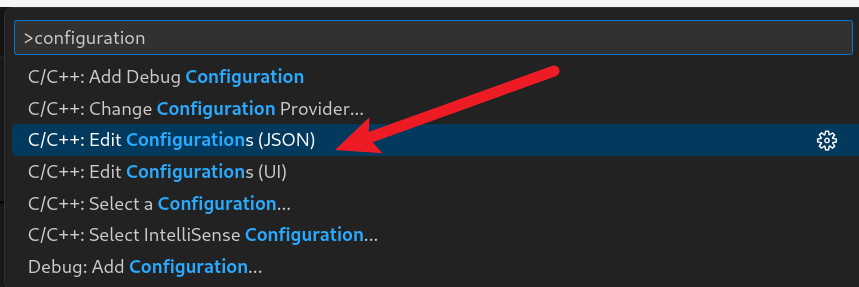
此时在 .vscode 目录下面会多出 c_cpp_properties.json{ "configurations": [ { "name": "Linux", "includePath": [ "${workspaceFolder}/**" ], "defines": [], "compilerPath": "/usr/bin/gcc", "cStandard": "c17", "cppStandard": "gnu++17", "intelliSenseMode": "linux-gcc-x64" } ], "version": 4 }点击左侧 Run and Debug 图标:
点击 create a launch.json file
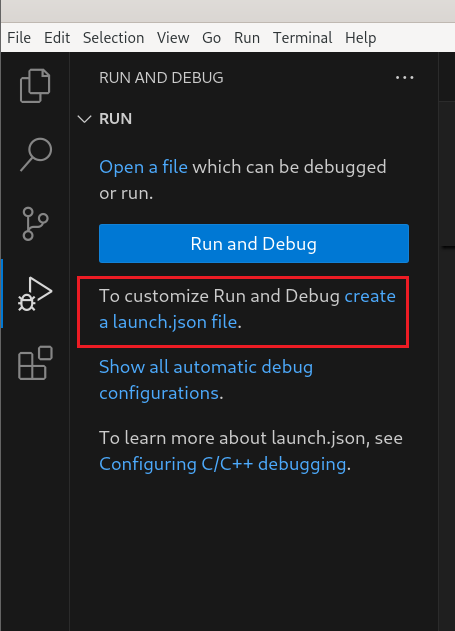
选择 C++ (GDB/LLDB)

{
    // Use IntelliSense to learn about possible attributes.
    // Hover to view descriptions of existing attributes.
    // For more information, visit: https://go.microsoft.com/fwlink/?linkid=830387
    "version": "0.2.0",
    "configurations": [

        {
            "name": "g++ - Build and debug active file",
            "type": "cppdbg",
            "request": "launch",
            "program": "${fileDirname}/${fileBasenameNoExtension}",
            "args": [],
            "stopAtEntry": false,
            "cwd": "${fileDirname}",
            "environment": [],
            "externalConsole": false,
            "MIMode": "gdb",
            "setupCommands": [
                {
                    "description": "Enable pretty-printing for gdb",
                    "text": "-enable-pretty-printing",
                    "ignoreFailures": true
                }
            ],
            "preLaunchTask": "C/C++: g++ build active file",
            "miDebuggerPath": "/usr/bin/gdb",
        }
    ]
}
解决终端出现 [1] + Done “/usr/bin/gdb” --interpreter=mi --tty=${DbgTerm} 0<“/tmp/Microsoft-MIEngine-In-wyyxzchw.1pu” 1>“/tmp/Microsoft-MIEngine-Out-qddpshqk.bcg”
在 launch.json 的 configuration 中添加:

"miDebuggerArgs": "-q -ex quit; wait() { fg >/dev/null; }; /usr/bin/gdb -q --interpreter=mi",重新编译运行

最终,launch.json 内容为{ // Use IntelliSense to learn about possible attributes. // Hover to view descriptions of existing attributes. // For more information, visit: https://go.microsoft.com/fwlink/?linkid=830387 "version": "0.2.0", "configurations": [ { "name": "g++ - Build and debug active file", "type": "cppdbg", "request": "launch", "program": "${fileDirname}/${fileBasenameNoExtension}", "args": [], "stopAtEntry": false, "cwd": "${fileDirname}", "environment": [], "externalConsole": false, "MIMode": "gdb", "setupCommands": [ { "description": "Enable pretty-printing for gdb", "text": "-enable-pretty-printing", "ignoreFailures": true } ], "preLaunchTask": "C/C++: g++ build active file", "miDebuggerPath": "/usr/bin/gdb", "miDebuggerArgs": "-q -ex quit; wait() { fg >/dev/null; }; /usr/bin/gdb -q --interpreter=mi", } ] } -
相关阅读:
基于改进量子粒子群算法的电力系统经济调度(Matlab代码实现)
Revit中记忆快速修改未识别的梁及“快速生成过梁”
java实现TCP通信(socket)服务端-客户端
Small Tools(4) 整合Seata1.5.2分布式事务
gittee启动器
go template继承 引用 ParseGlob 匹配符加载template Execute和ExecuteTemplate 更改模板名字
突破编程_C++_设计模式(单例模式)
CentOS7连接主机java.net.ConnectException: Connection t,和 Linux 系统,出现“不在sudoers文件中,此事将被报告”的解决方法
Spring复习——day16_SpringMVC_异常处理器
基于TCP的聊天系统
- 原文地址:https://blog.csdn.net/DaphneOdera17/article/details/140963658