-
Linux shell编程学习笔记59: ps 获取系统进程信息,类似于Windows系统中的tasklist 命令

0 前言
系统进程信息是电脑网络信息安全检查中的一块重要内容,对于使用Linux和基于Linux作为操作系统的电脑来说,可以使用ps命令。
1 ps命令 的功能、格式和选项说明
1.1 ps命令 的功能
Linux 中的ps(意为:process status)命令用于显示当前进程的状态,类似于Windows系统中的tasklist 命令,我们可以查看系统中运行的进程信息,包括进程的ID、父进程ID、CPU和内存占用等信息,并可以根据需求进行进一步的过滤和排序。
我们可以使用命令 ps --help 来查看ps命令的帮助信息。
- [purpleendurer @ bash ~ ] ps --help
- Usage:
- ps [options]
- Try 'ps --help
- or 'ps --help
- for additional help text.
- For more details see ps(1).
- [purpleendurer @ bash ~ ]

1.2 ps命令的格式
ps [选项]
1.3 ps命令的选项
ps命令的选项非常多。
- [purpleendurer @ bash ~ ] ps --help simple
- Usage:
- ps [options]
- Basic options:
- -A, -e all processes
- -a all with tty, except session leaders
- a all with tty, including other users
- -d all except session leaders
- -N, --deselect negate selection
- r only running processes
- T all processes on this terminal
- x processes without controlling ttys
- For more details see ps(1).

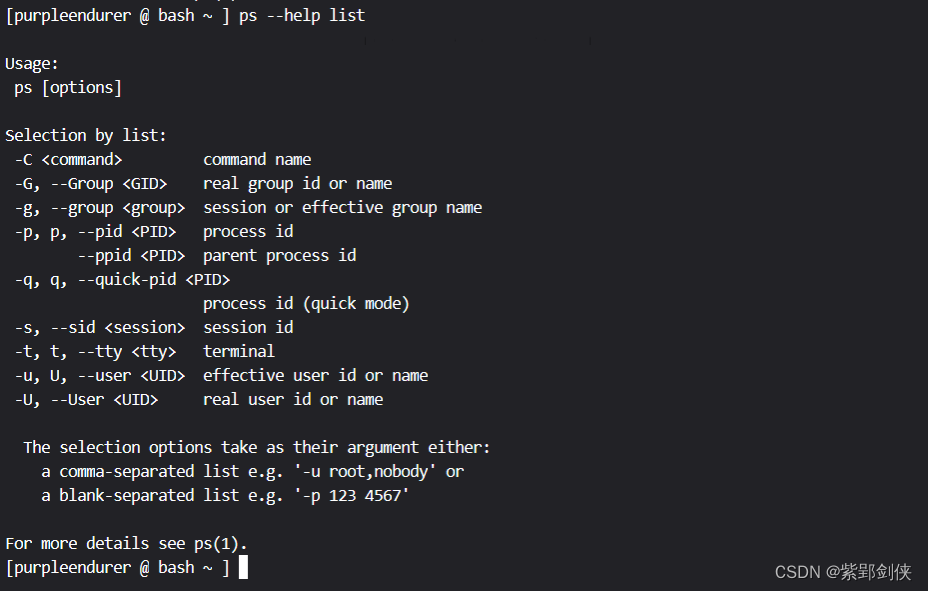
- [purpleendurer @ bash ~ ] ps --help list
- Usage:
- ps [options]
- Selection by list:
- -C <command> command name
- -G, --Group <GID> real group id or name
- -g, --group <group> session or effective group name
- -p, p, --pid <PID> process id
- --ppid <PID> parent process id
- -q, q, --quick-pid <PID>
- process id (quick mode)
- -s, --sid <session> session id
- -t, t, --tty <tty> terminal
- -u, U, --user <UID> effective user id or name
- -U, --User <UID> real user id or name
- The selection options take as their argument either:
- a comma-separated list e.g. '-u root,nobody' or
- a blank-separated list e.g. '-p 123 4567'
- For more details see ps(1).
- [purpleendurer @ bash ~ ]
- [purpleendurer @ bash ~ ] ps --help output
- Usage:
- ps [options]
- Output formats:
- -F extra full
- -f full-format, including command lines
- f, --forest ascii art process tree
- -H show process hierarchy
- -j jobs format
- j BSD job control format
- -l long format
- l BSD long format
- -M, Z add security data (for SELinux)
- -O <format> preloaded with default columns
- O <format> as -O, with BSD personality
- -o, o, --format <format>
- user-defined format
- s signal format
- u user-oriented format
- v virtual memory format
- X register format
- -y do not show flags, show rss vs. addr (used with -l)
- --context display security context (for SELinux)
- --headers repeat header lines, one per page
- --no-headers do not print header at all
- --cols, --columns, --width <num>
- set screen width
- --rows, --lines <num>
- set screen height
- For more details see ps(1).
- [purpleendurer @ bash ~ ]

- [purpleendurer @ bash ~ ] ps --help threads
- Usage:
- ps [options]
- Show threads:
- H as if they were processes
- -L possibly with LWP and NLWP columns
- -m, m after processes
- -T possibly with SPID column
- For more details see ps(1).
- [purpleendurer @ bash ~ ]

- [purpleendurer @ bash ~ ] ps --help misc
- Usage:
- ps [options]
- Miscellaneous options:
- -c show scheduling class with -l option
- c show true command name
- e show the environment after command
- k, --sort specify sort order as: [+|-]key[,[+|-]key[,...]]
- L show format specifiers
- n display numeric uid and wchan
- S, --cumulative include some dead child process data
- -y do not show flags, show rss (only with -l)
- -V, V, --version display version information and exit
- -w, w unlimited output width
- --help <simple|list|output|threads|misc|all>
- display help and exit
- For more details see ps(1).
- [purpleendurer @ bash ~ ]

- [purpleendurer @ bash ~ ] ps --help all
- Usage:
- ps [options]
- Basic options:
- -A, -e all processes
- -a all with tty, except session leaders
- a all with tty, including other users
- -d all except session leaders
- -N, --deselect negate selection
- r only running processes
- T all processes on this terminal
- x processes without controlling ttys
- Selection by list:
- -C <command> command name
- -G, --Group <GID> real group id or name
- -g, --group <group> session or effective group name
- -p, p, --pid <PID> process id
- --ppid <PID> parent process id
- -q, q, --quick-pid <PID>
- process id (quick mode)
- -s, --sid <session> session id
- -t, t, --tty <tty> terminal
- -u, U, --user <UID> effective user id or name
- -U, --User <UID> real user id or name
- The selection options take as their argument either:
- a comma-separated list e.g. '-u root,nobody' or
- a blank-separated list e.g. '-p 123 4567'
- Output formats:
- -F extra full
- -f full-format, including command lines
- f, --forest ascii art process tree
- -H show process hierarchy
- -j jobs format
- j BSD job control format
- -l long format
- l BSD long format
- -M, Z add security data (for SELinux)
- -O <format> preloaded with default columns
- O <format> as -O, with BSD personality
- -o, o, --format <format>
- user-defined format
- s signal format
- u user-oriented format
- v virtual memory format
- X register format
- -y do not show flags, show rss vs. addr (used with -l)
- --context display security context (for SELinux)
- --headers repeat header lines, one per page
- --no-headers do not print header at all
- --cols, --columns, --width <num>
- set screen width
- --rows, --lines <num>
- set screen height
- Show threads:
- H as if they were processes
- -L possibly with LWP and NLWP columns
- -m, m after processes
- -T possibly with SPID column
- Miscellaneous options:
- -c show scheduling class with -l option
- c show true command name
- e show the environment after command
- k, --sort specify sort order as: [+|-]key[,[+|-]key[,...]]
- L show format specifiers
- n display numeric uid and wchan
- S, --cumulative include some dead child process data
- -y do not show flags, show rss (only with -l)
- -V, V, --version display version information and exit
- -w, w unlimited output width
- --help <simple|list|output|threads|misc|all>
- display help and exit
- For more details see ps(1).
- [purpleendurer @ bash ~ ]
- [purpleendurer @ bash ~ ] ps --help a
- Usage:
- ps [options]
- Basic options:
- -A, -e all processes
- -a all with tty, except session leaders
- a all with tty, including other users
- -d all except session leaders
- -N, --deselect negate selection
- r only running processes
- T all processes on this terminal
- x processes without controlling ttys
- Selection by list:
- -C <command> command name
- -G, --Group <GID> real group id or name
- -g, --group <group> session or effective group name
- -p, p, --pid <PID> process id
- --ppid <PID> parent process id
- -q, q, --quick-pid <PID>
- process id (quick mode)
- -s, --sid <session> session id
- -t, t, --tty <tty> terminal
- -u, U, --user <UID> effective user id or name
- -U, --User <UID> real user id or name
- The selection options take as their argument either:
- a comma-separated list e.g. '-u root,nobody' or
- a blank-separated list e.g. '-p 123 4567'
- Output formats:
- -F extra full
- -f full-format, including command lines
- f, --forest ascii art process tree
- -H show process hierarchy
- -j jobs format
- j BSD job control format
- -l long format
- l BSD long format
- -M, Z add security data (for SELinux)
- -O <format> preloaded with default columns
- O <format> as -O, with BSD personality
- -o, o, --format <format>
- user-defined format
- s signal format
- u user-oriented format
- v virtual memory format
- X register format
- -y do not show flags, show rss vs. addr (used with -l)
- --context display security context (for SELinux)
- --headers repeat header lines, one per page
- --no-headers do not print header at all
- --cols, --columns, --width <num>
- set screen width
- --rows, --lines <num>
- set screen height
- Show threads:
- H as if they were processes
- -L possibly with LWP and NLWP columns
- -m, m after processes
- -T possibly with SPID column
- Miscellaneous options:
- -c show scheduling class with -l option
- c show true command name
- e show the environment after command
- k, --sort specify sort order as: [+|-]key[,[+|-]key[,...]]
- L show format specifiers
- n display numeric uid and wchan
- S, --cumulative include some dead child process data
- -y do not show flags, show rss (only with -l)
- -V, V, --version display version information and exit
- -w, w unlimited output width
- --help <simple|list|output|threads|misc|all>
- display help and exit
- For more details see ps(1).
- [purpleendurer @ bash ~ ]
ps命令的选项分为基本选项、列表选项、输出格式选项、显示线程选项和杂项五类,如下:
基本选项 功能 -A 显示所有的进程,包括前台的、后台的、其他用户的进程,跟-e的效果相同 -a 显示所有终端下除了session leaders外的所有进程(ssh登录的shell是一种session leader)
a 显示所有终端主机下存在的进程,包括session leaders进程 -d 显示除了session leaders外的进程 -e 显示所有的进程,包括前台的、后台的、其他用户的进程,跟-A的效果相同 -N
--deselect
否定选择 r 仅显示终端主机正在执行中的程序 T 显示当前终端主机下的所有程序 -x 显示所有程序,不以终端机来区分。通常与 a 这个参数一起使用,可列出较完整信息 列表选项 功能 -C 显示命令名 -G
--Group
显示真实的组 ID 或名称 -g
--group
显示会话或有效组名称 -p
p
--pid
显示进程ID --ppid 显示父进程ID -q
q
--quick-pid
显示进程 id (快速模式) -s
--sid
显示会话ID -t
t
--tty
显示终端 -u [
] u
--user
显示指定UID的有效用户的进程状态,未指定UID则显示当前用户的进程状态 -U
--User
显示指定UID的真实用户的进程状态 输出格式选项 功能 --context 显示安全上下文(用于 SELinux) --cols
--columns
设置屏幕宽度 -F -f 把进程的所有信息都显示出来,包括命令行 f
--forest
用ASCII字符显示树状结构 --format 用户定义的格式 -H 显示进程层次结构 --headers 重复标题行,每页一行 -j 作业格式 j BSD 作业控制格式 -l 较长、较详细的格式 l BSD的长格式 --lines 设置屏幕高度 -M 添加安全数据(适用于 SELinux) --no-headers 不打印标题 -O 预加载默认列 O 与-O相似,但是具有BSD -o
o
与--format 相同,用户定义的格式 --rows 设置屏幕高度 s 信号格式 u 面向用户的格式 v 虚拟内存格式 --width 设置屏幕宽度 X 寄存器格式 -y 不显示标志,显示 RSS 与 ADDR(与 -l 一起使用) 显示线程选项 功能 H 就好像它们是过程一样 -L 可能带有 LWP 和 NLWP 列 -m
m
处理后 -T 可能与 SPID 列 杂项 功能 -c 显示调度类(与-l 选项使用) --cumulative 包括一些死亡子进程数据 c 显示真命令名 e 命令后显示环境 --help
显示帮助和退出 k 将排序顺序指定为: [ + |-] key [ ,[ + |-] key [ ,... ]] L 显示格式说明符 n 显示数字 uid 和 wchan S 包括一些死亡子进程数据,与 --cumulative 相同 --sort 将排序顺序指定为: [ + |-] key [ ,[ + |-] key [ ,... ]] -y 不显示标志,显示 rss (只与-l配合使用) -V
V
--version
显示版本信息并退出 -w
w
无限输出宽度 2.进程的PID、PPID,PGID和SID
在Linux中,每个进程都有多个与之关联的 ID,包括:
2.1 进程 ID (Process ID,PID)
这是标识进程的任意数字。每个进程都有一个唯一的 ID,但在进程退出并且父进程检索到退出状态后,该进程 ID 将被释放以供新进程重用。
2.2 父进程 ID (Parent Process ID ,PPID)
这只是启动相关进程的进程的 PID。如果父进程在子进程之前退出,则子进程的 PPID 将更改为另一个进程(通常为 PID 1)。
2.3 进程组 ID (Process Group ID,PGID)
进程组领导者的 PID。如果 PID == PGID,则此进程是进程组的领导者。
2.4 会话 ID (Session ID,SID)
这只是会话领导者的 PID。如果 PID == SID,则此进程是会话领导者。
会话和进程组只是将许多相关进程视为一个单元的方法。进程组的所有成员始终属于同一会话,但一个进程可能具有多个进程组。
通常,一个 shell 就是一个会话领导者,该 shell 执行的每个命令进程都将是一个进程组。这是为了在shell退出时很容易杀死shell的子进程。
3 Linux进程的状态
linux中进程有以下几种状态:
- R——Runnable(运行):正在运行或在运行队列中等待。只有在该状态的进程才可能在CPU上运行。而同一时刻可能有多个进程处于可执行状态,这些进程的task_struct结构(进程控制块)被放入对应CPU的可执行队列中(一个进程最多只能出现在一个CPU的可执行队列中)。进程调度器的任务就是从各个CPU的可执行队列中分别选择一个进程在该CPU上运行。
- S——sleeping(中断):休眠中,受阻,在等待某个条件的形成或接收到信号。处于这个状态的进程因为等待某某事件的发生(比如等待socket连接、等待信号量),而被挂起。这些进程的task_struct结构被放入对应事件的等待队列中。当这些事件发生时(由外部中断触发、或由其他进程触发),对应的等待队列中的一个或多个进程将被唤醒。
- D——uninterruptible sleep(不可中断):收到信号不唤醒和不可运行,进程必须等待直到有中断发生。与TASK_INTERRUPTIBLE状态类似,进程处于睡眠状态,但是此刻进程是不可中断的。不可中断,指的并不是CPU不响应外部硬件的中断,而是指进程不响应异步信号。绝大多数情况下,进程处在睡眠状态时,总是应该能够响应异步信号的。
- Z——zombie(僵死):进程已终止,但进程描述还在,直到父进程调用wait4()系统调用后释放。这个退出过程中,进程占有的所有资源将被回收,除了task_struct结构(以及少数资源)以外。于是进程就只剩下task_struct这么个空壳,故称为僵尸。之所以保留task_struct,是因为task_struct里面保存了进程的退出码、以及一些统计信息。而其父进程很可能会关心这些信息。比如在shell中,$?变量就保存了最后一个退出的前台进程的退出码,而这个退出码往往被作为if语句的判断条件。
- T——traced or stoppd(停止):进程收到SiGSTOP,SIGSTP,SIGTOU信号后停止运行。对于进程本身来说,TASK_STOPPED和TASK_TRACED状态很类似,都是表示进程暂停下来。
而TASK_TRACED状态相当于在TASK_STOPPED之上多了一层保护,处于TASK_TRACED状态的进程不能响应SIGCONT信号而被唤醒。只能等到调试进程通过ptrace系统调用执行PTRACE_CONT、PTRACE_DETACH等操作(通过ptrace系统调用的参数指定操作),或调试进程退出,被调试的进程才能恢复TASK_RUNNING状态。 - W: 进入内存交换(从内核2.6开始无效)
- X——TASK_DEAD – EXIT_DEAD(死亡的任务-退出死亡):退出状态,进程即将被销毁。进程将被置于EXIT_DEAD退出状态,这意味着接下来的代码立即就会将该进程彻底释放。所以EXIT_DEAD状态是非常短暂的,几乎不可能通过ps命令捕捉到。
- <: 高优先级
- N: 低优先级
- L: 有些页被锁进内存
- s: 包含子进程
- \+: 位于后台的进程组
- l : 多线程,克隆线程
4 ps 命令实例
4.1 ps -A
- [purpleendurer @ bash ~] ps -A
- PID TTY TIME CMD
- 1 pts/0 00:00:00 zsh
- 47 pts/1 00:00:00 zsh
- 72 pts/2 00:00:00 zsh
- 100 pts/1 00:00:00 bash
- 115 pts/3 00:00:00 zsh
- 142 pts/4 00:00:00 zsh
- 169 pts/5 00:00:00 zsh
- 194 pts/6 00:00:00 zsh
- 222 pts/6 00:00:00 bash
- 237 pts/6 00:00:00 ps
- [purpleendurer @ bash ~]

命令列出了10条进程信息
包括4列内容,其中:
- PID:进程ID
- TTY:与进程关联的终端,涵盖pts/0~pts/6。如果是?,就是与终端无关的进程,即后台服务,意味着它不依赖于终端。
- TIME:进程从触发开始所运行的时间
- CMD:启动进程的命令
4.2 ps -a
- [purpleendurer @ bash ~] ps -a
- PID TTY TIME CMD
- 100 pts/1 00:00:00 bash
- 222 pts/6 00:00:00 bash
- 238 pts/6 00:00:00 ps
- [purpleendurer @ bash ~]

与2.1相比,命令列只出了3个进程,TTY分别为pts/1、pts/6。
4.3 ps a
- [purpleendurer @ bash ~] ps a
- PID TTY STAT TIME COMMAND
- 1 pts/0 Ss+ 0:00 /bin/zsh
- 47 pts/1 Ss 0:00 /bin/zsh
- 72 pts/2 Ss+ 0:00 /bin/zsh
- 100 pts/1 S+ 0:00 bash
- 115 pts/3 Ss+ 0:00 /bin/zsh
- 142 pts/4 Ss+ 0:00 /bin/zsh
- 169 pts/5 Ss+ 0:00 /bin/zsh
- 194 pts/6 Ss 0:00 /bin/zsh
- 222 pts/6 S 0:00 bash
- 239 pts/6 R+ 0:00 ps a
- [purpleendurer @ bash ~]

命令列出了10个进程 ,数量与 2.1相同,比2.2 不仅多了7个进程信息,包括了TTY值为pts/0、pts/2、pts/3、pts/4和pts/5的进程信息,而且在信息项数量上,也多了1列,即:
STAT(即:状态)。
4.4 ps -d
- [purpleendurer @ bash ~ ]ps -d
- PID TTY TIME CMD
- 102 pts/1 00:00:00 bash
- 115 pts/1 00:00:00 ps
- [purpleendurer @ bash ~ ]ps -a
- PID TTY TIME CMD
- 102 pts/1 00:00:00 bash
- 116 pts/1 00:00:00 ps
- [purpleendurer @ bash ~ ]
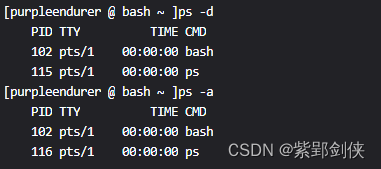
从命令返回信息来看,-d 和 -a选项还是有一些差别的。
4.5 ps -f
- [purpleendurer @ bash ~ ]ps -f
- UID PID PPID C STIME TTY TIME CMD
- csdn 47 0 0 23:24 pts/1 00:00:00 /bin/zsh
- csdn 106 47 0 23:24 pts/1 00:00:00 bash
- csdn 120 106 0 23:24 pts/1 00:00:00 ps -f
- [purpleendurer @ bash ~ ]

返回的信息中有8列,其中多出的3列是:
- PPID :父进程ID
- C : CPU?
- STIME:进程触发的时间
通过对比PID和PPID,我们可以看出进程之间的父子衍生关系。
2.5 ps -F
- [purpleendurer @ bash ~ ]ps -F
- UID PID PPID C SZ RSS PSR STIME TTY TIME CMD
- csdn 47 0 0 10039 5044 0 23:24 pts/1 00:00:00 /bin/zsh
- csdn 106 47 0 3781 3488 0 23:24 pts/1 00:00:00 bash
- csdn 119 106 0 13763 3808 0 23:24 pts/1 00:00:00 ps -F

返回信息包括11列,比 2.4 多了3列:
- SZ :进程核心映像的页面大小
- RSS:驻留空间的大小。显示当前常驻内存的程序的K字节数。
- PSR:绑定内核线程的处理器(如果有)的逻辑处理器号
4.6 ps -aux
- [purpleendurer @ bash ~ ]ps -aux
- USER PID %CPU %MEM VSZ RSS TTY STAT START TIME COMMAND
- csdn 1 0.0 0.1 40356 5140 pts/0 Ss+ 00:02 0:00 /bin/zsh
- csdn 46 0.0 0.1 40156 4956 pts/1 Ss+ 00:02 0:00 /bin/zsh
- csdn 70 0.0 0.1 40156 5024 pts/2 Ss+ 00:02 0:00 /bin/zsh
- csdn 98 0.0 0.1 40156 4888 pts/3 Ss+ 00:13 0:00 /bin/zsh
- csdn 123 0.0 0.1 40156 5016 pts/4 Ss+ 00:13 0:00 /bin/zsh
- csdn 152 0.0 0.1 40156 5044 pts/5 Ss 00:24 0:00 /bin/zsh
- csdn 177 0.0 0.1 40156 4944 pts/6 Ss+ 00:24 0:00 /bin/zsh
- csdn 205 0.0 0.0 15124 3404 pts/5 S 00:24 0:00 bash
- csdn 219 0.0 0.1 55052 3912 pts/5 R+ 00:26 0:00 ps -aux
- [purpleendurer @ bash ~ ]

返回的信息共有11列,其中:
- %CPU : 进程的cpu占用率
- %MEM: 进程使用内存的百分比
- VSZ : 进程使用的虚拟内存大小,以K为单位
4.7 ps -ef
- [purpleendurer @ bash ~ ]ps -ef
- UID PID PPID C STIME TTY TIME CMD
- csdn 1 0 0 00:02 pts/0 00:00:00 /bin/zsh
- csdn 46 0 0 00:02 pts/1 00:00:00 /bin/zsh
- csdn 70 0 0 00:02 pts/2 00:00:00 /bin/zsh
- csdn 98 0 0 00:13 pts/3 00:00:00 /bin/zsh
- csdn 123 0 0 00:13 pts/4 00:00:00 /bin/zsh
- csdn 152 0 0 00:24 pts/5 00:00:00 /bin/zsh
- csdn 177 0 0 00:24 pts/6 00:00:00 /bin/zsh
- csdn 205 152 0 00:24 pts/5 00:00:00 bash
- csdn 218 205 0 00:24 pts/5 00:00:00 ps -ef
- [purpleendurer @ bash ~ ]

-
相关阅读:
python计算脚长 青少年电子学会等级考试 中小学生python编程等级考试一级真题答案解析2022年9月
redis分布式锁的实现
企业跨境出海选择AWS怎么样?
html网页制作期末大作业-网上花店商城html+css+javascript
软件确认测试有什么作用?确认测试报告的价格是多少?
死锁详细解读
AVL树的插入(C++实现)
Linux基本指令集合
【Windows编程】windows窗口创建过程详解
【代码随想录算法训练营】第48天 | 第九章 动态规划(九)+ 复习第20天 第六章 二叉树(四)
- 原文地址:https://blog.csdn.net/Purpleendurer/article/details/139696466