-
Joplin Typora 粘贴图片 | 当使用Typora作为Joplin编辑器时,如何粘贴图片并上传到Joplin服务器,替换链接
一、背景
当我们使用Joplin时,上传图片时会自动上传到Joplin服务器并替换链接
但是Joplin的编辑器不好用,我更习惯用Typora来编辑,
然而Typora中上传的图片只能在本地,无法上传到Joplin服务器,在其他客户端也看不到图片
本文编写了一个脚本,通过Typora的上传服务器功能,自动上传图片并替换为Joplin链接
二、准备脚本
2.1 第一个脚本,修改token
token可以在网页剪藏器中获取

import requests
import sys
import json
import subprocess

# 修改为你的token
token = "请修改我"
# WARNING: replace 41184 with your joplin web clipper port
port = 41184
# 修改为你的python路径
python_exe_path = r'C:\Users\realw\AppData\Local\Microsoft\WindowsApps\python.exe'
# 修改为你的第二个脚本路径
second_script_path = r'D:\app\Typora\job\typora-windows-2.py'

# collect args for typora-windows-2.py
args = []
for arg in sys.argv:
    # the first arg is .py file, ignore it
    if(".py" in arg):
        continue
    # the second arg is the current editing file passed by Typora
    if(".md" in arg):
        args.append(arg)
        continue
    # other arg is the local Typora-Image path passed by Typora
    url = "http://127.0.0.1:" + str(port) + "/resources/?token=" + token
    payload = {'props': '{}'}
    files = [
      ('data', ('typora.png', open(arg, 'rb'), 'image/png'))
    ]
    headers = {}
    # upload your images to joplin resources using joplin web clipper API
    response = requests.request("POST", url, headers=headers, data=payload, files=files)
    newFilePath = "http://127.0.0.1:" + str(port) + "/resources/" + json.loads(response.text)["id"] + "/file?token=" + token
    # print newFilePath, so Typora can replace the local-typora-image path with the joplin web clipper url.
    # We cannot directly use "resources/" + json.loads(response.text)["id"] + ".png" since Typora thinks it is an illegal URL,
    # and a warning will show up.
    print(newFilePath)

    args.append(newFilePath)
    args.append("resources/" + json.loads(response.text)["id"] + ".png")

# first arg is .py file, second arg is .md file, then newFilePath and "resources/" + json.loads(response.text)["id"] + ".png" appear in order
# We use subprocess because Typora will wait for the result of the first script and then replace the Typora_local_path with newFilePath.
# If we don't use subprocess, our replacement will be ahead of Typora's, and covered by Typora, which makes newFilePath as the final result link.
# This is not what we want, we want "resources/" + json.loads(response.text)["id"] + ".png" as the result.
subprocess.Popen([python_exe_path, second_script_path] + args, creationflags=subprocess.DETACHED_PROCESS, shell=False)

sys.exit()
2.1 准备第二个脚本,按需修改delay时间
import sys
import time

# We need to wait Typora's replacement happens first
delay_time = 5


# Typora 将 typora-local-image-link 替换为 web-clipper-link 后,
# 而您没有按“ctrl + s”保存,您的内容不会“提交”到当前文件,
# 这使得 python 无法检测到 web-clipper-link 并将其替换为 joplin-resources-link。
# 因此我们至少重试该函数 10 次以等待您的保存。(如果您在 50 秒内没有按“ctrl + s”保存,则替换将失败)
retry_times = 10
time.sleep(delay_time)

for i in range(retry_times):
    try:
        with open(sys.argv[1], 'r+', encoding='utf-8') as file:
            file_content = file.read()
            file_content_copy = file_content
            for index, arg in enumerate(sys.argv):
                if ((".png" in arg) or (".md" in arg) or (".py" in arg)):
                    continue
                # replace newFilePath with "resources/{id}.png"
                file_content = file_content.replace(sys.argv[index], sys.argv[index + 1])
            file.seek(0)
            file.write(file_content)
            file.truncate()
        time.sleep(delay_time)
    except Exception as e:
        print(f"An error occurred: {e}")
        time.sleep(delay_time)
sys.exit()
3. 修改Typora配置

选择图象,上传服务,命令,确保你的python环境和模块正确
python D:\app\Typora\job\typora-windows.py ${filepath}点击验证图片上传
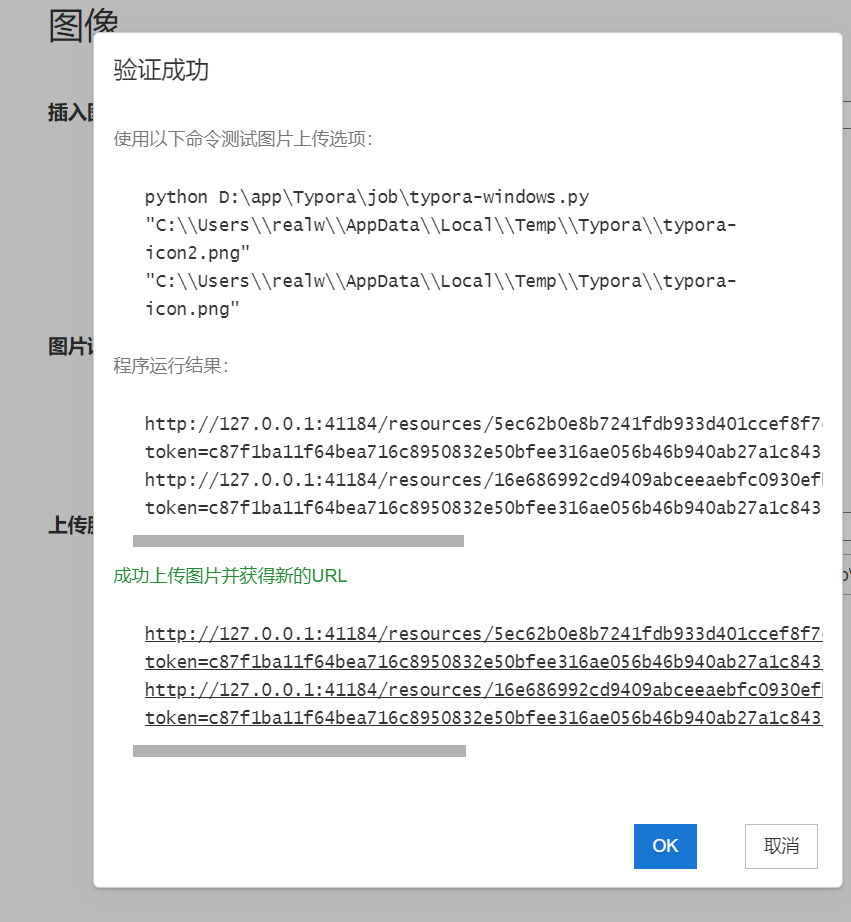
4 在编辑器内测试
用法:
在编辑器内粘贴图片,按下ctrl+s 保存,等待几秒后自动替换为内部连接,大公告成
如果遇到问题,可以手动点击上传图片,检查顶部报错

-
相关阅读:
excel常用函数
【CANN训练营】CANN:AICPU算子开发
虚拟机macos安装brew、llvm并使用cmake构建项目
设计模式系列-创建者模式
当我们说“架构”的时候,我们在说什么?---解读《ISO/IEC/IEEE 42010》国际标准
蓝桥杯每日一题2023.10.11
【已解决】在 Vite 项目中使用 eslint-config-ali 时遇到的解析错误
旷视研究院获得第一届DanceTrack挑战赛冠军
可能是全网最清晰的KMP算法讲解
中介者设计模式
- 原文地址:https://blog.csdn.net/wangrui1573/article/details/139621482