-
Flutter基础 -- Flutter容器布局
目录
博主wx:yuanlai45_csdn 博主qq:2777137742
后期会创建粉丝群,为同学们提供分享交流平台以及提供官方发送的福利奖品~
1. MaterialApp
1.1 组件定义
Material 风格的程序的构建,当然相对应的是 ios 风格是 CupertinoApp
MaterialApp class - material library - Dart API
CupertinoApp class - cupertino library - Dart API
MaterialApp是整个应用的根组件,它提供了应用的基础配置和框架。它承担了设定应用主题、路由以及其他全局配置的责任。1.2 主要功能和属性
- title: 应用的标题,通常在任务管理器中显示
- theme: 应用的全局主题,定义了颜色、字体等统一样式
- home: 应用启动时的默认页面或根页面
- routes: 定义命名路由,用于应用内导航
- navigatorKey: 全局唯一的
Navigator,用于导航管理 - locale: 用于指定应用语言和区域的
Locale - localizationsDelegates: 本地化的代理,用于支持多语言
- debugShowCheckedModeBanner: 控制是否显示调试模式横幅
- const MaterialApp({
- Key key,
- // 导航键 , key的作用提高复用性能
- this.navigatorKey,
- // 主页
- this.home,
- // 路由
- this.routes = const <String, WidgetBuilder>{},
- // 初始命名路由
- this.initialRoute,
- // 路由构造
- this.onGenerateRoute,
- // 未知路由
- this.onUnknownRoute,
- // 导航观察器
- this.navigatorObservers = const
[], - // 建造者
- this.builder,
- // APP 标题
- this.title = '',
- // 生成标题
- this.onGenerateTitle,
- // APP 颜色
- this.color,
- // 样式定义
- this.theme,
- // 主机暗色模式
- this.darkTheme,
- // 样式模式
- this.themeMode = ThemeMode.system,
- // 多语言 本地化
- this.locale,
- // 多语言代理
- this.localizationsDelegates,
- // 多语言回调
- this.localeListResolutionCallback,
- this.localeResolutionCallback,
- // 支持的多国语言
- this.supportedLocales = const
[Locale('en', 'US')], - // 调试显示材质网格
- this.debugShowMaterialGrid = false,
- // 显示性能叠加
- this.showPerformanceOverlay = false,
- // 检查缓存图片的情况
- this.checkerboardRasterCacheImages = false,
- // 检查不必要的setlayer
- this.checkerboardOffscreenLayers = false,
- // 显示语义调试器
- this.showSemanticsDebugger = false,
- // 显示debug标记 右上角
- this.debugShowCheckedModeBanner = true,
- })
1.3 示例
代码
- import 'package:flutter/material.dart';
- void main() {
- runApp(const MyApp());
- }
- class MyApp extends StatelessWidget {
- const MyApp({Key? key}) : super(key: key);
- @override
- Widget build(BuildContext context) {
- return MaterialApp(
- // APP 标题
- // ios 没有用、 android 进程名称 、 web 标题tab栏名称
- title: 'Material App',
- // APP 颜色
- color: Colors.green,
- // 样式
- theme: ThemeData(
- primarySwatch: Colors.yellow,
- ),
- // 主机暗色模式
- darkTheme: ThemeData(
- primarySwatch: Colors.red,
- ),
- // 显示debug标记 右上角
- // debugShowCheckedModeBanner: false,
- // 调试显示材质网格
- // debugShowMaterialGrid: true,
- // 显示性能叠加
- // showPerformanceOverlay: true,
- // 检查缓存图片的情况
- // checkerboardRasterCacheImages: true,
- // 检查不必要的setlayer
- // checkerboardOffscreenLayers: true,
- // 显示语义调试器
- // showSemanticsDebugger: true,
- // 首页
- home: Scaffold(
- appBar: AppBar(
- title: const Text('Material App'),
- ),
- body: Center(
- child: Column(
- children: const [
- Text("data"),
- FlutterLogo(
- size: 100,
- ),
- ],
- ),
- ),
- ),
- );
- }
- }
输出
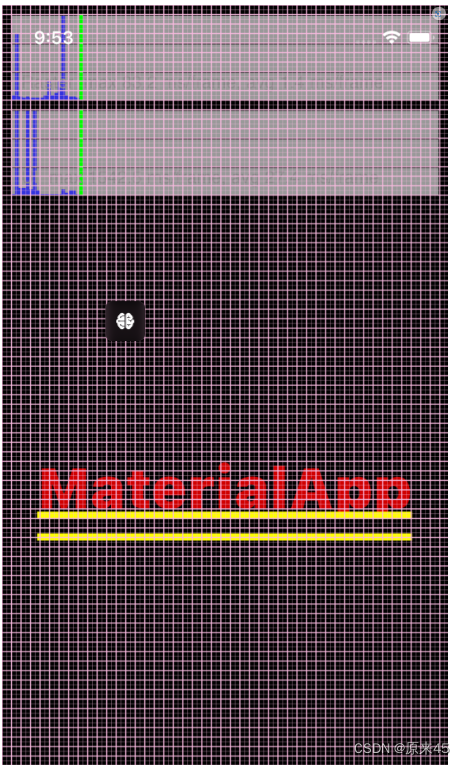
2. 脚手架 Scaffold
2.1 定义
Scaffold 是一个页面布局脚手架,实现了基本的 Material 布局,继承自 StatefulWidget,是有状态组件。我们知道大部分的应用页面都是含有标题栏,主体内容,底部导航菜单或者侧滑抽屉菜单等等构成,那么每次都重复写这些内容会大大降低开发效率,所以 Flutter 提供了 Material 风格的 Scaffold 页面布局脚手架,可以很快地搭建出这些元素部分
对应 ios 的是 CupertinoPageScaffold
Scaffold class - material library - Dart API
CupertinoPageScaffold class - cupertino library - Dart API
2.2 Scaffold 的属性
以下是
Scaffold组件的一些常用属性:- appBar:即顶栏,可以包含标题、导航按钮、动作按钮等
- body:应用的主体部分,显示页面的主要内容
- bottomNavigationBar:底部导航栏,用于页面间的切换
- floatingActionButton:浮动操作按钮,通常用于表示主要操作,如添加或编辑
- drawer:侧边栏菜单,用于导航到不同的页面或显示其他选项
- backgroundColor:背景颜色
- resizeToAvoidBottomInset:控制应用在有键盘弹出时是否调整布局以避免遮挡输入框
- const Scaffold({
- Key key,
- // 菜单栏
- this.appBar,
- // 中间主体内容部分
- this.body,
- // 悬浮按钮
- this.floatingActionButton,
- // 悬浮按钮位置
- this.floatingActionButtonLocation,
- // 悬浮按钮动画
- this.floatingActionButtonAnimator,
- // 固定在下方显示的按钮
- this.persistentFooterButtons,
- // 左侧 侧滑抽屉菜单
- this.drawer,
- // 右侧 侧滑抽屉菜单
- this.endDrawer,
- // 底部菜单
- this.bottomNavigationBar,
- // 底部拉出菜单
- this.bottomSheet,
- // 背景色
- this.backgroundColor,
- // 自动适应底部padding
- this.resizeToAvoidBottomPadding,
- // 重新计算body布局空间大小,避免被遮挡
- this.resizeToAvoidBottomInset,
- // 是否显示到底部,默认为true将显示到顶部状态栏
- this.primary = true,
- this.drawerDragStartBehavior = DragStartBehavior.down,
- })
2.3 示例
代码
- import 'package:flutter/gestures.dart';
- import 'package:flutter/material.dart';
- // class CupertinoPage extends StatelessWidget {
- // const CupertinoPage({Key? key}) : super(key: key);
- // @override
- // Widget build(BuildContext context) {
- // return const CupertinoPageScaffold(
- // navigationBar: CupertinoNavigationBar(
- // middle: Text('我是标题'),
- // ),
- // child: Center(
- // child: Text('我是内容'),
- // ),
- // );
- // }
- // }
- class ScaffoldPage extends StatelessWidget {
- const ScaffoldPage({Key? key}) : super(key: key);
- @override
- Widget build(BuildContext context) {
- return Scaffold(
- // 菜单栏
- appBar: AppBar(
- title: const Text('Material App Bar'),
- ),
- // 悬浮按钮
- // floatingActionButton: FloatingActionButton(
- // onPressed: () {},
- // child: const Icon(Icons.add_photo_alternate),
- // ),
- // 悬浮按钮位置
- // floatingActionButtonLocation: FloatingActionButtonLocation.centerFloat,
- // 固定在下方显示的按钮
- // persistentFooterButtons: const [
- // Text('persistentFooterButtons1'),
- // Text('persistentFooterButtons2'),
- // ],
- // 压缩顶部菜单空间
- // primary: true,
- // 左侧 侧滑抽屉菜单
- // drawer: const Drawer(
- // child: Text('data'),
- // ),
- // 右侧 侧滑抽屉菜单
- // endDrawer: const Drawer(
- // child: Text('data'),
- // ),
- // 检测手势行为方式,与drawer配合使用 down 方式有卡顿,可以 start 方式
- // drawerDragStartBehavior: DragStartBehavior.start,
- // 底部导航栏
- // bottomNavigationBar: const Text('bottomNavigationBar'),
- // 底部拉出菜单
- // bottomSheet: const Text('bottomSheet'),
- // 背景色
- // backgroundColor: Colors.amberAccent,
- // 自动适应底部padding
- // resizeToAvoidBottomInset: true,
- // 正文
- body: Builder(
- builder: (BuildContext context) {
- return Center(
- child: ElevatedButton(
- onPressed: () {
- // 脚手架管理
- // Scaffold.of(context).openDrawer();
- // 应用消息管理
- ScaffoldMessenger.of(context).showSnackBar(const SnackBar(
- content: Text('Hello!'),
- ));
- },
- child: const Text('showSnackBar'),
- ),
- );
- },
- ),
- );
- }
- }
输出
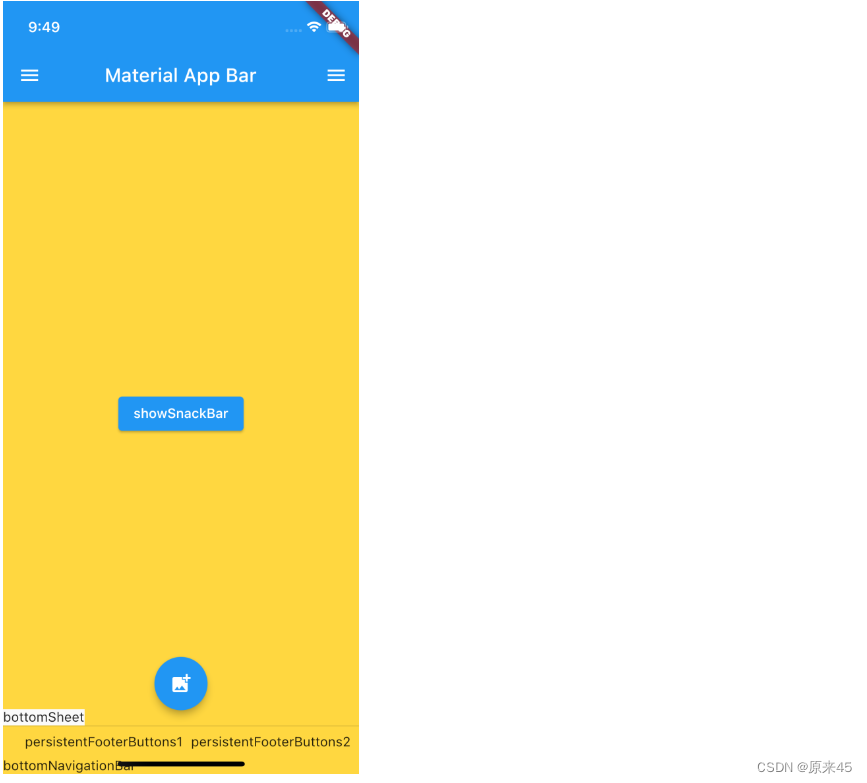
PS: 对于 Scaffold 和 MaterialApp
MaterialApp是整个应用的根组件,它提供了应用的基础配置和框架。它承担了设定应用主题、路由以及其他全局配置的责任Scaffold是用来构建单个页面的布局框架。它提供了一个包含顶栏、底部导航栏、浮动按钮和主体内容的基本结构3. 线性布局 Column Row
3.1 Row
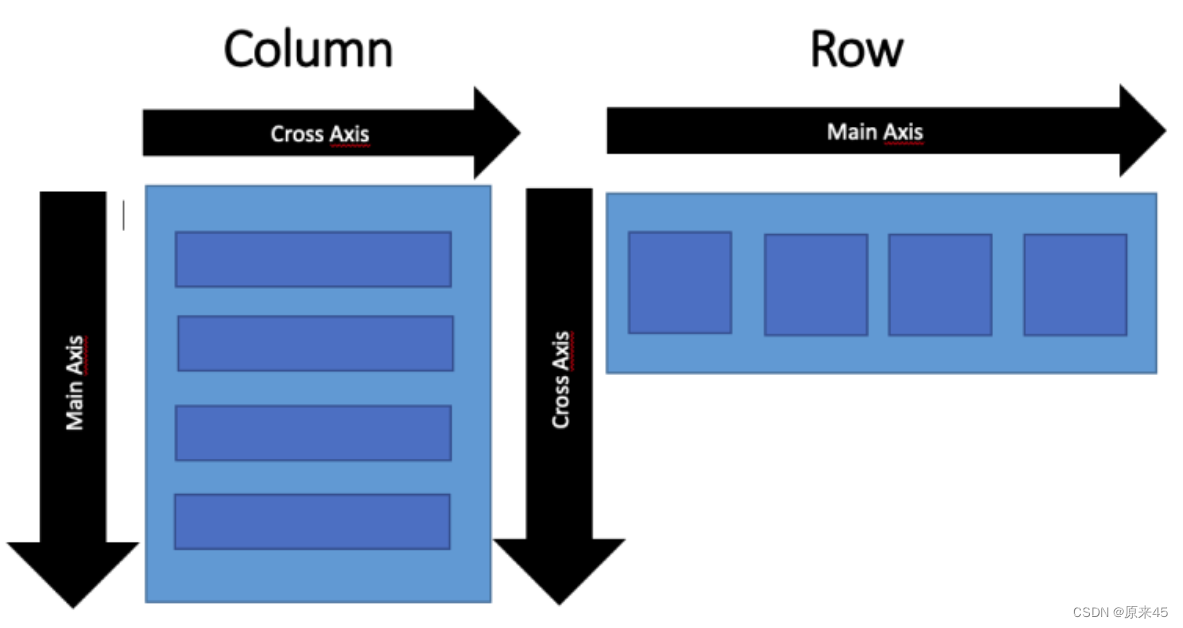
Row 布局组件类似于 Android 中的 LinearLayout 线性布局,它用来做水平横向布局使用,里面的 children 子元素按照水平方向进行排列。
Row class - widgets library - Dart API
定义
- Row({
- Key key,
- // * 子元素集合
- List
children = const [], - // 主轴方向上的对齐方式(Row的主轴是横向轴)
- MainAxisAlignment mainAxisAlignment = MainAxisAlignment.start,
- // 在主轴方向(Row的主轴是横向轴)占有空间的值,默认是max
- MainAxisSize mainAxisSize = MainAxisSize.max,
- // 在交叉轴方向(Row是纵向轴)的对齐方式,Row的高度等于子元素中最高的子元素高度
- CrossAxisAlignment crossAxisAlignment = CrossAxisAlignment.center,
- // 水平方向子元素的排列方向:从左到右排列还是反向
- TextDirection textDirection,
- // 表示纵轴(垂直)的对齐排列方向,默认是VerticalDirection.down,表示从上到下。这个参数一般用于Column组件里
- VerticalDirection verticalDirection = VerticalDirection.down,
- // 字符对齐基线方式
- TextBaseline textBaseline,
- })
MainAxisAlignment
主轴属性:主轴方向上的对齐方式,Row 是横向轴为主轴
- enum MainAxisAlignment {
- // 按照主轴起点对齐,例如:按照靠近最左侧子元素对齐
- start,
- // 将子元素放置在主轴的末尾,按照末尾对齐
- end,
- // 子元素放置在主轴中心对齐
- center,
- // 将主轴方向上的空白区域均分,使得子元素之间的空白区域相等,首尾子元素都靠近首尾,没有间隙。有点类似于两端对齐
- spaceBetween,
- // 将主轴方向上的空白区域均分,使得子元素之间的空白区域相等,但是首尾子元素的空白区域为1/2
- spaceAround,
- // 将主轴方向上的空白区域均分,使得子元素之间的空白区域相等,包括首尾子元素
- spaceEvenly,
- }
CrossAxisAlignment
交叉属性:在交叉轴方向的对齐方式,Row 是纵向轴。Row 的高度等于子元素中最高的子元素高度
- enum CrossAxisAlignment {
- // 子元素在交叉轴上起点处展示
- start,
- // 子元素在交叉轴上末尾处展示
- end,
- // 子元素在交叉轴上居中展示
- center,
- // 让子元素填满交叉轴方向
- stretch,
- // 在交叉轴方向,使得子元素按照baseline对齐
- baseline,
- }
MainAxisSize
在主轴方向子元素占有空间的方式,Row 的主轴是横向轴。默认是 max
- enum MainAxisSize {
- // 根据传入的布局约束条件,最大化主轴方向占用可用空间,也就是尽可能充满可用宽度
- max,
- // 与max相反,是最小化占用主轴方向的可用空间
- min,
- }
3.2 Column
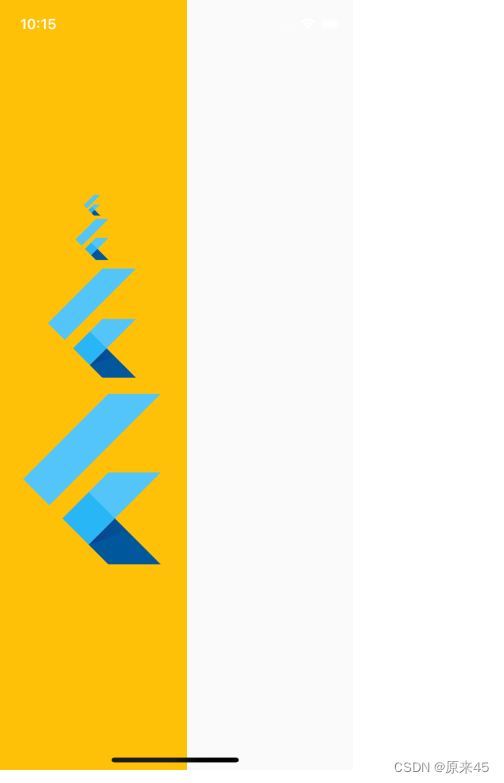
Column 是纵向排列子元素
参数用法同上
Column class - widgets library - Dart API
代码
- @override
- Widget build(BuildContext context) {
- return Scaffold(
- body: Container(
- color: Colors.amber,
- child: Column(
- mainAxisAlignment: MainAxisAlignment.center,
- crossAxisAlignment: CrossAxisAlignment.center,
- // mainAxisSize: MainAxisSize.min,
- children: const [
- FlutterLogo(
- size: 24,
- ),
- FlutterLogo(
- size: 48,
- ),
- FlutterLogo(
- size: 128,
- ),
- FlutterLogo(
- size: 200,
- ),
- ],
- ),
- ),
- );
- }
输出
4. 盒模型 Box Model
Flutter 布局是混入了 RenderBox 特性,我们来了解下什么是盒模型
4.1 定义
盒子模型在 web 中是基础,所以本文参考了 mozilla w3schools
https://developer.mozilla.org/zh-CN/docs/Learn/CSS/Building_blocks/The_box_model

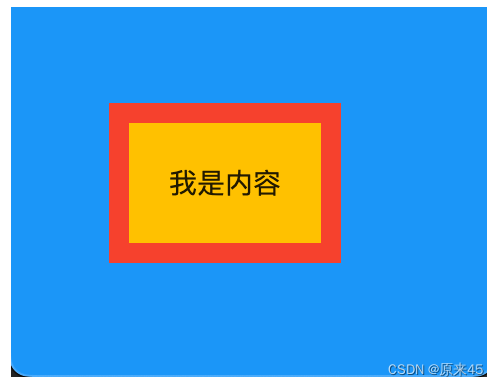
不同部分的说明:
- Margin(外边距) - 边框意外的距离。
- Border(边框) - 围绕在内边距和内容外的边框。
- Padding(内边距) - 边框内部到内容的距离。
- Content(内容) - 盒子的内容,显示文本和图像。
4.2 示例
代码
- class BoxPage extends StatelessWidget {
- const BoxPage({Key? key}) : super(key: key);
- @override
- Widget build(BuildContext context) {
- return Scaffold(
- backgroundColor: Colors.blue,
- body: Container(
- // color: Colors.amber,
- // Margin(外边距)
- margin: const EdgeInsets.all(50),
- // Padding(内边距)
- padding: const EdgeInsets.all(20),
- // Content(内容)
- child: const Text("我是内容"),
- // 装饰样式
- decoration: BoxDecoration(
- // 背景色
- color: Colors.amber,
- // 边框
- border: Border.all(
- color: Colors.red,
- width: 10,
- ),
- ),
- ),
- );
- }
- }
输出
5. 容器 Container
5.1 定义
Container 是一个组合类容器,它本身不对应具体的 RenderObject,它是 DecoratedBox、ConstrainedBox、Transform、Padding、Align 等组件组合的一个多功能容器,所以我们只需通过一个 Container 组件可以实现同时需要装饰、变换、限制的场景
Container class - widgets library - Dart API
下面是 Container 的定义:
- Container({
- Key key,
- // 容器子Widget对齐方式
- this.alignment,
- // 容器内部padding
- this.padding,
- // 背景色
- Color color,
- // 背景装饰
- Decoration decoration,
- // 前景装饰
- this.foregroundDecoration,
- // 容器的宽度
- double width,
- // 容器的高度
- double height,
- // 容器大小的限制条件
- BoxConstraints constraints,
- // 容器外部margin
- this.margin,
- // 变换,如旋转
- this.transform,
- // 容器内子Widget
- this.child,
- })
BoxDecoration 装饰
- const BoxDecoration({
- // 背景色
- this.color,
- // 背景图片
- this.image,
- // 边框样式
- this.border,
- // 边框圆角
- this.borderRadius,
- // 阴影
- this.boxShadow,
- // 渐变
- this.gradient,
- // 背景混合模式
- this.backgroundBlendMode,
- // 形状
- this.shape = BoxShape.rectangle,
- })
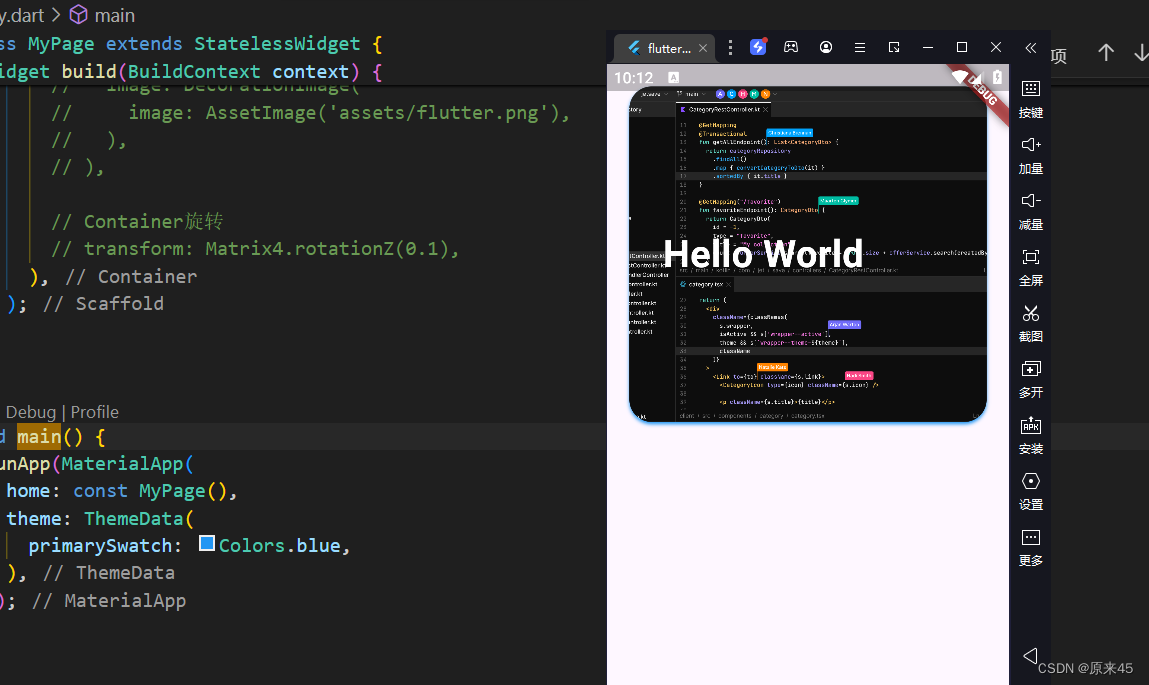
5.2 示例
代码
- import 'package:flutter/material.dart';
- const img1 =
- "https://ducafecat.tech/2021/12/09/blog/2021-jetbrains-fleet-vs-vscode/2021-12-09-10-30-00.png";
- class MyPage extends StatelessWidget {
- const MyPage({Key? key}) : super(key: key);
- @override
- Widget build(BuildContext context) {
- return Scaffold(
- body: Container(
- // 约束父容器
- constraints: const BoxConstraints.expand(
- height: 300.0,
- ),
- // 外边距
- margin: const EdgeInsets.all(20.0),
- // 内边距
- padding: const EdgeInsets.all(30.0),
- // 背景色
- // color: Colors.teal.shade700,
- // 子Widget居中
- alignment: Alignment.centerLeft,
- // 子Widget元素
- child: Text(
- 'Hello World',
- style: TextStyle(
- fontSize: 34,
- fontWeight: FontWeight.bold,
- color: Colors.white,
- ),
- ),
- // 背景装饰
- decoration: const BoxDecoration(
- // 背景色
- color: Colors.blueAccent,
- // 圆角
- borderRadius: BorderRadius.all(
- Radius.circular(20.0),
- ),
- // 渐变
- // gradient: RadialGradient(
- // colors: [Colors.red, Colors.orange],
- // center: Alignment.topLeft,
- // radius: .98,
- // ),
- // 阴影
- boxShadow: [
- BoxShadow(
- blurRadius: 2,
- offset: Offset(0, 2),
- color: Colors.blue,
- ),
- ],
- // 背景图
- image: DecorationImage(
- image: NetworkImage(img1),
- fit: BoxFit.cover,
- ),
- // 背景混合模式
- backgroundBlendMode: BlendMode.color,
- // 形状
- // shape: BoxShape.circle,
- ),
- // 前景装饰
- // foregroundDecoration: BoxDecoration(
- // image: DecorationImage(
- // image: AssetImage('assets/flutter.png'),
- // ),
- // ),
- // Container旋转
- // transform: Matrix4.rotationZ(0.1),
- ),
- );
- }
- }
- void main() {
- runApp(MaterialApp(
- home: const MyPage(),
- theme: ThemeData(
- primarySwatch: Colors.blue,
- ),
- ));
- }
6. 弹性布局 Flex
弹性布局允许子组件按照一定比例来分配父容器空间。
Flex class - widgets library - Dart API
6.1 Flex
我们可以发现 Column Row 组件都是继承与 Flex,功能非常强大,通常我们直接用 Column Row 即可
flutter/lib/src/widgets/basic.dart
- /// * [Row], for a horizontal equivalent.
- /// * [Flex], if you don't know in advance if you want a horizontal or vertical
- /// arrangement.
- /// * [Expanded], to indicate children that should take all the remaining room.
- /// * [Flexible], to indicate children that should share the remaining room but
- /// that may size smaller (leaving some remaining room unused).
- /// * [SingleChildScrollView], whose documentation discusses some ways to
- /// use a [Column] inside a scrolling container.
- /// * [Spacer], a widget that takes up space proportional to its flex value.
- /// * The [catalog of layout widgets](https://flutter.dev/widgets/layout/).
- class Column extends Flex {
- ...
6.2 Expanded
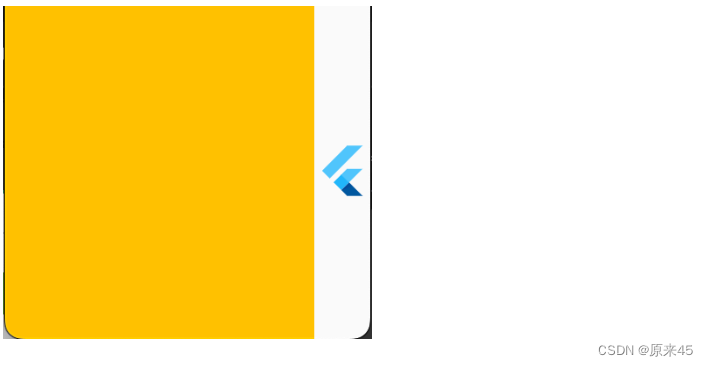
Expanded 只能放在 Flex、Column、Row 中使用
把包裹的元素撑开
代码
- class FlexPage extends StatelessWidget {
- const FlexPage({Key? key}) : super(key: key);
- @override
- Widget build(BuildContext context) {
- return Scaffold(
- body: Row(
- children: [
- Expanded(
- child: Container(
- color: Colors.amber,
- ),
- ),
- const FlutterLogo(
- size: 32,
- ),
- ],
- ),
- );
- }
- }
输出
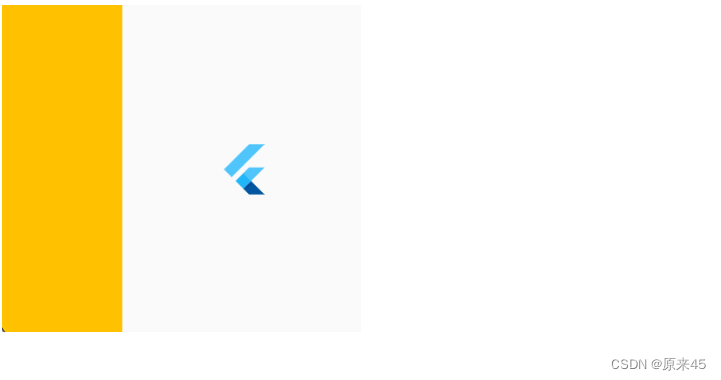
Flex 属性调整比例
代码
- children: [
- Expanded(
- flex: 1,
- child: Container(
- color: Colors.amber,
- ),
- ),
- const Expanded(
- flex: 2,
- child: FlutterLogo(
- size: 32,
- ),
- ),
- ],
输出
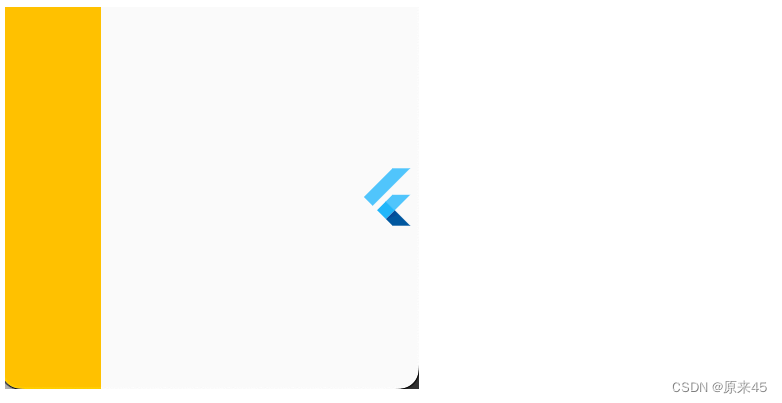
6.3 留白 Spacer
留白撑开,很适合用在标题按钮的场景中
代码
- children: [
- Container(
- width: 50,
- color: Colors.amber,
- ),
- const Spacer(),
- const FlutterLogo(
- size: 32,
- ),
- ],
输出
7. 层叠布局 Stack
7.1 Stack
Stack 允许子组件堆叠
Stack class - widgets library - Dart API
定义
- Stack({
- Key key,
- // 对齐方式,默认是左上角(topStart)
- this.alignment = AlignmentDirectional.topStart,
- // 对齐方向
- this.textDirection,
- // 定义如何设置无定位子元素尺寸,默认为loose
- this.fit = StackFit.loose,
- // 对超出 Stack 显示空间的部分如何剪裁
- this.clipBehavior = Clip.hardEdge,
- // 子元素
- List
children = const [], - })
7.2 Positioned
根据 Stack 的四个角来确定子组件的位置
定义
- const Positioned({
- Key key,
- this.left, // 上下左右位置
- this.top,
- this.right,
- this.bottom,
- this.width, // 宽高
- this.height,
- @required Widget child,
- })
7.3 示例
代码
- import 'package:flutter/material.dart';
- class StackPage extends StatelessWidget {
- const StackPage({Key? key}) : super(key: key);
- @override
- Widget build(BuildContext context) {
- return Scaffold(
- body: SizedBox(
- width: 300,
- height: 300,
- child: Stack(
- // 居中对齐
- alignment: Alignment.center,
- // 子元素溢出, none 不裁剪
- clipBehavior: Clip.none,
- // 子元素层叠放
- children: [
- // 三个色块
- Container(
- width: 300,
- height: 300,
- color: Colors.amber,
- ),
- Container(
- width: 200,
- height: 200,
- color: Colors.blue,
- ),
- Container(
- width: 100,
- height: 100,
- color: Colors.green,
- ),
- // 绝对定位
- const Positioned(
- left: 0,
- bottom: -50,
- child: FlutterLogo(size: 100),
- ),
- ],
- ),
- ),
- );
- }
- }
输出

8. 流式布局 Wrap
用 Row 的时候可以发现子元素不会自动换行,这时候就需要 Wrap 了。
Wrap class - widgets library - Dart API
8.1 定义
- Wrap({
- this.direction = Axis.horizontal,
- // 主轴方向的对齐方式
- this.alignment = WrapAlignment.start,
- // 主轴方向子widget的间距
- this.spacing = 0.0,
- // 纵轴方向的对齐方式
- this.runAlignment = WrapAlignment.start,
- // 纵轴方向的间距
- this.runSpacing = 0.0,
- // 交叉轴对齐方式
- this.crossAxisAlignment = WrapCrossAlignment.start,
- this.textDirection,
- this.verticalDirection = VerticalDirection.down,
- List
children = const [], - })
8.2 示例
代码
- import 'package:flutter/material.dart';
- class WrapPage extends StatelessWidget {
- const WrapPage({Key? key}) : super(key: key);
- @override
- Widget build(BuildContext context) {
- return Scaffold(
- body: Wrap(
- // 主轴方向子widget的间距
- spacing: 10,
- // 纵轴方向的间距
- runSpacing: 100,
- // 主轴方向的对齐方式
- alignment: WrapAlignment.start,
- children: const [
- FlutterLogo(size: 100),
- FlutterLogo(size: 100),
- FlutterLogo(size: 100),
- FlutterLogo(size: 100),
- FlutterLogo(size: 100),
- FlutterLogo(size: 100),
- ],
- ),
- );
- }
- }
输出

9. 对齐定位 Align
调整子元素在父元素的位置
Align class - widgets library - Dart API
9.1 Align
定义
- Align({
- Key key,
- // 需要一个AlignmentGeometry类型的值
- // AlignmentGeometry 是一个抽象类,
- // 它有两个常用的子类:Alignment和 FractionalOffset
- this.alignment = Alignment.center,
- // 两个缩放因子
- // 会分别乘以子元素的宽、高,最终的结果就是 Align 组件的宽高
- this.widthFactor,
- this.heightFactor,
- Widget child,
- })
代码
- import 'package:flutter/material.dart';
- class AlignPage extends StatelessWidget {
- const AlignPage({Key? key}) : super(key: key);
- @override
- Widget build(BuildContext context) {
- return const Scaffold(
- body: Align(
- widthFactor: 2,
- heightFactor: 2,
- alignment: Alignment.bottomLeft,
- child: FlutterLogo(
- size: 50,
- ),
- ),
- );
- }
- }
输出
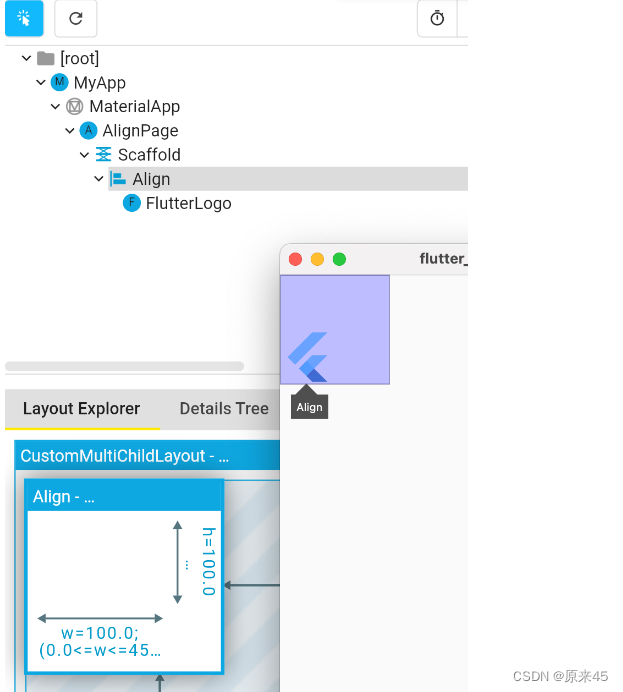
可以发现,Align 的高宽=子元素高宽*高宽因子factor,如果 null 采用父元素高度约束
9.2 Alignment
Alignment 是从 Align 的中心点出发
定义
- /// The top left corner.
- static const Alignment topLeft = Alignment(-1.0, -1.0);
- /// The center point along the top edge.
- static const Alignment topCenter = Alignment(0.0, -1.0);
- /// The top right corner.
- static const Alignment topRight = Alignment(1.0, -1.0);
- /// The center point along the left edge.
- static const Alignment centerLeft = Alignment(-1.0, 0.0);
- /// The center point, both horizontally and vertically.
- static const Alignment center = Alignment(0.0, 0.0);
- /// The center point along the right edge.
- static const Alignment centerRight = Alignment(1.0, 0.0);
- /// The bottom left corner.
- static const Alignment bottomLeft = Alignment(-1.0, 1.0);
- /// The center point along the bottom edge.
- static const Alignment bottomCenter = Alignment(0.0, 1.0);
- /// The bottom right corner.
- static const Alignment bottomRight = Alignment(1.0, 1.0);
Alignment(-1.0, -1.0) 标识从中心点出发,左上角
代码
- ...
- return const Scaffold(
- body: Align(
- alignment: Alignment(-1, -1),
- child: FlutterLogo(
- size: 50,
- ),
- ),
- );
输出
Alignment.topLeft == Alignment(-1, -1) ,用哪种方式都可以

9.3 FractionalOffset
这种方式是固定从左上角出发
代码
- ...
- @override
- Widget build(BuildContext context) {
- return const Scaffold(
- body: Align(
- alignment: FractionalOffset(0.5, 0.1),
- child: FlutterLogo(
- size: 50,
- ),
- ),
- );
- }
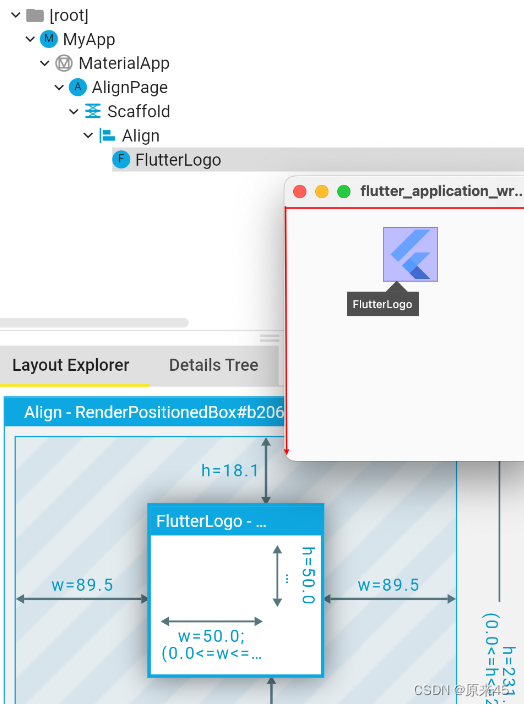
用 FractionalOffset 对象,输入 0~1 的比例值
输出
9.4 Center
Center 是集成了 Align 对象,默认 alignment=Alignment.center
Center 定义, 少了一个 alignment 参数
- class Center extends Align {
- /// Creates a widget that centers its child.
- const Center({ Key? key, double? widthFactor, double? heightFactor, Widget? child })
- : super(key: key, widthFactor: widthFactor, heightFactor: heightFactor, child: child);
- }
然后 Align 定义, 默认了 this.alignment = Alignment.center,
- class Align extends SingleChildRenderObjectWidget {
- /// Creates an alignment widget.
- ///
- /// The alignment defaults to [Alignment.center].
- const Align({
- Key? key,
- this.alignment = Alignment.center,
- this.widthFactor,
- this.heightFactor,
- Widget? child,
- }) : assert(alignment != null),
- assert(widthFactor == null || widthFactor >= 0.0),
- assert(heightFactor == null || heightFactor >= 0.0),
- super(key: key, child: child);
代码
- ...
- @override
- Widget build(BuildContext context) {
- return const Scaffold(
- body: Center(
- child: FlutterLogo(
- size: 50,
- ),
- ),
- );
- }
输出

创作不易,希望读者三连支持 💖
赠人玫瑰,手有余香 💖 -
相关阅读:
WEB3-众筹合约
unity urp 实现衣服绒毛效果
Lecture 3 Process Concept(进程概念)
Python Selenium 基本使用(详细步骤)
java毕业生设计大学生社团管理系统计算机源码+系统+mysql+调试部署+lw
实习记录(一):MySQL时间偏差问题的发现与解决
hi3559AV100调试记录
数据科学家是不是特有前途的职业?
Partially ordered set
Java排序算法(三):插入排序
- 原文地址:https://blog.csdn.net/weixin_62700590/article/details/139447461