-
python编程:创建 SQLite 数据库和表的图形用户界面应用程序
在本文中,我将介绍如何使用
wxPython模块创建一个图形用户界面(GUI)应用程序,该应用程序允许用户选择 SQLite 数据库的存放路径、数据库名称、表名称,并动态添加字段及其类型。以下是具体的实现步骤和代码示例。
C:\pythoncode\new\sqlitegenerator.py环境准备
首先,确保你已经安装了
wxPython和sqlite3模块。你可以使用以下命令安装wxPython:pip install wxPython代码实现
下面是完整的代码实现:
import wx
import sqlite3
import os

class SQLiteDBCreator(wx.Frame):
    def __init__(self, parent, title):
        super(SQLiteDBCreator, self).__init__(parent, title=title, size=(600, 500))

        self.panel = wx.Panel(self)

        vbox = wx.BoxSizer(wx.VERTICAL)

        # Database Path
        hbox1 = wx.BoxSizer(wx.HORIZONTAL)
        self.db_path_text = wx.TextCtrl(self.panel)
        db_path_btn = wx.Button(self.panel, label='Select Path')
        db_path_btn.Bind(wx.EVT_BUTTON, self.on_select_path)
        hbox1.Add(self.db_path_text, proportion=1, flag=wx.EXPAND|wx.ALL, border=5)
        hbox1.Add(db_path_btn, flag=wx.ALL, border=5)

        # Database Name
        hbox2 = wx.BoxSizer(wx.HORIZONTAL)
        db_name_lbl = wx.StaticText(self.panel, label="Database Name:")
        self.db_name_text = wx.TextCtrl(self.panel)
        hbox2.Add(db_name_lbl, flag=wx.ALL, border=5)
        hbox2.Add(self.db_name_text, proportion=1, flag=wx.EXPAND|wx.ALL, border=5)

        # Table Name
        hbox3 = wx.BoxSizer(wx.HORIZONTAL)
        table_name_lbl = wx.StaticText(self.panel, label="Table Name:")
        self.table_name_text = wx.TextCtrl(self.panel)
        hbox3.Add(table_name_lbl, flag=wx.ALL, border=5)
        hbox3.Add(self.table_name_text, proportion=1, flag=wx.EXPAND|wx.ALL, border=5)

        # Fields List
        self.fields_panel = wx.Panel(self.panel)
        self.fields_sizer = wx.BoxSizer(wx.VERTICAL)
        self.fields_panel.SetSizer(self.fields_sizer)

        add_field_btn = wx.Button(self.panel, label="Add Field")
        add_field_btn.Bind(wx.EVT_BUTTON, self.on_add_field)

        # Create Button
        create_btn = wx.Button(self.panel, label='Create Database and Table')
        create_btn.Bind(wx.EVT_BUTTON, self.on_create_db)

        # Add to vbox
        vbox.Add(hbox1, flag=wx.EXPAND)
        vbox.Add(hbox2, flag=wx.EXPAND)
        vbox.Add(hbox3, flag=wx.EXPAND)
        vbox.Add(self.fields_panel, proportion=1, flag=wx.EXPAND|wx.ALL, border=5)
        vbox.Add(add_field_btn, flag=wx.ALL|wx.CENTER, border=10)
        vbox.Add(create_btn, flag=wx.ALL|wx.CENTER, border=10)

        self.panel.SetSizer(vbox)

        self.Centre()
        self.Show()

    def on_select_path(self, event):
        with wx.DirDialog(self, "Choose database save directory", "", wx.DD_DEFAULT_STYLE) as dirDialog:
            if dirDialog.ShowModal() == wx.ID_OK:
                self.db_path_text.SetValue(dirDialog.GetPath())

    def on_add_field(self, event):
        hbox = wx.BoxSizer(wx.HORIZONTAL)

        field_name_text = wx.TextCtrl(self.fields_panel)
        field_type_choice = wx.Choice(self.fields_panel, choices=["INTEGER", "TEXT", "REAL", "BLOB"])

        hbox.Add(field_name_text, proportion=1, flag=wx.EXPAND|wx.ALL, border=5)
        hbox.Add(field_type_choice, proportion=1, flag=wx.EXPAND|wx.ALL, border=5)

        self.fields_sizer.Add(hbox, flag=wx.EXPAND)
        self.fields_panel.Layout()
        self.panel.Layout()

    def on_create_db(self, event):
        db_path = self.db_path_text.GetValue()
        db_name = self.db_name_text.GetValue()
        table_name = self.table_name_text.GetValue()

        if not db_path or not db_name or not table_name:
            wx.MessageBox('Database path, name, and table name are required', 'Error', wx.OK | wx.ICON_ERROR)
            return

        fields = []
        for hbox in self.fields_sizer.GetChildren():
            field_name_text = hbox.GetSizer().GetChildren()[0].GetWindow()
            field_type_choice = hbox.GetSizer().GetChildren()[1].GetWindow()
            field_name = field_name_text.GetValue()
            field_type = field_type_choice.GetString(field_type_choice.GetSelection())
            if field_name and field_type:
                fields.append(f"{field_name} {field_type}")

        if not fields:
            wx.MessageBox('At least one field is required', 'Error', wx.OK | wx.ICON_ERROR)
            return

        db_full_path = os.path.join(db_path, db_name)

        try:
            conn = sqlite3.connect(db_full_path)
            cursor = conn.cursor()

            create_table_query = f"CREATE TABLE {table_name} ({', '.join(fields)})"
            cursor.execute(create_table_query)

            conn.commit()
            conn.close()

            wx.MessageBox('Database and table created successfully', 'Success', wx.OK | wx.ICON_INFORMATION)
        except sqlite3.Error as e:
            wx.MessageBox(f"An error occurred: {e}", 'Error', wx.OK | wx.ICON_ERROR)

if __name__ == '__main__':
    app = wx.App(False)
    frame = SQLiteDBCreator(None, "SQLite Database Creator")
    app.MainLoop()
功能简介
- 选择数据库存放路径:通过点击“Select Path”按钮,用户可以选择数据库文件的存放目录。
- 设置数据库名称:用户可以输入数据库名称。
- 设置表名称:用户可以输入表名称。
- 添加字段:用户可以动态添加任意数量的字段,每个字段包含字段名称和字段类型(从下拉框中选择)。
- 创建数据库和表:点击“Create Database and Table”按钮,根据用户输入的信息创建 SQLite 数据库和表。
使用指南
- 运行程序后,首先选择数据库文件的存放路径。
- 输入数据库名称和表名称。
- 点击“Add Field”按钮添加字段,并为每个字段设置名称和类型。
- 添加完所有字段后,点击“Create Database and Table”按钮创建数据库和表。
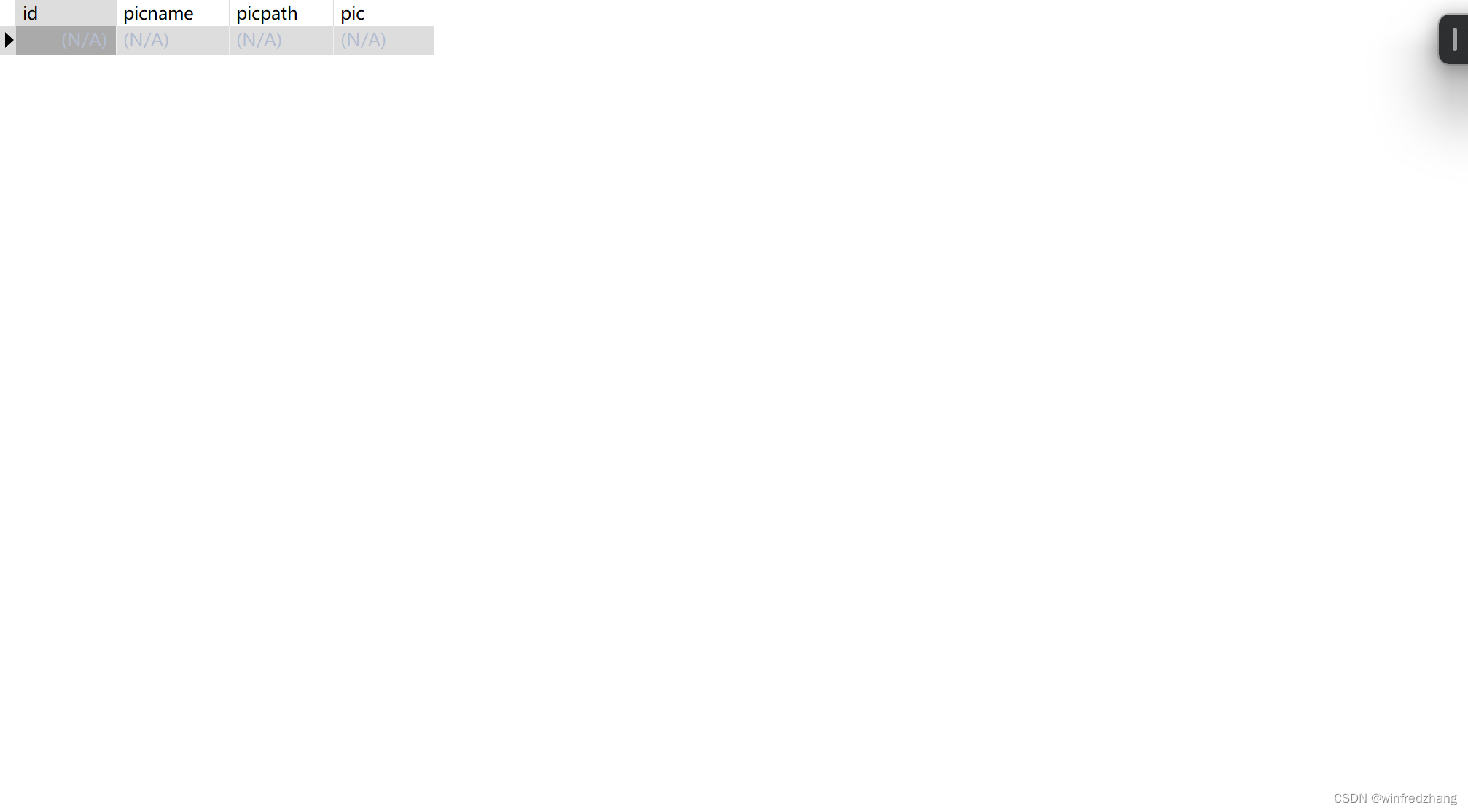
结果如下:

总结
通过本篇博客介绍的代码示例,你可以轻松创建一个功能完善的 GUI 应用程序,用于动态创建 SQLite 数据库和表。这不仅提高了用户体验,还简化了数据库管理的流程。如果你有任何问题或建议,欢迎在评论区留言。
-
相关阅读:
1110 Complete Binary Tree
(附源码)php柘城县农产品销售网站 毕业设计 020832
lower_bound() VS upper_bound()
Dubbo & Zookeeper
A Philosophy of Software Design读书笔记——异常处理
JSQLParser用于解析SQL语句并创建抽象语法树(AST)
手把手教你如何通过Java给图片添加文字和图片水印
算法基础之二分查找
QtCreator5.15.0编译全过程记录
【动态规划】C++ dp子数组问题(最大/最长:环形/子数组和、乘积最大/为正数、单词拆分、子串)
- 原文地址:https://blog.csdn.net/winniezhang/article/details/139365052