背景
我们有些工具在 Web 版中已经有了很好的实践,而在 WPF 中重新开发也是一种费时费力的操作,那么直接集成则是最省事省力的方法了。
思路解释
- 为什么要使用 WPF?莫问为什么,老 C# 开发的坚持,另外因为 Windows 上已经装了 Webview2/edge 整体打包比 electron 小很多,release 后的体积主要是 ASP.NET Core 的文件。
- 为什么要使用 ASP.NET Core 进行代理呢?很简单,因为很多操作要求使用 HTTP Context,在类似
file:///的链接下是不能使用的,如果做成联网的有些资源进行跨域请求也是不能的。举个很简单的例子,vite 打包后的 SPA 如果直接点开那么里面打包的 ES Module 的文件全部不允许请求。 - 那你这个项目不联网能用吗?看你的需求了,不联网当然能用,这里集成的 SPA 不一定全部都得是完整的 SPA,整套集成如果客户在有网的环境下可以直接引用网页的 URL 就好了。比如我们要用 monaco-editor 或者其他的文字编辑器又或者是 3D 编辑器,在 C# 上找不到或不好找到类似的库,那么集成 npm 上现成的库就是最佳选择。
修改项目文件
我们首先修改项目文件,让 WPF 项目可以包含 ASP.NET Core 的库,以及引用 WebView2 控件。
<Project Sdk="Microsoft.NET.Sdk">

  <PropertyGroup>
	<OutputType>WinExeOutputType>
	<TargetFramework>net8.0-windowsTargetFramework>
	<Nullable>enableNullable>
	<ImplicitUsings>enableImplicitUsings>
	<UseWPF>trueUseWPF>
  PropertyGroup>

  <ItemGroup>

	<PackageReference Include="Microsoft.Web.WebView2" Version="1.0.2478.35" />

	<FrameworkReference Include="Microsoft.AspNetCore.App" />
  ItemGroup>

  <ItemGroup>

	<None Update="wwwroot\**">
	  <CopyToOutputDirectory>AlwaysCopyToOutputDirectory>
	None>
  ItemGroup>

Project>
修改 App.xaml 和 App.xaml.cs 以使用 ASP.NET Core 的 WebApplication.CreateBuilder()
这里为了全局使用依赖注入,我们将 WebApplication.CreateBuilder() 放在 App.xaml.cs 中全局使用。为了使用依赖注入应注释掉默认启动窗口,并接管 Startup 事件。
然后通过修改 Startup 事件的代码来实现相应的加载动作。
using Microsoft.AspNetCore.Builder;
using Microsoft.AspNetCore.StaticFiles;
using Microsoft.Extensions.DependencyInjection;
using System.Windows;
namespace WpfAircraftViewer
{
/// ();
builder.Services.AddSingleton(this);
var app = builder.Build();
// 这里是文件类型映射,如果你的静态文件在浏览器中加载报 404,那么需要在这里注册,这里我加载一个 3D 场景文件的类型
var contentTypeProvider = new FileExtensionContentTypeProvider();
contentTypeProvider.Mappings[".glb"] = "model/gltf-binary";
app.UseStaticFiles(new StaticFileOptions
{
ContentTypeProvider = contentTypeProvider,
});
// 你如果使用了 Vue Router 或者其他前端路由了,需要在这里添加这句话让路由返回前端,而不是 ASP.NET Core 处理
app.MapFallbackToFile("/index.html");
WebApplication = app;
// 处理退出事件,退出 App 时关闭 ASP.NET Core
Exit += async (s, e) => await WebApplication.StopAsync();
// 显示主窗口
MainWindow = app.Services.GetRequiredService();
MainWindow.Show();
await app.RunAsync().ConfigureAwait(false);
}
}
}
此时,我们已经可以正常开启一个默认界面的 MainWindow 了。
使用 WebView2 控件
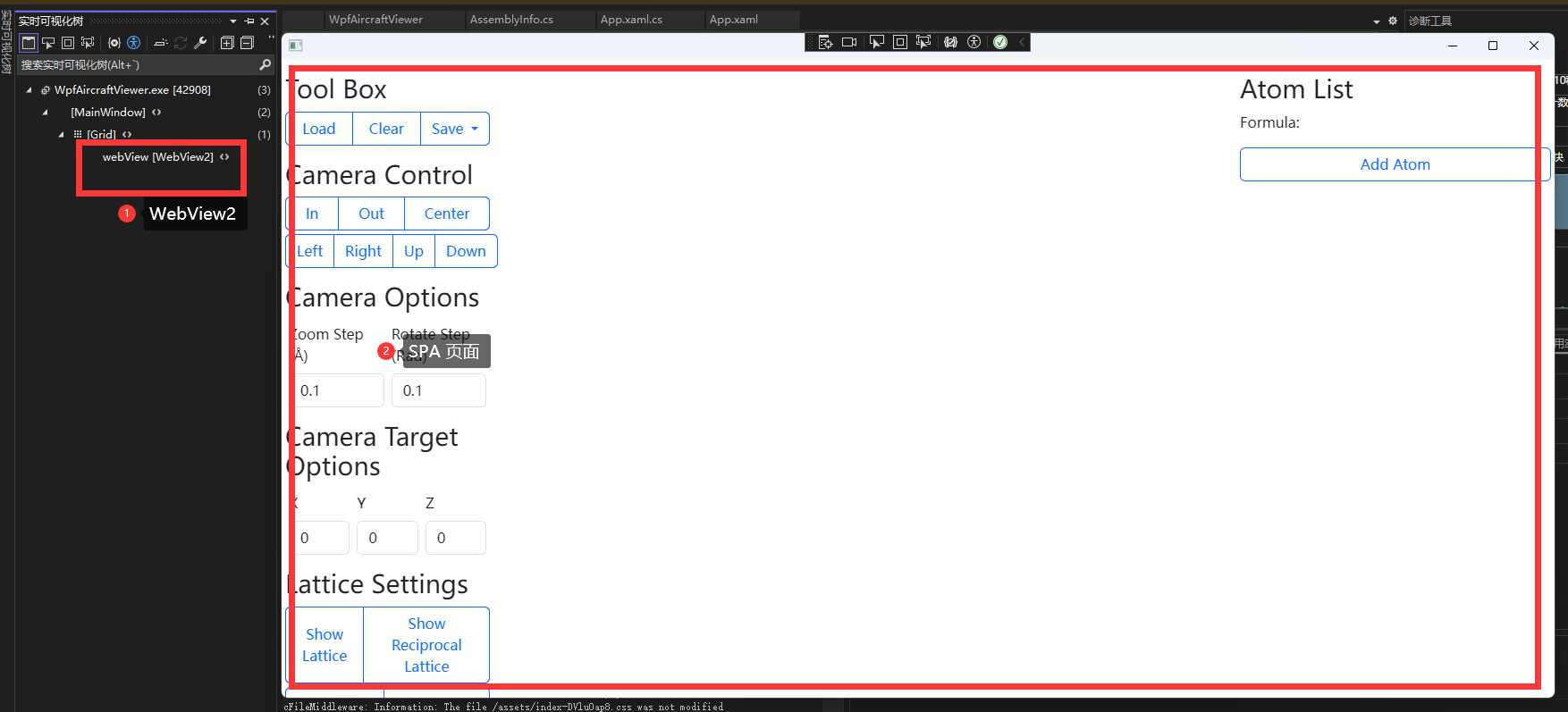
这时我们就可以先将 SPA 文件从 npm 项目的 dist 复制到 wwwroot 了,在编辑 MainWindow 加入 WebView2 控件后就可以查看了。
我们可以继续编辑窗口的信息,让他可以关联 ASP.NET Core 的监听地址。
using Microsoft.AspNetCore.Hosting.Server;
using Microsoft.AspNetCore.Hosting.Server.Features;
using System.Windows;
namespace WpfAircraftViewer
{
/// ()?.Addresses;
SourceUrl = addresses is not null ? (addresses.FirstOrDefault() ?? "http://localhost:5000") : "http://localhost:5000";
// 无 VM,用自身当 VM
DataContext = this;
}
}
}
这时我们就可以看到窗口打开了我们的 SPA 页面了。