-
【VUE】Vue中实现树状表格结构编辑与版本对比的详细技术实现
Vue中实现树状表格结构编辑与版本对比的详细技术实现
在Vue中,创建一个可编辑的树状表格并实施版本对比功能是一种需求较为常见的场景。在本教程中,我们将使用Vue结合Element UI的
el-table组件,来构建一个树状表格,其中包含添加、编辑功能,并通过特定的方法展示数据变更。本文会详继解析每一步的代码实现。图中,黄色为修改的数据,绿色为新增,红色是被删除的数据。
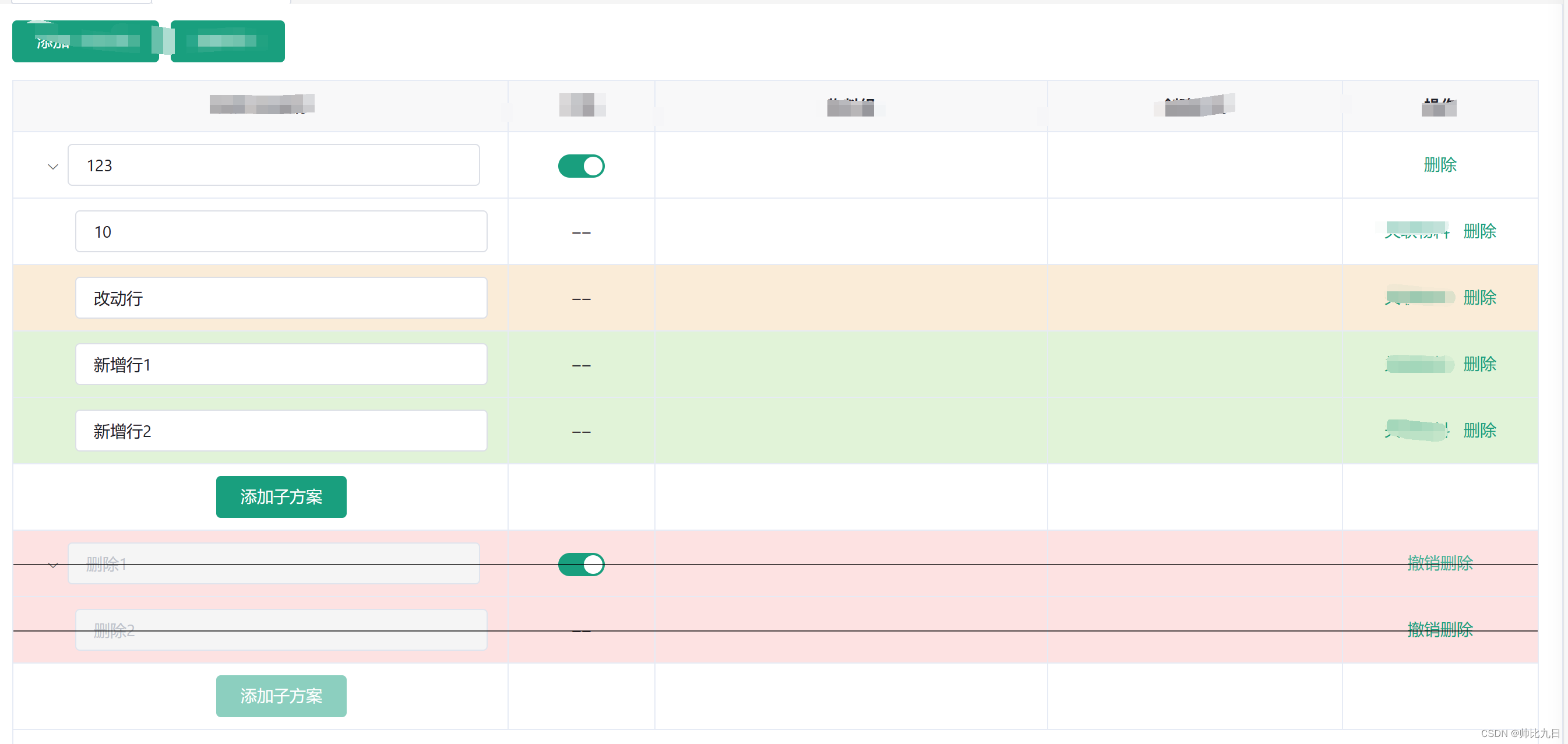
初始设置与组件
首先,我们使用
el-table组件创建基础的表格,并通过tree-props属性指定了如何展示树形数据的结构。<template> <div class="h-station"> <el-card class="h-card"> <el-button type="primary" @click="addScheme">添加一级分类el-button> <el-button type="primary">批量导入el-button> <el-table :data="tableData" :row-class-name="getRowClass" style="width: 100%; margin-top: 15px" border height="calc(100vh - 260px)" row-key="id" :tree-props="{ children: 'children' }"> <el-table-column align="center" prop="name" label="维修方案名称" min-width="100px"> <template slot-scope="scope"> <el-input v-if="scope.row.type !== 'Button'" style="width: calc(100% - 50px)" v-model="scope.row.name" :disabled="scope.row.type === 'delete'"> el-input> template> el-table-column> el-table> el-card> div> template>- 1
- 2
- 3
- 4
- 5
- 6
- 7
- 8
- 9
- 10
- 11
- 12
- 13
- 14
- 15
- 16
- 17
- 18
- 19
- 20
- 21
- 22
- 23
- 24
- 25
- 26
- 27
数据模型和方法定义
在
data函数中定义的tableData数组,包含了表格数据和结构信息。此外,我们会备份原始数据以供版本对比之用。<script> export default { data() { return { rawData: [], tableData: [...], curMateral: { children: [] }, materials: [], materialsTypeIds: [], materialsTypeNames: [], }; }, created() { this.rawData = JSON.parse(JSON.stringify(this.tableData)); this.loadMaterialsInfo(); // 模拟加载物料信息 }, methods: { enrichDataWithLevel(data, level = 1, parent = null) { return data.map(item => ({ ...item, level, children: item.children ? this.enrichDataWithLevel(item.children, level + 1, item) : [], parent, })); }, // 示例方法:模拟加载物料信息 loadMaterialsInfo() { this.materials = [{ materialsTypeId: 1, materialsTypeName: '物料1' }]; this.curMateral = this.materials[0]; }, } }; </script>- 1
- 2
- 3
- 4
- 5
- 6
- 7
- 8
- 9
- 10
- 11
- 12
- 13
- 14
- 15
- 16
- 17
- 18
- 19
- 20
- 21
- 22
- 23
- 24
- 25
- 26
- 27
- 28
- 29
- 30
- 31
- 32
- 33
版本对比的展示实现
我们通过
getRowClass方法为表格行动态赋予样式,标识数据的更改状态:新添加、更改或删除。methods: { getRowClass({ row, rowIndex }) { let rawNode = this.findNodeById(this.rawData, row.id); if (row.type === 'delete') { return 'deleted-row'; } else if (row.id.includes && row.id.includes('cwx-') && row.type !== 'Button') { return 'new-row'; } else if (rawNode) { let flag = true; if (rawNode&&!(row.id+'').includes('cwx-')) { let keys = Object.keys(rawNode); keys.push('materialsTypeIds') for (let key of keys) { if(key==='materialsTypeIds'){ if((!rawNode.materialsTypeIds||rawNode.materialsTypeIds.length===0)&&(!row.materialsTypeIds||row.materialsTypeIds.length===0)){ }else{ flag=false } } else if (rawNode[key] !== row[key]&&(key!=='parent')&&(key!=='children')) { flag = false; } } } if(!flag){ return 'change-row'; } } }, }- 1
- 2
- 3
- 4
- 5
- 6
- 7
- 8
- 9
- 10
- 11
- 12
- 13
- 14
- 15
- 16
- 17
- 18
- 19
- 20
- 21
- 22
- 23
- 24
- 25
- 26
- 27
- 28
- 29
- 30
样式定义
使用SCSS来定义不同状态下行的样式:
- 1
- 2
- 3
- 4
- 5
- 6
- 7
- 8
- 9
- 10
- 11
- 12
- 13
- 14
- 15
- 16
- 17
- 18
- 19
- 20
- 21
- 22
- 23
- 24
- 25
- 26
- 27
- 28
- 29
- 30
- 31
- 32
完整代码实现
添加一级分类 批量导入 添加子方案 {{ getMaterialsNameStr(getMaterialsName(scope.row.materialsTypeIds || [])) }} 撤销删除 关联物料 删除 保存更改 返回 - 1
- 2
- 3
- 4
- 5
- 6
- 7
- 8
- 9
- 10
- 11
- 12
- 13
- 14
- 15
- 16
- 17
- 18
- 19
- 20
- 21
- 22
- 23
- 24
- 25
- 26
- 27
- 28
- 29
- 30
- 31
- 32
- 33
- 34
- 35
- 36
- 37
- 38
- 39
- 40
- 41
- 42
- 43
- 44
- 45
- 46
- 47
- 48
- 49
- 50
- 51
- 52
- 53
- 54
- 55
- 56
- 57
- 58
- 59
- 60
- 61
- 62
- 63
- 64
- 65
- 66
- 67
- 68
- 69
- 70
- 71
- 72
- 73
- 74
- 75
- 76
- 77
- 78
- 79
- 80
- 81
- 82
- 83
- 84
- 85
- 86
- 87
- 88
- 89
- 90
- 91
- 92
- 93
- 94
- 95
- 96
- 97
- 98
- 99
- 100
- 101
- 102
- 103
- 104
- 105
- 106
- 107
- 108
- 109
- 110
- 111
- 112
- 113
- 114
- 115
- 116
- 117
- 118
- 119
- 120
- 121
- 122
- 123
- 124
- 125
- 126
- 127
- 128
- 129
- 130
- 131
- 132
- 133
- 134
- 135
- 136
- 137
- 138
- 139
- 140
- 141
- 142
- 143
- 144
- 145
- 146
- 147
- 148
- 149
- 150
- 151
- 152
- 153
- 154
- 155
- 156
- 157
- 158
- 159
- 160
- 161
- 162
- 163
- 164
- 165
- 166
- 167
- 168
- 169
- 170
- 171
- 172
- 173
- 174
- 175
- 176
- 177
- 178
- 179
- 180
- 181
- 182
- 183
- 184
- 185
- 186
- 187
- 188
- 189
- 190
- 191
- 192
- 193
- 194
- 195
- 196
- 197
- 198
- 199
- 200
- 201
- 202
- 203
- 204
- 205
- 206
- 207
- 208
- 209
- 210
- 211
- 212
- 213
- 214
- 215
- 216
- 217
- 218
- 219
- 220
- 221
- 222
- 223
- 224
- 225
- 226
- 227
- 228
- 229
- 230
- 231
- 232
- 233
- 234
- 235
- 236
- 237
- 238
- 239
- 240
- 241
- 242
- 243
- 244
- 245
- 246
- 247
- 248
- 249
- 250
- 251
- 252
- 253
- 254
- 255
- 256
- 257
- 258
- 259
- 260
- 261
- 262
- 263
- 264
- 265
- 266
- 267
- 268
- 269
- 270
- 271
- 272
- 273
- 274
- 275
- 276
- 277
- 278
- 279
- 280
- 281
- 282
- 283
- 284
- 285
- 286
- 287
- 288
- 289
- 290
- 291
- 292
- 293
- 294
- 295
- 296
- 297
- 298
- 299
- 300
- 301
- 302
- 303
- 304
- 305
- 306
- 307
- 308
- 309
- 310
- 311
- 312
- 313
- 314
- 315
- 316
- 317
- 318
- 319
- 320
- 321
- 322
- 323
- 324
- 325
- 326
- 327
- 328
- 329
- 330
- 331
- 332
- 333
- 334
- 335
- 336
- 337
- 338
- 339
- 340
- 341
- 342
- 343
- 344
- 345
- 346
- 347
- 348
- 349
- 350
- 351
- 352
- 353
- 354
- 355
- 356
- 357
- 358
- 359
- 360
- 361
- 362
- 363
- 364
- 365
- 366
- 367
- 368
- 369
- 370
- 371
- 372
- 373
- 374
- 375
- 376
- 377
- 378
- 379
- 380
- 381
- 382
- 383
- 384
- 385
- 386
- 387
- 388
- 389
- 390
- 391
- 392
- 393
- 394
- 395
- 396
- 397
- 398
- 399
- 400
- 401
- 402
- 403
- 404
- 405
- 406
- 407
- 408
- 409
- 410
- 411
- 412
- 413
- 414
- 415
- 416
- 417
- 418
- 419
- 420
- 421
- 422
- 423
- 424
- 425
- 426
- 427
- 428
- 429
- 430
- 431
- 432
- 433
- 434
- 435
- 436
- 437
- 438
- 439
总结
通过这种方式,我们不仅提供了树状表格数据的编辑功能,还实现了通过颜色和样式标识不同版本之间数据变动的可视化展示。这使得数据的对比和审核变得直观和高效。
-
相关阅读:
工具让公众号推送变得轻而易举
代码还原之 函数
离散数学 学习 之 递推方程和生成函数
pmm最新版本v2.40.0尝鲜体验
基于智能远程监考方案,云上组考打造考试新范式
Greenplum-表的分布策略
黄金票据和白银票据
HarmonyOS系统内核中消息队列的实现
基于Python的发票OCR-数字识别的简单实现
C语言库函数— qsort () 详解
- 原文地址:https://blog.csdn.net/qq_41883423/article/details/138166739
