-
vue结合vue-electron创建应用程序
官方文档:
https://www.electronjs.org/zh/docs/latest/api/menu安装electron
安装electron有两种方式,两种方式创建的项目结构大不相同
以下内容主要讲解第二种方式,在现有的vue项目中使用electron
// 方式一:基于electron-vue 创建新项目 vue init simulatedgreg/electron-vue 项目名 // 方式二:在现有的vue项目中安装electron包 vue add electron-builder- 1
- 2
- 3
- 4
- 5
第一种方式:vue init electron-vue
vue init simulatedgreg/electron-vue 项目名- 1

整体结构如下:

package.json大致的结构如下:{ "name": "name", "version": "0.0.1", "author": "jmyinjg- 1
- 2
- 3
- 4
- 5
- 6
- 7
- 8
- 9
- 10
- 11
- 12
- 13
- 14
- 15
- 16
- 17
- 18
- 19
- 20
- 21
- 22
- 23
- 24
- 25
- 26
- 27
- 28
- 29
- 30
- 31
- 32
- 33
- 34
- 35
- 36
- 37
- 38
- 39
- 40
- 41
- 42
- 43
- 44
- 45
- 46
- 47
- 48
- 49
- 50
- 51
- 52
- 53
- 54
- 55
- 56
- 57
- 58
- 59
- 60
- 61
- 62
- 63
- 64
- 65
- 66
- 67
- 68
- 69
- 70
- 71
- 72
- 73
- 74
- 75
- 76
- 77
- 78
- 79
- 80
- 81
- 82
- 83
- 84
- 85
- 86
- 87
- 88
- 89
- 90
- 91
- 92
- 93
- 94
- 95
- 96
- 97
- 98
- 99
- 100
- 101
- 102
- 103
- 104
- 105
- 106
- 107
- 108
- 109
第二种方式:vue add electron-builder
vue add electron-builder- 1
整体结构如下:

package.json大致的结构如下:{ "name": "name", "productName": "应用名称", "version": "1.5.0", "private": true, "scripts": { "serve": "vue-cli-service serve", "build": "vue-cli-service build", "lint": "vue-cli-service lint", "electron:build": "vue-cli-service electron:build", "electron:serve": "vue-cli-service electron:serve", "postinstall": "electron-builder install-app-deps", "postuninstall": "electron-builder install-app-deps" }, "main": "background.js", "dependencies": { "axios": "~0.21.1", "core-js": "~3.15.2", "vue": "~3.1.5", "vue-axios": "~3.2.4", "vue-router": "~4.0.10", "vuex": "~4.0.2", ...... }, "devDependencies": { "@vue/cli-plugin-babel": "~4.5.13", "@vue/cli-plugin-eslint": "~4.5.13", "@vue/cli-plugin-router": "~4.5.13", "@vue/cli-plugin-vuex": "~4.5.13", "@vue/cli-service": "~4.5.13", "@vue/compiler-sfc": "~3.1.5", "babel-eslint": "~10.1.0", "compression-webpack-plugin": "~6.1.1", "electron": "^12.0.0", "electron-devtools-installer": "^3.1.0", "eslint": "~6.8.0", "eslint-plugin-vue": "~7.13.0", "postcss": "~8.3.5", "vue-cli-plugin-electron-builder": "~2.1.1" }, "browserslist": [ "> 1%", "last 2 versions", "not dead" ] }- 1
- 2
- 3
- 4
- 5
- 6
- 7
- 8
- 9
- 10
- 11
- 12
- 13
- 14
- 15
- 16
- 17
- 18
- 19
- 20
- 21
- 22
- 23
- 24
- 25
- 26
- 27
- 28
- 29
- 30
- 31
- 32
- 33
- 34
- 35
- 36
- 37
- 38
- 39
- 40
- 41
- 42
- 43
- 44
- 45
- 46
- 47
启动electron
安装完成后,直接启动一下,看看效果
npm run electron:serve- 1
Reload Ctrl+R 刷新
Toggle Developer Tools Ctrl+Shift+I 打开开发者工具

调试功能:background操作和使用
'use strict' import { app, protocol, BrowserWindow } from 'electron' import { createProtocol } from 'vue-cli-plugin-electron-builder/lib' import installExtension, { VUEJS_DEVTOOLS } from 'electron-devtools-installer' const isDevelopment = process.env.NODE_ENV !== 'production' protocol.registerSchemesAsPrivileged([ { scheme: 'app', privileges: { secure: true, standard: true } } ]) // 创建主窗口 async function createWindow() { const win = new BrowserWindow({ width: 800, // 窗口的默认宽度 height: 600, // 窗口的默认高度 title: '当前窗口的标题', webPreferences: { nodeIntegration: process.env.ELECTRON_NODE_INTEGRATION, contextIsolation: !process.env.ELECTRON_NODE_INTEGRATION } }) if (process.env.WEBPACK_DEV_SERVER_URL) { await win.loadURL(process.env.WEBPACK_DEV_SERVER_URL) // 开发环境下,打开调试工具 if (!process.env.IS_TEST) win.webContents.openDevTools() } else { createProtocol('app') // 主窗口创建完成后进入到 win.loadURL('app://./index.html') } } // 监听整个应用的关闭操作 app.on('window-all-closed', () => { if (process.platform !== 'darwin') { // 关闭应用 app.quit() } }) app.on('activate', () => { if (BrowserWindow.getAllWindows().length === 0) createWindow() }) app.on('ready', async () => { if (isDevelopment && !process.env.IS_TEST) { try { await installExtension(VUEJS_DEVTOOLS) } catch (e) { console.error('Vue Devtools failed to install:', e.toString()) } } createWindow() }) if (isDevelopment) { if (process.platform === 'win32') { process.on('message', (data) => { if (data === 'graceful-exit') { app.quit() } }) } else { process.on('SIGTERM', () => { app.quit() }) } }- 1
- 2
- 3
- 4
- 5
- 6
- 7
- 8
- 9
- 10
- 11
- 12
- 13
- 14
- 15
- 16
- 17
- 18
- 19
- 20
- 21
- 22
- 23
- 24
- 25
- 26
- 27
- 28
- 29
- 30
- 31
- 32
- 33
- 34
- 35
- 36
- 37
- 38
- 39
- 40
- 41
- 42
- 43
- 44
- 45
- 46
- 47
- 48
- 49
- 50
- 51
- 52
- 53
- 54
- 55
- 56
- 57
- 58
- 59
- 60
- 61
- 62
- 63
- 64
- 65
- 66
- 67
- 68
- 69
- 70
1、覆盖窗口的菜单上下文、右键菜单

import {BrowserWindow, Menu } from 'electron' let mainWin // 主窗口的顶栏菜单 const template = [ { label: '后退', click: () => { // 判断 浏览器是否可以后退到前一页面。 if (mainWin.webContents.canGoBack()) { // 使浏览器回退到上一个页面。 mainWin.webContents.goBack(); } } }, { label: '前进', click: () => { // 判断 浏览器是否可以前进到下一页面。 if (mainWin.webContents.canGoForward()) { // 使浏览器前进到下一个页面。 mainWin.webContents.goForward(); } } }, { label: '刷新', click: () => { mainWin.webContents.reloadIgnoringCache(); } }, ]; // 右键菜单 const contextMenu = Menu.buildFromTemplate([ { label: '复制', role: 'copy' }, { label: '粘贴', role: 'paste' } ]); async function createWindow() { mainWin = new BrowserWindow({ ... }) // 部署顶栏菜单 const menu = Menu.buildFromTemplate(template); Menu.setApplicationMenu(menu); // 部署右键菜单 mainWin.webContents.on('context-menu', () => { contextMenu.popup({ window: mainWin }); // 在指定窗口上显示上下文菜单 }); }- 1
- 2
- 3
- 4
- 5
- 6
- 7
- 8
- 9
- 10
- 11
- 12
- 13
- 14
- 15
- 16
- 17
- 18
- 19
- 20
- 21
- 22
- 23
- 24
- 25
- 26
- 27
- 28
- 29
- 30
- 31
- 32
- 33
- 34
- 35
- 36
- 37
- 38
- 39
- 40
- 41
- 42
- 43
- 44
- 45
- 46
- 47
- 48
- 49
- 50
- 51
- 52
- 53
- 54
2、监听关闭事件、阻止默认行为
dialog.showMessageBoxSync会返回buttons的索引值,
例如点击了“否”,则choice=0;点击了“是”,则choice=1
注意:如果点击了右上角的叉,则choice=0,所以,“是”只能写在“否”后面
不理解为什么要这么设计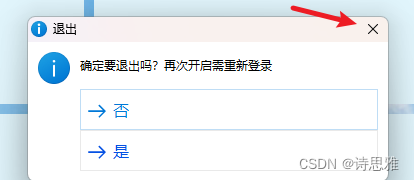
import { BrowserWindow, dialog } from 'electron' let mainWin async function createWindow() { mainWin = new BrowserWindow({ ... }) // 监听 主窗口 右上角的关闭事件 mainWin.on('close', (e) => { e.preventDefault(); // 阻止窗口默认的关闭行为 /** * 弹出 对话框询问用户是否真的想要退出 * 这里的choice 值是buttons的索引, * 例如点击了“否”,则choice=0;点击了“是”,则choice=1 * 注意:如果点击了右上角的叉,则choice=0,所以,“是”只能写在“否”后面 */ const choice = dialog.showMessageBoxSync(null, { type: 'info', buttons: ['否', '是'], title: '退出', message: '确定要退出吗?再次开启需重新登录', }); // 如果用户选择“是”,则关闭窗口 if (choice === 1) { // 关闭窗口并释放内存 mainWin.destroy(); // 关闭主窗口 app.quit() } }) }- 1
- 2
- 3
- 4
- 5
- 6
- 7
- 8
- 9
- 10
- 11
- 12
- 13
- 14
- 15
- 16
- 17
- 18
- 19
- 20
- 21
- 22
- 23
- 24
- 25
- 26
- 27
- 28
- 29
- 30
- 31
- 32
3、创建悬浮窗口
创建第二个窗口——悬浮球,透明背景,点击悬浮球,促使主窗口进入到某个页面
包含的知识点:
1、多个窗口,悬浮球窗口
2、其他窗口促使主窗口路由跳转
3、区分当前环境是electron,还是浏览器
4、窗口的显示和隐藏

background.js
import { BrowserWindow, ipcMain, screen } from 'electron' let mainWinRoutePath = '/'; // 主窗口的当前路由 let mainWin, ballWin async function createSBallWindow() { mainWin = new BrowserWindow({ ... }) ... } // 创建 工具球窗口 async function createSBallWindow() { ballWin = new BrowserWindow({ width: 65, // 悬浮窗口的宽度 比实际DIV的宽度要多5px,用于处理阴影 height: 65, // 悬浮窗口的高度 比实际DIV的高度要多5px,用于处理阴影 type: 'toolbar', //创建的窗口类型为工具栏窗口 frame: false, // 是否创建有边框的窗口(含最大化/最小化/关闭功能),false创建无边框窗口 resizable: false, // 是否允许窗口大小缩放 movable: true, // 是否可以移动 show: true, // 是否在创建完成后,让窗口显示,如果希望在用户登录后再显示工具球,则设置成false,再通过消息来打开窗口 transparent: true, // 设置透明,只有在frame为false时才能生效 hasShadow: false, // 是否显示阴影 alwaysOnTop: true, // 窗口是否总是显示在其他窗口之前 webPreferences: { // devTools: true, // 是否打开调试工具,如果要打开调试,最好把窗口的默认大小调大一些,且不要设置初始位置 nodeIntegration: true, contextIsolation: false, } }) // 通过获取用户屏幕的宽高来设置悬浮球的初始位置,最好把窗口的默认大小调大一些,且不要设置初始位置 const size = screen.getPrimaryDisplay().workAreaSize ballWin.setPosition(size.width - 150, size.height - 200) // 设置悬浮球位置 if (process.env.WEBPACK_DEV_SERVER_URL) { await ballWin.loadURL(`${process.env.WEBPACK_DEV_SERVER_URL}#/ball`) // ballWin.webContents.openDevTools(); // 打开调试工具 } else { await ballWin.loadURL('app://./index.html#/ball') } ballWin.on('close', () => { ballWin = null }) } // 监听 open-mainWin-window 消息, 显示 主窗口 ipcMain.on('open-mainWin-window', () => { if (!mainWin) { return } mainWin.maximize() // 窗口最大化 }) // 显示 工具球窗口 ipcMain.on('open-ballWin-window', () => { if (ballWin) { ballWin.show() } else { // 若窗口不存在,则先创建窗口再显示 createSBallWindow() ballWin.show() } }); // 隐藏 工具球窗口 ipcMain.on('hide-ballWin-window', () => { ballWin.hide() }); // 保存主窗口的当前路由 ipcMain.on('route-change', (event, route) => { mainWinRoutePath = route; }); // 返回保存的路由信息 ipcMain.handle('get-mainWin-route', () => { return mainWinRoutePath; }); // 进入 主窗口的某个页面 ipcMain.on('change-page', async (event, url) => { if (process.env.WEBPACK_DEV_SERVER_URL) { await mainWin.loadURL(`${process.env.WEBPACK_DEV_SERVER_URL}#${url}`) } else { // 这里是为了配合router的mode: hash 一起使用 await ballWin.loadURL(url.format({ pathname: path.join(__dirname, '/index.html'), protocol: 'file', slashes: true, hash: "#/ball" })) } })- 1
- 2
- 3
- 4
- 5
- 6
- 7
- 8
- 9
- 10
- 11
- 12
- 13
- 14
- 15
- 16
- 17
- 18
- 19
- 20
- 21
- 22
- 23
- 24
- 25
- 26
- 27
- 28
- 29
- 30
- 31
- 32
- 33
- 34
- 35
- 36
- 37
- 38
- 39
- 40
- 41
- 42
- 43
- 44
- 45
- 46
- 47
- 48
- 49
- 50
- 51
- 52
- 53
- 54
- 55
- 56
- 57
- 58
- 59
- 60
- 61
- 62
- 63
- 64
- 65
- 66
- 67
- 68
- 69
- 70
- 71
- 72
- 73
- 74
- 75
- 76
- 77
- 78
- 79
- 80
- 81
- 82
- 83
- 84
- 85
- 86
- 87
- 88
- 89
- 90
- 91
- 92
- 93
- 94
- 95
悬浮球页面 ball.vue
<template> <div class="ball" @click="goFast"> <!-- dblclick双击 --> <span>工具球</span> </div> </template> <script> // 判断是否在 electron 平台的环境当中 let ipcRenderer = null const isElectron = navigator.userAgent.toLowerCase().indexOf(' electron/') >= 0 if (isElectron) { ipcRenderer = require('electron').ipcRenderer } export default { name: "ball", data() { return { } }, created() { }, methods: { goFast() { if (isElectron) { ipcRenderer.invoke('get-mainWin-route').then((route) => { if (route != '/moral/record') { // 消息名称、传参arg ipcRenderer.send('change-page', '/ball') } // 发送 open-ballWin-window 消息 ipcRenderer.send('open-mainWin-window') }); } } }, } </script> <style> body { background: transparent; display: flex; justify-content: center; height: 100%; // 这个是用于 移动窗口 /* -webkit-app-region: drag; */ } .ball { width: 60px; height: 60px; line-height: 60px; border-radius: 50%; box-sizing: border-box; background: var(--primary-color); box-shadow: 0 3px 5px 0 rgba(0, 0, 0, 0.4); color: #fff; background: linear-gradient(#40a9ff, #096dd9); text-align: center; cursor: pointer; font-size: 14px; /* -webkit-app-region: no-drag; */ } </style>- 1
- 2
- 3
- 4
- 5
- 6
- 7
- 8
- 9
- 10
- 11
- 12
- 13
- 14
- 15
- 16
- 17
- 18
- 19
- 20
- 21
- 22
- 23
- 24
- 25
- 26
- 27
- 28
- 29
- 30
- 31
- 32
- 33
- 34
- 35
- 36
- 37
- 38
- 39
- 40
- 41
- 42
- 43
- 44
- 45
- 46
- 47
- 48
- 49
- 50
- 51
- 52
- 53
- 54
- 55
- 56
- 57
- 58
- 59
- 60
- 61
- 62
- 63
- 64
- 65
- 66
router.js
import { createRouter, createWebHistory } from 'vue-router'; // 判断是否在 electron 平台的环境当中 const isElectron = navigator.userAgent.toLowerCase().indexOf(' electron/') >= 0 let ipcRenderer = null if (isElectron) { ipcRenderer = require('electron').ipcRenderer } const router = createRouter({ routes: [ { path: '/index', component: () => import('@/views/index'), meta: { title: '首页' }, }, { path: '/ball', component: () => import('@/views/ball'), meta: { title: '工具球' } }, ... ], mode: 'hash', // 这里必须是hash history: createWebHashHistory('/') }); // 路由守卫 router.beforeEach((to, from, next) => { if (isElectron) { ipcRenderer.send('route-change', to.path) } next() }) export default router;- 1
- 2
- 3
- 4
- 5
- 6
- 7
- 8
- 9
- 10
- 11
- 12
- 13
- 14
- 15
- 16
- 17
- 18
- 19
- 20
- 21
- 22
- 23
- 24
- 25
- 26
- 27
- 28
- 29
- 30
- 31
- 32
- 33
- 34
注意:
1、如果使用了screen,一定要引入,否则会启动失败

2、打包后页面空白的,无法通过win.loadURL进行跳转
router的mode必须是hash,如果使用history,则通过win.loadURL(app://./index.html#${url})无法跳转
这是因为vue是单页面应用,但打包完成后,只有一个index.html,如果使用history,那么无法读取到index.html后面的路径(win.loadURL(app://./index.html#${url})),如果改成win.loadURL(app://./index/${url}),打包后是就是空白的,没有进入到页面页面中,但调试的时候没问题我的理解是,vue是单页面应用,所以打包后只有一个index.html页面,其他的都是组件,使用index.html才能显示主页面,然后通过#/url访问路由,显示某个组件中
4、窗口置顶
// 置顶并显示 主窗口 ipcMain.on('open-mainWin-window', () => { if (!mainWin) { return } mainWin.maximize() // 窗口最大化 // 当 ballWin 失去置顶状态时,将 mainWin 的置顶级别设为较高值 mainWin.setAlwaysOnTop(true, 'normal', 1); mainWin.focus(); // 让窗口获得焦点 mainWin.setAlwaysOnTop(false); // 如果不希望它一直保持在最上层,可以之后立即取消置顶,即点击其他应用时,当前窗口会下移一层 })- 1
- 2
- 3
- 4
- 5
- 6
- 7
- 8
- 9
- 10
- 11
5、绑定全局快捷键
这里会有个问题,注册之后,只要这个窗口没有隐藏,快捷键响应后,还是会触发事件
例如下方是F5,假设你在QQ应用上,点了F5,当前这个应用也会刷新import { globalShortcut } from 'electron' let mainWin, ballWin ... // 全局快捷键 刷新 globalShortcut.register('F5', () => { if (mainWin && ballWin) { mainWin.webContents.reloadIgnoringCache(); ballWin.webContents.reloadIgnoringCache(); } })- 1
- 2
- 3
- 4
- 5
- 6
- 7
- 8
- 9
- 10
- 11
完整代码background.js
包含:
1、窗口的菜单、右键菜单、全局快捷键
2、监听窗口的关闭事件,阻止默认行为
3、创建悬浮窗口、窗口的隐藏/显示,促使其他窗口路径跳转
4、窗口置顶事件
5、区分当前环境是electron,还是浏览器
6、打包后页面空白的,无法通过win.loadURL进行跳转'use strict' import { app, protocol, BrowserWindow, ipcMain, dialog, Menu, screen, globalShortcut } from 'electron' import { createProtocol } from 'vue-cli-plugin-electron-builder/lib' import installExtension, { VUEJS_DEVTOOLS } from 'electron-devtools-installer' const path = require('path'); const isDevelopment = process.env.NODE_ENV !== 'production' protocol.registerSchemesAsPrivileged([ { scheme: 'app', privileges: { secure: true, standard: true } } ]) let mainWinRoutePath = '/'; // 主窗口的当前路由 let mainWin, ballWin // 主窗口的顶栏菜单 const template = [ { label: '后退', click: () => { if (mainWin.webContents.canGoBack()) { mainWin.webContents.goBack(); } } }, { label: '前进', click: () => { if (mainWin.webContents.canGoForward()) { mainWin.webContents.goForward(); } } }, { label: '刷新', click: () => { mainWin.webContents.reloadIgnoringCache(); } }, ]; // 右键菜单 const contextMenu = Menu.buildFromTemplate([ { label: '复制', role: 'copy' }, { label: '粘贴', role: 'paste' } ]); async function createWindow() { mainWin = new BrowserWindow({ width: 800, height: 800, title: '智慧校园', icon: path.join(__dirname, process.env.VUE_APP_LOGO), webPreferences: { nodeIntegration: process.env.ELECTRON_NODE_INTEGRATION, contextIsolation: !process.env.ELECTRON_NODE_INTEGRATION } }) const menu = Menu.buildFromTemplate(template); Menu.setApplicationMenu(menu); mainWin.webContents.on('context-menu', () => { contextMenu.popup({ window: mainWin }); // 在指定窗口上显示上下文菜单 }); if (process.env.WEBPACK_DEV_SERVER_URL) { await mainWin.loadURL(process.env.WEBPACK_DEV_SERVER_URL) if (!process.env.IS_TEST) mainWin.webContents.openDevTools() } else { createProtocol('app') mainWin.loadURL('app://./index.html') } // 监听 主窗口 右上角的关闭事件 mainWin.on('close', (e) => { e.preventDefault(); // 阻止窗口默认的关闭行为 // 显示一个对话框询问用户是否真的想要退出 const choice = dialog.showMessageBoxSync(null, { type: 'info', buttons: ['否', '是'], title: '退出', message: '确定要退出吗?再次开启需重新登录', }); // 如果用户选择“是”,则关闭窗口 if (choice === 1) { // 关闭窗口并释放内存 mainWin.destroy(); // 关闭主窗口 app.quit() } }) mainWin.once('ready-to-show', () => { mainWin.show() }) } // 创建 工具球窗口 async function createSBallWindow() { ballWin = new BrowserWindow({ width: 65, // 悬浮窗口的宽度 比实际DIV的宽度要多5px height: 65, // 悬浮窗口的高度 比实际DIV的高度要多5px type: 'toolbar', //创建的窗口类型为工具栏窗口 frame: false, // 是否创建有边框的窗口(含最大化/最小化/关闭功能),false创建无边框窗口 resizable: false, // 是否允许窗口大小缩放 movable: true, // 是否可以移动 show: true, // 是否在创建完成后,让窗口显示 transparent: true, // 设置透明 hasShadow: false, // 是否显示阴影 alwaysOnTop: true, // 窗口是否总是显示在其他窗口之前 webPreferences: { // devTools: true, // 是否打开调试工具,打开调试则最好调整窗口的大小 nodeIntegration: true, contextIsolation: false, } }) // 通过获取用户屏幕的宽高来设置悬浮球的初始位置 const size = screen.getPrimaryDisplay().workAreaSize ballWin.setPosition(size.width - 150, size.height - 200) // 设置悬浮球位置 if (process.env.WEBPACK_DEV_SERVER_URL) { await ballWin.loadURL(`${process.env.WEBPACK_DEV_SERVER_URL}#/ball`) // ballWin.webContents.openDevTools(); // 打开调试工具 } else { await ballWin.loadURL(url.format({ // 这里是为了配合router的mode: hash 一起使用 pathname: path.join(__dirname, '/index.html'), protocol: 'file', slashes: true, hash: "#/ball" })) } ballWin.on('close', () => { ballWin = null }) } app.on('window-all-closed', () => { if (process.platform !== 'darwin') { app.quit() } }) // 置顶并显示 主窗口 ipcMain.on('open-mainWin-window', () => { if (!mainWin) { return } mainWin.maximize() // 窗口最大化 if (ballWin) { ballWin.on('always-on-top-changed', (event, isAlwaysOnTop) => { if (isAlwaysOnTop) { // 当 ballWin 处于最顶端时,将 mainWin 的置顶级别设为较低值 mainWin.setAlwaysOnTop(true, 'normal', -1); mainWin.focus(); // 让窗口获得焦点 } else { // 当 ballWin 失去置顶状态时,将 mainWin 的置顶级别设为较高值 mainWin.setAlwaysOnTop(true, 'normal', 1); mainWin.focus(); mainWin.setAlwaysOnTop(false); // 如果不希望它一直保持在最上层,可以之后立即取消置顶 } }) ballWin.setAlwaysOnTop(true, 'normal', 1) } else { mainWin.setAlwaysOnTop(true); mainWin.focus(); mainWin.setAlwaysOnTop(false); } }) // 隐藏 主窗口 ipcMain.on('hide-mainWin-window', () => { mainWin.hide() }) // 显示 工具球窗口 ipcMain.on('open-ballWin-window', () => { if (ballWin) { ballWin.show() } else { createSBallWindow() ballWin.show() } }); // 隐藏 工具球窗口 ipcMain.on('hide-ballWin-window', () => { ballWin.hide() }); // 保存主窗口的当前路由 ipcMain.on('route-change', (event, route) => { mainWinRoutePath = route; }); // 返回保存的路由信息 ipcMain.handle('get-mainWin-route', () => { return mainWinRoutePath; }); // 进入 主窗口的某个页面 ipcMain.on('change-page', async (event, url) => { if (process.env.WEBPACK_DEV_SERVER_URL) { // 去除url开头的/ 避免造成 http://localhost:8080//... await mainWin.loadURL(`${process.env.WEBPACK_DEV_SERVER_URL}${url.replace(/^\//, '')}`) } else { await mainWin.loadURL(`app://.${url}`) } }) app.on('activate', () => { if (BrowserWindow.getAllWindows().length === 0) createWindow() }) app.on('ready', async () => { if (isDevelopment && !process.env.IS_TEST) { try { await installExtension(VUEJS_DEVTOOLS) } catch (e) { console.error('Vue Devtools failed to install:', e.toString()) } } //创建主窗口 createWindow() //创建球形窗口 createSBallWindow() // 注册 全局快捷键 刷新 globalShortcut.register('F5', () => { if (mainWin && ballWin) { mainWin.webContents.reloadIgnoringCache(); ballWin.webContents.reloadIgnoringCache(); } }) }) if (isDevelopment) { if (process.platform === 'win32') { process.on('message', (data) => { if (data === 'graceful-exit') { app.quit() } }) } else { process.on('SIGTERM', () => { app.quit() }) } }- 1
- 2
- 3
- 4
- 5
- 6
- 7
- 8
- 9
- 10
- 11
- 12
- 13
- 14
- 15
- 16
- 17
- 18
- 19
- 20
- 21
- 22
- 23
- 24
- 25
- 26
- 27
- 28
- 29
- 30
- 31
- 32
- 33
- 34
- 35
- 36
- 37
- 38
- 39
- 40
- 41
- 42
- 43
- 44
- 45
- 46
- 47
- 48
- 49
- 50
- 51
- 52
- 53
- 54
- 55
- 56
- 57
- 58
- 59
- 60
- 61
- 62
- 63
- 64
- 65
- 66
- 67
- 68
- 69
- 70
- 71
- 72
- 73
- 74
- 75
- 76
- 77
- 78
- 79
- 80
- 81
- 82
- 83
- 84
- 85
- 86
- 87
- 88
- 89
- 90
- 91
- 92
- 93
- 94
- 95
- 96
- 97
- 98
- 99
- 100
- 101
- 102
- 103
- 104
- 105
- 106
- 107
- 108
- 109
- 110
- 111
- 112
- 113
- 114
- 115
- 116
- 117
- 118
- 119
- 120
- 121
- 122
- 123
- 124
- 125
- 126
- 127
- 128
- 129
- 130
- 131
- 132
- 133
- 134
- 135
- 136
- 137
- 138
- 139
- 140
- 141
- 142
- 143
- 144
- 145
- 146
- 147
- 148
- 149
- 150
- 151
- 152
- 153
- 154
- 155
- 156
- 157
- 158
- 159
- 160
- 161
- 162
- 163
- 164
- 165
- 166
- 167
- 168
- 169
- 170
- 171
- 172
- 173
- 174
- 175
- 176
- 177
- 178
- 179
- 180
- 181
- 182
- 183
- 184
- 185
- 186
- 187
- 188
- 189
- 190
- 191
- 192
- 193
- 194
- 195
- 196
- 197
- 198
- 199
- 200
- 201
- 202
- 203
- 204
- 205
- 206
- 207
- 208
- 209
- 210
- 211
- 212
- 213
- 214
- 215
- 216
- 217
- 218
- 219
- 220
- 221
- 222
- 223
- 224
- 225
- 226
- 227
- 228
- 229
- 230
- 231
- 232
- 233
- 234
- 235
- 236
- 237
- 238
- 239
- 240
- 241
- 242
- 243
- 244
- 245
- 246
- 247
- 248
- 249
- 250
- 251
- 252
- 253
- 254
- 255
- 256
打包问题
electron-builder打包electron-v12.2.3-win32-x64.zip下载失败,这种情况通常是有electron的4个包,无法下载成功,手动下载后放入到系统对应的文件夹中即可。
分别是
electron-v12.2.3-win32-x64.zip
winCodeSign-2.6.0.7z.zip
nsis-resources3.4.1
nsis-3.4.1INFO Building app with electron-builder: • electron-builder version=22.14.13 os=10.0.22621 • description is missed in the package.json appPackageFile=D:\web\campus\wisdom-campus-desktop\dist_electron\bundled\package.json • author is missed in the package.json appPackageFile=D:\web\campus\wisdom-campus-desktop\dist_electron\bundled\package.json • writing effective config file=dist_electron\builder-effective-config.yaml • packaging platform=win32 arch=x64 electron=12.2.3 appOutDir=dist_electron\win-unpacked ⨯ Get "https://github.com/electron/electron/releases/download/v12.2.3/electron-v12.2.3-win32-x64.zip": proxyconnect tcp: dial tcp :0: connectex: The requested address is not valid in its context.- 1
- 2
- 3
- 4
- 5
- 6
- 7

按照错误提示,是electron-v12.2.3-win32-x64.zip这个文件下载失败,可以利用报错信息中的https://github.com/electron/electron/releases/download/v12.2.3/electron-v12.2.3-win32-x64.zip
这个地址进行下载,或者到淘宝的镜像地址里去下载,1、electron-v12.2.3-win32-x64.zip
到淘宝的镜像地址里去下载,https://registry.npmmirror.com/binary.html?path=electron/,依次找到 12.2.3版本下 -> electron-v12.2.3-win32-x64.zip
通常系统会默认隐藏AppData,关闭隐藏即可
下载后,将压缩包解压到这个目录里:
C:\Users\你的用户名\AppData\Local\electron\Cache

解压后的文件

2、winCodeSign-2.6.0.7z.zip
https://registry.npmmirror.com/binary.html?path=electron-builder-binaries/winCodeSign-2.6.0/winCodeSign-2.6.0.7z
下载后,将压缩包解压解压到这个目录里:
C:\Users\你的用户名\AppData\Local\electron-builder\Cache\winCodeSign注意:这里最后一层是winCodeSign,有的文章里显示的是在Cache文件里解压,这样是错误的
解压后的:

3、nsis 和 nsis-resources
https://registry.npmmirror.com/binary.html?path=electron-builder-binaries/

下载后,将2个压缩包都解压到nsis文件价中,没有nsis文件夹就自己创建一个:
C:\Users\你的用户名\AppData\Local\electron-builder\Cache\nsis
解压后的


最后再改一下镜像
用cnpm npm install -g cnpm --registry=https://registry.npm.taobao.org 或者直接用npm npm config set registry https://registry.npmmirror.com- 1
- 2
- 3
- 4
- 5
https://registry.npm.taobao.org 淘宝镜像在2024年1月份已经过期了,目前虽然还能使用,
但是可以观察到,最终还是代理到了 https://registry.npmmirror.com,所以不如直接用 ** https://registry.npmmirror.com**再次打包electron 应该就没有什么问题了
-
相关阅读:
精酿啤酒新风尚,FENDI CLUB盛宴启幕,品质生活触手可及
return语句
重磅!flink-table-store 将作为独立数据湖项目重新加入 Apache
计算机毕业设计(附源码)python余庆金阳驾校管理系统
【博客笔记+java+测试】
1天精通Apipost--全网最全gRPC调试和智能Mock讲解!
netfilter编程实例——一个简单的防火墙
认识 LLVM
树莓派通过frp实现内网穿透打通ssh[操作记录]
nodeJS连接mysql数据库的增删改查接口
- 原文地址:https://blog.csdn.net/Sandersonia/article/details/136563181
