-
Web前端—移动Web第一天(平面转换、渐变、综合案例--播客网页设计)
版本说明
当前版本号[20231117]。
版本 修改说明 20231117 初版 目录
移动 Web 第一天
目标:使用位移、缩放、旋转、渐变效果丰富网页元素的呈现方式。
01-平面转换
简介
作用:为元素添加动态效果,一般与过渡配合使用
概念:改变盒子在平面内的形态(位移、旋转、缩放、倾斜)
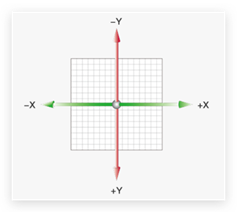
平面转换也叫 2D 转换,属性是 transform
示例
1、首先建个div盒子。
DOCTYPE html> <html> <head> <meta charset="utf-8"> <title>平面转换title> <style> div{ margin: 100px 0; width: 100px; height: 100px; background-color: pink; } style> head> <body> <div>div> body> html>- 1
- 2
- 3
- 4
- 5
- 6
- 7
- 8
- 9
- 10
- 11
- 12
- 13
- 14
- 15
- 16
- 17
- 18

2、设置元素的过渡效果。
transition: all 1s;- 1
/* 鼠标滑过,来添加动态效果 */ div:hover{ transform: translate(800px); }- 1
- 2
- 3
- 4
丝滑地滑了过去。

3、边转边移动。
/* 鼠标滑过,来添加动态效果 */ div:hover{ transform: translate(800px) rotate(360deg); }- 1
- 2
- 3
- 4

4、使图形比之前的大了一圈。
/* 鼠标滑过,来添加动态效果 */ div:hover{ transform: translate(800px) rotate(360deg) scale(2); }- 1
- 2
- 3
- 4

5、鼠标滑过,来添加动态效果。
/* 鼠标滑过,来添加动态效果 */ div:hover{ transform: translate(800px) rotate(360deg) scale(2) skew(180deg); }- 1
- 2
- 3
- 4

平移
transform: translate(X轴移动距离, Y轴移动距离);- 1
- 取值
- 像素单位数值
- 百分比(参照盒子自身尺寸计算结果)
- 正负均可
- 技巧
- translate() 只写一个值,表示沿着 X 轴移动
- 单独设置 X 或 Y 轴移动距离:translateX() 或 translateY()
定位居中
- 方法一:margin

- 方法二:平移 → 百分比参照盒子自身尺寸计算结果

1、建立个box模型。
- 1
- 2
- 3
- 4
- 5
- 6
- 7
- 8

2、一个个去尝试。
- 1
- 2
- 3
- 4
- 5
- 6
- 7
- 8
- 9
- 10
- 11
- 12
- 13
- 14
- 15
- 16
- 17
- 18
- 19
- 20

案例-双开门

- HTML 结构
<div class="father"> <div class="left">div> <div class="right">div> div>- 1
- 2
- 3
- 4
- CSS 样式
* { margin: 0; padding: 0; } /* 1. 布局:父子结构,父级是大图,子级是左右小图 */ .father { display: flex; margin: 0 auto; width: 1366px; height: 600px; background-image: url(./images/bg.jpg); overflow: hidden; } .father .left, .father .right { width: 50%; height: 600px; background-image: url(./images/fm.jpg); transition: all .5s; } .father .right { /* right 表示的取到精灵图右面的图片 */ background-position: right 0; } /* 2. 鼠标悬停的效果:左右移动 */ .father:hover .left { transform: translate(-100%); } .father:hover .right { transform: translateX(100%); }- 1
- 2
- 3
- 4
- 5
- 6
- 7
- 8
- 9
- 10
- 11
- 12
- 13
- 14
- 15
- 16
- 17
- 18
- 19
- 20
- 21
- 22
- 23
- 24
- 25
- 26
- 27
- 28
- 29
- 30
- 31
- 32
- 33
- 34
- 35
- 36
- 37
- 38
1、首先初步建立个模型。
双开门 "father">- 1
- 2
- 3
- 4
- 5
- 6
- 7
- 8
- 9
- 10
- 11
- 12
- 13
- 14
- 15
- 16
- 17
- 18
- 19
- 20
- 21
- 22
- 23

2、把左、右两图给设置好。
"father">"left">1"right">2- 1
- 2
- 3
- 4
- 5
- 6
.father .left, .father .right{ width: 50%; height: 600px; background-image: url(../img/fm.jpg); }- 1
- 2
- 3
- 4
- 5
- 6

3、接下来要把右边的精灵图换个位置。
.father .right{ background-position: right 0; }- 1
- 2
- 3

4、开始移动。
/* 鼠标悬停效果:左右移动 */ .father:hover .left{ transform: translate(-100%); } .father:hover .right{ transform: translateX(100%); }- 1
- 2
- 3
- 4
- 5
- 6
- 7
- 8

5、设置慢慢移动。
.father .left, .father .right{ width: 50%; height: 600px; background-image: url(../img/fm.jpg); transition: all 0.5s; }- 1
- 2
- 3
- 4
- 5
- 6
- 7
6、多余的隐藏起来,实现效果。
.father{ display: flex; margin: 0 auto; width: 1366px; height: 600px; background-image: url(../img/bg.jpg); overflow: hidden; }- 1
- 2
- 3
- 4
- 5
- 6
- 7
- 8

旋转
transform: rotate(旋转角度);- 1
- 取值:角度单位是 deg
- 技巧
- 取值正负均可
- 取值为正,顺时针旋转
- 取值为负,逆时针旋转
转换原点
默认情况下,转换原点是盒子中心点
transform-origin: 水平原点位置 垂直原点位置;- 1
取值:
- 方位名词(left、top、right、bottom、center)
- 像素单位数值
- 百分比
1、首先先做出来一个。
转换原点 "../img/rotate.png" alt="">
- 1
- 2
- 3
- 4
- 5
- 6
- 7
- 8
- 9
- 10
- 11
- 12
- 13
- 14
- 15
- 16
- 17
- 18
- 19
- 20
- 21

2、然后以右下角的原点进行旋转。
transform-origin: right bottom;- 1

案例-时钟
先加旋转,当发现旋转没有到位的时候,我们再加transform进行调整

css样式:
.hour { width: 6px; height: 50px; background-color: #333; margin-left: -3px; transform: rotate(15deg); transform-origin: center bottom; } .minute { width: 5px; height: 65px; background-color: #333; margin-left: -3px; transform: rotate(90deg); transform-origin: center bottom; } .second { width: 4px; height: 80px; background-color: red; margin-left: -2px; transform: rotate(240deg); transform-origin: center bottom; }- 1
- 2
- 3
- 4
- 5
- 6
- 7
- 8
- 9
- 10
- 11
- 12
- 13
- 14
- 15
- 16
- 17
- 18
- 19
- 20
- 21
- 22
- 23
- 24
- 25
- 26
多重转换
多重转换技巧:先平移再旋转
transform: translate() rotate();- 1
- 多重转换原理:以第一种转换方式坐标轴为准转换形态
- 旋转会改变网页元素的坐标轴向
- 先写旋转,则后面的转换效果的轴向以旋转后的轴向为准,会影响转换结果
1、先把轮胎与背后的框先画出来。
DOCTYPE html> <html> <head> <meta charset="utf-8"> <title>多重效果title> <style> .box{ width: 800px; height: 200px; border: 1px solid #000; } img{ width: 200px; transition: all 5s; } style> head> <body> <div class="box"> <img src="../img/tyre.png" alt=""> div> body> html>- 1
- 2
- 3
- 4
- 5
- 6
- 7
- 8
- 9
- 10
- 11
- 12
- 13
- 14
- 15
- 16
- 17
- 18
- 19
- 20
- 21
- 22
- 23
- 24

2、对轮胎进行滚动设置。
/* 鼠标滑动,图片开始滚动 */ .box:hover img{ /* 先平移在旋转 */ transform:translate(600px) rotate(360deg); }- 1
- 2
- 3
- 4
- 5


缩放
transform: scale(缩放倍数); transform: scale(X轴缩放倍数, Y轴缩放倍数);- 1
- 2
- 技巧
- 通常,只为 scale() 设置一个值,表示 X 轴和 Y 轴等比例缩放
- 取值大于1表示放大,取值小于1表示缩小
如:
transform: scale(1); //没有任何效果 transform: scale(2); //放大 transform: scale(0.5); //缩小- 1
- 2
- 3
案例-播放特效

- CSS 样式
/* 1. 摆放播放按钮:图片区域的中间 */ .box li { overflow: hidden; } .pic { position: relative; } .pic::after { position: absolute; left: 50%; top: 50%; /* margin-left: -29px; margin-top: -29px; */ /* transform: translate(-50%, -50%); */ content: ''; width: 58px; height: 58px; background-image: url(./images/play.png); transform: translate(-50%, -50%) scale(5); opacity: 0; transition: all .5s; } /* 2. hover效果:大按钮,看不见:透明是0 → 小按钮,看得见:透明度1 */ .box li:hover .pic::after { transform: translate(-50%, -50%) scale(1); opacity: 1; }- 1
- 2
- 3
- 4
- 5
- 6
- 7
- 8
- 9
- 10
- 11
- 12
- 13
- 14
- 15
- 16
- 17
- 18
- 19
- 20
- 21
- 22
- 23
- 24
- 25
- 26
- 27
- 28
- 29
- 30
- 31
1、建立雏形。
DOCTYPE html> <html> <head> <meta charset="utf-8"> <title>按钮缩放title> <style> * { margin: 0; padding: 0; } li { list-style: none; } img{ width: 100%; } .box{ width: 249px; height: 210px; margin: 50px auto; } .box p{ color: #3b3b3b; padding: 10px 10px 0 10px; } style> head> <body> <div class="box"> <ul> <li> <div class="pic"> <img src="../img/party.jpg" alt=""> div> <p>【和平精英:“初火”音乐概念片:四圣觉醒......】p> li> ul> div> body> html>- 1
- 2
- 3
- 4
- 5
- 6
- 7
- 8
- 9
- 10
- 11
- 12
- 13
- 14
- 15
- 16
- 17
- 18
- 19
- 20
- 21
- 22
- 23
- 24
- 25
- 26
- 27
- 28
- 29
- 30
- 31
- 32
- 33
- 34
- 35
- 36
- 37
- 38
- 39
- 40
- 41
- 42
- 43
- 44

2、放置播放按钮。
.pic{ position: relative; } /* 1.摆放播放按钮:图片区域的中间 */ .pic::after{ position: absolute; content: ''; width: 58px; height: 58px; background-image: url(../img/play.png); }- 1
- 2
- 3
- 4
- 5
- 6
- 7
- 8
- 9
- 10
- 11
- 12

3、把其放置中间。
/* 1.摆放播放按钮:图片区域的中间 */ .pic::after{ position: absolute; left: 50%; top: 50%; margin-left: -29px; margin-top: -29px; content: ''; width: 58px; height: 58px; background-image: url(../img/play.png); }- 1
- 2
- 3
- 4
- 5
- 6
- 7
- 8
- 9
- 10
- 11
- 12

4、生成缩放效果。
/* 1.摆放播放按钮:图片区域的中间 */ .pic::after{ position: absolute; left: 50%; top: 50%; margin-left: -29px; margin-top: -29px; content: ''; width: 58px; height: 58px; background-image: url(../img/play.png); transform: scale(5); opacity: 0; transition: all 0.5s; } /* 2、hover效果:大按钮,看不见;透明是0 -> 小按钮,看得见;透明度1 */ .box li:hover .pic::after{ transform: scale(1); opacity: 1; }- 1
- 2
- 3
- 4
- 5
- 6
- 7
- 8
- 9
- 10
- 11
- 12
- 13
- 14
- 15
- 16
- 17
- 18
- 19
- 20
- 21
- 22
- 23

5、超出li标签 的部分隐藏一下,就完成了。
.box li{ overflow: hidden; }- 1
- 2
- 3
注:如果一段css样式中有多条 transform ,就会出现重叠的现象。后面会生效,前面会失效。
解决方法:把所有关于 transform 的语句合在同一句里。

倾斜
transform: skew();- 1
取值:角度度数 deg
1、
transform: skew(30deg);效果:div:hover{ transform: skew(30deg); }- 1
- 2
- 3

2、
transform: skew(-30deg);效果:div:hover{ transform: skew(-30deg); }- 1
- 2
- 3

02-渐变
渐变是多个颜色逐渐变化的效果,一般用于设置盒子背景
分类:
- 线性渐变

- 径向渐变

线性渐变
background-image: linear-gradient( 渐变方向, 颜色1 终点位置, 颜色2 终点位置, ...... );- 1
- 2
- 3
- 4
- 5
- 6
取值:
- 渐变方向:可选
- to 方位名词
- 角度度数
- 终点位置:可选
- 百分比
1、从 skyblue 到 yellow 的渐变。
DOCTYPE html> <html> <head> <meta charset="utf-8"> <title>渐变title> <style> div{ width: 200px; height: 200px; background-color: skyblue; background-image: linear-gradient( skyblue, yellow ); } style> head> <body> <div>div> body> html>- 1
- 2
- 3
- 4
- 5
- 6
- 7
- 8
- 9
- 10
- 11
- 12
- 13
- 14
- 15
- 16
- 17
- 18
- 19
- 20
- 21

2、从 skyblue 到 yellow ,方向向右的渐变。
background-image: linear-gradient( to right, skyblue, yellow );- 1
- 2
- 3
- 4
- 5

3、从 skyblue 到 yellow 的渐变,其中 skyblue 占70%。
background-image: linear-gradient( skyblue 70%, yellow );- 1
- 2
- 3
- 4

案例-产品展示

- HTML 结构
<div class="box"> <img src="./images/product.jpeg" alt="" /> <div class="title">OceanStor Pacific 海量存储斩获2021 Interop金奖div> <div class="mask">div> div>- 1
- 2
- 3
- 4
- 5
- CSS 样式
.mask { position: absolute; left: 0; top: 0; width: 100%; height: 100%; background-image: linear-gradient( transparent, rgba(0,0,0,0.5) ); opacity: 0; transition: all .5s; } .box:hover .mask { opacity: 1; }- 1
- 2
- 3
- 4
- 5
- 6
- 7
- 8
- 9
- 10
- 11
- 12
- 13
- 14
- 15
- 16
- 17
- 18
径向渐变
给按钮添加高光效果
background-image: radial-gradient( 半径 at 圆心位置, 颜色1 终点位置, 颜色2 终点位置, ...... );- 1
- 2
- 3
- 4
- 5
- 6
取值:
- 半径可以是2条,则为椭圆
- 圆心位置取值:像素单位数值 / 百分比 / 方位名词
1、左、右中心的大小为50px的圆心,从 blue 到 skyblue 的渐变。
background-image: radial-gradient( 50px at center center, blue, skyblue );- 1
- 2
- 3
- 4
- 5

03-综合案例

导航-频道
箭头旋转
.x-header-nav .nav-item:hover .icon-down { transform: rotate(-180deg); }- 1
- 2
- 3

频道列表
.channel-layer { position: absolute; top: 60px; left: 50%; z-index: -2; width: 1080px; height: 120px; padding: 10px; margin-left: -540px; color: #72727b; background-color: #f5f5f5; border: 1px solid #e4e4e4; border-top: none; transition: all 0.5s; transform: translateY(-120px); } /* TODO 2. 弹窗频道 */ .x-header-nav .nav-item:hover .channel-layer { transform: translateY(0); }- 1
- 2
- 3
- 4
- 5
- 6
- 7
- 8
- 9
- 10
- 11
- 12
- 13
- 14
- 15
- 16
- 17
- 18
- 19
- 20
- 21

渐变按钮
搜索按钮
.x-header-search form .btn { position: absolute; top: 0; right: 0; width: 60px; height: 40px; line-height: 40px; text-align: center; background-color: #f86442; border-top-right-radius: 20px; border-bottom-right-radius: 20px; background-image: linear-gradient( to right, rgba(255, 255, 255, 0.3), #f86442 ); }- 1
- 2
- 3
- 4
- 5
- 6
- 7
- 8
- 9
- 10
- 11
- 12
- 13
- 14
- 15
- 16
- 17
登录按钮
/* TODO 7. 渐变按钮 */ .card .card-info .login { padding: 3px 34px; color: #fff; background-color: #ff7251; border-radius: 30px; box-shadow: 0 4px 8px 0 rgb(252 88 50 / 50%); background-image: linear-gradient( to right, rgba(255, 255, 255, 0.2), #ff7251 ); }- 1
- 2
- 3
- 4
- 5
- 6
- 7
- 8
- 9
- 10
- 11
- 12
- 13
客户端按钮
/* TODO 8. 径向渐变 */ .download .dl .dl-btn { width: 68px; height: 34px; line-height: 34px; color: #fff; text-align: center; border-radius: 4px; background-image: radial-gradient( 50px at 10px 10px, rgba(255, 255, 255, 0.5), transparent ); }- 1
- 2
- 3
- 4
- 5
- 6
- 7
- 8
- 9
- 10
- 11
- 12
- 13
- 14
轮播图
/* TODO 4. 摆放图片 */ .banner .banner-list .banner-item.left { z-index: 0; transform: translate(-160px) scale(0.8); transform-origin: left center; } .banner .banner-list .banner-item.right { z-index: 0; transform: translate(160px) scale(0.8); transform-origin: right center; }- 1
- 2
- 3
- 4
- 5
- 6
- 7
- 8
- 9
- 10
- 11
- 12
猜你喜欢
/* TODO 5. 播放按钮和遮罩 */ .album-item .album-item-box::after { position: absolute; left: 0; top: 0; content: ''; width: 100%; height: 100%; background: rgba(0,0,0,.5) url(../assets/play.png) no-repeat center / 20px; opacity: 0; transition: all .5s; } .album-item .album-item-box:hover::after { opacity: 1; background-size: 50px; } /* TODO 6. 图片缩放 */ .album-item .album-item-box:hover img { transform: scale(1.1); }- 1
- 2
- 3
- 4
- 5
- 6
- 7
- 8
- 9
- 10
- 11
- 12
- 13
- 14
- 15
- 16
- 17
- 18
- 19
- 20
- 21
- 22
- 23
-
相关阅读:
如何将项目部署到服务器上(全套教程)
《中国垒球》:跨界互动·全明星赛
kafka知识笔记
MYSQLg高级------聚簇索引和非聚簇索引
什么蓝牙耳机续航强?续航好的蓝牙耳机推荐
Docker部署ZooKeeper
JSP SSM 成果展示系统myeclipse开发mysql数据库springMVC模式java编程计算机网页设计
【MySQL-->数据操作】
单例模式(创建型设计模式)的 C++ 代码示例模板
Spring 循环依赖
- 原文地址:https://blog.csdn.net/weixin_65106708/article/details/134470787
