-
Android拖放startDragAndDrop拖拽Glide加载堆叠圆角图,Kotlin(5)
Android拖放startDragAndDrop拖拽Glide加载堆叠圆角图,Kotlin(5)
- import android.content.ClipData
- import android.graphics.Canvas
- import android.graphics.Point
- import android.os.Bundle
- import android.util.Log
- import android.view.DragEvent
- import android.view.LayoutInflater
- import android.view.View
- import android.view.View.OnDragListener
- import android.view.View.OnLongClickListener
- import android.view.ViewGroup
- import android.widget.ImageView
- import android.widget.TextView
- import androidx.appcompat.app.AppCompatActivity
- import com.bumptech.glide.load.resource.bitmap.CenterCrop
- import com.bumptech.glide.load.resource.bitmap.RoundedCorners
- class MainActivity : AppCompatActivity() {
- companion object {
- const val TAG = "fly"
- const val DEGREE = -10 //图片选择的角度。
- const val RADIUS = 30 //图片的圆角半径。
- }
- override fun onCreate(savedInstanceState: Bundle?) {
- super.onCreate(savedInstanceState)
- setContentView(R.layout.activity_main)
- val shadowBuilder = createDragShadowBuilder()
- setData(shadowBuilder.getShadowView())
- val triggerView = findViewById
(R.id.image) - triggerView.setOnLongClickListener(object : OnLongClickListener {
- //长按事件触发拖拽.
- override fun onLongClick(v: View?): Boolean {
- val data = ClipData.newPlainText("name", "phil") //测试数据。
- triggerView.startDragAndDrop(
- data,
- shadowBuilder,
- null,
- 0 or View.DRAG_FLAG_GLOBAL or View.DRAG_FLAG_OPAQUE
- )
- return true
- }
- })
- triggerView.setOnDragListener(object : OnDragListener {
- override fun onDrag(v: View?, event: DragEvent?): Boolean {
- when (event?.action) {
- DragEvent.ACTION_DRAG_STARTED -> {
- //拖放开始
- Log.d(TAG, "ACTION_DRAG_STARTED")
- //updateData(shadowView)
- }
- DragEvent.ACTION_DRAG_ENTERED -> {
- //进入imageView
- Log.d(TAG, "ACTION_DRAG_ENTERED")
- }
- DragEvent.ACTION_DRAG_ENDED -> {
- //拖放结束
- Log.d(TAG, "ACTION_DRAG_ENDED")
- }
- DragEvent.ACTION_DRAG_EXITED -> {
- //离开imageView
- Log.d(TAG, "ACTION_DRAG_EXITED")
- }
- }
- return true
- }
- })
- }
- private fun createDragShadowBuilder(): MyDragShadowBuilder {
- val shadowView = LayoutInflater.from(this).inflate(R.layout.dnd, null)
- return MyDragShadowBuilder(shadowView)
- }
- private fun setData(viewGroup: View) {
- //从1和4两个数字中随机选一个。
- var cnt = intArrayOf(1, 4).random()
- Log.d(TAG, "cnt=$cnt")
- val group: androidx.constraintlayout.widget.Group = viewGroup.findViewById(R.id.group)
- val number = viewGroup.findViewById
(R.id.number) - if (cnt == 1) {
- //只显示一张。
- number.text = "1"
- group.visibility = ViewGroup.INVISIBLE
- } else if (cnt == 4) {
- //显示重叠在一起的4张。
- number.text = "4"
- group.visibility = ViewGroup.VISIBLE
- val imageViews = arrayOf(
- viewGroup.findViewById
(R.id.iv1), - viewGroup.findViewById
(R.id.iv2), - viewGroup.findViewById
(R.id.iv3) - )
- val resIds = arrayOf(
- R.mipmap.pic1,
- R.mipmap.pic2,
- R.mipmap.pic3
- )
- imageViews.forEachIndexed { index, iv ->
- val degree = (imageViews.size - index) * DEGREE
- Log.d(TAG, "index=$index degree=$degree")
- iv.rotation = degree.toFloat()
- GlideApp.with(this)
- .load(resIds[index])
- .transform(CenterCrop(), RoundedCorners(RADIUS)) //先中心缩放,再切圆角。
- .override(
- resources.getDimensionPixelSize(R.dimen.image_size_w),
- resources.getDimensionPixelSize(R.dimen.image_size_h)
- ).placeholder(R.drawable.ic_launcher_foreground)
- .error(android.R.drawable.stat_notify_error)
- .into(iv)
- }
- }
- val folder = viewGroup.findViewById
(R.id.folder) - //封面
- GlideApp.with(this)
- .load(R.mipmap.pic4)
- .transform(CenterCrop(), RoundedCorners(RADIUS)) //先中心缩放,再切圆角。
- .override(
- resources.getDimensionPixelSize(R.dimen.image_size_w),
- resources.getDimensionPixelSize(R.dimen.image_size_h)
- ).placeholder(R.drawable.ic_launcher_foreground)
- .error(android.R.drawable.stat_notify_error)
- .into(folder)
- }
- class MyDragShadowBuilder(private var mShadow: View) :
- View.DragShadowBuilder() {
- private val width: Int =
- mShadow.context.resources.getDimensionPixelSize(R.dimen.view_size_w)
- private val height: Int =
- mShadow.context.resources.getDimensionPixelSize(R.dimen.view_size_h)
- fun getShadowView(): View {
- return mShadow
- }
- override fun onProvideShadowMetrics(outShadowSize: Point?, outShadowTouchPoint: Point?) {
- //拖动图像的宽和高
- outShadowSize?.set(width, height)
- //手指在拖动图像的位置 中点
- outShadowTouchPoint?.set(width / 2, height / 2)
- }
- override fun onDrawShadow(canvas: Canvas) {
- mShadow.measure(width, height)
- mShadow.layout(0, 0, width, height)
- mShadow.draw(canvas)
- Log.d(TAG, "onDrawShadow width=$width height=$height")
- }
- }
- }
只有一张图片,只显示封面图:
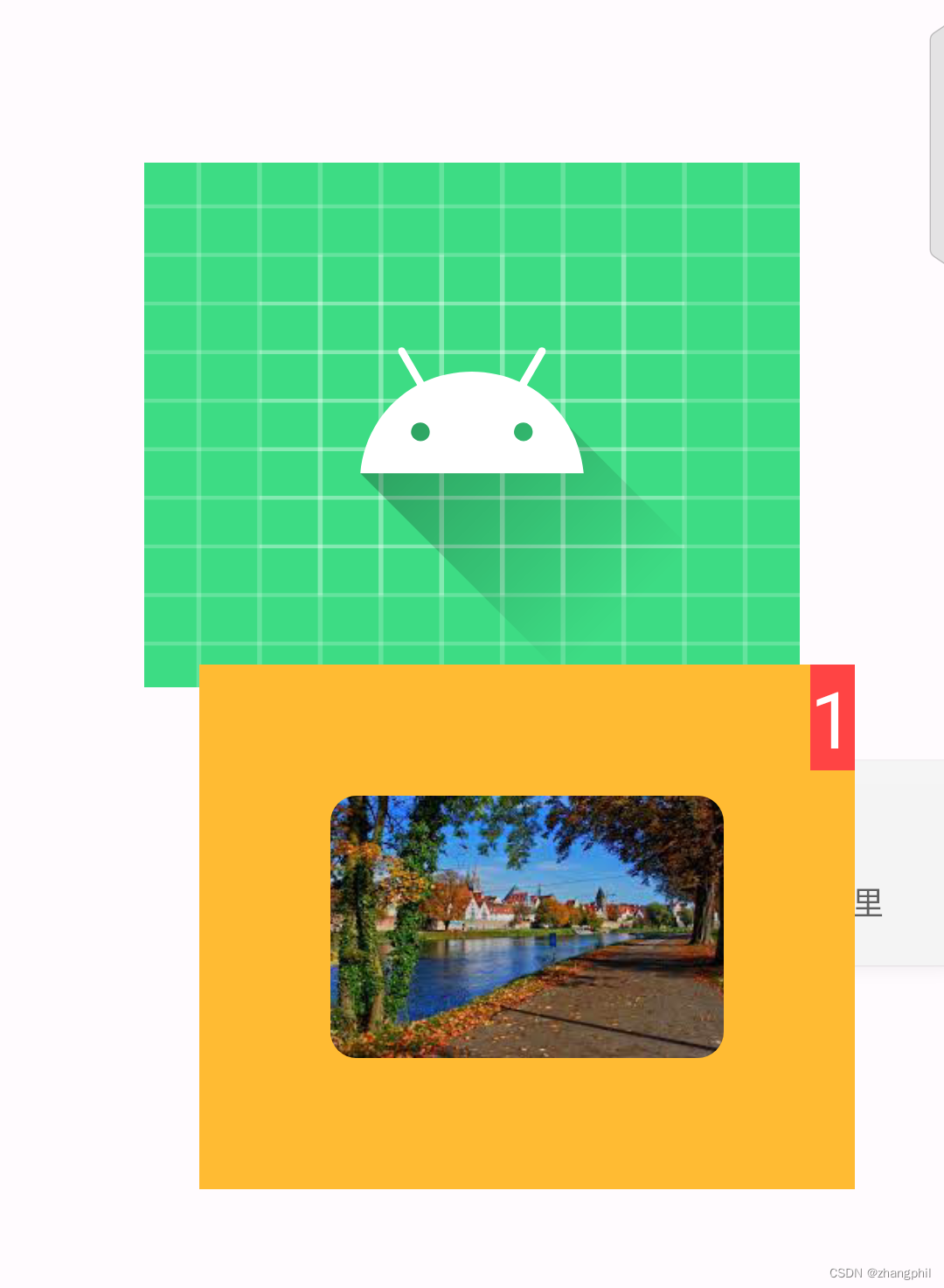
多张图片,显示堆叠的图片,并同时设置封面图:

dnd.xml:
- "1.0" encoding="utf-8"?>
- <androidx.constraintlayout.widget.ConstraintLayout xmlns:android="http://schemas.android.com/apk/res/android"
- xmlns:app="http://schemas.android.com/apk/res-auto"
- android:layout_width="@dimen/view_size_w"
- android:layout_height="@dimen/view_size_h"
- android:background="@android:color/holo_orange_light">
- <ImageView
- android:id="@+id/iv1"
- android:layout_width="@dimen/image_size_w"
- android:layout_height="@dimen/image_size_h"
- android:layout_margin="@dimen/my_margin"
- app:layout_constraintBottom_toBottomOf="parent"
- app:layout_constraintLeft_toLeftOf="parent"
- app:layout_constraintRight_toRightOf="parent"
- app:layout_constraintTop_toTopOf="parent" />
- <ImageView
- android:id="@+id/iv2"
- android:layout_width="@dimen/image_size_w"
- android:layout_height="@dimen/image_size_h"
- android:layout_margin="@dimen/my_margin"
- app:layout_constraintBottom_toBottomOf="parent"
- app:layout_constraintLeft_toLeftOf="parent"
- app:layout_constraintRight_toRightOf="parent"
- app:layout_constraintTop_toTopOf="parent" />
- <ImageView
- android:id="@+id/iv3"
- android:layout_width="@dimen/image_size_w"
- android:layout_height="@dimen/image_size_h"
- android:layout_margin="@dimen/my_margin"
- app:layout_constraintBottom_toBottomOf="parent"
- app:layout_constraintLeft_toLeftOf="parent"
- app:layout_constraintRight_toRightOf="parent"
- app:layout_constraintTop_toTopOf="parent" />
- <androidx.constraintlayout.widget.Group
- android:id="@+id/group"
- android:layout_width="wrap_content"
- android:layout_height="wrap_content"
- android:visibility="visible"
- app:constraint_referenced_ids="iv1,iv2,iv3" />
- <ImageView
- android:id="@+id/folder"
- android:layout_width="@dimen/image_size_w"
- android:layout_height="@dimen/image_size_h"
- android:layout_margin="@dimen/my_margin"
- app:layout_constraintBottom_toBottomOf="parent"
- app:layout_constraintLeft_toLeftOf="parent"
- app:layout_constraintRight_toRightOf="parent"
- app:layout_constraintTop_toTopOf="parent" />
- <TextView
- android:id="@+id/number"
- android:layout_width="wrap_content"
- android:layout_height="wrap_content"
- android:background="@android:color/holo_red_light"
- android:text="--"
- android:textColor="@android:color/white"
- android:textSize="30dp"
- app:layout_constraintRight_toRightOf="parent"
- app:layout_constraintTop_toTopOf="parent" />
- androidx.constraintlayout.widget.ConstraintLayout>
dimens.xml:
- "1.0" encoding="utf-8"?>
- <resources>
- <dimen name="view_size_w">250dpdimen>
- <dimen name="view_size_h">200dpdimen>
- <dimen name="image_size_w">150dpdimen>
- <dimen name="image_size_h">100dpdimen>
- <dimen name="my_margin">50dpdimen>
- resources>
-
相关阅读:
自学的一些面试题-html
【RuoYi移动端】uni-app中实现生成二维码功能(代码示例)
WPF Button去除按钮边框,添加下划线
基于深度混合核极限学习机的多变量输入时间序列预测
Python ChatGPT API 新增的函数调用功能演示
Java 自定义Excel数据排序
牛客多校4 N Particle Arts
spinal HDL - 10 - 状态机
JavaScript基础
idea 2023 设置启动参数、单元测试启动参数
- 原文地址:https://blog.csdn.net/zhangphil/article/details/134269432