-
13.4web自动化测试(Selenium3+Java)
一.定义
用来做web自动化测试的框架.
二.特点
1.支持各种浏览器.
2.支持各种平台(操作系统).
3.支持各种编程语言.
4.有丰富的api.
三.工作原理

四.搭环境
1.对照Chrome浏览器版本号,下载ChromeDriver,配置环境变量,我直接把.exe文件放在了jdk安装路径的bin文件夹下了(jdk配置了环境变量).
2.创建mavem项目,在pom.xml文件中引入Selenium依赖.
- <dependency>
- <groupId>org.seleniumhq.seleniumgroupId>
- <artifactId>selenium-javaartifactId>
- <version>4.7.2version>
- dependency>
3.创建启动类,用百度进行测试.
- import org.openqa.selenium.WebDriver;
- import org.openqa.selenium.chrome.ChromeDriver;
- import org.openqa.selenium.chrome.ChromeOptions;
- public class Main {
- public static void main(String[] args) {
- ChromeOptions options = new ChromeOptions();
- options.addArguments("--remote-allow-origins=*");
- WebDriver webDriver = new ChromeDriver(options);
- webDriver.get("https://www.baidu.com");
- }
- }
如果正常运行,则环境搭配好了.
五.css选择器
1.id选择器: #id
2.类选择器: .class
3.标签选择器: 标签
4.后代选择器: 父级选择器, 子级选择器.
注意:两种选择器,建议使用CSS选择器,因为效率高.
六.Xpath选择器
1.绝对路径: /html/......(效率低,不常用).
2.相对路径: //......
a.相对路径+索引

//form/span[1]/input
注意: 数组下标从1开始.
b.相对路径+属性值

//input[@class="s_ipt"]
c.相对路径+通配符
//*[@*="s_ipt"]
d.相对路径+文本匹配

//a[text()="新闻"]
七.WebDriver的常用方法
1.click: 点击.
2.sendKeys: 在对象上模拟键盘输入.
3.clear: 清除对象输入的文本内容.
4.(不推荐使用)submit: 提交,和click作用一样,但是有弊端,如果点击的元素放在非form标签中,此时submit会报错(比如超链接(a标签)).
5.text: 用于获取元素的文本信息.
6.getAttribute: 获取属性值.
以上所有内容的代码练习
- import org.openqa.selenium.By;
- import org.openqa.selenium.WebDriver;
- import org.openqa.selenium.WebElement;
- import org.openqa.selenium.chrome.ChromeDriver;
- import org.openqa.selenium.chrome.ChromeOptions;
- import java.util.List;
- import static java.lang.Thread.sleep;
- public class Main {
- public static void main(String[] args) throws InterruptedException {
- // 测试是否通过的标致
- boolean flag = false;
- ChromeOptions options = new ChromeOptions();
- //允许所有请求
- options.addArguments("--remote-allow-origins=*");
- WebDriver webDriver = new ChromeDriver(options);
- // 1.打开百度首页
- webDriver.get("https://www.baidu.com/");
- String title = webDriver.getTitle();
- String url = webDriver.getCurrentUrl();
- if (url.equals("https://www.baidu.com/") && title.equals("百度一下,你就知道")) {
- System.out.println("title和url正确");
- } else {
- System.out.println("title和url不正确");
- }
- // 2.两种定位元素的方式: 1.cssSelector 2.Xpath
- // 使用浏览器,按F12,选中要测试的位置,在代码中拷贝.
- // 找到百度搜索输入框
- // 第一种: cssSelector
- WebElement element = webDriver.findElement(By.cssSelector("#kw"));
- // 第二种: Xpath
- //WebElement Element = webDriver.findElement(By.xpath("//*[@id=\"kw\"]"));
- // 3.输入信息
- element.sendKeys("别克君越艾维亚");
- // 4.找到百度一下按钮
- // 5.点击按钮
- webDriver.findElement(By.cssSelector("#su")).click();
- sleep(2000);
- // 6.校验
- List
elements = webDriver.findElements(By.cssSelector("a")); - for (int i = 0; i < elements.size(); ++i) {
- if(elements.get(i).getText().contains("别克君越") || elements.get(i).getText().contains("艾维亚")) {
- System.out.println("测试通过");
- flag = true;
- break;
- }
- }
- if (!flag) {
- System.out.println("测试不通过");
- }
- // 清空输入框
- element.clear();
- sleep(1500);
- // 在输入框中重新输入内容
- element.sendKeys("别克威朗");
- webDriver.findElement(By.cssSelector("#su")).submit();
- // 获取属性值:百度一下
- System.out.println(webDriver.findElement(By.cssSelector("#su")).getAttribute("value"));
- }
- }
八.等待
1.强制等待(sleep): 一直等待到规定时间.
2.智能等待: 设置的等待时间是最长的等待时间,如果完成了任务,会停止.
a.隐式等待(webDriver.manage().timeouts().implicitlyWait())
b.显示等待: 指定某个任务进行等待.
区别: 隐式等待是等待页面上所有因素加载进来,如果规定时间内没有加载进来,就会报错.而显示等待并不关心是否加载进来所有的元素,只要在规定时间内,在所有被加载进来的元素中包含指定的元素,就不会报错.
3.代码练习
- import org.openqa.selenium.By;
- import org.openqa.selenium.WebDriver;
- import org.openqa.selenium.chrome.ChromeDriver;
- import org.openqa.selenium.chrome.ChromeOptions;
- import org.openqa.selenium.support.ui.ExpectedConditions;
- import org.openqa.selenium.support.ui.WebDriverWait;
- import java.time.Duration;
- public class Main2 {
- public static void main(String[] args) {
- ChromeOptions options = new ChromeOptions();
- options.addArguments("--remote-allow-origins=*");
- // 创建驱动
- WebDriver driver = new ChromeDriver(options);
- // 连接百度
- driver.get("https://www.baidu.com/");
- // 判断元素是否可以被点击
- // 隐式等待
- // driver.manage().timeouts().implicitlyWait(Duration.ofDays(5));
- // 显示等待
- WebDriverWait wait = new WebDriverWait(driver, Duration.ofMillis(3000));
- wait.until(ExpectedConditions.elementToBeClickable(By.cssSelector("#bottom_layer > div > p:nth-child(7) > a")));
- }
- }
九.浏览器操作
1.后退: webdriver.navigate().back();
2.刷新: webdriver.navigate().refresh();
3.前进: webdriver.navigate().forward();
4.滚动条操作: 使用js脚本
划到最底端:
((JavascriptExecutor)driver).executeScript("document.documentElement.scrollTop=10000");
5.最大化: driver.manage().window().maximize();
6.全屏: driver.manage().window().fullscreen();
7.设置长宽: driver.manage().window().setSize(new Dimension(600, 800));
8.代码
- import org.openqa.selenium.By;
- import org.openqa.selenium.Dimension;
- import org.openqa.selenium.JavascriptExecutor;
- import org.openqa.selenium.WebDriver;
- import org.openqa.selenium.chrome.ChromeDriver;
- import org.openqa.selenium.chrome.ChromeOptions;
- import static java.lang.Thread.sleep;
- public class Main3 {
- public static void main(String[] args) throws InterruptedException {
- ChromeOptions options = new ChromeOptions();
- options.addArguments("--remote-allow-origins=*");
- // 创建驱动
- WebDriver driver = new ChromeDriver(options);
- // 连接百度
- driver.get("https://www.baidu.com/");
- driver.findElement(By.cssSelector("#kw")).sendKeys("君越艾维亚");
- driver.findElement(By.cssSelector("#su")).click();
- sleep(1500);
- // 回退
- driver.navigate().back();
- sleep(1500);
- // 刷新
- driver.navigate().refresh();
- sleep(1500);
- // 前进
- driver.navigate().forward();
- sleep(1500);
- // 滚动,使用js脚本
- // 划到最底端
- ((JavascriptExecutor)driver).executeScript("document.documentElement.scrollTop=10000");
- sleep(1500);
- // 最大化
- driver.manage().window().maximize();
- sleep(1500);
- // 全屏
- driver.manage().window().fullscreen();
- sleep(1500);
- // 最小化
- driver.manage().window().minimize();
- // 设置长宽
- driver.manage().window().setSize(new Dimension(600, 800));
- }
- }
十.键盘
1.control + a:
driver.findElement(By.cssSelector("#kw")).sendKeys(Keys.CONTROL, "A");2.代码
- import org.openqa.selenium.By;
- import org.openqa.selenium.Keys;
- import org.openqa.selenium.WebDriver;
- import org.openqa.selenium.chrome.ChromeDriver;
- import org.openqa.selenium.chrome.ChromeOptions;
- import static java.lang.Thread.sleep;
- public class Main4 {
- public static void main(String[] args) throws InterruptedException {
- ChromeOptions options = new ChromeOptions();
- options.addArguments("--remote-allow-origins=*");
- // 创建驱动
- WebDriver driver = new ChromeDriver(options);
- // 连接百度
- driver.get("https://www.baidu.com/");
- driver.findElement(By.cssSelector("#kw")).sendKeys("君越艾维亚");
- // 键盘操作
- // control + A
- driver.findElement(By.cssSelector("#kw")).sendKeys(Keys.CONTROL, "A");
- sleep(1500);
- // control + X
- driver.findElement(By.cssSelector("#kw")).sendKeys(Keys.CONTROL, "X");
- sleep(1500);
- // control + V
- driver.findElement(By.cssSelector("#kw")).sendKeys(Keys.CONTROL, "V");
- sleep(1500);
- }
- }
十一.鼠标
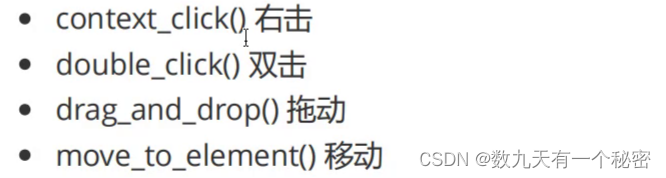
代码:
- import org.openqa.selenium.By;
- import org.openqa.selenium.WebDriver;
- import org.openqa.selenium.WebElement;
- import org.openqa.selenium.chrome.ChromeDriver;
- import org.openqa.selenium.chrome.ChromeOptions;
- import org.openqa.selenium.interactions.Action;
- import org.openqa.selenium.interactions.Actions;
- import static java.lang.Thread.sleep;
- public class Main5 {
- public static void main(String[] args) throws InterruptedException {
- ChromeOptions options = new ChromeOptions();
- options.addArguments("--remote-allow-origins=*");
- // 创建驱动
- WebDriver driver = new ChromeDriver(options);
- // 连接百度
- driver.get("https://www.baidu.com/");
- driver.findElement(By.cssSelector("#kw")).sendKeys("君越艾维亚");
- driver.findElement(By.cssSelector("#su")).click();
- sleep(1500);
- // 鼠标操作
- WebElement element = driver.findElement(By.cssSelector("#s_tab > div > a.s-tab-item.s-tab-item_1CwH-.s-tab-pic_p4Uej.s-tab-pic"));
- Actions actions = new Actions(driver);
- sleep(1500);
- actions.moveToElement(element).contextClick().perform();
- }
- }
十二.特殊场景
1.定位一组元素:
勾选复选框
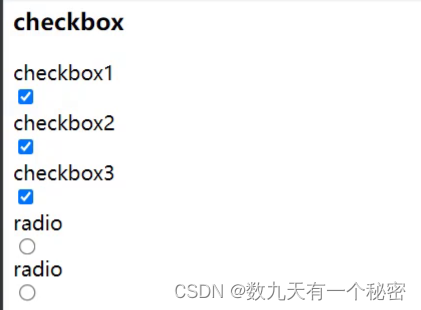
- import org.openqa.selenium.By;
- import org.openqa.selenium.WebDriver;
- import org.openqa.selenium.WebElement;
- import org.openqa.selenium.chrome.ChromeDriver;
- import org.openqa.selenium.chrome.ChromeOptions;
- import java.util.List;
- public class Main6 {
- public static void main(String[] args) {
- ChromeOptions options = new ChromeOptions();
- options.addArguments("--remote-allow-origins=*");
- // 创建驱动
- WebDriver driver = new ChromeDriver(options);
- // 连接
- driver.get("???");
- List
elements = driver.findElements(By.cssSelector("input")); - // 遍历elements,如果vtype值是checkbox就点击
- // 使用
- for (int i = 0; i < elements.size(); ++i) {
- if (elements.get(i).getAttribute("type").contains("checkbox")) {
- elements.get(i).click();
- }
- }
- }
- }
2.多框架定位: 在iframe中的a标签使用常规方法无法定位

- import org.openqa.selenium.By;
- import org.openqa.selenium.WebDriver;
- import org.openqa.selenium.chrome.ChromeDriver;
- import org.openqa.selenium.chrome.ChromeOptions;
- public class Main7 {
- public static void main(String[] args) {
- ChromeOptions options = new ChromeOptions();
- options.addArguments("--remote-allow-origins=*");
- // 创建驱动
- WebDriver driver = new ChromeDriver(options);
- // 连接
- driver.get("???");
- // 对iframe底下的a标签进行操作,不能直接定位,需要先切换
- // 输入id号,找到指定的iframe
- driver.switchTo().frame("f1");
- driver.findElement(By.cssSelector("???")).click();
- }
- }
3.下拉框处理:

- import org.openqa.selenium.By;
- import org.openqa.selenium.WebDriver;
- import org.openqa.selenium.WebElement;
- import org.openqa.selenium.chrome.ChromeDriver;
- import org.openqa.selenium.chrome.ChromeOptions;
- import org.openqa.selenium.support.ui.Select;
- public class Main8 {
- public static void main(String[] args) {
- ChromeOptions options = new ChromeOptions();
- options.addArguments("--remote-allow-origins=*");
- // 创建驱动
- WebDriver driver = new ChromeDriver(options);
- // 连接
- driver.get("???");
- // 获取下拉框的元素
- WebElement element = driver.findElement(By.cssSelector("???"));
- Select select = new Select(element);
- // 可以通过多种方式定位,常用以下两种
- // 1.下标定位(下标从0开始计数)
- select.deselectByIndex(0);
- // 2.根据value值定位
- select.deselectByValue("???");
- }
- }
4.弹窗处理: 针对alert
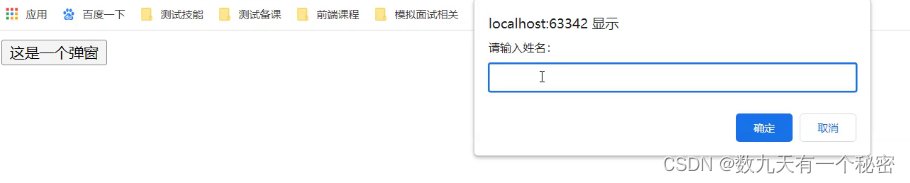

- import org.openqa.selenium.By;
- import org.openqa.selenium.WebDriver;
- import org.openqa.selenium.chrome.ChromeDriver;
- import org.openqa.selenium.chrome.ChromeOptions;
- public class Main9 {
- public static void main(String[] args) {
- ChromeOptions options = new ChromeOptions();
- options.addArguments("--remote-allow-origins=*");
- // 创建驱动
- WebDriver driver = new ChromeDriver(options);
- // 连接
- driver.get("???");
- // 点击弹窗
- driver.findElement(By.cssSelector("button")).click();
- // 取消弹窗
- driver.switchTo().alert().dismiss();
- // 点击弹窗
- driver.findElement(By.cssSelector("button")).click();
- // 输入内容
- driver.switchTo().alert().sendKeys("张三");
- // 点击确认
- driver.switchTo().alert().accept();
- }
- }
5.上传文件

- import org.openqa.selenium.By;
- import org.openqa.selenium.WebDriver;
- import org.openqa.selenium.chrome.ChromeDriver;
- import org.openqa.selenium.chrome.ChromeOptions;
- public class Main10 {
- public static void main(String[] args) {
- ChromeOptions options = new ChromeOptions();
- options.addArguments("--remote-allow-origins=*");
- // 创建驱动
- WebDriver driver = new ChromeDriver(options);
- // 连接
- driver.get("???");
- // 上传文件
- driver.findElement(By.cssSelector("???")).sendKeys("此处填写文件路径");
- }
- }
十三.补充
1.关闭浏览器
a)driver.quit();
退出浏览器,清空缓存(如cookie).
b)driver.close();
关闭当前正在操作的页面(不是最新的页面,要看当前正在操作的页面)
c)代码
- import org.openqa.selenium.By;
- import org.openqa.selenium.WebDriver;
- import org.openqa.selenium.chrome.ChromeDriver;
- import org.openqa.selenium.chrome.ChromeOptions;
- import static java.lang.Thread.sleep;
- public class Main11 {
- public static void main(String[] args) throws InterruptedException {
- ChromeOptions options = new ChromeOptions();
- options.addArguments("--remote-allow-origins=*");
- // 创建驱动
- WebDriver driver = new ChromeDriver(options);
- // 连接百度
- driver.get("https://www.baidu.com/");
- driver.findElement(By.cssSelector("#s-top-left > a:nth-child(1)")).click();
- sleep(1500);
- //driver.close();
- driver.quit();
- }
- }
2.切换窗口
a)driver.getWindowHandle();
获取页面句柄,不是最新的页面,是当前正在操作的页面.
b)Set
windowHandles = driver.getWindowHandles(); 获取所有页面的局部,最后一个就是最新页面的句柄.
c)代码:
- import org.openqa.selenium.By;
- import org.openqa.selenium.WebDriver;
- import org.openqa.selenium.chrome.ChromeDriver;
- import org.openqa.selenium.chrome.ChromeOptions;
- import java.util.Set;
- public class Main12 {
- public static void main(String[] args) {
- ChromeOptions options = new ChromeOptions();
- options.addArguments("--remote-allow-origins=*");
- // 创建驱动
- WebDriver driver = new ChromeDriver(options);
- // 连接百度
- driver.get("https://www.baidu.com/");
- // 点击新的页面
- driver.findElement(By.cssSelector("#s-top-left > a:nth-child(1)")).click();
- System.out.println(driver.getWindowHandle());
- String handle = null;
- Set
windowHandles = driver.getWindowHandles(); - for (String str : windowHandles) {
- handle = str;
- System.out.println(str);
- }
- }
- }
运行结果:

3.截图
a)去maven中央仓库找common-io依赖(Apache Commons IO)
- <dependency>
- <groupId>commons-iogroupId>
- <artifactId>commons-ioartifactId>
- <version>2.11.0version>
- dependency>
b) File screenshotAs = ((TakesScreenshot) driver).getScreenshotAs(OutputType.FILE);
FileUtils.copyFile(screenshotAs, new File("D://picture/123.png"));c)代码
- import org.apache.commons.io.FileUtils;
- import org.openqa.selenium.By;
- import org.openqa.selenium.OutputType;
- import org.openqa.selenium.TakesScreenshot;
- import org.openqa.selenium.WebDriver;
- import org.openqa.selenium.chrome.ChromeDriver;
- import org.openqa.selenium.chrome.ChromeOptions;
- import java.io.File;
- import java.io.IOException;
- import static java.lang.Thread.sleep;
- public class Main13 {
- public static void main(String[] args) throws IOException, InterruptedException {
- ChromeOptions options = new ChromeOptions();
- options.addArguments("--remote-allow-origins=*");
- // 创建驱动
- WebDriver driver = new ChromeDriver(options);
- // 连接百度
- driver.get("https://www.baidu.com/");
- driver.findElement(By.cssSelector("#kw")).sendKeys("别克君越艾维亚");
- driver.findElement(By.cssSelector("#su")).click();
- sleep(1500);
- File screenshotAs = ((TakesScreenshot) driver).getScreenshotAs(OutputType.FILE);
- FileUtils.copyFile(screenshotAs, new File("D://picture/123.png"));
- }
- }
-
相关阅读:
【LeetCode-中等题】513. 找树左下角的值
P3387 【模板】缩点 Tarjan强连通分量/树上dp
SpringBoot SpringBoot 基础篇(第一篇) 第1章 SpringBoot 入门 1.4 HelloWorld 执行分析
onbuy买家号下单教程,自养买家号测评环境资源和核心优势!
设计一个支持百万用户的系统
GM/T 0005《随机性检测规范》2012版和2021版对比
Nginx安装nginx-rtmp-module模块
BUUCTF题解之[极客大挑战 2019]Havefun 1
顶顶通呼叫中心中间件-如何使处于机器人话术中的通话手动转接到坐席分机上讲解(mod_cti基于FreeSWITCH)
Apache Dubbo线程监控
- 原文地址:https://blog.csdn.net/m0_73345579/article/details/133962234
