-
vue3中使用vue3-pdf-app和使用浏览器内置的PDF插件浏览器PDF文件
如果想直接看vue3的内容,就点击对应的目录去看就行了
先准备一个PDF
没有的可以使用,WPS直接建立一个,或者建立一个word文档,随便输入一个内容,另存为PDF,就有了。

使用浏览器内置的PDF插件预览PDF
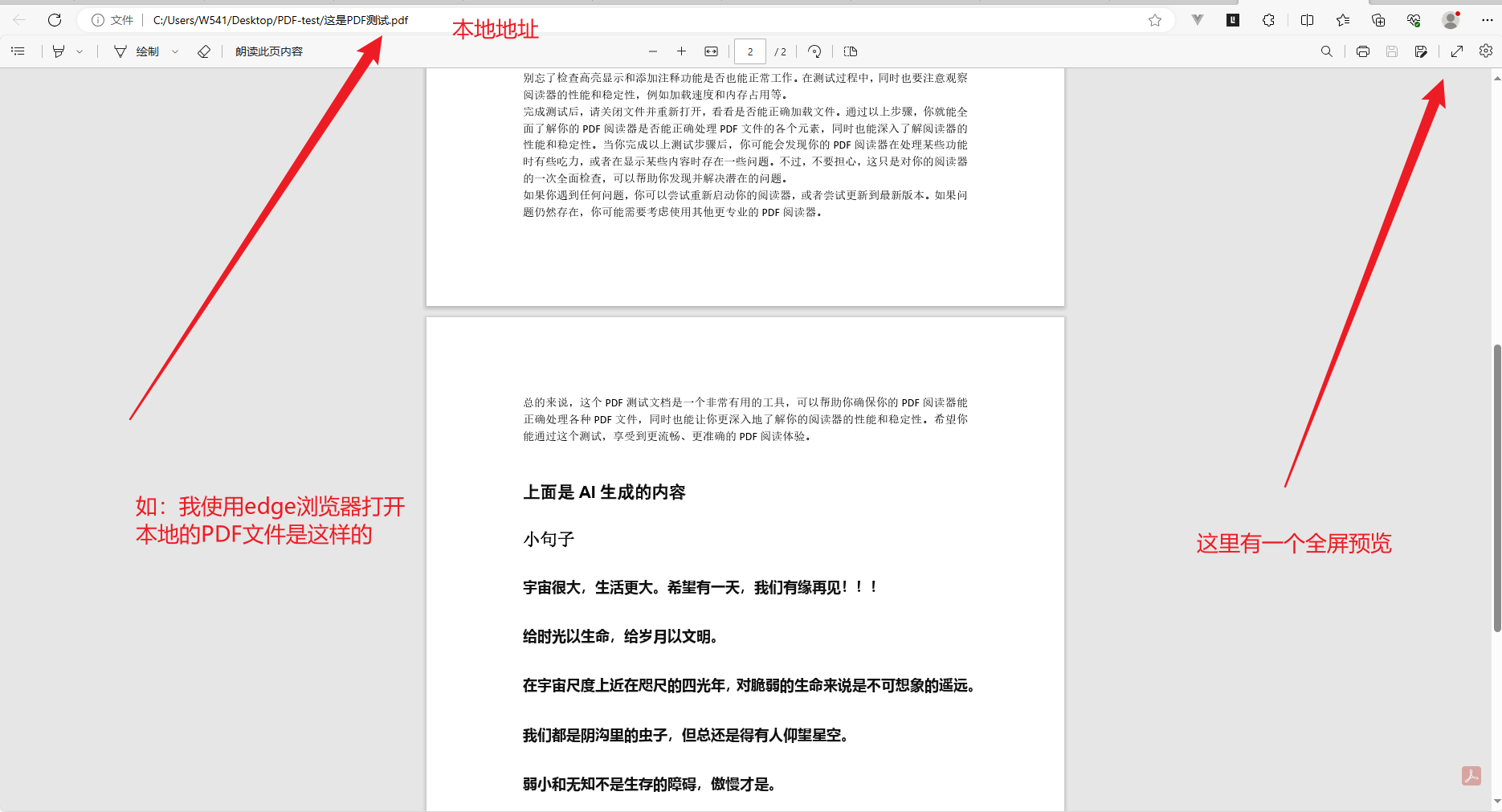
在HTML中使用浏览器插件预览PDF
然后我在代码中通过iframe的形式,打开PDF文件,也可以正常预览PDF文件,代码在截图后面

代码如下所示DOCTYPE html> <html lang="en"> <head> <meta charset="UTF-8"> <meta name="viewport" content="width=device-width, initial-scale=1.0"> <title>这是PDF测试title> head> <style> html, body { width: 100%; height: 100%; margin: 0; padding: 0; box-sizing: border-box; } style> <body> <div style="width: 100%; height: 100%;"> <iframe src="./这是PDF测试.pdf" style="width: 100%; height: 100vh;">iframe> div> body> html>- 1
- 2
- 3
- 4
- 5
- 6
- 7
- 8
- 9
- 10
- 11
- 12
- 13
- 14
- 15
- 16
- 17
- 18
- 19
- 20
- 21
- 22
- 23
- 24
- 25
- 26
结果如下所示:


注意了使用插件发布服务之后,千万别关闭Vscode!千万别关闭Vscode!千万别关闭Vscode!千万别关闭Vscode!千万别关闭Vscode!千万别关闭Vscode! 否则,访问不到文件,因为关闭了Vscode就相当于关闭服务了。

Vscode使用插件发布服务后直接通过URL地址访问PDF
通过上面Vscode的插件,发布为服务之后,将对应pdftest.html所在目录都变成了URL可以访问的内容了,输入端口号和文件名称,就可以实现通过URL地址访问对应的文件了。如下图所示:其中,图中黑色为在Vscode的目录,因为右键发布服务是以上面截图中所示的pdftest.html发布的,所以这里的(这是PDF测试.pdf)跟pdftest.html是同级目录,如果这里有多一层目录,则需要加上这一层目录,看后面截图

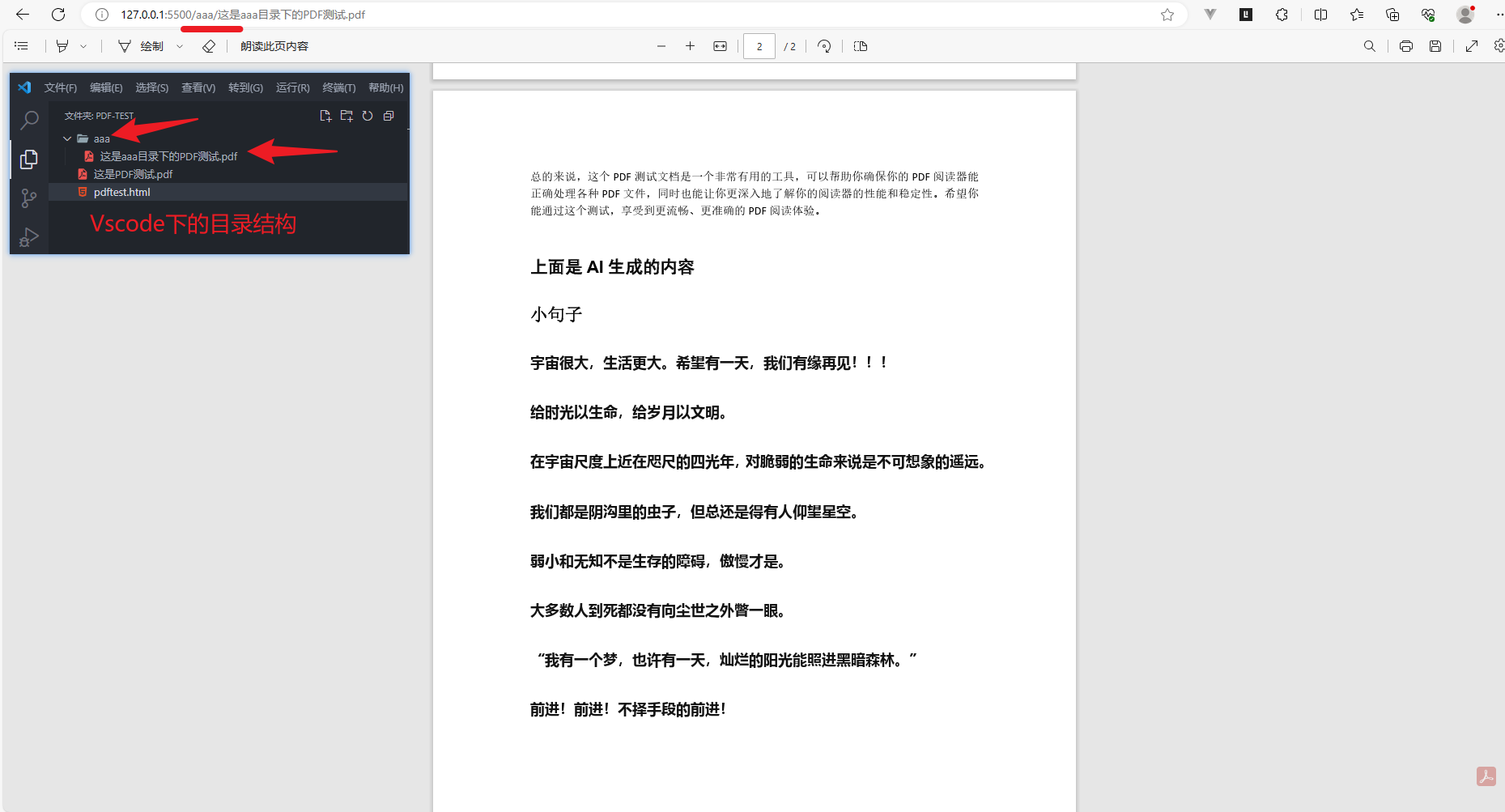
图片也是可以通过这种方式访问的

所以上述的代码还可以改成这样DOCTYPE html> <html lang="en"> <head> <meta charset="UTF-8"> <meta name="viewport" content="width=device-width, initial-scale=1.0"> <title>这是PDF测试title> head> <style> html, body { width: 100%; height: 100%; margin: 0; padding: 0; box-sizing: border-box; } style> <body> <div style="width: 100%; height: 100%;"> <iframe src="http://127.0.0.1:5500/这是PDF测试.pdf" style="width: 100%; height: 100vh;">iframe> div> body> html>- 1
- 2
- 3
- 4
- 5
- 6
- 7
- 8
- 9
- 10
- 11
- 12
- 13
- 14
- 15
- 16
- 17
- 18
- 19
- 20
- 21
- 22
- 23
- 24
- 25
- 26
- 27
结果如下所示

其他的以此类推,有兴趣的可以去试一试,所有的URL地址访问,是以使用Vscode对应的插件发布服务的目位置决定的。我为什么要记录这个呢!是因为我发现如果我想试着找一个在线的PDF进行测试,还要自己找可以访问的PDF。还不如这样来得简单,又不用花时间找。除了使用Vscode发布为服务这种方式通过URL访问文件,还可以通过nginx、SpringBoot设置静态资源映射等多种方式,但Vscode这种方式无疑是最简单的。
以后如果需要访问一些在线的地址测试之类的(如:图片,PDF等),直接使用Vscode使用相应的插件发布为服务即可。无需特意找在线的文件,直接通过这种方式使用URL访问本地文件,方便多了。可使用的浏览器
通过上面的那种方式,我使用edge、Google Chrome、360浏览器,这些都是可以的。火狐因为平时用不到,电脑也没安装有,就不测试了。IE就更不用说了,都2023年了,这个用的应该挺少了的吧,这已经不在我的考虑范围之内了,这里只是提一下而已。有兴趣的可以自行测试一下。
在vue3项目中预览PDF文件
vue3项目也是可以通过URL地址访问文件的
这个前提是,运行起来了,这个需要知道一下,可能后面需要用到,目录结构如下所示

运行项目,通过给的例子,f12查看可知


通过上面的两种方式,我们可以把PDF放到对应的目录下,然后运行项目,通过URL地址访问对应的目录文件就可以了。这里我把PDF放在public目录和src的pdf目录下。然后分别使用URL地址访问。对应的目录结构,如下所示


都是可以通过URL正常访问的vue3中使用浏览器内置的PDF插件预览PDF
目录结构


一样的警告
代码如下所示:App.vue
<template> <div style="width: 100%; height: 100%; background-color: pink;"> <iframe src="/src/assets/pdf/srcassetspdfmulu.pdf" style="width: 100%; height: 100%;">iframe> div> template> <script setup lang="ts"> // import {ref} from 'vue' // 在vue3中下面的第一个/代表的就是public,使用这个反而有警告 // const publicPdfUrl = ref('/public/publicmulu.pdf') // const publicPdfUrl = ref('/publicmulu.pdf') // src目录 // const srcPdfUrl = ref("/src/assets/pdf/srcassetspdfmulu.pdf") script> <style scoped> style>- 1
- 2
- 3
- 4
- 5
- 6
- 7
- 8
- 9
- 10
- 11
- 12
- 13
- 14
- 15
- 16
- 17
- 18
- 19
- 20
- 21
- 22
- 23
- 24
- 25
- 26
- 27
- 28
- 29
- 30
- 31
- 32
- 33

在vue3中使用组件vue3-pdf-app预览PDF
这个组件我是无意中发现的,vue3-pdf-app - npm (npmjs.com),这个是对应的官网,这里面有对对应的详细的使用案例,这里简单说明一下。
下载安装组件
npm install vue3-pdf-app- 1
- 2
App.vue代码
<template> <div style="width: 100%; height: 100%;"> <vue-pdf-app style="height: 100vh;" pdf="http://localhost:7777/src/assets/pdf/srcassetspdfmulu.pdf">vue-pdf-app> div> template> <script setup lang="ts"> import VuePdfApp from "vue3-pdf-app"; // import this to use default icons for buttons import "vue3-pdf-app/dist/icons/main.css"; // import {ref} from 'vue' // const pdfUrl = ref('publicmulu.pdf') // const pdfUrl = ref('/src/assets/pdf/srcassetspdfmulu.pdf') script> <style scoped> style>- 1
- 2
- 3
- 4
- 5
- 6
- 7
- 8
- 9
- 10
- 11
- 12
- 13
- 14
- 15
- 16
- 17
- 18
- 19
- 20
- 21
- 22
- 23
- 24
- 25
- 26
- 27
- 28
vue3-pdf-app预览PDF结果如下图所示

修改组件主题
官网都有对应的说明,vue3-pdf-app - npm (npmjs.com) 这里有说明,如我这里改成dark

代码如下所示:App.vue<template> <div style="width: 100%; height: 100%;"> <vue-pdf-app theme="dark" style="height: 100vh;" pdf="/src/assets/pdf/srcassetspdfmulu.pdf">vue-pdf-app> div> template> <script setup lang="ts"> import VuePdfApp from "vue3-pdf-app"; // import this to use default icons for buttons import "vue3-pdf-app/dist/icons/main.css"; // import {ref} from 'vue' // const pdfUrl = ref('publicmulu.pdf') // const pdfUrl = ref('/src/assets/pdf/srcassetspdfmulu.pdf') script> <style scoped> style>- 1
- 2
- 3
- 4
- 5
- 6
- 7
- 8
- 9
- 10
- 11
- 12
- 13
- 14
- 15
- 16
- 17
- 18
- 19
- 20
- 21
- 22
- 23
- 24
- 25
- 26
- 27
结果如下图所示

修改配置
官网截图如下所示,vue3-pdf-app - npm (npmjs.com),详情看官网,因为这里的配置是在是太多了,这里建议封装成一个组件方便后面复用,具体看后面的代码

目录结构如图所示,代码在截图后面

PDFPreview.vue<template> <div style="width: 100%; height: 100%;"> <vue-pdf-app theme="dark" style="height: 100vh;" :pdf="pdfUrl">vue-pdf-app> div> template> <script setup lang="ts"> import VuePdfApp from "vue3-pdf-app"; // import this to use default icons for buttons import "vue3-pdf-app/dist/icons/main.css"; // 宏 defineProps<{ pdfUrl: string | undefined }>() script> <style scoped> style>- 1
- 2
- 3
- 4
- 5
- 6
- 7
- 8
- 9
- 10
- 11
- 12
- 13
- 14
- 15
- 16
- 17
- 18
- 19
- 20
App.vue
<template> <div style="width: 100%; height: 100%;"> <PDFPreview style="width: 100%; height: 100%;" :pdf-url="pdfUrl">PDFPreview> div> template> <script setup lang="ts"> import {ref} from 'vue' import PDFPreview from './components/PDFPreview.vue'; const pdfUrl = ref('/src/assets/pdf/srcassetspdfmulu.pdf') script> <style scoped> style>- 1
- 2
- 3
- 4
- 5
- 6
- 7
- 8
- 9
- 10
- 11
- 12
- 13
- 14
- 15
结果如下所示

进行配置,根据官网来。vue3-pdf-app - npm (npmjs.com)
PDFPreview.vue<template> <div style="width: 100%; height: 100%;"> <vue-pdf-app :config="config" theme="dark" style="height: 100vh;" :pdf="pdfUrl">vue-pdf-app> div> template> <script setup lang="ts"> import VuePdfApp from "vue3-pdf-app"; // import this to use default icons for buttons import "vue3-pdf-app/dist/icons/main.css"; // 宏 defineProps<{ pdfUrl: string | undefined }>() // 想不显示那一项,就将对应的true改成false就行了 const config = { sidebar: { // viewThumbnail: true, 原来的配置 viewThumbnail: false, // viewOutline: true, 原来的配置 viewOutline: false, // viewAttachments: true, 原来的配置 viewAttachments: false, }, secondaryToolbar: { secondaryPresentationMode: true, secondaryOpenFile: true, secondaryPrint: true, secondaryDownload: true, secondaryViewBookmark: true, firstPage: true, lastPage: true, pageRotateCw: true, pageRotateCcw: true, cursorSelectTool: true, cursorHandTool: true, scrollVertical: true, scrollHorizontal: true, scrollWrapped: true, spreadNone: true, spreadOdd: true, spreadEven: true, documentProperties: true, }, toolbar: { toolbarViewerLeft: { findbar: true, previous: true, next: true, pageNumber: true, }, toolbarViewerRight: { presentationMode: true, openFile: true, print: true, download: true, viewBookmark: true, }, toolbarViewerMiddle: { zoomOut: true, zoomIn: true, scaleSelectContainer: true, }, }, errorWrapper: true, }; script> <style scoped>style>- 1
- 2
- 3
- 4
- 5
- 6
- 7
- 8
- 9
- 10
- 11
- 12
- 13
- 14
- 15
- 16
- 17
- 18
- 19
- 20
- 21
- 22
- 23
- 24
- 25
- 26
- 27
- 28
- 29
- 30
- 31
- 32
- 33
- 34
- 35
- 36
- 37
- 38
- 39
- 40
- 41
- 42
- 43
- 44
- 45
- 46
- 47
- 48
- 49
- 50
- 51
- 52
- 53
- 54
- 55
- 56
- 57
- 58
- 59
- 60
- 61
- 62
- 63
- 64
- 65
- 66
- 67
- 68
- 69
- 70
- 71
- 72
- 73
App.vue
<template> <div style="width: 100%; height: 100%;"> <PDFPreview style="width: 100%; height: 100%;" :pdf-url="pdfUrl">PDFPreview> div> template> <script setup lang="ts"> import {ref} from 'vue' import PDFPreview from './components/PDFPreview.vue'; const pdfUrl = ref('/src/assets/pdf/srcassetspdfmulu.pdf') script> <style scoped> style>- 1
- 2
- 3
- 4
- 5
- 6
- 7
- 8
- 9
- 10
- 11
- 12
- 13
- 14
- 15
结果如下所示
这个是没有将选项设置为false的情况
这个是将一些选项设置为false的情况

超级简化版配置
PDFPreview.vue<template> <div style="width: 100%; height: 100%;"> <vue-pdf-app :config="config" theme="dark" style="height: 100vh;" :pdf="pdfUrl">vue-pdf-app> div> template> <script setup lang="ts"> import VuePdfApp from "vue3-pdf-app"; // import this to use default icons for buttons import "vue3-pdf-app/dist/icons/main.css"; // 宏 defineProps<{ pdfUrl: string | undefined }>() // 来一个超级简化版配置,详细配置往后看 const config = { sidebar: false, secondaryToolbar: false, toolbar: false, errorWrapper: false, }; /** // 想不显示那一项,就将对应的true改成false就行了 const config = { sidebar: { // viewThumbnail: true, 原来的配置 viewThumbnail: false, // viewOutline: true, 原来的配置 viewOutline: false, // viewAttachments: true, 原来的配置 viewAttachments: false, }, secondaryToolbar: { secondaryPresentationMode: true, secondaryOpenFile: true, secondaryPrint: true, secondaryDownload: true, secondaryViewBookmark: true, firstPage: true, lastPage: true, pageRotateCw: true, pageRotateCcw: true, cursorSelectTool: true, cursorHandTool: true, scrollVertical: true, scrollHorizontal: true, scrollWrapped: true, spreadNone: true, spreadOdd: true, spreadEven: true, documentProperties: true, }, toolbar: { toolbarViewerLeft: { findbar: true, previous: true, next: true, pageNumber: true, }, toolbarViewerRight: { presentationMode: true, openFile: true, print: true, download: true, viewBookmark: true, }, toolbarViewerMiddle: { zoomOut: true, zoomIn: true, scaleSelectContainer: true, }, }, errorWrapper: true, }; // 从官网知道,这里有多种配置方法 // disable whole page navigation panel const config2 = { toolbar: { toolbarViewerLeft: false } } // disable whole panel const config3 = { toolbar: false } */ script> <style scoped>style>- 1
- 2
- 3
- 4
- 5
- 6
- 7
- 8
- 9
- 10
- 11
- 12
- 13
- 14
- 15
- 16
- 17
- 18
- 19
- 20
- 21
- 22
- 23
- 24
- 25
- 26
- 27
- 28
- 29
- 30
- 31
- 32
- 33
- 34
- 35
- 36
- 37
- 38
- 39
- 40
- 41
- 42
- 43
- 44
- 45
- 46
- 47
- 48
- 49
- 50
- 51
- 52
- 53
- 54
- 55
- 56
- 57
- 58
- 59
- 60
- 61
- 62
- 63
- 64
- 65
- 66
- 67
- 68
- 69
- 70
- 71
- 72
- 73
- 74
- 75
- 76
- 77
- 78
- 79
- 80
- 81
- 82
- 83
- 84
- 85
- 86
- 87
- 88
- 89
- 90
- 91
- 92
- 93
- 94
- 95
- 96
- 97
- 98
- 99
App.vue
<template> <div style="width: 100%; height: 100%;"> <PDFPreview style="width: 100%; height: 100%;" :pdf-url="pdfUrl">PDFPreview> div> template> <script setup lang="ts"> import {ref} from 'vue' import PDFPreview from './components/PDFPreview.vue'; const pdfUrl = ref('/src/assets/pdf/srcassetspdfmulu.pdf') script> <style scoped> style>- 1
- 2
- 3
- 4
- 5
- 6
- 7
- 8
- 9
- 10
- 11
- 12
- 13
- 14
- 15
结果如下所示

将英文改成中文显示(国际化)
需要下载国际化的语言配置,https://github.com/mozilla/pdf.js,这是对应的GitHub官网,需要到这里下载对应的国际化语言配置,记住是先下载好对应的文件,至于怎么下载,往后看。有详细的截图说明。


上面的viewer.properties文件下载。如果下载失败,就直接自己新建一个文件(同样的名称和后缀名。viewer.properties。就可以了),然后复制一下里面的代码,粘贴,就可以了。viewer.properties这个文件来自于https://github.com/mozilla/pdf.js这里,需要自己去下载。
viewer.properties这个文件来自于https://github.com/mozilla/pdf.js这里,需要自己去下载。
viewer.properties这个文件来自于https://github.com/mozilla/pdf.js这里,需要自己去下载。
viewer.properties这个文件来自于https://github.com/mozilla/pdf.js这里,需要自己去下载。下载好之后,通过
<link rel="resource" type="application/l10n" href="/src/assets/properites/viewer.properties">- 1
的形式,进行国际化语言配置,变成中文。
把下载好的viewer.properties文件放到项目的某个目录下,目录结构如下所示

PDFPreview.vue的代码如下<template> <div style="width: 100%; height: 100%;"> <link rel="resource" type="application/l10n" href="/src/assets/properites/viewer.properties"> <vue-pdf-app theme="dark" style="height: 100vh;" :pdf="pdfUrl">vue-pdf-app> div> template> <script setup lang="ts"> import VuePdfApp from "vue3-pdf-app"; // import this to use default icons for buttons import "vue3-pdf-app/dist/icons/main.css"; // 宏 defineProps<{ pdfUrl: string | undefined }>() script> <style scoped>style>- 1
- 2
- 3
- 4
- 5
- 6
- 7
- 8
- 9
- 10
- 11
- 12
- 13
- 14
- 15
- 16
- 17
- 18
- 19
- 20
- 21
App.vue
<template> <div style="width: 100%; height: 100%;"> <PDFPreview style="width: 100%; height: 100%;" :pdf-url="pdfUrl">PDFPreview> div> template> <script setup lang="ts"> import {ref} from 'vue' import PDFPreview from './components/PDFPreview.vue'; const pdfUrl = ref('/src/assets/pdf/srcassetspdfmulu.pdf') script> <style scoped> style>- 1
- 2
- 3
- 4
- 5
- 6
- 7
- 8
- 9
- 10
- 11
- 12
- 13
- 14
- 15
结果如下所示

不过,最后我还是选择使用iframe的形式展示PDF,感觉浏览器内置的PDF插件已经足够强大了,已经符合我要求了。我写这篇文章是因为,我既然了解到了,就顺便记录一下呗!
-
相关阅读:
如何做知识沉淀?我有什么知识沉淀?
【学习笔记】Cutting-edge Practice innovation and Entrepreneurship
四、RocketMq本地集群搭建
flex布局学习笔记
使用readelf和objdump查看ELF常见段
Nature methods|新型微生物富集方法,可有效解决高宿主污染样本问题
音频的各项指标
guns常用功能整理
【SpringBoot】72、SpringBoot中接入轻量级分布式日志框架Graylog
遗传算法GA求解TSP问题
- 原文地址:https://blog.csdn.net/m0_62317155/article/details/134000335
