-
仿写el-upload组件,彻底搞懂文件上传
用了那么久的Upload组件,你知道是怎么实现的么,今天就来仿写一个饿了么el-upload vue组件,彻底搞懂前端的文件上传相关知识!
要实现的props
参数 说明 action 必选参数,上传的地址 headers 设置上传的请求头部 multiple 是否支持多选文件 data 上传时附带的额外参数 name 上传的文件字段名 with-credentials 支持发送 cookie 凭证信息 show-file-list 是否显示已上传文件列表 drag 是否启用拖拽上传 accept 接受上传的文件类型 on-preview 点击文件列表中已上传的文件时的钩子 on-remove 文件列表移除文件时的钩子 on-success 文件上传成功时的钩子 on-error 文件上传失败时的钩子 on-progress 文件上传时的钩子 on-change 添加文件时被调用 before-upload 上传文件之前的钩子,参数为上传的文件,若返回 false 或者返回 Promise 且被 reject,则停止上传。 before-remove 删除文件之前的钩子,参数为上传的文件和文件列表,若返回 false 或者返回 Promise 且被 reject,则停止删除。 list-type 文件列表的类型 auto-upload 是否在选取文件后立即进行上传 file-list 上传的文件列表, 例如: [{name: ‘food.jpg’, url: ‘https://xxx.cdn.com/xxx.jpg’}] limit 最大允许上传个数 on-exceed 文件超出个数限制时的钩子 参考:https://element.eleme.cn/#/zh-CN/component/upload
这里面有几个重要的点:
- input file 的美化
- 多选
- 拖拽
一个个实现
创建upload组件文件
src/components/upload/index.vue
<template>template> <script setup> // 属性太多,把props单独放一个文件引入进来 import property from './props' const props = defineProps(property) script> <style>style>- 1
- 2
- 3
- 4
- 5
- 6
- 7
./props.js
export default { action: { type: String }, headers: { type: Object, default: {} }, multiple: { type: Boolean, default: false }, data: { type: Object, default: {} }, name: { type: String, default: 'file' }, 'with-credentials': { type: Boolean, default: false }, 'show-file-list': { type: Boolean, default: true, }, drag: { type: Boolean, default: false }, accept: { type: String, default: '' }, 'list-type': { type: String, default: 'text' // text、picture、picture-card }, 'auto-upload': { type: Boolean, default: true }, 'file-list': { type: Array, default: [] }, disabled: { type: Boolean, default: false }, limit: { type: Number, default: Infinity }, 'before-upload': { type: Function, default: () => { return true } }, 'before-remove': { type: Function, default: () => { return true } }- 1
- 2
- 3
- 4
- 5
- 6
- 7
- 8
- 9
- 10
- 11
- 12
- 13
- 14
- 15
- 16
- 17
- 18
- 19
- 20
- 21
- 22
- 23
- 24
- 25
- 26
- 27
- 28
- 29
- 30
- 31
- 32
- 33
- 34
- 35
- 36
- 37
- 38
- 39
- 40
- 41
- 42
- 43
- 44
- 45
- 46
- 47
- 48
- 49
- 50
- 51
- 52
- 53
- 54
- 55
- 56
- 57
- 58
- 59
- 60
- 61
- 62
- 63
- 64
- 65
- 66
- 67
- 68
具体的编写upload组件代码
1. 文件上传按钮的样式
我们都知道,
的默认样式是这样的:
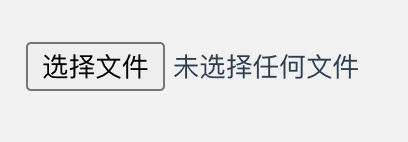
很丑,并且无法改变其样式。解决办法:可以把input隐藏,重新写个按钮点击来触发input的文件选择。
<template> <input type="file" id="file" @change="handleChange" > <button class="upload-btn" @click="choose" > 点击上传 button> template> <script setup> // 触发选择文件 const choose = () => { document.querySelector('#file').click() } // input选择文件回调 const handleChange = (event) => { files = Array.from(event.target.files) console.log('[ files ] >', files) } script> <style scoped> #file { display: none; } .upload-btn { border: none; background-color: #07c160; color: #fff; padding: 6px 10px; cursor: pointer; } style>- 1
- 2
- 3
- 4
- 5
- 6
- 7
- 8
- 9
- 10
- 11
- 12
- 13
- 14
- 15
- 16
- 17
- 18
- 19
- 20
- 21
- 22
- 23
- 24
- 25
- 26
- 27
- 28
- 29
- 30
- 31
- 32
- 33
- 34
- 35
- 36
效果:

这样也是可以调起文件选择框,并触发input的
onchange事件。
2. 多选
直接在input上加一个Booelan属性multiple,根据props中的值动态设置
顺便把accept属性也加上
<template> <input type="file" id="file" :multiple="multiple" :accept="accept" @change="handleChange" > template>- 1
- 2
- 3
- 4
- 5
- 6
- 7
- 8
- 9
3. 拖拽
准备一个接收拖拽文件的区域,props传
drag=true就用拖拽,否则就使用input上传。<template> <input type="file" id="file" :multiple="multiple" :accept="accept" @change="handleChange" > <button class="upload-btn" v-if="!drag" @click="choose" > 点击上传 button> <div v-else class="drag-box" @dragover="handleDragOver" @dragleave="handleDragLeave" @drop="handleDrop" @click="choose" :class="{'dragging': isDragging}" > 将文件拖到此处,或<span>点击上传span> div> template>- 1
- 2
- 3
- 4
- 5
- 6
- 7
- 8
- 9
- 10
- 11
- 12
- 13
- 14
- 15
- 16
- 17
- 18
- 19
- 20
- 21
- 22
- 23
- 24
- 25
- 26
- 27
dragging用来拖拽鼠标进入时改变样式
<script setup> const isDragging = ref(false) // 拖放进入目标区域 const handleDragOver = (event) => { event.preventDefault() isDragging.value = true } const handleDragLeave = (event) => { isDragging.value = false } let files = [] // 拖拽放置 const handleDrop = (event) => { event.preventDefault() isDragging.value = false files = Array.from(event.dataTransfer.files); console.log(files); } </script>- 1
- 2
- 3
- 4
- 5
- 6
- 7
- 8
- 9
- 10
- 11
- 12
- 13
- 14
- 15
- 16
- 17
- 18
- 19
.drag-box { width: 240px; height: 150px; line-height: 150px; text-align: center; border: 1px dashed #ddd; cursor: pointer; border-radius: 8px; } .drag-box:hover { border-color: cornflowerblue; } .drag-box.dragging { background-color: rgb(131, 161, 216, .2); border-color: cornflowerblue; } .drag-box span { color: cornflowerblue; }- 1
- 2
- 3
- 4
- 5
- 6
- 7
- 8
- 9
- 10
- 11
- 12
- 13
- 14
- 15
- 16
- 17
- 18
- 19

跟使用input上传效果一样

4. 上传到服务器
并实现
on-xxx钩子函数const emit = defineEmits() const fileList = ref([]) let files = [] // 拖拽放置 const handleDrop = (event) => { event.preventDefault() isDragging.value = false files = Array.from(event.dataTransfer.files); console.log('[ files ] >', files) handleBeforeUpload(files) } // input选择文件回调 const handleChange = (event) => { files = Array.from(event.target.files) console.log('[ files ] >', files) handleBeforeUpload(files) } const handleBeforeUpload = (files) => { if (files.length > props.limit - fileList.value.length) { console.error(`当前限制选择 ${props.limit} 个文件,本次选择了 ${files.length} 个文件,共选择了 ${files.length + fileList.value.length} 个文件`) emit('on-exceed', files, toRaw(fileList.value)) return } // 可以把锁哥文件放到一个formData中一起上传, // 遍历文件一个个上传,这里一个个上传是为了实现钩子函数回调时返回对应的file对象。 files.forEach(async file => { emit('on-change', file, files) if (!props.beforeUpload()) { return } if (props.autoUpload) { uploadRequest(file, files) } }) } // 手动上传已选择的文件 const submit = () => { files.forEach(async file => { uploadRequest(file, files) }) } // 保存xhr对象,用于后面取消上传 let xhrs = [] const uploadRequest = async (file, files) => { let xhr = new XMLHttpRequest(); // 调用open函数,指定请求类型与url地址。请求类型必须为POST xhr.open('POST', props.action); // 设置自定义请求头 Object.keys(props.headers).forEach(k => { xhr.setRequestHeader(k, props.headers[k]) }) // 额外参数 const formData = new FormData() formData.append('file', file); Object.keys(props.data).forEach(k => { formData.append(k, props.data[k]); }) // 携带cookie xhr.withCredentials = props.withCredentials xhr.upload.onprogress = (e) => { emit('on-progress', e, file, files) } // 监听状态 xhr.onreadystatechange = () => { if (xhr.readyState === 4) { const res = JSON.parse(xhr.response) const fileObj = { name: file.name, percentage: 100, raw: file, response: res, status: 'success', size: file.size, uid: file.uid, } fileList.value.push(fileObj) if (xhr.status === 200 || xhr.status === 201) { emit('on-success', res, fileObj, toRaw(fileList.value)) } else { emit('on-error', res, fileObj, toRaw(fileList.value)) } } } // 发起请求 xhr.send(formData); xhrs.push({ xhr, file }) } const preview = (file) => { emit('on-preview', file) } const remove = (file, index) => { if (!props.beforeRemove()) { return } fileList.value.splice(index, 1) emit('on-remove', file, fileList.value) } // 取消上传 const abort = (file) => { // 通过file对象找到对应的xhr对象,然后调用abort // xhr.abort() } defineExpose({ abort, submit })- 1
- 2
- 3
- 4
- 5
- 6
- 7
- 8
- 9
- 10
- 11
- 12
- 13
- 14
- 15
- 16
- 17
- 18
- 19
- 20
- 21
- 22
- 23
- 24
- 25
- 26
- 27
- 28
- 29
- 30
- 31
- 32
- 33
- 34
- 35
- 36
- 37
- 38
- 39
- 40
- 41
- 42
- 43
- 44
- 45
- 46
- 47
- 48
- 49
- 50
- 51
- 52
- 53
- 54
- 55
- 56
- 57
- 58
- 59
- 60
- 61
- 62
- 63
- 64
- 65
- 66
- 67
- 68
- 69
- 70
- 71
- 72
- 73
- 74
- 75
- 76
- 77
- 78
- 79
- 80
- 81
- 82
- 83
- 84
- 85
- 86
- 87
- 88
- 89
- 90
- 91
- 92
- 93
- 94
- 95
- 96
- 97
- 98
- 99
- 100
- 101
- 102
- 103
- 104
- 105
- 106
- 107
- 108
- 109
- 110
- 111
- 112
- 113
- 114
- 115
- 116
- 117
- 118
全部代码
<template> <input type="file" id="file" :multiple="multiple" :accept="accept" @change="handleChange" > <button class="upload-btn" v-if="!drag" @click="choose"> 点击上传 button> <div v-else class="drag-box" @dragover="handleDragOver" @dragleave="handleDragLeave" @drop="handleDrop" @click="choose" :class="{'dragging': isDragging}" > 将文件拖到此处,或<span>点击上传span> div> <template v-if="showFileList"> <template v-if="listType === 'text'"> <p class="file-item" v-for="(file, index) in fileList" :key="index" @click="preview(file)"> <span>{{file.name}}span> <span class="remove" @click.stop="remove(file, index)">×span> p> template> template> template> <script setup> import { ref, toRaw, onMounted } from 'vue' import property from './props' const props = defineProps(property) const emit = defineEmits() const fileList = ref([]) const isDragging = ref(false) // 触发选择文件 const choose = () => { document.querySelector('#file').click() } // 拖放进入目标区域 const handleDragOver = (event) => { event.preventDefault() isDragging.value = true } const handleDragLeave = (event) => { isDragging.value = false } let files = [] // 拖拽放置 const handleDrop = (event) => { event.preventDefault() isDragging.value = false files = Array.from(event.dataTransfer.files); console.log('[ files ] >', files) handleBeforeUpload(files) } // input选择文件回调 const handleChange = (event) => { files = Array.from(event.target.files) console.log('[ files ] >', files) handleBeforeUpload(files) } const handleBeforeUpload = (files) => { if (files.length > props.limit - fileList.value.length) { console.error(`当前限制选择 ${props.limit} 个文件,本次选择了 ${files.length} 个文件,共选择了 ${files.length + fileList.value.length} 个文件`) emit('on-exceed', files, toRaw(fileList.value)) return } files.forEach(async file => { emit('on-change', file, files) if (!props.beforeUpload()) { return } if (props.autoUpload) { uploadRequest(file, files) } }) } // 手动上传已选择的文件 const submit = () => { files.forEach(async file => { uploadRequest(file, files) }) } let xhrs = [] const uploadRequest = async (file, files) => { let xhr = new XMLHttpRequest(); // 调用open函数,指定请求类型与url地址。请求类型必须为POST xhr.open('POST', props.action); // 设置自定义请求头 Object.keys(props.headers).forEach(k => { xhr.setRequestHeader(k, props.headers[k]) }) // 额外参数 const formData = new FormData() formData.append('file', file); Object.keys(props.data).forEach(k => { formData.append(k, props.data[k]); }) // 携带cookie xhr.withCredentials = props.withCredentials xhr.upload.onprogress = (e) => { emit('on-progress', e, file, files) } // 监听状态 xhr.onreadystatechange = () => { if (xhr.readyState === 4) { const res = JSON.parse(xhr.response) const fileObj = { name: file.name, percentage: 100, raw: file, response: res, status: 'success', size: file.size, uid: file.uid, } fileList.value.push(fileObj) if (xhr.status === 200 || xhr.status === 201) { emit('on-success', res, fileObj, toRaw(fileList.value)) } else { emit('on-error', res, fileObj, toRaw(fileList.value)) } } } // 发起请求 xhr.send(formData); xhrs.push({ xhr, file }) } const preview = (file) => { emit('on-preview', file) } const remove = (file, index) => { if (!props.beforeRemove()) { return } fileList.value.splice(index, 1) emit('on-remove', file, fileList.value) } // 取消上传 const abort = (file) => { // 通过file对象找到对应的xhr对象,然后调用abort // xhr.abort() } defineExpose({ abort, submit }) script> <style scoped> #file { display: none; } .upload-btn { border: none; background-color: #07c160; color: #fff; padding: 6px 10px; cursor: pointer; } .drag-box { width: 240px; height: 150px; line-height: 150px; text-align: center; border: 1px dashed #ddd; cursor: pointer; border-radius: 8px; } .drag-box:hover { border-color: cornflowerblue; } .drag-box.dragging { background-color: rgb(131, 161, 216, .2); border-color: cornflowerblue; } .drag-box span { color: cornflowerblue; } .file-item { display: flex; justify-content: space-between; align-items: center; margin-top: 12px; padding: 0 8px; border-radius: 4px; cursor: pointer; } .file-item:hover { background-color: #f5f5f5; color: cornflowerblue; } .file-item .remove { font-size: 20px; } style>- 1
- 2
- 3
- 4
- 5
- 6
- 7
- 8
- 9
- 10
- 11
- 12
- 13
- 14
- 15
- 16
- 17
- 18
- 19
- 20
- 21
- 22
- 23
- 24
- 25
- 26
- 27
- 28
- 29
- 30
- 31
- 32
- 33
- 34
- 35
- 36
- 37
- 38
- 39
- 40
- 41
- 42
- 43
- 44
- 45
- 46
- 47
- 48
- 49
- 50
- 51
- 52
- 53
- 54
- 55
- 56
- 57
- 58
- 59
- 60
- 61
- 62
- 63
- 64
- 65
- 66
- 67
- 68
- 69
- 70
- 71
- 72
- 73
- 74
- 75
- 76
- 77
- 78
- 79
- 80
- 81
- 82
- 83
- 84
- 85
- 86
- 87
- 88
- 89
- 90
- 91
- 92
- 93
- 94
- 95
- 96
- 97
- 98
- 99
- 100
- 101
- 102
- 103
- 104
- 105
- 106
- 107
- 108
- 109
- 110
- 111
- 112
- 113
- 114
- 115
- 116
- 117
- 118
- 119
- 120
- 121
- 122
- 123
- 124
- 125
- 126
- 127
- 128
- 129
- 130
- 131
- 132
- 133
- 134
- 135
- 136
- 137
- 138
- 139
- 140
- 141
- 142
- 143
- 144
- 145
- 146
- 147
- 148
- 149
- 150
- 151
- 152
- 153
- 154
- 155
- 156
- 157
- 158
- 159
- 160
- 161
- 162
- 163
- 164
- 165
- 166
- 167
- 168
- 169
- 170
- 171
- 172
- 173
- 174
- 175
- 176
- 177
- 178
- 179
- 180
- 181
- 182
- 183
- 184
- 185
- 186
- 187
- 188
- 189
- 190
- 191
- 192
- 193
- 194
- 195
- 196
- 197
- 198
- 199
- 200
- 201
- 202
- 203
- 204
- 205
- 206
- 207
- 208
- 209
- 210
- 211
- 212
- 213
- 214
- 215
- 216
- 217
- 218
- 219
-
相关阅读:
Linux中Java图片生成中文乱码问题解决
【机器学习】拟合优度度量和梯度下降(红酒数据集的线性回归模型sklearn&Ridge)
8张图解java
pytorch的pixel_shuffle转tflite文件
基于椭圆动态限制和免疫机理的路径规划算法
Pytorch之LeNet-5图像分类
小说系统微信小程序
如何做系统架构设计
【学习记录】Dynaslam源代码魔改-替换MaskRCNN为YoloV5
私有化部署vs公有云部署,你知道这些不同吗?
- 原文地址:https://blog.csdn.net/xinTianou123/article/details/133964338
