-
Kubernetes 集群部署 Prometheus 和 Grafana
Kubernetes 集群部署 Prometheus 和 Grafana
文章目录
实验环境
节点 地址 控制节点/master01 192.168.198.11 工作节点/node01 192.168.198.12 工作节点/node02 192.168.198.13 一.部署 node-exporter
1.node-exporter 安装
#创建监控 namespace kubectl create ns monitor-sa- 1
- 2
2.部署 node-exporter
#部署 node-exporter mkdir /opt/prometheus cd /opt/prometheus/- 1
- 2
- 3
vim node-export.yaml --- apiVersion: apps/v1 kind: DaemonSet #可以保证 k8s 集群的每个节点都运行完全一样的 pod metadata: name: node-exporter namespace: monitor-sa labels: name: node-exporter spec: selector: matchLabels: name: node-exporter template: metadata: labels: name: node-exporter spec: hostPID: true hostIPC: true hostNetwork: true containers: - name: node-exporter image: prom/node-exporter:v0.16.0 ports: - containerPort: 9100 resources: requests: cpu: 0.15 #这个容器运行至少需要0.15核cpu securityContext: privileged: true #开启特权模式 args: - --path.procfs - /host/proc - --path.sysfs - /host/sys - --collector.filesystem.ignored-mount-points - '"^/(sys|proc|dev|host|etc)($|/)"' volumeMounts: - name: dev mountPath: /host/dev - name: proc mountPath: /host/proc - name: sys mountPath: /host/sys - name: rootfs mountPath: /rootfs tolerations: - key: "node-role.kubernetes.io/master" operator: "Exists" effect: "NoSchedule" volumes: - name: proc hostPath: path: /proc - name: dev hostPath: path: /dev - name: sys hostPath: path: /sys - name: rootfs hostPath: path: / #hostNetwork、hostIPC、hostPID都为True时,表示这个Pod里的所有容器,会直接使用宿主机的网络,直接与宿主机进行IPC(进程间通信)通信,可以看到宿主机里正在运行的所有进程。加入了hostNetwork:true会直接将我们的宿主机的9100端口映射出来,从而不需要创建service在我们的宿主机上就会有一个9100的端口。- 1
- 2
- 3
- 4
- 5
- 6
- 7
- 8
- 9
- 10
- 11
- 12
- 13
- 14
- 15
- 16
- 17
- 18
- 19
- 20
- 21
- 22
- 23
- 24
- 25
- 26
- 27
- 28
- 29
- 30
- 31
- 32
- 33
- 34
- 35
- 36
- 37
- 38
- 39
- 40
- 41
- 42
- 43
- 44
- 45
- 46
- 47
- 48
- 49
- 50
- 51
- 52
- 53
- 54
- 55
- 56
- 57
- 58
- 59
- 60
- 61
- 62
- 63
- 64
- 65
- 66
- 67
kubectl apply -f node-export.yaml- 1
kubectl get pods -n monitor-sa -o wide netstat -antp | grep 9100- 1
- 2


#通过 node-exporter 采集数据 node-exporter 默认的监听端口是 9100,可以执行 curl http://192.168.198.11:9100/metrics 获取到主机的所有监控数据- 1
- 2
- 3

curl -Ls http://192.168.198.11:9100/metrics | grep node_cpu_seconds # HELP node_cpu_seconds_total Seconds the cpus spent in each mode. #Help 用于解释当前指标的含义 # TYPE node_cpu_seconds_total counter #Type 用于说明数据的类型,这是一个 counter(计数器)类型的数据 node_cpu_seconds_total{cpu="0",mode="idle"} 27815.89 #接下来就是具体的指标的值 node_cpu_seconds_total{cpu="0",mode="iowait"} 43.2 node_cpu_seconds_total{cpu="0",mode="irq"} 0 node_cpu_seconds_total{cpu="0",mode="nice"} 0.09 node_cpu_seconds_total{cpu="0",mode="softirq"} 55.58 node_cpu_seconds_total{cpu="0",mode="steal"} 0 node_cpu_seconds_total{cpu="0",mode="system"} 334.41 node_cpu_seconds_total{cpu="0",mode="user"} 315.43 node_cpu_seconds_total{cpu="1",mode="idle"} 27759.06 node_cpu_seconds_total{cpu="1",mode="iowait"} 44.4 node_cpu_seconds_total{cpu="1",mode="irq"} 0 node_cpu_seconds_total{cpu="1",mode="nice"} 0.09 node_cpu_seconds_total{cpu="1",mode="softirq"} 55.21 node_cpu_seconds_total{cpu="1",mode="steal"} 0 node_cpu_seconds_total{cpu="1",mode="system"} 355.37 node_cpu_seconds_total{cpu="1",mode="user"} 319.74 node_cpu_seconds_total{cpu="2",mode="idle"} 27828.94 node_cpu_seconds_total{cpu="2",mode="iowait"} 43.26 node_cpu_seconds_total{cpu="2",mode="irq"} 0 node_cpu_seconds_total{cpu="2",mode="nice"} 0.04 node_cpu_seconds_total{cpu="2",mode="softirq"} 45.4 node_cpu_seconds_total{cpu="2",mode="steal"} 0 node_cpu_seconds_total{cpu="2",mode="system"} 331.04 node_cpu_seconds_total{cpu="2",mode="user"} 317.42 node_cpu_seconds_total{cpu="3",mode="idle"} 27785.67 node_cpu_seconds_total{cpu="3",mode="iowait"} 53.06 node_cpu_seconds_total{cpu="3",mode="irq"} 0 node_cpu_seconds_total{cpu="3",mode="nice"} 0.05 node_cpu_seconds_total{cpu="3",mode="softirq"} 42.76 node_cpu_seconds_total{cpu="3",mode="steal"} 0 node_cpu_seconds_total{cpu="3",mode="system"} 338.82 node_cpu_seconds_total{cpu="3",mode="user"} 336.5- 1
- 2
- 3
- 4
- 5
- 6
- 7
- 8
- 9
- 10
- 11
- 12
- 13
- 14
- 15
- 16
- 17
- 18
- 19
- 20
- 21
- 22
- 23
- 24
- 25
- 26
- 27
- 28
- 29
- 30
- 31
- 32
- 33
- 34
- 35
curl -Ls http://192.168.198.11:9100/metrics | grep node_load # HELP node_load1 1m load average. # TYPE node_load1 gauge node_load1 0.09 # HELP node_load15 15m load average. # TYPE node_load15 gauge node_load15 0.56 # HELP node_load5 5m load average. # TYPE node_load5 gauge node_load5 0.5- 1
- 2
- 3
- 4
- 5
- 6
- 7
- 8
- 9
- 10
二.部署Prometheus
1.Prometheus 安装和配置
(1)创建 sa 账号,对 sa 做 rbac 授权
#创建一个 sa 账号 monitor kubectl create serviceaccount monitor -n monitor-sa #把 sa 账号 monitor 通过 clusterrolebing 绑定到 clusterrole 上 kubectl create clusterrolebinding monitor-clusterrolebinding -n monitor-sa --clusterrole=cluster-admin --serviceaccount=monitor-sa:monitor- 1
- 2
- 3
- 4
- 5
(2)创建一个 configmap 存储卷,用来存放 prometheus 配置信息
vim prometheus-cfg.yaml --- kind: ConfigMap apiVersion: v1 metadata: labels: app: prometheus name: prometheus-config namespace: monitor-sa data: prometheus.yml: | global: #指定prometheus的全局配置,比如采集间隔,抓取超时时间等 scrape_interval: 15s #采集目标主机监控数据的时间间隔,默认为1m scrape_timeout: 10s #数据采集超时时间,默认10s evaluation_interval: 1m #触发告警生成alert的时间间隔,默认是1m scrape_configs: #配置数据源,称为target,每个target用job_name命名。又分为静态配置和服务发现 - job_name: 'kubernetes-node' kubernetes_sd_configs: # *_sd_configs 指定的是k8s的服务发现 - role: node #使用node角色,它使用默认的kubelet提供的http端口来发现集群中每个node节点 relabel_configs: #重新标记 - source_labels: [__address__] #配置的原始标签,匹配地址 regex: '(.*):10250' #匹配带有10250端口的url replacement: '${1}:9100' #把匹配到的ip:10250的ip保留 target_label: __address__ #新生成的url是${1}获取到的ip:9100 action: replace #动作替换 - action: labelmap regex: __meta_kubernetes_node_label_(.+) #匹配到下面正则表达式的标签会被保留,如果不做regex正则的话,默认只是会显示instance标签 - job_name: 'kubernetes-node-cadvisor' #抓取cAdvisor数据,是获取kubelet上/metrics/cadvisor接口数据来获取容器的资源使用情况 kubernetes_sd_configs: - role: node scheme: https tls_config: ca_file: /var/run/secrets/kubernetes.io/serviceaccount/ca.crt bearer_token_file: /var/run/secrets/kubernetes.io/serviceaccount/token relabel_configs: - action: labelmap #把匹配到的标签保留 regex: __meta_kubernetes_node_label_(.+) #保留匹配到的具有__meta_kubernetes_node_label的标签 - target_label: __address__ #获取到的地址:__address__="192.168.192.11:10250" replacement: kubernetes.default.svc:443 #把获取到的地址替换成新的地址kubernetes.default.svc:443 - source_labels: [__meta_kubernetes_node_name] regex: (.+) #把原始标签中__meta_kubernetes_node_name值匹配到 target_label: __metrics_path__ #获取__metrics_path__对应的值 replacement: /api/v1/nodes/${1}/proxy/metrics/cadvisor #把metrics替换成新的值api/v1/nodes/k8s-master1/proxy/metrics/cadvisor #${1}是__meta_kubernetes_node_name获取到的值 #新的url就是https://kubernetes.default.svc:443/api/v1/nodes/k8s-master1/proxy/metrics/cadvisor - job_name: 'kubernetes-apiserver' kubernetes_sd_configs: - role: endpoints #使用k8s中的endpoint服务发现,采集apiserver 6443端口获取到的数据 scheme: https tls_config: ca_file: /var/run/secrets/kubernetes.io/serviceaccount/ca.crt bearer_token_file: /var/run/secrets/kubernetes.io/serviceaccount/token relabel_configs: - source_labels: [__meta_kubernetes_namespace, __meta_kubernetes_service_name, __meta_kubernetes_endpoint_port_name] #[endpoint这个对象的名称空间,endpoint对象的服务名,exnpoint的端口名称] action: keep #采集满足条件的实例,其他实例不采集 regex: default;kubernetes;https #正则匹配到的默认空间下的service名字是kubernetes,协议是https的endpoint类型保留下来 - job_name: 'kubernetes-service-endpoints' kubernetes_sd_configs: - role: endpoints relabel_configs: - source_labels: [__meta_kubernetes_service_annotation_prometheus_io_scrape] action: keep regex: true #重新打标仅抓取到的具有"prometheus.io/scrape: true"的annotation的端点, 意思是说如果某个service具有prometheus.io/scrape = true的annotation声明则抓取,annotation本身也是键值结构, 所以这里的源标签设置为键,而regex设置值true,当值匹配到regex设定的内容时则执行keep动作也就是保留,其余则丢弃。 - source_labels: [__meta_kubernetes_service_annotation_prometheus_io_scheme] action: replace target_label: __scheme__ regex: (https?) #重新设置scheme,匹配源标签__meta_kubernetes_service_annotation_prometheus_io_scheme也就是prometheus.io/scheme annotation,如果源标签的值匹配到regex,则把值替换为__scheme__对应的值。 - source_labels: [__meta_kubernetes_service_annotation_prometheus_io_path] action: replace target_label: __metrics_path__ regex: (.+) #应用中自定义暴露的指标,也许你暴露的API接口不是/metrics这个路径,那么你可以在这个POD对应的service中做一个 "prometheus.io/path = /mymetrics" 声明,上面的意思就是把你声明的这个路径赋值给__metrics_path__, 其实就是让prometheus来获取自定义应用暴露的metrices的具体路径, 不过这里写的要和service中做好约定,如果service中这样写 prometheus.io/app-metrics-path: '/metrics' 那么你这里就要__meta_kubernetes_service_annotation_prometheus_io_app_metrics_path这样写。 - source_labels: [__address__, __meta_kubernetes_service_annotation_prometheus_io_port] action: replace target_label: __address__ regex: ([^:]+)(?::\d+)?;(\d+) replacement: $1:$2 #暴露自定义的应用的端口,就是把地址和你在service中定义的 "prometheus.io/port =" 声明做一个拼接, 然后赋值给__address__,这样prometheus就能获取自定义应用的端口,然后通过这个端口再结合__metrics_path__来获取指标,如果__metrics_path__值不是默认的/metrics那么就要使用上面的标签替换来获取真正暴露的具体路径。 - action: labelmap #保留下面匹配到的标签 regex: __meta_kubernetes_service_label_(.+) - source_labels: [__meta_kubernetes_namespace] action: replace #替换__meta_kubernetes_namespace变成kubernetes_namespace target_label: kubernetes_namespace - source_labels: [__meta_kubernetes_service_name] action: replace target_label: kubernetes_name - 1
- 2
- 3
- 4
- 5
- 6
- 7
- 8
- 9
- 10
- 11
- 12
- 13
- 14
- 15
- 16
- 17
- 18
- 19
- 20
- 21
- 22
- 23
- 24
- 25
- 26
- 27
- 28
- 29
- 30
- 31
- 32
- 33
- 34
- 35
- 36
- 37
- 38
- 39
- 40
- 41
- 42
- 43
- 44
- 45
- 46
- 47
- 48
- 49
- 50
- 51
- 52
- 53
- 54
- 55
- 56
- 57
- 58
- 59
- 60
- 61
- 62
- 63
- 64
- 65
- 66
- 67
- 68
- 69
- 70
- 71
- 72
- 73
- 74
- 75
- 76
- 77
- 78
- 79
- 80
- 81
- 82
- 83
- 84
- 85
- 86
- 87
- 88
- 89
kubectl apply -f prometheus-cfg.yaml- 1
(3)通过 deployment 部署 prometheus
node1 节点操作
#将 prometheus 调度到 node1 节点,在 node1 节点创建 prometheus 数据存储目录 mkdir /data && chmod 777 /data- 1
- 2
master节点操作
#通过 deployment 部署 prometheus vim prometheus-deploy.yaml --- apiVersion: apps/v1 kind: Deployment metadata: name: prometheus-server namespace: monitor-sa labels: app: prometheus spec: replicas: 1 selector: matchLabels: app: prometheus component: server #matchExpressions: #- {key: app, operator: In, values: [prometheus]} #- {key: component, operator: In, values: [server]} template: metadata: labels: app: prometheus component: server annotations: prometheus.io/scrape: 'false' spec: nodeName: node01 #指定pod调度到哪个节点上 serviceAccountName: monitor containers: - name: prometheus image: prom/prometheus:v2.2.1 imagePullPolicy: IfNotPresent command: - prometheus - --config.file=/etc/prometheus/prometheus.yml - --storage.tsdb.path=/prometheus #数据存储目录 - --storage.tsdb.retention=720h #数据保存时长 - --web.enable-lifecycle #开启热加载 ports: - containerPort: 9090 protocol: TCP volumeMounts: - mountPath: /etc/prometheus/prometheus.yml name: prometheus-config subPath: prometheus.yml - mountPath: /prometheus/ name: prometheus-storage-volume volumes: - name: prometheus-config configMap: name: prometheus-config items: - key: prometheus.yml path: prometheus.yml mode: 0644 - name: prometheus-storage-volume hostPath: path: /data type: Directory- 1
- 2
- 3
- 4
- 5
- 6
- 7
- 8
- 9
- 10
- 11
- 12
- 13
- 14
- 15
- 16
- 17
- 18
- 19
- 20
- 21
- 22
- 23
- 24
- 25
- 26
- 27
- 28
- 29
- 30
- 31
- 32
- 33
- 34
- 35
- 36
- 37
- 38
- 39
- 40
- 41
- 42
- 43
- 44
- 45
- 46
- 47
- 48
- 49
- 50
- 51
- 52
- 53
- 54
- 55
- 56
- 57
- 58
- 59
- 60
kubectl apply -f prometheus-deploy.yaml kubectl get pods -o wide -n monitor-sa- 1
- 2
- 3

(4)给 prometheus pod 创建一个 service
vim prometheus-svc.yaml --- apiVersion: v1 kind: Service metadata: name: prometheus namespace: monitor-sa labels: app: prometheus spec: type: NodePort ports: - port: 9090 targetPort: 9090 protocol: TCP nodePort: 31000 selector: app: prometheus component: server- 1
- 2
- 3
- 4
- 5
- 6
- 7
- 8
- 9
- 10
- 11
- 12
- 13
- 14
- 15
- 16
- 17
- 18
- 19
kubectl apply -f prometheus-svc.yaml kubectl get svc -n monitor-sa- 1
- 2
- 3

#通过上面可以看到 service 在 node 节点上映射的端口是 31000,这样我们访问 k8s 集群的 node 节点的 ip:31000,就可以访问到 prometheus 的 web ui 界面了。 浏览器访问 http://192.168.198.11:31000- 1
- 2

#点击页面的Status->Targets,如看到所有 Target 状态都为 UP,说明我们配置的服务发现可以正常采集数据- 1

#查询 K8S 集群中一分钟之内每个 Pod 的 CPU 使用率 sum by (name)( rate(container_cpu_usage_seconds_total{image!="", name!=""}[1m] ) )- 1
- 2

2.Prometheus 配置热加载
###为了每次修改配置文件可以热加载prometheus,也就是不停止prometheus,就可以使配置生效,想要使配置生效可用如下热加载命令: kubectl get pods -n monitor-sa -o wide -l app=prometheus NAME READY STATUS RESTARTS AGE IP NODE NOMINATED NODE READINESS GATES prometheus-server-75fb7f8fc6-jlwhm 1/1 Running 0 7m35s 10.244.2.9 node01- 1
- 2
- 3
- 4
- 5

#想要使配置生效可用如下命令热加载 curl -X POST -Ls http://10.244.2.9:9090/-/reload- 1
- 2
#查看 log kubectl logs -n monitor-sa prometheus-server-75fb7f8fc6-jlwhm | grep "Loading configuration file"- 1
- 2

###一般热加载速度比较慢,可以暴力重启prometheus,如修改上面的 prometheus-cfg.yaml 文件之后,可用如下命令: #可执行先强制删除,然后再通过 apply 更新 kubectl delete -f prometheus-cfg.yaml kubectl delete -f prometheus-deploy.yaml kubectl apply -f prometheus-cfg.yaml kubectl apply -f prometheus-deploy.yaml- 1
- 2
- 3
- 4
- 5
- 6
注意:线上环境最好使用热加载,暴力删除可能造成监控数据的丢失
三.Grafana 安装
1.安装Grafana
vim grafana.yaml --- apiVersion: apps/v1 kind: Deployment metadata: name: monitoring-grafana namespace: kube-system spec: replicas: 1 selector: matchLabels: task: monitoring k8s-app: grafana template: metadata: labels: task: monitoring k8s-app: grafana spec: containers: - name: grafana image: grafana/grafana:5.0.4 ports: - containerPort: 3000 protocol: TCP volumeMounts: - mountPath: /etc/ssl/certs name: ca-certificates readOnly: true - mountPath: /var name: grafana-storage env: - name: INFLUXDB_HOST value: monitoring-influxdb - name: GF_SERVER_HTTP_PORT value: "3000" # The following env variables are required to make Grafana accessible via # the kubernetes api-server proxy. On production clusters, we recommend # removing these env variables, setup auth for grafana, and expose the grafana # service using a LoadBalancer or a public IP. - name: GF_AUTH_BASIC_ENABLED value: "false" - name: GF_AUTH_ANONYMOUS_ENABLED value: "true" - name: GF_AUTH_ANONYMOUS_ORG_ROLE value: Admin - name: GF_SERVER_ROOT_URL # If you're only using the API Server proxy, set this value instead: # value: /api/v1/namespaces/kube-system/services/monitoring-grafana/proxy value: / volumes: - name: ca-certificates hostPath: path: /etc/ssl/certs - name: grafana-storage emptyDir: {} --- apiVersion: v1 kind: Service metadata: labels: # For use as a Cluster add-on (https://github.com/kubernetes/kubernetes/tree/master/cluster/addons) # If you are NOT using this as an addon, you should comment out this line. kubernetes.io/cluster-service: 'true' kubernetes.io/name: monitoring-grafana name: monitoring-grafana namespace: kube-system spec: # In a production setup, we recommend accessing Grafana through an external Loadbalancer # or through a public IP. # type: LoadBalancer # You could also use NodePort to expose the service at a randomly-generated port # type: NodePort ports: - port: 80 targetPort: 3000 selector: k8s-app: grafana type: NodePort- 1
- 2
- 3
- 4
- 5
- 6
- 7
- 8
- 9
- 10
- 11
- 12
- 13
- 14
- 15
- 16
- 17
- 18
- 19
- 20
- 21
- 22
- 23
- 24
- 25
- 26
- 27
- 28
- 29
- 30
- 31
- 32
- 33
- 34
- 35
- 36
- 37
- 38
- 39
- 40
- 41
- 42
- 43
- 44
- 45
- 46
- 47
- 48
- 49
- 50
- 51
- 52
- 53
- 54
- 55
- 56
- 57
- 58
- 59
- 60
- 61
- 62
- 63
- 64
- 65
- 66
- 67
- 68
- 69
- 70
- 71
- 72
- 73
- 74
- 75
- 76
- 77
- 78
- 79
kubectl apply -f grafana.yaml kubectl get pods -n kube-system -l task=monitoring -o wide kubectl get svc -n kube-system | grep grafana monitoring-grafana NodePort 10.96.13.24380:32605/TCP 87s - 1
- 2
- 3
- 4
- 5

2.Grafana 配置
(1)浏览器访问,登陆
浏览器访问http://192.168.198.11:32605 ,登陆 grafana- 1

(2)配置 grafana 的 web 界面
开始配置 grafana 的 web 界面:选择 Add data source 【Name】设置成 Prometheus 【Type】选择 Prometheus 【URL】设置成 http://prometheus.monitor-sa.svc:9090 #使用service的集群内部端口配置服务端地址 点击 【Save & Test】- 1
- 2
- 3
- 4
- 5


(3)导入监控模板
官方链接搜索:https://grafana.com/dashboards?dataSource=prometheus&search=kubernetes
搜索随便点击下载一个模板

(4)监控 node 状态
点击左侧+号选择【Import】
点击【Upload .json File】导入 node_exporter.json 模板
【Prometheus】选择 Prometheus
点击【Import】


(5)监控 容器 状态
提前下载docker模板


点击左侧+号选择【Import】
点击【Upload .json File】导入 docker_rev1.json 模板
【Prometheus】选择 Prometheus
点击【Import】


四.k8s 部署 kube-state-metrics 组件
1.安装 kube-state-metrics 组件
#创建 sa,并对 sa 授权 vim kube-state-metrics-rbac.yaml --- apiVersion: v1 kind: ServiceAccount metadata: name: kube-state-metrics namespace: kube-system --- apiVersion: rbac.authorization.k8s.io/v1 kind: ClusterRole metadata: name: kube-state-metrics rules: - apiGroups: [""] resources: ["nodes", "pods", "services", "resourcequotas", "replicationcontrollers", "limitranges", "persistentvolumeclaims", "persistentvolumes", "namespaces", "endpoints"] verbs: ["list", "watch"] - apiGroups: ["extensions"] resources: ["daemonsets", "deployments", "replicasets"] verbs: ["list", "watch"] - apiGroups: ["apps"] resources: ["statefulsets"] verbs: ["list", "watch"] - apiGroups: ["batch"] resources: ["cronjobs", "jobs"] verbs: ["list", "watch"] - apiGroups: ["autoscaling"] resources: ["horizontalpodautoscalers"] verbs: ["list", "watch"] --- apiVersion: rbac.authorization.k8s.io/v1 kind: ClusterRoleBinding metadata: name: kube-state-metrics roleRef: apiGroup: rbac.authorization.k8s.io kind: ClusterRole name: kube-state-metrics subjects: - kind: ServiceAccount name: kube-state-metrics namespace: kube-system- 1
- 2
- 3
- 4
- 5
- 6
- 7
- 8
- 9
- 10
- 11
- 12
- 13
- 14
- 15
- 16
- 17
- 18
- 19
- 20
- 21
- 22
- 23
- 24
- 25
- 26
- 27
- 28
- 29
- 30
- 31
- 32
- 33
- 34
- 35
- 36
- 37
- 38
- 39
- 40
- 41
- 42
kubectl apply -f kube-state-metrics-rbac.yaml- 1
#安装 kube-state-metrics 组件和 service vim kube-state-metrics-deploy.yaml --- apiVersion: apps/v1 kind: Deployment metadata: name: kube-state-metrics namespace: kube-system spec: replicas: 1 selector: matchLabels: app: kube-state-metrics template: metadata: labels: app: kube-state-metrics spec: serviceAccountName: kube-state-metrics containers: - name: kube-state-metrics image: quay.io/coreos/kube-state-metrics:v1.9.0 ports: - containerPort: 8080 --- apiVersion: v1 kind: Service metadata: annotations: prometheus.io/scrape: 'true' name: kube-state-metrics namespace: kube-system labels: app: kube-state-metrics spec: ports: - name: kube-state-metrics port: 8080 protocol: TCP selector: app: kube-state-metrics- 1
- 2
- 3
- 4
- 5
- 6
- 7
- 8
- 9
- 10
- 11
- 12
- 13
- 14
- 15
- 16
- 17
- 18
- 19
- 20
- 21
- 22
- 23
- 24
- 25
- 26
- 27
- 28
- 29
- 30
- 31
- 32
- 33
- 34
- 35
- 36
- 37
- 38
- 39
- 40
- 41
kubectl apply -f kube-state-metrics-deploy.yaml kubectl get pods,svc -n kube-system -l app=kube-state-metrics NAME READY STATUS RESTARTS AGE pod/kube-state-metrics-58d4957bc5-jshg6 1/1 Running 0 72s NAME TYPE CLUSTER-IP EXTERNAL-IP PORT(S) AGE service/kube-state-metrics ClusterIP 10.96.14.1148080/TCP 72s - 1
- 2
- 3
- 4
- 5
- 6
- 7
- 8

2.Grafana 配置
#监控 k8s 群集状态
点击左侧+号选择【Import】
点击【Upload .json File】导入 kubernetes-cluster-prometheus_rev4.json 模板
【Prometheus】选择 Prometheus
点击【Import】


#监控 k8s 群集性能状态
点击左侧+号选择【Import】
点击【Upload .json File】导入 kubernetes-cluster-monitoring-via-prometheus_rev3.json 模板
【Prometheus】选择 Prometheus
点击【Import】


五.kubernetes 配置 alertmanager 发送报警到邮箱
1.Prometheus报警处理流程
1)Prometheus Server 监控目标主机上暴露的 http接口(假设接口A),通过Promethes配置的’scrape_interval’ 定义的时间间隔, 定期采集目标主机上监控数据。
2)当接口A不可用的时候,Server 端会持续的尝试从接口中取数据,直到 “scrape_timeout” 时间后停止尝试。 这时候把接口的状态变为 “DOWN”。
3)Prometheus 同时根据配置的 evaluation_interval 的时间间隔,定期(默认1min)的对 Alert Rule 进行评估; 当到达评估周期的时候,发现接口A为 DOWN,即 UP=0 为真,激活 Alert,进入 PENDING 状态,并记录当前 active 的时间;
4)当下一个 alert rule 的评估周期到来的时候,发现 UP=0 继续为真,然后判断警报 Active 的时间是否已经超出 rule 里的 for 持续时间,如果未超出,则进入下一个评估周期;如果时间超出,则 alert 的状态变为 FIRING;同时调用 Alertmanager 接口, 发送相关报警数据。
5)AlertManager 收到报警数据后,会将警报信息进行分组,然后根据 alertmanager 配置的 group_wait 时间先进行等待。等 wait 时间过后再发送报警信息。
6)属于同一个 Alert Group的警报,在等待的过程中可能进入新的 alert,如果之前的报警已经成功发出,那么间隔 group_interval 的时间间隔后再重新发送报警信息。比如配置的是邮件报警,那么同属一个 group 的报警信息会汇总在一个邮件里进行发送。
7)如果 Alert Group里的警报一直没发生变化并且已经成功发送,等待 repeat_interval 时间间隔之后再重复发送相同的报警邮件; 如果之前的警报没有成功发送,则相当于触发第6条条件,则需要等待 group_interval 时间间隔后重复发送。
8)同时最后至于警报信息具体发给谁,满足什么样的条件下指定警报接收人,设置不同报警发送频率,这里使用 alertmanager 的 route 路由规则进行配置。
2.Prometheus 及 Alertmanager 配置
(1)创建 alertmanager 配置文件
vim alertmanager-cm.yaml --- kind: ConfigMap apiVersion: v1 metadata: name: alertmanager namespace: monitor-sa data: alertmanager.yml: |- global: #设置发件人邮箱信息 resolve_timeout: 1m smtp_smarthost: 'smtp.qq.com:25' smtp_from: '2841168113@qq.com' smtp_auth_username: '2841168113@qq.com' smtp_auth_password: 'zekytapfkalvdcce' #此处为授权码,登录QQ邮箱【设置】->【账户】中的【生成授权码】获取 smtp_require_tls: false route: #用于设置告警的分发策略 group_by: [alertname] #采用哪个标签来作为分组依据 group_wait: 10s #组告警等待时间。也就是告警产生后等待10s,如果有同组告警一起发出 group_interval: 10s #上下两组发送告警的间隔时间 repeat_interval: 10m #重复发送告警的时间,减少相同邮件的发送频率,默认是1h receiver: default-receiver #定义谁来收告警 receivers: #设置收件人邮箱信息 - name: 'default-receiver' email_configs: - to: '1479219114@qq.com' #设置收件人邮箱地址 send_resolved: true- 1
- 2
- 3
- 4
- 5
- 6
- 7
- 8
- 9
- 10
- 11
- 12
- 13
- 14
- 15
- 16
- 17
- 18
- 19
- 20
- 21
- 22
- 23
- 24
- 25
- 26
- 27
kubectl apply -f alertmanager-cm.yaml- 1
(2)创建 prometheus 和告警规则配置文件
#上传 prometheus-alertmanager-cfg.yaml 文件- 1
#删除之前的配置,更新配置 kubectl delete -f prometheus-cfg.yaml kubectl apply -f prometheus-alertmanager-cfg.yaml- 1
- 2
- 3
kubectl get cm -n monitor-sa NAME DATA AGE alertmanager 1 4h50m kube-root-ca.crt 1 17h prometheus-config 2 8s- 1
- 2
- 3
- 4
- 5
- 6

(3)安装 prometheus 和 alertmanager
#生成一个 secret 资源 etcd-certs,这个在部署 prometheus 需要,用于监控 etcd 相关资源 kubectl -n monitor-sa create secret generic etcd-certs --from-file=/etc/kubernetes/pki/etcd/server.key --from-file=/etc/kubernetes/pki/etcd/server.crt --from-file=/etc/kubernetes/pki/etcd/ca.crt- 1
- 2
#更新资源清单 yaml 文件,安装 prometheus 和 alertmanager vim prometheus-alertmanager-deploy.yaml --- apiVersion: apps/v1 kind: Deployment metadata: name: prometheus-server namespace: monitor-sa labels: app: prometheus spec: replicas: 1 selector: matchLabels: app: prometheus component: server #matchExpressions: #- {key: app, operator: In, values: [prometheus]} #- {key: component, operator: In, values: [server]} template: metadata: labels: app: prometheus component: server annotations: prometheus.io/scrape: 'false' spec: nodeName: node01 serviceAccountName: monitor containers: - name: prometheus image: prom/prometheus:v2.2.1 imagePullPolicy: IfNotPresent command: - "/bin/prometheus" args: - "--config.file=/etc/prometheus/prometheus.yml" - "--storage.tsdb.path=/prometheus" - "--storage.tsdb.retention=24h" - "--web.enable-lifecycle" ports: - containerPort: 9090 protocol: TCP volumeMounts: - mountPath: /etc/prometheus name: prometheus-config - mountPath: /prometheus/ name: prometheus-storage-volume - name: k8s-certs mountPath: /var/run/secrets/kubernetes.io/k8s-certs/etcd/ - name: localtime mountPath: /etc/localtime - name: alertmanager image: prom/alertmanager:v0.14.0 imagePullPolicy: IfNotPresent args: - "--config.file=/etc/alertmanager/alertmanager.yml" - "--log.level=debug" ports: - containerPort: 9093 protocol: TCP name: alertmanager volumeMounts: - name: alertmanager-config mountPath: /etc/alertmanager - name: alertmanager-storage mountPath: /alertmanager - name: localtime mountPath: /etc/localtime volumes: - name: prometheus-config configMap: name: prometheus-config - name: prometheus-storage-volume hostPath: path: /data type: Directory - name: k8s-certs secret: secretName: etcd-certs - name: alertmanager-config configMap: name: alertmanager - name: alertmanager-storage hostPath: path: /data/alertmanager type: DirectoryOrCreate - name: localtime hostPath: path: /usr/share/zoneinfo/Asia/Shanghai- 1
- 2
- 3
- 4
- 5
- 6
- 7
- 8
- 9
- 10
- 11
- 12
- 13
- 14
- 15
- 16
- 17
- 18
- 19
- 20
- 21
- 22
- 23
- 24
- 25
- 26
- 27
- 28
- 29
- 30
- 31
- 32
- 33
- 34
- 35
- 36
- 37
- 38
- 39
- 40
- 41
- 42
- 43
- 44
- 45
- 46
- 47
- 48
- 49
- 50
- 51
- 52
- 53
- 54
- 55
- 56
- 57
- 58
- 59
- 60
- 61
- 62
- 63
- 64
- 65
- 66
- 67
- 68
- 69
- 70
- 71
- 72
- 73
- 74
- 75
- 76
- 77
- 78
- 79
- 80
- 81
- 82
- 83
- 84
- 85
- 86
- 87
- 88
- 89
- 90
kubectl delete -f prometheus-deploy.yaml kubectl apply -f prometheus-alertmanager-deploy.yaml- 1
- 2
kubectl get pods -n monitor-sa | grep prometheus- 1

(4)部署 alertmanager 的 service,方便在浏览器访问
vim alertmanager-svc.yaml --- apiVersion: v1 kind: Service metadata: labels: name: prometheus kubernetes.io/cluster-service: 'true' name: alertmanager namespace: monitor-sa spec: ports: - name: alertmanager nodePort: 30066 port: 9093 protocol: TCP targetPort: 9093 selector: app: prometheus sessionAffinity: None type: NodePort- 1
- 2
- 3
- 4
- 5
- 6
- 7
- 8
- 9
- 10
- 11
- 12
- 13
- 14
- 15
- 16
- 17
- 18
- 19
- 20
- 21
kubectl apply -f alertmanager-svc.yaml- 1
#查看 service 在物理机映射的端口 kubectl get svc -n monitor-sa NAME TYPE CLUSTER-IP EXTERNAL-IP PORT(S) AGE alertmanager NodePort 10.96.103.389093:30066/TCP 6s prometheus NodePort 10.96.116.27 9090:31000/TCP 16h #此时可以看到 prometheus 的 service 在物理机映射的端口是 31000,alertmanager 的 service 在物理机映射的端口是 30066 - 1
- 2
- 3
- 4
- 5
- 6
- 7

浏览器访问 http://192.168.198.11:30066/#/alerts ,登陆 alertmanager- 1
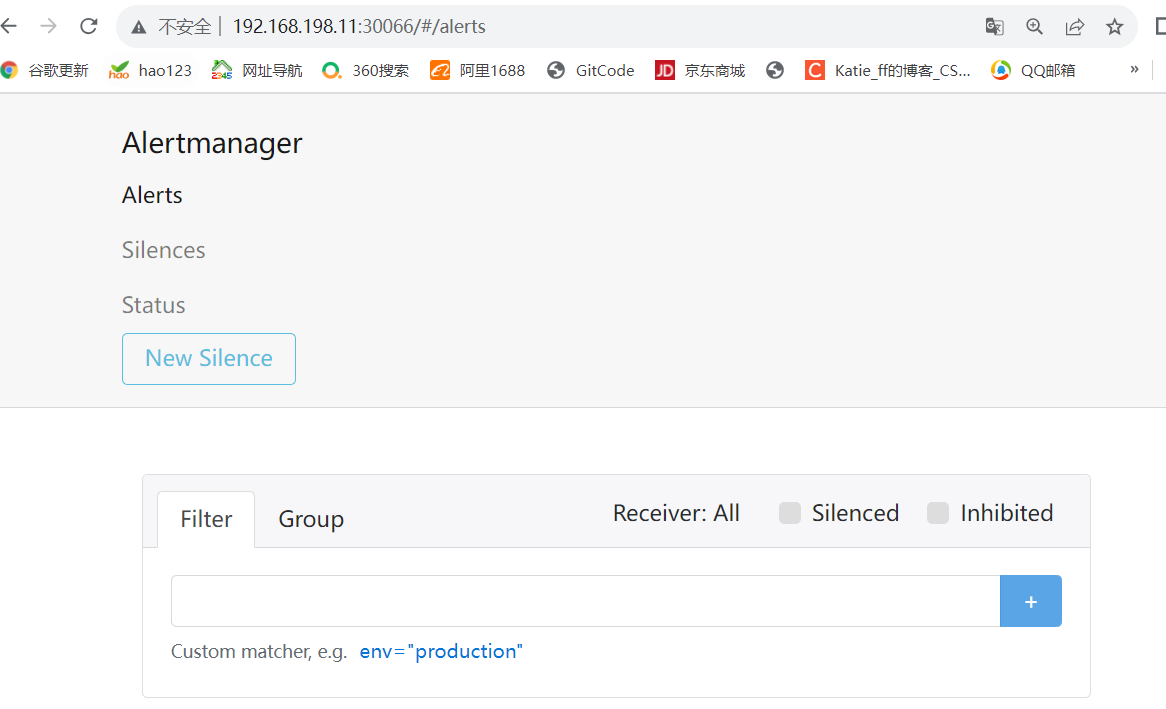

查看接收到的邮件报警,可以发现与 alertmanager 显示的告警一致 浏览器访问 http://192.168.198.11:31000 ,点击页面的 Status->Targets,查看 prometheus 的 targets- 1
- 2
3.处理 kube-proxy 监控告警
kubectl edit configmap kube-proxy -n kube-system ...... metricsBindAddress: "0.0.0.0:10249" #因为 kube-proxy 默认端口10249是监听在 127.0.0.1 上的,需要改成监听到物理节点上- 1
- 2
- 3
- 4
#重新启动 kube-proxy kubectl get pods -n kube-system | grep kube-proxy |awk '{print $1}' | xargs kubectl delete pods -n kube-system- 1
- 2
- 3
ss -antulp |grep :10249 tcp LISTEN 0 128 127.0.0.1:10249 *:* users:(("kube-proxy",pid=6844,fd=13)) #alert 查看 点击 prometheus 页面的 Alerts,点开一个告警项,FIRING 表示 prometheus 已经将告警发给 alertmanager,在 Alertmanager 中可以看到有一个 alert。登录到 浏览器访问 http://192.168.198.11:30066/#/alerts ,登陆 alertmanager 即可看到。- 1
- 2
- 3
- 4
- 5
-
相关阅读:
CSS特效007:绘制3D文字,类似PS效果
Shapes
驱动 11/24
无线投屏冷知识
PHP服务器端API原理及示例讲解(接口开发)
蓝桥杯训练题JAVA实现 入门训练 圆的面积
Linux用户增删改查,修改密码,查看当前用户ID,切换用户
【Linux】kill 命令使用
leaflet:利用Leaflet-Geoman绘制多种图形,导出为geojson文件(135)
用命令行获取操作系统名称版本+CPU等信息
- 原文地址:https://blog.csdn.net/Katie_ff/article/details/133810091
