-
python_selenium自动化测试框架

设计思路
本文整理归纳以往的工作中用到的东西,现汇总成基础测试框架提供分享。
框架采用python3 + selenium3 + PO + yaml + ddt + unittest等技术编写成基础测试框架,能适应日常测试工作需要。
1、使用Page Object模式将页面定位和业务操作分开,分离测试对象(元素对象)和测试脚本(用例脚本),一个页面建一个对象类,提高用例的可维护性;
2、使用yaml管理页面控件元素数据和测试用例数据。例如元素ID等发生变化时,不需要去修改测试代码,只需要在对应的页面元素yaml文件中修改即可;
3、分模块管理,互不影响,随时组装,即拿即用。
测试框架分层设计

- 把常见的操作和查找封装成基础类,不管是什么产品,可直接拿来复用
- 业务层主要是封装对象页面类,一个页面建一个类,业务层页面继承基础层
- 用例层针对产品页面功能进行构造摸拟执行测试
- 框架层提供基础组件,支撑整个流程执行及功能扩展,给用例层提供各页面的元素数据、用例测试数据,测试报告输出等
测试框架目录结构
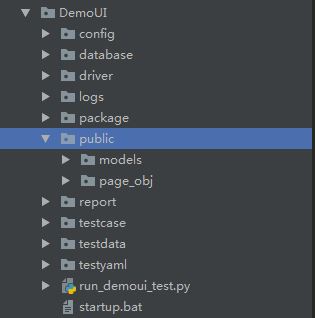
如下思维导图目录结构介绍:

编写用例方法
- 1 testinfo:
- 2 - id: test_login001
- 3 title: 登录测试
- 4 info: 打开抽屉首页
- 5 testcase:
- 6 - element_info: login-link-a
- 7 find_type: ID
- 8 operate_type: click
- 9 info: 打开登录对话框
- 10 - element_info: mobile
- 11 find_type: ID
- 12 operate_type: send_keys
- 13 info: 输入手机号
- 14 - element_info: mbpwd
- 15 find_type: ID
- 16 operate_type: send_keys
- 17 info: 输入密码
- 18 - element_info: //input[@class='keeplogin']
- 19 find_type: XPATH
- 20 operate_type: click
- 21 info: 单击取消自动登录单选框
- 22 - element_info: //span[text()='登录']
- 23 find_type: XPATH
- 24 operate_type: click
- 25 info: 单击登录按钮
- 26 - element_info: userProNick
- 27 find_type: ID
- 28 operate_type: perform
- 29 info: 鼠标悬停账户菜单
- 30 - element_info: //a[@class='logout']
- 31 find_type: XPATH
- 32 operate_type: click
- 33 info: 选择退出
- 34 check:
- 35 - element_info: //div[@class='box-mobilelogin']/div[1]/span
- 36 find_type: XPATH
- 37 info: 检查输入手机号或密码,登录异常提示
- 38 - element_info: userProNick
- 39 find_type: ID
- 40 info: 成功登录
- 41 - element_info: reg-link-a
- 42 find_type: ID
- 43 info: 检查退出登录是否成功
例如,我们要新增登录功能测试用例:
首先,只需在testyaml目录下新增一个页面对象yaml文件,参考login.yaml格式编写即可。这些文件是提供给封装页面对象类调用并执行定位识别操作。
- 1 -
- 2 id: test_login001.1
- 3 detail : 手机号和密码为空登录
- 4 screenshot : phone_pawd_empty
- 5 data:
- 6 phone: ""
- 7 password: ""
- 8 check :
- 9 - 手机号不能为空
- 10 -
- 11 id: test_login001.2
- 12 detail : 手机号为空登录
- 13 screenshot : phone_empty
- 14 data :
- 15 phone: ""
- 16 password : aa
- 17 check :
- 18 - 手机号不能为空
- 19 -
- 20 id: test_login001.3
- 21 detail : 密码为空登录
- 22 screenshot : pawd_empty
- 23 data :
- 24 phone : 13511112222
- 25 password: ""
- 26 check :
- 27 - 密码不能为空
- 28 -
- 29 id: test_login001.4
- 30 detail : 非法手机号登录
- 31 screenshot : phone_error
- 32 data :
- 33 phone : abc
- 34 password: aa
- 35 check :
- 36 - 手机号格式不对
- 37 -
- 38 id: test_login001.5
- 39 detail : 手机号或密码不匹配
- 40 screenshot : pawd_error
- 41 data :
- 42 phone : 13511112222
- 43 password: aa
- 44 check :
- 45 - 账号密码错误
- 46 -
- 47 id: test_login001.6
- 48 detail : 手机号和密码正确
- 49 screenshot : phone_pawd_success
- 50 data :
- 51 phone : 13865439800
- 52 password: ********
- 53 check :
- 54 - yingoja
- 55
- 56 login_data.yaml
其次,在testdata目录下新增一个login_data.yaml文件提供给登录接口传参的测试数据,编写格式参考login_data.yaml文件。
- 1 #!/usr/bin/env python
- 2 # _*_ coding:utf-8 _*_
- 3 __author__ = 'YinJia'
- 4
- 5 import os,sys
- 6 sys.path.append(os.path.dirname(os.path.dirname(os.path.dirname(__file__))))
- 7 from config import setting
- 8 from selenium.webdriver.support.select import Select
- 9 from selenium.webdriver.common.action_chains import ActionChains
- 10 from selenium.webdriver.common.by import By
- 11 from public.page_obj.base import Page
- 12 from time import sleep
- 13 from public.models.GetYaml import getyaml
- 14
- 15 testData = getyaml(setting.TEST_Element_YAML + '/' + 'login.yaml')
- 16
- 17 class login(Page):
- 18 """
- 19 用户登录页面
- 20 """
- 21 url = '/'
- 22 dig_login_button_loc = (By.ID, testData.get_elementinfo(0))
- 23 def dig_login(self):
- 24 """
- 25 首页登录
- 26 :return:
- 27 """
- 28 self.find_element(*self.dig_login_button_loc).click()
- 29 sleep(1)
- 30
- 31 # 定位器,通过元素属性定位元素对象
- 32 # 手机号输入框
- 33 login_phone_loc = (By.ID,testData.get_elementinfo(1))
- 34 # 密码输入框
- 35 login_password_loc = (By.ID,testData.get_elementinfo(2))
- 36 # 取消自动登录
- 37 keeplogin_button_loc = (By.XPATH,testData.get_elementinfo(3))
- 38 # 单击登录
- 39 login_user_loc = (By.XPATH,testData.get_elementinfo(4))
- 40 # 退出登录
- 41 login_exit_loc = (By.ID, testData.get_elementinfo(5))
- 42 # 选择退出
- 43 login_exit_button_loc = (By.XPATH,testData.get_elementinfo(6))
- 44
- 45 def login_phone(self,phone):
- 46 """
- 47 登录手机号
- 48 :param username:
- 49 :return:
- 50 """
- 51 self.find_element(*self.login_phone_loc).send_keys(phone)
- 52
- 53 def login_password(self,password):
- 54 """
- 55 登录密码
- 56 :param password:
- 57 :return:
- 58 """
- 59 self.find_element(*self.login_password_loc).send_keys(password)
- 60
- 61 def keeplogin(self):
- 62 """
- 63 取消单选自动登录
- 64 :return:
- 65 """
- 66 self.find_element(*self.keeplogin_button_loc).click()
- 67
- 68 def login_button(self):
- 69 """
- 70 登录按钮
- 71 :return:
- 72 """
- 73 self.find_element(*self.login_user_loc).click()
- 74
- 75 def login_exit(self):
- 76 """
- 77 退出系统
- 78 :return:
- 79 """
- 80 above = self.find_element(*self.login_exit_loc)
- 81 ActionChains(self.driver).move_to_element(above).perform()
- 82 sleep(2)
- 83 self.find_element(*self.login_exit_button_loc).click()
- 84
- 85 def user_login(self,phone,password):
- 86 """
- 87 登录入口
- 88 :param username: 用户名
- 89 :param password: 密码
- 90 :return:
- 91 """
- 92 self.open()
- 93 self.dig_login()
- 94 self.login_phone(phone)
- 95 self.login_password(password)
- 96 sleep(1)
- 97 self.keeplogin()
- 98 sleep(1)
- 99 self.login_button()
- 100 sleep(1)
- 101
- 102 phone_pawd_error_hint_loc = (By.XPATH,testData.get_CheckElementinfo(0))
- 103 user_login_success_loc = (By.ID,testData.get_CheckElementinfo(1))
- 104 exit_login_success_loc = (By.ID,testData.get_CheckElementinfo(2))
- 105
- 106 # 手机号或密码错误提示
- 107 def phone_pawd_error_hint(self):
- 108 return self.find_element(*self.phone_pawd_error_hint_loc).text
- 109
- 110 # 登录成功用户名
- 111 def user_login_success_hint(self):
- 112 return self.find_element(*self.user_login_success_loc).text
- 113
- 114 # 退出登录
- 115 def exit_login_success_hint(self):
- 116 return self.find_element(*self.exit_login_success_loc).text
然后,在page_obj目录下新增一个loginPage.py文件,是用来封装登录页面对象类,执行登录测试流程操作。
- 1 #!/usr/bin/env python
- 2 # _*_ coding:utf-8 _*_
- 3 __author__ = 'YinJia'
- 4
- 5
- 6 import os,sys
- 7 sys.path.append(os.path.dirname(os.path.dirname(__file__)))
- 8 import unittest,ddt,yaml
- 9 from config import setting
- 10 from public.models import myunit,screenshot
- 11 from public.page_obj.loginPage import login
- 12 from public.models.log import Log
- 13
- 14 try:
- 15 f =open(setting.TEST_DATA_YAML + '/' + 'login_data.yaml',encoding='utf-8')
- 16 testData = yaml.load(f)
- 17 except FileNotFoundError as file:
- 18 log = Log()
- 19 log.error("文件不存在:{0}".format(file))
- 20
- 21 @ddt.ddt
- 22 class Demo_UI(myunit.MyTest):
- 23 """抽屉新热榜登录测试"""
- 24 def user_login_verify(self,phone,password):
- 25 """
- 26 用户登录
- 27 :param phone: 手机号
- 28 :param password: 密码
- 29 :return:
- 30 """
- 31 login(self.driver).user_login(phone,password)
- 32
- 33 def exit_login_check(self):
- 34 """
- 35 退出登录
- 36 :return:
- 37 """
- 38 login(self.driver).login_exit()
- 39
- 40 @ddt.data(*testData)
- 41 def test_login(self,datayaml):
- 42 """
- 43 登录测试
- 44 :param datayaml: 加载login_data登录测试数据
- 45 :return:
- 46 """
- 47 log = Log()
- 48 log.info("当前执行测试用例ID-> {0} ; 测试点-> {1}".format(datayaml['id'],datayaml['detail']))
- 49 # 调用登录方法
- 50 self.user_login_verify(datayaml['data']['phone'],datayaml['data']['password'])
- 51 po = login(self.driver)
- 52 if datayaml['screenshot'] == 'phone_pawd_success':
- 53 log.info("检查点-> {0}".format(po.user_login_success_hint()))
- 54 self.assertEqual(po.user_login_success_hint(), datayaml['check'][0], "成功登录,返回实际结果是->: {0}".format(po.user_login_success_hint()))
- 55 log.info("成功登录,返回实际结果是->: {0}".format(po.user_login_success_hint()))
- 56 screenshot.insert_img(self.driver, datayaml['screenshot'] + '.jpg')
- 57 log.info("-----> 开始执行退出流程操作")
- 58 self.exit_login_check()
- 59 po_exit = login(self.driver)
- 60 log.info("检查点-> 找到{0}元素,表示退出成功!".format(po_exit.exit_login_success_hint()))
- 61 self.assertEqual(po_exit.exit_login_success_hint(), '注册',"退出登录,返回实际结果是->: {0}".format(po_exit.exit_login_success_hint()))
- 62 log.info("退出登录,返回实际结果是->: {0}".format(po_exit.exit_login_success_hint()))
- 63 else:
- 64 log.info("检查点-> {0}".format(po.phone_pawd_error_hint()))
- 65 self.assertEqual(po.phone_pawd_error_hint(),datayaml['check'][0] , "异常登录,返回实际结果是->: {0}".format(po.phone_pawd_error_hint()))
- 66 log.info("异常登录,返回实际结果是->: {0}".format(po.phone_pawd_error_hint()))
- 67 screenshot.insert_img(self.driver,datayaml['screenshot'] + '.jpg')
- 68
- 69 if __name__=='__main__':
- 70 unittest.main()
最后,在testcase目录下创建测试用例文件login_sta.py,采用ddt数据驱动读取yaml测试数据文件
综上所述,编写用例方法只需要按以上四个步骤创建->编写即可。
执行如下主程序,可看输出的实际结果。
- 1 #!/usr/bin/env python
- 2 # _*_ coding:utf-8 _*_
- 3 __author__ = 'YinJia'
- 4
- 5 import os,sys
- 6 sys.path.append(os.path.dirname(__file__))
- 7 from config import setting
- 8 import unittest,time
- 9 from package.HTMLTestRunner import HTMLTestRunner
- 10 from public.models.newReport import new_report
- 11 from public.models.sendmail import send_mail
- 12
- 13 # 测试报告存放文件夹,如不存在,则自动创建一个report目录
- 14 if not os.path.exists(setting.TEST_REPORT):os.makedirs(setting.TEST_REPORT + '/' + "screenshot")
- 15
- 16 def add_case(test_path=setting.TEST_DIR):
- 17 """加载所有的测试用例"""
- 18 discover = unittest.defaultTestLoader.discover(test_path, pattern='*_sta.py')
- 19 return discover
- 20
- 21 def run_case(all_case,result_path=setting.TEST_REPORT):
- 22 """执行所有的测试用例"""
- 23 now = time.strftime("%Y-%m-%d %H_%M_%S")
- 24 filename = result_path + '/' + now + 'result.html'
- 25 fp = open(filename,'wb')
- 26 runner = HTMLTestRunner(stream=fp,title='抽屉新热榜UI自动化测试报告',
- 27 description='环境:windows 7 浏览器:chrome',
- 28 tester='Jason')
- 29 runner.run(all_case)
- 30 fp.close()
- 31 report = new_report(setting.TEST_REPORT) #调用模块生成最新的报告
- 32 send_mail(report) #调用发送邮件模块
- 33
- 34 if __name__ =="__main__":
- 35 cases = add_case()
- 36 run_case(cases)
测试结果展示
- HTML报告日志

- HTML报告点击截图,弹出截图

- 测试报告通过的日志

- 自动截图存放指定的目录

- 邮件测试报告

最后感谢每一个认真阅读我文章的人,礼尚往来总是要有的,虽然不是什么很值钱的东西,如果你用得到的话可以直接拿走:
这些资料,对于【软件测试】的朋友来说应该是最全面最完整的备战仓库,这个仓库也陪伴上万个测试工程师们走过最艰难的路程,希望也能帮助到你!
-
相关阅读:
WaitTimeManagerDemo
Sentry安装配置与使用
FFmpeg的makefile逻辑分析
2022 年值得尝试的 7 个 MQTT 客户端工具
解决安装CentOS5之后,vi不显示颜色的问题
虚拟机下载安装、Docker下载安装
Openharmony3.2 源码编译(ubuntu 22.04) 过程记录
DataGrip 如何导出和恢复整个数据库数据,使用单个 SQL 文件
【华为OD机试真题 JS】找最小数
MIPI接口介绍
- 原文地址:https://blog.csdn.net/qq_48811377/article/details/133680890
