1. 弹性盒子
CSS弹性盒子(Flexbox)是一种布局模型, 用于创建灵活的, 自适应的网页布局.
它的目的是在不同屏幕尺寸和设备上实现一致的布局效果.

引入弹性盒布局模型的目的是提供一种更加有效的方式来对一个容器中的子元素进行排列, 对齐和分配空白空间.
弹性容器通过设置display属性的值为flex或inline-flex将其定义为弹性容器.

弹性盒子由容器(flex container)和其内部的项目(flex items)组成.
弹性容器内包含了一个或多个弹性子元素.

注意事项:
* 1. 弹性容器外及弹性子元素内是正常渲染的.
* 2. 弹性盒子只定义了弹性子元素如何在弹性容器内布局.
* 3. 弹性子元素通常在弹性盒子内一行显示.
* 4. 默认情况每个容器只有一行.
DOCTYPE html>
<html lang="en">
<head>
    <meta charset="utf-8">
    <title>创建盒子title>
    <style>
        .flex-container {
            display: flex;
            height: 250px;
            background-color: #2b2b2d;
        }

        .flex-item {
            background-color: #00fbff;
            width: 100px;
            height: 100px;
            margin: 10px;
        }
    style>
head>
<body>

<div class="flex-container">
    <div class="flex-item">flex item 1div>
    <div class="flex-item">flex item 2div>
    <div class="flex-item">flex item 3div>
div>

body>
html>
- 1
- 2
- 3
- 4
- 5
- 6
- 7
- 8
- 9
- 10
- 11
- 12
- 13
- 14
- 15
- 16
- 17
- 18
- 19
- 20
- 21
- 22
- 23
- 24
- 25
- 26
- 27
- 28
- 29
- 30

2. 盒子排列方式
2.1 排列方式1
可以设置容器的direction属性, 指定弹性容器中子元素的排列方式.
常用属性值:
* 1. ltr(left-to-right): 从左到右的方式排列(默认).
* 2. rtl(right-to-left): 从右到左的方式排列.
DOCTYPE html>
<html lang="en">
<head>
    <meta charset="utf-8">
    <title>排序方式title>
    <style>
        .flex-container {
            display: flex;
            height: 250px;
            background-color: #2b2b2d;
            direction: rtl;
        }

        .flex-item {
            background-color: #00fbff;
            width: 100px;
            height: 100px;
            margin: 10px;
        }
    style>
head>
<body>

<div class="flex-container">
    <div class="flex-item">flex item 1div>
    <div class="flex-item">flex item 2div>
    <div class="flex-item">flex item 3div>
div>

body>
html>
- 1
- 2
- 3
- 4
- 5
- 6
- 7
- 8
- 9
- 10
- 11
- 12
- 13
- 14
- 15
- 16
- 17
- 18
- 19
- 20
- 21
- 22
- 23
- 24
- 25
- 26
- 27
- 28
- 29
- 30
- 31

2.2 排列方式2
可以设置容器的flex-direction属性, 指定弹性子元素在父容器排列方式.

常用属性值:
* 1. row: 横向从左到右排列(左对齐), 默认的排列方式.
* 2. row-reverse: 反转横向排列(右对齐), 从后往前排, 最后一项排在最前面.
* 3. column: 纵向排列.
* 4. column-reverse: 反转纵向排列, 从后往前排, 最后一项排在最上面.
DOCTYPE html>
<html lang="en">
<head>
    <meta charset="utf-8">
    <title>排序方式2title>
    <style>
        .flex-container {
            display: flex;
            height: 150px;
            background-color: #2b2b2d;
        }

        .flex-item {
            background-color: #00fbff;
            width: 100px;
            height: 30px;
            margin: 10px;
        }

        .row {
            flex-direction: row;
        }

        .row-reverse {
            flex-direction: row-reverse;
        }

        .column {
            flex-direction: column;
        }

        .column-reverse {
            flex-direction: column-reverse;
        }
    style>
head>
<body>

<div class="flex-container row">
    <div class="flex-item">flex item 1div>
    <div class="flex-item">flex item 2div>
    <div class="flex-item">flex item 3div>
div>
<br>
<div class="flex-container row-reverse">
    <div class="flex-item">flex item 1div>
    <div class="flex-item">flex item 2div>
    <div class="flex-item">flex item 3div>
div>
<br>
<div class="flex-container column">
    <div class="flex-item">flex item 1div>
    <div class="flex-item">flex item 2div>
    <div class="flex-item">flex item 3div>
div>
<br>
<div class="flex-container column-reverse">
    <div class="flex-item">flex item 1div>
    <div class="flex-item">flex item 2div>
    <div class="flex-item">flex item 3div>
div>
body>
html>

- 1
- 2
- 3
- 4
- 5
- 6
- 7
- 8
- 9
- 10
- 11
- 12
- 13
- 14
- 15
- 16
- 17
- 18
- 19
- 20
- 21
- 22
- 23
- 24
- 25
- 26
- 27
- 28
- 29
- 30
- 31
- 32
- 33
- 34
- 35
- 36
- 37
- 38
- 39
- 40
- 41
- 42
- 43
- 44
- 45
- 46
- 47
- 48
- 49
- 50
- 51
- 52
- 53
- 54
- 55
- 56
- 57
- 58
- 59
- 60
- 61
- 62
- 63

3.盒子对齐方式
3.1 水平对齐方式
可以通过容器的justify-content属性, 设置弹性盒子元素在主轴(横轴)方向上的对齐方式.

常用属性值:
* 1. flex-start: 弹性项目向行头紧挨着填充(默认).
     第一个弹性项的main-start外边距边线被放置在该行的main-start边线, 而后续弹性项依次平齐摆放.

* 2. flex-end: 弹性项目向行尾紧挨着填充.
     第一个弹性项的main-end外边距边线被放置在该行的main-end边线, 而后续弹性项依次平齐摆放.

* 3. center: 弹性项目居中紧挨着填充.
     如果剩余的自由空间是负的, 则弹性项目将在两个方向上同时溢出.

* 4. space-between: 弹性项目平均分布在该行上.
     如果剩余空间为负或者只有一个弹性项, 则该值等同于flex-start.
     否则, 第1个弹性项的外边距和行的main-start边线对齐, 而最后1个弹性项的外边距和行的main-end边线对齐,
     然后剩余的弹性项分布在该行上, 相邻项目的间隔相等.

* 5. space-around: 弹性项目平均分布在该行上, 两边留有一半的间隔空间.
     如果剩余空间为负或者只有一个弹性项, 则该值等同于center.
     否则, 弹性项目沿该行分布, 且彼此间隔相等(比如是20px), 同时首尾两边和弹性容器之间留有一半的间隔(1/2*20px=10px).
- 1
- 2
- 3
- 4
- 5
- 6
- 7
- 8
- 9
- 10
- 11
- 12
- 13
- 14
- 15
- 16
- 17
- 18
- 19
- 20
DOCTYPE html>
<html lang="en">
<head>
    <meta charset="utf-8">
    <title>对齐方式title>
    <style>
        .flex-container {
            display: flex;
            height: 60px;
            background-color: #2b2b2d;
        }

        .flex-item {
            background-color: #00fbff;
            width: 100px;
            height: 30px;
            margin: 10px;
        }

        .flex-start {
            justify-content: flex-start;
        }

        .center {
            justify-content: center;
        }

        .flex-end {
            justify-content: flex-end;
        }

        .space-between {
            justify-content: space-between;
        }

        .space-around {
            justify-content: space-around;
        }
    style>
head>
<body>

<div class="flex-container flex-start">
    <div class="flex-item">1div>
    <div class="flex-item">2div>
    <div class="flex-item">3div>
    <div class="flex-item">4div>
div>
<br>
<div class="flex-container center">
    <div class="flex-item">1div>
    <div class="flex-item">2div>
    <div class="flex-item">3div>
    <div class="flex-item">4div>
div>
<br>
<div class="flex-container flex-end">
    <div class="flex-item">1div>
    <div class="flex-item">2div>
    <div class="flex-item">3div>
    <div class="flex-item">4div>
div>
<br>
<div class="flex-container space-between">
    <div class="flex-item">1div>
    <div class="flex-item">2div>
    <div class="flex-item">3div>
    <div class="flex-item">4div>
div>
<br>
<div class="flex-container space-around">
    <div class="flex-item">1div>
    <div class="flex-item">2div>
    <div class="flex-item">3div>
    <div class="flex-item">4div>
div>

body>
html>
- 1
- 2
- 3
- 4
- 5
- 6
- 7
- 8
- 9
- 10
- 11
- 12
- 13
- 14
- 15
- 16
- 17
- 18
- 19
- 20
- 21
- 22
- 23
- 24
- 25
- 26
- 27
- 28
- 29
- 30
- 31
- 32
- 33
- 34
- 35
- 36
- 37
- 38
- 39
- 40
- 41
- 42
- 43
- 44
- 45
- 46
- 47
- 48
- 49
- 50
- 51
- 52
- 53
- 54
- 55
- 56
- 57
- 58
- 59
- 60
- 61
- 62
- 63
- 64
- 65
- 66
- 67
- 68
- 69
- 70
- 71
- 72
- 73
- 74
- 75
- 76
- 77
- 78
- 79

3.2 垂直对齐方式
可以通过容器的align-items属性, 设置弹性盒子元素在侧轴(纵轴)方向上的对齐方式.

常用属性值:
* 1. flex-start: 弹性盒子元素的侧轴(纵轴)起始位置的边界紧靠住该行的侧轴起始边界.
* 2. flex-end: 弹性盒子元素的侧轴(纵轴)起始位置的边界紧靠住该行的侧轴结束边界.
* 3. center: 弹性盒子元素在该行的侧轴(纵轴)上居中放置.
     如果该行的尺寸小于弹性盒子元素的尺寸, 则会向两个方向溢出相同的长度.
* 4. baseline: 如弹性盒子元素的行内轴与侧轴为同一条, 则该值与'flex-start'等效.
     其它情况下, 该值将参与基线对齐.
* 5. stretch: 如果指定侧轴大小的属性值为'auto', 则其值会使项目的边距盒的尺寸尽可能接近所在行的尺寸,
     但同时会遵照'min/max-width/height'属性的限制.
DOCTYPE html>
<html lang="en">
<head>
    <meta charset="utf-8">
    <title>垂直对齐方式title>
    <style>
        .flex-container {
            display: flex;
            height: 150px;
            background-color: #2b2b2d;
        }

        .flex-item {
            background-color: #00fbff;
            width: 100px;
            height: 30px;
            margin: 10px;
        }

        .flex-start {
            align-items: flex-start;
        }

        .center {
            align-items: center;
        }

        .flex-end {
            align-items: flex-end;
        }

        .baseline {
            align-items: baseline;
        }

        .stretch {
            align-items: stretch;
        }
    style>
head>
<body>

<div class="flex-container flex-start">
    <div class="flex-item">1div>
    <div class="flex-item">2div>
    <div class="flex-item">3div>
    <div class="flex-item">4div>
div>
<br>
<div class="flex-container center">
    <div class="flex-item">1div>
    <div class="flex-item">2div>
    <div class="flex-item">3div>
    <div class="flex-item">4div>
div>
<br>
<div class="flex-container flex-end">
    <div class="flex-item">1div>
    <div class="flex-item">2div>
    <div class="flex-item">3div>
    <div class="flex-item">4div>
div>
<br>
<div class="flex-container baseline">
    <div class="flex-item">1div>
    <div class="flex-item">2div>
    <div class="flex-item">3div>
    <div class="flex-item">4div>
div>
<br>
<div class="flex-container stretch">
    <div class="flex-item">1div>
    <div class="flex-item">2div>
    <div class="flex-item">3div>
    <div class="flex-item">4div>
div>

body>
html>
- 1
- 2
- 3
- 4
- 5
- 6
- 7
- 8
- 9
- 10
- 11
- 12
- 13
- 14
- 15
- 16
- 17
- 18
- 19
- 20
- 21
- 22
- 23
- 24
- 25
- 26
- 27
- 28
- 29
- 30
- 31
- 32
- 33
- 34
- 35
- 36
- 37
- 38
- 39
- 40
- 41
- 42
- 43
- 44
- 45
- 46
- 47
- 48
- 49
- 50
- 51
- 52
- 53
- 54
- 55
- 56
- 57
- 58
- 59
- 60
- 61
- 62
- 63
- 64
- 65
- 66
- 67
- 68
- 69
- 70
- 71
- 72
- 73
- 74
- 75
- 76
- 77
- 78
- 79
4. 换行方式
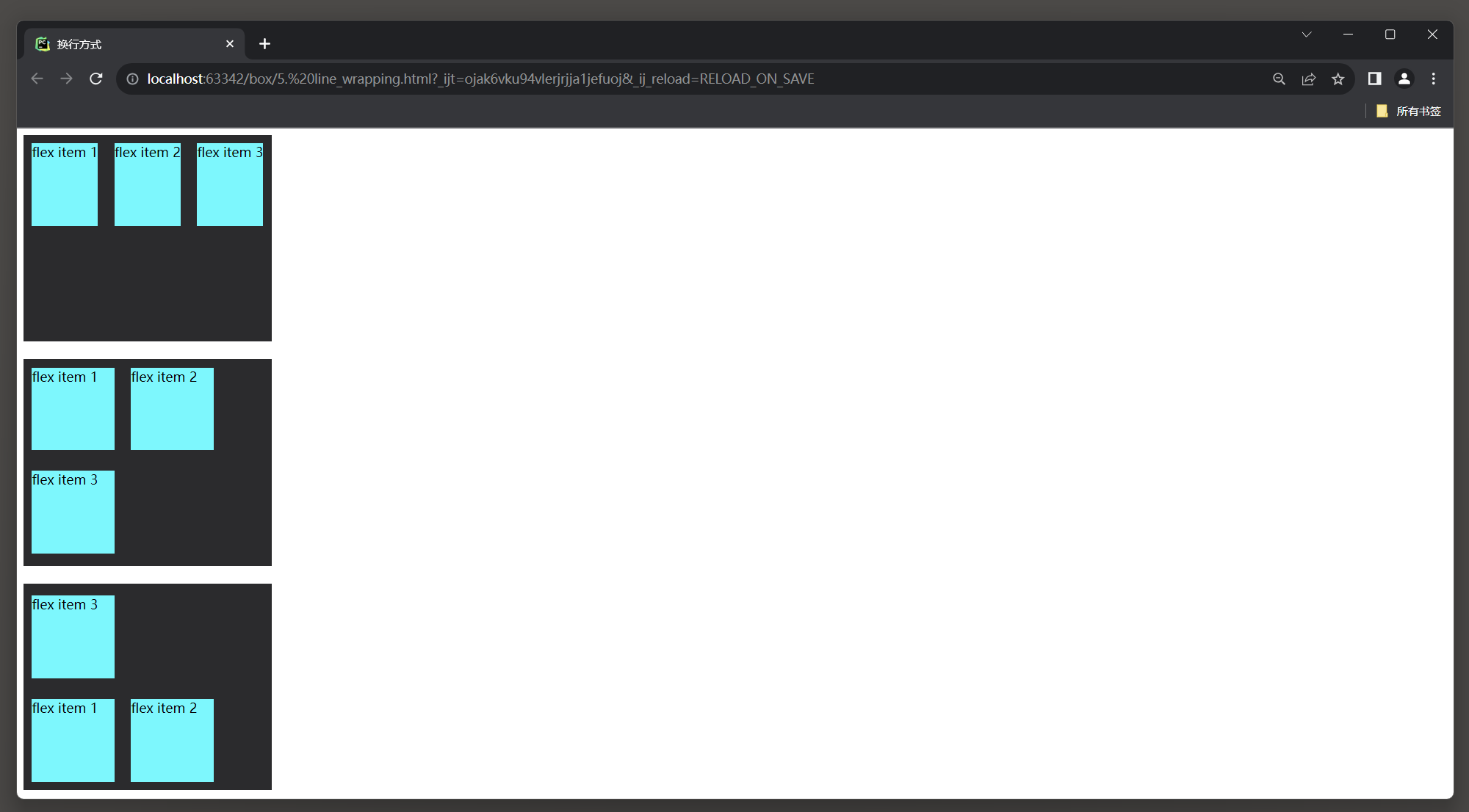
可以通过容器的flex-wrap属性, 设置弹性盒子的子元素超出父容器时是否换行.

常用属性值:
* 1. nowrap: 默认, 弹性容器为单行.
     该情况下弹性子项可能会溢出容器.

* 2. wrap: 弹性容器为多行.
     该情况下弹性子项溢出的部分会被放置到新行, 子项内部会发生断行.

* 3. wrap-reverse: 反转wrap排列.
DOCTYPE html>
<html lang="en">
<head>
    <meta charset="UTF-8">
    <meta name="viewport" content="width=device-width, initial-scale=1">
    <title>换行方式title>
    <style>
        .flex-container {
            display: flex;
            width: 300px;
            height: 250px;
            background-color: #2b2b2d;
        }

        .flex-item {
            background-color: #00fbff;
            width: 100px;
            height: 100px;
            margin: 10px;
        }

        .nowrap {
            flex-wrap: nowrap;
        }

        .wrap {
            flex-wrap: wrap;
        }

        .wrap-reverse {
            flex-wrap: wrap-reverse;
        }

    style>
head>
<body>
<div>
    <div class="flex-container nowrap">
        <div class="flex-item"> flex item 1div>
        <div class="flex-item"> flex item 2div>
        <div class="flex-item"> flex item 3div>
    div>
div>

<br>
<div class="flex-container wrap">
    <div class="flex-item"> flex item 1div>
    <div class="flex-item"> flex item 2div>
    <div class="flex-item"> flex item 3div>
div>
<br>
<div class="flex-container wrap-reverse">
    <div class="flex-item"> flex item 1div>
    <div class="flex-item"> flex item 2div>
    <div class="flex-item"> flex item 3div>
div>
body>
html>
- 1
- 2
- 3
- 4
- 5
- 6
- 7
- 8
- 9
- 10
- 11
- 12
- 13
- 14
- 15
- 16
- 17
- 18
- 19
- 20
- 21
- 22
- 23
- 24
- 25
- 26
- 27
- 28
- 29
- 30
- 31
- 32
- 33
- 34
- 35
- 36
- 37
- 38
- 39
- 40
- 41
- 42
- 43
- 44
- 45
- 46
- 47
- 48
- 49
- 50
- 51
- 52
- 53
- 54
- 55
- 56
- 57
- 58
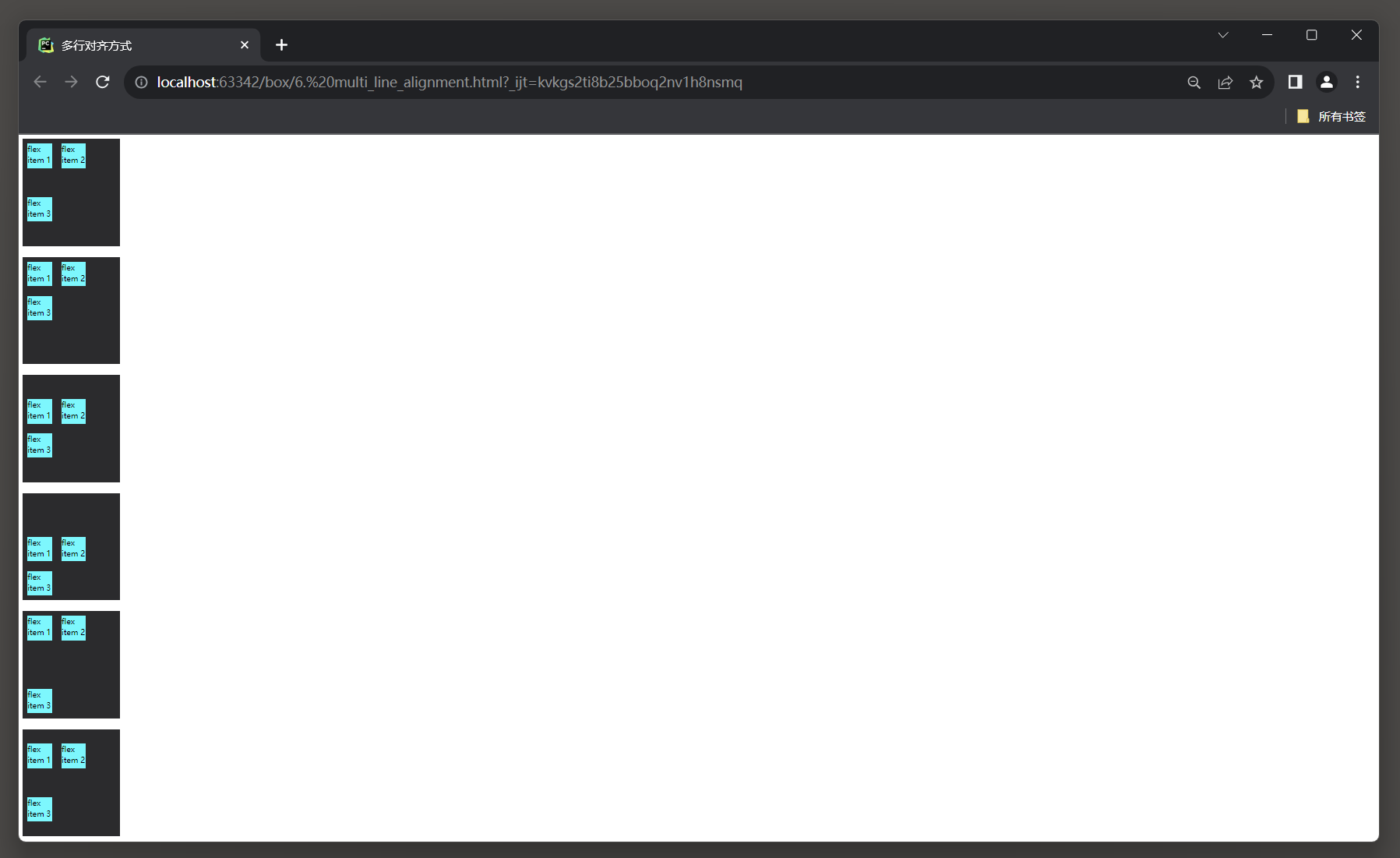
5. 多行对齐方式
可以通过容器的align-content属性, 控制多行弹性容器内各行的对齐方式(修改flex-wrap属性的行为).

常用属性值:
* 1. flex-start: 各行集中在弹性容器的起始位置.
* 2. flex-end: 各行集中在弹性容器的末尾位置.
* 3. center: 各行集中在弹性容器的垂直中心位置.
* 4. space-between: 各行之间均匀分布, 首行对齐弹性容器的起始位置, 末行对齐弹性容器的末尾位置.
* 5. space-around: 各行之间均匀分布, 包括首行和末行, 行与行之间的空白空间相等.
* 6. stretch: 如果子项没有设置高度, 则将行拉伸以填充整个行.
DOCTYPE html>
<html lang="en">
<head>
    <meta charset="UTF-8">
    <meta name="viewport" content="width=device-width, initial-scale=1">
    <title>多行对齐方式title>
    <style>
        .flex-container {
            display: flex;
            width: 200px;
            height: 220px;
            background-color: #2b2b2d;
            flex-wrap: wrap;
        }

        .flex-item {
            background-color: #00fbff;
            width: 50px;
            height: 50px;
            margin: 10px;
        }

        .flex-start {
            align-content: flex-start;
        }


        .center {
            align-content: center;
        }

        .flex-end {
            align-content: flex-end;
        }

        .space-between {
            align-content: space-between;
        }

        .space-around {
            align-content: space-around;
        }

    style>
head>
<body>
<div>
    <div class="flex-container">
        <div class="flex-item"> flex item 1div>
        <div class="flex-item"> flex item 2div>
        <div class="flex-item"> flex item 3div>
    div>
div>
<br>

<div class="flex-container flex-start">
    <div class="flex-item"> flex item 1div>
    <div class="flex-item"> flex item 2div>
    <div class="flex-item"> flex item 3div>
div>
<br>

<div class="flex-container center">
    <div class="flex-item"> flex item 1div>
    <div class="flex-item"> flex item 2div>
    <div class="flex-item"> flex item 3div>
div>
<br>

<div class="flex-container flex-end">
    <div class="flex-item"> flex item 1div>
    <div class="flex-item"> flex item 2div>
    <div class="flex-item"> flex item 3div>
div>
<br>

<div class="flex-container space-between">
    <div class="flex-item"> flex item 1div>
    <div class="flex-item"> flex item 2div>
    <div class="flex-item"> flex item 3div>
div>
<br>

<div class="flex-container space-around">
    <div class="flex-item"> flex item 1div>
    <div class="flex-item"> flex item 2div>
    <div class="flex-item"> flex item 3div>
div>

body>
html>
- 1
- 2
- 3
- 4
- 5
- 6
- 7
- 8
- 9
- 10
- 11
- 12
- 13
- 14
- 15
- 16
- 17
- 18
- 19
- 20
- 21
- 22
- 23
- 24
- 25
- 26
- 27
- 28
- 29
- 30
- 31
- 32
- 33
- 34
- 35
- 36
- 37
- 38
- 39
- 40
- 41
- 42
- 43
- 44
- 45
- 46
- 47
- 48
- 49
- 50
- 51
- 52
- 53
- 54
- 55
- 56
- 57
- 58
- 59
- 60
- 61
- 62
- 63
- 64
- 65
- 66
- 67
- 68
- 69
- 70
- 71
- 72
- 73
- 74
- 75
- 76
- 77
- 78
- 79
- 80
- 81
- 82
- 83
- 84
- 85
- 86
- 87
- 88
- 89
- 90
- 91
6. 项目次序
可以通过容器子元素的的order属性, 设置弹性容器内弹性子元素的排序.
属性值: <integer>: 用整数值来定义排列顺序, 数值小的排在前面. 可以为负值.
DOCTYPE html>
<html lang="en">
<head>
    <meta charset="UTF-8">
    <meta name="viewport" content="width=device-width, initial-scale=1">
    <title>项目次序title>
    <style>
        .flex-container {
            display: flex;
            width: 400px;
            height: 200px;
            background-color: #2b2b2d;
        }

        .flex-item {
            background-color: #00fbff;
            width: 100px;
            height: 100px;
            margin: 10px;
        }

        .order-0 {
            order: 0;
        }

        .order-1 {
            order: 1;
        }

        .order-2 {
            order: 2;
        }
    style>
head>
<body>
<div>
    <div class="flex-container">
        <div class="flex-item order-2"> flex item 1div>
        <div class="flex-item order-1"> flex item 2div>
        <div class="flex-item order-0"> flex item 3div>
    div>
div>
body>
html>
- 1
- 2
- 3
- 4
- 5
- 6
- 7
- 8
- 9
- 10
- 11
- 12
- 13
- 14
- 15
- 16
- 17
- 18
- 19
- 20
- 21
- 22
- 23
- 24
- 25
- 26
- 27
- 28
- 29
- 30
- 31
- 32
- 33
- 34
- 35
- 36
- 37
- 38
- 39
- 40
- 41
- 42
- 43
- 44

7. 项目对齐
7.1 外间距对齐方式
可以为容器子元素设置margin外间距属性, 控制子项的显示位置.

常用设置方式:
* 1. margin-light: auto;  右边距设置为最大值.
* 2. margin-left: auto;   左边距设置为最大值.
* 3. margin-top: auto;    上边距设置为最大值.
* 4. margin-button: auto; 下边距设置为最大值.
* 5. margin: 0 auto;  水平居中.
* 6. margin: auto 0;  垂直居中.
* 7. margin: auto;  完全居中.
DOCTYPE html>
<html lang="en">
<head>
    <meta charset="UTF-8">
    <meta name="viewport" content="width=device-width, initial-scale=1">
    <title>项目对齐title>
    <style>
        .flex-container {
            display: flex;

            height: 250px;
            background-color: lightgrey;
        }

        .flex-item {
            background-color: cornflowerblue;
            width: 75px;
            height: 75px;
            margin: 10px;
        }

        .flex-item {
            margin: auto;
        }
    style>
head>
<body>

<div class="flex-container">
    <div class="flex-item">flex item 1div>
div>

body>
html>
- 1
- 2
- 3
- 4
- 5
- 6
- 7
- 8
- 9
- 10
- 11
- 12
- 13
- 14
- 15
- 16
- 17
- 18
- 19
- 20
- 21
- 22
- 23
- 24
- 25
- 26
- 27
- 28
- 29
- 30
- 31
- 32
- 33
- 34

7.2 垂直对齐方式
可以通过容器子元素的的align-self属性, 设置弹性元素自身在侧轴(纵轴)方向上的对齐方式.

常用属性值:
* 1. auto: 如果'align-self'的值为'auto';
     则其计算值为元素的父元素的'align-items'值, 如果其没有父元素, 则计算值为'stretch'.

* 2. flex-start: 弹性盒子元素的侧轴(纵轴)起始位置的边界紧靠住该行的侧轴起始边界.

* 3. center: 弹性盒子元素在该行的侧轴(纵轴)上居中放置.
     如果该行的尺寸小于弹性盒子元素的尺寸, 则会向两个方向溢出相同的长度.

* 4. flex-end: 弹性盒子元素的侧轴(纵轴)起始位置的边界紧靠住该行的侧轴结束边界.

* 5. baseline: 如弹性盒子元素的行内轴与侧轴为同一条, 则该值与'flex-start'等效.
     其它情况下, 该值将参与基线对齐.

* 6. stretch: 如果指定侧轴大小的属性值为'auto';
     则其值会使项目的边距盒的尺寸尽可能接近所在行的尺寸, 但同时会遵照'min/max-width/height'属性的限制.
- 1
- 2
- 3
- 4
- 5
- 6
- 7
- 8
- 9
- 10
- 11
- 12
- 13
- 14
- 15
- 16
- 17
- 18
DOCTYPE html>
<html lang="en">
<head>
    <meta charset="UTF-8">
    <meta name="viewport" content="width=device-width, initial-scale=1">
    <title>垂直对齐title>
    <style>
        .flex-container {
            display: flex;
            height: 250px;
            background-color: #2b2b2d;
        }

        .flex-item {
            background-color: cornflowerblue;
            width: 60px;
            min-height: 100px;
            margin-right: auto;
        }

        .flex-start {
            align-self: flex-start;
        }

        .center {
            align-self: center;
        }

        .flex-end {
            align-self: flex-end;
        }


        .baseline {
            align-self: baseline;
        }

        .stretch {
            align-self: stretch;
        }
    style>
head>
<body>

<div class="flex-container">
    <div class="flex-item flex-start">flex-startdiv>
    <div class="flex-item center">flex-enddiv>
    <div class="flex-item flex-end">centerdiv>
    <div class="flex-item baseline">baselinediv>
    <div class="flex-item stretch">stretchdiv>
div>
body>
html>
- 1
- 2
- 3
- 4
- 5
- 6
- 7
- 8
- 9
- 10
- 11
- 12
- 13
- 14
- 15
- 16
- 17
- 18
- 19
- 20
- 21
- 22
- 23
- 24
- 25
- 26
- 27
- 28
- 29
- 30
- 31
- 32
- 33
- 34
- 35
- 36
- 37
- 38
- 39
- 40
- 41
- 42
- 43
- 44
- 45
- 46
- 47
- 48
- 49
- 50
- 51
- 52
- 53

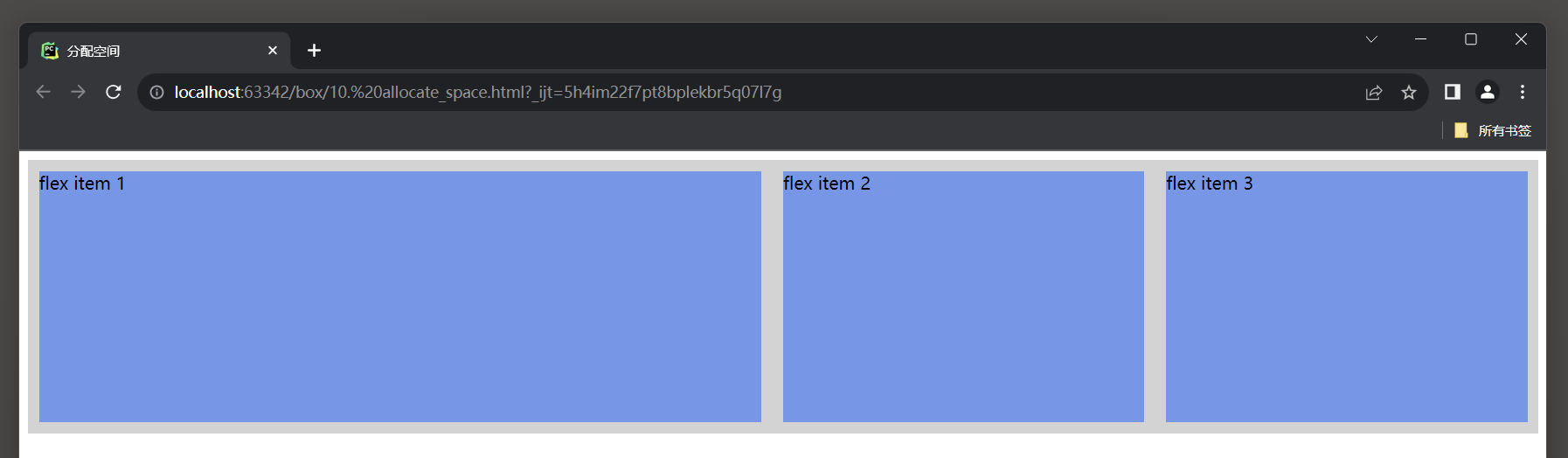
8. 分配空间
可以通过容器子元素的的flex属性, 指定弹性子元素如何分配空间.

常用属性值:
* 1. auto: 计算值为: 1 1 auto, 表示弹性子元素可以根据需要自动扩展或收缩, 并且基准值为自动.
* 2. initial: 计算值为: 0 1 auto, 表示弹性子元素不扩展, 可以收缩, 并且基准值为自动.
* 3. none: 计算值为: 0 0 auto, 表示弹性子元素不扩展, 也不收缩, 并且基准值为自动.
* 4. inherit: 从父元素继承该属性的值.
* 5. [flex-grow]:   定义弹性子元素的扩展比率, 用于指定弹性子元素在剩余空间中的相对大小.
* 6. [flex-shrink]: 定义弹性子元素的收缩比率, 用于指定弹性子元素在空间不足时的相对缩小程度.
* 7. [flex-basis]:  定义弹性子元素的默认基准值, 用于指定弹性子元素在没有剩余空间时的大小.
DOCTYPE html>
<html lang="en">
<head>
<meta charset="UTF-8">
<meta name="viewport" content="width=device-width, initial-scale=1">
<title>分配空间title>
<style>
.flex-container {
display: flex;
height: 250px;
background-color: lightgrey;
}
.flex-item {
background-color: cornflowerblue;
margin: 10px;
}
.flex-2 {
flex: 2;
}
.flex-1 {
flex: 1;
}
style>
head>
<body>
<div class="flex-container">
<div class="flex-item flex-2">flex item 1div>
<div class="flex-item flex-1">flex item 2div>
<div class="flex-item flex-1">flex item 3div>
div>
body>
html>
- 1
- 2
- 3
- 4
- 5
- 6
- 7
- 8
- 9
- 10
- 11
- 12
- 13
- 14
- 15
- 16
- 17
- 18
- 19
- 20
- 21
- 22
- 23
- 24
- 25
- 26
- 27
- 28
- 29
- 30
- 31
- 32
- 33
- 34
- 35
- 36
- 37
- 38
- 39
- 40
- 41