-
部署大数据平台详细教程以及遇到的问题解答(ubuntu18.04下安装ambari2.7.3+HDP3.1.0)
节点准备:
我搭建的是3台,节点可以随意。建议最少是3台
hostname ip 角色
ubuntu-1804-1 172.21.73.53 从节点
ubuntu-1804-2 172.21.73.54 主节点
ubuntu-1804-3 172.21.73.55 从节点一:关闭所有节点的防火墙
sudo ufw disable- 1
二:配置时钟同步NTP
所有节点安装ntpsudo apt install ntp- 1
以ubuntu-1804-2为server,在ubuntu-1804-2进行如下修改(所有节点全部执行)
修改配置文件vim /etc/ntp.conf,将下述配置注释:
#pool 0.ubuntu.pool.ntp.org iburst #pool 1.ubuntu.pool.ntp.org iburst #pool 2.ubuntu.pool.ntp.org iburst #pool 3.ubuntu.pool.ntp.org iburst #pool ntp.ubuntu.com- 1
- 2
- 3
- 4
- 5
- 6
从节点添加如下:
server ubuntu-1804-2 prefer- 1
启动ntp服务
systemctl enable ntp systemctl start ntp- 1
- 2
三:配置免密登录(root用户之间的)
1.使用普通用户进入root用户sudo su- 1
2.设置root密码
passwd root- 1
3.修改配置
vim /etc/ssh/sshd_config- 1
4.新增如下配置:
PermitRootLogin yes- 1
5.重启ssh
systemctl restart sshd- 1
ubuntu-1804-2可以免密登陆ubuntu-1804-1、ubuntu-1804-2、ubuntu-1804-3
root@ubuntu-1804-2:~# ssh-keygen
Generating public/private rsa key pair.
Enter file in which to save the key (/root/.ssh/id_rsa):
Enter passphrase (empty for no passphrase):
Enter same passphrase again:
Your identification has been saved in /root/.ssh/id_rsa.
Your public key has been saved in /root/.ssh/id_rsa.pub.
The key fingerprint is:
SHA256:2MRn3ranRz0AFjMqx1t3Qk5QibTnPrw+zR9MY9ftu6s root@ubuntu-1804-3
The key’s randomart image is:
±–[RSA 2048]----+
| .*=+. |
| … .+B. |
| .o++o.= . |
| +o+o.+.o o|
| . S… o…=+|
| .o.=o+|
| .=+oo|
| ++oo|
| oEo+=|
±—[SHA256]-----+
执行上面的命令会生成公要私钥
在ubuntu-1804-2中进入root用户,执行如下命令,提示输入root密码,请输入root密码:ssh-copy-id ubuntu-1804-1 ssh-copy-id ubuntu-1804-2 ssh-copy-id ubuntu-1804-3- 1
- 2
- 3
至此,ubuntu-1804-2可以用root用户成功免密登陆ubuntu-1804-1、ubuntu-1804-2、ubuntu-1804-3
注意:此处有的会出现ssh-copy-id 复制不到从节点:
可以手动复制:

把主节点红括号的公钥复制到其他节点的绿括号文件中,如果没有这个文件,可以touch 新建一下。四。mysql安装(如果已安装,可省略此步)
1.执行命令sudo apt install mysql-server mysql-client sudo systemctl enable mysql sudo systemctl start mysql- 1
- 2
- 3
2.默认账号密码在文件/etc/mysql/debian.cnf 中
ubuntu@ubuntu-1804-2:/etc/apt/sources.list.d$ sudo cat /etc/mysql/debian.cnf [client] host = localhost user = debian-sys-maint password = 0cBYq68fUGyFCpPw socket = /var/run/mysqld/mysqld.sock [mysql_upgrade] host = localhost user = debian-sys-maint password = 0cBYq68fUGyFCpPw socket = /var/run/mysqld/mysqld.sock- 1
- 2
- 3
- 4
- 5
- 6
- 7
- 8
- 9
- 10
- 11
3.修改root用户密码
use mysql; update mysql.user set authentication_string=password('Pass-123-root') where user='root' and Host='localhost'; update user set plugin="mysql_native_password"; flush privileges;- 1
- 2
- 3
- 4
- 5
- 6
- 7
4.新建ambari用户与用户授权
create user 'ambari'@'*' identified by 'Pass-123-root'; create database ambari; grant all privileges on ambari.* to 'ambari'@'%' identified by 'Pass-123-root' with grant option;- 1
- 2
- 3
- 4
- 5
5.修改配置文件,允许仓库远程访问:
sudo vim /etc/mysql/mysql.conf.d/mysqld.cnf
找到下面一行,进行注释:bind-address = 127.0.0.1
改为
bind-address = 127.0.0.1
重启mysql
sudo systemctl restart mysql五。下载安装包
没有安装包可随时联系我留言配置deb源
在ubuntu-2上配置deb仓库 sudo apt-get install apache2 sudo chmod -R 777 /var/www/html sudo systemctl enable apache2 sudo systemctl start apache2- 1
- 2
- 3
- 4
- 5
将ambari下载的安装包拷贝到/var/www/html目录下- 1
ubuntu@ubuntu-1804-2:/var/www/html$ ll /var/www/html/ambari
total 12
drwxrwxr-x 3 ubuntu ubuntu 4096 Dec 2 03:27 ./
drwxrwxrwx 3 root root 4096 Dec 2 03:27 …/
drwxrwxr-x 3 ubuntu ubuntu 4096 Dec 2 03:27 ubuntu18/在/etc/apt/sources.list.d目录下,新增文件ambari.list,内容为:
vim ambari.listdeb http://127.0.0.1/ambari/ubuntu18/2.7.3.0-139/ Ambari main- 1
在创建一个
vim hdp.list,内容为:deb http://127.0.0.1/HDP-GPL/ubuntu18/3.1.0.0-78/ HDP-GPL main deb http://127.0.0.1/HDP-UTILS/ubuntu18/1.1.0.22/ HDP-UTILS main deb http://127.0.0.1/HDP/ubuntu18/3.1.0.0-78/ HDP main- 1
- 2
- 3
导入gpg(每台机器都需要执行)
ubuntu@ubuntu-1804-2:~$ sudo apt-key adv --keyserver hkp://keyserver.ubuntu.com:80 --recv B9733A7A07513CAD Executing: /tmp/apt-key-gpghome.BZYA0AHSxL/gpg.1.sh --keyserver hkp://keyserver.ubuntu.com:80 --recv B9733A7A07513CAD gpg: key B9733A7A07513CAD: public key "Jenkins (HDP Builds)- 1
- 2
- 3
- 4
- 5
更新源
sudo apt update- 1
验证:
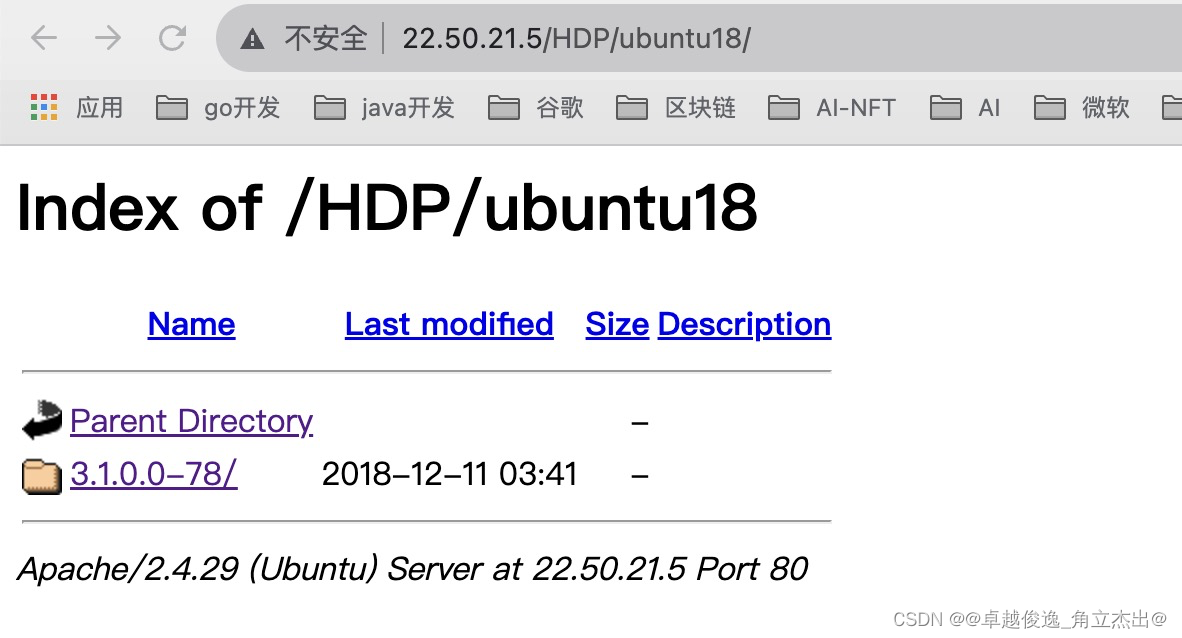
在浏览器输入url进行简单验证
六。接下来就可已直接安装服务了
安装配置ambari-server执行 apt-get install ambari-server成功后,执行 ambari-server setup 开始建立配置- 1
- 2
选择自定义JDK

/usr/local/jdk1.8.0_181
一直选择y,到选择数据库选择2,后一直回车即可

最后成功有这样的提示

启动服务:
执行 ambari-server start ,成功后,打开外网8080端口,即可访问,输入admin/admin


选择本地仓库,只保留ubuntu,url 输入:
HDP-GPL http://127.0.0.1/HDP-GPL/ubuntu18/3.1.0.0-78/
HDP-UTILS http://127.0.0.1/HDP-UTILS/ubuntu18/1.1.0.22/
HDP http://127.0.0.1/HDP/ubuntu18/3.1.0.0-78/填入hostname以及私钥,私钥文件为:ubuntu-1804-2的/root/.ssh/id_rsa文件


上面这步最关键 会出各种问题,一般有公钥私钥问题 ,即重新配置免密那块。没问题下面操作基本差不多。
先选择Ambari Metrics、zookeeper和hdfs,其他的组件等安装完了再选择


设置密码:


安装hive数据库
安装mysql :
sudo apt-get install mysql-server执行mysql后,执行下面脚本:
create database hive; CREATE USER 'hive'@'%' IDENTIFIED BY 'hive'; GRANT ALL PRIVILEGES ON *.* TO 'hive'@ '%' IDENTIFIED BY 'hive' WITH GRANT OPTION; GRANT ALL PRIVILEGES ON *.* TO 'hive'@'localhost' IDENTIFIED BY 'hive' WITH GRANT OPTION; FLUSH PRIVILEGES;- 1
- 2
- 3
- 4
- 5
注册mysql驱动,在shell下面执行:
ambari-server setup --jdbc-db=mysql --jdbc-driver=/usr/share/java/mysql-connector-java-8.0.13.jar- 1
配置对应信息,注意修改主机名


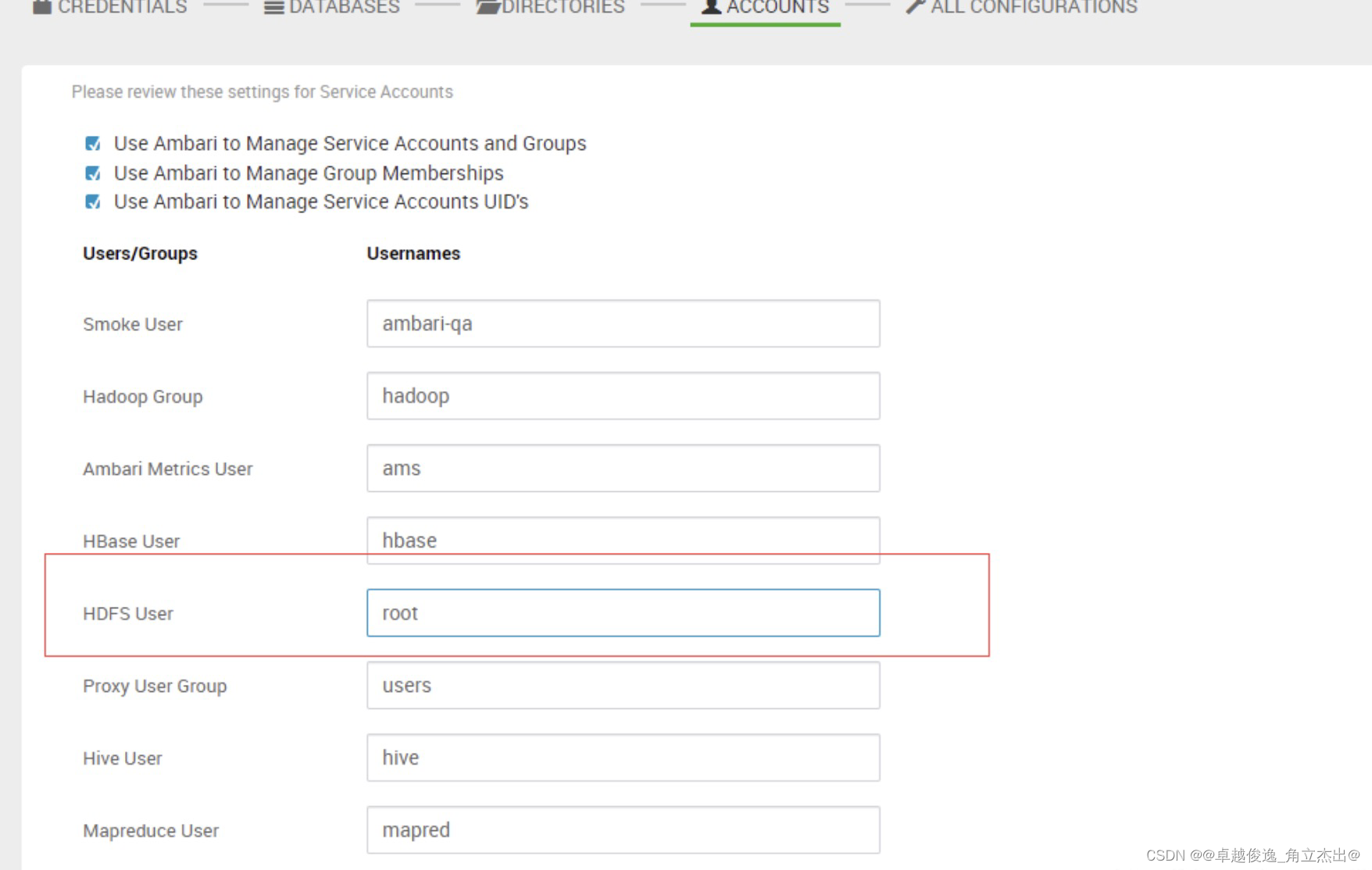


六。组件验证

hbase
hive验证

spark

问题汇总:
报错1:
报错:Problem executing scripts APT::Update::Post-Invoke-Success ‘if /usr/bin/test -w /var/lib/command-not-found/ -a -e /usr/lib/cnf-update-db; then /usr/lib/cnf-update-db > /dev/null; fi’
sam@ubuntu:~$ sudo apt-get update Hit:1 http://us.archive.ubuntu.com/ubuntu bionic InRelease Hit:2 http://security.ubuntu.com/ubuntu bionic-security InRelease Hit:3 http://us.archive.ubuntu.com/ubuntu bionic-updates InRelease Hit:4 http://us.archive.ubuntu.com/ubuntu bionic-backports InRelease Hit:5 https://download.sublimetext.com apt/stable/ InRelease Traceback (most recent call last): File "/usr/lib/cnf-update-db", line 8, infrom CommandNotFound.db.creator import DbCreator File "/usr/lib/python3/dist-packages/CommandNotFound/db/creator.py", line 11, in import apt_pkg ModuleNotFoundError: No module named 'apt_pkg' Reading package lists... Done E: Problem executing scripts APT::Update::Post-Invoke-Success 'if /usr/bin/test -w /var/lib/command-not-found/ -a -e /usr/lib/cnf-update-db; then /usr/lib/cnf-update-db > /dev/null; fi' E: Sub-process returned an error code - 1
- 2
- 3
- 4
- 5
- 6
- 7
- 8
- 9
- 10
- 11
- 12
- 13
- 14
- 15
解决办法:
apt download python3-minimal sudo apt install --reinstall ./python3-minimal_*.deb sudo apt install -f- 1
- 2
- 3
报错2:
Request to https://ls5387v7.wdf.sap.corp:8441/agent/v1/register/ls5387v8.wdf.sap.corp failed due to EOF occurred in violation of protocol (_ssl.c:661)ERROR 2017-04-21 23:19:51,277 Controller.py:227 - Error:Request to https://ls5387v7.wdf.sap.corp:8441/agent/v1/register/ls5387v8.wdf.sap.corp failed due to EOF occurred in violation of protocol (_ssl.c:661) WARNING 2017-04-21 23:19:51,277 Controller.py:228 - Sleeping for 25 seconds and then trying again
Registration log for the host shows the following:-
解决方案:
ollowing option to security section in ambari-agent.ini in all the hosts in the cluster:/etc/ambari-agent/conf/ambari-agent.ini [security] force_https_protocol=PROTOCOL_TLSv1_2- 1
- 2

问题3;
/var/lib/ambari-agent/data/errors-3271.txt

解决方案:
Get the SafeMode state:# su - hdfs # hdfs dfsadmin -safemode get Leave SafeMode: # su - hdfs # hdfs dfsadmin -safemode leave- 1
- 2
- 3
- 4
- 5
- 6
剩下还有一些坑
比方说权限问题:
端口被占用问题等,查看日志就行。sudo tail -f /var/log/ambari-agent/ambari-agent.log Hive 日志 /var/log/hive- 1
- 2
- 3
-
相关阅读:
Linux网络编程-网络层IP协议
(已导出) hyperv中的ubuntu虚拟机双网卡设置
带你十天轻松搞定 Go 微服务之大结局(分布式事务)
XML 发票解析
后端 | 青训营笔记
【无标题】
Java构建器的陷阱:@SuperBuilder 和 @Builder 的坑及代码演示
OpenGL 灰度图
运动无线耳机什么牌子好?六款实用性不错的运动耳机推荐
Windows PowerShell 和 Linux BashShell 极简对比
- 原文地址:https://blog.csdn.net/leaning_java/article/details/133032429