-
vue中通过JavaScript实现web端鼠标横向滑动&触控板滑动效果-demo
JavaScript实现web端鼠标横向滑动&触控板滑动效果
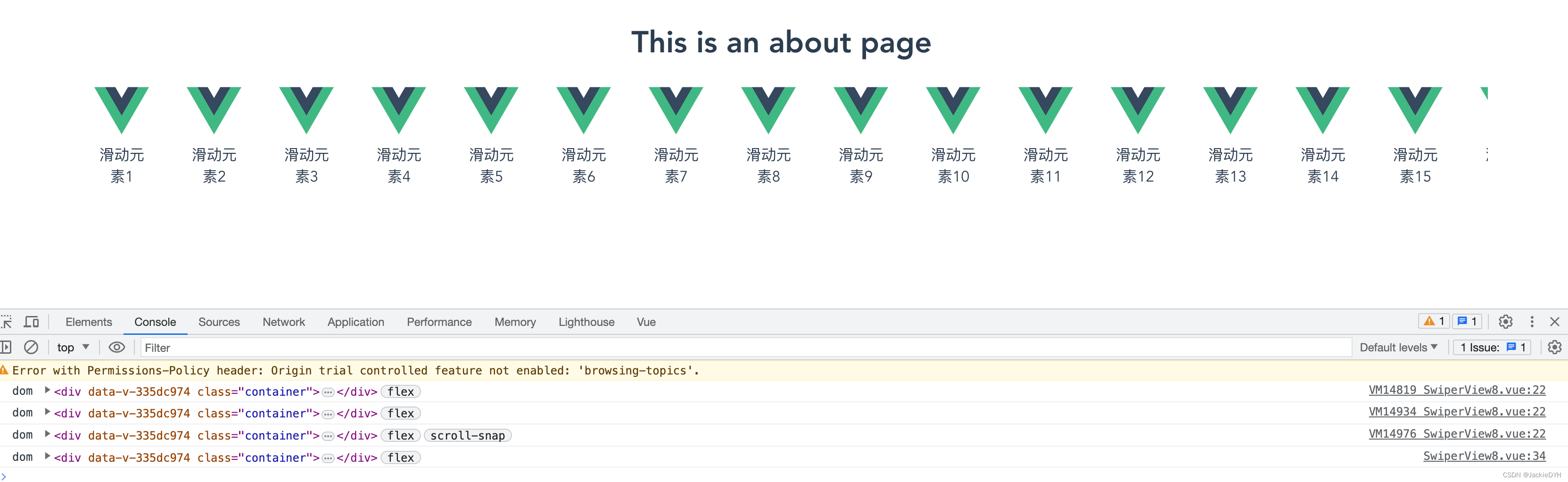
支持鼠标拖动滑动&触控板滑动效果
web端实现滑动,就是对鼠标按下、鼠标松开、鼠标移动事件进行监听
效果图
代码
结构代码
- <template>
- <div class="swiper">
- <div class="container" ref="container">
- <div class="box" v-for="num in 40" :key="num">
- <img src="@/assets/logo.png" style="width: 58px; height: 58px" />
- <span>滑动元素{{ num }}span>
- div>
- div>
- div>
- template>
样式代码
- <style lang="scss" scoped>
- .swiper {
- .container {
- width: 90%;
- margin: 0 auto;
- display: flex;
- /* white-space: nowrap; //避免子元素在父元素内换行 */
- overflow-x: auto; //显示横向滚动条
- /* scroll-snap-type: x mandatory; //自动吸附 */
- /* scroll-behavior: smooth; //平滑滚动的效果 */
- .box {
- width: 100px;
- min-height: 100px;
- padding: 0 20px;
- /* scroll-snap-align: start; //自动吸附 */
- }
- }
- ::-webkit-scrollbar {
- width: 0 !important;
- }
- ::-webkit-scrollbar {
- width: 0 !important;
- height: 0;
- }
- }
- style>
业务逻辑代码
在Vue中实现鼠标横向滑动&触控板滑动效果可以通过以下步骤实现:
-
首先在Vue中创建一个父组件,在该组件中引入子组件或者使用slot插入内容。
-
在父组件中创建一个div容器,用来包裹滑动内容。
-
在该div容器中绑定一个事件监听器,用来监听用户的鼠标或触摸板滑动事件。
-
在事件监听器中使用JavaScript获取鼠标或触摸板的滑动距离,并根据该距离计算出需要滑动的内容距离。
-
使用Vue的ref属性获取div容器,然后通过Vue的$refs属性访问该容器,并修改其left属性值,实现滑动效果。
下面是一个简单的示例代码:
- <template>
- <div class="scroll-container" @mousemove="handleMouseMove"
- @touchmove="handleTouchMove">
- <div class="scroll-content" ref="content">
- <slot>slot>
- div>
- div>
- template>
- <script>
- export default {
- methods: {
- handleMouseMove(event) {
- const scrollContent = this.$refs.content;
- const scrollSpeed = 5; // 滑动速度
- scrollContent.style.left = `${-event.pageX / scrollSpeed}px`;
- },
- handleTouchMove(event) {
- const scrollContent = this.$refs.content;
- const scrollSpeed = 5; // 滑动速度
- scrollContent.style.left = `${-event.touches[0].pageX / scrollSpeed}px`;
- },
- },
- };
- script>
- <style>
- .scroll-container {
- width: 100%;
- height: 200px;
- overflow-x: scroll;
- }
- .scroll-content {
- position: relative;
- width: 2000px;
- height: 200px;
- white-space: nowrap;
- font-size: 0;
- }
- style>
在上述示例代码中,我们创建了一个scroll-container容器并绑定了鼠标和触摸板的滑动事件监听器,然后使用JavaScript计算出需要滑动的距离,并修改了scroll-content容器的left属性值实现了滑动效果。需要注意的是,由于父组件的高度限制了滑动内容的高度,因此我们在scroll-content中使用了white-space: nowrap和font-size: 0两个CSS样式属性,防止滑动内容换行和出现空白间隙。
在Vue中实现横向滑动效果可以通过以下步骤实现:
- 在Vue组件中定义一个容器div,并设置其样式为横向滚动条,例如:
- <div class="scroll-container" ref="scrollContainer">
- <div class="scroll-content">
- div>
- div>
- <style>
- .scroll-container {
- overflow-x: auto;
- white-space: nowrap;
- -webkit-overflow-scrolling: touch; // 兼容iOS平滑滚动
- }
- .scroll-content {
- display: inline-block;
- }
- style>
在组件的created生命周期中,注册滑动事件监听器,并记录开始滑动时的鼠标位置或触摸位置:
- created() {
- this.$refs.scrollContainer.addEventListener('mousedown', this.handleMouseDown);
- this.$refs.scrollContainer.addEventListener('touchstart', this.handleTouchStart, { passive: true });
- },
- methods: {
- handleMouseDown(event) {
- this.startX = event.clientX;
- },
- handleTouchStart(event) {
- this.startX = event.touches[0].clientX;
- this.touching = true;
- }
- }
在组件的mounted生命周期中,注册滑动事件监听器,并根据滑动方向和滑动距离计算出滚动距离,并通过JavaScript控制滚动条的位置:
- mounted() {
- this.$refs.scrollContainer.addEventListener('mousemove', this.handleMouseMove);
- this.$refs.scrollContainer.addEventListener('touchmove', this.handleTouchMove, { passive: false });
- this.$refs.scrollContainer.addEventListener('mouseup', this.handleMouseUp);
- this.$refs.scrollContainer.addEventListener('touchend', this.handleTouchEnd);
- },
- methods: {
- handleMouseMove(event) {
- if (this.startX) {
- const distance = event.clientX - this.startX;
- this.$refs.scrollContainer.scrollLeft -= distance;
- this.startX = event.clientX;
- }
- },
- handleTouchMove(event) {
- if (this.startX) {
- const distance = event.touches[0].clientX - this.startX;
- this.$refs.scrollContainer.scrollLeft -= distance;
- this.startX = event.touches[0].clientX;
- }
- },
- handleMouseUp() {
- this.startX = null;
- },
- handleTouchEnd() {
- this.startX = null;
- }
- }
通过以上步骤,就可以在Vue中实现横向滑动效果,并且支持鼠标和触摸操作。如果需要支持惯性滑动效果,可以在滑动结束时根据滑动速度和滑动方向计算出滚动距离,并通过requestAnimationFrame动画函数实现平滑滚动效果。
可以通过以下步骤实现该功能:
绑定事件监听器,在vue组件的mounted生命周期函数或者created生命周期函数中,通过addEventListener方法绑定document的mousemove事件和touchmove事件。
- mounted() {
- document.addEventListener('mousemove', this.handleMouseMove);
- document.addEventListener('touchmove', this.handleMouseMove);
- },
- methods: {
- handleMouseMove(event) {
- // 处理鼠标或者触摸板的移动事件
- }
- }
在处理移动事件的函数中,根据元素的滑动距离和滑动方向,通过style属性的left或者transform属性改变元素的位置。其中,可以通过computed属性或者ref获取需要滑动的元素的位置和宽度。
- handleMouseMove(event) {
- const delta = event.clientX - this.lastX;
- const direction = delta > 0 ? -1 : 1;
- const absDelta = Math.abs(delta);
- const containerLeft = this.$refs.container.offsetLeft;
- const containerWidth = this.$refs.container.offsetWidth;
- const contentWidth = this.$refs.content.offsetWidth;
- const maxDelta = contentWidth - containerWidth - containerLeft;
- const currentDelta = containerLeft + delta;
- if (absDelta > 5 && (currentDelta >= 0 || currentDelta <= maxDelta)) {
- // 通过transform改变滑动距离,可以有更好的性能表现
- this.$refs.container.style.transform = `translateX(${currentDelta}px)`;
- this.lastX = event.clientX;
- }
- }
在滑动停止时,判断靠近开始的元素,通过计算元素到左端的距离来确定元素的位置,通过定位或者transform改变元素的位置。
- handleMouseMove(event) {
- // ...
- this.timer = setTimeout(() => {
- const containerLeft = this.$refs.container.offsetLeft;
- const containerWidth = this.$refs.container.offsetWidth;
- const contentWidth = this.$refs.content.offsetWidth;
- const maxDelta = contentWidth - containerWidth - containerLeft;
- if (containerLeft < 0) {
- this.$refs.container.style.transform = `translateX(0)`;
- return;
- }
- if (maxDelta < 0) {
- this.$refs.container.style.transform = `translateX(${-maxDelta}px)`;
- return;
- }
- const items = this.$refs.content.children;
- let minDelta = Infinity;
- let index = 0;
- for (let i = 0; i < items.length; i++) {
- const itemLeft = items[i].offsetLeft;
- const delta = Math.abs(itemLeft - containerLeft);
- if (delta < minDelta) {
- minDelta = delta;
- index = i;
- }
- }
- const itemLeft = items[index].offsetLeft;
- const delta = itemLeft - containerLeft;
- this.$refs.container.style.transform = `translateX(${-delta}px)`;
- }, 100);
- }
注意在组件销毁时,需要清除事件监听器和定时器。
- beforeDestroy() {
- document.removeEventListener('mousemove', this.handleMouseMove);
- document.removeEventListener('touchmove', this.handleMouseMove);
- clearTimeout(this.timer);
- }
完整的vue组件代码如下:
- <div class="container" ref="container">
- <div class="content" ref="content">
- <div class="item" v-for="(item, index) in items" :key="index">{{item}}div>
- div>
- div>
- <script>
- export default {
- name: "HorizontalScroll",
- data() {
- return {
- items: ["Item 1", "Item 2", "Item 3", "Item 4", "Item 5", "Item 6", "Item 7", "Item 8", "Item 9", "Item 10"],
- lastX: 0,
- timer: null,
- };
- },
- mounted() {
- document.addEventListener('mousemove', this.handleMouseMove);
- document.addEventListener('touchmove', this.handleMouseMove);
- },
- beforeDestroy() {
- document.removeEventListener('mousemove', this.handleMouseMove);
- document.removeEventListener('touchmove', this.handleMouseMove);
- clearTimeout(this.timer);
- },
- methods: {
- handleMouseMove(event) {
- const delta = event.clientX - this.lastX;
- const direction = delta > 0 ? -1 : 1;
- const absDelta = Math.abs(delta);
- const containerLeft = this.$refs.container.offsetLeft;
- const containerWidth = this.$refs.container.offsetWidth;
- const contentWidth = this.$refs.content.offsetWidth;
- const maxDelta = contentWidth - containerWidth - containerLeft;
- const currentDelta = containerLeft + delta;
- if (absDelta > 5 && (currentDelta >= 0 || currentDelta <= maxDelta)) {
- this.$refs.container.style.transform = `translateX(${currentDelta}px)`;
- this.lastX = event.clientX;
- }
- clearTimeout(this.timer);
- this.timer = setTimeout(() => {
- const containerLeft = this.$refs.container.offsetLeft;
- const containerWidth = this.$refs.container.offsetWidth;
- const contentWidth = this.$refs.content.offsetWidth;
- const maxDelta = contentWidth - containerWidth - containerLeft;
- if (containerLeft < 0) {
- this.$refs.container.style.transform = `translateX(0)`;
- return;
- }
- if (maxDelta < 0) {
- this.$refs.container.style.transform = `translateX(${-maxDelta}px)`;
- return;
- }
- const items = this.$refs.content.children;
- let minDelta = Infinity;
- let index = 0;
- for (let i = 0; i < items.length; i++) {
- const itemLeft = items[i].offsetLeft;
- const delta = Math.abs(itemLeft - containerLeft);
- if (delta < minDelta) {
- minDelta = delta;
- index = i;
- }
- }
- const itemLeft = items[index].offsetLeft;
- const delta = itemLeft - containerLeft;
- this.$refs.container.style.transform = `translateX(${-delta}px)`;
- }, 100);
- },
- },
- };
- script>
- <style scoped>
- .container {
- position: relative;
- width: 100%;
- height: 80px;
- overflow: hidden;
- margin: 0 auto;
- padding: 0 20px;
- }
- .content {
- position: absolute;
- top: 0;
- left: 0;
- height: 100%;
- white-space: nowrap;
- }
- .item {
- display: inline-block;
- height: 100%;
- line-height: 80px;
- padding: 0 10px;
- font-size: 16px;
- color: #333;
- background-color: #ddd;
- border-radius: 5px;
- margin-right: 10px;
- }
- style>
-
相关阅读:
vue3 - vue3中使用ref来获取dom节点
重读《纳瓦尔宝典》精彩语录及感悟篇(三)
Spring Cloud alibaba Ribbon 负载调用说明(4)
python --opencv图像处理(图像腐蚀与图像膨胀)
【性能测试】Jmeter性能压测-阶梯式/波浪式场景总结(详细)
Android平台轻量级RTSP服务模块编码前后数据源对接探究
Maven 如何打包可运行jar包
milvus
sheng的学习笔记-AI-支持向量机(SVM)
【Python编程】四、python字符串
- 原文地址:https://blog.csdn.net/JackieDYH/article/details/131965134