-
Linux之Shell变量和引用
目录
深入认识变量
什么是变量
变量是在程序中保存用户数据的一段内存存储空间,变量名是内存空间的首地址
变量的名称
组成
字母、数字、下划线组成,不能以数字开头
变量名称的长度,shell没有明确规定,但是为了增加可读性,建议使用较短的、见名知意的名称命名
规则
首字符必须为字母--- a-z,A-Z
中间不能有空格,可以使用下划线(_)
不能使用标点符号
不能使用bash中关键字,输入help查看bash的保留字
变量的类型
原则
shell是一种动态类型语言和弱类型语言,变量是不分数据类型的,统一都使用字符串存储,但根据变量的上下文环境,允许程序执行一些不同的操作,如:比较、整数加减
shell的变量数据类型
- [root@localhost ~]# vim test1.sh
- #!/bin/bash
- x=123
- let "x+=1"
- echo x=$x
- y=${x/1/abc}
- echo $y

变量定义
原则
直接使用,不需要变量声明
格式
变量名=变量的值
案例
- [root@localhost ~]# vim test.sh
- #!/bin/bash
- a=125
- b="hello world"
- dir=/media
- [root@localhost ~]# bash test.sh

注意 --- 前后不能有空格
- [root@localhost ~]# a =3
- bash: a: command not found...
- [root@localhost ~]# b= 5
- bash: 5: command not found...
- [root@localhost ~]# a=2

字符串类型建议使用双引好作为定界符引起,尤其是字符串中有空格
- [root@localhost ~]# stu_name=zhang san
- [root@localhost ~]# stu_name="zhang san"
- [root@localhost ~]# stu_name='zhang san'

自定义变量
定义
上述以赋值形成的变量定义形式称为自定义比那里
引用变量的值
$变量名
${表达式或变量名}
查看变量
- [root@localhost ~]# set | more
- [root@localhost ~]# declare | more
环境变量
定义
环境变量又称为全局变量,可以在任意子shell生效,环境变量又分为自定义环境变量和bash内置的环境变量,用户退出命令后改变变量会丢失,若需要永久保存许写入文件中
定义环境变量
- # 法1
- export 环境变量=值
- # 法2
- 变量名=值
- export 变量名
- # 法3
- declare -x 变量名=值
案例 --- 三种方法定义
- [root@localhost ~]# export dir1=/home/
- [root@localhost ~]# NAME="zhang san"
- [root@localhost ~]# export NAME
- [root@localhost ~]# declare -x AGE=20
- #查看环境变量的三种方式
- [root@localhost ~]# env
- [root@localhost ~]# printenv
- [root@localhost ~]# export
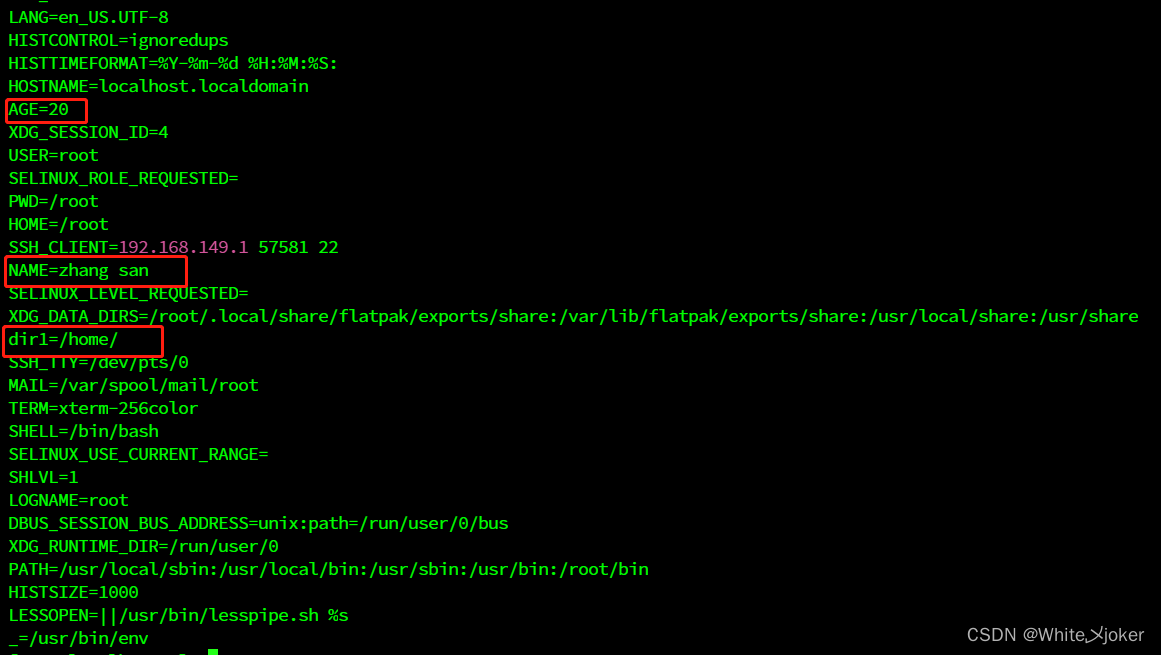
注意
上述环境变量是临时性的定义,重启系统后会失效,若要永久性的生效,则必须在配置文件中设置
对比
C语言 局部变量 全局变量 shell 自定义变量 环境变量 shell环境变量存储的文件
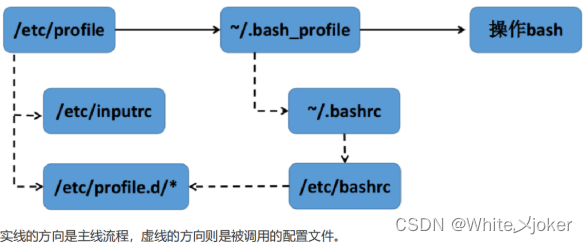
bash shell 初始化文件有 --- /etc/profile、 ~/.bash_profile、 ~/.bash_login、 ~/.profile、 ~/.bashrc、/etc/bashrc
解析
/etc/profile --- 存放一些全局(共有)变量,不管哪个用户,登录时都会读取该文件。通常设置一些Shell变量PATH,USER,HOSTNAME和HISTSIZE等
~/.bash_profile --- 每个用户都可使用该文件输入专用于自己使用的shell信息,当用户登录时,该文件仅仅执行一次,默认情况下,此文件通过脚本执行同目录下用户的.bashrc文件
~/.bashrc --- 该文件包含专用于你的bash shell的bash信息,当登录时以及每次打开新的shell时,该该文件被读取
/etc/bashrc --- 为每一个运行bash shell的用户执行此文件.当bash shell被打开时,该文件被读取
/etc/inputrc --- 文件为特定的情况处理键盘映射
执行顺序 --- /etc/profile-->/etc/profile.d/*.sh--> ~/.bash_profile -->/etc/bashrc-->~./.bashrc
结论
对于用户的环境变量设置,常见的是用户家目录下的.bashrc和.bash_profile
对于全局环境变量设置,常见的文件有:/etc/profile /etc/bashrc /etc/profile.d 这三个配置文件,常用方法是直接在/etc/profile文件中写入全局变量,如果想要在登陆后初始化或者显示加载的内容,只需要把脚本文件放在 /etc/profile.d 文件下即可
位置变量
定义
当一条命令或脚本执行时,后面可以跟多个参数,可以使用位置变量来表示该参数
[root@localhost ~]# bash test1.sh hello world 123 456当执行test1.sh 脚本时,第一个参数为hello到第四个参数可以使用特殊的符号表示,如:$1 $2 $3 ……
常见的位置变量
- $0 : 脚本名
- $1-$9 : 1-9个参数
- ${10} :10以上的参数需要大花括号括起
- $* : 所有参数
- $@ : 所有参数
- $# : 参数个数
- $$ : 当前进程的PID
- $! : 上一个后台进程的PID
- $? : 上一个命令的返回值状态码,0为成功
案例
- [root@localhost ~]# vim test3.sh
- #!/bin/bash
- echo "第2个位置参数是$2"
- echo "第1个位置参数是$3"
- echo "第4个位置参数是:$4"
- echo "所有参数是:$*"
- echo "所有参数是:$@"
- echo "参数的个数是:$#"
- echo "当前进程的PID编号:$$"
- echo "当前脚本文件名为:$0"
- [root@localhost ~]# bash test3.sh 1 2 3 4 5

$* 与 \$@区别
当$* 和 $ @没有被引用的时候,它们确实没有什么区别,都会把位置参数当成一个个体, "$*"会把所有位置参数当成一个整体(或者说当成一个单词),如果没有位置参数,则"$* "为空,如果有两个位置参数并且IFS为空格时,"$*"相当于"$1 $2"
"$@"会把所有位置参数当成一个单独的字段,如果没有位置参数($#为0),则"$@"展开为空(不是空字符串,而是空列表),如果存在一个位置参数,则"$@"相当于"$1",如果有两个参数,则"$@"相当于"$1" "$2"等等
- [root@localhost test]# vim test4.sh
- #!/bin/bash
- echo "name:$1"
- echo "age:$2"
- echo "E-mail:$3"
- for i in "$*"
- do
- echo "$i"
- done
- for i in "$@"
- do
- echo $i
- done
- [root@localhost test]# bash test4.sh 方老板 18 182@qq.com

变量赋值和作用域
显示赋值:变量名=变量值
- [root@localhost test]# today=date
- [root@localhost test]# echo $today
- [root@localhost test]# today=`date`
- [root@localhost test]# echo $today
- [root@localhost test]# today=$(date)
- [root@localhost test]# echo $today
- [root@localhost test]# today=$(date +%F)
- [root@localhost test]# echo $today
- [root@localhost test]# today='`date`'
- [root@localhost test]# echo $today
- [root@localhost test]# today='$(date +%F)'
- [root@localhost test]# echo $today

结论
推荐使用$(命令)格式识别命令,不推荐使用反引号
推荐使用双引号作为字符串定界符,其为有限匹配
read 从键盘读入变量值
定义
从标准输入中读取一行,并把输入行的每个字段的值指定给 shell 变量
格式
read -参数 变量名
参数
参数 作用 -p 提示语句 屏幕打印出一行提示语句 -t 等待时间 计时输入,使用read命令存在着潜在危险。脚本很可能会停下来一直等待用户的输入。如果无论是否输入数据脚本都必须继续执行,那么可以使用-t选项指定一个计时器。-t选项指定read命令等待输入的秒数。当计时满时,read命令返回一个非零退出状态 -n 数字 当输入的字符数目达到预定数目时,自动退出,并将输入的数据赋值给变量,如:-n1 , 只要接受到一个字符就退出。只要按下一个字符进行回答,read命令立即接受输入并将其传给变量。无需按回车键 -s 关闭回显,使read命令中输入的数据不显示在监视器上(实际上,数据是显示的,只是read命令将文本颜色设置成与背景相同的颜色) 常用格式
- read 变量名
- read -p "提示信息:" 变量名
- [root@localhost test]# read -p "Enter Number:" num
- Enter Number:2048
- [root@localhost test]# echo $num
- 2048
- [root@localhost test]# read -t 3 n1 # 等待3秒结束输入,注意:不要输入内容

- [root@localhost test]# read -s -p "enter your password:" pasw
- enter your password: # 输入密码,不回显

- REPLY是一种特殊自带变量,保存read为指定变量时输入的内容
- [root@localhost test]# echo $REPLY
- [root@localhost test]# read
- 2000
- [root@localhost test]# echo $REPLY
- 2000
- [root@localhost test]# read t1 t2
- 12 34
- [root@localhost test]# echo $t1 $t2
- 12 34

案例 --- shell中变量赋值的四种方法
- [root@localhost test]# a=1 # 直接赋值
- [root@localhost test]# read
- # 赋值
- [root@localhost test]# name=$(whoami) # 接收命令结果
- [root@localhost test]# b=$1 # 位置变量赋值
变量和引号
双引号 --- 除了$ 、单引号、反引号、反斜线之外,其它被引起的内容保持字面意思
单引号 --- 所有字符保持字面意思
反引号 --- 被引起的字符串转为shell命令
反斜线 --- 转义符(\),屏蔽后面字符的特殊含义
变量的作用域
全局变量
全局变量定义在脚本中,也可以定义在函数中
作用范围 --- 从定义的开始处到shell脚本结束或者被显示的去除
案例
- [root@localhost test]# vim test.sh
- #!/bin/bash
- func() #定义函数
- {
- echo "$v1"
- v1=200
- }
- v1=100
- func
- echo "$v1"
- [root@localhost test]# bash test.sh

函数内部定义全局变量
- [root@localhost test]# vim test.sh
- #!/bin/bash
- func() #定义函数
- {
- v2=200
- }
- func
- [root@localhost test]# bash test.sh

局部变量
范围更小,仅限于某个程序段中,如:函数、shell等,通过local关键字定义,
注意 --- 函数的参数也是局部变量
- [root@localhost test]# vim test.sh
- #!/bin/bash
- func() #定义函数
- {
- local v3=200 # 使用local关键字声明为局部变量
- }
- func
- echo "$v3"
- [root@localhost test]# bash test.sh

全局变量和局部变量区别
- [root@localhost test]# vim test.sh
- #!/bin/bash
- func()
- {
- #输出全局变量v1的值
- echo "global variable v1 is $v1"
- #定义局部变量v1
- local v1=2
- #输出局部变量v1的值
- echo "local variable v1 is $v1"
- }
- #定义全局变量v1
- v1=1
- #调用函数
- func
- #输出全局变量v1的值
- echo "global variable v1 is $v1"
- [root@localhost test]# bash test.sh

变量的运算
运算符与命令
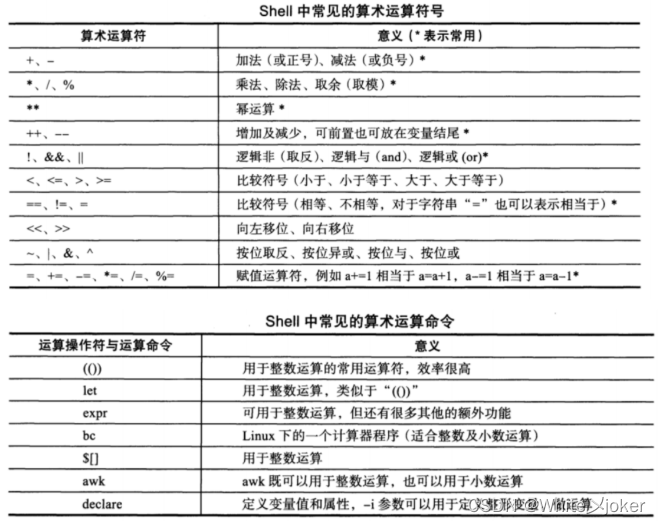
- [root@localhost test]# expr 1+1 # expr的运算符左右需要空格
- [root@localhost test]# expr 1 + 1
- [root@localhost test]# a=1
- [root@localhost test]# b=2
- [root@localhost test]# expr $a + $b
- [root@localhost test]# let num=1+2
- [root@localhost test]# echo $num
- [root@localhost test]# echo $((1+2))
- [root@localhost test]# echo $((5%3))
- [root@localhost test]# echo $((3%5))
- [root@localhost test]# echo $((50%30))
- [root@localhost test]# echo $((1-5))
- [root@localhost test]# echo $((5 * 2))
- [root@localhost test]# echo $((5/2))
- [root@localhost test]# echo $((5.2-5))
- -bash: 5.2-5: syntax error: invalid arithmetic operator (error token is ".2-5") # (())只支持整数运算
- [root@localhost test]# echo $[5+3] #等价(())
- 8
- [root@localhost test]# echo $[5.2+3]
- -bash: 5.2+3: syntax error: invalid arithmetic operator (error token is ".2+3")
- [root@localhost test]#

[root@localhost test]# bc # 运算器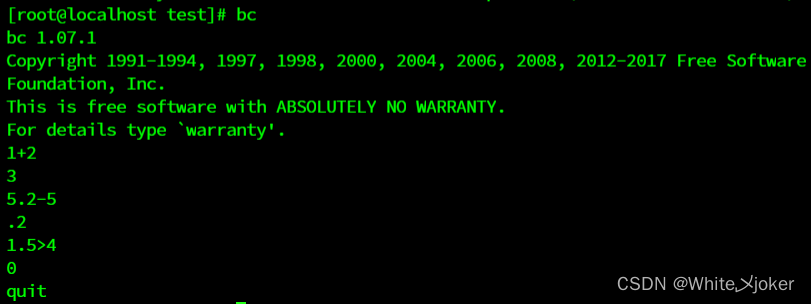
-
相关阅读:
Linux命令学习—Apache 服务器(下)
Spring整合Mybatis-plus
Vue.js+SpringBoot开发高校实验室管理系统
图解用户登录验证流程,写得太好了!
小程序当前页面栈以及跳转
医院管理中,什么才算得上智慧机房?
组合控件——顶部导航栏——标签布局TabLayout
Speedoffice(word)如何设置文字高亮显示
二维码智慧门牌管理系统:信息安全与运行安全
ACL与NAT相关知识
- 原文地址:https://blog.csdn.net/qq_57289939/article/details/132758884
