信创是现阶段国家发展的重要战略之一,面对这一趋势,所有的软件应用只有支持信创国产化的基础软硬件设施,在未来才不会被淘汰。那么,如何可以使用C#来实现支持信创环境的视频会议系统吗?答案是肯定的。
本文讲述如何使用C#来实现视频会议系统的Linux服务端与Linux客户端,并让其支持国产操作系统(如银河麒麟,统信UOS)和国产CPU(如鲲鹏、龙芯、海光、兆芯、飞腾等)。
先看看该Demo在统信UOS上的运行效果:

一.功能介绍
1.基本功能
(1)主持人:当进入同一房间的第一个用户默认成为主持人,默认打开麦克风。
(2)当进入会议房间的每个人,都能自由选择是否开启摄像头、扬声器和麦克风。
(3)当同一房间内无人开启桌面共享时,所有用户均可开启桌面共享,供其他用户观看其桌面,同一时间内只允许一个用户开启桌面共享。
(4)当用户为主持人时,可以选择是否开启电子白板;当主持人开启电子白板后,所有用户均可自由切换电子白板和会议视频。
(5)每个用户的视频窗口上方均显示声音分贝条,根据声音大小自动渲染。
(6)当用户关闭摄像头或者用户数量超过9个,不显示视频。
(7)所有用户均可收发文字消息,包括带表情的文字消息。
2.功能演示
在银河麒麟上运行:

3.布局风格
(1)当只有一个人开启视频时,采用大视窗显示
(2)当2~4人开启视频时,使用2x2布局
(3)当超过4人开启视频时,使用3x3布局
二.开发环境
1.开发工具:
Visual Studio 2022
2. 开发框架:
.NET Core 3.1,.NET 6,.NET 7
3.开发语言:
C#
4.其它框架:
CPF.net UI 框架、OMCS 语音视频框架
三.具体实现
1. 新用户进入会议房间
(1)视频显示窗口控件VideoPanel
预定SomeoneJoin事件,当新的用户加入房间时,将触发该事件:
this.chatGroup.SomeoneJoin += new CbGeneric<IChatUnit>(chatGroup_SomeoneJoin);

void chatGroup_SomeoneJoin(IChatUnit unit)
{
    if (!Dispatcher.CheckAccess())
    {
        Dispatcher.BeginInvoke(new CbGeneric<IChatUnit>(this.chatGroup_SomeoneJoin), unit);
    }
    else
    {
        VideoPanel panel = new VideoPanel();
        panel.Initialize(unit, false);
        VideoHidePanel videoHidePanel = new VideoHidePanel();
        videoHidePanel.Initialize(false, unit,false);
        VideoAllPanel videoAllPanel;
        videoAllPanel.videoPanel = panel;
        videoAllPanel.videoHidePanel = videoHidePanel;
        if (panel.ConnectCameraResult != ConnectResult.Succeed)
        {
            this.flowLayoutPanel2.Children.Insert(0, videoHidePanel);
            videoHidePanel.cameraVisibilityChange(false);
        }
        else
        {
            if (this.isVideoShowBeyond)
            {
                this.flowLayoutPanel2.Children.Insert(0, videoHidePanel);
                videoHidePanel.cameraVisibilityChange(true);
            }
            else
            {
                this.cameraViewbox.FlowLayoutPanel.Children.Insert(this.videoShowCount, panel);
            }
        }
        this.TotalNumChange(this.chatGroup.GetOtherMembers().Count + 1);
        panel.ChangeState += Panel_ChangeState;
        panel.CameraStateChange += Panel_CameraStateChange;
        panel.VideoByCount += Panel_VideoByCount;
        panel.VideoConnect += Panel_VideoConnect;
        unit.Tag = videoAllPanel;
        this.VideoNumBeyond();
        this.VideoSizeChange(new System.Windows.Size(this.cameraViewbox.FlowLayoutPanel.Width, this.cameraViewbox.FlowLayoutPanel.Height));
    }
}
其中 VideoPanel 是视频窗口显示控件,初始化如下:
public void Initialize(IChatUnit unit, bool myself)
{

    this.pictureBox_Mic.RenderSize = new System.Windows.Size(24, 24);
    this.chatUnit = unit;
    this.isMySelf = myself;
    this.toolStrip1.Text = chatUnit.MemberID;
    //初始化麦克风连接器
    this.chatUnit.MicrophoneConnector.ConnectEnded += new CbGeneric<string, ConnectResult>(MicrophoneConnector_ConnectEnded);
    this.chatUnit.MicrophoneConnector.OwnerOutputChanged += new CbGeneric<string>(MicrophoneConnector_OwnerOutputChanged);

    if (!this.isMySelf)
    {
        this.chatUnit.MicrophoneConnector.BeginConnect(unit.MemberID);
    }
    if (this.isMySelf)
    {
        this.videoSizeShow.Visibility = Visibility.Collapsed;
    }
    //初始化摄像头连接器
    this.chatUnit.DynamicCameraConnector.SetViewer(this.cameraPanel1);
    this.chatUnit.DynamicCameraConnector.VideoDrawMode = VideoDrawMode.Scale;
    this.chatUnit.DynamicCameraConnector.ConnectEnded += new CbGeneric<string, ConnectResult>(DynamicCameraConnector_ConnectEnded);
    this.chatUnit.DynamicCameraConnector.OwnerOutputChanged += new CbGeneric<string>(DynamicCameraConnector_OwnerOutputChanged);
    this.chatUnit.DynamicCameraConnector.Disconnected += new CbGeneric<string, ConnectorDisconnectedType>(DynamicCameraConnector_Disconnected);
    this.chatUnit.DynamicCameraConnector.OwnerVideoSizeChanged += DynamicCameraConnector_OwnerVideoSizeChanged;
    this.chatUnit.DynamicCameraConnector.BeginConnect(unit.MemberID);
}
当新用户进入房间时,房间内其他用户通过MicrophoneConnector麦克风连接器和DynamicCameraConnector摄像头连接器连接到该用户的麦克风和摄像头
(2)开启或关闭摄像头、麦克风、扬声器
以开启或关闭摄像头为例:
private void skinCheckBox_camera_MouseDown(object sender, MouseButtonEventArgs e)
{
    this.isMyselfVideo = !this.isMyselfVideo;
    System.Windows.Controls.Image imageVideo = sender as System.Windows.Controls.Image;
    imageVideo.Source = this.isMyselfVideo ? ResourceManager.Singleton.CameraOpenImage : ResourceManager.Singleton.CameraCloseImage;
    imageVideo.ToolTip = this.isMyselfVideo ? "摄像头:开" : "摄像头:关";
    VideoPanel myPanel = ((VideoAllPanel)this.chatGroup.GetMember(this.loginId).Tag).videoPanel;
    VideoHidePanel myHidePanel = ((VideoAllPanel)this.chatGroup.GetMember(this.loginId).Tag).videoHidePanel;
    this.VideoNumBeyond();
    if (this.isVideoShowBeyond)
    {
        myHidePanel.cameraVisibilityChange(this.isMyselfVideo);
    }
    else
    {
        if (!isMyselfVideo)
        {
            this.cameraViewbox.FlowLayoutPanel.Children.Remove(myPanel);
            myPanel.cameraPanel1.ClearImage();
            this.flowLayoutPanel2.Children.Insert(0, myHidePanel);
            myHidePanel.cameraVisibilityChange(false);
        }
        else
        {
            this.flowLayoutPanel2.Children.Remove(myHidePanel);
            this.cameraViewbox.FlowLayoutPanel.Children.Insert(this.videoShowCount, myPanel);
        }
    }

    if (IsInitialized)
    {
        this.multimediaManager.OutputVideo = this.isMyselfVideo;
        this.VideoSizeChange(new System.Windows.Size(this.cameraViewbox.FlowLayoutPanel.Width, this.cameraViewbox.FlowLayoutPanel.Height));
    }
}
其中通过多媒体管理器multimediaManager的OutputVideo属性,设置是否将采集到的视频输出,进而控制摄像头的开启或关闭。
2. 布局切换
(1)根据开启视频的用户数量可分为 1x1、2x2、3x3三种布局格式
(2)根据不同的布局格式以及外部控件容器的宽高,手动计算视频控件的宽高。
private void VideoSizeChange(Size size)
{
    if (this.cameraViewbox.FlowLayoutPanel.Children.Count > 4)
    {
        foreach (VideoPanel panel in this.cameraViewbox.FlowLayoutPanel.Children)
        {
            panel.Height = (size.Height - 6) / 3;
            panel.Width = (size.Width - 12) / 3;
        }
    }
    else if (this.cameraViewbox.FlowLayoutPanel.Children.Count <= 4 && this.cameraViewbox.FlowLayoutPanel.Children.Count > 1)
    {
        foreach (VideoPanel panel in this.cameraViewbox.FlowLayoutPanel.Children)
        {
            panel.Height = (size.Height - 4) / 2;
            panel.Width = (size.Width - 8) / 2;
        }
    }
    else if (this.cameraViewbox.FlowLayoutPanel.Children.Count == 1)
    {
        foreach (VideoPanel panel in this.cameraViewbox.FlowLayoutPanel.Children)
        {
            panel.Height = size.Height - 2;
            panel.Width = size.Width - 4;
        }
    }
}
通过流式布局控件的特性:超过流式控件的宽度,子控件将自动换行,修改视频控件的宽高;
外部容器实际容纳所有视频控件的宽高为:外部容器的宽高减去所有视频控件的外边距;
当只有一个用户开启视频,即将使用1x1布局时,视频控件宽高即为外部容器实际容纳所有视频控件的宽高;
当2~4人开启视频,即将使用2x2布局时,视频控件宽高即为外部容器实际容纳所有视频控件的宽高的1/2,此时每个视频控件将占外部控件的1/4;
当超过4人开启视频,即将使用3x3布局时,视频控件宽高即为外部容器实际容纳所有视频控件的宽高的1/3,此时每个视频控件将占外部控件的1/9
3.自定义消息类型
public static class InformationTypes
{
#region 广播消息
///
(1)当用户发送聊天消息时,将通过BroadcastChat向所有在线用户广播聊天消息;当用户开启桌面共享时,将通过BroadcastShareDesk向所有在线用户广播桌面共享消息;当主持人开启电子白板时,将通过BroadcastWhiteBoard
向所有在线用户广播电子白板消息。
(2)当用户上线时,如果有用户开启桌面共享,就将通过ShareDesk 向新用户发送桌面共享消息;如果主持人开启电子白板,就将通过WhiteBoard向新用户发送电子白板消息。
(3)用户将通过GetGroupExtension向服务端获取组扩展信息。
4.组扩展信息
public class GroupExtension
{
///
(1)ModeratorID 表示当前房间主持人的ID;
(2)DesktopSharedUserID 正在桌面共享的用户ID;若值为null,表示当前房间内无人开启桌面共享,客户端通过该值判断当前是否有用户开启桌面共享;当用户开启或关闭桌面共享时,都将手动修改该值;
(3)IsModeratorWhiteBoardNow表示当前主持人是否开启电子白板;当主持人开启或关闭电子白板时,都将手动修改该值。
四.源码下载
1. 源码项目说明
(1)OVCS.ServerLinux :视频会议 Linux 服务端
(2)OVCS.ClientLinux :视频会议 Linux 客户端
注: Linux客户端内置的是x86/x64非托管so库,若需要其它架构的so,请联系QQ:2027224508 获取。
(3)另附上Android客户端的源码:Android端 。
2. 部署运行说明
在部署之前,需要在linux服务端和客户端上分别安装 .Net core 3.1版本,命令行安装命令如下:
yum install dotnet-sdk-3.1
检查版本安装情况
dotnet --version
运行:
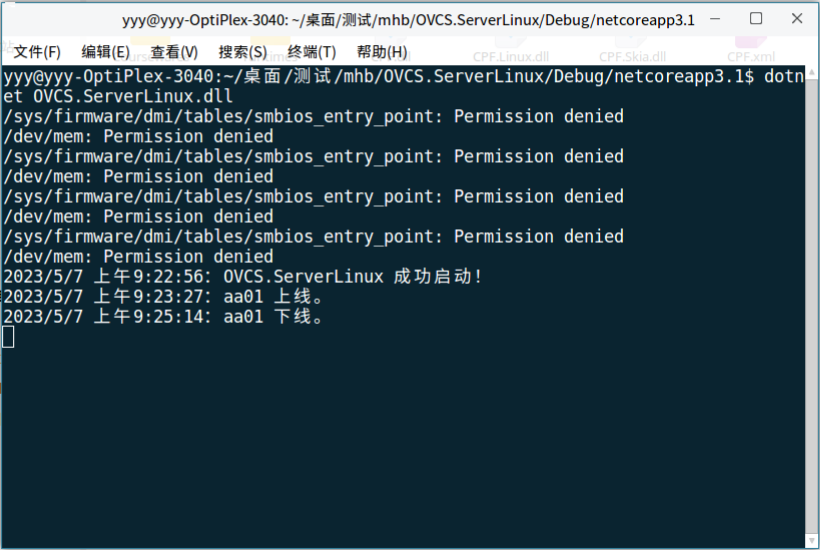
(1)在CentOS上启动OVCS.ServerLinux服务端:拷贝OVCS.ServerLinux项目下的Debug文件夹,到CentOS操作系统上,打开Debug -> netcoreapp3.1目录 ,在目录下打开终端,执行以下命令启动服务端
dotnet OVCS.ServerLinux.dll
(2)在麒麟或统信UOS、Ubuntu上运行OVCS.ClientLinux客户端:拷贝OVCS.ClientLinux项目下的Debug文件夹,到麒麟或统信UOS、Ubuntu操作系统上,打开Debug -> netcoreapp3.1目录 ,在目录下打开终端,执行以下命令启动客户端
dotnet OVCS.ClientLinux.dll