-
# Vue 中 JSON 编辑器使用
Vue 中 JSON 编辑器使用
背景描述
- 现有一个
vue项目,需要一个json编辑器,能够格式化json数据,同时也支持编辑功能。
vue-json-edit
安装依赖
npm install vue-json-editor --save- 1
测试页面
<template> <div style="width:50% "> <vue-json-editor v-model="resultInfo" :showBtns="false" :mode="'code'" @json-change="onJsonChange" @json-save="onJsonSave" @has-error="onError" /> <br> <el-button type="primary" @click="checkJson">确定el-button> div> template> <script> // 导入模块 import vueJsonEditor from 'vue-json-editor' export default { // 注册组件 components: { vueJsonEditor }, data () { return { hasJsonFlag: true, // json是否验证通过 // json数据 resultInfo: { 'employees': [ { 'firstName': 'Bill', 'lastName': 'Gates' }, { 'firstName': 'George', 'lastName': 'Bush' }, { 'firstName': 'Thomas', 'lastName': 'Carter' } ] } } }, mounted: function () { }, methods: { onJsonChange (value) { // 实时保存 this.onJsonSave(value) }, onJsonSave (value) { this.resultInfo = value this.hasJsonFlag = true }, onError (value) { this.hasJsonFlag = false }, // 检查json checkJson () { if (this.hasJsonFlag === false) { alert('json验证失败') return false } else { alert('json验证成功') return true } } } } script> <style> style>- 1
- 2
- 3
- 4
- 5
- 6
- 7
- 8
- 9
- 10
- 11
- 12
- 13
- 14
- 15
- 16
- 17
- 18
- 19
- 20
- 21
- 22
- 23
- 24
- 25
- 26
- 27
- 28
- 29
- 30
- 31
- 32
- 33
- 34
- 35
- 36
- 37
- 38
- 39
- 40
- 41
- 42
- 43
- 44
- 45
- 46
- 47
- 48
- 49
- 50
- 51
- 52
- 53
- 54
- 55
- 56
- 57
- 58
- 59
- 60
- 61
- 62
- 63
- 64
- 65
- 66
- 67
- 68
- 69
- 70
- 71
- 72
效果图

bin-code-editor
- 官网:https://wangbin3162.gitee.io/bin-code-editor/#/jsonEditor
安装依赖
npm install bin-code-editor -d- 1
测试页面
<template> <div style="width: 70%;margin-left: 30px;margin-top: 30px;"> <CodeEditor v-model="jsonStr" :auto-format="true" :smart-indent="true" theme="dracula" :indent-unit="4" :line-wrap="false" ref="editor">CodeEditor> <br> <el-button type="primary" @click="onSubumit">提交el-button> div> template> <script> import { CodeEditor } from 'bin-code-editor' console.log('CodeEditor', CodeEditor) const jsonData = `{ "employees": [{ "firstName": "Bill", "lastName": "Gates" }, { "firstName": "George", "lastName": "Bush" }, { "firstName": "Thomas", "lastName": "Carter" }] }` export default { // 注册组件 components: { CodeEditor }, data () { return { jsonStr: jsonData } }, methods: { // 检测json格式 isJSON (str) { if (typeof str === 'string') { try { var obj = JSON.parse(str) if (typeof obj === 'object' && obj) { return true } else { return false } } catch (e) { return false } } else if (typeof str === 'object' && str) { return true } }, onSubumit () { if (!this.isJSON(this.jsonStr)) { this.$message.error(`json格式错误`) return false } this.$message.success('json格式正确') } } } script> <style> style>- 1
- 2
- 3
- 4
- 5
- 6
- 7
- 8
- 9
- 10
- 11
- 12
- 13
- 14
- 15
- 16
- 17
- 18
- 19
- 20
- 21
- 22
- 23
- 24
- 25
- 26
- 27
- 28
- 29
- 30
- 31
- 32
- 33
- 34
- 35
- 36
- 37
- 38
- 39
- 40
- 41
- 42
- 43
- 44
- 45
- 46
- 47
- 48
- 49
- 50
- 51
- 52
- 53
- 54
- 55
- 56
- 57
- 58
- 59
- 60
- 61
- 62
- 63
- 64
- 65
- 66
- 67
- 68
- 69
效果图
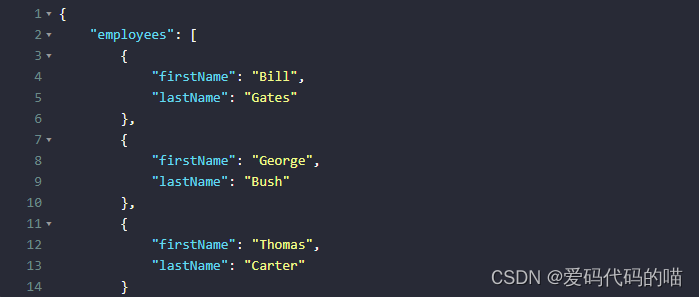
CodeMirror
- 官网:https://codemirror.net/docs/guide/
- 支持代码高亮
62种主题颜色,例如monokai等等- 支持
json, sql, javascript,css,xml, html,yaml, markdown, python编辑模式,默认为json - 支持快速搜索
- 支持自动补全提示
- 支持自动匹配括号
安装依赖
-
下载时注意指定版本,且这里下载
vue-codemirror,不是codemirror,两者现有版本不同,可在npm社区查看具体版本,这里我下载的是vue-codemirror4.0.6支持Vue2,默认下载是最新版本只支持Vue3。 -
vue 2使用
npm install vue-codemirror@4.0.6 npm install jshint npm install jsonlint npm install script-loader- 1
- 2
- 3
- 4
- 5
测试页面
<template> <div style="width:50%"> <codemirror ref="myCm" v-model="editorValue" :options="cmOptions" @changes="onCmCodeChanges" @blur="onCmBlur" @keydown.native="onKeyDown" @mousedown.native="onMouseDown" @paste.native="OnPaste"> codemirror> div> template> <script> import { codemirror } from 'vue-codemirror' import 'codemirror/keymap/sublime' import 'codemirror/mode/javascript/javascript.js' import 'codemirror/mode/xml/xml.js' import 'codemirror/mode/htmlmixed/htmlmixed.js' import 'codemirror/mode/css/css.js' import 'codemirror/mode/yaml/yaml.js' import 'codemirror/mode/sql/sql.js' import 'codemirror/mode/python/python.js' import 'codemirror/mode/markdown/markdown.js' import 'codemirror/addon/hint/show-hint.css' import 'codemirror/addon/hint/show-hint.js' import 'codemirror/addon/hint/javascript-hint.js' import 'codemirror/addon/hint/xml-hint.js' import 'codemirror/addon/hint/css-hint.js' import 'codemirror/addon/hint/html-hint.js' import 'codemirror/addon/hint/sql-hint.js' import 'codemirror/addon/hint/anyword-hint.js' import 'codemirror/addon/lint/lint.css' import 'codemirror/addon/lint/lint.js' import 'codemirror/addon/lint/json-lint' import 'codemirror/addon/selection/active-line' import 'codemirror/addon/lint/javascript-lint.js' import 'codemirror/addon/fold/foldcode.js' import 'codemirror/addon/fold/foldgutter.js' import 'codemirror/addon/fold/foldgutter.css' import 'codemirror/addon/fold/brace-fold.js' import 'codemirror/addon/fold/xml-fold.js' import 'codemirror/addon/fold/comment-fold.js' import 'codemirror/addon/fold/markdown-fold.js' import 'codemirror/addon/fold/indent-fold.js' import 'codemirror/addon/edit/closebrackets.js' import 'codemirror/addon/edit/closetag.js' import 'codemirror/addon/edit/matchtags.js' import 'codemirror/addon/edit/matchbrackets.js' import 'codemirror/addon/search/jump-to-line.js' import 'codemirror/addon/dialog/dialog.js' import 'codemirror/addon/dialog/dialog.css' import 'codemirror/addon/search/searchcursor.js' import 'codemirror/addon/search/search.js' import 'codemirror/addon/display/autorefresh.js' import 'codemirror/addon/selection/mark-selection.js' import 'codemirror/addon/search/match-highlighter.js' // require('script-loader!jsonlint') export default { name: 'index', components: { codemirror }, props: ['cmTheme', 'cmMode', 'cmIndentUnit', 'autoFormatJson'], data () { return { editorValue: '{}', cmOptions: { theme: !this.cmTheme || this.cmTheme === 'default' ? 'default' : this.cmTheme, // 主题 mode: !this.cmMode || this.cmMode === 'default' ? 'application/json' : this.cmMode, // 代码格式 tabSize: 4, // tab的空格个数 indentUnit: !this.cmIndentUnit ? 2 : this.cmIndentUnit, // 一个块(编辑语言中的含义)应缩进多少个空格 autocorrect: true, // 自动更正 spellcheck: true, // 拼写检查 lint: true, // 检查格式 lineNumbers: true, // 是否显示行数 lineWrapping: true, // 是否自动换行 styleActiveLine: true, // line选择是是否高亮 keyMap: 'sublime', // sublime编辑器效果 matchBrackets: true, // 括号匹配 autoCloseBrackets: true, // 在键入时将自动关闭括号和引号 matchTags: { bothTags: true }, // 将突出显示光标周围的标签 foldGutter: true, // 可将对象折叠,与下面的gutters一起使用 gutters: [ 'CodeMirror-lint-markers', 'CodeMirror-linenumbers', 'CodeMirror-foldgutter' ], highlightSelectionMatches: { minChars: 2, style: 'matchhighlight', showToken: true } }, enableAutoFormatJson: this.autoFormatJson == null ? true : this.autoFormatJson // json编辑模式下,输入框失去焦点时是否自动格式化,true 开启, false 关闭 } }, created () { try { if (!this.editorValue) { this.cmOptions.lint = false return } if (this.cmOptions.mode === 'application/json') { if (!this.enableAutoFormatJson) { return } this.editorValue = this.formatStrInJson(this.editorValue) } } catch (e) { console.log('初始化codemirror出错:' + e) } }, methods: { resetLint () { if (!this.$refs.myCm.codemirror.getValue()) { this.$nextTick(() => { this.$refs.myCm.codemirror.setOption('lint', false) }) return } this.$refs.myCm.codemirror.setOption('lint', false) this.$nextTick(() => { this.$refs.myCm.codemirror.setOption('lint', true) }) }, // 格式化字符串为json格式字符串 formatStrInJson (strValue) { return JSON.stringify( JSON.parse(strValue), null, this.cmIndentUnit ) }, onCmCodeChanges (cm, changes) { this.editorValue = cm.getValue() this.resetLint() }, // 失去焦点时处理函数 onCmBlur (cm, event) { try { let editorValue = cm.getValue() if (this.cmOptions.mode === 'application/json' && editorValue) { if (!this.enableAutoFormatJson) { return } this.editorValue = this.formatStrInJson(editorValue) } } catch (e) { // 啥也不做 } }, // 按下键盘事件处理函数 onKeyDown (event) { const keyCode = event.keyCode || event.which || event.charCode const keyCombination = event.ctrlKey || event.altKey || event.metaKey if (!keyCombination && keyCode > 64 && keyCode < 123) { this.$refs.myCm.codemirror.showHint({ completeSingle: false }) } }, // 按下鼠标时事件处理函数 onMouseDown (event) { this.$refs.myCm.codemirror.closeHint() }, // 黏贴事件处理函数 OnPaste (event) { if (this.cmOptions.mode === 'application/json') { try { this.editorValue = this.formatStrInJson(this.editorValue) } catch (e) { // 啥都不做 } } } } } script> <style scoped> style>- 1
- 2
- 3
- 4
- 5
- 6
- 7
- 8
- 9
- 10
- 11
- 12
- 13
- 14
- 15
- 16
- 17
- 18
- 19
- 20
- 21
- 22
- 23
- 24
- 25
- 26
- 27
- 28
- 29
- 30
- 31
- 32
- 33
- 34
- 35
- 36
- 37
- 38
- 39
- 40
- 41
- 42
- 43
- 44
- 45
- 46
- 47
- 48
- 49
- 50
- 51
- 52
- 53
- 54
- 55
- 56
- 57
- 58
- 59
- 60
- 61
- 62
- 63
- 64
- 65
- 66
- 67
- 68
- 69
- 70
- 71
- 72
- 73
- 74
- 75
- 76
- 77
- 78
- 79
- 80
- 81
- 82
- 83
- 84
- 85
- 86
- 87
- 88
- 89
- 90
- 91
- 92
- 93
- 94
- 95
- 96
- 97
- 98
- 99
- 100
- 101
- 102
- 103
- 104
- 105
- 106
- 107
- 108
- 109
- 110
- 111
- 112
- 113
- 114
- 115
- 116
- 117
- 118
- 119
- 120
- 121
- 122
- 123
- 124
- 125
- 126
- 127
- 128
- 129
- 130
- 131
- 132
- 133
- 134
- 135
- 136
- 137
- 138
- 139
- 140
- 141
- 142
- 143
- 144
- 145
- 146
- 147
- 148
- 149
- 150
- 151
- 152
- 153
- 154
- 155
- 156
- 157
- 158
- 159
- 160
- 161
- 162
- 163
- 164
- 165
- 166
- 167
- 168
- 169
- 170
- 171
- 172
- 173
- 174
- 175
- 176
- 177
- 178
- 179
- 180
- 181
- 182
效果图

vue-json-views
安装依赖
npm i -S vue-json-views- 1
属性说明
属性 说明 类型 默认值 json传入的 json数据(必填)Object- closed是否折叠全部 Booleanfalsedeep展开深度,越大渲染速度越慢,建议不超过5 Number3icon-style折叠按钮样式,可选值为 square、circle、triangleStringsquareicon-color两个折叠按钮的颜色 Arraytheme=vs-code时,[‘#c6c6c6’, ‘#c6c6c6’],其他情况为[‘#747983’, ‘#747983’] theme可选主题样式,可选值为 one-dark、vs-code,不选时为默认的白色主题String- font-size字体大小,单位 pxNumber14 line-height行高,单位 pxNumber24 测试页面
<template> <json-view :data="jsonData"/> template> <script> import jsonView from 'vue-json-views' export default { components: { jsonView }, data () { return { // 可使用 JSON.parse() 对json数据转化 jsonData: { name: 'dog', age: 2, hobby: { eat: { food: '狗粮', water: '冰可乐' }, sleep: { time: '白日梦' } } } } } } script>- 1
- 2
- 3
- 4
- 5
- 6
- 7
- 8
- 9
- 10
- 11
- 12
- 13
- 14
- 15
- 16
- 17
- 18
- 19
- 20
- 21
- 22
- 23
- 24
- 25
- 26
- 27
- 28
- 29
- 30
- 31
- 32
效果图

vue-json-pretty
安装依赖
vue2
npm install vue-json-pretty@1.7.1 --save- 1
属性说明
测试页面
<template> <div> <vue-json-pretty :deep="3" selectableType="single" :showSelectController="true" :highlightMouseoverNode="true" path="res" :data="response" > vue-json-pretty> div> template> <script> import VueJsonPretty from 'vue-json-pretty' import 'vue-json-pretty/lib/styles.css' export default { name: 'cluster', components: {VueJsonPretty}, data () { return { response: { result: '', data: [ { id: 1, title: 'aaa' }, { id: 2, title: 'bbb' }, { id: 3, title: 'ccc' }, { id: 4, title: 'ddd' } ] } } } } script>- 1
- 2
- 3
- 4
- 5
- 6
- 7
- 8
- 9
- 10
- 11
- 12
- 13
- 14
- 15
- 16
- 17
- 18
- 19
- 20
- 21
- 22
- 23
- 24
- 25
- 26
- 27
- 28
- 29
- 30
- 31
- 32
- 33
- 34
- 35
- 36
- 37
- 38
- 39
- 40
效果图

Monaco Editor
码云地址
- 现有一个
-
相关阅读:
【操作系统】进程间的通信——消息队列
【Linux进程】进程等待 与 进程替换 原理与函数使用
matplotlib数据可视化
包装行业供应链集采管理系统:加强标准化建设,构建统一协同管控体系
解决问题:可以用什么方式实现自动化部署
MViT:性能杠杠的多尺度ViT | ICCV 2021
一文读懂 Golang init 函数执行顺序
科普rabbitmq,rocketmq,kafka三者的架构比较
牛客小白月赛61-E
阿里高工内产的 SpringBoot 实战派手册仅发布一天霸榜Github
- 原文地址:https://blog.csdn.net/qq_37248504/article/details/128105605
