-
Vue+Vite+TS
#、基础配置
1、安装Node.js

安装成功,查看版本
node -v和npm -v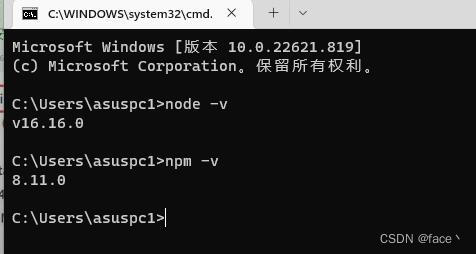
2、修改npm镜像源
// 持久修改npm的镜像 npm config set registry https://registry.npm.taobao.org -- 失效 npm config set registry https://registry.npmmirror.com -- 最新 // 验证是否成功 npm config get registry- 1
- 2
- 3
- 4
- 5
- 6
- 7
3、配置vscode
①插件安装
插件名称 说明 Vue Language Features (Volar) 专门为 Vue 3 构建的语言支持插件 TypeScript Vue Plugin (volar) 专门为 Vue 3 构建的语言支持插件 Prettier - Code formatter 代码格式化 Path Intellisense 路径智能感知 Live Server 本地服务器 Chinese (Simplified) 简体中文 Better Comments 代码注释高亮 Tailwind CSS IntelliSense 配合tailwind使用 PostCSS Language Support 配合tailwind使用 一、创建项目
1、在需要建项目的文件夹下打开powershell执行下面代码,依次填写【项目名称】,选择【vue】,选择【typescript】
npm init vite@latest- 1
2、切换到项目根目录执行代码安装相应文件
npm install- 1
3、创建完成在项目根目录执行以下代码,解决从vue导入模块报错的问题(找不到模块“vue”或其相应的类型声明)
npm i --save-dev @types/node- 1
在typescript对应的编译配置文件tsconfig.json写入以下代码:
"compilerOptions": { ... "types": [ "node" ], },- 1
- 2
- 3
- 4
- 5
- 6
- 7
二、安装模块
npm install -D就是npm install --save-dev对应package.json中的devDependencies
npm insatll -S就是npm install --save对应package.json中的dependencies
npm install module_name -g全局安装,将安装包放在/usr/local下或者你node的安装目录
npm install本地安装 (根据目录下package.json文件,根据devDependencies和dependencies配置,下载依赖,依赖放在当前目录下的nodel_modules)1、Element-plus 控件组件
npm install element-plus -S- 1
=================================== main.ts // 导入element-plus import ElementPlus from 'element-plus' import 'element-plus/dist/index.css' import zhCn from 'element-plus/dist/locale/zh-cn.mjs' // 国际化 import * as ElementPlusIconsVue from '@element-plus/icons-vue' // 导入图标 // 使用element-plus for (const [key, component] of Object.entries(ElementPlusIconsVue)) { app.component(key, component) } app.use(ElementPlus, { locale: zhCn, }) =================================== vite-env.d.ts // 声明文件中注册中文 declare module 'element-plus/dist/locale/zh-cn.mjs'- 1
- 2
- 3
- 4
- 5
- 6
- 7
- 8
- 9
- 10
- 11
- 12
- 13
- 14
- 15
- 16
- 17
- 18
- 19
- 20
- 21
- 22
2、Vue Router 路由
npm install vue-router@4 -S- 1
=================================== src/router/router.ts //引入路由对象 import { createRouter, createWebHistory, RouteRecordRaw } from 'vue-router' declare module 'vue-router' { interface RouteMeta { title: string, transition: string, name: string, permission: string } } //路由数组的类型 RouteRecordRaw // 定义一些路由 // 每个路由都需要映射到一个组件。 const routes: Array<RouteRecordRaw> = [ { path: '/', component: () => import('../components/common/navigation.vue'), meta: { title: '首页~', transition: "animate__fadeIn", name: "index", permission: "", } }, ] const router = createRouter({ history: createWebHistory(import.meta.env.BASE_URL), routes }) // 白名单 const whileList = ['/login', '/register', '/', '/permission', '/404'] router.beforeEach(async (to, from, next) => { // 跳转页面修改标题 if (to.meta.title) {// 判断是否有标题 document.title = to.meta.title } // 获取令牌数据 let token = sessionStorage.getItem('token') // 白名单直接进入 if (whileList.includes(to.path)) { next() return } // 查看令牌数据,没有令牌,进入登录 if (!token) { next({ path: '/login' }) return } }) //导出router export default router- 1
- 2
- 3
- 4
- 5
- 6
- 7
- 8
- 9
- 10
- 11
- 12
- 13
- 14
- 15
- 16
- 17
- 18
- 19
- 20
- 21
- 22
- 23
- 24
- 25
- 26
- 27
- 28
- 29
- 30
- 31
- 32
- 33
- 34
- 35
- 36
- 37
- 38
- 39
- 40
- 41
- 42
- 43
- 44
- 45
- 46
- 47
- 48
- 49
- 50
- 51
- 52
- 53
- 54
- 55
- 56
- 57
- 58
- 59
- 60
- 61
- 62
- 63
- 64
3、animate.css 动画
npm install animate.css -S- 1
=================================== main.ts // 导入动画 import "animate.css"- 1
- 2
- 3
- 4
- 5
4、SVG 图片图标
npm i vite-plugin-svg-icons -S npm i fast-glob -S- 1
- 2
在SVG图片文件夹下新增组件
=================================== SvgIcon.vue <template> <svg class="svg-icon" aria-hidden="true"> <use :xlink:href="iconName" rel="external nofollow" /> </svg> </template> <script lang="ts"> import { computed, defineComponent } from 'vue' export default defineComponent({ props: { iconClass: { type: String, required: true, }, className: { type: String, default: '', }, color: { type: String, default: '#889aa4', }, }, setup(props) { return { iconName: computed(() => `#icon-${props.iconClass}`), svgClass: computed(() => { if (props.className) { return `svg-icon ${props.className}` } return 'svg-icon' }), } }, }) </script> <style scoped> .svg-icon { width: 1em; height: 1em; fill: currentColor; vertical-align: middle; } </style>- 1
- 2
- 3
- 4
- 5
- 6
- 7
- 8
- 9
- 10
- 11
- 12
- 13
- 14
- 15
- 16
- 17
- 18
- 19
- 20
- 21
- 22
- 23
- 24
- 25
- 26
- 27
- 28
- 29
- 30
- 31
- 32
- 33
- 34
- 35
- 36
- 37
- 38
- 39
- 40
- 41
- 42
- 43
- 44
- 45
- 46
- 47
- 48
- 49
main.ts 中引入
// 引入svg注册脚本 import 'virtual:svg-icons-register' // 全局svg图标组件 import svgIcon from './assets/SVG/SvgIcon.vue' // 使用SVG app.component('svg-icon', svgIcon)- 1
- 2
- 3
- 4
- 5
- 6
- 7
组件中使用
<div> <svg-icon icon-class="vite" style="margin-left: 30%;font-size: 40px;" /> </div>- 1
- 2
- 3
5、axios 接口访问
npm install axios -S- 1
根目录新建文件
============开发环境============= .env.development VITE_MODE_ENV = "development" VITE_BASE_API = 'http://127.0.0.1:8000' ============生产环境============= .env.production VITE_MODE_ENV = "production" VITE_BASE_API = '***.***.***.***'- 1
- 2
- 3
- 4
- 5
- 6
- 7
- 8
- 9
- 10
- 11
package.json配置
"scripts": { "dev": "vite --mode development", "pro": "vite --mode production", "build": "vue-tsc --noEmit && vite build --mode production", "preview": "vite preview" },- 1
- 2
- 3
- 4
- 5
- 6
request.ts 封装axiso
import axios from 'axios' // console.log(JSON.stringify(import.meta.env)) // console.log(import.meta.env.VITE_BASE_API) const request = axios.create({ baseURL: '/devApi', timeout: 3000, headers: { 'X-Custom-Header': 'XMLHttprequest', // 'Authorization': `Token ${sessionStorage.getItem('token')}` || "" } }) // 添加请求拦截器 request.interceptors.request.use(function (config) { // 在发送请求之前做些什么 // console.log('查看配置项:',typeof(config)); let token = sessionStorage.getItem("token"); if (token && token !== '' && config.headers) { config.headers['Authorization'] = `Token ${token}` // 让每个请求携带自定义token 请根据实际情况自行修改 } return config; }, function (error) { // 对请求错误做些什么 // return Promise.reject(error); return error.response }); // 添加响应拦截器 request.interceptors.response.use(function (response) { // 2xx 范围内的状态码都会触发该函数。 // 对响应数据做点什么 return response; }, function (error) { // 超出 2xx 范围的状态码都会触发该函数。 // 对响应错误做点什么 // return Promise.reject(error); if (error.response) { return error.response } else { return {response:'响应超时'} } }); export default request // // 请求携带cookie // axios.defaults.withCredentials = true // // 异步请求 不阻塞 headers请求头 // axios.defaults.headers["X-Requested-With"] = "XMLHttprequest" // // 获取本地token 没有则为空字符串 // axios.defaults.headers['token'] = localStorage.getItem("token")||"" // // 内容类型 // axios.defaults.headers.post["Content-Type"] = "application/json"- 1
- 2
- 3
- 4
- 5
- 6
- 7
- 8
- 9
- 10
- 11
- 12
- 13
- 14
- 15
- 16
- 17
- 18
- 19
- 20
- 21
- 22
- 23
- 24
- 25
- 26
- 27
- 28
- 29
- 30
- 31
- 32
- 33
- 34
- 35
- 36
- 37
- 38
- 39
- 40
- 41
- 42
- 43
- 44
- 45
- 46
- 47
- 48
- 49
- 50
- 51
- 52
- 53
- 54
- 55
- 56
6、打包时使用Gzip压缩
npm add -D vite-plugin-compression- 1
配置文件:vite.config.ts
import viteCompression from 'vite-plugin-compression' export default defineConfig({ plugins: [ // ... viteCompression({ threshold: 1024000 // 对大于 1mb 的文件进行压缩 }) ], });- 1
- 2
- 3
- 4
- 5
- 6
- 7
- 8
- 9
- 10
- 11
插件的其它配置
filter:过滤器,对哪些类型的文件进行压缩,默认为 ‘/.(js|mjs|json|css|html)$/i’ verbose: true:是否在控制台输出压缩结果,默认为 true threshold:启用压缩的文件大小限制,单位是字节,默认为 0 disable: false:是否禁用压缩,默认为 false deleteOriginFile:压缩后是否删除原文件,默认为 false algorithm:采用的压缩算法,默认是 gzip ext:生成的压缩包后缀- 1
- 2
- 3
- 4
- 5
- 6
- 7
7、TailwindCSS
npm install -D tailwindcss postcss autoprefixer npx tailwindcss init -p- 1
- 2
tailwind.config.cjs配置/** @type {import('tailwindcss').Config} */ module.exports = { content: ["./index.html", "./src/**/*.{vue,js,ts,jsx,tsx}"], theme: { extend: {}, }, plugins: [], }- 1
- 2
- 3
- 4
- 5
- 6
- 7
- 8
新建
tailwind.css@tailwind base; @tailwind components; @tailwind utilities;- 1
- 2
- 3
main.ts中导入// 导入tailwind import '@/tailwind/tailwind.css'- 1
- 2
配置vscode
setting.json// tailwind在class中的智能提示 "editor.quickSuggestions": { "strings": true }, // 忽略@apply的警告 "css.lint.unknownAtRules": "ignore",- 1
- 2
- 3
- 4
- 5
- 6
8、markdown编辑器
插件官网:md-editor-v3
npm i md-editor-v3 -S- 1
在组件中使用
<template> <-- 编辑 --> <md-editor style="height: 88vh;" @save="Save" v-model="ruleForm.content" @on-get-catalog="onGetCatalog" :toolbarsExclude="['github']" /> <-- 预览 --> <md-editor style="height: 65vh;margin-top: 10px;" v-model="tempItem.content" previewOnly /> </template> <script setup lang="ts"> import MdEditor from 'md-editor-v3'; import 'md-editor-v3/lib/style.css'; // 编辑器数据 const state = reactive({ theme: 'dark', catalogList: [] }); // 获取目录 const onGetCatalog = (list: any) => { state.catalogList = list; }; // 保存数据 const Save = async (text: string) => { DialogEdit.value = true } </script>- 1
- 2
- 3
- 4
- 5
- 6
- 7
- 8
- 9
- 10
- 11
- 12
- 13
- 14
- 15
- 16
- 17
- 18
- 19
- 20
- 21
- 22
- 23
- 24
- 25
- 26
9、Vueuse
npm i @vueuse/core -S- 1
<template> <div>{{ formatted }}</div> </template> <script setup lang="ts"> import { useNow, useDateFormat } from '@vueuse/core' const formatted = useDateFormat(useNow(), 'YYYY-MM-DD HH:mm:ss') </script>- 1
- 2
- 3
- 4
- 5
- 6
- 7
- 8
- 9
10、file-saver
npm i file-saver -S- 1
后端数据
======方式一:pandas直接生成的excel====== from django.http import HttpResponse df = pd.DataFrame([[1,2,3], [2,3,4]],columns=['A','B','C']) bio = BytesIO() writer = pd.ExcelWriter(bio, engine='openpyxl') df.to_excel(writer, sheet_name='Sheet1', index=False) sheet = writer.sheets['Sheet1'] from openpyxl.styles import Font, Alignment, Border, Side, PatternFill pattern_fill_1 = PatternFill(fill_type='solid', fgColor='538DD5') # 暗板岩蓝 # todo:调整字段颜色 cells = sheet.iter_rows(min_row=1, max_row=1, min_col=1, max_col=5) for row in cells: # 遍历行 for cell in range(len(row)): # 遍历列 row[cell].fill = pattern_fill_1 writer.close() bio.seek(0) r = HttpResponse(bio) r['content_type'] = 'application/octet-stream' r['Content-Disposition'] = ('attachment;filename=%s.xlsx' % escape_uri_path(name)).encode( 'utf-8', 'ISO-8859-1') r["Access-Control-Expose-Headers"] = "Content-Disposition" return r ======方式二:返回现有的excel====== from django.http import HttpResponse r = HttpResponse(open('./temp/%s/%s.xlsx' % (request.user.id, name), 'rb')) r['content_type'] = 'application/octet-stream' r['Content-Disposition'] = ('attachment;filename=%s.xlsx' % escape_uri_path(name)).encode( 'utf-8', 'ISO-8859-1') r["Access-Control-Expose-Headers"] = "Content-Disposition". return r- 1
- 2
- 3
- 4
- 5
- 6
- 7
- 8
- 9
- 10
- 11
- 12
- 13
- 14
- 15
- 16
- 17
- 18
- 19
- 20
- 21
- 22
- 23
- 24
- 25
- 26
- 27
- 28
- 29
- 30
- 31
- 32
- 33
- 34
- 35
- 36
- 37
- 38
- 39
- 40
- 41
前端使用
====res是包含headers和data的Blob数据==== import { saveAs } from 'file-saver' var disposition = res.headers['content-disposition'] var fileName = decodeURI(disposition.substring(disposition.indexOf('filename=') + 9, disposition.length)) saveAs(res.data, fileName)- 1
- 2
- 3
- 4
- 5
- 6
- 7
- 8
11、pinia
npm i pinia -S- 1
import { createApp } from 'vue' import App from './App.vue' import {createPinia} from 'pinia' const store = createPinia() const app = createApp(App) app.use(store) app.mount('#app')- 1
- 2
- 3
- 4
- 5
- 6
- 7
- 8
- 9
- 10
- 11
三、配置项
1、vite.config.ts
import { defineConfig } from 'vite' import vue from '@vitejs/plugin-vue' import { resolve } from "path"; import { createSvgIconsPlugin } from 'vite-plugin-svg-icons'; import { loadEnv } from "vite"; export default ({ mode }) => { const env = loadEnv(mode, process.cwd()); return defineConfig({ // ******插件配置****** plugins: [ vue(), createSvgIconsPlugin({ // 配置路径在你的src里的svg存放文件 iconDirs: [resolve(process.cwd(), 'src/assets/SVG/')], symbolId: 'icon-[dir]-[name]', }), viteCompression({ threshold: 1024000 // 对大于 1mb 的文件进行压缩 }) ], // ******resolver配置****** resolve: { // 别名配置 alias: [ { find: '@', replacement: resolve(__dirname, './src'), } ] }, // ******开发服务器配置****** server: { // https: true, //(使用https)启用 TLS + HTTP/2。注意:当 server.proxy 选项 也被使用时,将会仅使用 TLS // host: true, // 监听所有地址 // port: 8080, //指定开发服务器端口:默认3000 open: true, //启动时自动在浏览器中打开 // cors: false, //为开发服务器配置 CORS proxy: { //配置自定义代理规则 '/devApi': { target: env.VITE_BASE_API, // (必选)API服务器的地址 changeOrigin: true, // (必选)是否允许跨域 ws: false, // (可选)是否启用websockets secure: false, // (可选)是否启用https接口 rewrite: path => path.replace(/^\/devApi/, '') //匹配开头为/devApi的字符串,并替换为空字符串 } } // hmr: { // overlay: false // } }, // ******项目构建配置****** // build: { // target: 'modules', //设置最终构建的浏览器兼容目标 //es2015(编译成es5) | modules // outDir: 'dist', // 构建得包名 默认:dist // assetsDir: 'assets', // 静态资源得存放路径文件名 assets // sourcemap: false, //构建后是否生成 source map 文件 // brotliSize: false, // 启用/禁用 brotli 压缩大小报告。 禁用该功能可能会提高大型项目的构建性能 // minify: 'esbuild', // 项目压缩 :boolean | 'terser' | 'esbuild' // chunkSizeWarningLimit: 1000, //chunk 大小警告的限制(以 kbs 为单位)默认:500 // cssTarget: 'chrome61' //防止 vite 将 rgba() 颜色转化为 #RGBA 十六进制符号的形式 (要兼容的场景是安卓微信中的 webview 时,它不支持 CSS 中的 #RGBA 十六进制颜色符号) // }, }) }- 1
- 2
- 3
- 4
- 5
- 6
- 7
- 8
- 9
- 10
- 11
- 12
- 13
- 14
- 15
- 16
- 17
- 18
- 19
- 20
- 21
- 22
- 23
- 24
- 25
- 26
- 27
- 28
- 29
- 30
- 31
- 32
- 33
- 34
- 35
- 36
- 37
- 38
- 39
- 40
- 41
- 42
- 43
- 44
- 45
- 46
- 47
- 48
- 49
- 50
- 51
- 52
- 53
- 54
- 55
- 56
- 57
- 58
- 59
- 60
- 61
- 62
- 63
- 64
- 65
- 66
- 67
- 68
- 69
- 70
2、tsconfig.ts
{ "compilerOptions": { "target": "ESNext", "experimentalDecorators": true, // 关闭装饰器警告 "useDefineForClassFields": true, "module": "ESNext", "moduleResolution": "Node", "strict": true, "jsx": "preserve", "resolveJsonModule": true, "isolatedModules": true, "esModuleInterop": true, "lib": ["ESNext", "DOM"], "skipLibCheck": true, "noEmit": true, "paths": { "@/*": ["./src/*"] // 使用@通配符 }, "types": ["vite/client"] }, "include": ["src/**/*.ts", "src/**/*.d.ts", "src/**/*.tsx", "src/**/*.vue"], "references": [{ "path": "./tsconfig.node.json" }] }- 1
- 2
- 3
- 4
- 5
- 6
- 7
- 8
- 9
- 10
- 11
- 12
- 13
- 14
- 15
- 16
- 17
- 18
- 19
- 20
- 21
- 22
- 23
3、引入全局css文件
main.ts // 导入全局样式文件 import '@/assets/css/global.css'- 1
- 2
- 3
- 4
四、Ref全家桶
响应式值使用ref,获取值需要使用.value
isRef 判断对象是不是ref对象
shallowRef 浅层次的响应
ref 深层次的响应import { ref, Ref } from "vue"; type M = { name:string } const Man = ref<M>({name:'张三'}) console.log(Man.value.name); // 张三 // const Man:Ref= ref ({ name: '张三' }) // 推荐类型比较复杂时使用 - 1
- 2
- 3
- 4
- 5
- 6
- 7
- 8
- 9
- 10
- 11
读取dom元素
<div ref="dom">我是dom</div> const dom = ref<HTMLDivElement>() console.log(dom.value?.innerText);- 1
- 2
- 3
- 4
ref 支持所有的类型
reactive 支持引用类型Array object Map set
reactive的使用,直接获取属性
reactive不能直接赋值
readonly让对象变成可读对象import { reactive } from "vue"; type P = { name:string, age:number } const form = reactive<P>({ name: '张三', age: 20 }) console.log(form.age);- 1
- 2
- 3
- 4
- 5
- 6
- 7
- 8
- 9
- 10
- 11
- 12
- 13
五、computed计算属性
import { ref, computed } from "vue"; let A = ref('') let B = ref('') 写法一: const name = computed(() => { return A.value + B.value }) 写法二: const name = computed({ get: (val) => { return A.value + B.value }, set: (val) => { A.value + B.value } })- 1
- 2
- 3
- 4
- 5
- 6
- 7
- 8
- 9
- 10
- 11
- 12
- 13
- 14
- 15
- 16
- 17
- 18
- 19
js中数组使用的高阶函数
1、filter函数:
作用:对数组进行过滤
传入值:需要传入一个返回布尔值的函数作为过滤标准
返回值:返回一个过滤之后的数组array2 = array1.filter(function(n){ return n < 100; })- 1
- 2
- 3
2、map函数:
作用:映射操作,具体说就是对数组内的每个值进行计算,再存储到新的数组中
传入值:一个函数
返回值:一个运算后的数组array3 = array2.map(function(n){ return n + 100; })- 1
- 2
- 3
3、reduce函数:
作用:对数组中的所有内容进行汇总
传入值(2个):一个函数(函数内部有两个参数,前一个是自动获取的上一次遍历产生的计算结果、后一个是数组的某一个值)、还要传入一个计算结果的初始化值(一般为零)
返回值:可以是数字、字符串(不会再产生一个数组)total = array3.reduce(function(prevValue, n){ return prevValue + n; }, 0)- 1
- 2
- 3
六、watch监听器
import { ref, watch } from "vue"; let message = ref<string>('张三') let message2 = ref<string>('李四') watch([message, message2], (newVal, oldVal) => { console.log(newVal, oldVal); }, { deep: true, // 开启深度监听 immediate: true, // 立即执行一次 flush: "pre", // pre组件更新之前调用,sync同步执行post,组件更新之后执行 })- 1
- 2
- 3
- 4
- 5
- 6
- 7
- 8
- 9
- 10
- 11
- 12
watchEffect的用法
import { watchEffect, ref } from "vue" let message = ref<string>('AAA') let message2 = ref<string>('BBB') watchEffect((oninvalidate) => { console.log(message.value); console.log(message2.value); oninvalidate(()=>{ console.log("在监听之前做事"); // 函数名称自定义 }) })- 1
- 2
- 3
- 4
- 5
- 6
- 7
- 8
- 9
- 10
- 11
- 12
- 13
停止监听
const stop = watchEffect((oninvalidat) => { console.log(message.value); console.log(message2.value); oninvalidat(() => { console.log("在监听之前做事"); }) }) const stopWatch = () => stop() // 转换为对象,被调用之后将停止监听- 1
- 2
- 3
- 4
- 5
- 6
- 7
- 8
- 9
- 10
七、打包运行
1、使用http-server运行
安装
http-servernpm install -g http-server- 1
项目打包
npm run build- 1
进入dist文件夹,cmd运行
http-server -p 8888命令(运行的前提是安装了node.js和http-server)-p 或者 --port 端口设置,默认是 8080 -a 监听地址设置默认是 0.0.0.0 -d 是否显示文件列表 默认true -i 显示自动索引 默认true -g 或者 --gzip 默认false,当文件的gzip版本存在且请求接受gzip编码时,它将服务于./public/some-file.js.gz,而不是./public/some-file.js -e 或者 --ext 如果没有提供默认文件扩展名(默认为html) -s 或者 --silent 禁止控制台日志信息输出 –cors 允许跨域资源共享 -o 启动服务后打开默认浏览器 -c 设置缓存cache-control max-age heade存留时间(以秒为单位),示例:-c10是10秒,默认是3600秒,如果要禁用缓存就使用-c-1 -U 或者 --utc 使用 UTC格式,在控制台输出时间信息 -P 或者 --proxy 通过一个 url地址,代理不能通过本地解析的资源 -S 或者 --ssl 使用https协议 -C 或者 --cert ssl证书文件的路径,默认是cert.pem -K 或者 --key ssl密匙文件路径 -h 或者 --help 显示帮助- 1
- 2
- 3
- 4
- 5
- 6
- 7
- 8
- 9
- 10
- 11
- 12
- 13
- 14
- 15
- 16
2、使用Nginx部署Vue项目
1、windows安装Nginx,下载地址: http://nginx.org/en/download.html

2、解压后修改配置文档(nginx.conf)
server { # nginx端口 listen 1222; # nginx域名 server_name localhost; # 访问前端地址/api/,会自动转换为后端地址,从而解决跨域问题 location /api/ { # 后端的真实接口 proxy_pass http://127.0.0.1:5005/; proxy_redirect off; proxy_set_header Host $host; proxy_set_header X-Real-IP $remote_addr; proxy_set_header X-Forwarded-For $proxy_add_x_forwarded_for; proxy_set_header Cookie $http_cookie; } # 访问主页的设置 location / { # VUE项目路径 root D:/software/nginx-1.22.1/html/myvue; # 此处的 @router 实际上是引用下面的转发,否则在 Vue 路由刷新时可能会抛出 404 try_files $uri $uri/ @router; # 请求指向的首页 index index.html; } # 由于路由的资源不一定是真实的路径,无法找到具体文件 # 所以需要将请求重写到 index.html 中,然后交给真正的 Vue 路由处理请求资源 location @router { rewrite ^.*$ /index.html last; } # 错误请求返回的页面 error_page 500 502 503 504 /50x.html; location = /50x.html { root html; } }- 1
- 2
- 3
- 4
- 5
- 6
- 7
- 8
- 9
- 10
- 11
- 12
- 13
- 14
- 15
- 16
- 17
- 18
- 19
- 20
- 21
- 22
- 23
- 24
- 25
- 26
- 27
- 28
- 29
- 30
- 31
- 32
- 33
- 34
- 35
- 36
- 37
- 38
- 39
3、常用命令
start nginx 启动Nginx服务 nginx -s stop 快速关闭Nginx,可能不保存相关信息,并迅速终止web服务。 nginx -s quit 平稳关闭Nginx,保存相关信息,有安排的结束web服务。 nginx -s reload 因改变了Nginx相关配置,需要重新加载配置而重载。 nginx -s reopen 重新打开日志文件。 nginx -c filename 为 Nginx 指定一个配置文件,来代替缺省的。 nginx -t 不运行,而仅仅测试配置文件。nginx 将检查配置文件的语法的正确性,并尝试打开配置文件中所引用到的文件。 nginx -v 显示 nginx 的版本。 nginx -V 显示 nginx 的版本,编译器版本和配置参数。- 1
- 2
- 3
- 4
- 5
- 6
- 7
- 8
- 9
4、nginx管理脚本bat
@echo off rem 提供Windows下nginx的启动,重启,关闭功能 echo ==================begin======================== cls ::ngxin 所在的盘符 set NGINX_PATH=D: ::nginx 所在目录 set NGINX_DIR=D:\software\nginx-1.22.1\ color 0a TITLE Nginx 管理程序增强版 CLS echo. echo. ** Nginx 管理程序 *** echo. *** create 2017-09-22 *** echo. :MENU echo. ***** nginx 进程list ****** ::tasklist|findstr /i "nginx.exe" tasklist /fi "imagename eq nginx.exe" echo. if ERRORLEVEL 1 ( echo nginx.exe不存在 ) else ( echo nginx.exe存在 ) echo. ::************************************************************************************************************* echo. echo. [1] 启动Nginx echo. [2] 关闭Nginx echo. [3] 重启Nginx echo. [4] 刷新控制台 echo. [5] 重新加载Nginx配置文件 echo. [6] 检查测试nginx配置文件 echo. [7] 查看nginx version echo. [0] 退 出 echo. echo.请输入选择的序号: set /p ID= IF "%id%"=="1" GOTO start IF "%id%"=="2" GOTO stop IF "%id%"=="3" GOTO restart IF "%id%"=="4" GOTO MENU IF "%id%"=="5" GOTO reloadConf IF "%id%"=="6" GOTO checkConf IF "%id%"=="7" GOTO showVersion IF "%id%"=="0" EXIT PAUSE ::************************************************************************************************************* ::启动 :start call :startNginx GOTO MENU ::停止 :stop call :shutdownNginx GOTO MENU ::重启 :restart call :shutdownNginx call :startNginx GOTO MENU ::检查测试配置文件 :checkConf call :checkConfNginx GOTO MENU ::重新加载Nginx配置文件 :reloadConf call :checkConfNginx call :reloadConfNginx GOTO MENU ::显示nginx版本 :showVersion call :showVersionNginx GOTO MENU ::************************************************************************************* ::底层 ::************************************************************************************* :shutdownNginx echo. echo.关闭Nginx...... taskkill /F /IM nginx.exe > nul echo.OK,关闭所有nginx 进程 goto :eof :startNginx echo. echo.启动Nginx...... IF NOT EXIST "%NGINX_DIR%nginx.exe" ( echo "%NGINX_DIR%nginx.exe"不存在 goto :eof ) %NGINX_PATH% cd "%NGINX_DIR%" IF EXIST "%NGINX_DIR%nginx.exe" ( echo "start '' nginx.exe" start "" nginx.exe ) echo.OK goto :eof :checkConfNginx echo. echo.检查测试 nginx 配置文件...... IF NOT EXIST "%NGINX_DIR%nginx.exe" ( echo "%NGINX_DIR%nginx.exe"不存在 goto :eof ) %NGINX_PATH% cd "%NGINX_DIR%" nginx -t -c conf/nginx.conf goto :eof ::重新加载 nginx 配置文件 :reloadConfNginx echo. echo.重新加载 nginx 配置文件...... IF NOT EXIST "%NGINX_DIR%nginx.exe" ( echo "%NGINX_DIR%nginx.exe"不存在 goto :eof ) %NGINX_PATH% cd "%NGINX_DIR%" nginx -s reload goto :eof ::显示nginx版本 :showVersionNginx echo. %NGINX_PATH% cd "%NGINX_DIR%" nginx -V goto :eof- 1
- 2
- 3
- 4
- 5
- 6
- 7
- 8
- 9
- 10
- 11
- 12
- 13
- 14
- 15
- 16
- 17
- 18
- 19
- 20
- 21
- 22
- 23
- 24
- 25
- 26
- 27
- 28
- 29
- 30
- 31
- 32
- 33
- 34
- 35
- 36
- 37
- 38
- 39
- 40
- 41
- 42
- 43
- 44
- 45
- 46
- 47
- 48
- 49
- 50
- 51
- 52
- 53
- 54
- 55
- 56
- 57
- 58
- 59
- 60
- 61
- 62
- 63
- 64
- 65
- 66
- 67
- 68
- 69
- 70
- 71
- 72
- 73
- 74
- 75
- 76
- 77
- 78
- 79
- 80
- 81
- 82
- 83
- 84
- 85
- 86
- 87
- 88
- 89
- 90
- 91
- 92
- 93
- 94
- 95
- 96
- 97
- 98
- 99
- 100
- 101
- 102
- 103
- 104
- 105
- 106
- 107
- 108
- 109
- 110
- 111
- 112
- 113
- 114
- 115
- 116
- 117
- 118
- 119
- 120
- 121
- 122
- 123
- 124
- 125
- 126
- 127
- 128
- 129
- 130
- 131
- 132
- 133
- 134
- 135
- 136
- 137
- 138
- 139
- 140
- 141
- 142
- 143
- 144
- 145
- 146
- 147
- 148
- 149
- 150
- 151
- 152
- 153
- 154
- 155
- 156
- 157
- 158
- 159
八、typescript解决方案
1、索引签名
元素隐式具有 “any” 类型,因为类型为 “string” 的表达式不能用于索引类型 “obj”。 在类型 “obj” 上找不到具有类型为 “string” 的参数的索引签名。
解决方案:
添加as keyof typeof item
item[column.property as keyof typeof item] -
相关阅读:
Git小乌龟不弹add push commit的方法
改良版芯片重回中国市场?GPT-5 明年降临?丨 RTE 开发者日报 Vol.82
python相关函数
API网关是如何提升API接口安全管控能力的
H5关闭当前页面,包括微信浏览器
你以为Shell只是命令行?读懂这篇文,给你的工作赋能
简洁自增ID实现方案
【Linux】进程信号----(一篇带你熟知进程信号)
MIT6824 Lab2要求
spring5.0 源码解析(day07) registerListeners();
- 原文地址:https://blog.csdn.net/weixin_44374471/article/details/127850709