-
IDEA插件开发
写在前面
idea这些插件都是怎么开发的?本文手把手带你开发

IDEA插件开发,注意JDK版本:
IDEA 2020.3 以上版本插件开发时,需要使用 Java 11。
IDEA 2022.2 及更高版本插件开发时,需要使用 Java 171、使用IDEA新建插件项目
1.1、配置SDK并新建项目(非gradle项目)
1、在新建时配置idea SDK

配完成sdk,点下一步填写项目名就可以新建项目了
2、在项目新建完成之后也可以配置SDK

1.2、项目目录结构
项目目录结构如下:

1.3、plugin.xml
plugin.xml 中的内容,在插件安装后的对应位置,如下

1.4、AnAction
IntlliJ的插件由一个个Action组成,而我们编程的入口也是这个Action。
这里我们写一个弹出框试试。
新建完成后,plugin.xml里面会生成一个action标签,与该插件安装后对应关系如下
除了plugin.xml有变动,还会生成一个HelloBoy 类,我们给他添加如下代码public class HelloBoy extends AnAction { @Override public void actionPerformed(AnActionEvent e) { Project project = e.getData(PlatformDataKeys.PROJECT); String title = "boy"; String msg = "Hello,boy"; Messages.showMessageDialog(project, msg, title, Messages.getInformationIcon()); } }- 1
- 2
- 3
- 4
- 5
- 6
- 7
- 8
- 9
- 10
1.5、测试运行
点击运行

在弹出的idea项目中,点击菜单栏上面的Tools

1.6、打包,安装插件
打包,项目更目录下会生成jar包

安装插件

安装完成,可能需要重启一下idea,然后就能顺利看到这个弹筐了

2、AnAction API
Action官方文档: idea Action官方文档
2.1、plugin.xml
plugin.xml action示例
<idea-plugin> <id>com.idea.helloid> <name>插件名字写在这里name> <version>1.0version> <vendor email="邮箱@qq.com" url="http://www.666.com">666有限公司vendor> <description> 支持HTML标签,
这里你最少要写40个字知道不,否则它就会有红色的波浪线 ]]> description> <change-notes> 这里也支持HTML标签,
这里也要至少有40个字,否则就会有红色波浪线 ]]> change-notes> <idea-version since-build="173.0"/> <depends>com.intellij.modules.platformdepends> <extensions defaultExtensionNs="com.intellij"> extensions> <actions> <group popup="true" id="HelloWorld" text="sayMenu"> <add-to-group group-id="EditorPopupMenu" anchor="last" /> group> <action class="HelloBoy" id="helloAction" text="sayHello"> <add-to-group group-id="MainMenu" anchor="first" /> action> actions> idea-plugin>- 1
- 2
- 3
- 4
- 5
- 6
- 7
- 8
- 9
- 10
- 11
- 12
- 13
- 14
- 15
- 16
- 17
- 18
- 19
- 20
- 21
- 22
- 23
- 24
- 25
- 26
- 27
- 28
- 29
- 30
- 31
- 32
- 33
- 34
- 35
plugin.xml扩展点示例
<idea-plugin url="https://example.com/my-plugin-site"> <id>com.example.mypluginid> <name>插件名name> <version>1.0.0version> <vendor url="https://www.66.com" email="demo@example.com">公司名vendor> <product-descriptor code="PMYPLUGIN" release-date="20221111" release-version="20221" optional="true"/> <idea-version since-build="193" until-build="193.*"/> <description> 支持HTML标签,
这里你最少要写40个字知道不,否则它就会有红色的波浪线 ]]> description> <change-notes>这里也支持HTML标签,
这里也要至少有40个字,否则就会有红色波浪线 ]]> change-notes> <depends>com.intellij.modules.platformdepends> <depends>com.example.third-party-plugindepends> <depends optional="true" config-file="mysecondplugin.xml">com.example.my-second-plugindepends> <resource-bundle>messages.MyPluginBundleresource-bundle> <extensionPoints> <extensionPoint name="testExtensionPoint" beanClass="com.example.impl.MyExtensionBean"/> <applicationService serviceImplementation="com.example.impl.MyApplicationService"/> <projectService serviceImplementation="com.example.impl.MyProjectService"/> extensionPoints> <applicationListeners> <listener class="com.example.impl.MyListener" topic="com.intellij.openapi.vfs.newvfs.BulkFileListener"/> applicationListeners> <projectListeners> <listener class="com.example.impl.MyToolwindowListener" topic="com.intellij.openapi.wm.ex.ToolWindowManagerListener"/> projectListeners> <actions> <action id="VssIntegration.GarbageCollection" class="com.example.impl.CollectGarbage" text="Collect _Garbage" description="Run garbage collector"> <keyboard-shortcut first-keystroke="control alt G" second-keystroke="C" keymap="$default"/> action> actions> <extensions defaultExtensionNs="VssIntegration"> <myExtensionPoint implementation="com.example.impl.MyExtensionImpl"/> extensions> <application-components> <component> <interface-class>com.example.Component1Interfaceinterface-class> <implementation-class>com.example.impl.Component1Implimplementation-class> component> application-components> <project-components> <component> <implementation-class>com.example.Component2implementation-class> <option name="workspace" value="true"/> <loadForDefaultProject/> component> project-components> <module-components> <component> <implementation-class>com.example.Component3implementation-class> component> module-components> idea-plugin>- 1
- 2
- 3
- 4
- 5
- 6
- 7
- 8
- 9
- 10
- 11
- 12
- 13
- 14
- 15
- 16
- 17
- 18
- 19
- 20
- 21
- 22
- 23
- 24
- 25
- 26
- 27
- 28
- 29
- 30
- 31
- 32
- 33
- 34
- 35
- 36
- 37
- 38
- 39
- 40
- 41
- 42
- 43
- 44
- 45
- 46
- 47
- 48
- 49
- 50
- 51
- 52
- 53
- 54
- 55
- 56
- 57
- 58
- 59
- 60
- 61
- 62
- 63
- 64
- 65
- 66
- 67
- 68
- 69
- 70
- 71
- 72
- 73
- 74
- 75
- 76
- 77
- 78
- 79
- 80
- 81
- 82
- 83
- 84
- 85
- 86
- 87
- 88
- 89
- 90
- 91
- 92
- 93
- 94
- 95
- 96
- 97
- 98
- 99
- 100
- 101
- 102
- 103
- 104
- 105
- 106
- 107
2.1.1、action、group 标签
单个菜单
<actions> <action id="com.idea.hello" class="com.HelloBoy" text="hello" description="打个招呼"> <add-to-group group-id="EditorPopupMenu" anchor="first"/> action> actions>- 1
- 2
- 3
- 4
- 5
属性 说明 id 当前操作的id,可自定义填写,或写当前绑定的AnAction对象的包名.类名/类名 class 绑定的AnAction对象 text 当前这个菜单要显示什么内容 description 当前菜单的介绍 icon 菜单旁边要显示什么图标 设置action所在的组
<add-to-group group-id="EditorPopupMenu" anchor="first"/>- 1
系统默认有一些组,如下是常用的group-id:
idea菜单组 说明 MainMenu 主菜单栏(只能group标签依赖) ToolsMenu Tools菜单栏 FileMenu File菜单栏(idea界面最顶层菜单栏都是它们的名字+Menu) EditorPopupMenu 代码编辑页面右击出现 我们也可以自己创建菜单组(属性和单个菜单一样),popup=“true” 表示例弹出
<actions> <group popup="true" id="HelloWorld" text="sayMenu"> <add-to-group group-id="MainMenu" anchor="last" /> group> <action class="HelloBoy" id="helloAction" text="sayHello"> <add-to-group group-id="HelloWorld" anchor="first" /> action> actions>- 1
- 2
- 3
- 4
- 5
- 6
- 7
- 8
- 9
2.1.2、extensions 标签
扩展是插件最常用的一种扩展IDEA功能的方式, 只是这种方式没有直接把Action加到菜单或者工具栏那么直接。扩展功能是通过IDEA自带的或者其它插件提供的一些扩展点实现的。
<extensions defaultExtensionNs="com.intellij"> <appStarter implementation="com.example.MyAppStarter"/> <projectTemplatesFactory implementation="com.example.MyProjectTemplatesFactory"/> extensions> <extensions defaultExtensionNs="another.plugin"> <myExtensionPoint key="keyValue" implementationClass="com.example.MyExtensionPointImpl"/> extensions>- 1
- 2
- 3
- 4
- 5
- 6
- 7
- 8
- 9
- 10
- 11
- 12
- 13
- 14
- 15
- 16
- 17
- 18
- 19
- 20
- 21
- 22
- 23
插件显示在settings中和工具栏下方,示例:
<extensions defaultExtensionNs="com.intellij"> <applicationConfigurable groupId="tools" instance="cn.luojunhui.touchfish.config.BookSettingsConfigurable" order="last"/> <applicationService serviceInterface="cn.luojunhui.touchfish.config.BookSettingsState" serviceImplementation="cn.luojunhui.touchfish.config.BookSettingsState"/> <toolWindow id="Touch Fish" secondary="false" anchor="bottom" icon="/icons/fish_14.png" factoryClass="cn.luojunhui.touchfish.windwos.BookWindowFactory"> toolWindow> extensions>- 1
- 2
- 3
- 4
- 5
- 6
- 7
- 8
- 9
- 10
Extension Points 声明扩展点
有两种类型的扩展点:
1、Interface 其它插件提供该接口的实现类
2、Bean 其它插件提供子类, 这种方式其它插件可以设置一些扩展点类的属性值<idea-plugin> <id>my.pluginid> <extensionPoints> <extensionPoint name="myExtensionPoint1" beanClass="com.example.MyBeanClass"/> <extensionPoint name="myExtensionPoint2" interface="com.example.MyInterface"/> extensionPoints> idea-plugin>- 1
- 2
- 3
- 4
- 5
- 6
- 7
- 8
- 9
- 10
- 11
- 12
- 13
- 14
扩展点类
public class MyBeanClass extends AbstractExtensionPointBean { @Attribute("key") public String key; @Attribute("implementationClass") public String implementationClass; public String getKey() { return key; } public String getClass() { return implementationClass; } }- 1
- 2
- 3
- 4
- 5
- 6
- 7
- 8
- 9
- 10
- 11
- 12
- 13
- 14
- 15
- 16
其他插件使用改扩展点
<idea-plugin> <id>another.pluginid> <depends>my.plugindepends> <extensions defaultExtensionNs="my.plugin"> <myExtensionPoint1 key="someKey" implementationClass="another.some.implementation.class"/> <myExtensionPoint2 implementation="another.MyInterfaceImpl"/> extension> idea-plugin>- 1
- 2
- 3
- 4
- 5
- 6
- 7
- 8
- 9
- 10
- 11
- 12
- 13
- 14
- 15
- 16
- 17
声明扩展点的类使用扩展点
public class MyExtensionUsingService { private static final ExtensionPointName<MyBeanClass> EP_NAME = ExtensionPointName.create("my.plugin.myExtensionPoint1"); public void useExtensions() { for (MyBeanClass extension : EP_NAME.getExtensionList()) { String key = extension.getKey(); String clazz = extension.getClass(); // ... } } }- 1
- 2
- 3
- 4
- 5
- 6
- 7
- 8
- 9
- 10
- 11
- 12
- 13
- 14
2.2、Action
2.2.1、actionPerformed() 方法
public class JsonFormatAction extends AnAction { @Override public void actionPerformed(AnActionEvent event) { // 获取当前project对象 Project project = event.getData(PlatformDataKeys.PROJECT); // 获取当前编辑的文件, 可以进而获取 PsiClass, PsiField 对象 PsiFile psiFile = event.getData(CommonDataKeys.PSI_FILE); Editor editor = event.getData(CommonDataKeys.EDITOR); // 获取Java类或者接口 PsiClass psiClass = getTargetClass(editor, psiFile); // 创建并调起 DialogWrapper DialogWrapper dialog = new JsonFormat(project, psiFile, editor, psiClass); dialog.show(); }- 1
- 2
- 3
- 4
- 5
- 6
- 7
- 8
- 9
- 10
- 11
- 12
- 13
- 14
- 15
- 16
其他形式
// 获取project. 外部调用 getData(CommonDataKeys.PROJECT) = getDataContext().getData(CommonDataKeys.PROJECT) Project project = e.getProject(); // 获取数据上下文 DataContext dataContext = e.getDataContext(); // context能够也获取到其余信息, 入参为 PlatformDataKeys 定义的字段 Project project1 = dataContext.getData(PlatformDataKeys.PROJECT); Editor editor = dataContext.getData(PlatformDataKeys.EDITOR); PsiFile psiFile = dataContext.getData(PlatformDataKeys.PSI_FILE); PsiElement psiElement = dataContext.getData(PlatformDataKeys.PSI_ELEMENT); // 虚构文件 VirtualFile virtualFile = dataContext.getData(PlatformDataKeys.VIRTUAL_FILE);- 1
- 2
- 3
- 4
- 5
- 6
- 7
- 8
- 9
- 10
- 11
获取PsiClass
@Nullable protected PsiClass getTargetClass(Editor editor, PsiFile file) { int offset = editor.getCaretModel().getOffset(); PsiElement element = file.findElementAt(offset); if (element == null) { return null; } else { PsiClass target = PsiTreeUtil.getParentOfType(element, PsiClass.class); return target instanceof SyntheticElement ? null : target; } }- 1
- 2
- 3
- 4
- 5
- 6
- 7
- 8
- 9
- 10
- 11
2.2.2、PsiClass操作API
// 获取全类名 String qualifiedName = aClass.getQualifiedName(); // 获取所有字段 PsiField[] fields = aClass.getFields(); // 获取字段名 String name = psiField.getName() // PsiClass和PsiField都实现了PsiElement // 删除 element.delete() // 添加元素, 向一个类中添加方法, 字段等, 也可以调用 addBefore, addAfter add(PsiElement element) // PsiType支持常用基本类型, 但是当创建对象时则不支持.需要自己创建 PsiElementFactory psiElementFactory = JavaPsiFacade.getElementFactory(project); // String 类型 PsiType stringPsiType = psiElementFactory.createTypeFromText("java.lang.String", null) // list PsiType listPsiType = psiElementFactory.createTypeFromText("java.util.List" , null); // 自定义list PsiType typeFromText = psiElementFactory.createTypeFromText("java.util.List<" + className + ">", null);- 1
- 2
- 3
- 4
- 5
- 6
- 7
- 8
- 9
- 10
- 11
- 12
- 13
- 14
- 15
- 16
- 17
- 18
- 19
- 20
- 21
- 22
- 23
2.2.3、XML 文件操作
以 Mapper.xml 举例声明接口,继承 DomElement,并配合 @Attribute、@SubTag 、@SubTagsList 注解定义一个 xml model,其中需要注意 @SubTagsList 方法要使用复数形式。
public interface Mapper extends DomElement { @Attribute("namespace") GenericAttributeValue<String> getNamespace(); /** * 增删改查对应的节点 */ @SubTagsList({"select", "insert", "update", "delete"}) List<Statement> getStatements(); @SubTagList("select") List<Select> getSelects(); @SubTagList("insert") List<Insert> getInserts(); @SubTagList("update") List<Update> getUpdates(); @SubTagList("delete") List<Delete> getDeletes(); }- 1
- 2
- 3
- 4
- 5
- 6
- 7
- 8
- 9
- 10
- 11
- 12
- 13
- 14
- 15
- 16
- 17
- 18
- 19
- 20
- 21
- 22
- 23
- 24
搜索文件。
比如想搜索项目中的所有 xml 文件,上面使用 Mapper 接口定义了 Mapper.xml 的结构,就可以利用 DomService 搜索所有的 Mapper.xml:// 当前项目的所有元素 mapper, 分别填入类型, 作用域 GlobalSearchScope List<DomFileElement<Mapper>> fileElements = DomService.getInstance().getFileElements(Mapper.class, project, GlobalSearchScope.allScope(project));- 1
- 2
写入文件。
需要调用WriteCommandAction进行异步写入WriteCommandAction.runWriteCommandAction(project, () -> { doGenerate(psiClass, jsonObject); });- 1
- 2
- 3
通知。
在操作成功之后,在 IDEA 右下角通知用户,使用 NotificationGroup 类即可。// 静态属性 private static final NotificationGroup NOTIFICATION_GROUP = new NotificationGroup("Java2Json.NotificationGroup", NotificationDisplayType.BALLOON, true); public void actionPerformed(@NotNull AnActionEvent e) { // 在方法中调用 Notification success = NOTIFICATION_GROUP.createNotification(message, NotificationType.INFORMATION); Notifications.Bus.notify(success, project); }- 1
- 2
- 3
- 4
- 5
- 6
- 7
- 8
- 9
也可以定义为工具类,如下
/** * 进行消息通知工具类 */ public class NotificationUtils { private static NotificationGroup notificationGroup = new NotificationGroup("ApiDoc.NotificationGroup", NotificationDisplayType.BALLOON, true); public static void warnNotify(String message, Project project) { Notifications.Bus.notify(notificationGroup.createNotification(message, NotificationType.WARNING), project); } public static void infoNotify(String message, Project project) { Notifications.Bus.notify(notificationGroup.createNotification(message, NotificationType.INFORMATION), project); } public static void errorNotify(String message, Project project) { Notifications.Bus.notify(notificationGroup.createNotification(message, NotificationType.ERROR), project); } }- 1
- 2
- 3
- 4
- 5
- 6
- 7
- 8
- 9
- 10
- 11
- 12
- 13
- 14
- 15
- 16
- 17
- 18
- 19
- 20
2.3、Service
Service是插件的一个组件, 是为了把公共的逻辑放到一起,Service的实例是单例的。
有三种类型的Service, 应用级别的,项目级别的,模块级别的。声明Service有两种方式
1、类上加@Service注解,service不需要被重写的时候可以使用这种方式
2、在plugin.xml中声明,通过applicationService,projectService扩展点声明<extensions defaultExtensionNs="com.intellij"> <applicationService serviceInterface="mypackage.MyApplicationService" serviceImplementation="mypackage.MyApplicationServiceImpl"/> <projectService serviceInterface="mypackage.MyProjectService" serviceImplementation="mypackage.MyProjectServiceImpl"/> extensions>- 1
- 2
- 3
- 4
- 5
- 6
- 7
- 8
- 9
- 10
- 11
获取Service
MyApplicationService applicationService = ApplicationManager.getApplication() .getService(MyApplicationService.class); MyProjectService projectService = project.getService(MyProjectService.class);- 1
- 2
- 3
- 4
实现类可以封装静态方法,方便获取
MyApplicationService applicationService = MyApplicationService.getInstance(); MyProjectService projectService = MyProjectService.getInstance(project);- 1
- 2
- 3
和其它Service交互
@Service public final class ProjectService { private final Project myProject; public ProjectService(Project project) { myProject = project; } public void someServiceMethod(String parameter) { AnotherService anotherService = myProject.getService(AnotherService.class); String result = anotherService.anotherServiceMethod(parameter, false); // do some more stuff } }- 1
- 2
- 3
- 4
- 5
- 6
- 7
- 8
- 9
- 10
- 11
- 12
- 13
- 14
- 15
- 16
3、Gradle 创建IDEA插件项目
使用gradle创建项目,除了打包方式,依赖引入不同,其他的都差不多

项目结构(第一创建可能会下载很多依赖,加载时间会长一点)

4、踩坑日记
4.1、版本不兼容问题(intellij 2020、gradle 6.5、JDK 1.8)
intellij 2020 编译的插件,不能安装在idea 2022上。
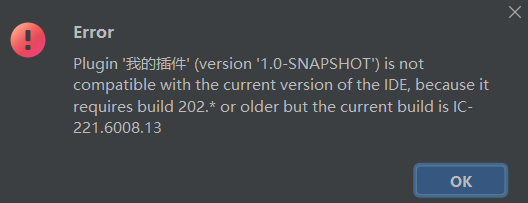
解决办法 :添加 updateSinceUntilBuild false (设置各版本兼容)intellij { version '2020.2.4' updateSinceUntilBuild false }- 1
- 2
- 3
- 4
4.2、中文乱码问题
解决办法:添加 options.encoding = “UTF-8”
tasks.withType(JavaCompile) { options.encoding = "UTF-8" }- 1
- 2
- 3
-
相关阅读:
UE4 回合游戏项目 18- 退出战斗
使用 Python 和 AI 将自己卡通化VToonify(教程含源码)
快速认识什么是:Docker
leetcode-253.会议室II
根据模板和git commit自动生成日·周·月·季报
图数据库&知识图谱
Ubuntu指令说明
【安卓应用渗透】第一篇:安卓逆向回顾和梳理-2211
C++ Reference: Standard C++ Library reference: C Library: cwchar: wmemchr
ROS2学习笔记:Launch脚本
- 原文地址:https://blog.csdn.net/a__int__/article/details/127762837
