-
小学生python游戏编程arcade----基本知识1
小学生python游戏编程arcade----基本知识
前言
前面章节分享试用了pyzero,pygame但随着想增加更丰富的游戏内容,好多还要进行自己编写类,从今天开始解绍一个新的python游戏库arcade模块。
基本知识
1、简单窗体
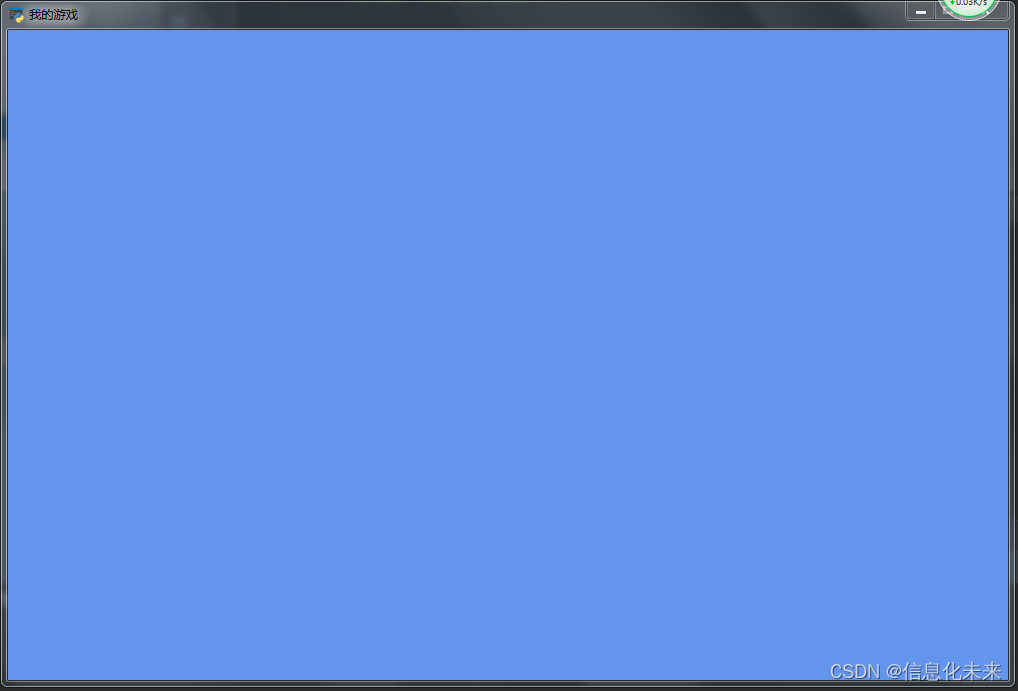 中文自动支持,看标题,其它什么都没改
import arcade # 设置 SCREEN_WIDTH = 1000 SCREEN_HEIGHT = 650 SCREEN_TITLE = "我的游戏" class MyGame(arcade.Window): def __init__(self): # Call the parent class and set up the window super().__init__(SCREEN_WIDTH, SCREEN_HEIGHT, SCREEN_TITLE) arcade.set_background_color(arcade.csscolor.CORNFLOWER_BLUE) def setup(self): """Set up the game here. Call this function to restart the game.""" pass def on_draw(self): """Render the screen.""" self.clear() # Code to draw the screen goes here def main(): """Main function""" window = MyGame() window.setup() arcade.run() if __name__ == "__main__": main()- 1
- 2
- 3
- 4
- 5
- 6
- 7
- 8
- 9
- 10
- 11
- 12
- 13
- 14
- 15
- 16
- 17
- 18
- 19
- 20
- 21
- 22
- 23
- 24
- 25
- 26
- 27
- 28
- 29
- 30
- 31
- 32
- 33
- 34
- 35
从代码中可以看到:
您可以通过四种方式指定颜色:
标准的CSS颜色名称 Arcade.css颜色包 : arcade.csscolor.RED
非标准颜色名称(此程序包): arcade.color.RED
三个字节的数字: (255, 0, 0)
四个字节的数字(第四个字节是透明度。0透明,255不透明): (255, 0, 0, 255)
代码可试:
arcade.set_background_color(arcade.csscolor.RED),背景换成了红色2、试着添加角色及背景

# _*_ coding: UTF-8 _*_ # 开发团队: 信息化未来 # 开发人员: Administrator # 开发时间:2022/11/4 16:59 # 文件名称: game1.py # 开发工具: PyCharm import arcade # 设置 SCREEN_WIDTH = 1000 SCREEN_HEIGHT = 650 SCREEN_TITLE = "我的游戏" # 常量用于从原始大小缩放精灵 CHARACTER_SCALING = 1 TILE_SCALING = 0.5 class MyGame(arcade.Window): def __init__(self): # Call the parent class and set up the window super().__init__(SCREEN_WIDTH, SCREEN_HEIGHT, SCREEN_TITLE) self.wall_list = None self.player_list = None # Separate variable that holds the player sprite self.player_sprite = None arcade.set_background_color(arcade.csscolor.RED) def setup(self): """Set up the game here. Call this function to restart the game.""" self.player_list = arcade.SpriteList() self.wall_list = arcade.SpriteList(use_spatial_hash=True) # 添加角色. image_source = "images/bird.png" self.player_sprite = arcade.Sprite(image_source, CHARACTER_SCALING) self.player_sprite.center_x = 64 self.player_sprite.center_y = 128 self.player_list.append(self.player_sprite) # 利用循环创建背景 for x in range(0, 1440, 480): wall = arcade.Sprite("images/bg2.png", TILE_SCALING) wall.center_x = x wall.center_y = 650/2 self.wall_list.append(wall) # 在地上放些板条箱, 这显示了使用坐标列表放置精灵 coordinate_list = [[512, 96], [256, 96], [768, 96]] for coordinate in coordinate_list: # Add a crate on the ground wall = arcade.Sprite( ":resources:images/tiles/boxCrate_double.png", TILE_SCALING ) wall.position = coordinate self.wall_list.append(wall) def on_draw(self): self.clear() self.wall_list.draw() self.player_list.draw() def main(): """Main function""" window = MyGame() window.setup() arcade.run() if __name__ == "__main__": main()- 1
- 2
- 3
- 4
- 5
- 6
- 7
- 8
- 9
- 10
- 11
- 12
- 13
- 14
- 15
- 16
- 17
- 18
- 19
- 20
- 21
- 22
- 23
- 24
- 25
- 26
- 27
- 28
- 29
- 30
- 31
- 32
- 33
- 34
- 35
- 36
- 37
- 38
- 39
- 40
- 41
- 42
- 43
- 44
- 45
- 46
- 47
- 48
- 49
- 50
- 51
- 52
- 53
- 54
- 55
- 56
- 57
- 58
- 59
- 60
- 61
- 62
- 63
- 64
- 65
- 66
- 67
- 68
- 69
- 70
- 71
- 72
- 73
- 74
3、场景

import arcade # 设置 SCREEN_WIDTH = 1000 SCREEN_HEIGHT = 650 SCREEN_TITLE = "我的游戏" # 常量用于从原始大小缩放精灵 CHARACTER_SCALING = 1 TILE_SCALING = 0.5 class MyGame(arcade.Window): def __init__(self): # Call the parent class and set up the window super().__init__(SCREEN_WIDTH, SCREEN_HEIGHT, SCREEN_TITLE) self.scene = None self.player_sprite = None arcade.set_background_color(arcade.csscolor.BLUE) def setup(self): # 初始化场景 self.scene = arcade.Scene() # 添加精灵列表 self.scene.add_sprite_list("Player") self.scene.add_sprite_list("Walls", use_spatial_hash=True) # 添加角色. image_source = "images/bird.png" self.player_sprite = arcade.Sprite(image_source, CHARACTER_SCALING) self.player_sprite.center_x = 264 self.player_sprite.center_y = 128 self.scene.add_sprite("Player", self.player_sprite) wall = arcade.Sprite("images/1-1.png", TILE_SCALING) wall.center_x = SCREEN_WIDTH /2 wall.center_y = SCREEN_HEIGHT /2 self.scene.add_sprite("Walls", wall) def on_draw(self): self.clear() self.scene.draw() # self.wall_list.draw() # self.player_list.draw() def main(): """Main function""" window = MyGame() window.setup() arcade.run() if __name__ == "__main__": main()- 1
- 2
- 3
- 4
- 5
- 6
- 7
- 8
- 9
- 10
- 11
- 12
- 13
- 14
- 15
- 16
- 17
- 18
- 19
- 20
- 21
- 22
- 23
- 24
- 25
- 26
- 27
- 28
- 29
- 30
- 31
- 32
- 33
- 34
- 35
- 36
- 37
- 38
- 39
- 40
- 41
- 42
- 43
- 44
- 45
- 46
- 47
- 48
- 49
- 50
- 51
- 52
- 53
- 54
- 55
- 56
- 57
- 58
- 59
- 60
4、角色控制及物理引擎
需要创建一个物理引擎,以移动我们的角色,并防止她跑过墙壁。这个 PhysicsEngineSimple 类有两个参数:移动的精灵和移动的精灵不能移动的精灵列表。有关物理引擎的更多信息,请参阅 arcade.PhysicsEngineSimple 。

# _*_ coding: UTF-8 _*_ # 开发团队: 信息化未来 # 开发人员: Administrator # 开发时间:2022/11/4 16:59 # 文件名称: game1.py # 开发工具: PyCharm import arcade # 设置 SCREEN_WIDTH = 1000 SCREEN_HEIGHT = 650 SCREEN_TITLE = "我的游戏" # 常量用于从原始大小缩放精灵 CHARACTER_SCALING = 1 TILE_SCALING = 0.5 PLAYER_MOVEMENT_SPEED = 2.5 class MyGame(arcade.Window): def __init__(self): # Call the parent class and set up the window super().__init__(SCREEN_WIDTH, SCREEN_HEIGHT, SCREEN_TITLE) self.scene = None self.player_sprite = None arcade.set_background_color(arcade.csscolor.BLUE) self.physics_engine = None def setup(self): # 初始化场景 self.scene = arcade.Scene() # 添加精灵列表 self.scene.add_sprite_list("Player") self.scene.add_sprite_list("Walls", use_spatial_hash=True) # 添加角色. image_source = "images/1-1.png" self.player_sprite = arcade.Sprite(image_source, CHARACTER_SCALING) self.player_sprite.center_x = 264 self.player_sprite.center_y = 128 self.scene.add_sprite("Player", self.player_sprite) wall = arcade.Sprite("images/房子.png", TILE_SCALING) wall.center_x = SCREEN_WIDTH /2 wall.center_y = SCREEN_HEIGHT /2 self.scene.add_sprite("Walls", wall) # 物理引 self.physics_engine = arcade.PhysicsEngineSimple( self.player_sprite, self.scene.get_sprite_list("Walls")) def on_draw(self): self.clear() self.scene.draw() # self.wall_list.draw() # self.player_list.draw() def on_key_press(self, key, modifiers): """Called whenever a key is pressed.""" if key == arcade.key.UP or key == arcade.key.W: self.player_sprite.change_y = PLAYER_MOVEMENT_SPEED elif key == arcade.key.DOWN or key == arcade.key.S: self.player_sprite.change_y = -PLAYER_MOVEMENT_SPEED elif key == arcade.key.LEFT or key == arcade.key.A: self.player_sprite.change_x = -PLAYER_MOVEMENT_SPEED elif key == arcade.key.RIGHT or key == arcade.key.D: self.player_sprite.change_x = PLAYER_MOVEMENT_SPEED def on_key_release(self, key, modifiers): """Called when the user releases a key.""" if key == arcade.key.UP or key == arcade.key.W: self.player_sprite.change_y = 0 elif key == arcade.key.DOWN or key == arcade.key.S: self.player_sprite.change_y = 0 elif key == arcade.key.LEFT or key == arcade.key.A: self.player_sprite.change_x = 0 elif key == arcade.key.RIGHT or key == arcade.key.D: self.player_sprite.change_x = 0 def on_update(self, delta_time): """Movement and game logic""" # Move the player with the physics engine self.physics_engine.update() def main(): """Main function""" window = MyGame() window.setup() arcade.run() if __name__ == "__main__": main()```- 1
- 2
- 3
- 4
- 5
- 6
- 7
- 8
- 9
- 10
- 11
- 12
- 13
- 14
- 15
- 16
- 17
- 18
- 19
- 20
- 21
- 22
- 23
- 24
- 25
- 26
- 27
- 28
- 29
- 30
- 31
- 32
- 33
- 34
- 35
- 36
- 37
- 38
- 39
- 40
- 41
- 42
- 43
- 44
- 45
- 46
- 47
- 48
- 49
- 50
- 51
- 52
- 53
- 54
- 55
- 56
- 57
- 58
- 59
- 60
- 61
- 62
- 63
- 64
- 65
- 66
- 67
- 68
- 69
- 70
- 71
- 72
- 73
- 74
- 75
- 76
- 77
- 78
- 79
- 80
- 81
- 82
- 83
- 84
- 85
- 86
- 87
- 88
- 89
- 90
- 91
- 92
- 93
- 94
- 95
- 96
- 97
- 98
- 99
- 100
- 101
总结
通过此次的《连连看》游戏实现,让我对swing的相关知识有了进一步的了解,对java这门语言也有了比以前更深刻的认识。
java的一些基本语法,比如数据类型、运算符、程序流程控制和数组等,理解更加透彻。java最核心的核心就是面向对象思想,对于这一个概念,终于悟到了一些。
源码获取
可关注博主后,私聊博主免费获取
需要技术指导,育娃新思考,企业软件合作等更多服务请联系博主今天是以此模板持续更新此育儿专栏的第 12 /50次。
可以关注我,点赞我、评论我、收藏我啦。 -
相关阅读:
设计提效-Figma技巧篇
python基础之miniConda管理器
MSTP+VRRP vlan接口作为网关(2)
【10.28】【VP】Codeforces Round #742 (Div. 2)
Java的finalize方法探究
C++ 模板进阶使用
6G显卡显存不足出现CUDA Error:out of memory解决办法
Java 获取Word中的所有插入和删除修订
【LeetCode】Day172-最大重复子字符串
接口自动化测试之HttpRunner测试框架
- 原文地址:https://blog.csdn.net/fqfq123456/article/details/127692807