-
python-Matplotlib画图那些你不知道的事
X 轴刻度线标签处理

plt.xticks(rotation=45)- 1
添加文字说明
plt.text()可以在图中的任意位置添加文字,并支持LaTex语法
text(x, y, s=‘this is text’, fontsize=15)
x:x 轴的位置
y:y 轴的位置
s:设置书写的文本内容 fontsize:设置字的大小import numpy as np plt.plot(np.random.random(30).cumsum(), color='k', linestyle='dashed', marker='^') plt.text(18, 10, r'$\mu=100,\ \sigma=15$') plt.show()- 1
- 2
- 3
- 4

文本注释
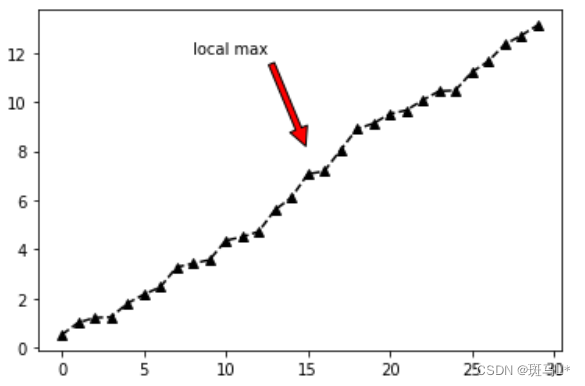
在数据可视化的过程中,图片中的文字经常被用来注释图中的一些特征。使用annotate()方法可以很方便地添加此类注释。在使用annotate时,要考虑两个点的坐标:被注释的地方xy(x, y)和插入文本的地方xytext(x, y)
annotate( s=‘lxz’, xy=(1980, 65.1), xytext=(1970, 77.1),xycoords=‘data’, textcoords=‘data’, color=‘r’, fontsize=20, arrowprops=dict(arrowstyle=“->”,connectionstyle=‘arc3’,color=‘r’,) )
s:代表要注释的内容(必选参数)
xy:(实际点)代表 x、y 轴的位置(必选参数)
xytext:("注释内容"的实际位置)调整"注释内容"的位置,不设置就默认使用 xy 的位置
xycoords:(实际点)默认为data,代表注释(可选)
textcoords:("注释内容"的实际样式)不设置就默认使用 xycoords 的设置(可选)
color:注释内容的颜色 fontsize:注释内容的字体大小设置箭头
arrowprops=dict(arrowstyle=“-”,connectionstyle=‘arc3’,color=‘r’,)
arrowstyle:设置箭头样式 connectionstyle:连接风格 color:箭头颜色import numpy as np plt.plot(np.random.random(30).cumsum(), color='k', linestyle='dashed', marker='^') plt.annotate('local max', xy=(15, 8), xytext=(8, 12), arrowprops=dict(facecolor='r', shrink=0.05)) plt.show()- 1
- 2
- 3
- 4
- 5
import matplotlib.pyplot as plt from matplotlib import style style.use('ggplot') fig = plt.figure() ax1 = plt.subplot2grid((1,1), (0,0)) ax1.plot([1,2,3],[3,7,2],label = 'price') ax1.plot([3,7,2],[1,2,3],label = 'price2') font_dict = {'family':'serif', 'color':'darkred', 'size':15} #我们使用ax1.text添加文本,坐标为(4,4) #我们使用fontdict参数添加一个数据字典,来使用所用的字体。 #在我们的字体字典中,我们将字体更改为serif,颜色为『深红色』,然后将字体大小更改为 15。 ax1.text(4, 4,'Text Example(4,4)', fontdict=font_dict) #用另一种方式进行注解,xytext为比例 ax1.annotate('2nd annotation',(2.9,2.9), xytext=(0.4, 0.6), textcoords='axes fraction', arrowprops = dict(facecolor='grey',color='grey')) plt.legend() plt.show()- 1
- 2
- 3
- 4
- 5
- 6
- 7
- 8
- 9
- 10
- 11
- 12
- 13
- 14
- 15
- 16
- 17
- 18
- 19
- 20
- 21
- 22
- 23
- 24
- 25
- 26
- 27
- 28

中文和字体
方法一
污染全局字体设置
plt.rcParams[‘font.sans-serif’] = [‘SimHei’] #
步骤一(替换sans-serif字体) plt.rcParams[‘axes.unicode_minus’] = False #
步骤二(解决坐标轴负数的负号显示问题)方法二
不污染全局字体设置
plt.ylabel(“y轴”, fontproperties=“SimSun”) # (宋体)
plt.title(“标题”, fontproperties=“SimHei”) # (黑体)字体大小
plt.rcParams[‘xtick.labelsize’] = 24 plt.rcParams[‘ytick.labelsize’] =
20 plt.rcParams[‘font.size’] = 15x = range(1,13,1) y = range(1,13,1) plt.rcParams['font.sans-serif'] = ['SimHei'] plt.rcParams['axes.unicode_minus']=False plt.plot(x,y) plt.title('中文测试') plt.show()- 1
- 2
- 3
- 4
- 5
- 6
- 7

边框和水平线条
fig = plt.figure() ax1 = plt.subplot2grid((1,1), (0,0)) ax1.plot([1,2,3],[3,7,2],label = 'price', color= 'b') #左边框设为青色 ax1.spines['left'].set_color('c') #删除右、上边框 ax1.spines['right'].set_visible(False) ax1.spines['top'].set_visible(False) #让左边框变粗 ax1.spines['left'].set_linewidth(5) #橙色的x轴数值 ax1.tick_params(axis='x', colors='#f06215') #直接画一条水平线 ax1.axhline(5, color='y', linewidth=3) plt.show()- 1
- 2
- 3
- 4
- 5
- 6
- 7
- 8
- 9
- 10
- 11
- 12
- 13
- 14
- 15
- 16
- 17
- 18
- 19
- 20
- 21

堆叠图
堆叠图用于显示『部分对整体』随时间的关系。 堆叠图基本上类似于饼图,只是随时间而变化。
让我们考虑一个情况,我们一天有 24 小时,我们想看看我们如何花费时间。 我们将我们的活动分为:睡觉,吃饭,工作和玩耍。
我们假设我们要在 5 天的时间内跟踪它,因此我们的初始数据将如下所示:
days = [1,2,3,4,5] sleeping = [7,8,6,11,7] eating = [2,3,4,3,2] working = [7,8,7,2,2] playing = [8,5,7,8,13] #因此,我们的x轴将包括day变量,即 1, 2, 3, 4 和 5。然后,日期的各个成分保存在它们各自的活动中。 plt.stackplot(days, sleeping,eating,working,playing, colors=['m','c','r','yellow']) plt.xlabel('x') plt.ylabel('y') plt.title('Interesting Graph\nCheck it out') plt.show()- 1
- 2
- 3
- 4
- 5
- 6
- 7
- 8
- 9
- 10
- 11
- 12
- 13
- 14
- 15

在这里,我们可以至少在颜色上看到,我们如何花费我们的时间。 问题是,如果不回头看代码,我们不知道什么颜色是什么。 下一个问题是,对于多边形来说,我们实际上不能为数据添加『标签』。 因此,在任何不止是线条,带有像这样的填充或堆叠图的地方,我们不能以固有方式标记出特定的部分。 这不应该阻止程序员。 我们可以解决这个问题:days = [1,2,3,4,5] sleeping = [7,8,6,11,7] eating = [2,3,4,3,2] working = [7,8,7,2,2] playing = [8,5,7,8,13] #我们在这里做的是画一些空行,给予它们符合我们的堆叠图的相同颜色,和正确标签。 #我们还使它们线宽为 5,使线条在图例中显得较宽。 plt.plot([],[],color='m', label='Sleeping', linewidth=5) plt.plot([],[],color='c', label='Eating', linewidth=5) plt.plot([],[],color='r', label='Working', linewidth=5) plt.plot([],[],color='yellow', label='Playing', linewidth=5) plt.stackplot(days, sleeping,eating,working,playing, colors=['m','c','r','yellow']) plt.xlabel('x') plt.ylabel('y') plt.title('Interesting Graph\nCheck it out') plt.legend() plt.show()- 1
- 2
- 3
- 4
- 5
- 6
- 7
- 8
- 9
- 10
- 11
- 12
- 13
- 14
- 15
- 16
- 17
- 18
- 19
- 20
- 21

饼图拉出一个
slices = [7,2,2,13] activities = ['sleeping','eating','working','playing'] cols = ['c','m','r','b'] #slices是切片内容 plt.pie(slices, labels=activities, colors=cols, startangle=90, #第一条线开始的角度,90度即为竖线 shadow= True, explode=(0,0.1,0,0), #一个切片拉出 autopct='%1.1f%%') #选择将百分比放置到图表上面 plt.title('Interesting Graph\nCheck it out') plt.show()- 1
- 2
- 3
- 4
- 5
- 6
- 7
- 8
- 9
- 10
- 11
- 12
- 13
- 14
- 15
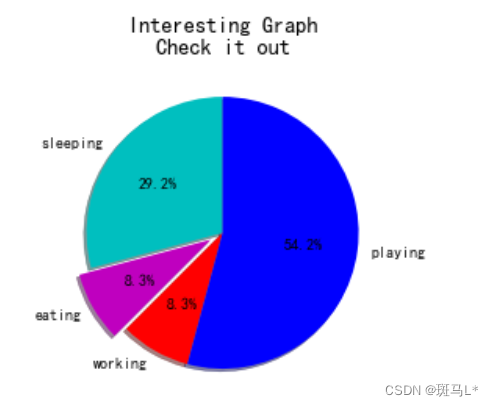
在plt.pie中,我们需要指定『切片』,这是每个部分的相对大小。 然后,我们指定相应切片的颜色列表。 接下来,我们可以选择指定图形的『起始角度』。 这使你可以在任何地方开始绘图。 在我们的例子中,我们为饼图选择了 90 度角,这意味着第一个部分是一个竖直线条。 接下来,我们可以选择给绘图添加一个字符大小的阴影,然后我们甚至可以使用explode拉出一个切片。我们总共有四个切片,所以对于explode,如果我们不想拉出任何切片,我们传入0,0,0,0。 如果我们想要拉出第一个切片,我们传入0.1,0,0,0。
最后,我们使用autopct,选择将百分比放置到图表上面。
泡泡图
散点图的一种,加入了第三个值 s 可以理解成普通散点,画的是二维,泡泡图体现了Z的大小
# 泡泡图 np.random.seed(19680801) N = 50 x = np.random.rand(N) y = np.random.rand(N) colors = np.random.rand(N) area = (30 * np.random.rand(N))**2 # 0 to 15 point radii plt.scatter(x, y, s=area, c=colors, alpha=0.5) plt.show()- 1
- 2
- 3
- 4
- 5
- 6
- 7
- 8
- 9
- 10
- 11

等高线
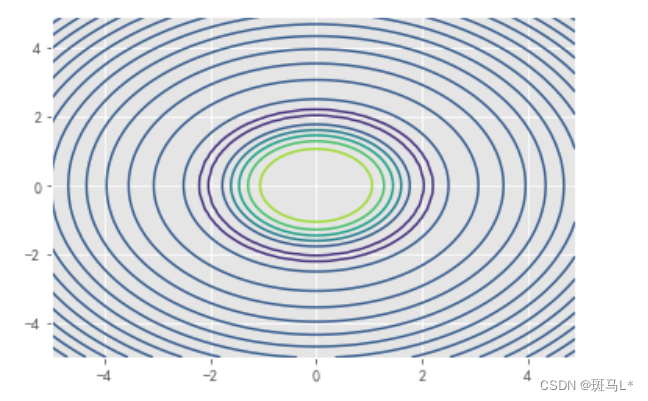
contour和contourf都是画三维等高线图的,不同点在于contourf会对等高线间的区域进行填充
x = np.arange(-5, 5, 0.1) y = np.arange(-5, 5, 0.1) xx, yy = np.meshgrid(x, y, sparse=True) z = np.sin(xx**2 + yy**2) / (xx**2 + yy**2) plt.contour(x, y, z) # contourf plt.show()- 1
- 2
- 3
- 4
- 5
- 6
import matplotlib.pyplot as plt import numpy as np # 定义等高线高度函数 def f(x, y): return (1 - x / 2 + x ** 5 + y ** 3) * np.exp(- x ** 2 - y ** 2) # 数据数目 n = 256 # 定义x, y x = np.linspace(-3, 3, n) y = np.linspace(-3, 3, n) # 生成网格数据 X, Y = np.meshgrid(x, y) # 填充等高线的颜色, 8是等高线分为几部分 plt.contourf(X, Y, f(X, Y), 8, alpha = 0.75, cmap = plt.cm.hot) # 绘制等高线 C = plt.contour(X, Y, f(X, Y), 8, colors = 'black', linewidth = 0.5) # 绘制等高线数据 plt.clabel(C, inline = True, fontsize = 10) # 去除坐标轴 plt.xticks(()) plt.yticks(()) plt.show()- 1
- 2
- 3
- 4
- 5
- 6
- 7
- 8
- 9
- 10
- 11
- 12
- 13
- 14
- 15
- 16
- 17
- 18
- 19
- 20
- 21
- 22
- 23
- 24
- 25
- 26
- 27
- 28

雷达图
# 导入第三方模块 import numpy as np import matplotlib.pyplot as plt # 中文和负号的正常显示 plt.rcParams['font.family'] = 'SimHei' plt.rcParams['axes.unicode_minus'] = False # ------------------------------------------------ # 数据处理和准备 values = [98, 45, 124, 83, 90, 94] # 数值 labels = ['语文', '英语', '数学', '物理', '化学', '生物'] # 标签 # 设置雷达图的角度,用于平分切开一个圆面 angles = np.linspace(0, 2 * np.pi, len(values), endpoint=False) # 角度 ''' —— 拼接数组: # 注意:数组之间形状要一致才可以拼接 np.concatenate((a, b), axis=0) 一维数组 np.concatenate((c, d), axis=1) 二维数组 ''' # 为了使雷达图一圈封闭起来,需要下面的步骤, 首尾相连 values = np.concatenate((values,[values[0]])) angles = np.concatenate((angles,[angles[0]])) print('\n>>>', values, '\n>>>', angles) # -------------------------------------------------- # 绘图 fig = plt.figure() ''' 雷达图的核心 ''' # polar=True 这里一定要设置为极坐标格式 ax = fig.add_subplot(111, polar=True) ax.plot(angles, values, marker='o', color='r', linewidth=2) # 绘制折线图 ax.fill(angles, values, color='b', alpha=0.25) # 填充蓝色颜色 ax.set_thetagrids(angles * 180/np.pi, labels) # 添加每个特征的标签 ''' 注意: ax.plot(x=angles, y=values, marker='o', linewidth=2) 加上 x, y 显示不出线的标记 ''' # ------------------------------------------------- # 其他设置 ax.set_ylim(0,150) # 设置雷达图的范围 plt.title('单个学生成绩展示') # 添加标题 ax.grid(True) # 添加网格线 plt.show()- 1
- 2
- 3
- 4
- 5
- 6
- 7
- 8
- 9
- 10
- 11
- 12
- 13
- 14
- 15
- 16
- 17
- 18
- 19
- 20
- 21
- 22
- 23
- 24
- 25
- 26
- 27
- 28
- 29
- 30
- 31
- 32
- 33
- 34
- 35
- 36
- 37
- 38
- 39
- 40
- 41
- 42
- 43
- 44
- 45
- 46
- 47
- 48

共享坐标轴
共享一个x轴坐标,y轴左右分别使用两个刻度来标识
Axes.twinx(),Axes.twiny() 用来生成坐标轴实例以共享x或者y坐标轴
matplotlib.pyplot.subplots(nrows=1, ncols=1, sharex=False, sharey=False)
nrows,ncols: 用来确定绘制子图的行数和列数
sharex,sharey:用来确定是否共享坐标轴刻度,当设置为True或者all时,会共享参数刻度,设置为False或者None时,每一个子绘图会有自己独立的刻度,设置为row或者col时即共享行,列的x,y坐标轴刻度,当sharex=‘col’时,只会该列最底层axes的x刻度标签会创建# 共享x坐标轴 # Create some mock data t = np.arange(0.01, 10.0, 0.01) data1 = np.exp(t) data2 = np.sin(2 * np.pi * t) fig, ax1 = plt.subplots() color = 'tab:red' ax1.set_xlabel('time (s)') ax1.set_ylabel('exp', color=color) ax1.plot(t, data1, color=color) ax1.tick_params(axis='y', labelcolor=color) ax2 = ax1.twinx() # instantiate a second axes that shares the same x-axis color = 'tab:blue' ax2.set_ylabel('sin', color=color) # we already handled the x-label with ax1 ax2.plot(t, data2, color=color) ax2.tick_params(axis='y', labelcolor=color) fig.tight_layout() # otherwise the right y-label is slightly clipped plt.show()- 1
- 2
- 3
- 4
- 5
- 6
- 7
- 8
- 9
- 10
- 11
- 12
- 13
- 14
- 15
- 16
- 17
- 18
- 19
- 20
- 21
- 22
- 23

三维图
mpl_toolkits.mplot3d模块在matplotlib基础上提供了三维绘图的功能。由于它使用matplotlib的二维绘图功能来实现三维图形的绘制工作,因此绘图速度有限,不适合用于大规模数据的三维绘图。如果需要更复杂的三维数据可视化功能,可使用Mayavi。
1 创建3D图形对象
fig = plt.figure() # 创建图像对象
ax = Axes3D(fig) # 创建3D的多轴对象2 绘制曲面
Axes3D.plot_surface(X, Y, Z, *args, **kwargs)

3.设置轴范围
设置 x,y,z 轴的范围[a, b]
ax.set_xlim(a, b)
ax.set_ylim(a, b)
ax.set_zlim(a,b)import matplotlib.pyplot as plt import numpy as np from mpl_toolkits.mplot3d import Axes3D fig = plt.figure(figsize=(8, 6)) ax = Axes3D(fig) delta = 0.125 # 生成代表X轴数据的列表 x = np.arange(-3.0, 3.0, delta) # 生成代表Y轴数据的列表 y = np.arange(-2.0, 2.0, delta) # 对x、y数据执行网格化 X, Y = np.meshgrid(x, y) Z1 = np.exp(-X**2 - Y**2) Z2 = np.exp(-(X - 1)**2 - (Y - 1)**2) # 计算Z轴数据(高度数据) Z = (Z1 - Z2) * 2 # 绘制3D图形 ax.plot_surface(X, Y, Z, rstride=1, # rstride(row)指定行的跨度 cstride=1, # cstride(column)指定列的跨度 cmap=plt.get_cmap('rainbow')) # 设置颜色映射 # 设置Z轴范围 ax.set_zlim(-2, 2) # 设置标题 plt.title("3D") plt.show()- 1
- 2
- 3
- 4
- 5
- 6
- 7
- 8
- 9
- 10
- 11
- 12
- 13
- 14
- 15
- 16
- 17
- 18
- 19
- 20
- 21
- 22
- 23
- 24
- 25
- 26

投影模式
投影模式决定了点从数据坐标转换为屏幕坐标的方式.可以通过下面的语句获得当前有效的投影模式的名称:from matplotlib import projections
projections.get_projection_names()只有在载入mplot3d模块之后,此列表中才会出現’3d’投影模式。’aitoff’、’hammer’ 、’lamberf’ 、 ’mollweide’等均为地图投影,’polar’ 为极坐标投影,‘rectilinear’则是默认的直线投影模式。
import numpy as np import mpl_toolkits.mplot3d import matplotlib.pyplot as plt x, y = np.mgrid[-2:2:20j, -2:2:20j] z = x * np.exp( - x**2 - y**2) ax = plt.subplot(111, projection='3d') ax.plot_surface(x, y, z, rstride=2, cstride=1, cmap = plt.cm.Blues_r) ax.set_xlabel("X") ax.set_ylabel("Y") ax.set_zlabel("Z") plt.show()- 1
- 2
- 3
- 4
- 5
- 6
- 7
- 8
- 9
- 10
- 11
- 12

from matplotlib import cm import matplotlib.pyplot as plt import numpy as np fig = plt.figure() ax = fig.gca(projection='3d') X = np.arange(-5, 5, 0.25) Y = np.arange(-5, 5, 0.25) X, Y = np.meshgrid(X, Y) R = np.sqrt(X**2 + Y**2) Z = np.sin(R) surf = ax.plot_surface(X, Y, Z, rstride=1, cstride=1, cmap=cm.coolwarm) plt.show()- 1
- 2
- 3
- 4
- 5
- 6
- 7
- 8
- 9
- 10
- 11
- 12

-
相关阅读:
MySQl数据库————DQL数据查询语言
论文阅读之Improved Word Representation Learning with Sememes(2017)
【Java 基础篇】Java Condition 接口详解
OS模块的使用
磁盘算法——为了减少寻道时间
力扣:153. 寻找旋转排序数组中的最小值(Python3)
Python ————浅拷贝与深拷贝
2.11 教你一套怎么建立自己的选题素材库的方法【玩赚小红书】
原生CLI指令构建npm run减少硬盘node_modules的开销
最新ChatGPT支持下的PyTorch机器学习与深度学习
- 原文地址:https://blog.csdn.net/qq_47326711/article/details/127459275